Cálculo del salario bruto

En este tutorial explicamos cómo activar la función de cálculo del salario bruto en SINC.

Sam Dolbel
Sam Dolbel
Mar 9th, 2023

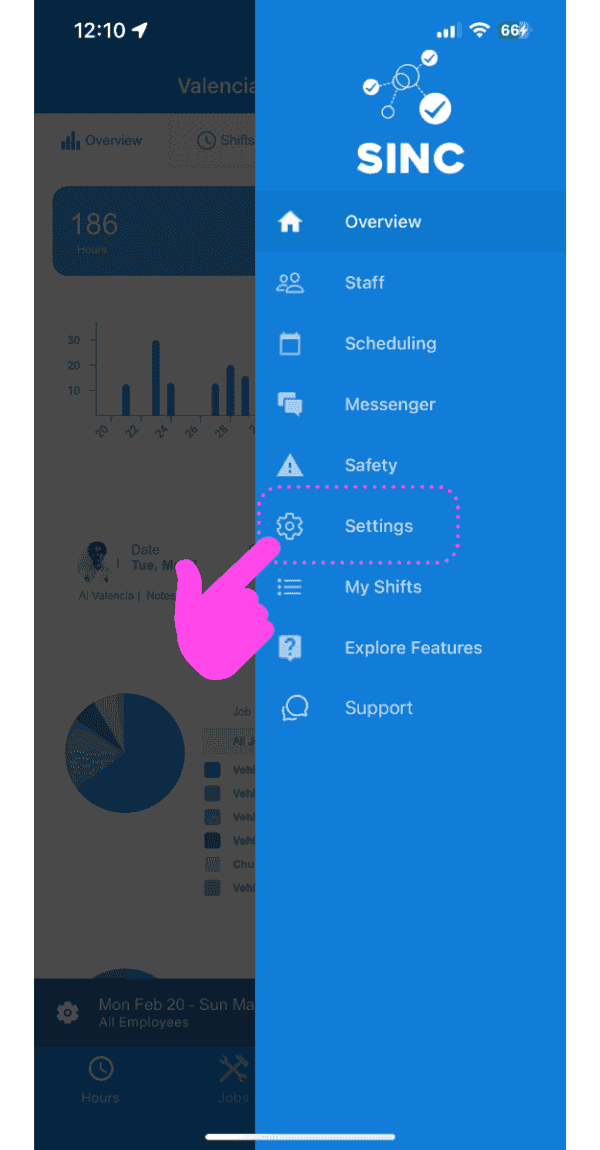
Toca Ajustes

SINC mobile app side menu with a pink hand pointing to the Settings option

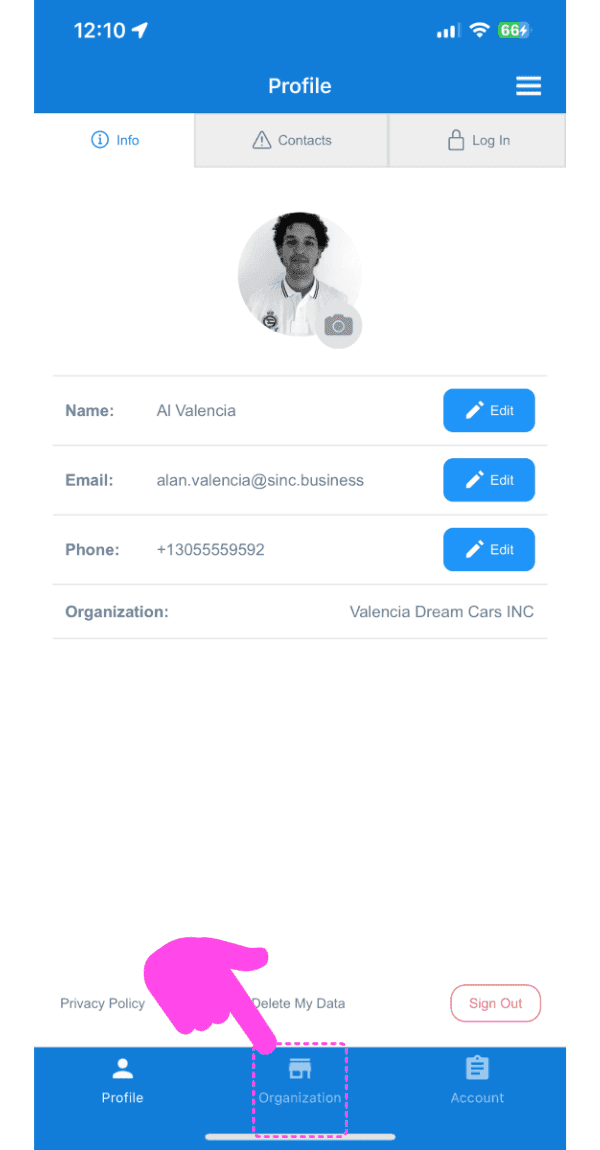
Toca Organización

SINC mobile Profile screen with a pink arrow pointing to the Organization tab at the bottom

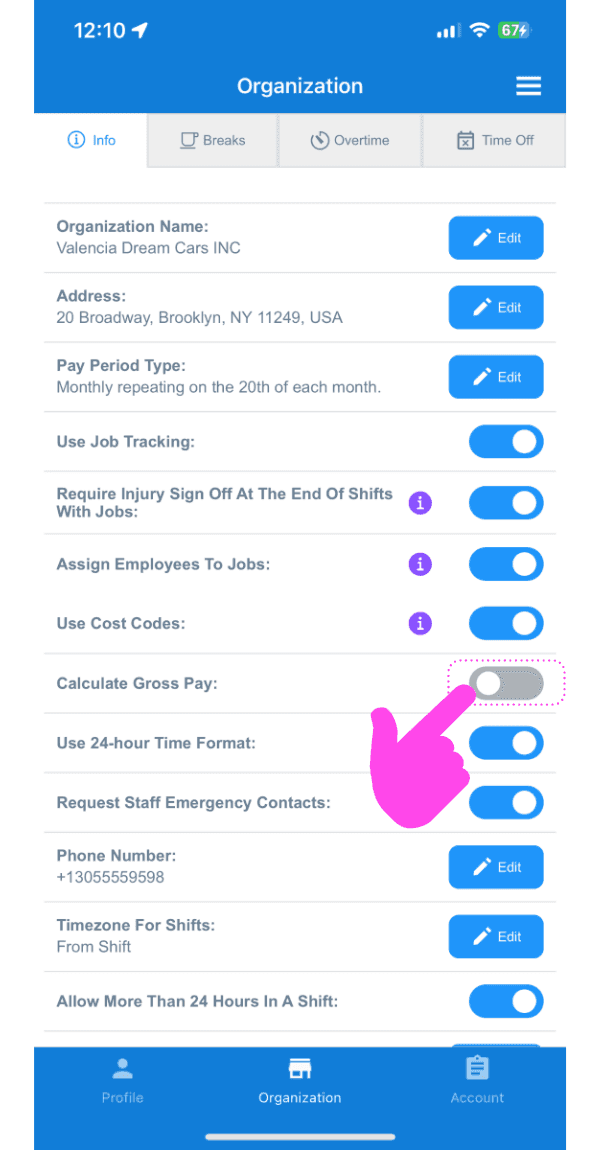
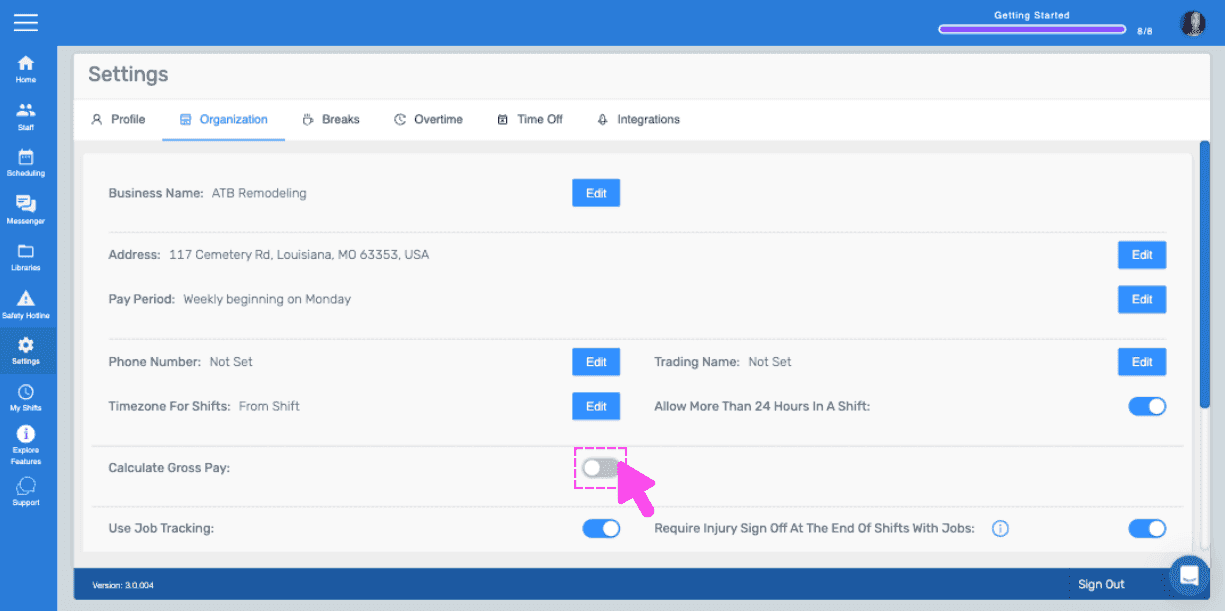
Toca Calcular el salario bruto

Organization Info screen with a pink arrow pointing to the Calculate Gross Pay toggle switch

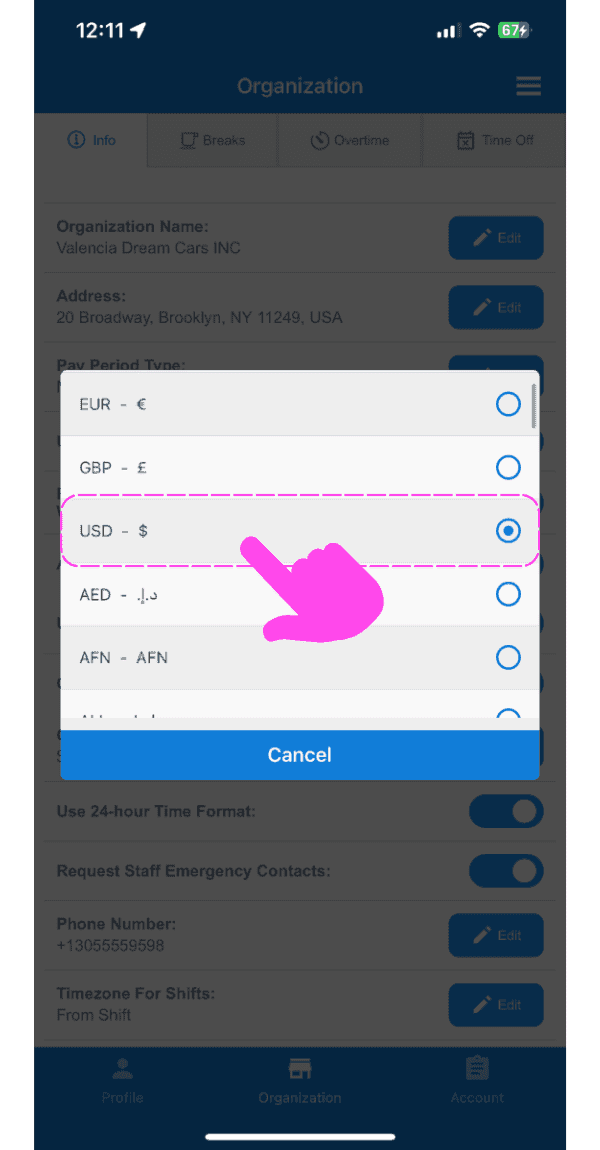
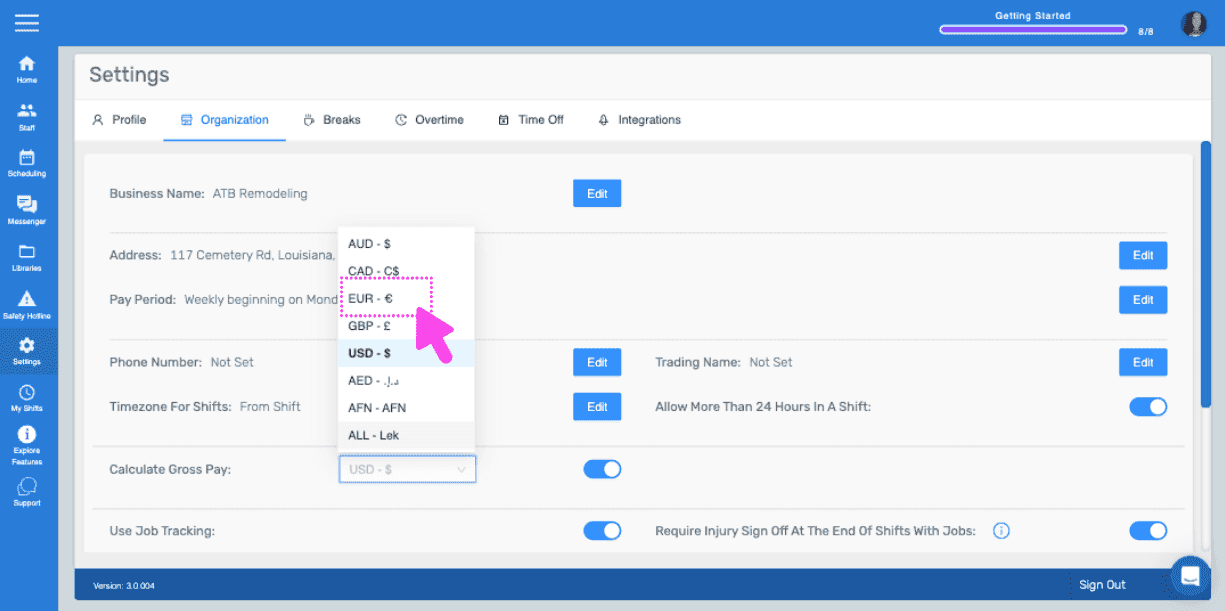
Pulsa Moneda preferida

SINC mobile app currency selection popup with USD highlighted in a pink dashed box and arrow

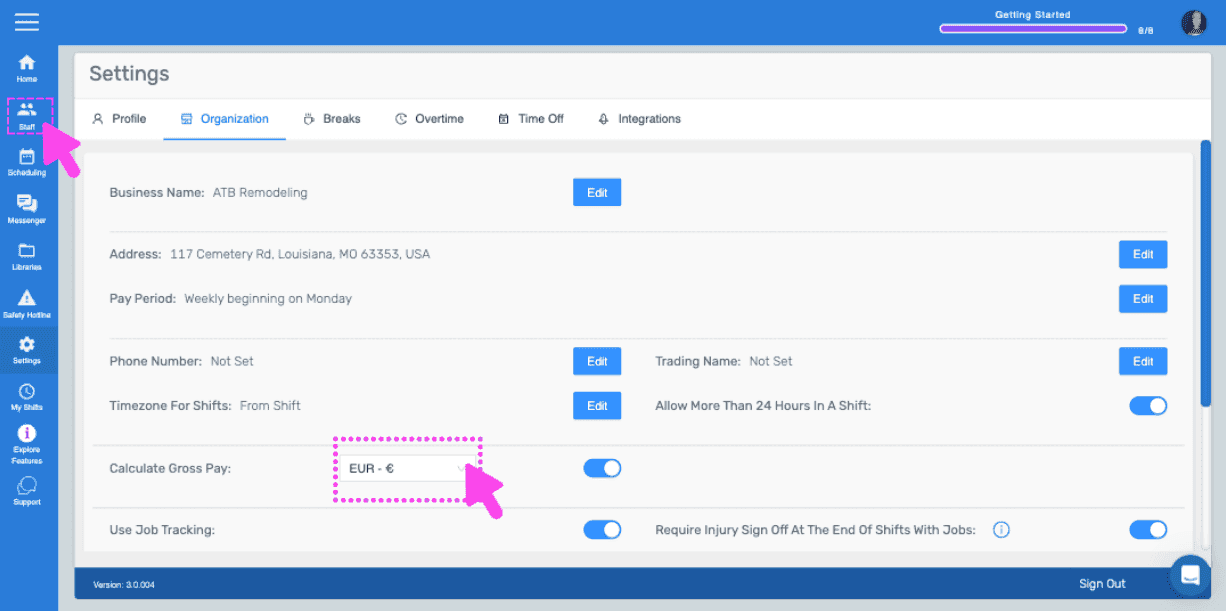
Ahora, debes entrar en la configuración de cada miembro del personal y seleccionar una tarifa de pago. Toca Personal
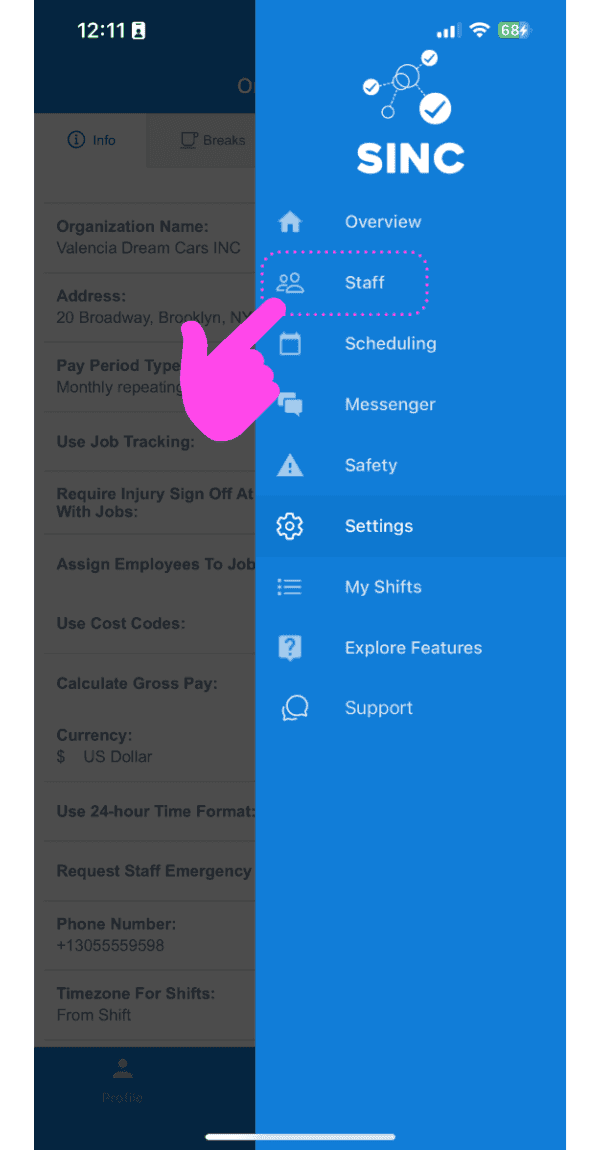
SINC mobile app menu with a pink arrow pointing to the Staff option

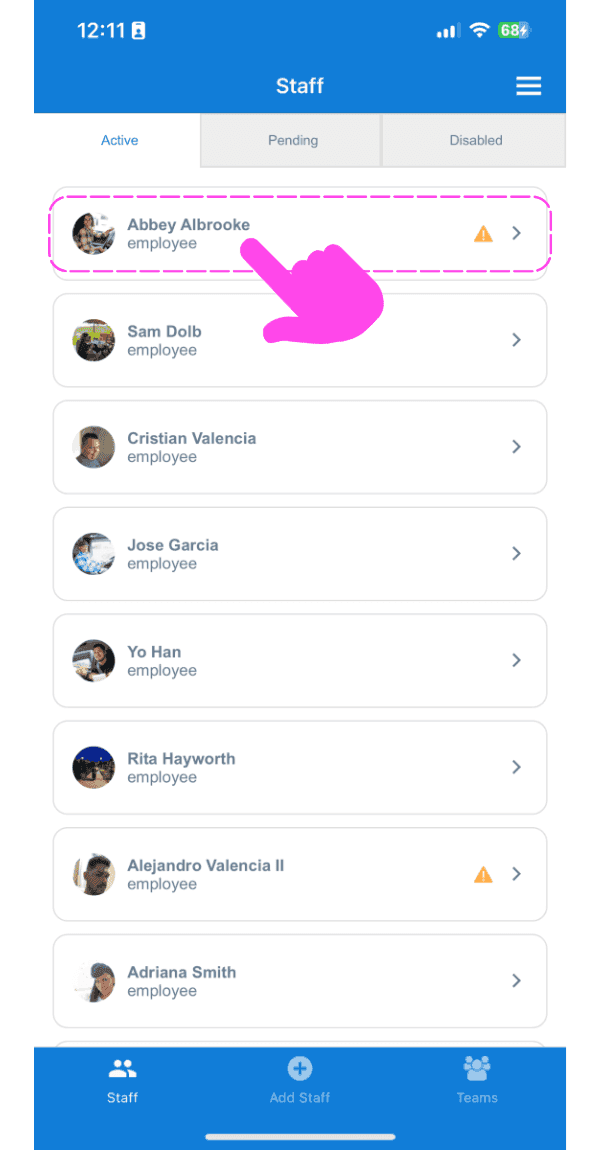
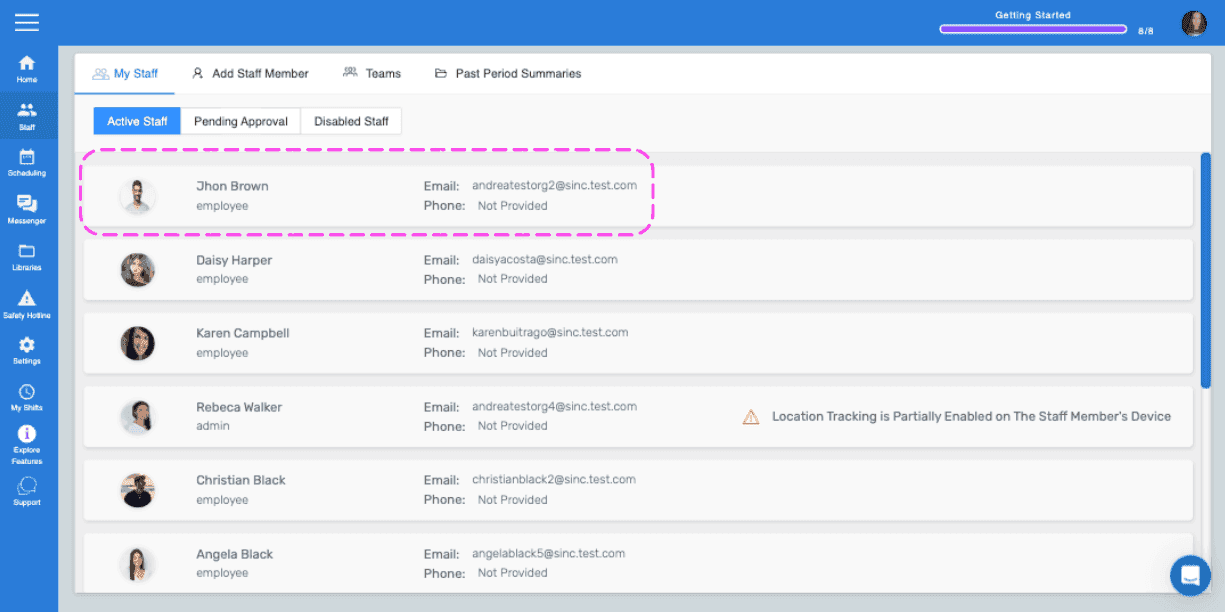
Pulsa en Nombre del empleado

SINC mobile Staff list with a pink arrow pointing to Abbey Albrooke's name at the top

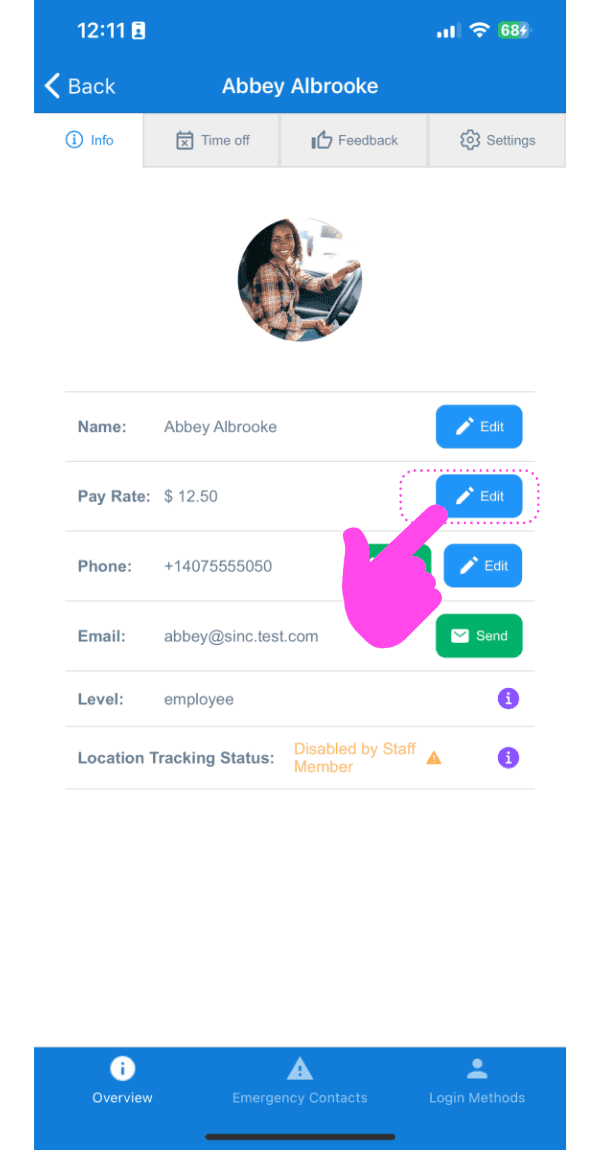
Toca Editar (junto a Tarifa de pago)

SINC mobile staff profile screen with a pink hand pointing to the Edit button next to Pay Rate

Selecciona la tarifa por hora correcta para este empleado y pulsa Confirmar. Después, repite el proceso con cualquier otro empleado cuyo salario bruto quieras calcular.
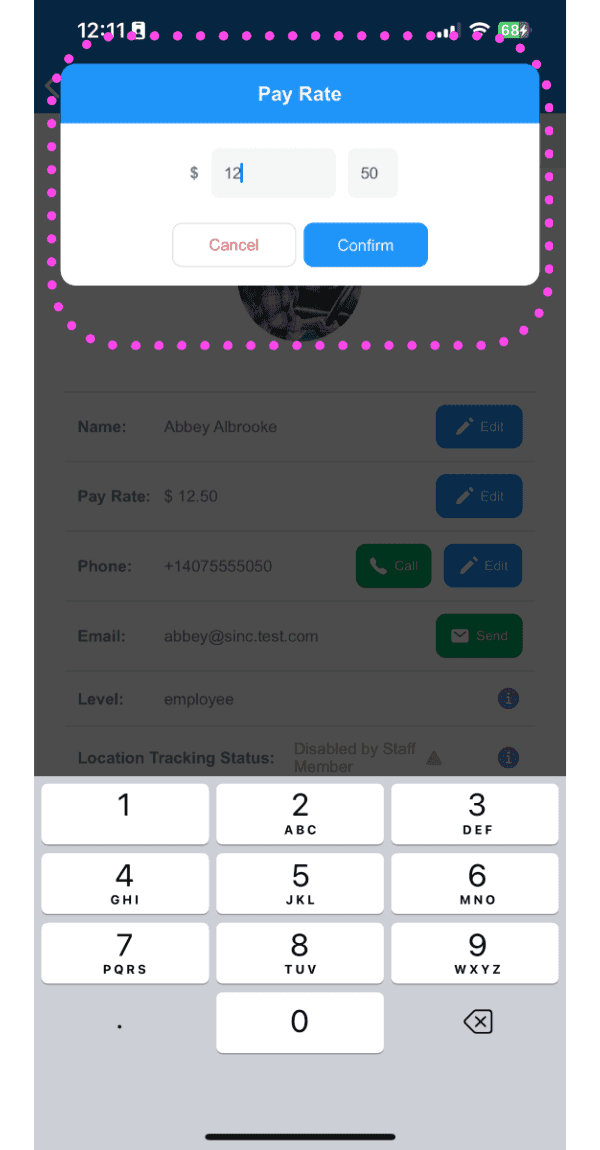
Pay Rate entry popup with a numeric keypad outlined in pink, showing the dollar amount field and Confirm button

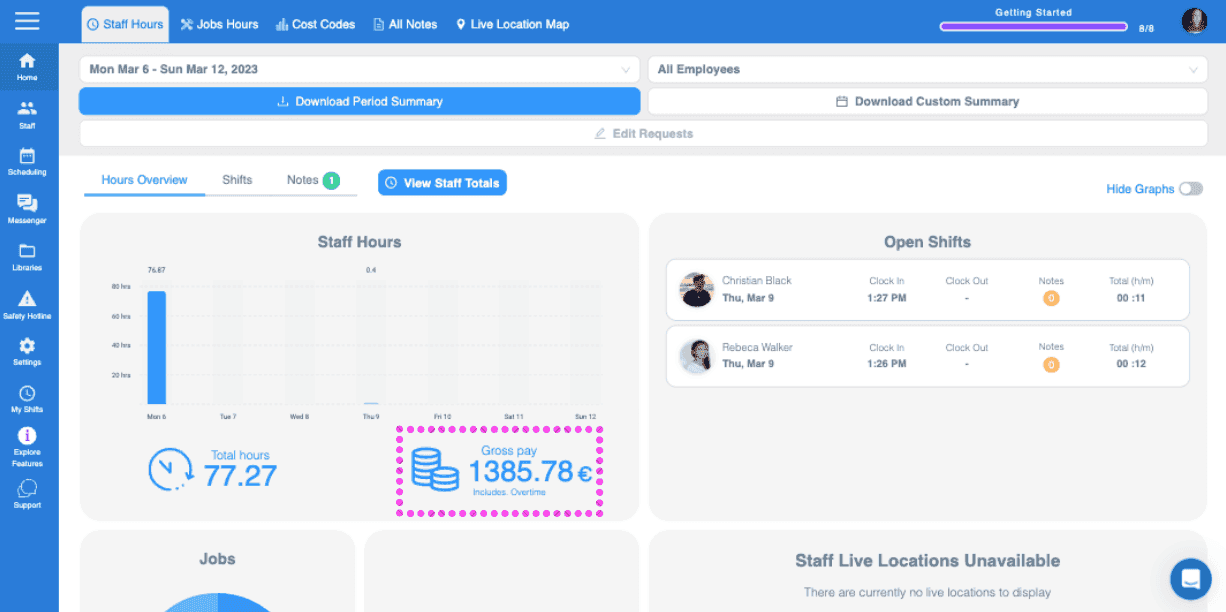
Ahora verás el total bruto de la nómina del periodo de pago en la pantalla de inicio del administrador.
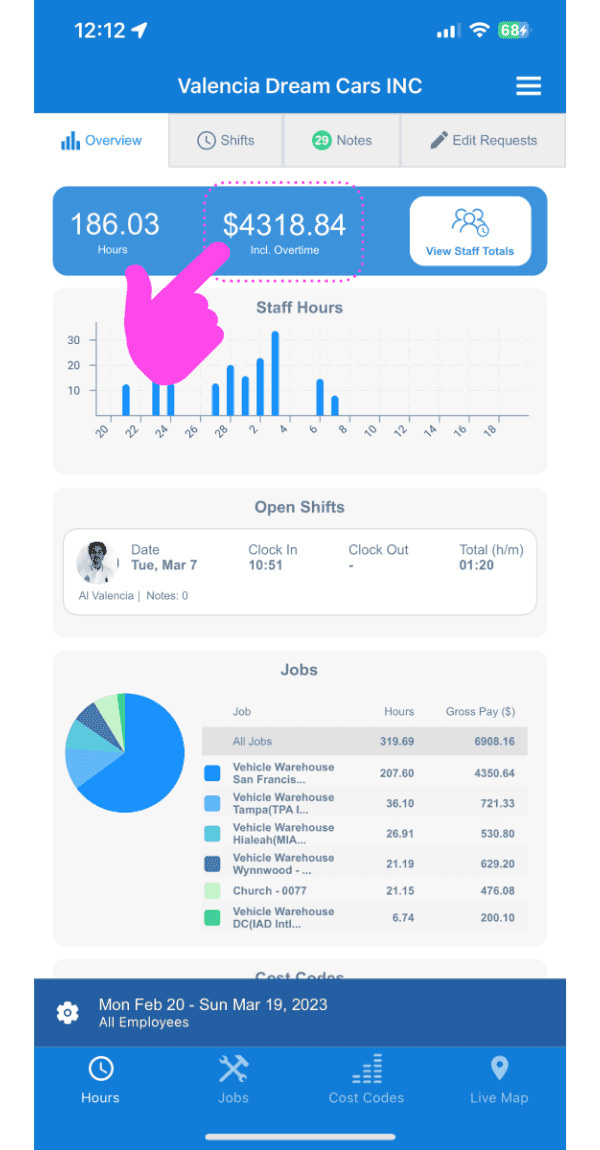
SINC mobile Overview dashboard with a pink arrow pointing to the total hours and gross pay figures

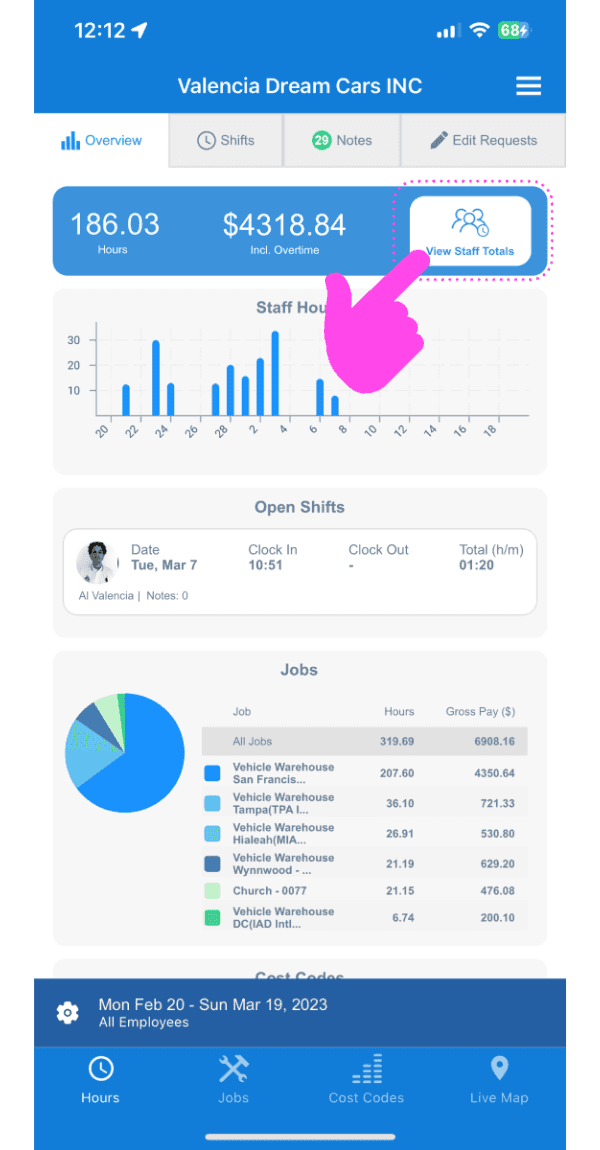
Toca el icono de información

SINC mobile app Overview screen with a pink arrow pointing to the View Staff Totals button

A continuación, verás los totales de nómina bruta de cada empleado correspondientes al periodo de pago seleccionado.
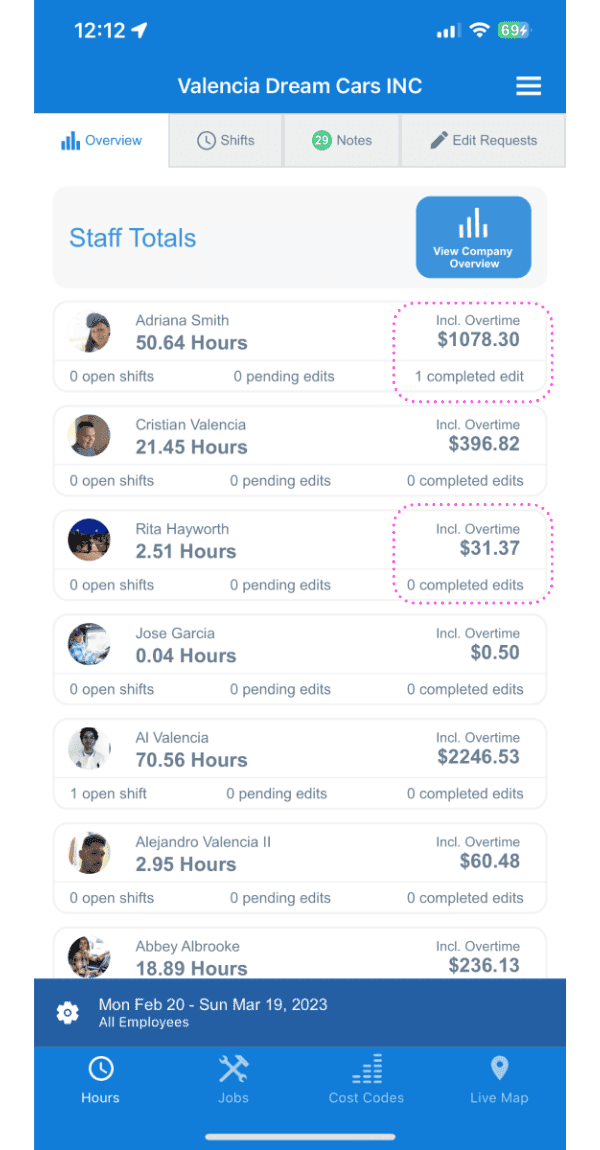
SINC mobile Staff Totals list showing hours and overtime pay, with some pay amounts circled

Si estás usando la versión web, se verá así:
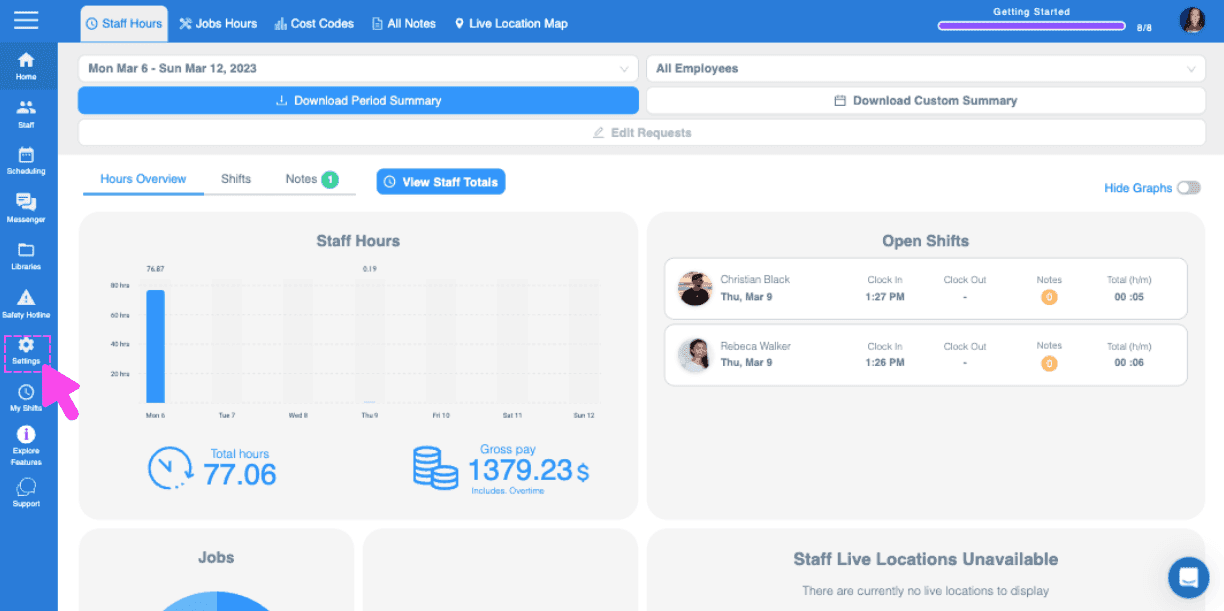
Web Staff Hours Overview dashboard with a pink arrow pointing to the side menu Settings icon
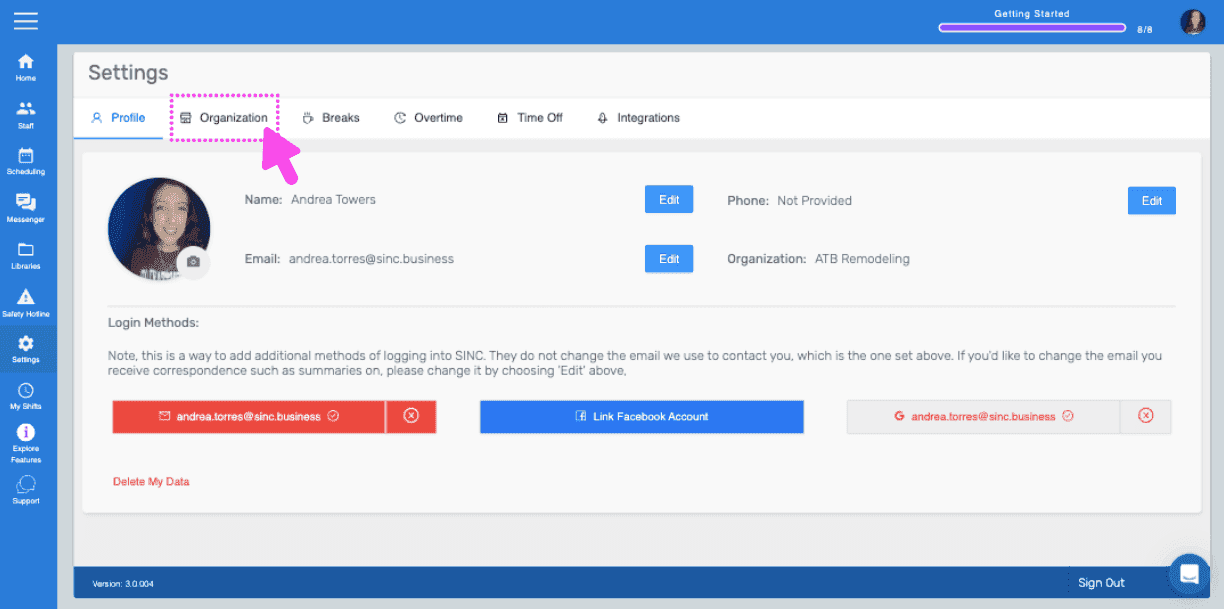
SINC web Settings Profile tab with a pink arrow pointing to the Organization tab
Organization settings screen with a pink arrow pointing to the Calculate Gross Pay toggle
Web Organization settings screen with a pink arrow pointing to the currency dropdown for Calculate Gross Pay
SINC web Settings Organization tab with a pink arrow pointing to the Calculate Gross Pay field
SINC web Staff list with an employee's row outlined in pink
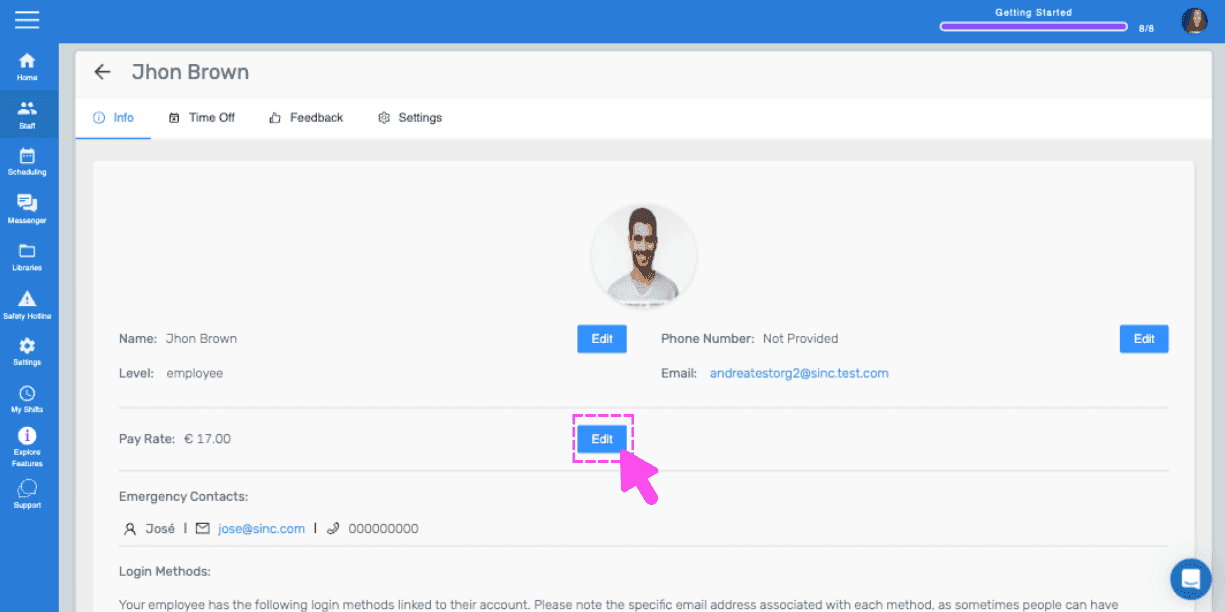
Employee profile screen with a pink arrow pointing to the Edit button next to Pay Rate
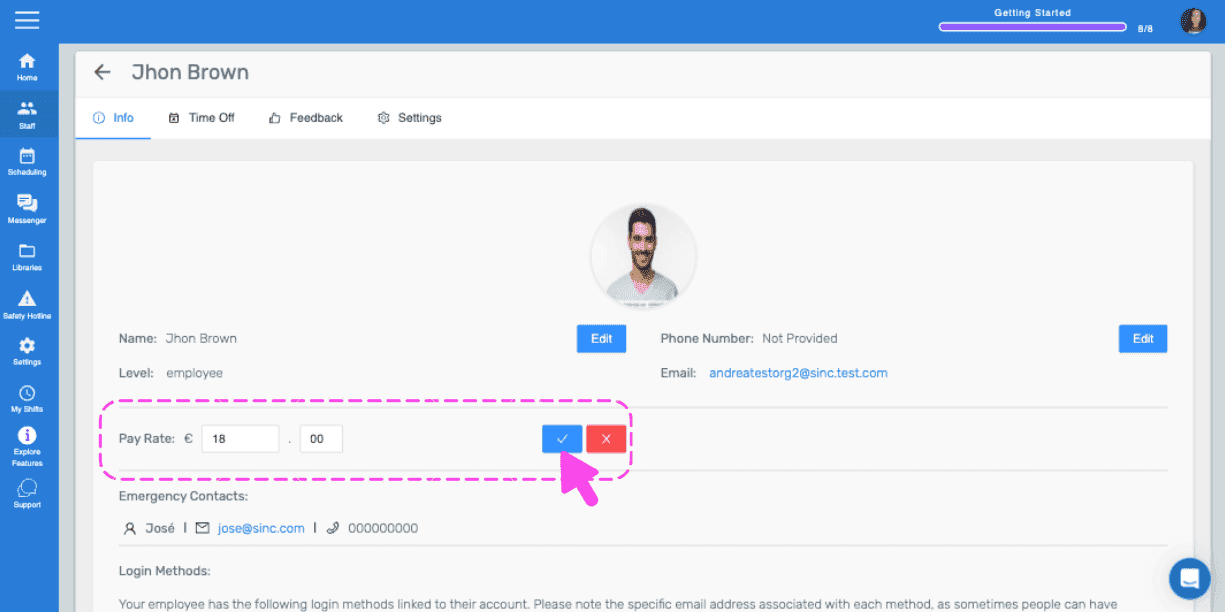
SINC web staff profile Info tab with the Pay Rate field outlined in pink and a hand pointing to the confirm checkmark
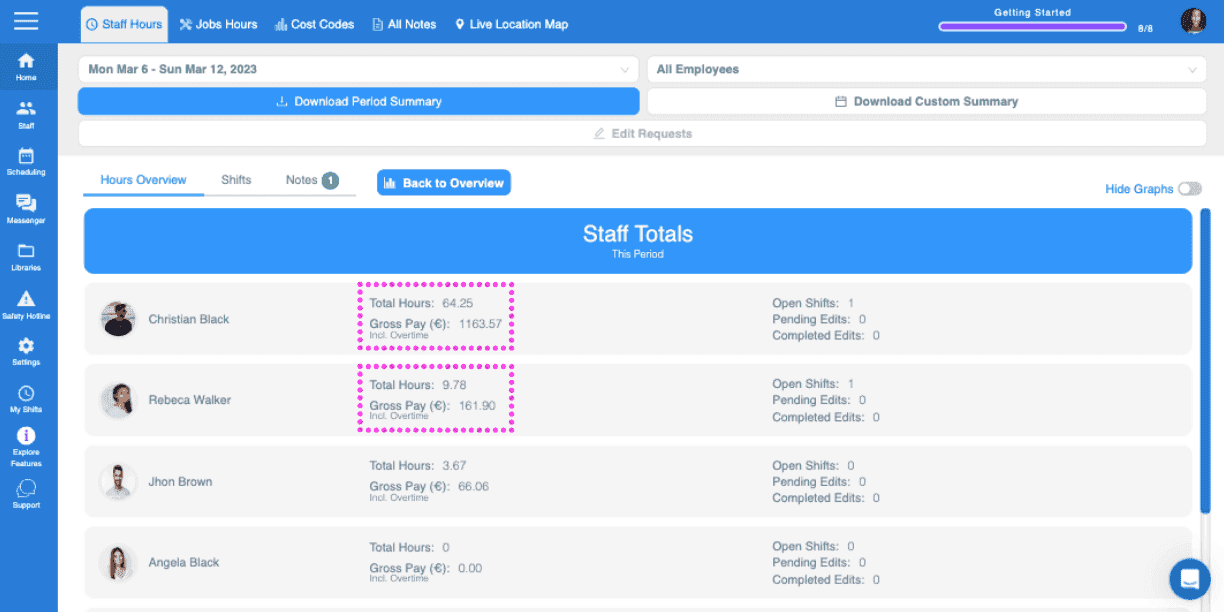
Web dashboard Staff Hours overview with the total gross pay figure outlined in pink
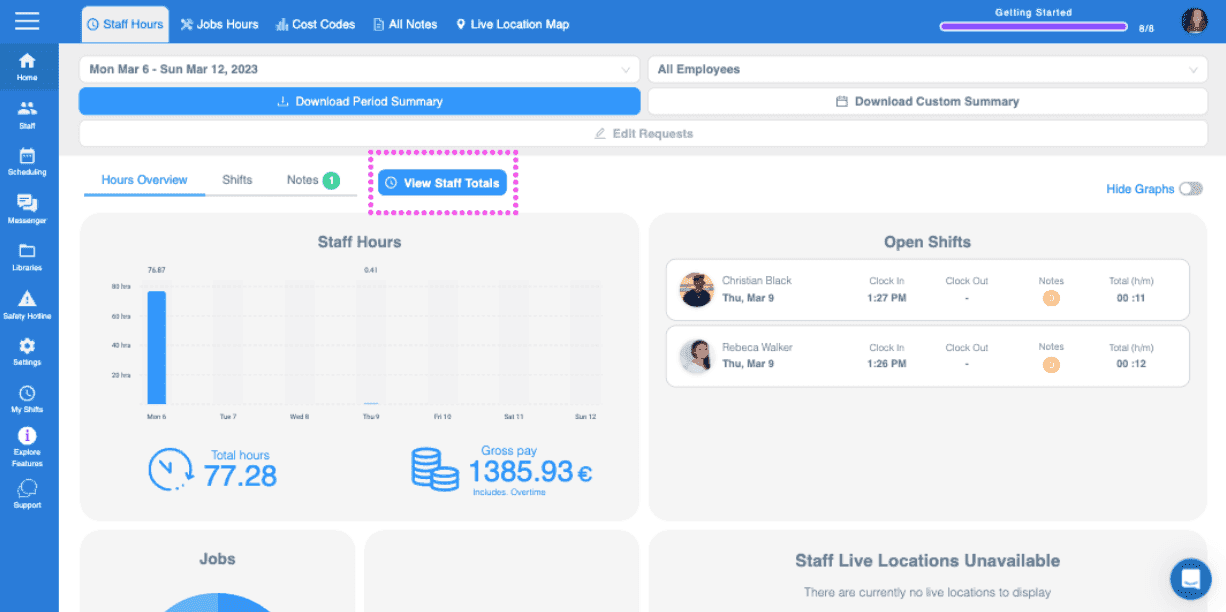
SINC web dashboard Overview tab with the View Staff Totals button circled in pink
SINC web Staff Totals screen listing each employee's total hours and gross pay for the period

¿Esto respondió tu pregunta?