
Cómo editar tu organización
En esta guía veremos cómo actualizar la información de tu organización.

En el móvil: pulsa en Ajustes
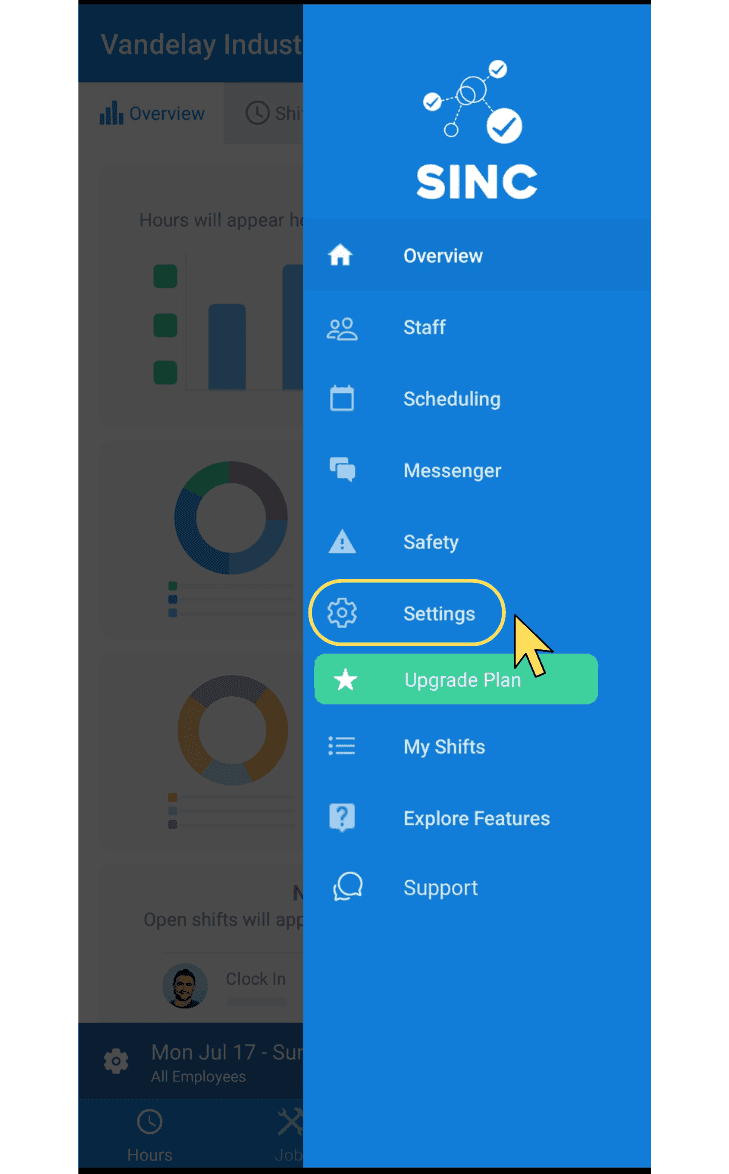
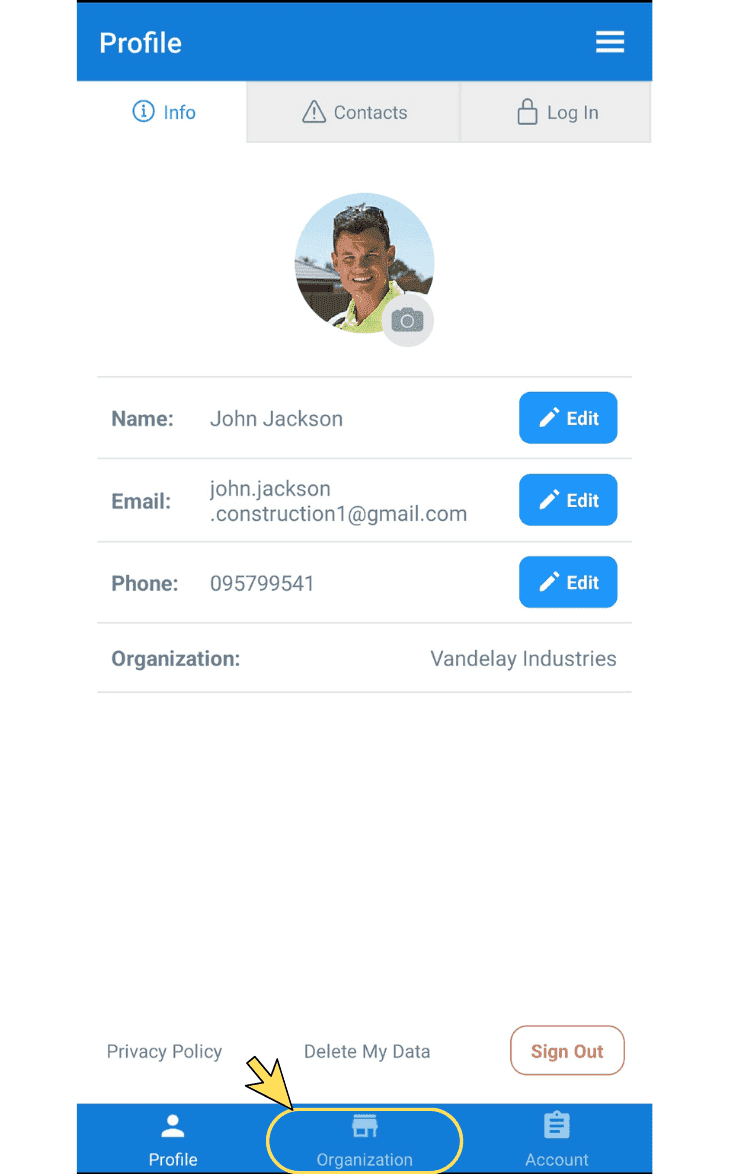
Pulsa Organización
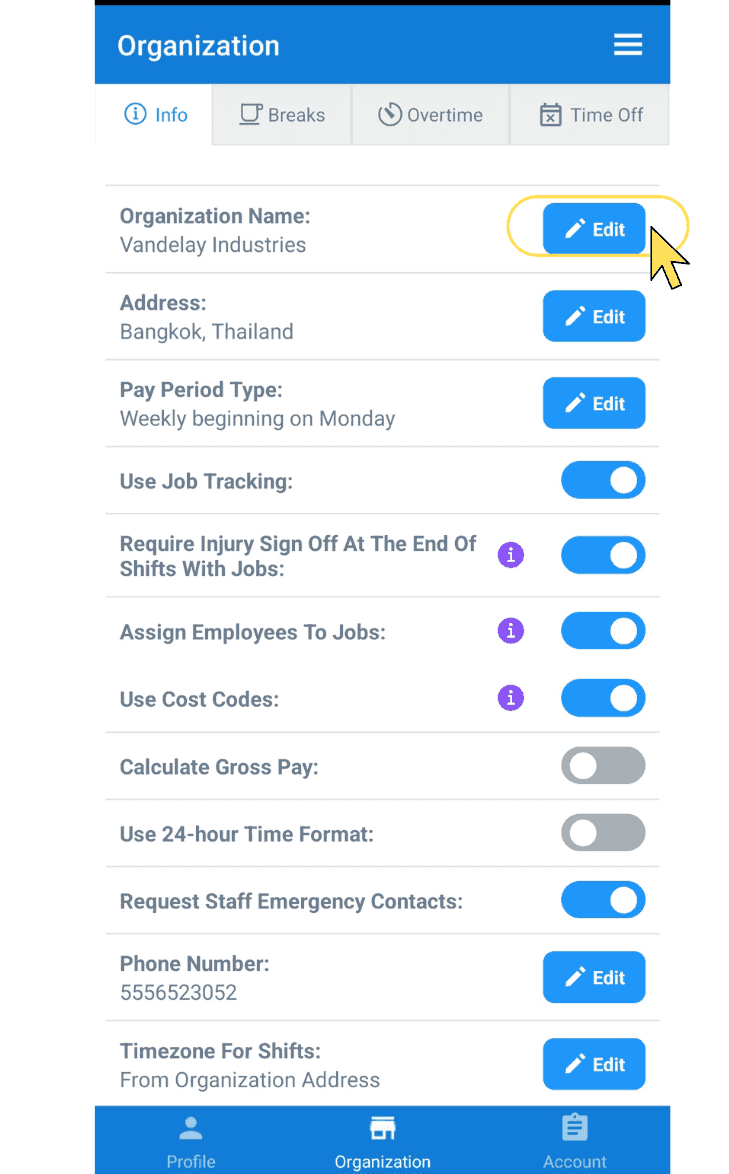
Para editar el nombre de tu empresa, toca Editar (junto a Nombre de la organización)
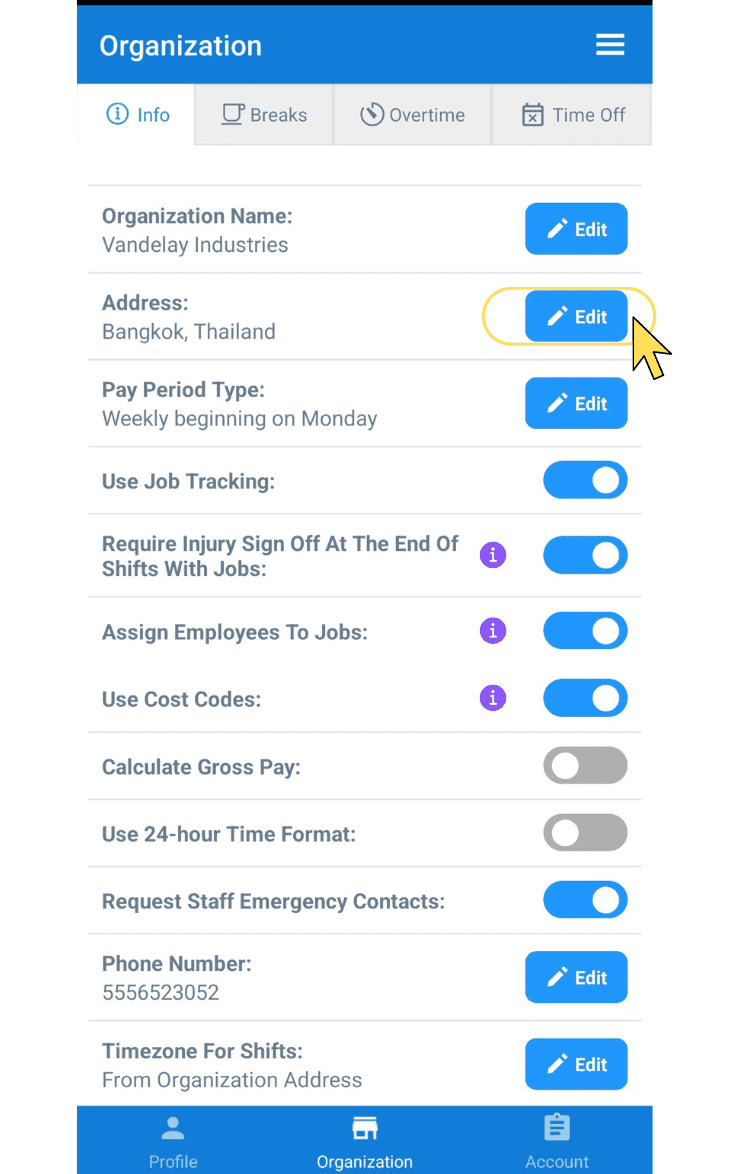
Para editar la dirección de tu empresa, toca Editar (junto a «Dirección»).
Para editar los detalles de tu periodo de pago, toca Editar (junto a Tipo de periodo de pago).
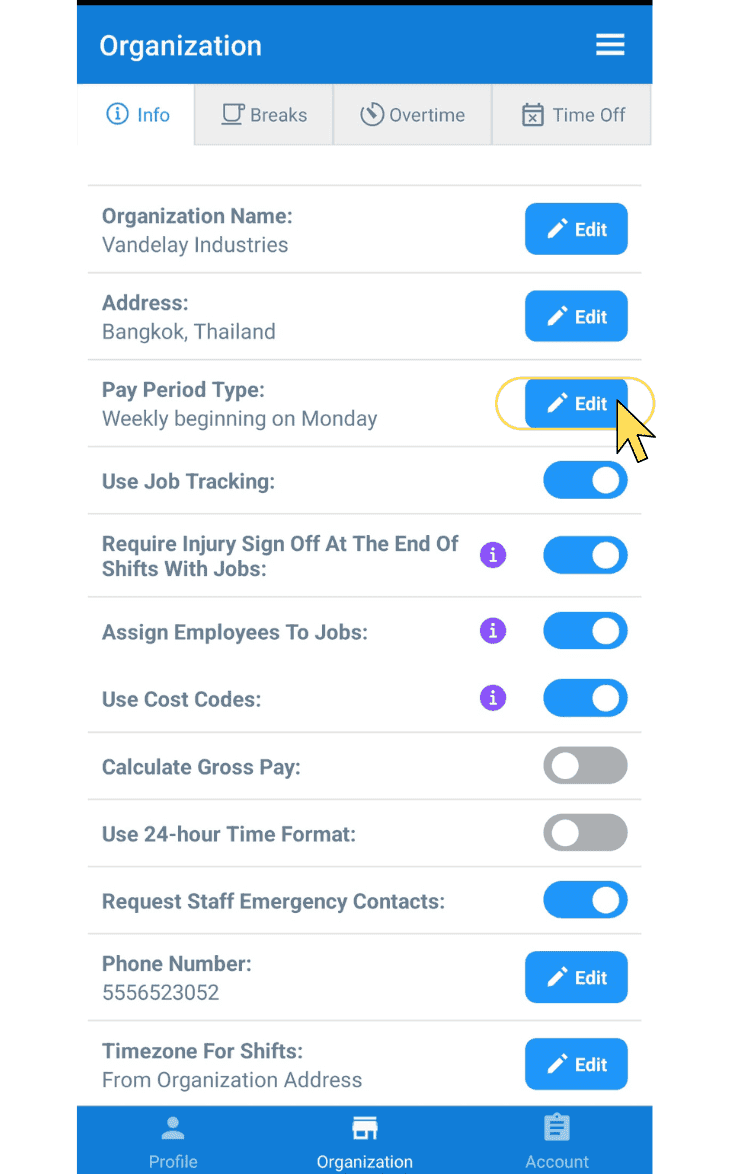
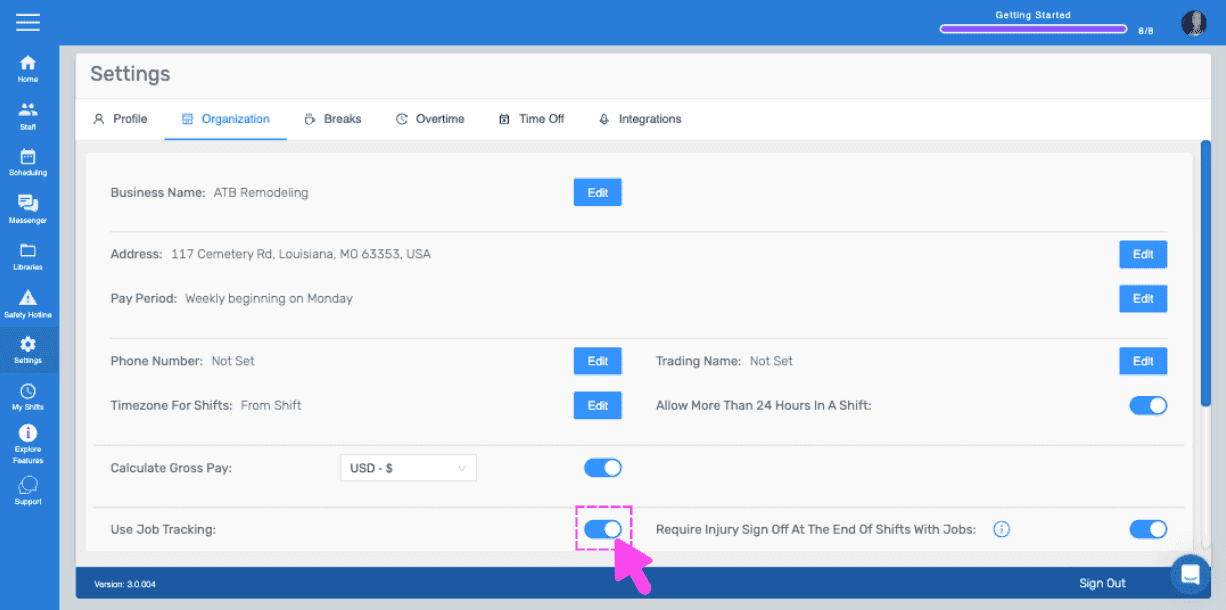
Para activar o desactivar el seguimiento de trabajos, cambia el interruptor situado junto a Usar seguimiento de trabajos.
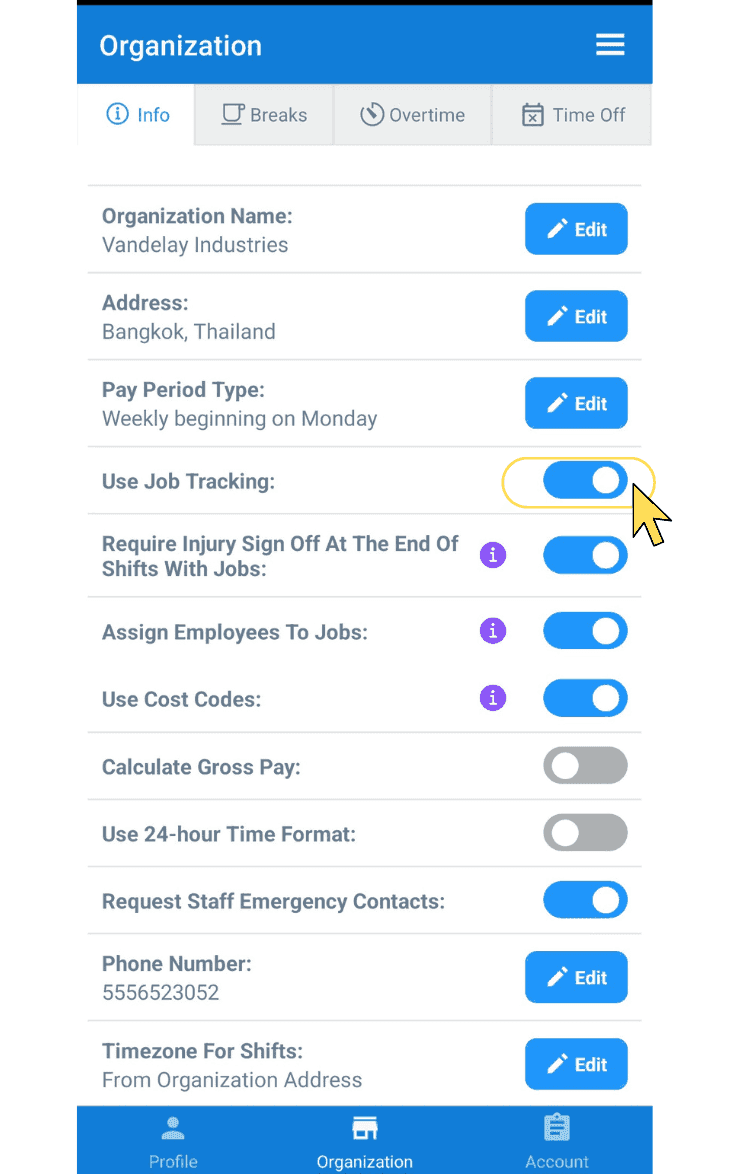
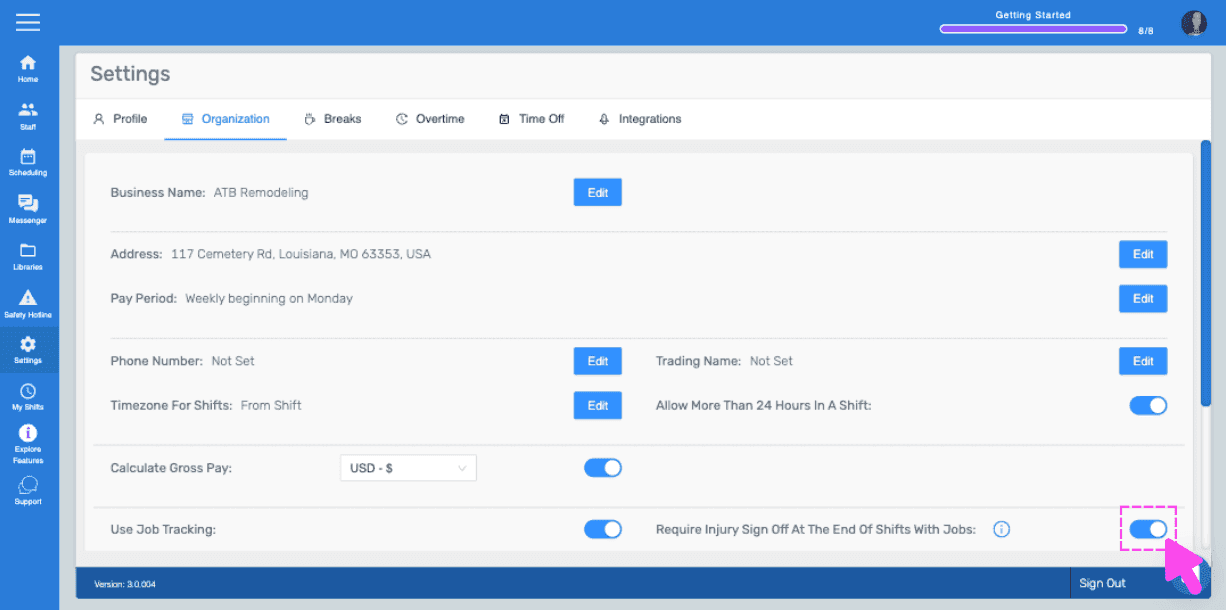
Para activar o desactivar la confirmación de lesiones, activa o desactiva el interruptor (situado junto a «Exigir la confirmación de lesiones al finalizar los turnos con trabajos»).
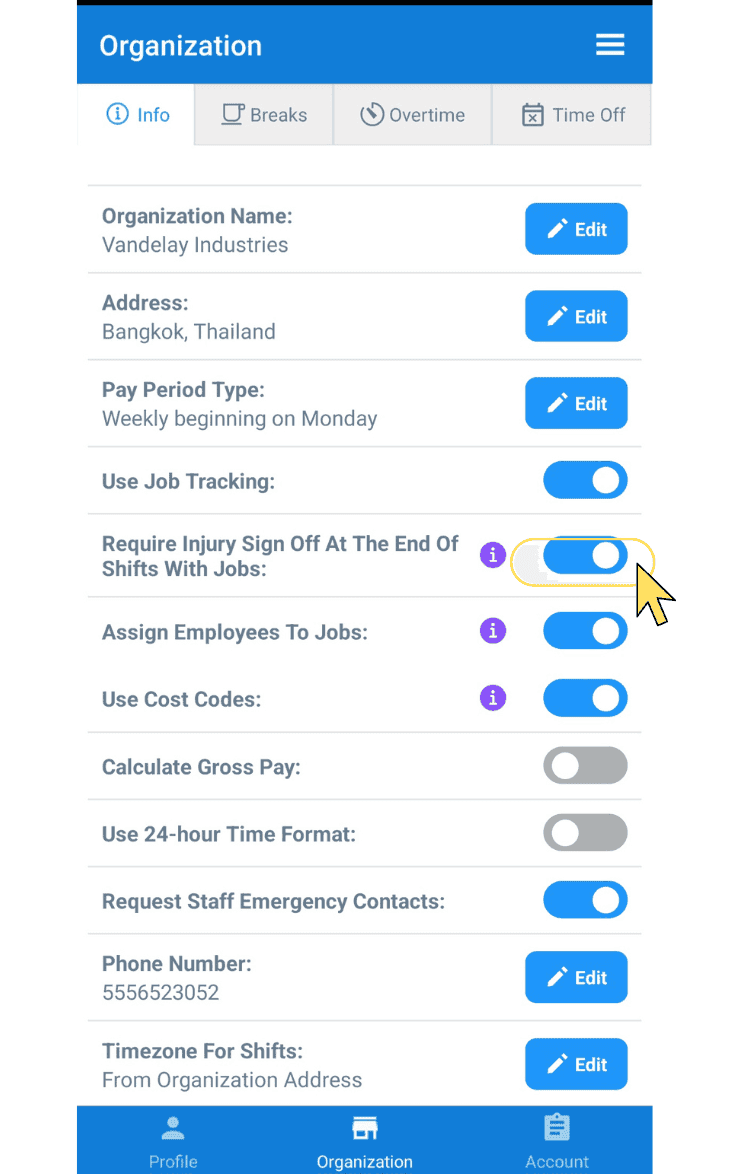
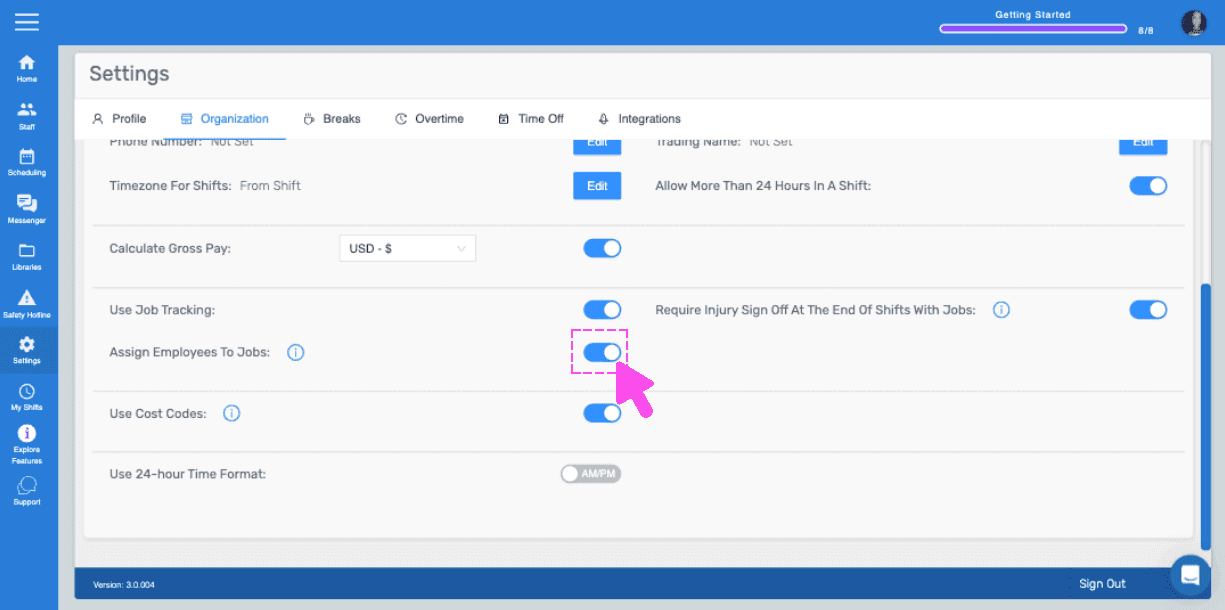
Para asignar empleados a trabajos, activa el interruptor situado junto a Asignar empleados a trabajos.
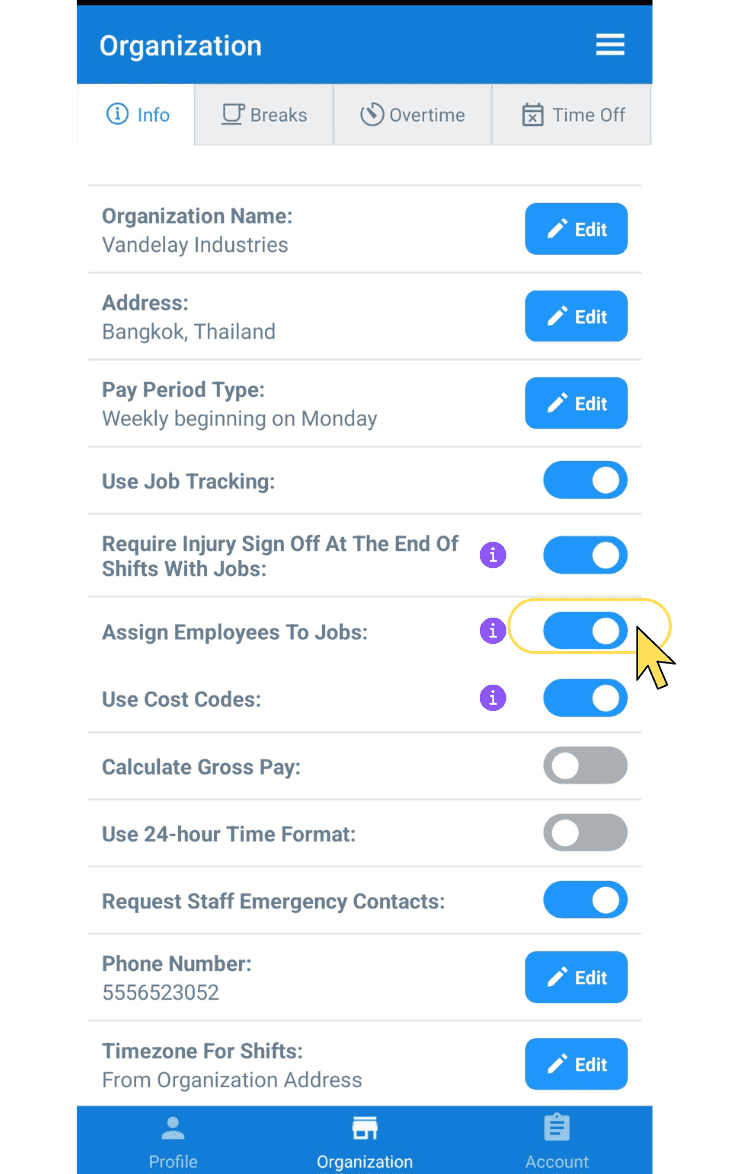
Para activar o desactivar los códigos de costos, cambia el interruptor situado junto a Usar códigos de costos.
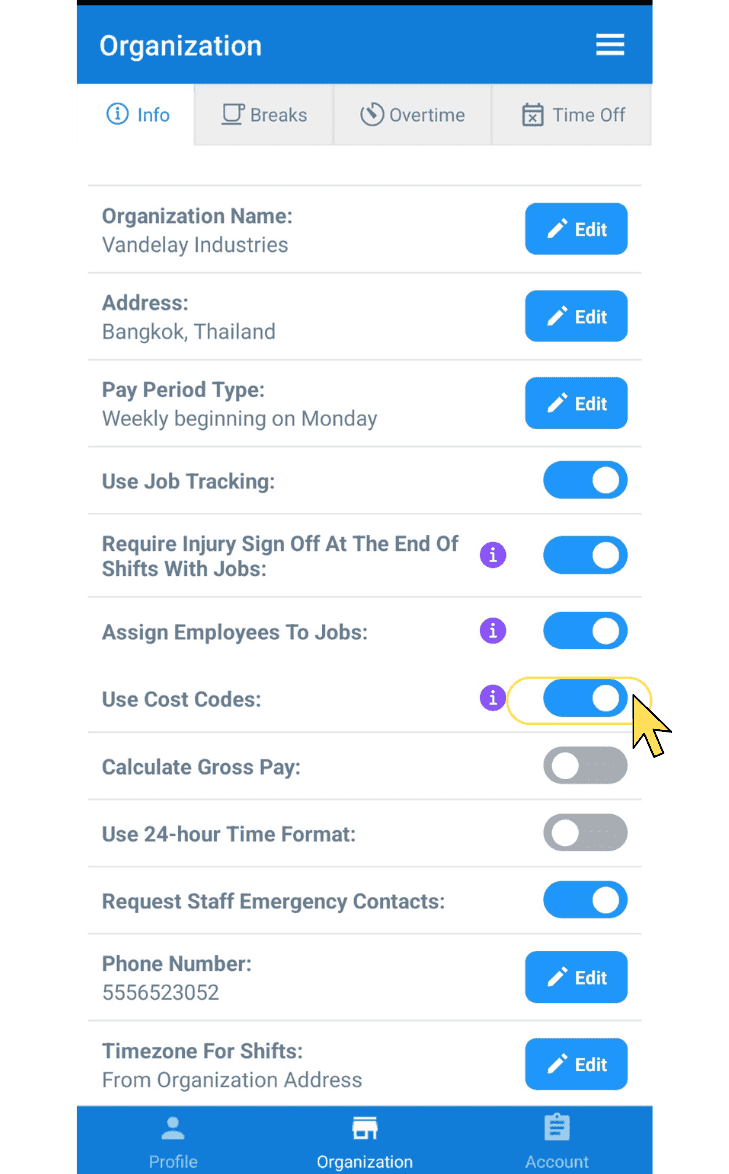
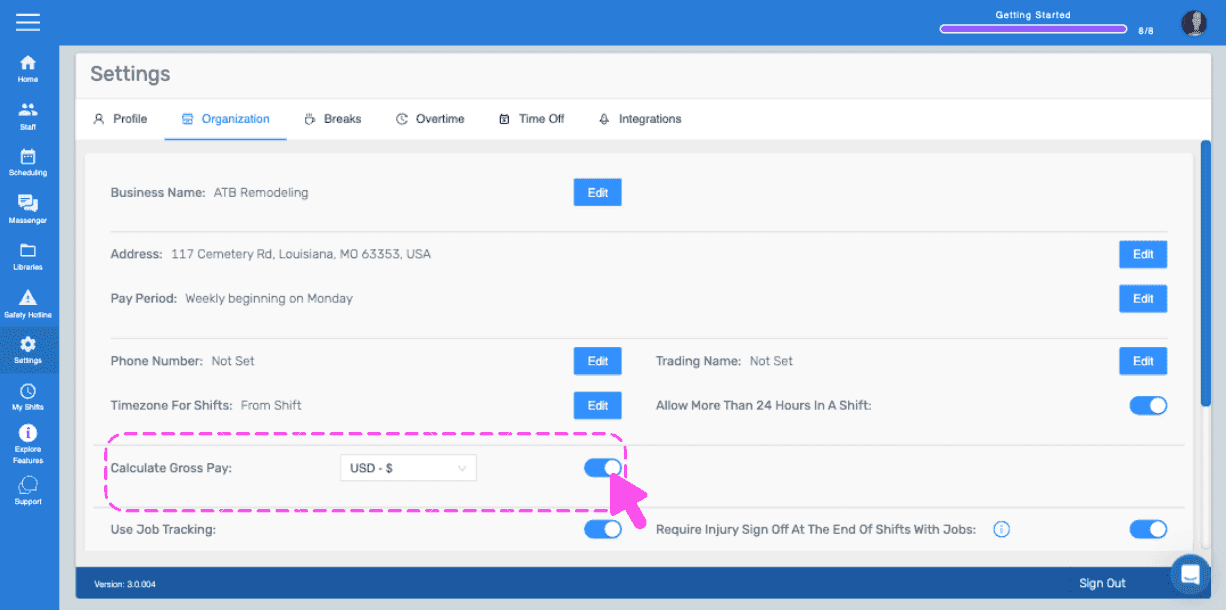
Para activar o desactivar el cálculo del salario bruto, cambia el interruptor (junto a Calcular salario bruto) y, después, pulsa Editar (junto a Moneda) para seleccionar tu divisa.
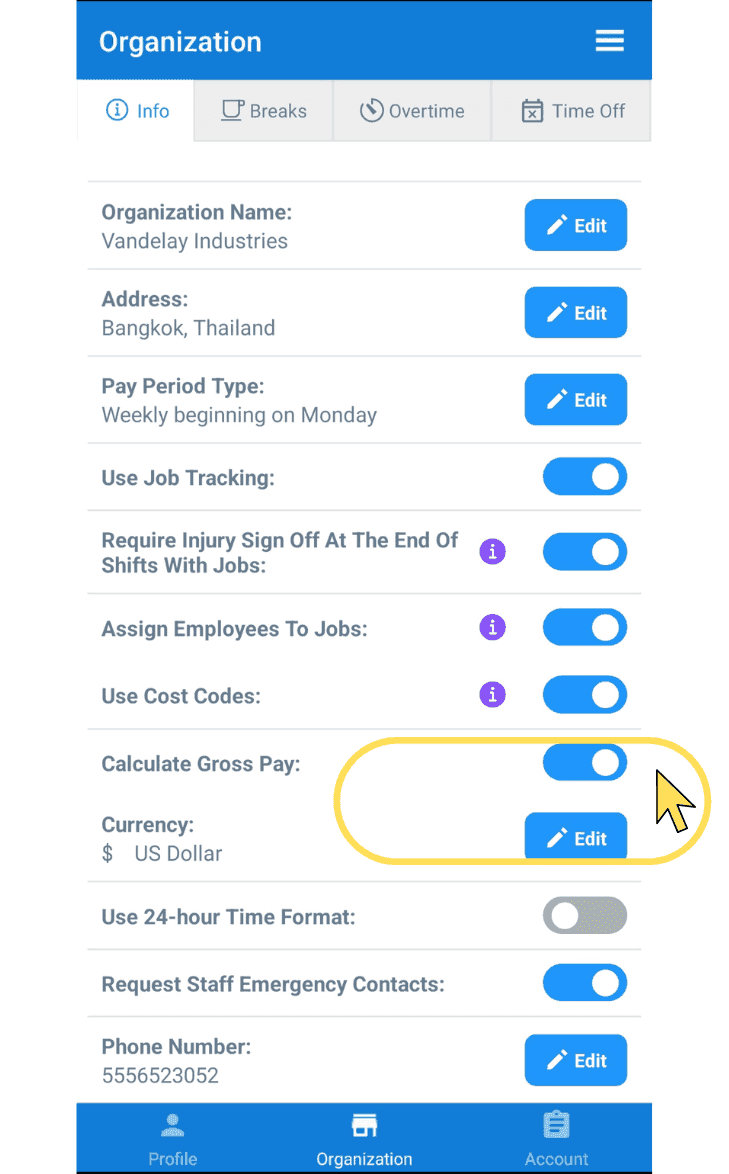
Para activar o desactivar el formato de 24 horas, usa el interruptor situado junto a Usar formato de 24 horas.
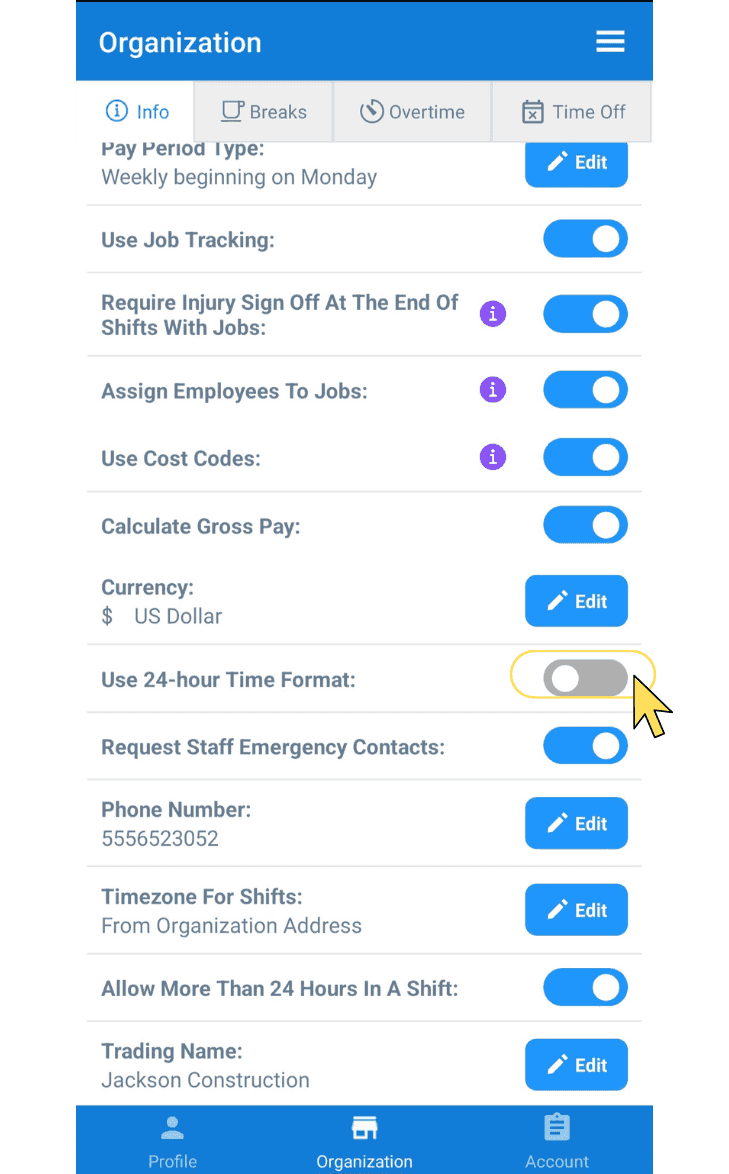
Para exigir al personal que introduzca un contacto de emergencia, activa o desactiva el interruptor situado junto a Solicitar contactos de emergencia del personal.
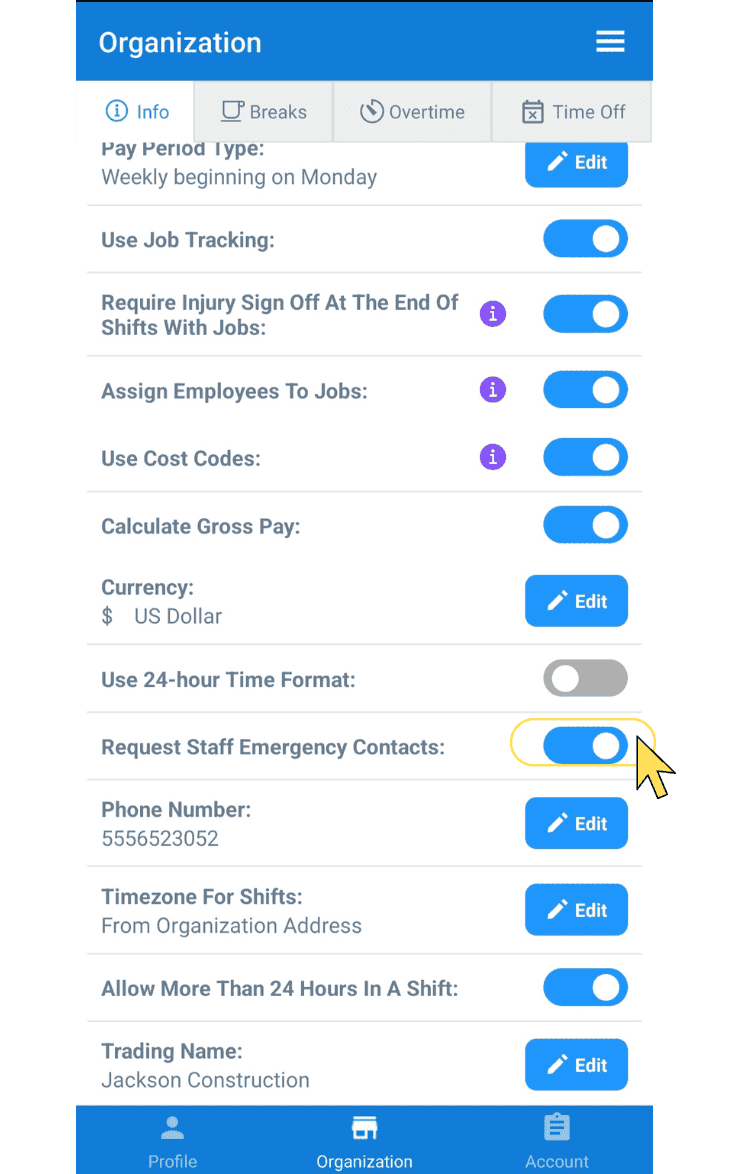
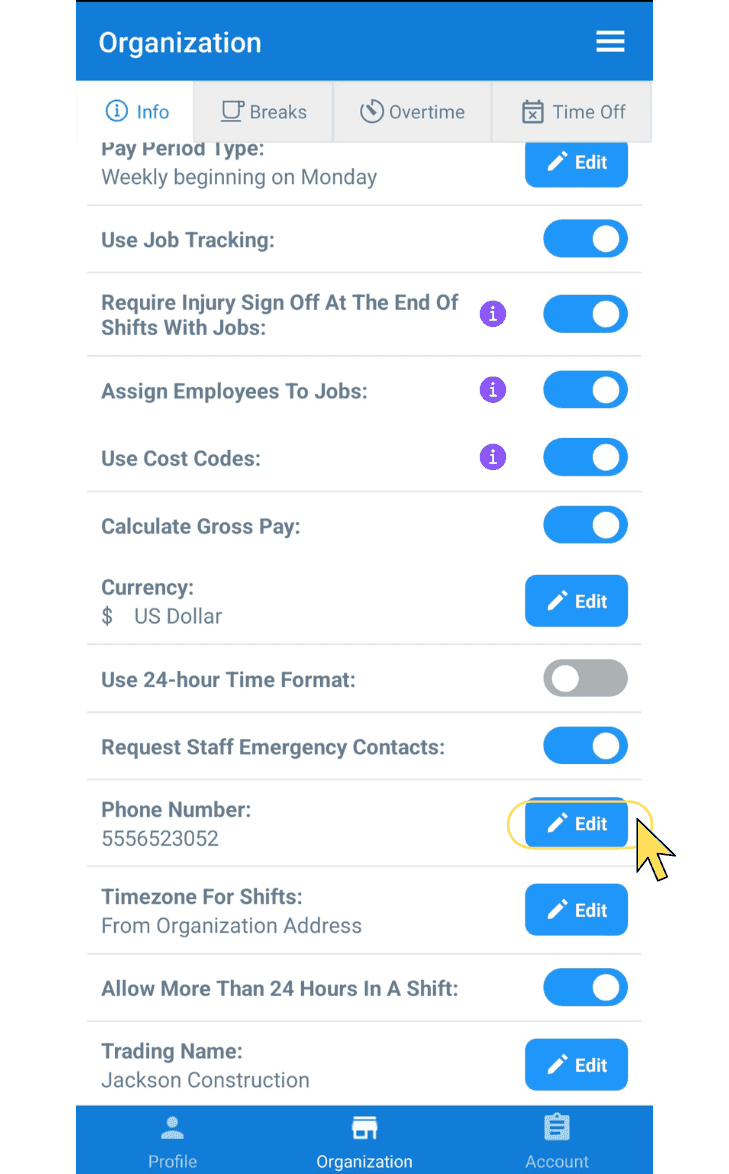
Para editar el número de teléfono de tu empresa, toca Editar (junto a Número de teléfono).
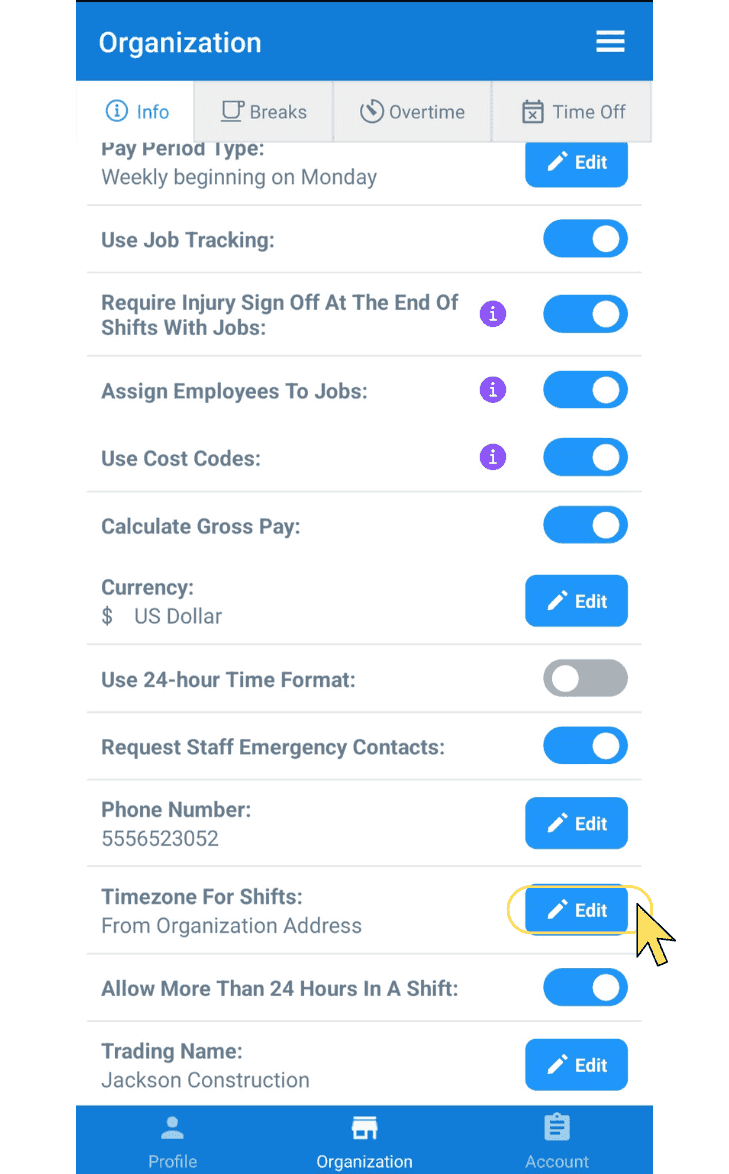
Para editar tu zona horaria para los turnos, pulsa Editar (junto a Zona horaria para los turnos).
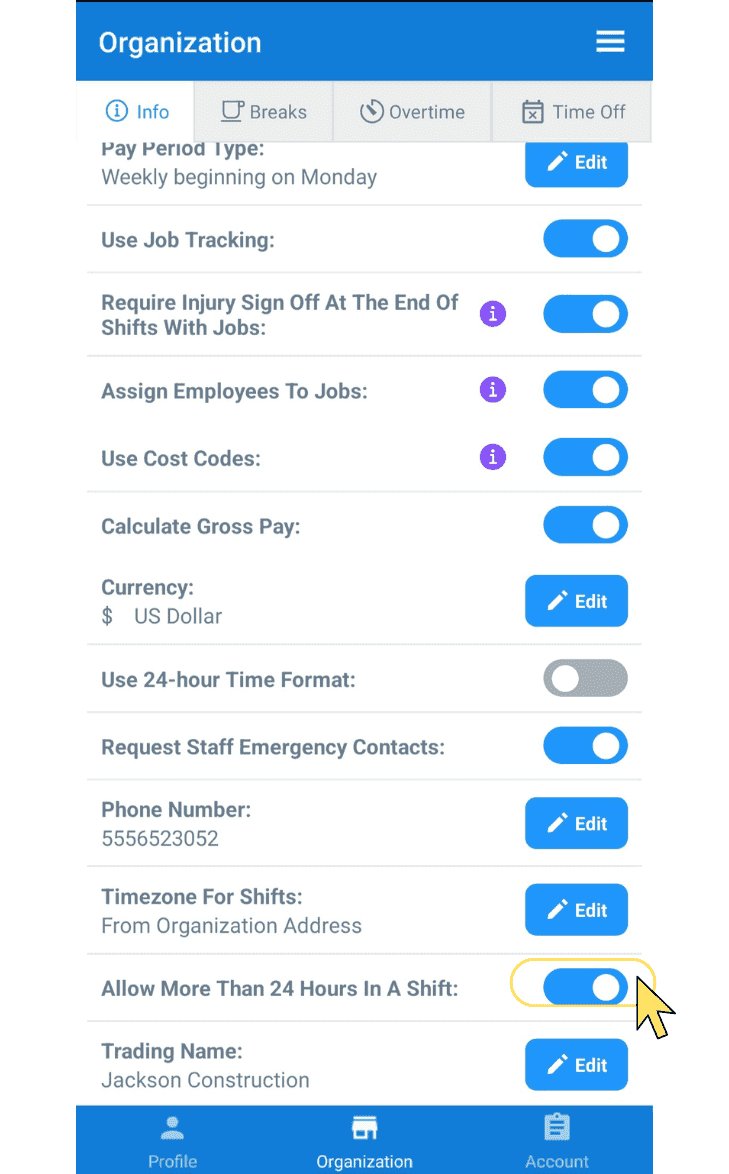
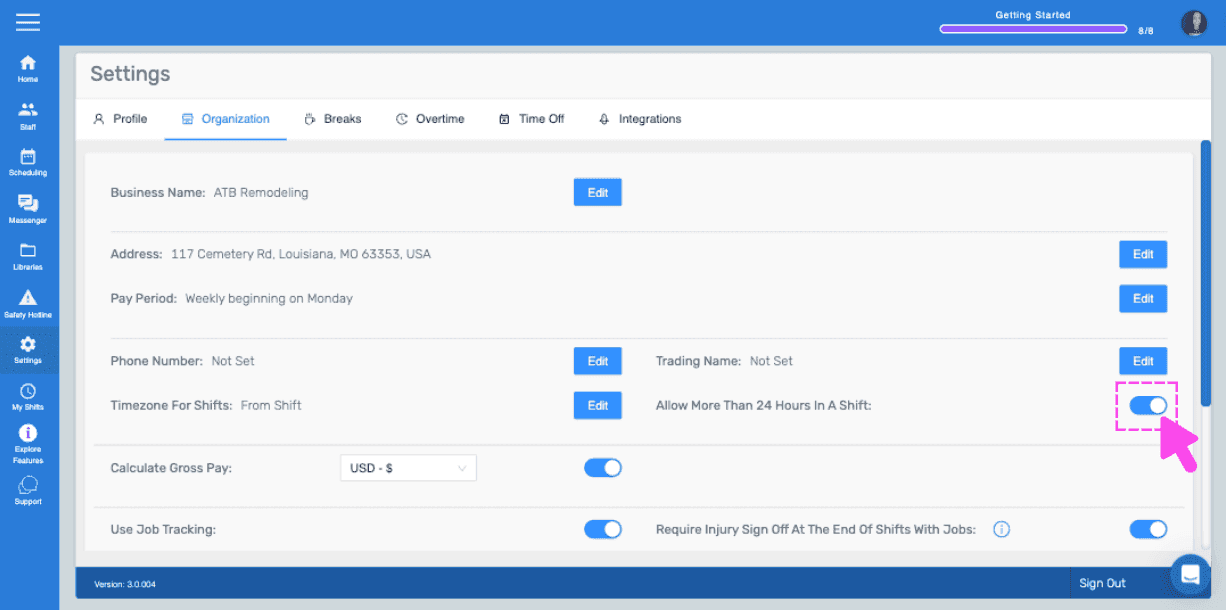
Para activar o desactivar la opción de permitir más de 24 horas en un turno, activa o desactiva el interruptor situado junto a «Permitir más de 24 horas en un turno».
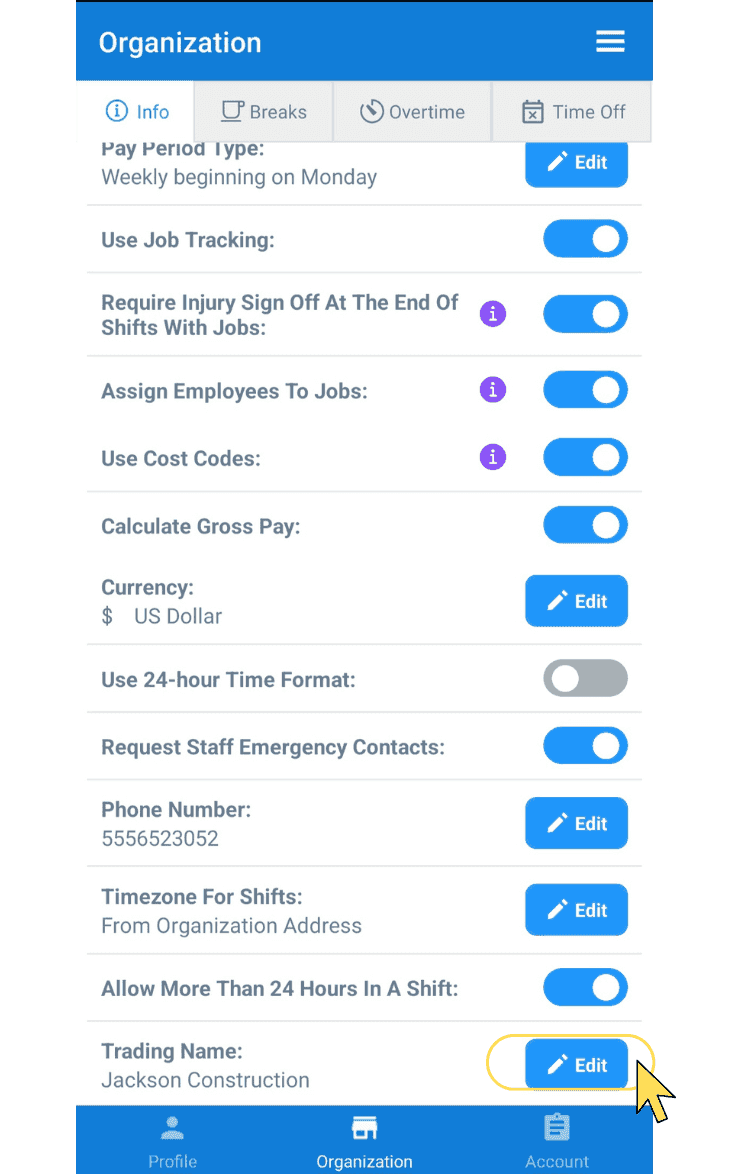
Para editar el nombre comercial de tu empresa, toca Editar (junto a Nombre comercial).
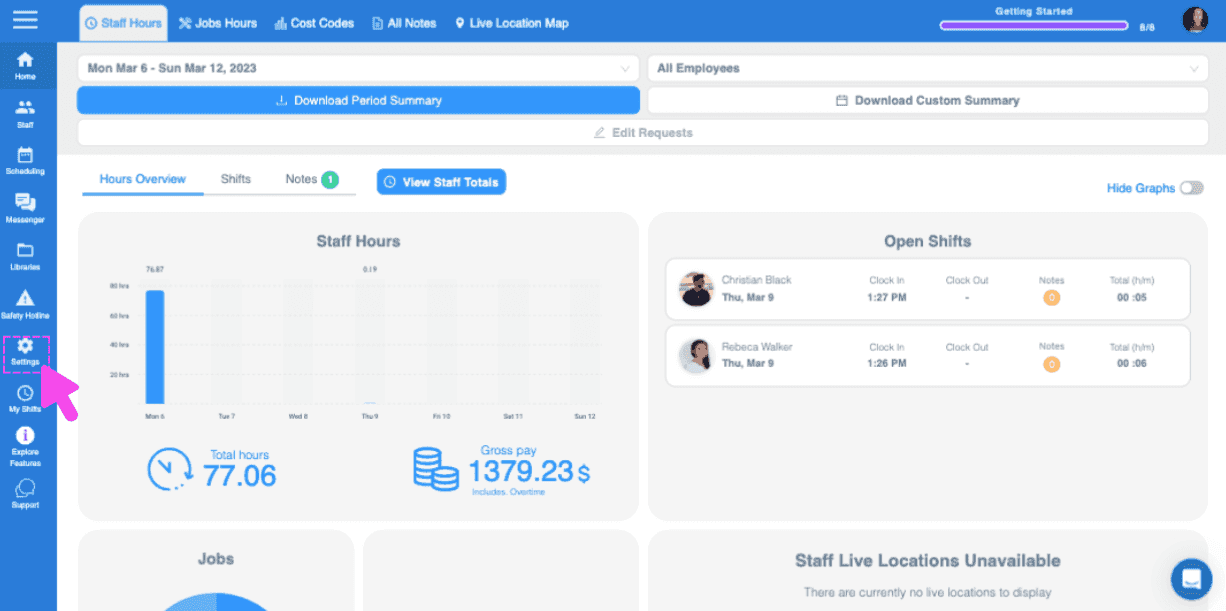
En la web: haz clic en Configuración
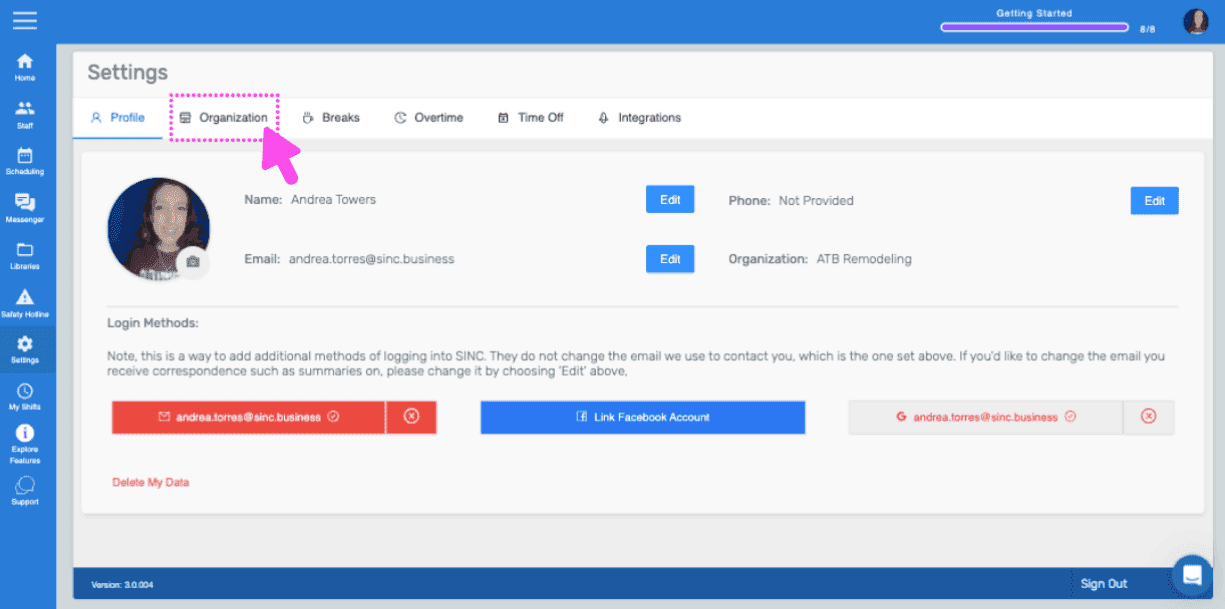
Haz clic en Organización
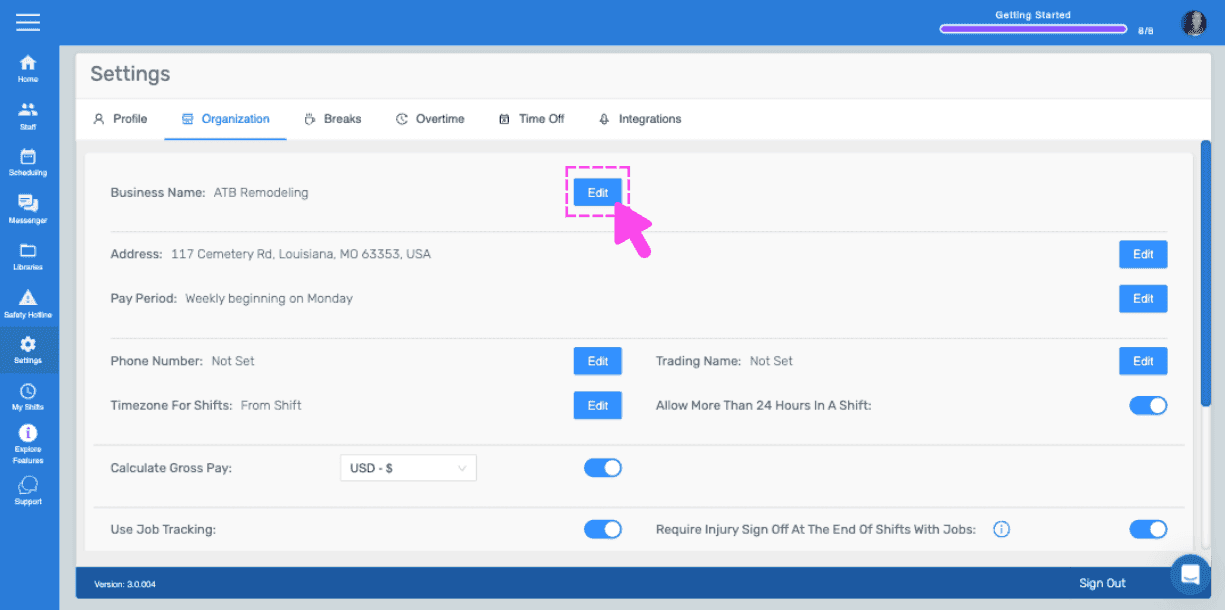
Para editar el nombre de tu empresa, haz clic en Editar (junto a Nombre de la empresa)
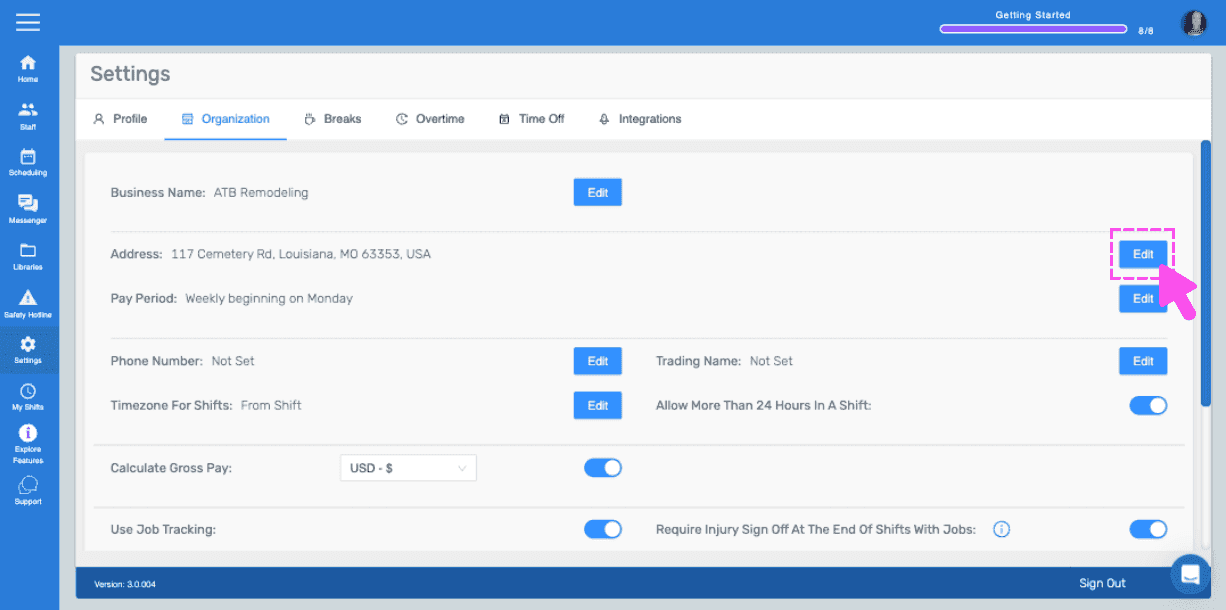
Para editar la dirección de tu empresa, haz clic en Editar (junto a «Dirección»).
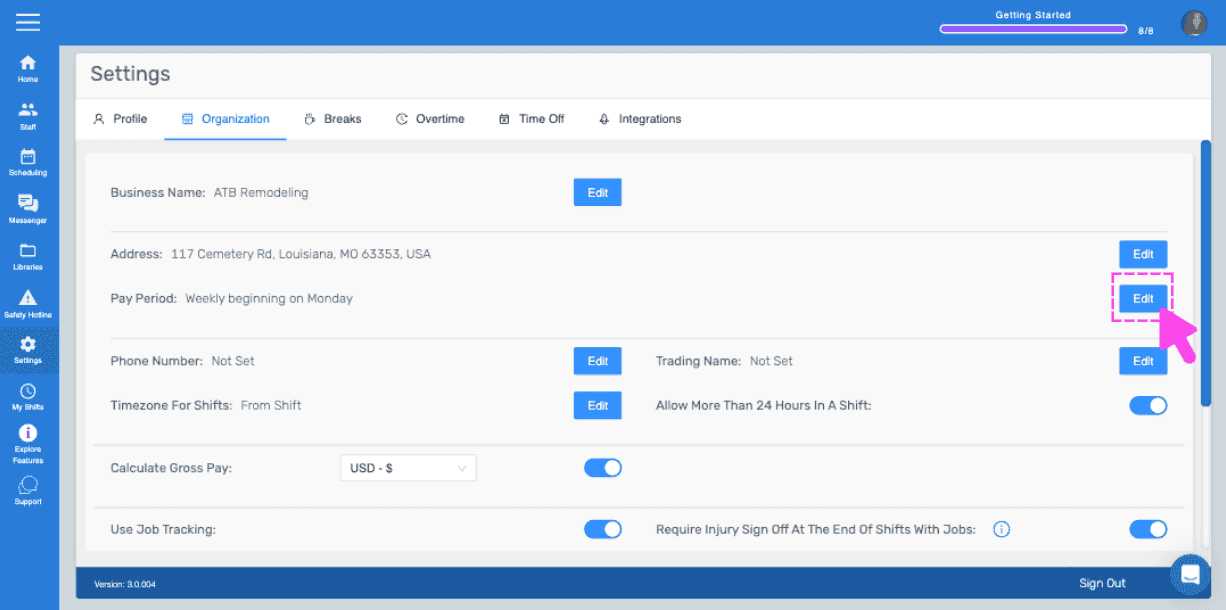
Para editar los detalles de tu periodo de pago, haz clic en Editar (junto a Periodo de pago).
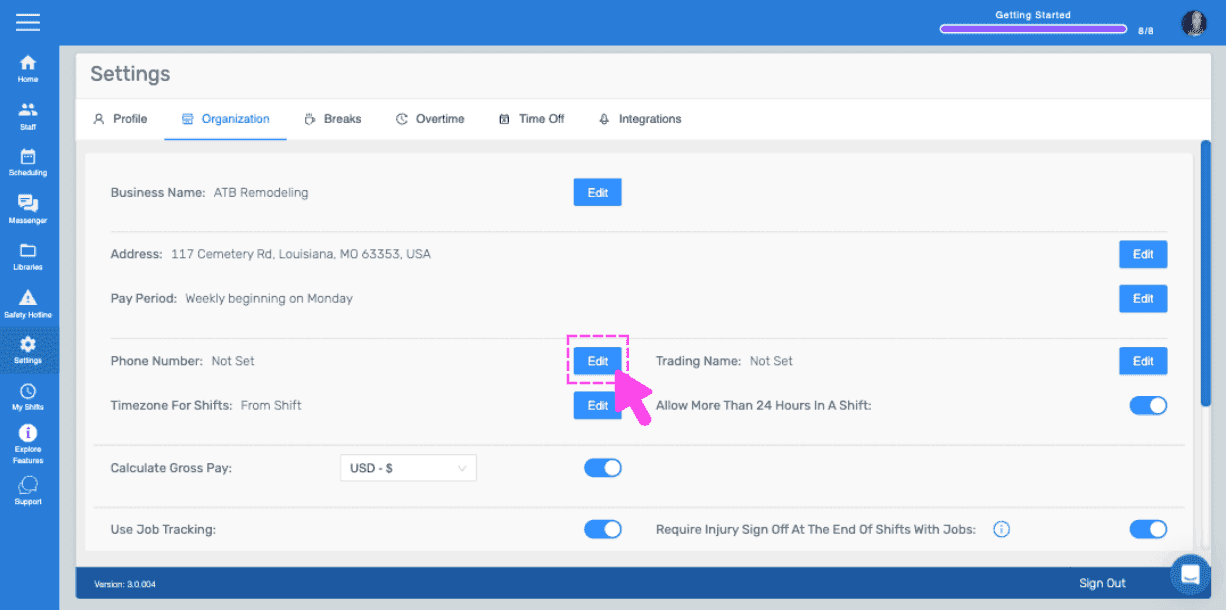
Para editar el número de teléfono de tu empresa, haz clic en Editar (junto a Número de teléfono).
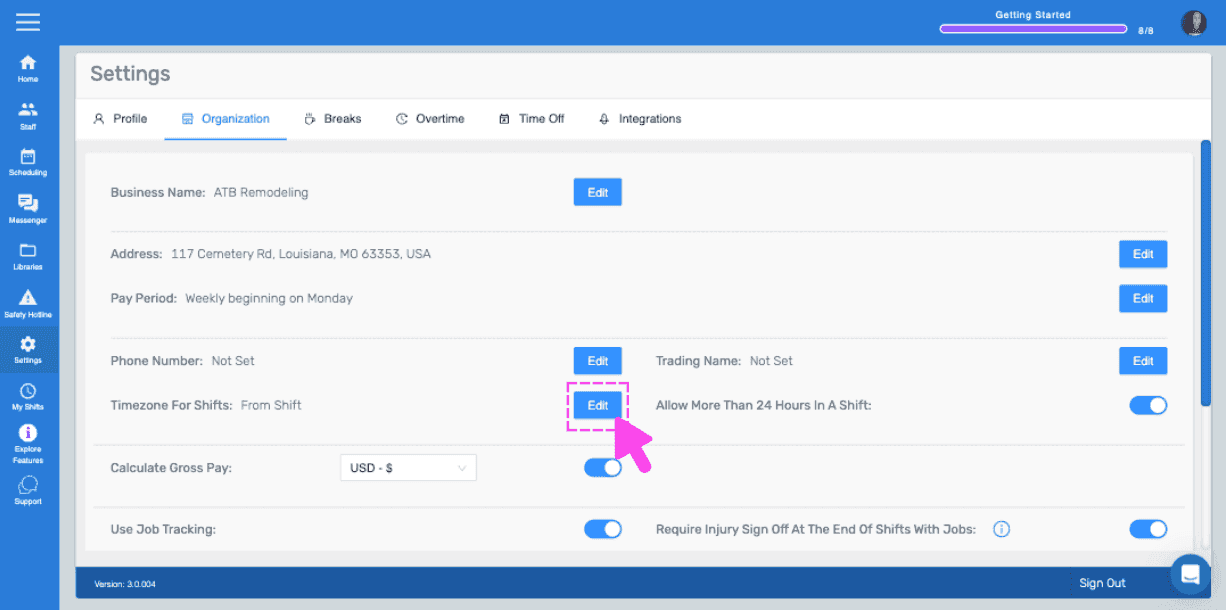
Para editar tu zona horaria para los turnos, haz clic en Editar (junto a Zona horaria para los turnos).
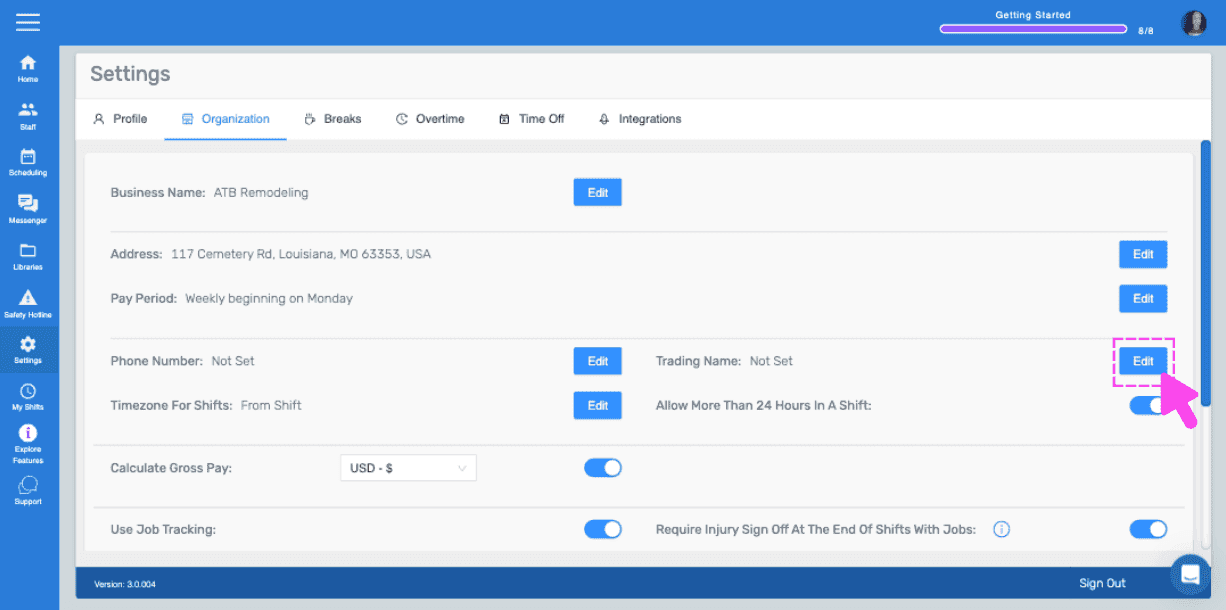
Para editar el nombre comercial de tu empresa, haz clic en Editar (junto a Nombre comercial).
Para activar o desactivar la opción de permitir más de 24 horas en un turno, activa o desactiva el interruptor situado junto a «Permitir más de 24 horas en un turno».
Para activar o desactivar los cálculos del salario bruto, cambia el interruptor situado junto a Calcular salario bruto y, a continuación, selecciona tu moneda.
Para activar o desactivar el seguimiento de trabajos, cambia el interruptor situado junto a Usar seguimiento de trabajos.
Para activar o desactivar la confirmación de lesiones, cambia el interruptor situado junto a «Requerir la confirmación de lesiones al final de los turnos con trabajos asignados».
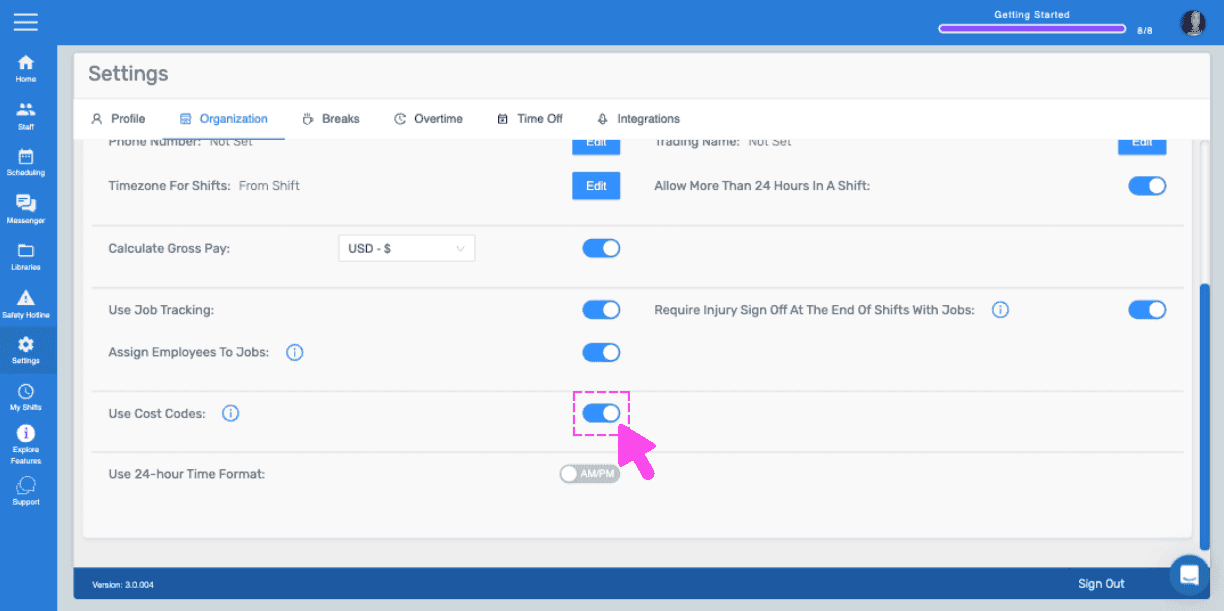
Para activar o desactivar los códigos de coste, cambia el interruptor (junto a Usar códigos de coste).
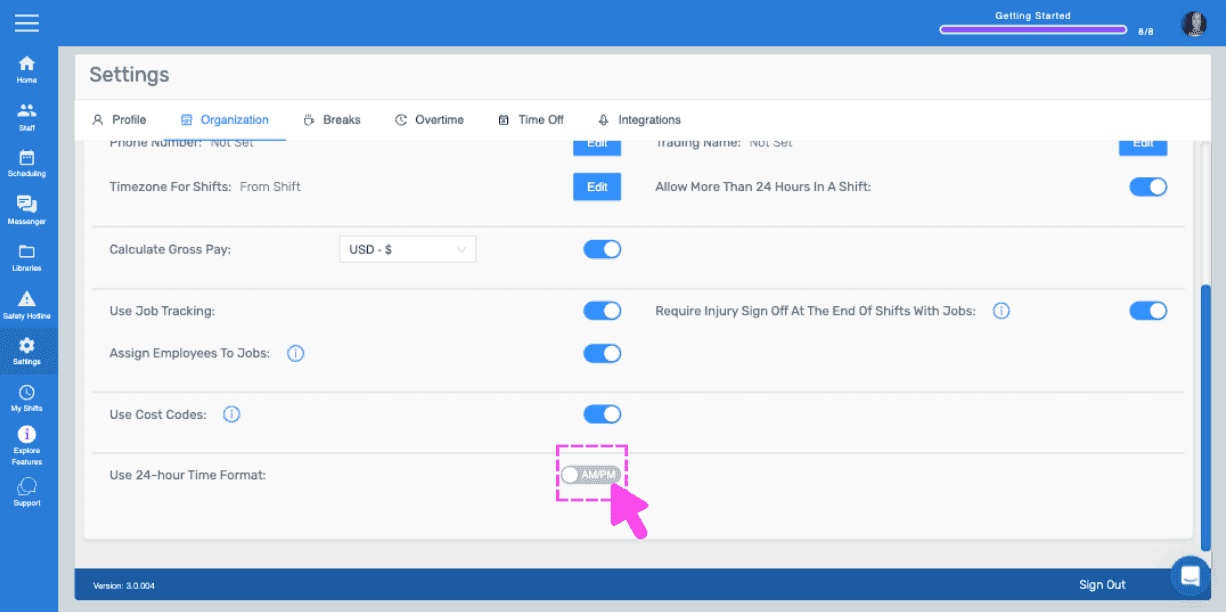
Para activar o desactivar el formato de 24 horas, cambia el interruptor situado junto a Usar formato de 24 horas.
¿Esto respondió tu pregunta?