Cálculos de horas extra: reglas personalizadas

Para empezar a calcular las horas extra con las reglas personalizadas de SINC, debes cambiar algunos ajustes. Esta guía te muestra cómo hacerlo.

Sam Dolbel
Sam Dolbel
Mar 24th, 2023

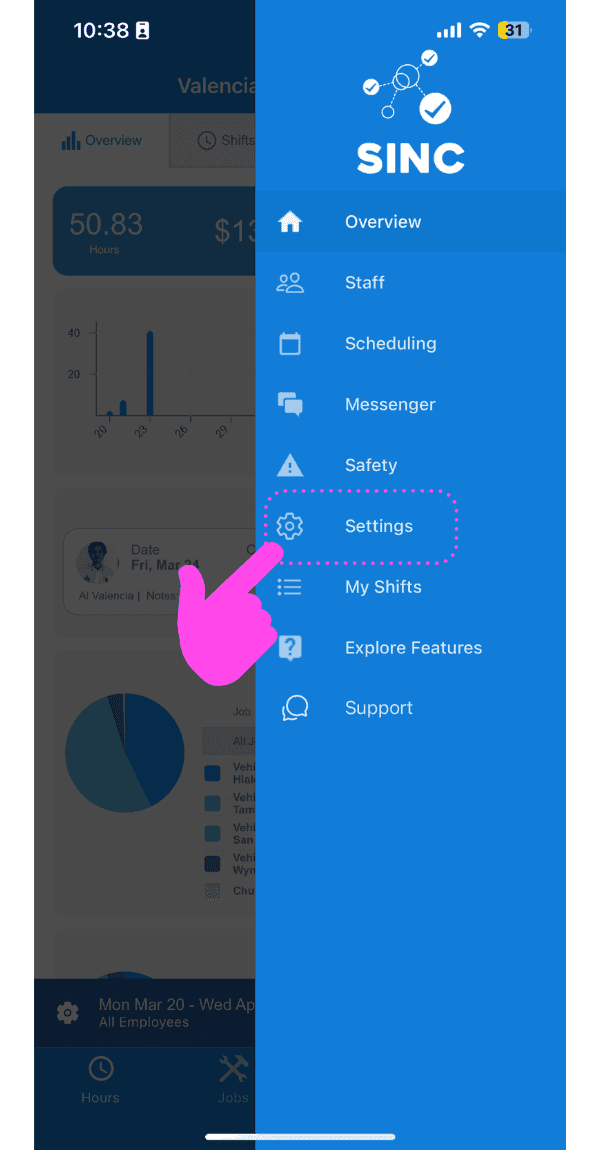
Toca Ajustes

SINC mobile app side menu with a pink arrow pointing to the Settings icon

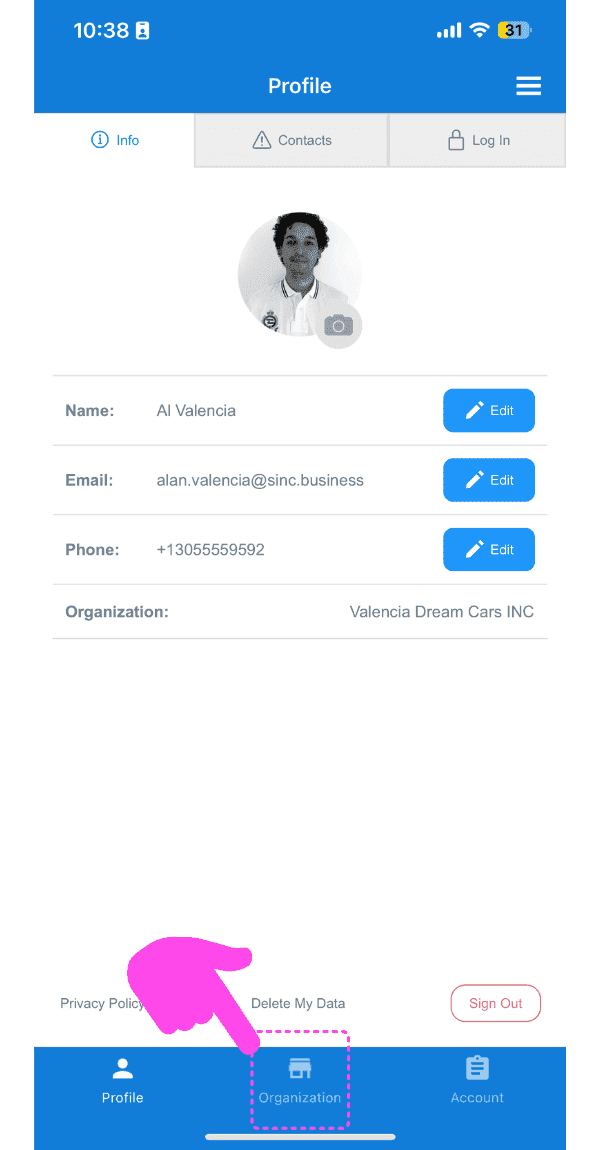
Toca Organización

SINC mobile Profile screen with a pink hand pointing to the Organization tab at the bottom

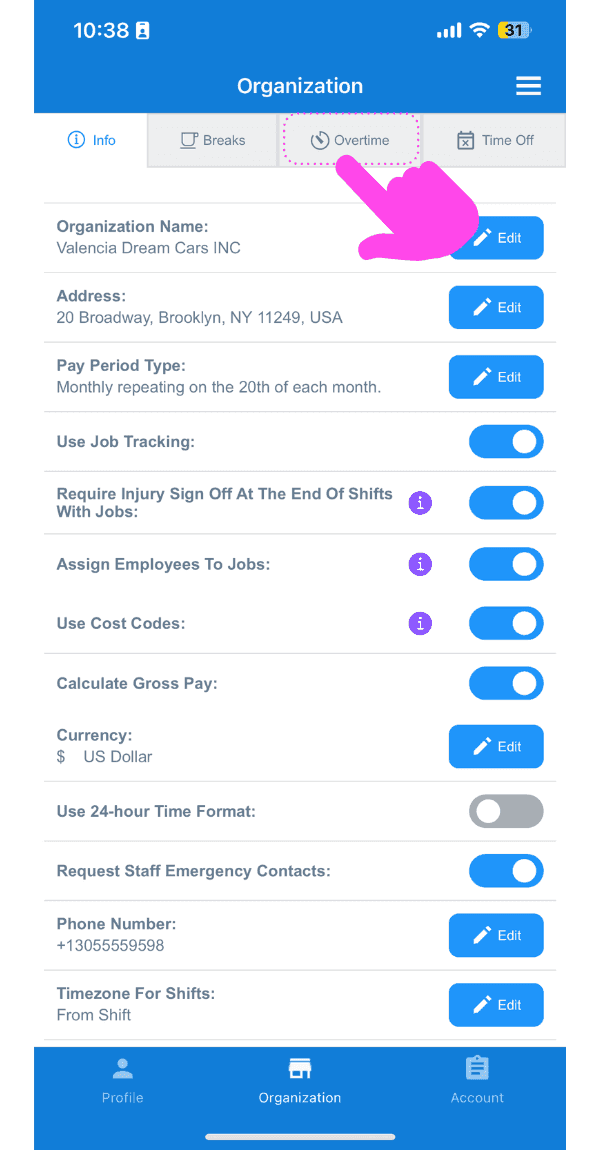
Toca Horas extra

Organization settings screen with a pink arrow pointing to the Overtime tab

Primero debes seleccionar el día de inicio de la semana de horas extra, que determinará la semana laboral de horas extra. La semana laboral de horas extra es un periodo de siete días que comienza el día seleccionado. Por ejemplo, si eliges el lunes como día de inicio, la semana laboral de horas extra irá de lunes a domingo. Pulsa Editar junto a «Elegir el día de inicio de la semana de horas extra».
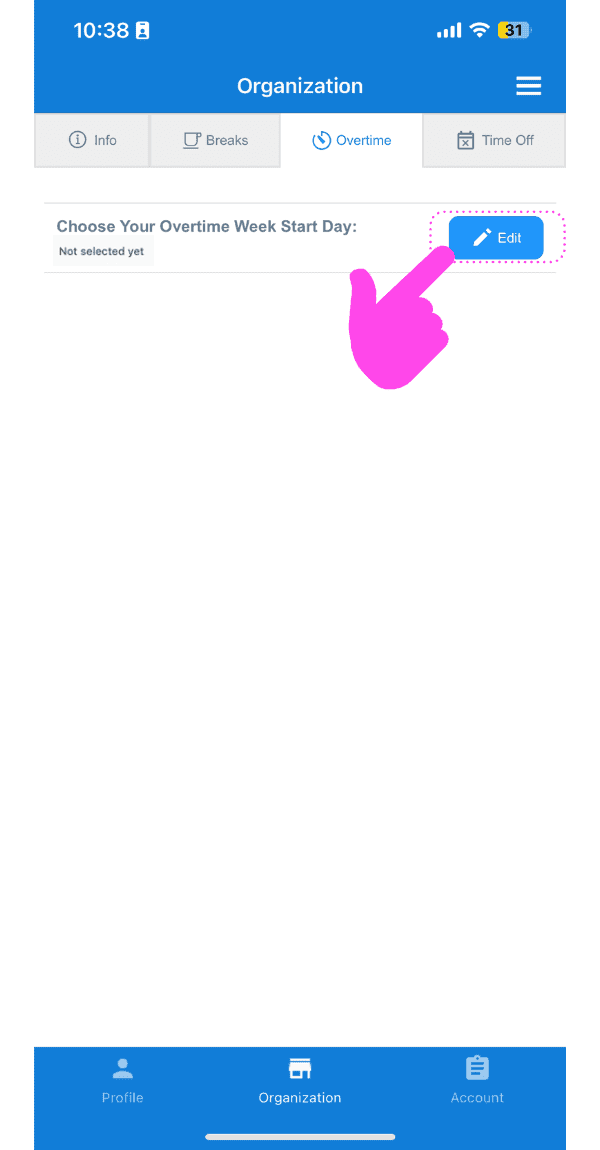
Web Organization Overtime tab with a pink arrow pointing to the Edit button for the overtime week start day

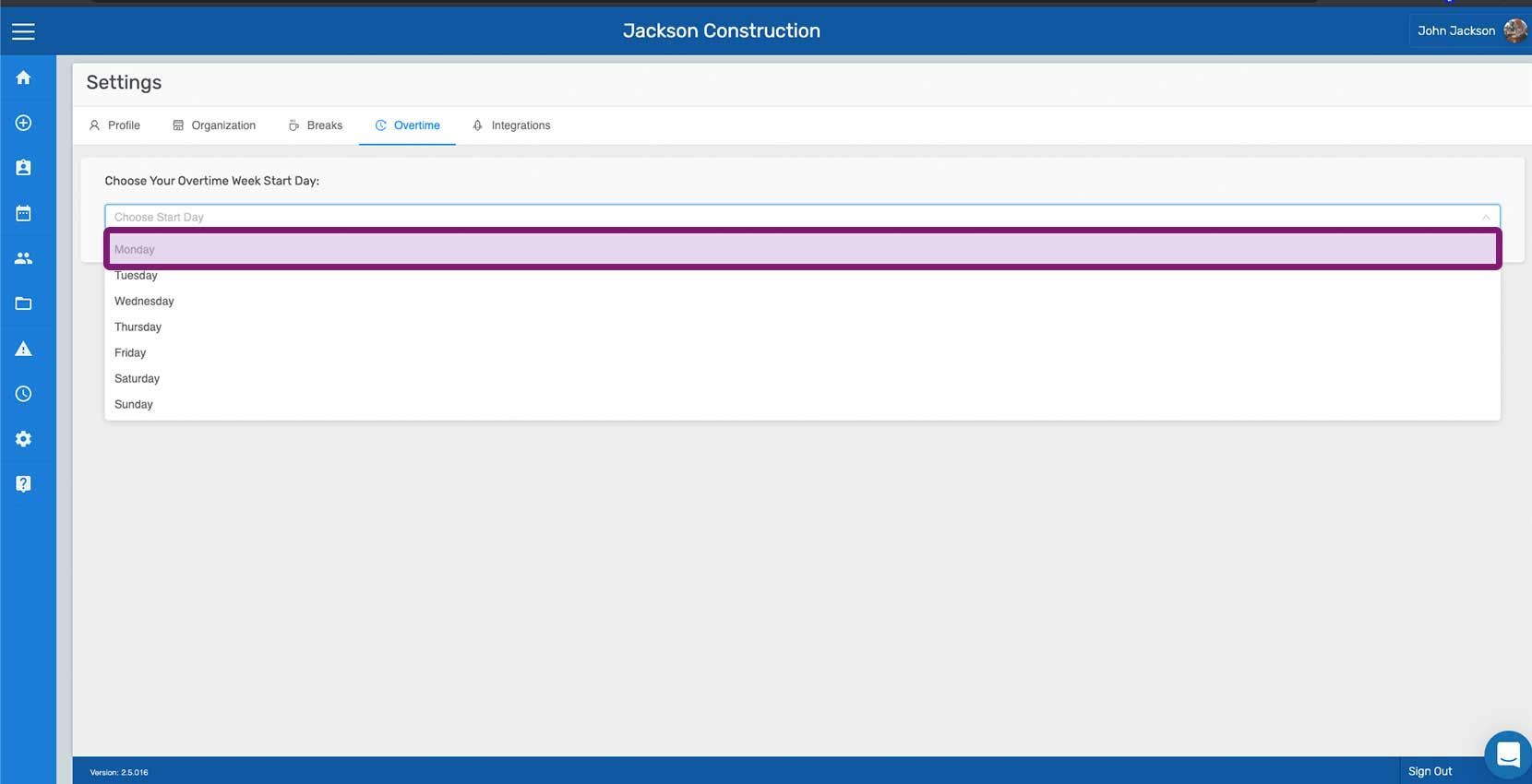
Toca el día que quieras establecer como inicio de la semana de horas extra
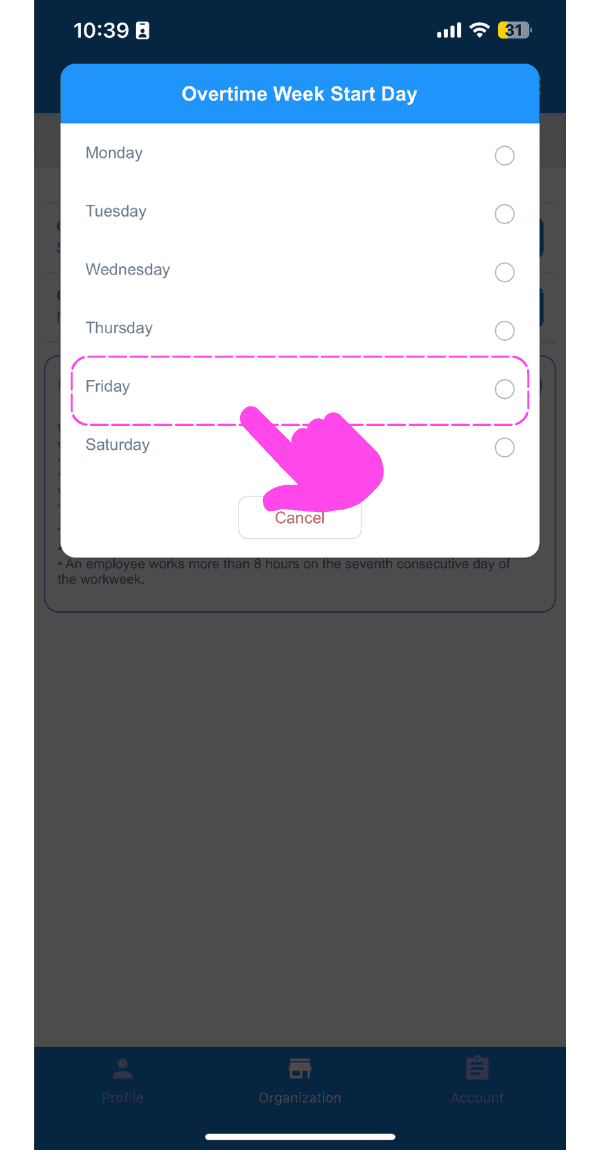
SINC mobile Overtime Week Start Day popup with a pink hand pointing to the Friday option

Toca Editar junto a Reglas de horas extra personalizadas. SINC admite cinco tipos de reglas de horas extra: Diarias (horas trabajadas por encima de la jornada normal en un día laborable), Dobles diarias (como las diarias, pero pagadas a una tarifa superior; por ejemplo, horas extra diarias después de 8 horas a una tarifa de 1,5 y horas extra dobles diarias después de 12 horas a una tarifa de 1,75), Semanales (horas trabajadas por encima de la jornada normal en una semana laboral), Séptimo día consecutivo (horas trabajadas en el séptimo día laborable consecutivo) y Séptimo día consecutivo doble (como las del séptimo día consecutivo, pero a una tarifa superior; por ejemplo, después de 0 horas a una tarifa de 1,5 y después de 8 horas al doble de la tarifa).
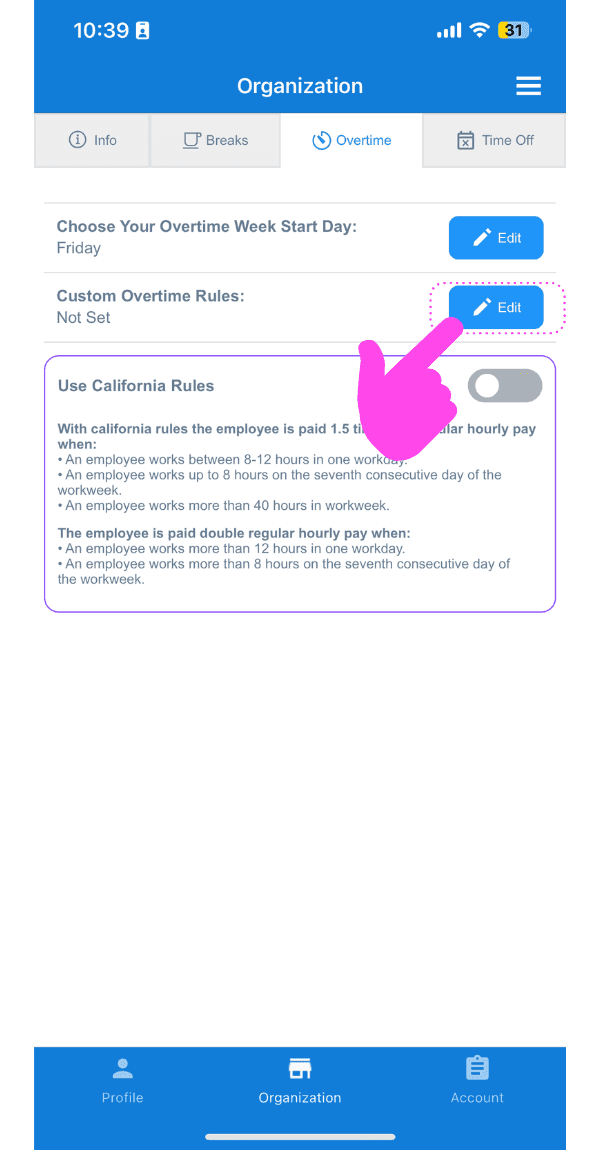
SINC mobile Organization Overtime tab with a pink arrow pointing to the Custom Overtime Rules Edit button

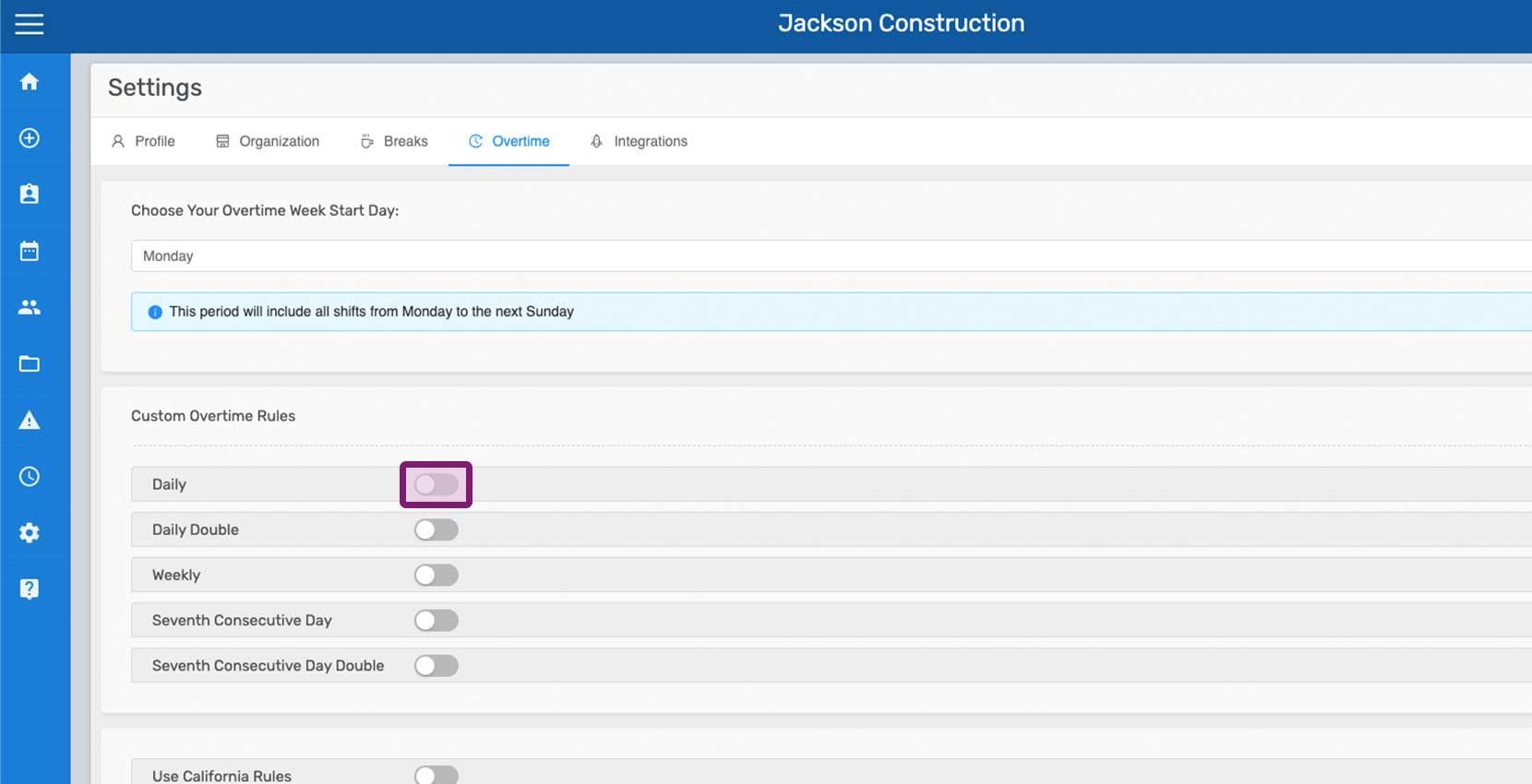
Activa la regla personalizada que quieras usar (p. ej., Diaria)
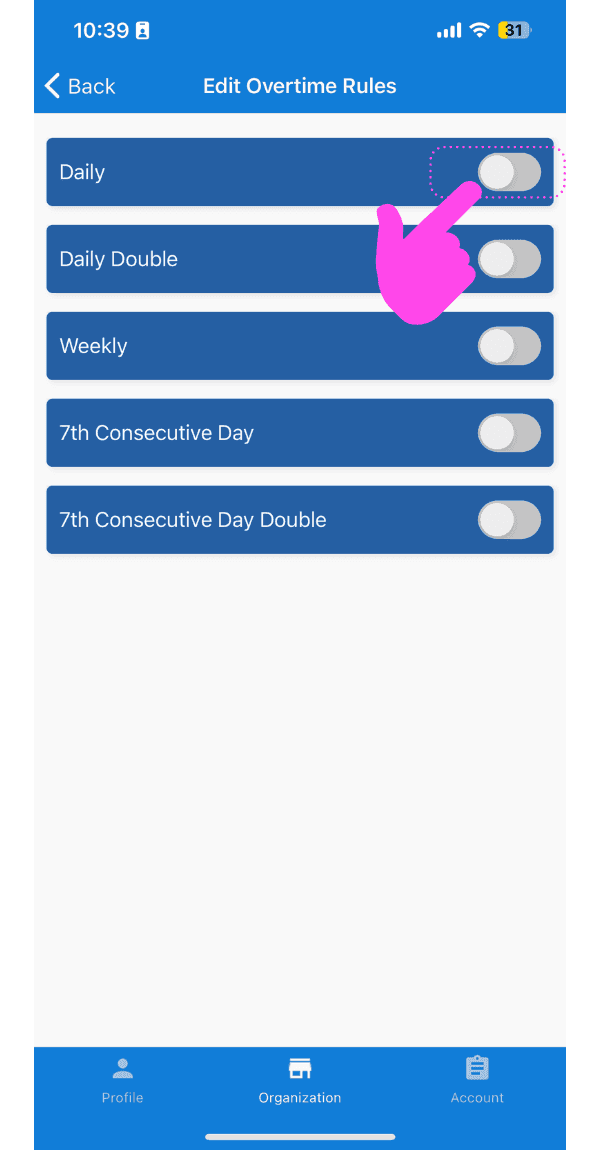
Edit Overtime Rules screen with a pink arrow pointing to the Daily overtime toggle switch

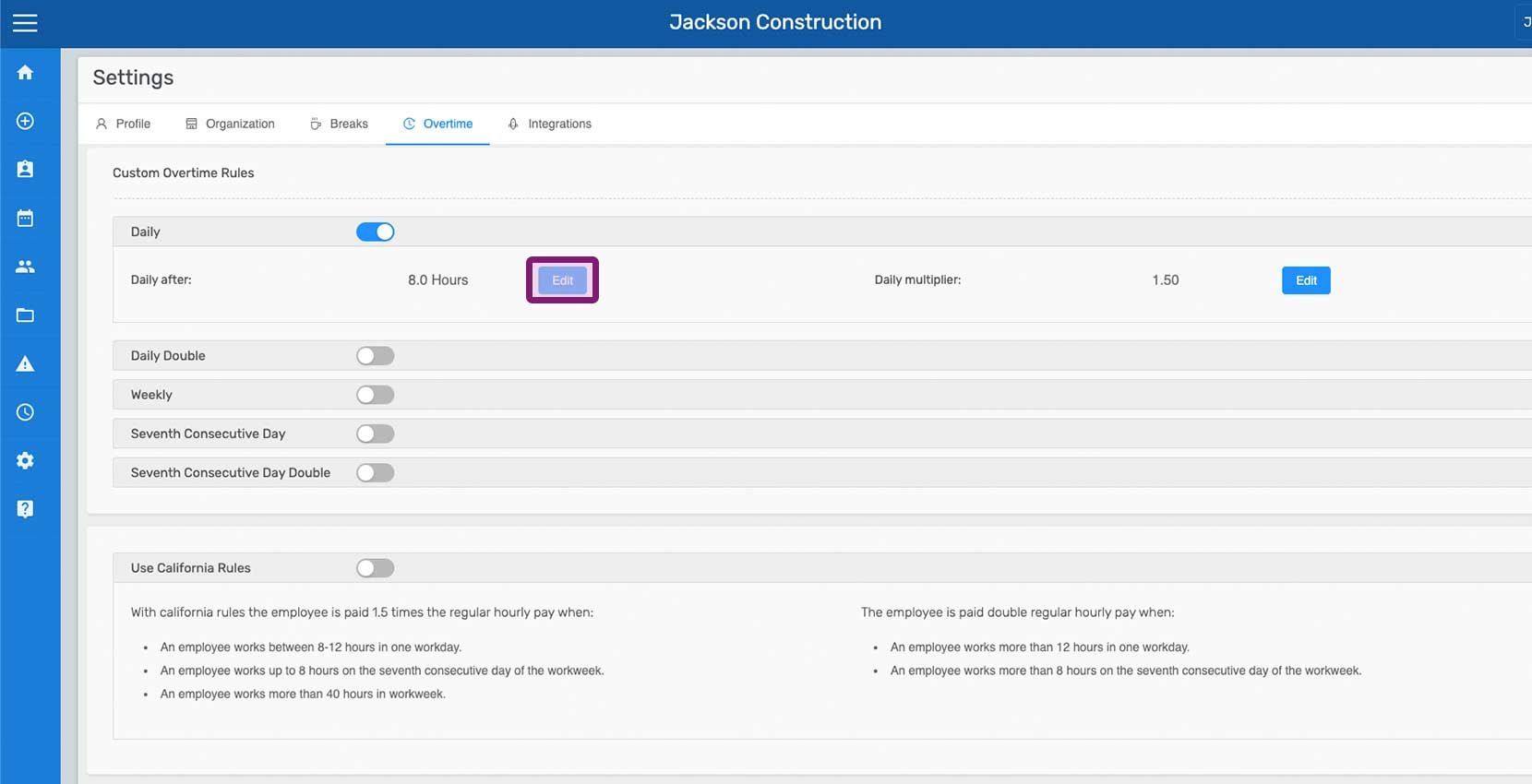
Si es necesario, edita el número de horas a partir del cual se aplicará la regla de horas extra: pulsa Editar junto a Después de las horas
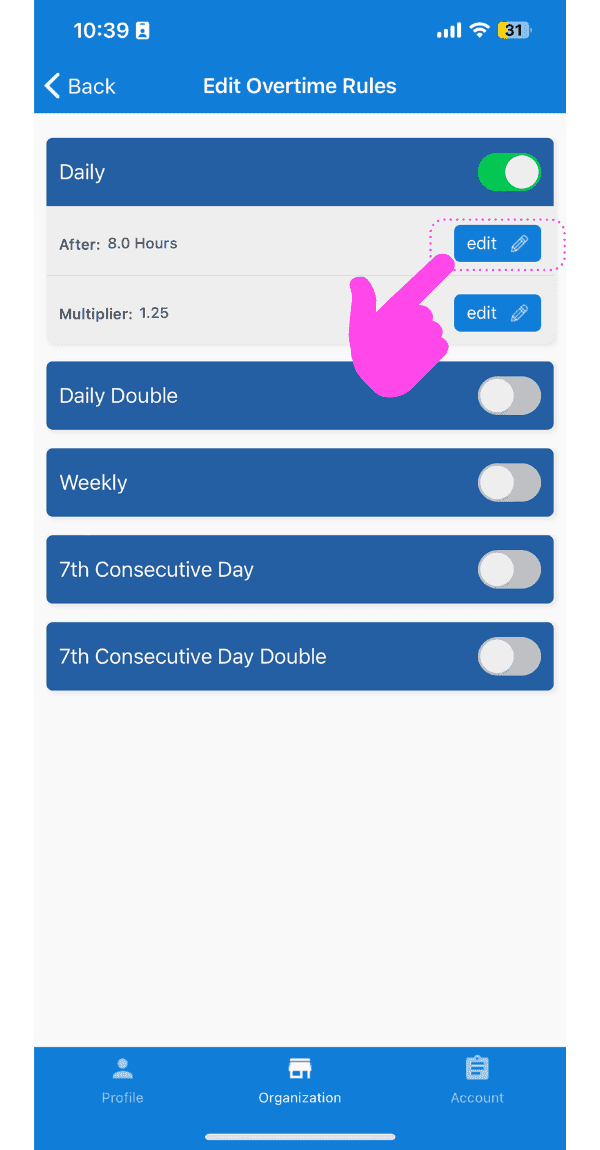
SINC mobile app Edit Overtime Rules screen with a pink hand pointing to the Edit button next to the Daily after-hours setting

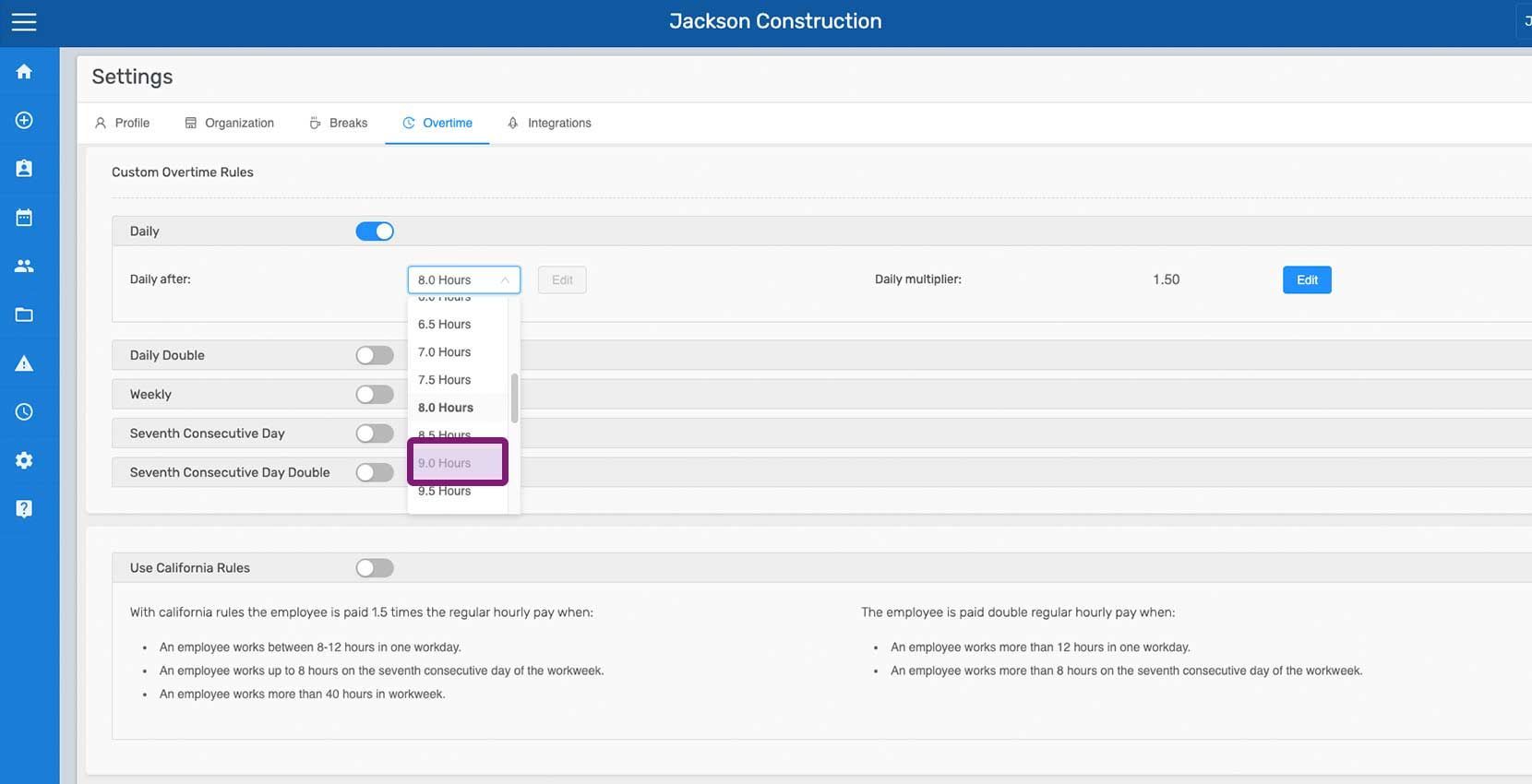
Toca Las horas a partir de las cuales debe aplicarse la regla
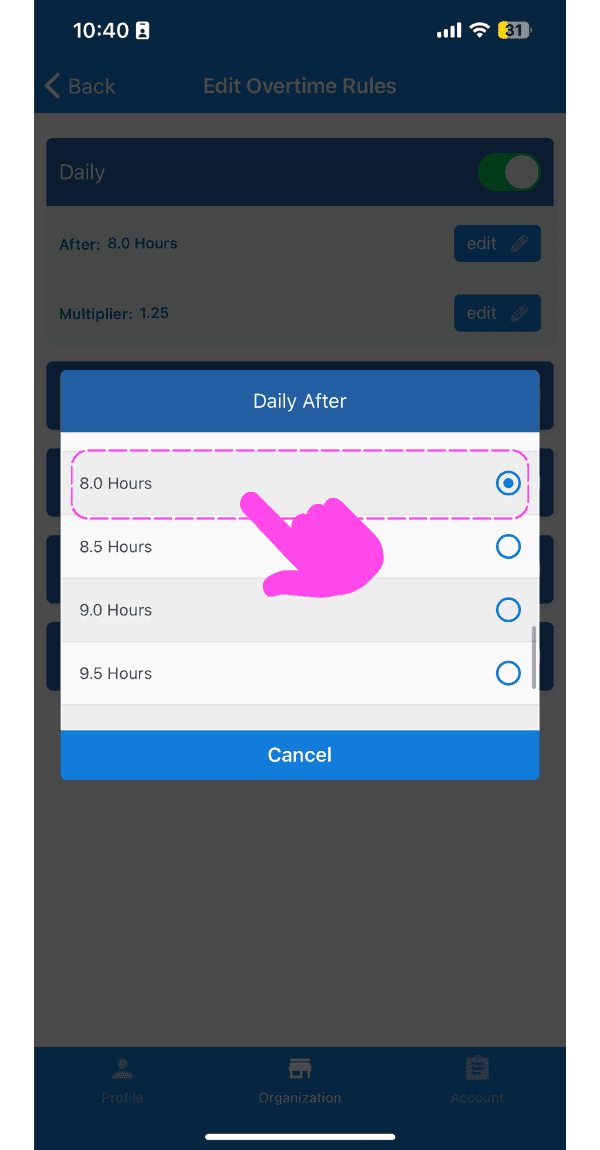
Edit Overtime Rules popup showing Daily After hour options with 8.0 Hours selected and pointed out by a pink arrow

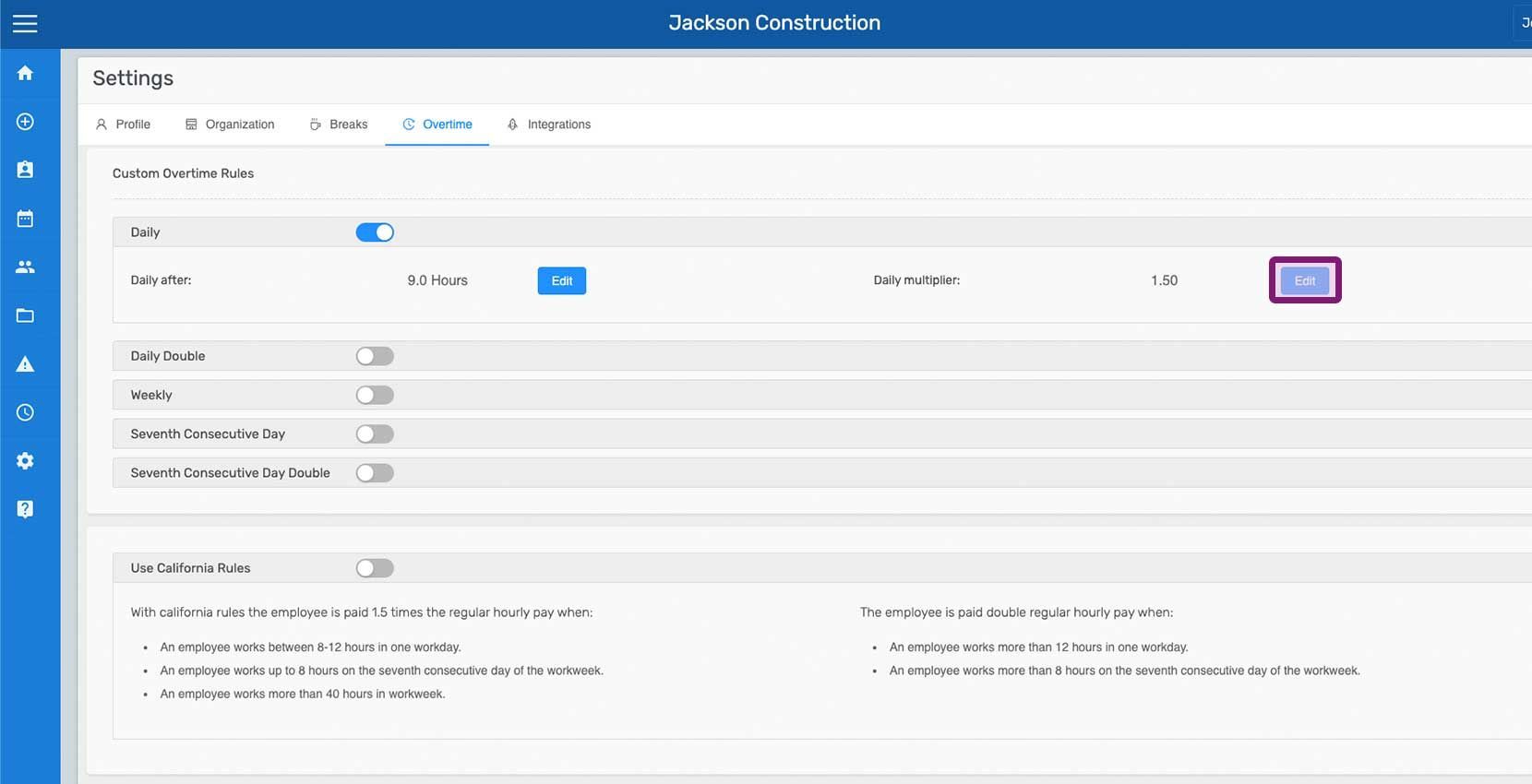
Si es necesario, edita la tarifa de la regla de horas extra modificando el multiplicador: toca Editar junto a Multiplicador
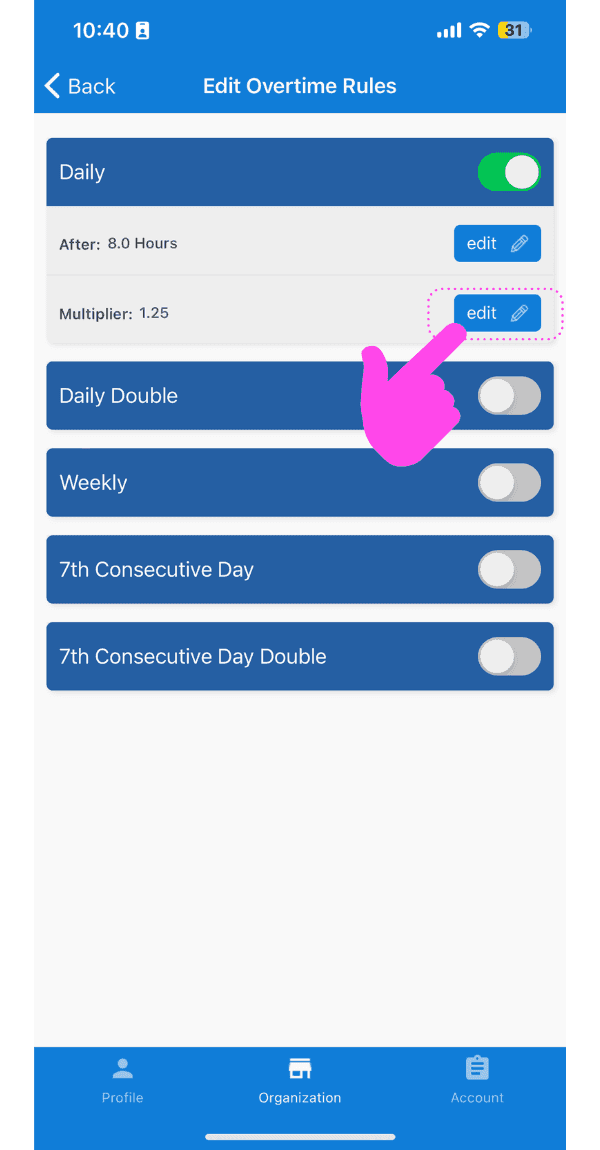
Edit Overtime Rules screen showing the Daily rule with the Multiplier Edit button highlighted by a pink arrow

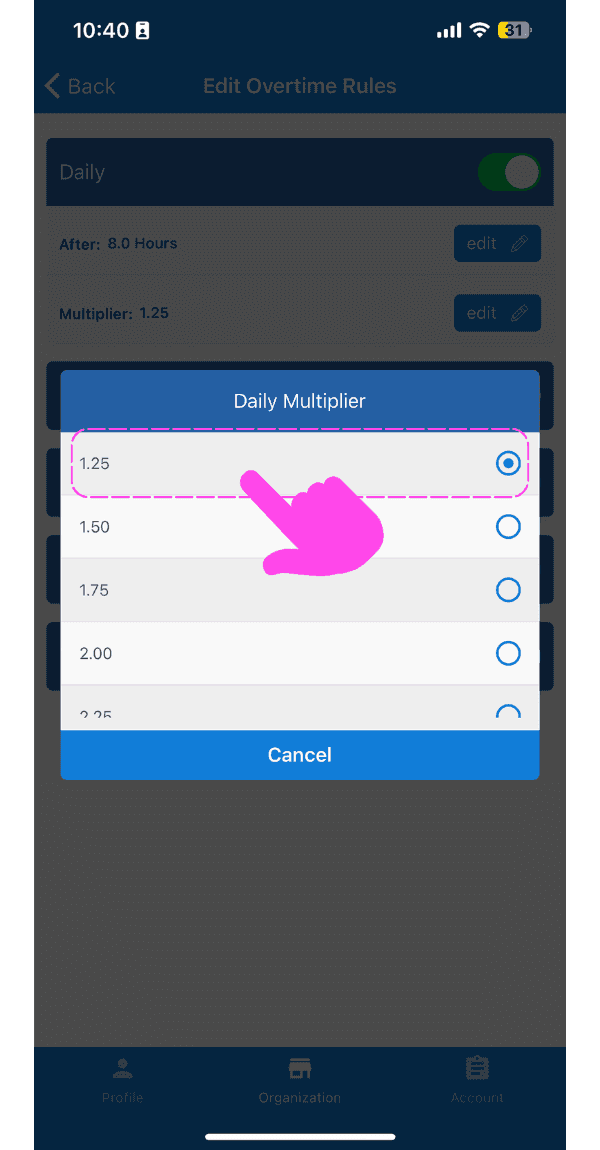
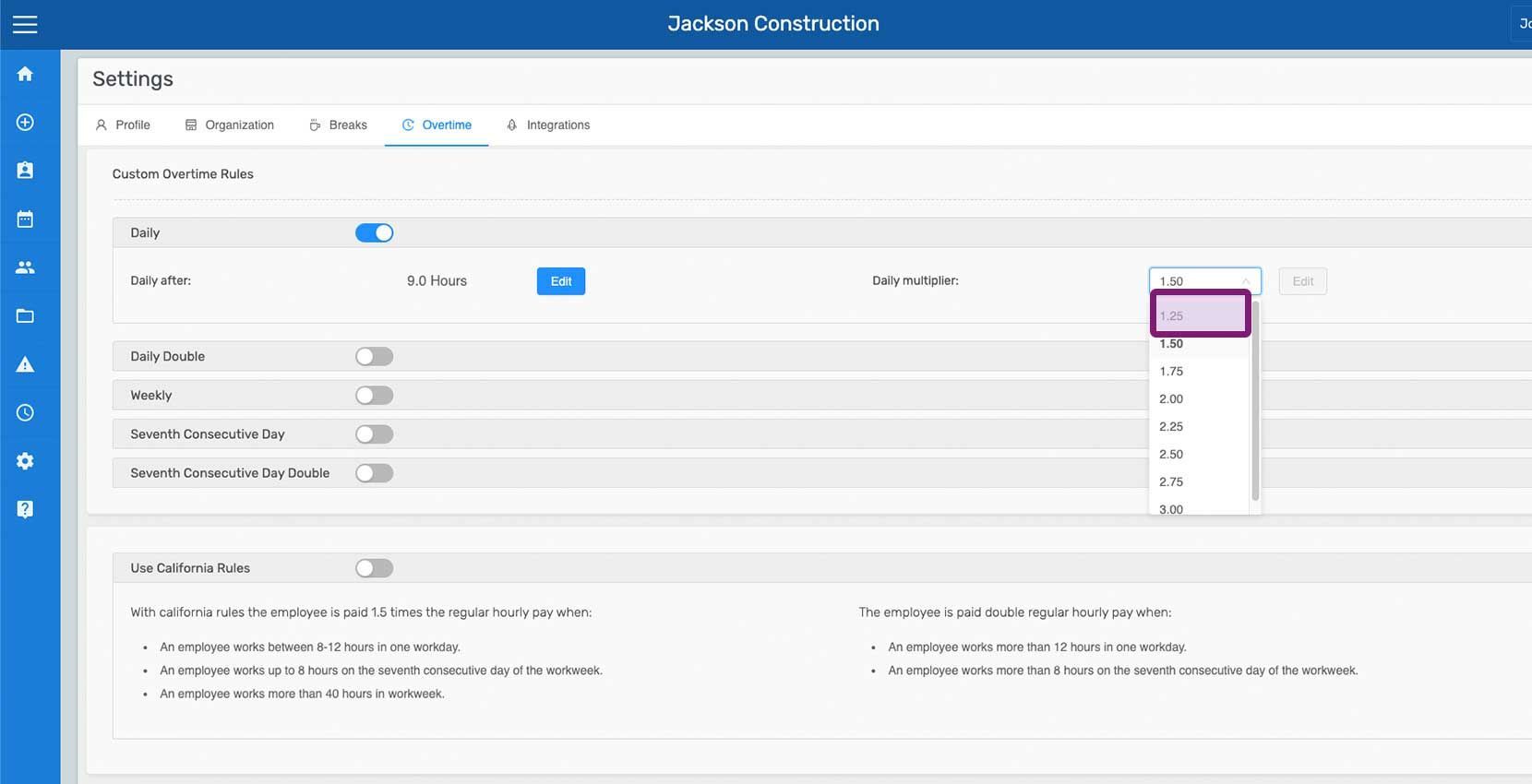
Toca El multiplicador de la regla

SINC mobile Daily Multiplier picker with a pink hand pointing to the 1.25 option

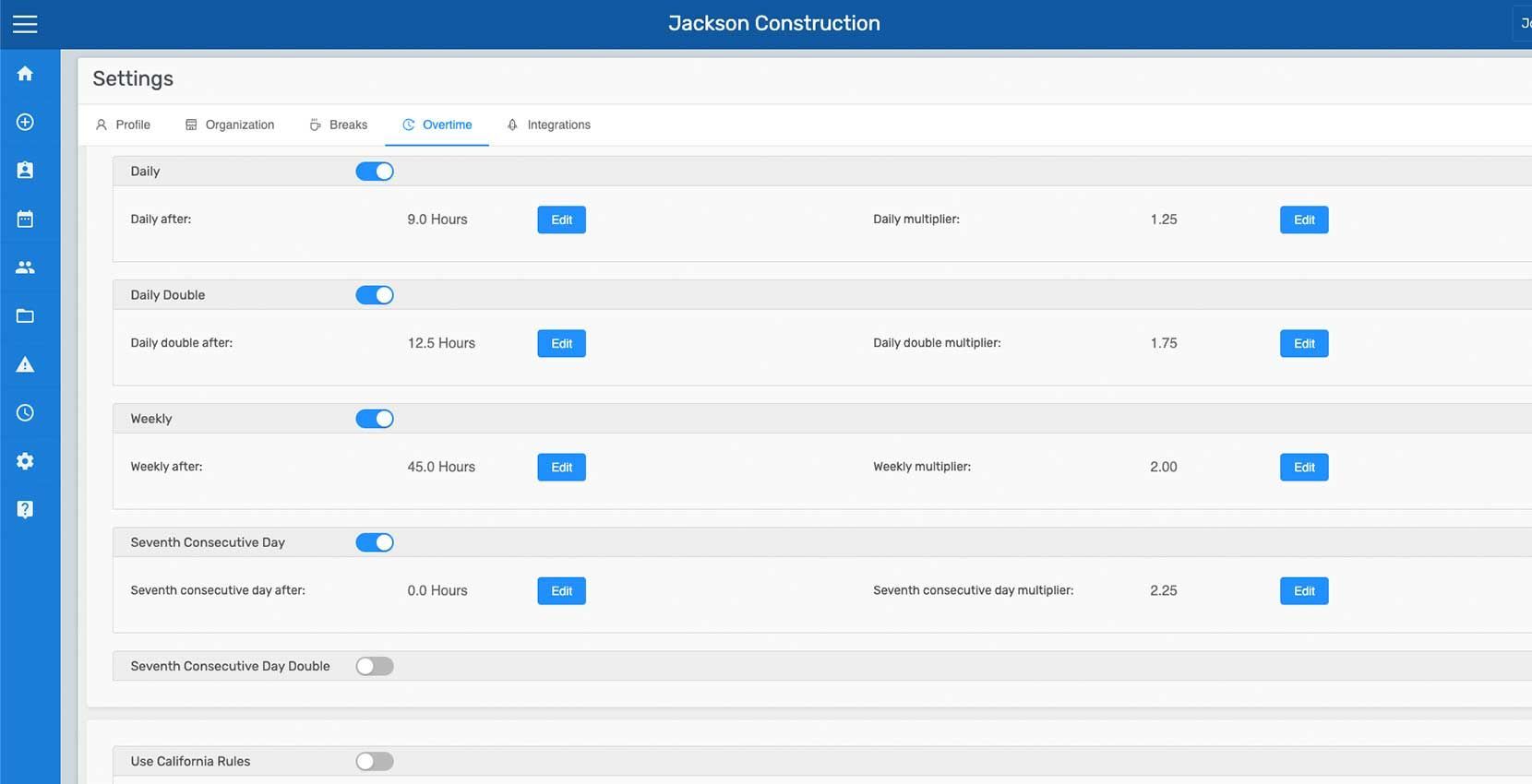
Del mismo modo, las reglas restantes pueden activarse según sea necesario. También se pueden ajustar las horas a partir de las cuales se aplican y sus multiplicadores.
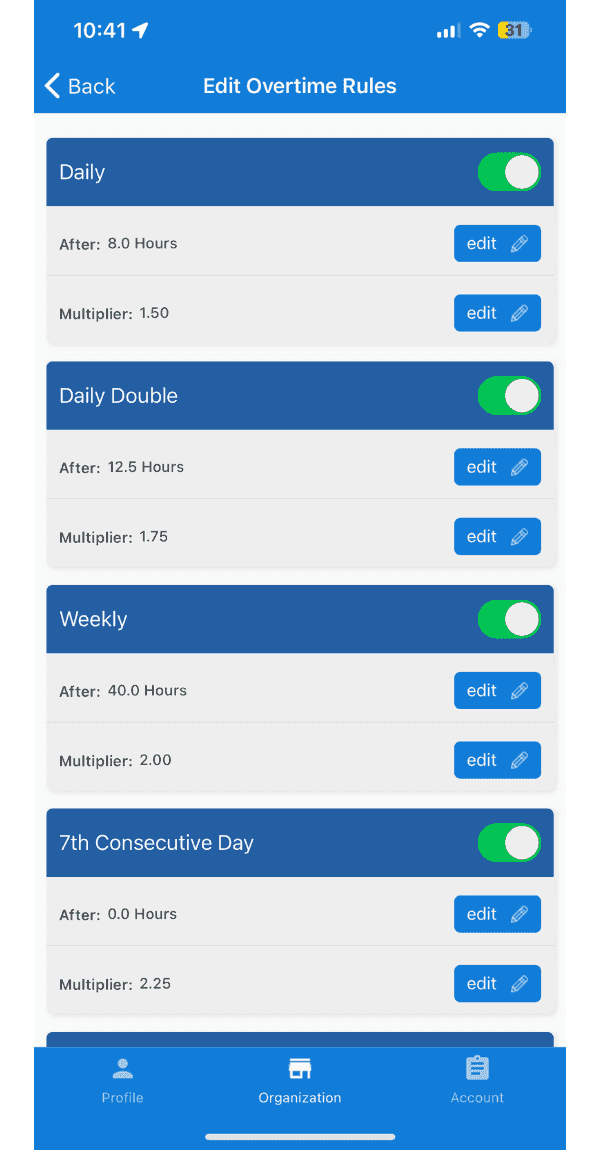
Edit Overtime Rules screen listing Daily, Daily Double, Weekly, and 7th Consecutive Day rules with toggles and multipliers

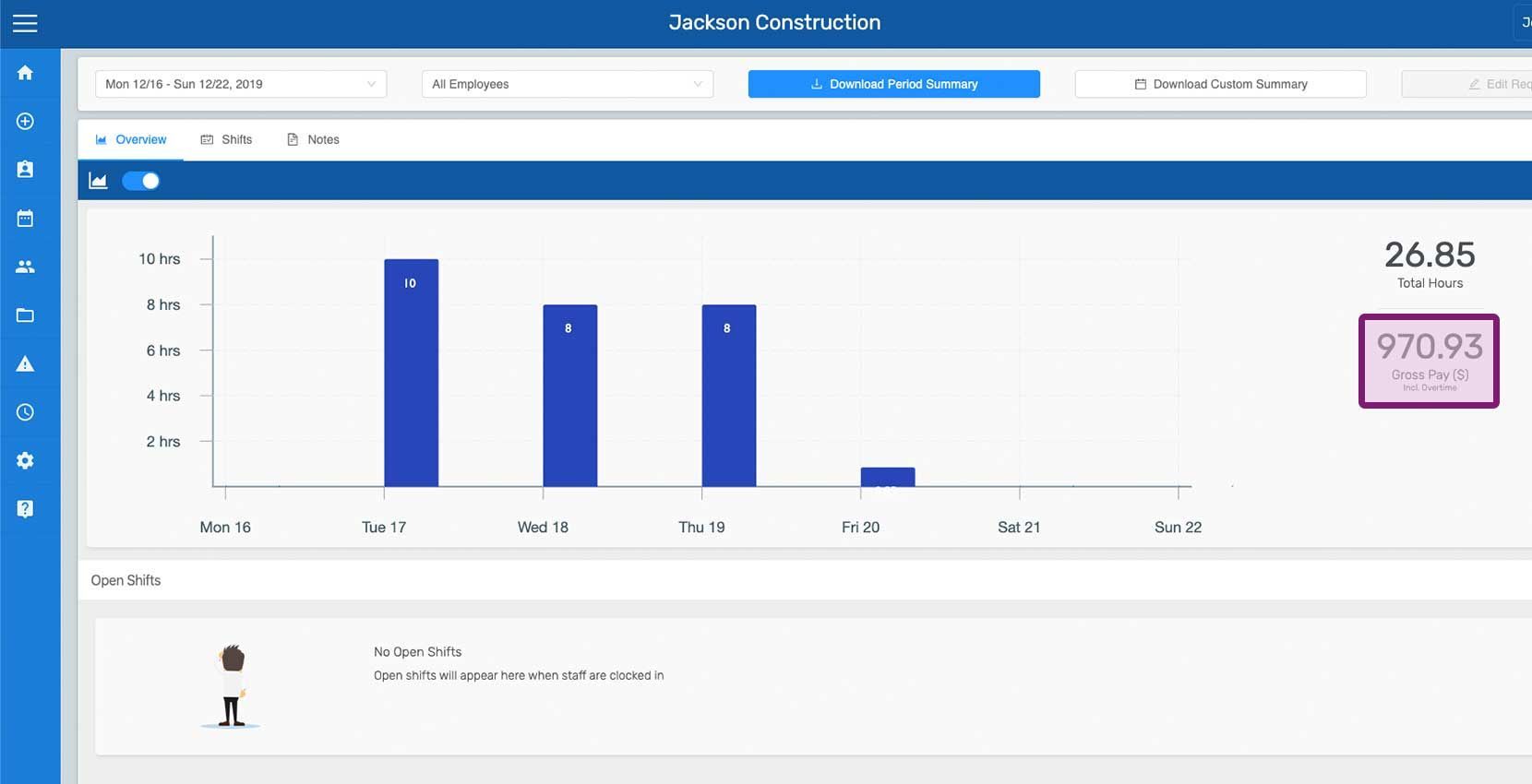
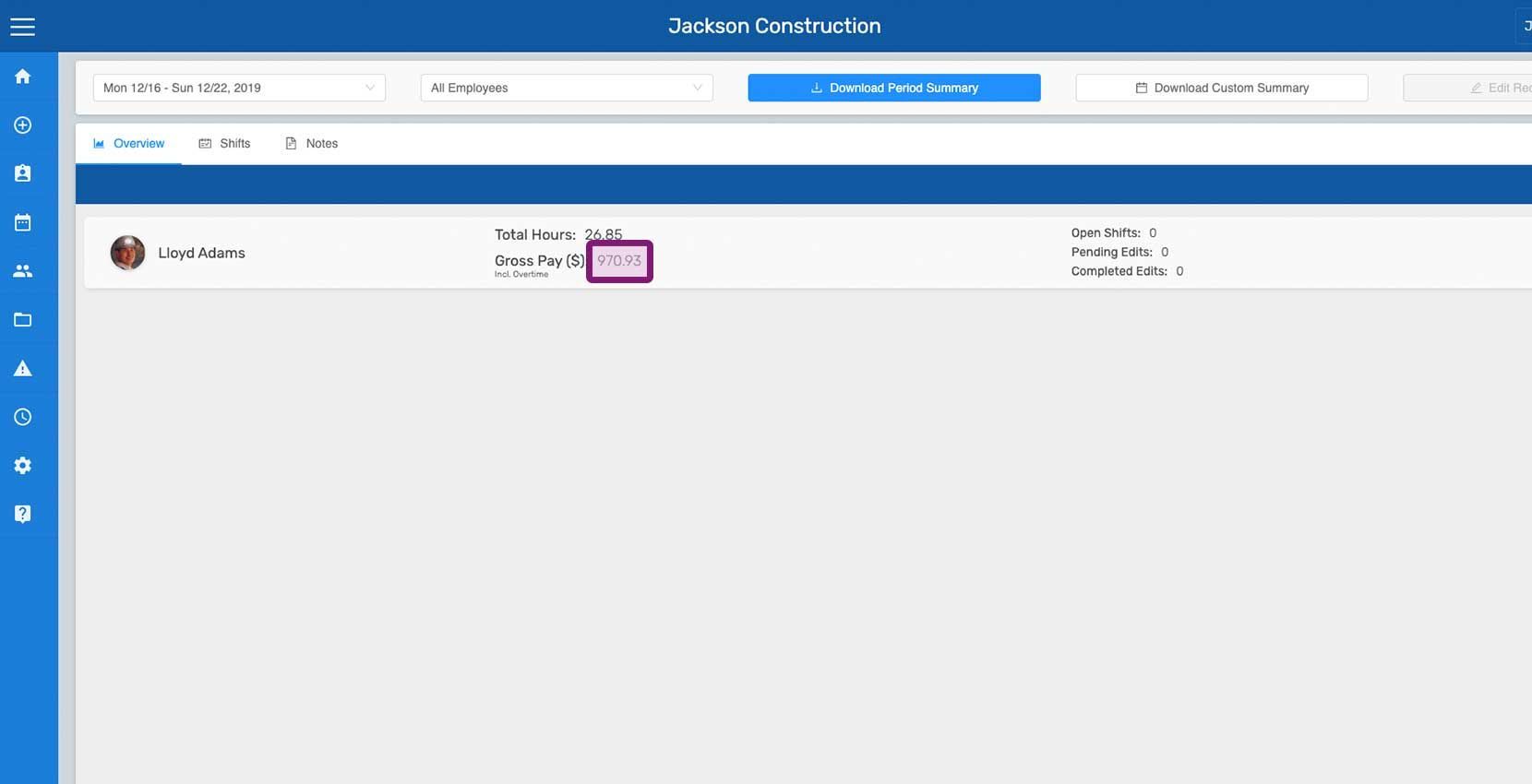
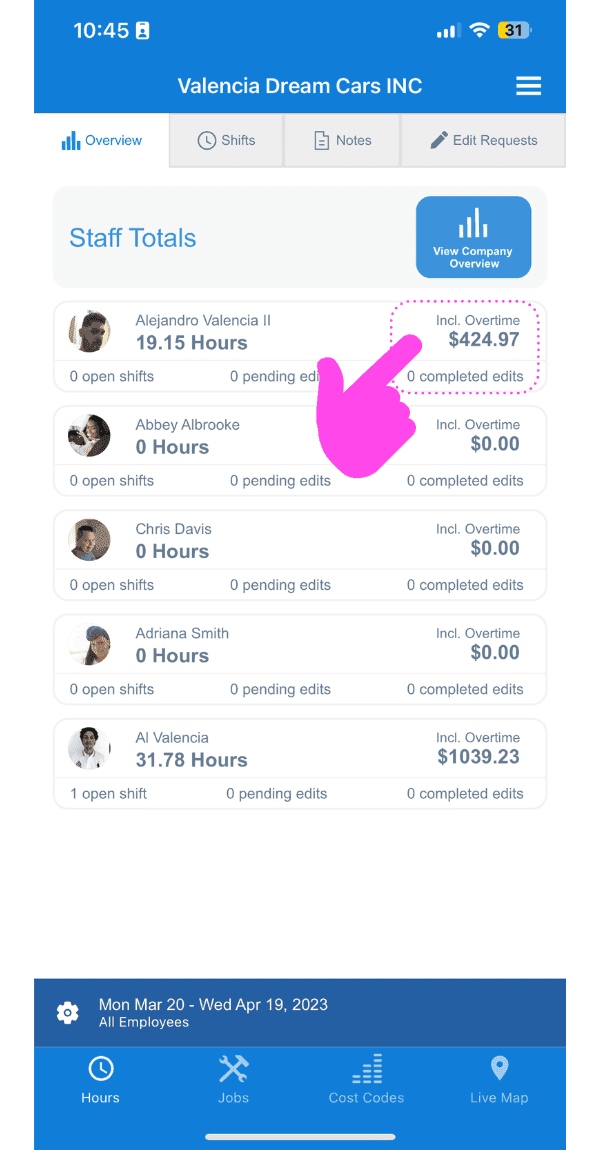
Una vez configurado el Día de inicio de la semana de horas extra y activada una Regla personalizada, el salario bruto del Resumen y de los Resúmenes de empleados se calcula y muestra con las horas extra incluidas (las horas extra se calculan para los turnos finalizados; el salario bruto de los turnos abiertos no incluye el cálculo de horas extra).
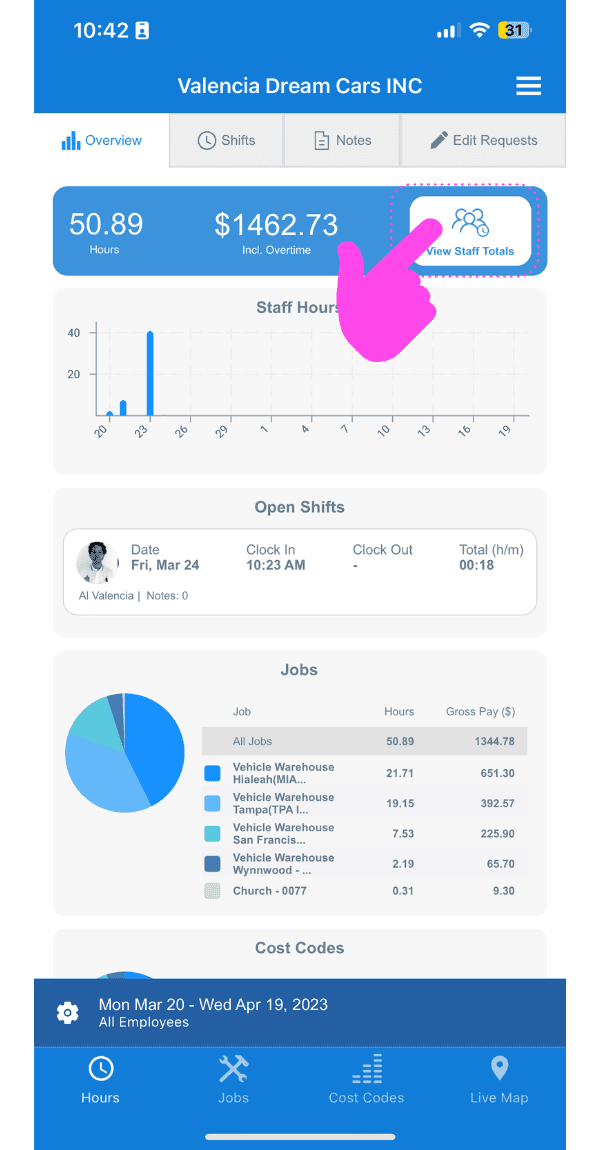
SINC mobile Overview dashboard with a pink arrow pointing to hours and gross pay including overtime
Staff Totals screen with a pink arrow pointing to an employee's hours and gross pay including overtime

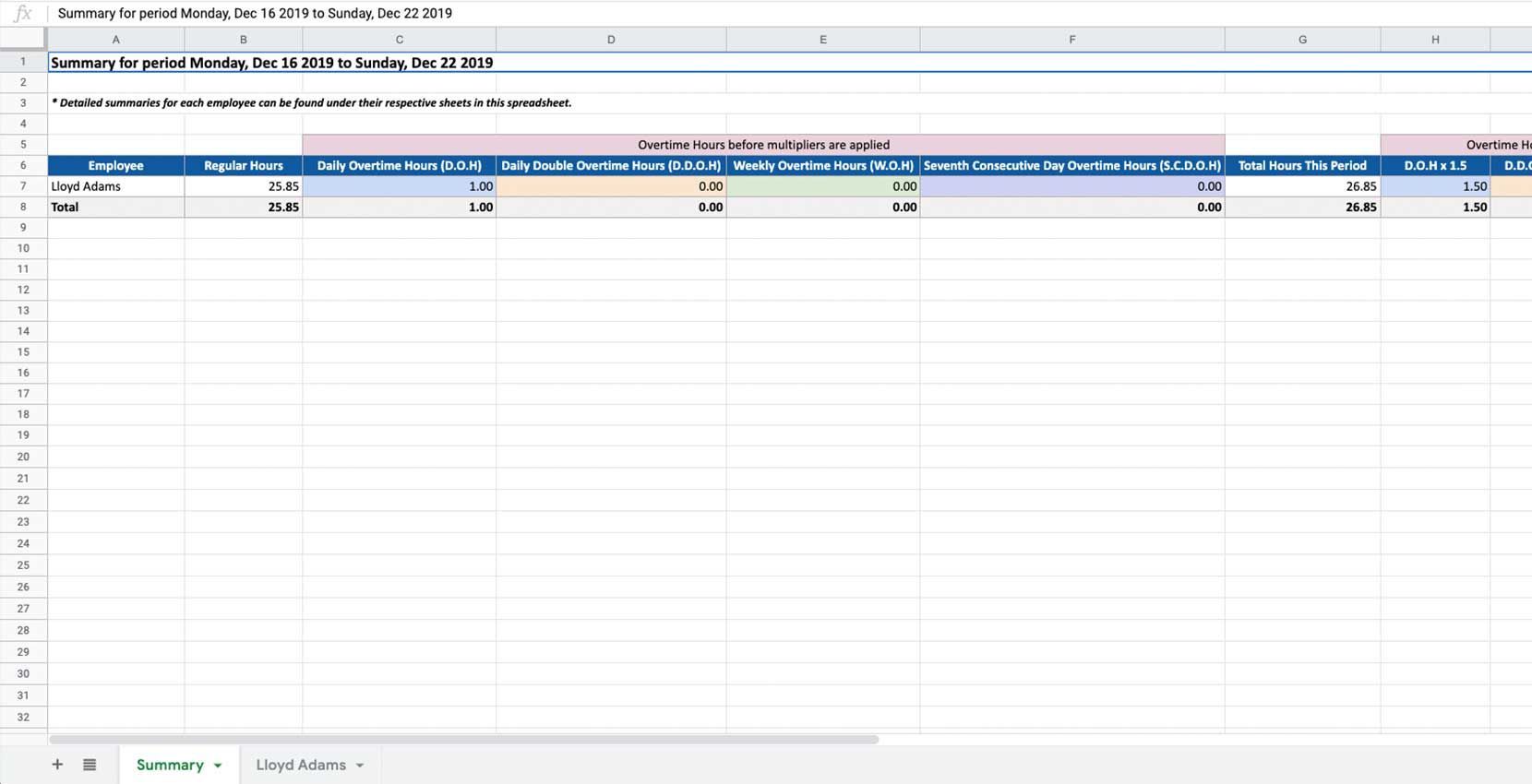
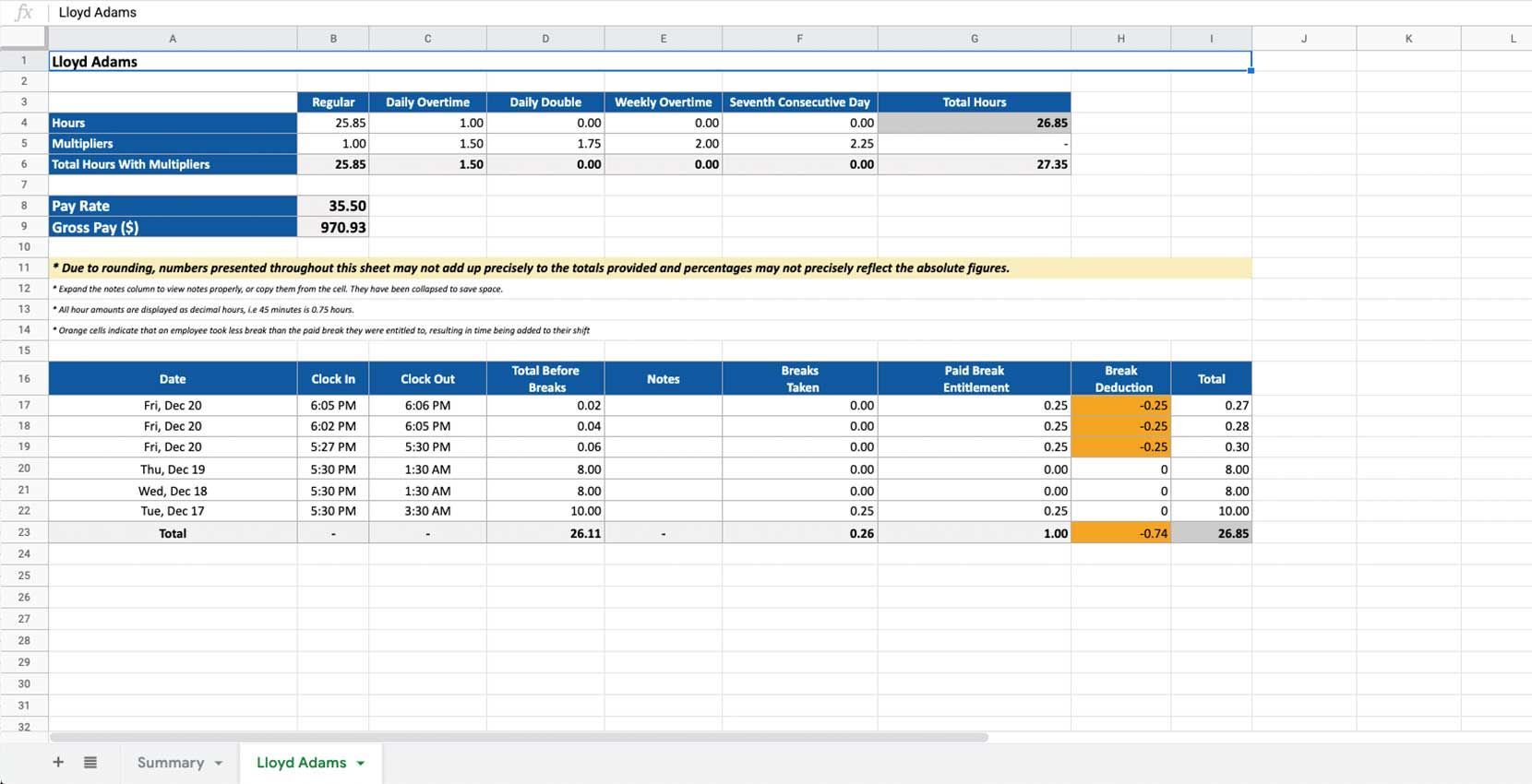
Los detalles de los cálculos de horas extra aparecen en los resúmenes de períodos de pago exportados.
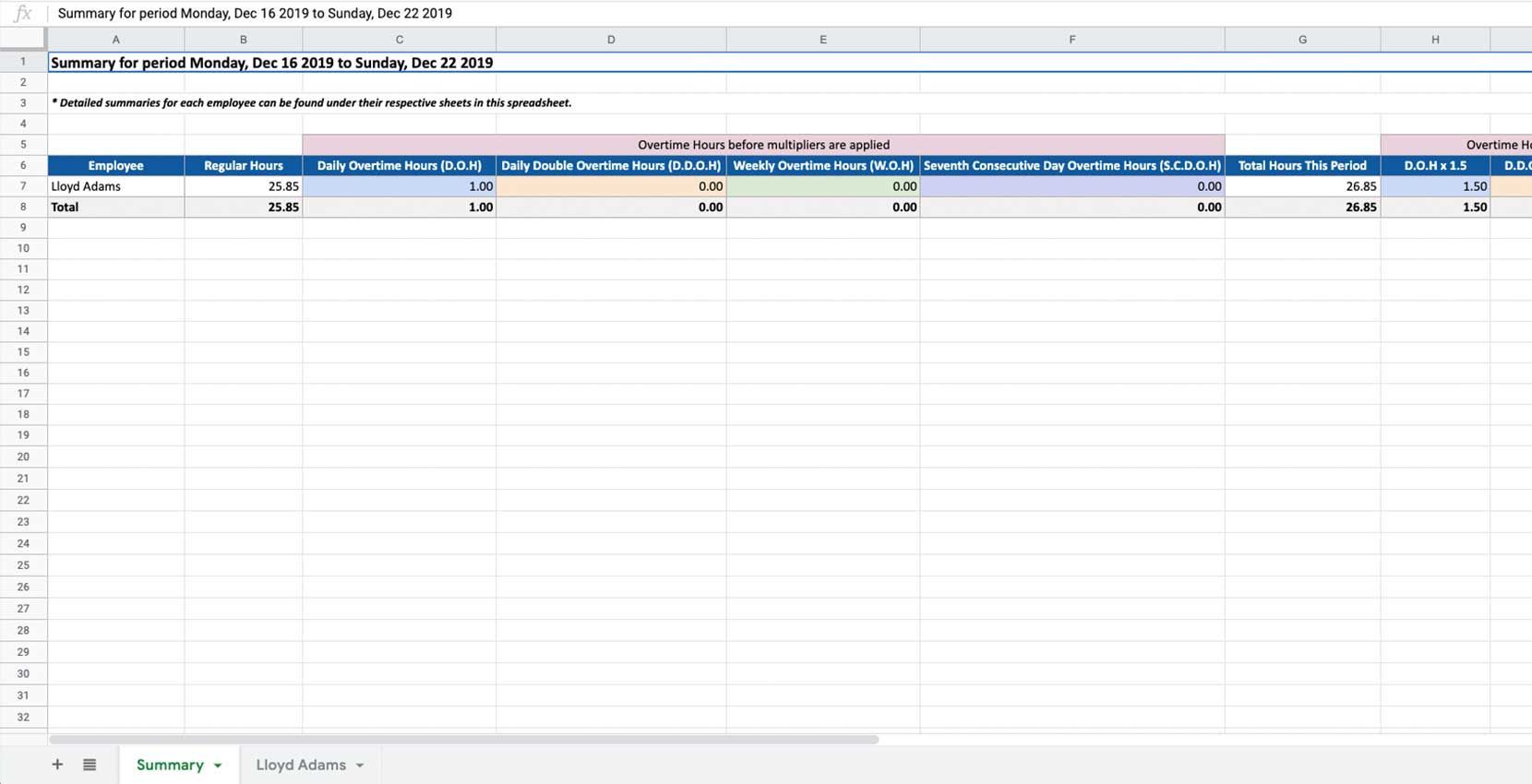
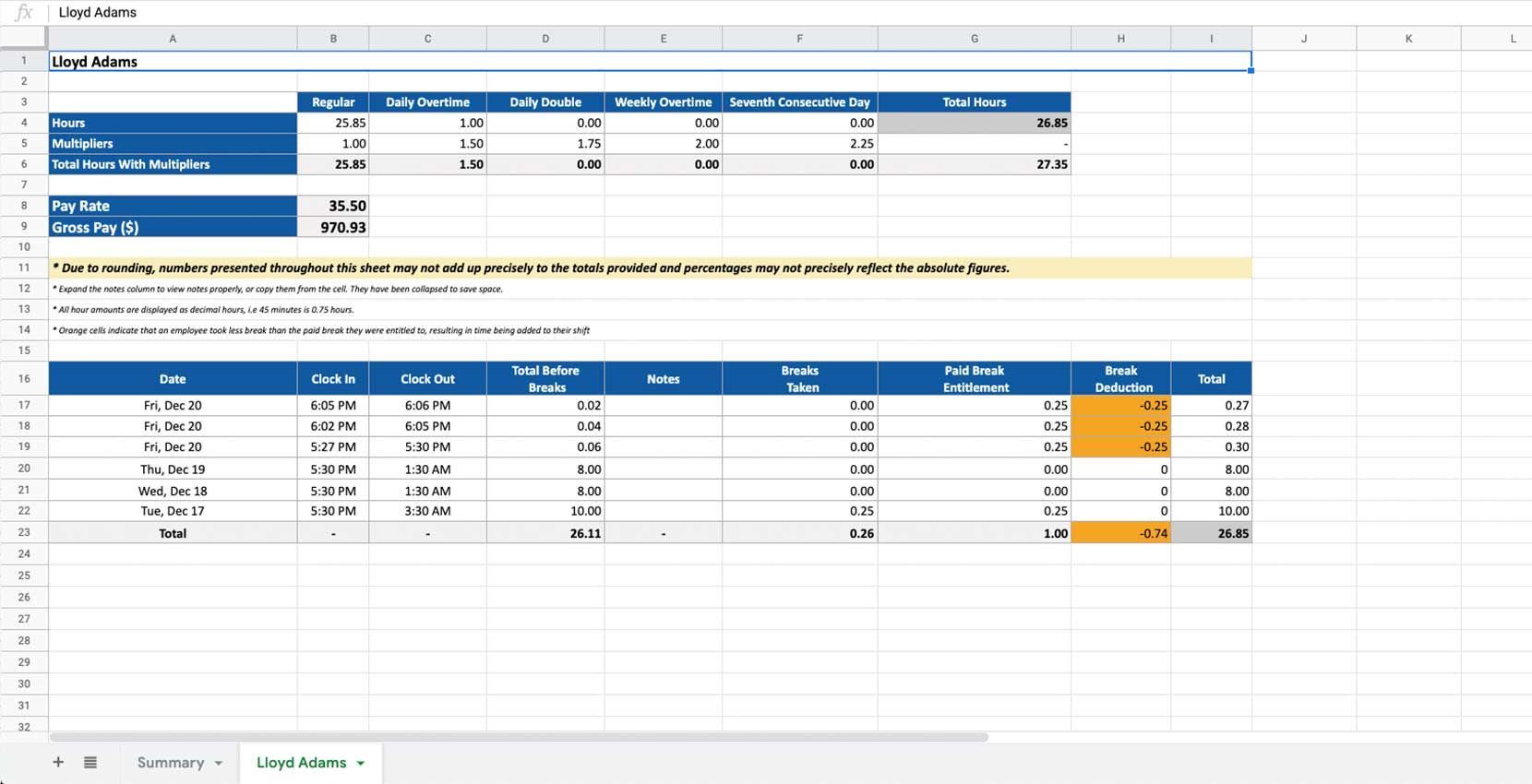
Exported pay period summary spreadsheet showing regular and overtime hours totals for an employee
Exported pay period summary spreadsheet showing overtime, double time, and total hours columns for an employee

Si estás utilizando la versión web, se verá así:
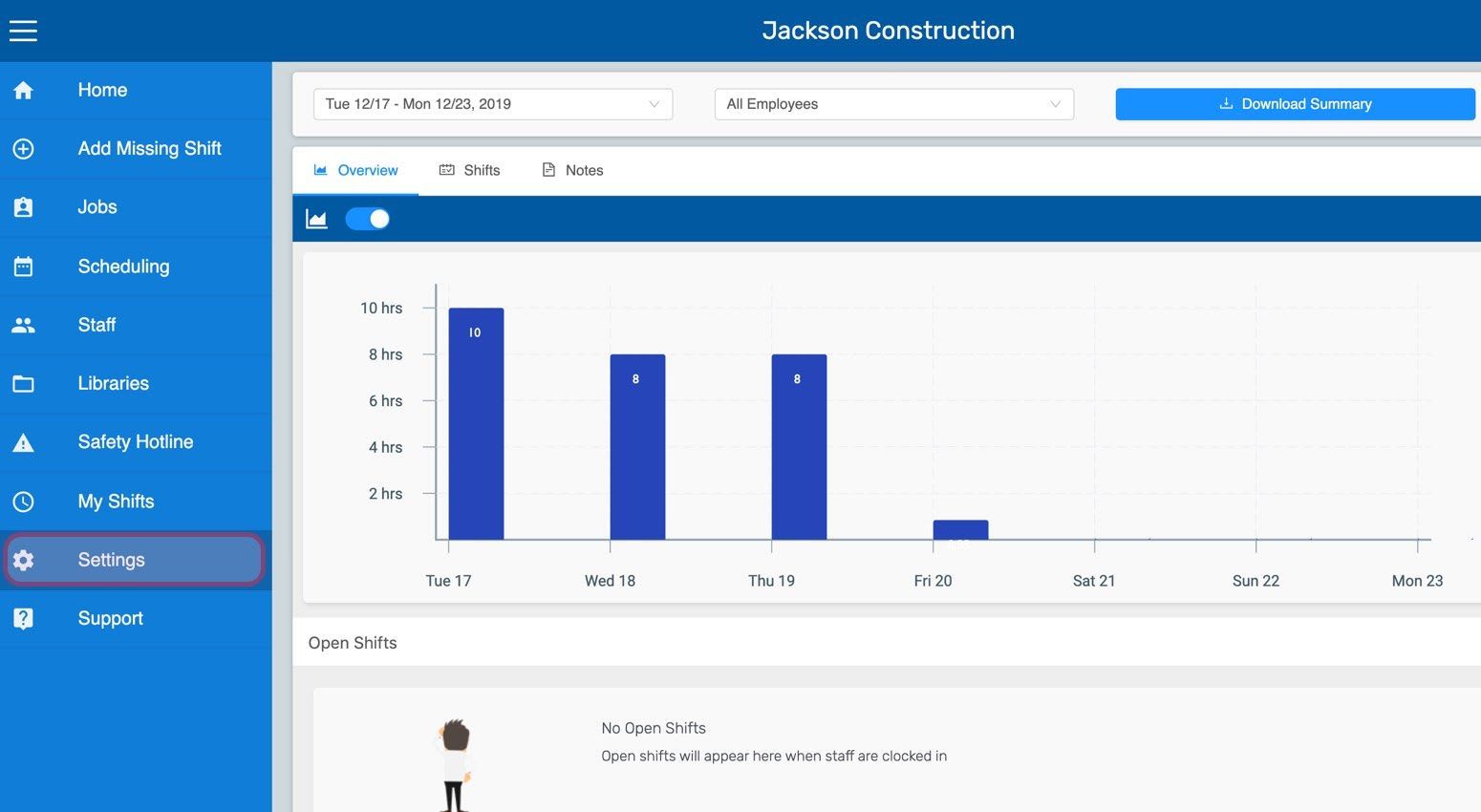
SINC web dashboard sidebar with the Settings menu item circled
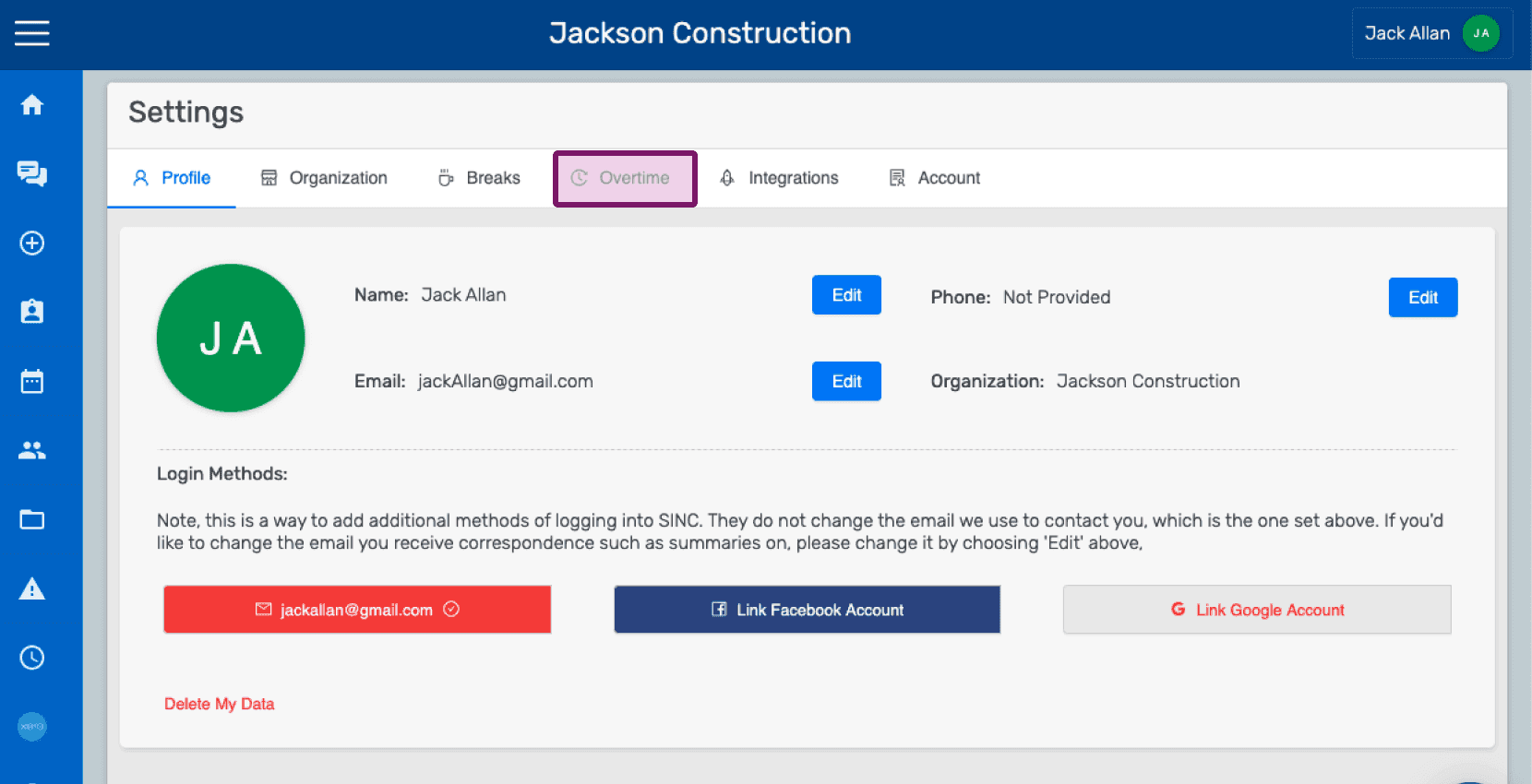
Settings Profile screen with the Overtime tab highlighted
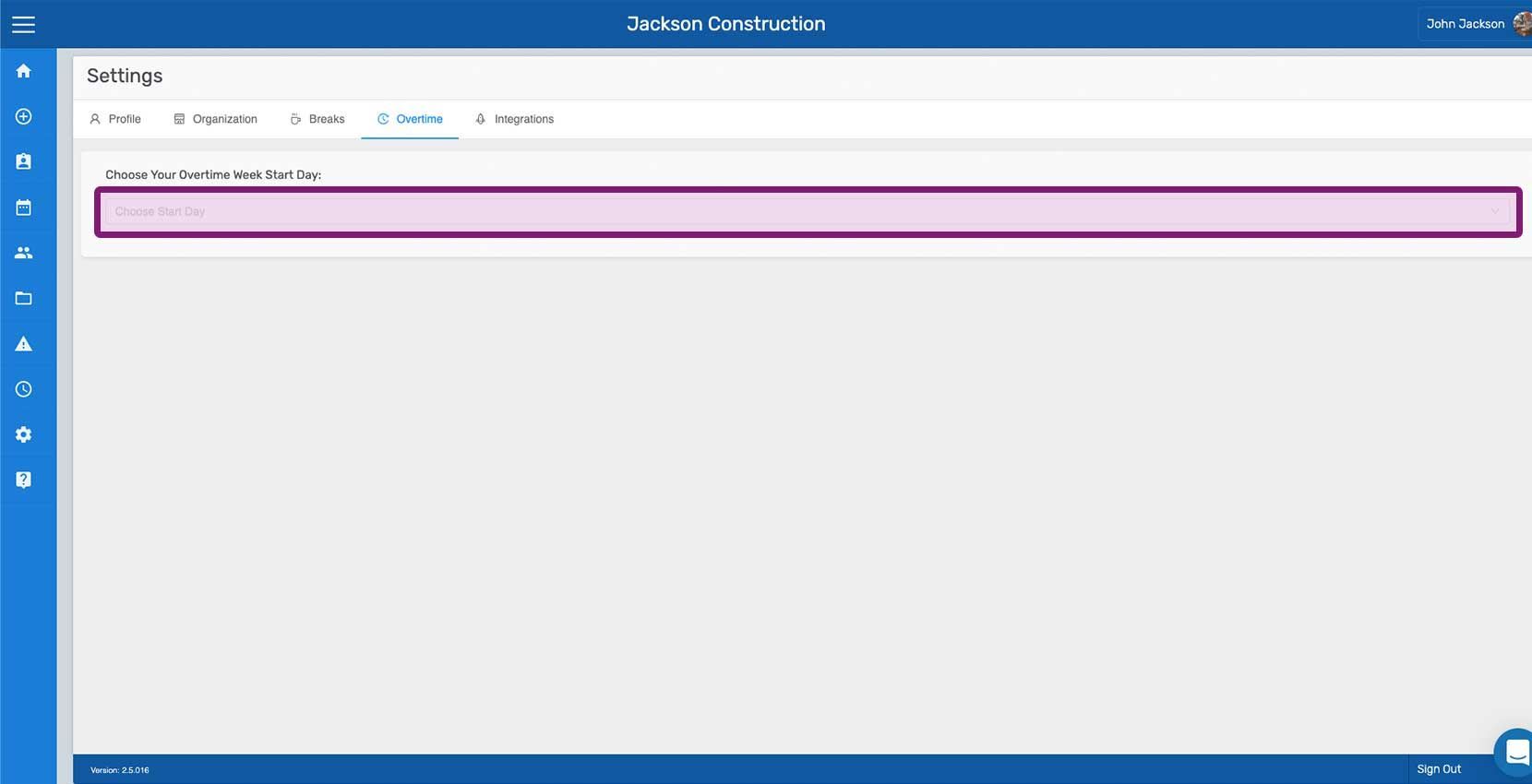
Web Organization Overtime tab with the Choose Your Overtime Week Start Day field outlined in purple
SINC web Settings Overtime tab with the Choose Overtime Week Start Day dropdown outlined
SINC web Settings Overtime tab with the Daily custom overtime rule toggle outlined in pink
Custom Overtime Rules screen showing the Daily rule enabled with hours and multiplier fields, Edit button outlined
SINC web Custom Overtime Rules settings with the Daily after-hours dropdown open and an hour option highlighted in pink
Web Settings Overtime tab showing custom daily overtime rules with the multiplier Edit button outlined in purple
Organization Settings Overtime tab showing custom Daily overtime rule with the multiplier dropdown highlighted in purple
SINC web Overtime settings tab listing Daily, Daily Double, Weekly, and Seventh Consecutive Day rules with their multipliers
Web dashboard Overview screen showing a weekly hours bar chart with the gross pay total outlined in pink
SINC web employee overview screen with the gross pay figure outlined in pink
Exported overtime summary spreadsheet showing regular hours, overtime categories, and total hours for the pay period
Exported spreadsheet showing an employee's overtime hours breakdown under custom overtime rules

¿Esto respondió tu pregunta?