
Añade turnos nocturnos a los horarios de tus empleados
En este tutorial te mostramos cómo añadir turnos nocturnos a los horarios de tus empleados.

Los horarios deben crearse desde la versión web, no desde la aplicación. Primero, accede a users.sinc.business desde un ordenador utilizando Chrome o Firefox. Antes de añadir un turno, es importante saber qué es un turno programado: es una forma de informar a un empleado de cuándo trabajará y qué tareas realizará durante ese turno. Un turno nocturno programado comienza un día y termina al día siguiente. Un turno programado (incluidos los nocturnos) NO se registra automáticamente como horas trabajadas en el periodo de pago; los turnos y sus horas solo se registran cuando el empleado ficha al entrar o salir de la forma habitual.
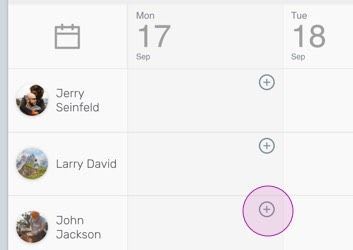
En la versión web: añade un turno nocturno haciendo clic en el icono circular con el signo más del empleado y el día en los que quieras añadirlo.
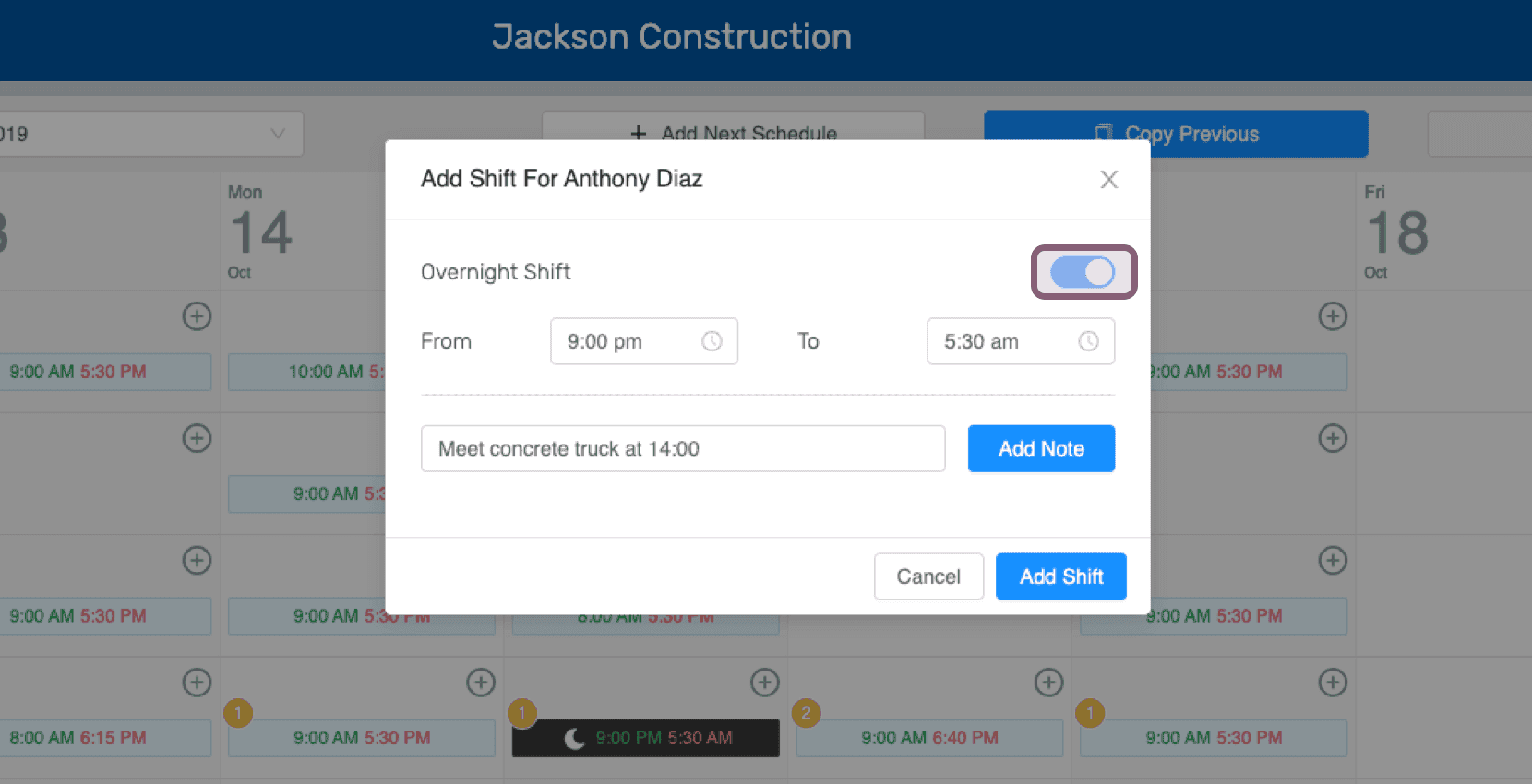
Activa Turno nocturno.
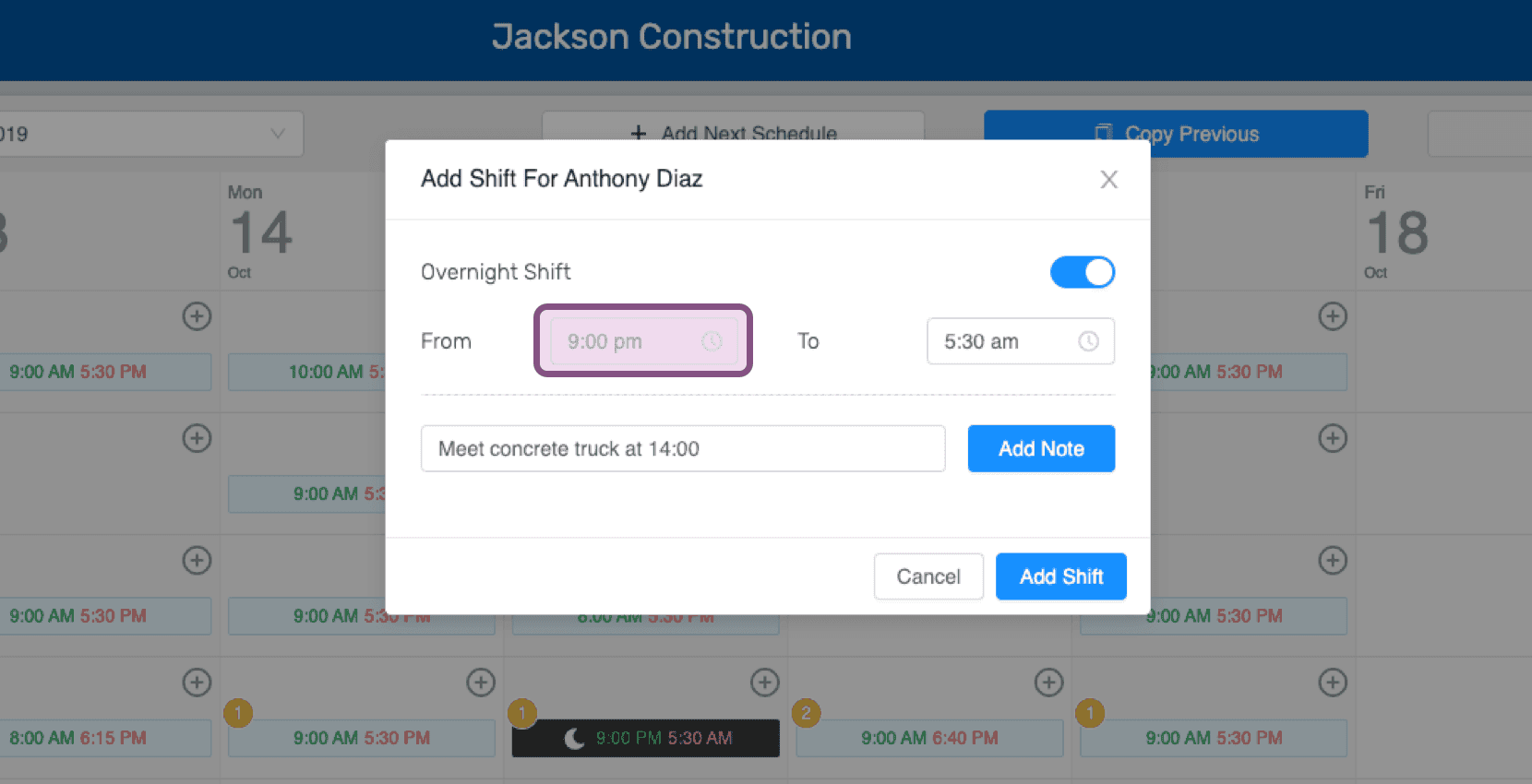
Elige la hora de entrada del turno nocturno programado. Puedes editarla más adelante.
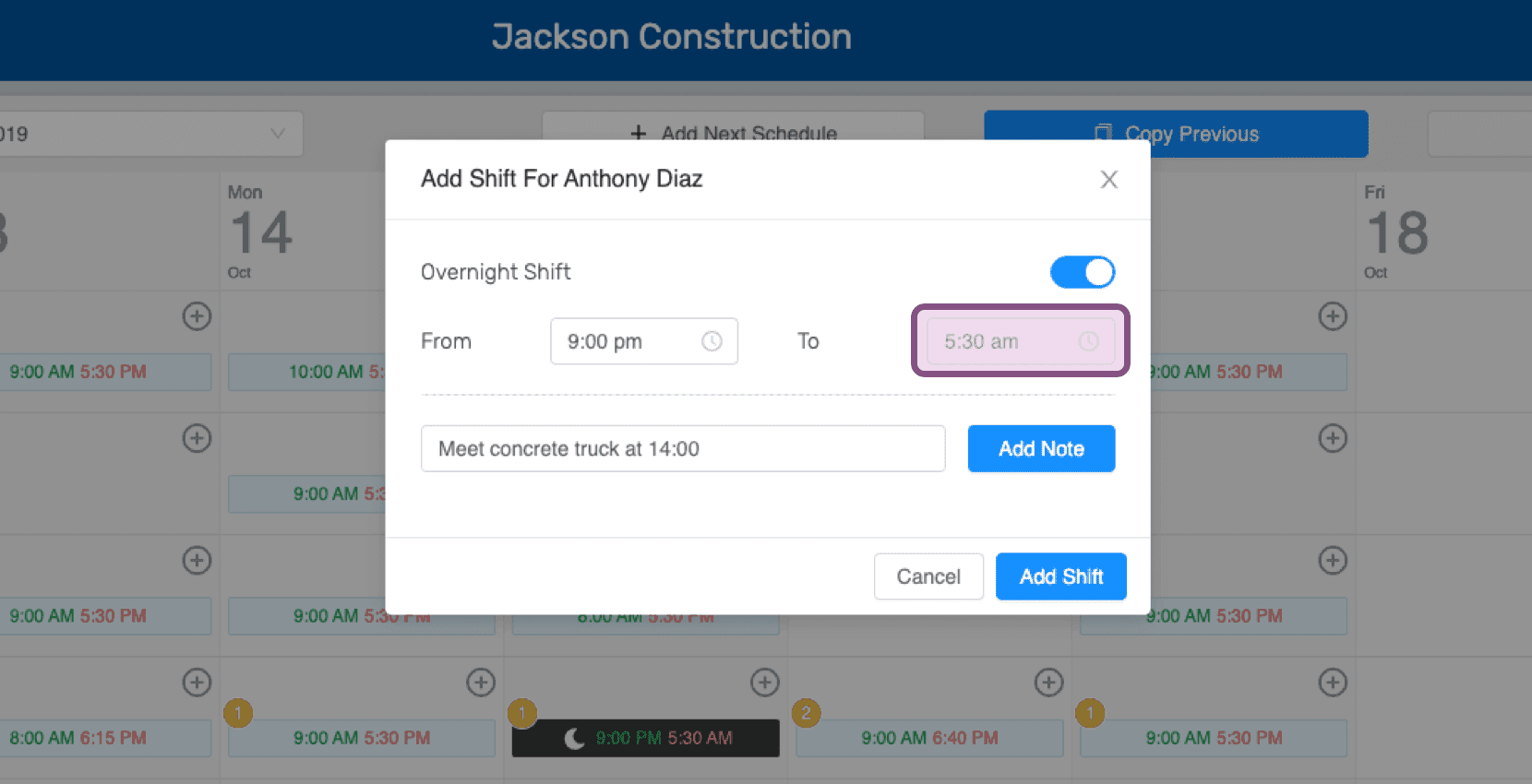
Elige la hora de salida del turno nocturno programado. Puedes editarla más adelante.
También puedes añadir aquí cualquier nota importante que quieras. Siempre podrás añadirlas o eliminarlas más adelante.
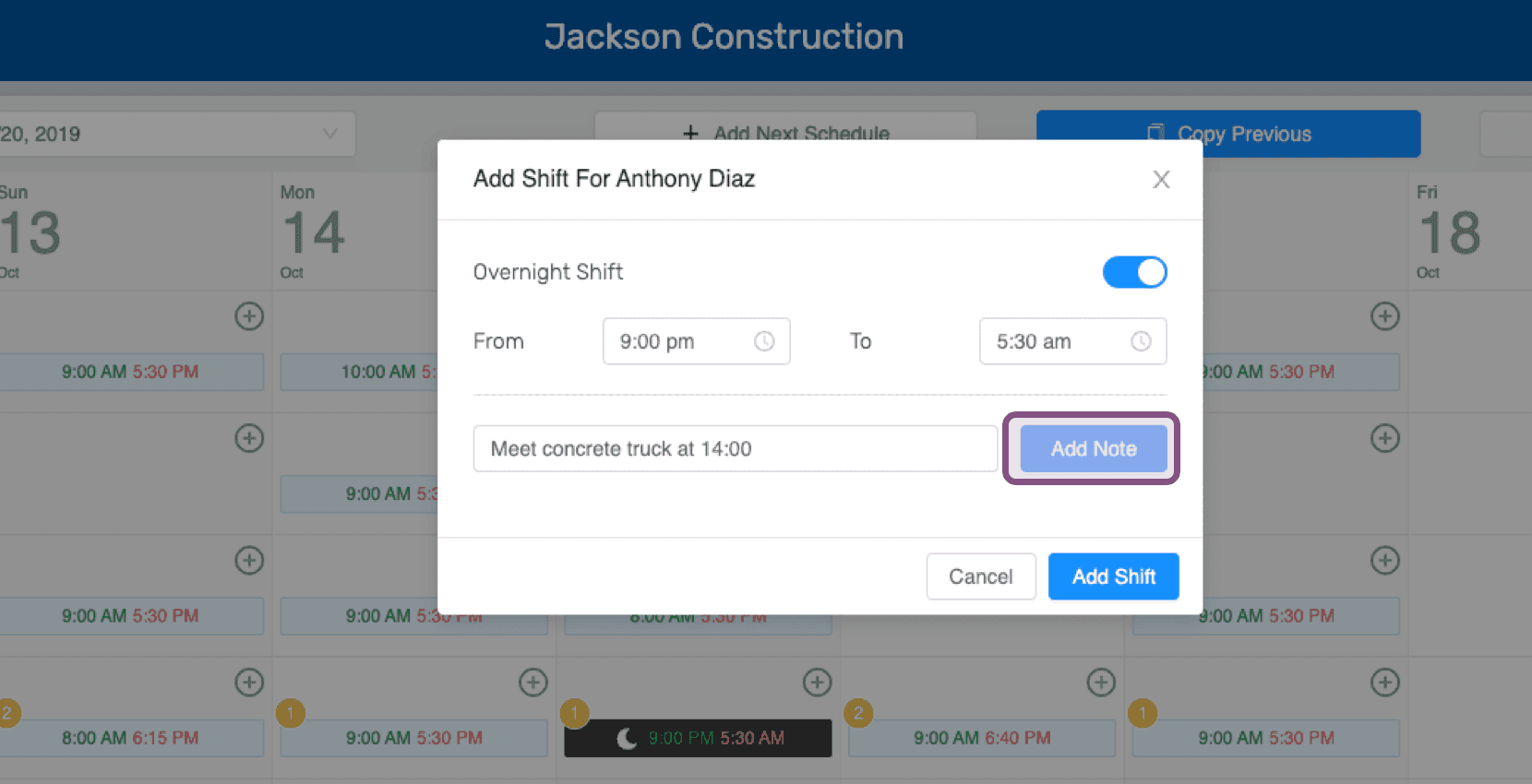
Haz clic en Añadir turno.
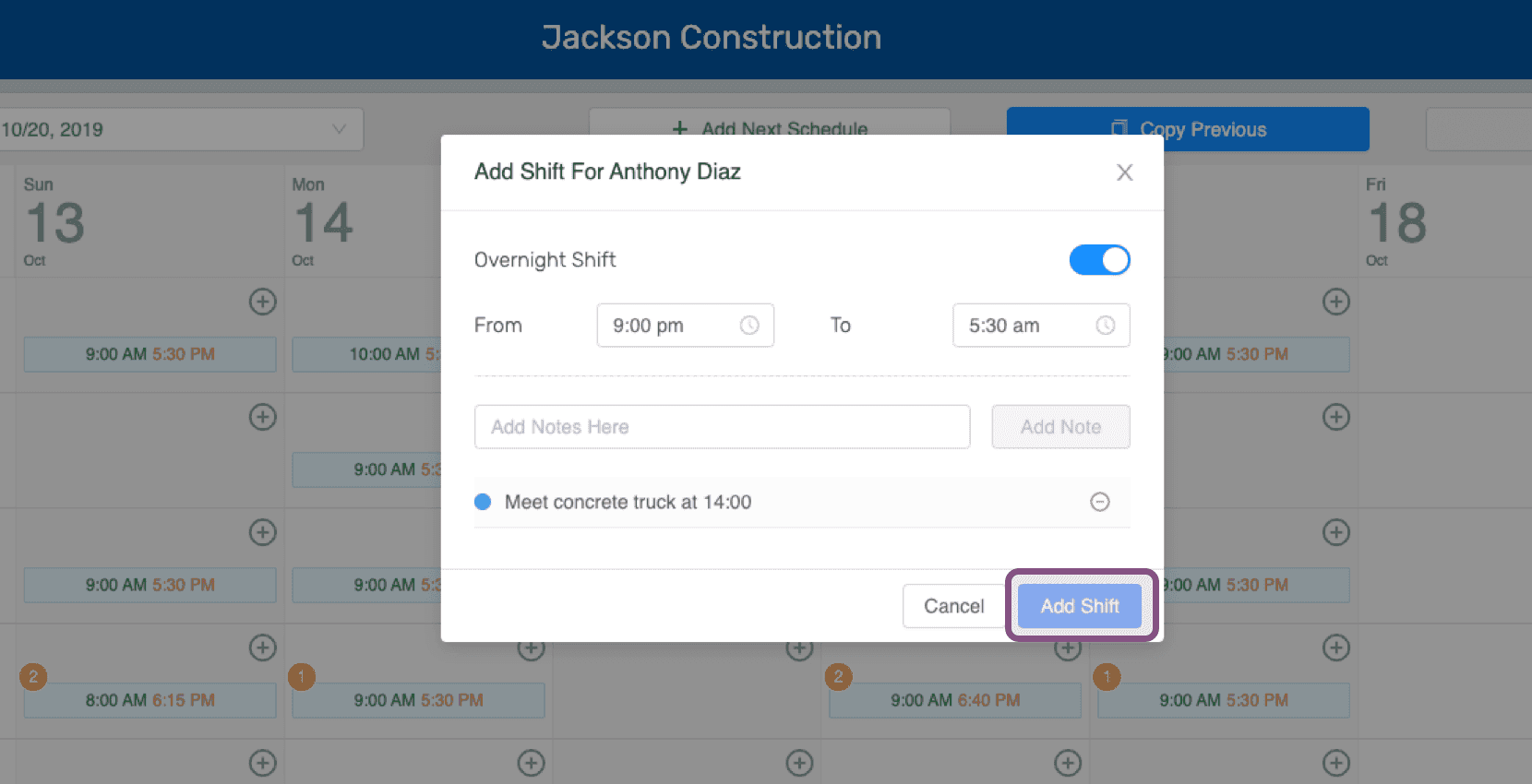
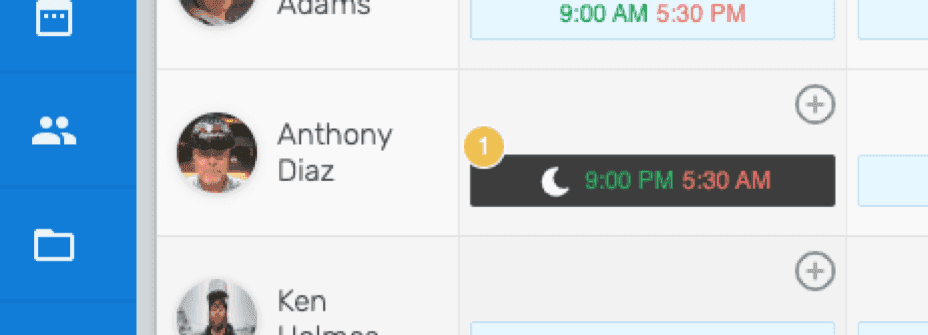
Ahora puedes ver el turno añadido en el calendario. El círculo amarillo de la esquina indica que este turno nocturno programado tiene una nota.
En el móvil: toca el icono + para añadir un turno programado.
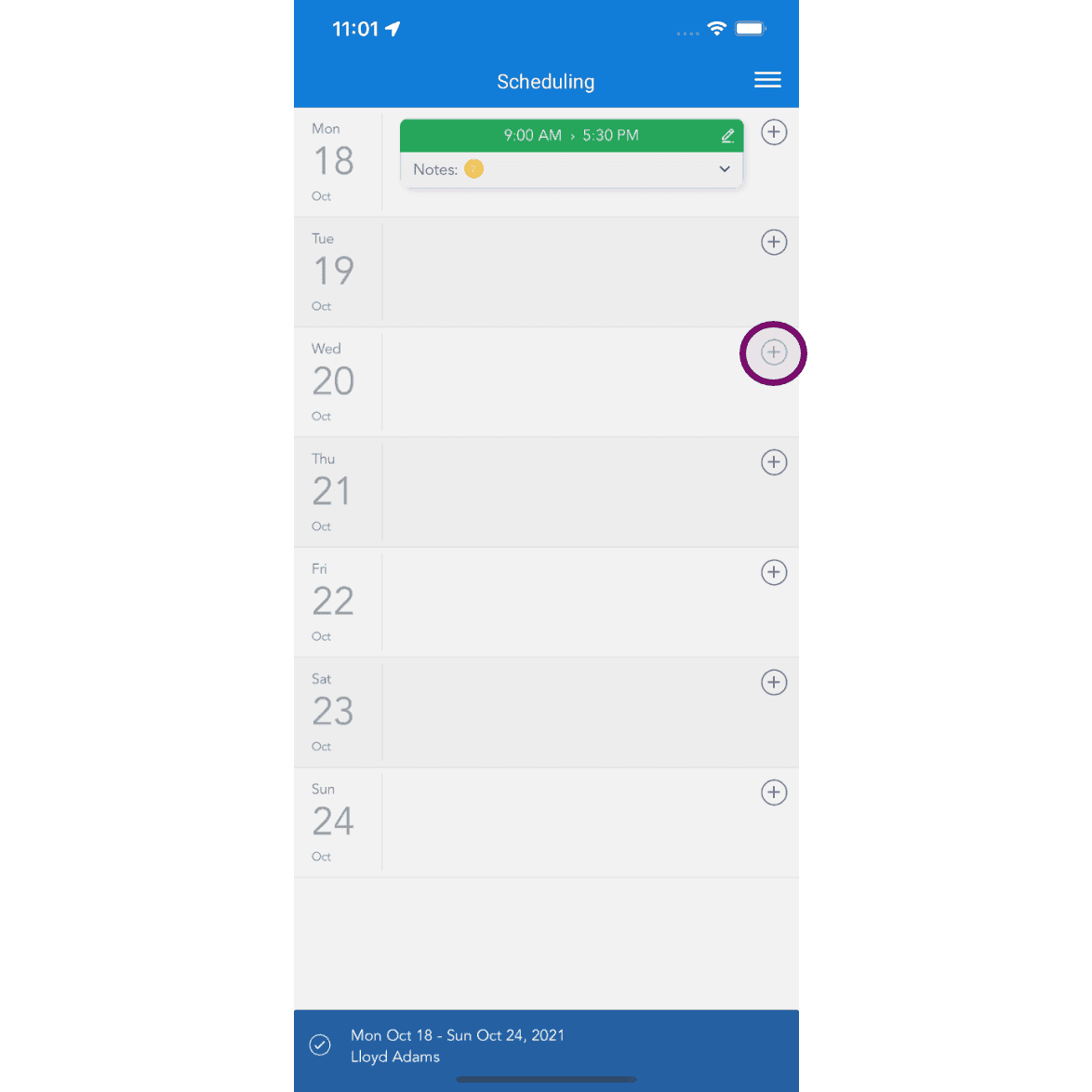
Activa Turno nocturno.
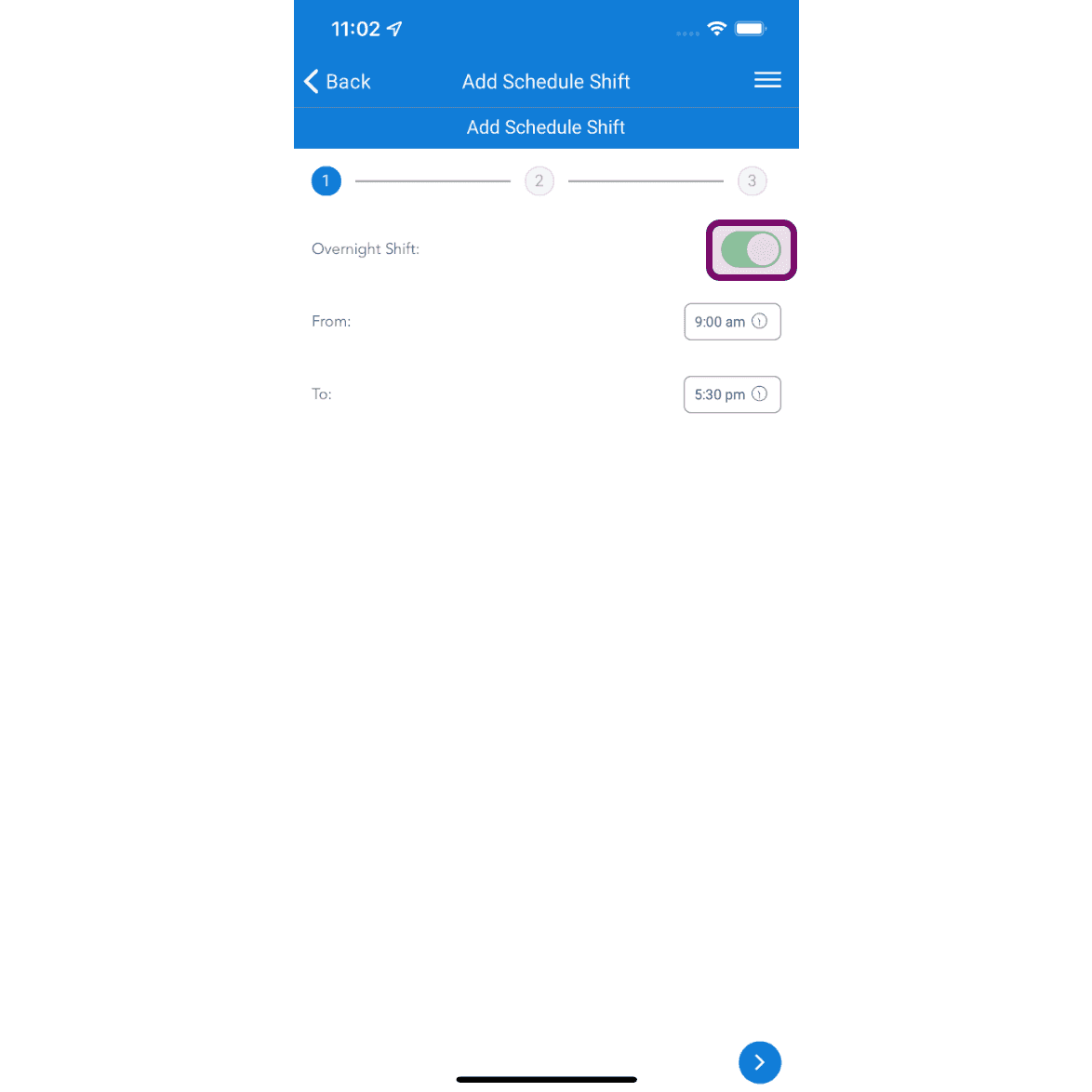
Añade una nota si es necesario y, después, pulsa el botón Siguiente.
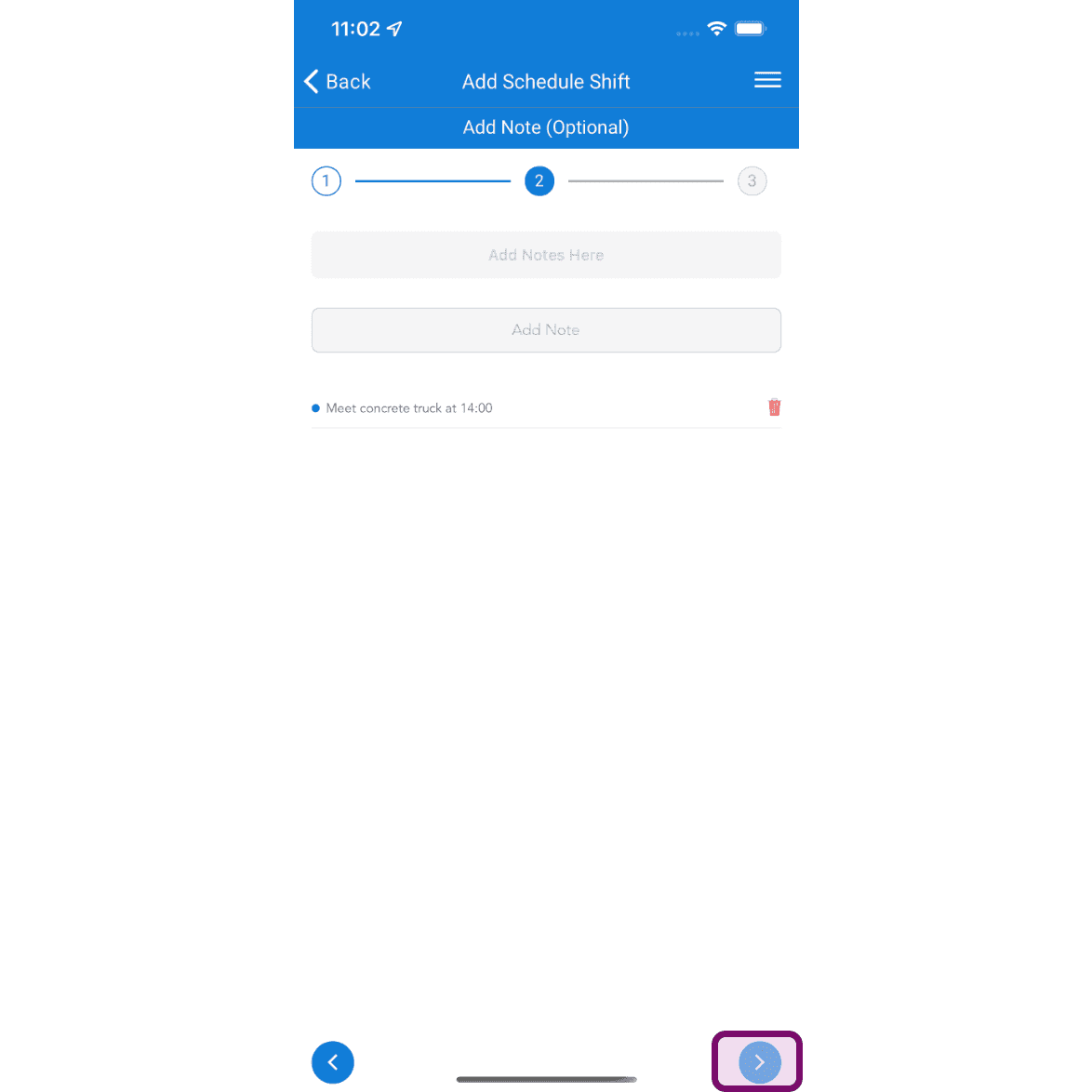
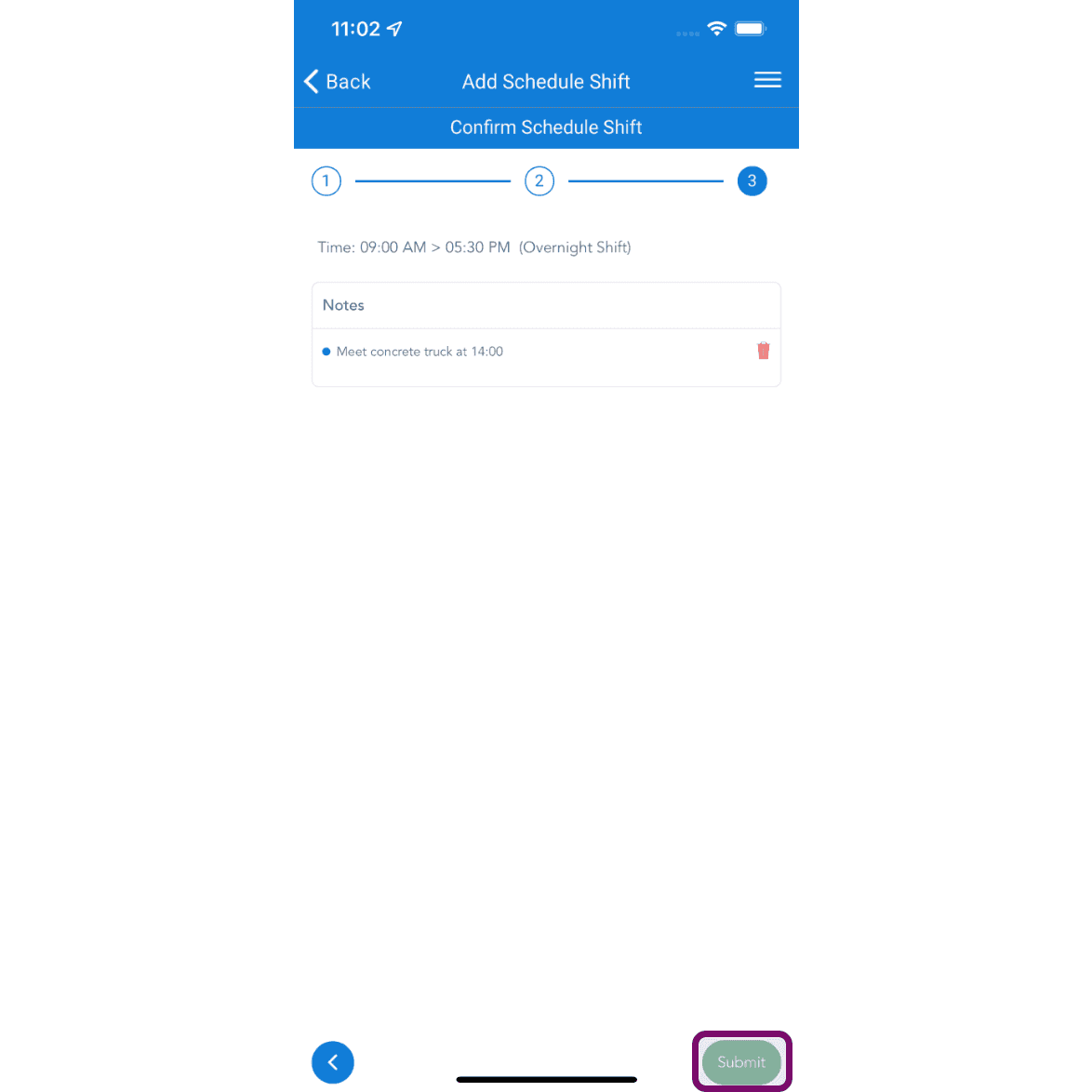
Haz clic en el botón Enviar para añadir el turno.
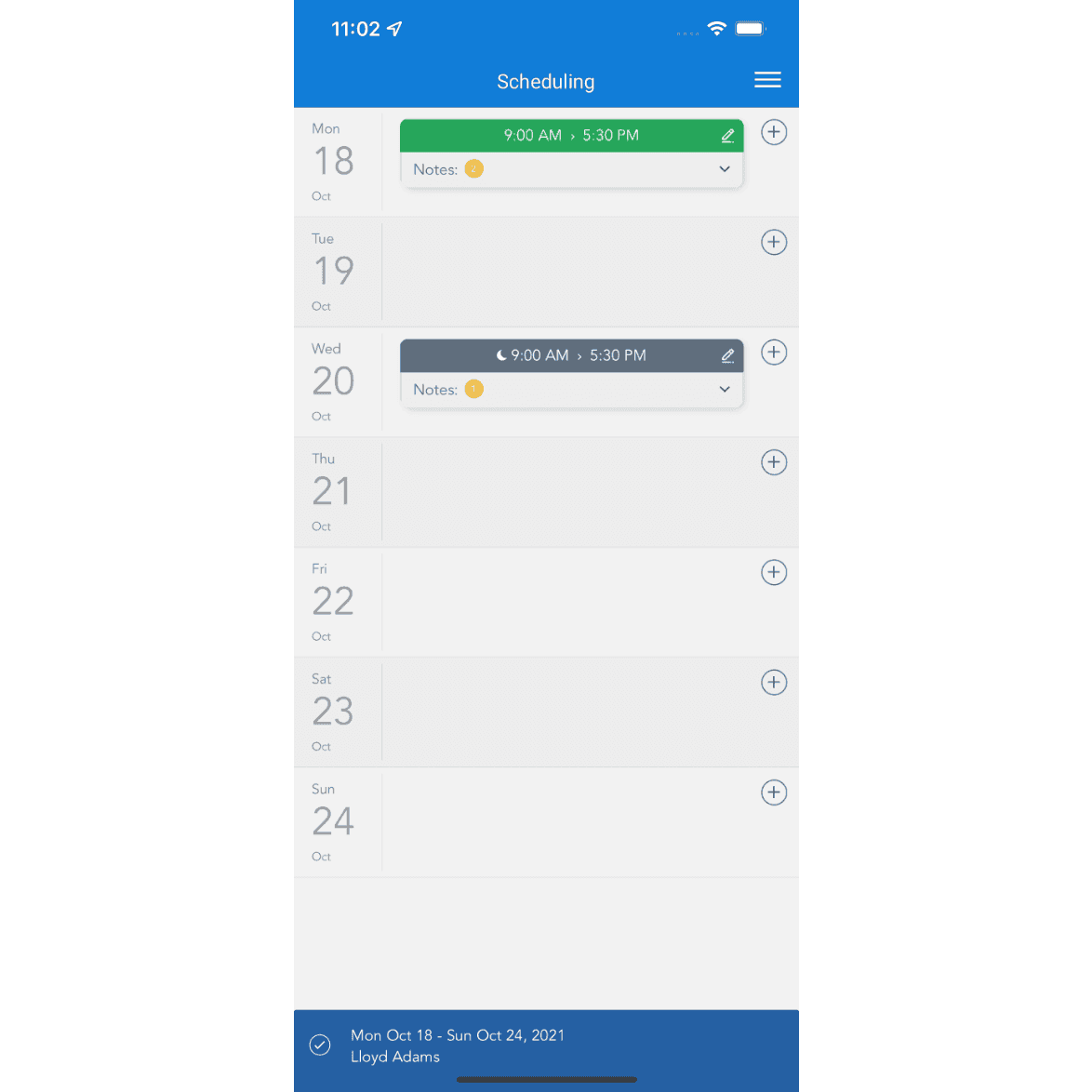
Ahora puedes ver el turno añadido en el calendario. Si el calendario ya se ha publicado, el empleado recibirá una notificación informándole de que se ha añadido un turno para ese día. Después, podrá consultar los detalles en la sección Mi calendario de la aplicación SINC.
¿Esto respondió tu pregunta?