
Cómo añadir turnos a los horarios de tus empleados

Este tutorial te muestra cómo añadir turnos a los horarios de tus empleados.

SINC Support Team
SINC Support Team
Jun 13th, 2022

En la versión web: haz clic en el icono circular con el signo más correspondiente al empleado y al día en que quieras añadir un turno.
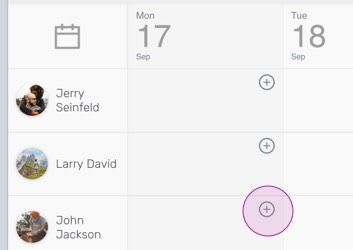
SINC web schedule grid with a pink circular plus icon highlighted for adding an employee shift

Elige la hora de inicio y finalización del turno.
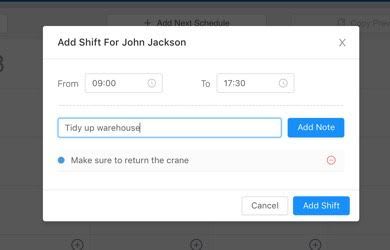
SINC web Add Shift popup showing start and end time fields with a note added below

Añade las notas que necesites y, a continuación, haz clic en Añadir turno.
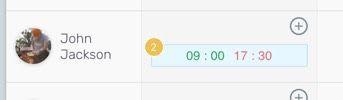
Scheduling grid row for an employee showing a shift block from 09:00 to 17:30

Ahora puedes ver el turno añadido en el horario.
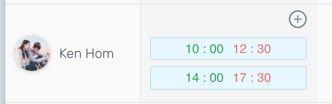
SINC web schedule grid row for an employee showing two scheduled shift time blocks

En el móvil: toca el icono + para añadir un turno programado.
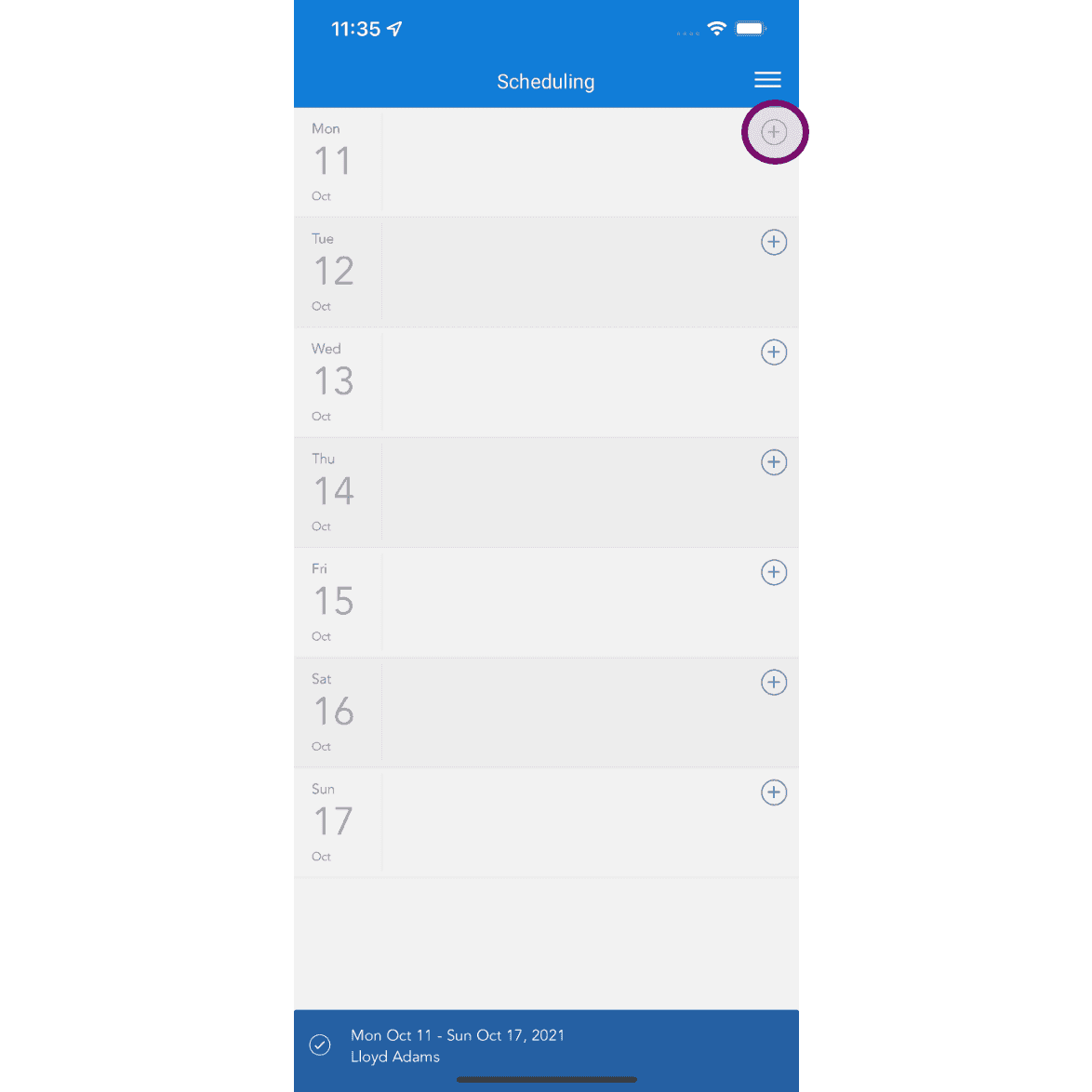
Scheduling calendar view for the week with the plus icon circled in the top right to add a shift

Elige la hora de inicio y finalización del turno programado.
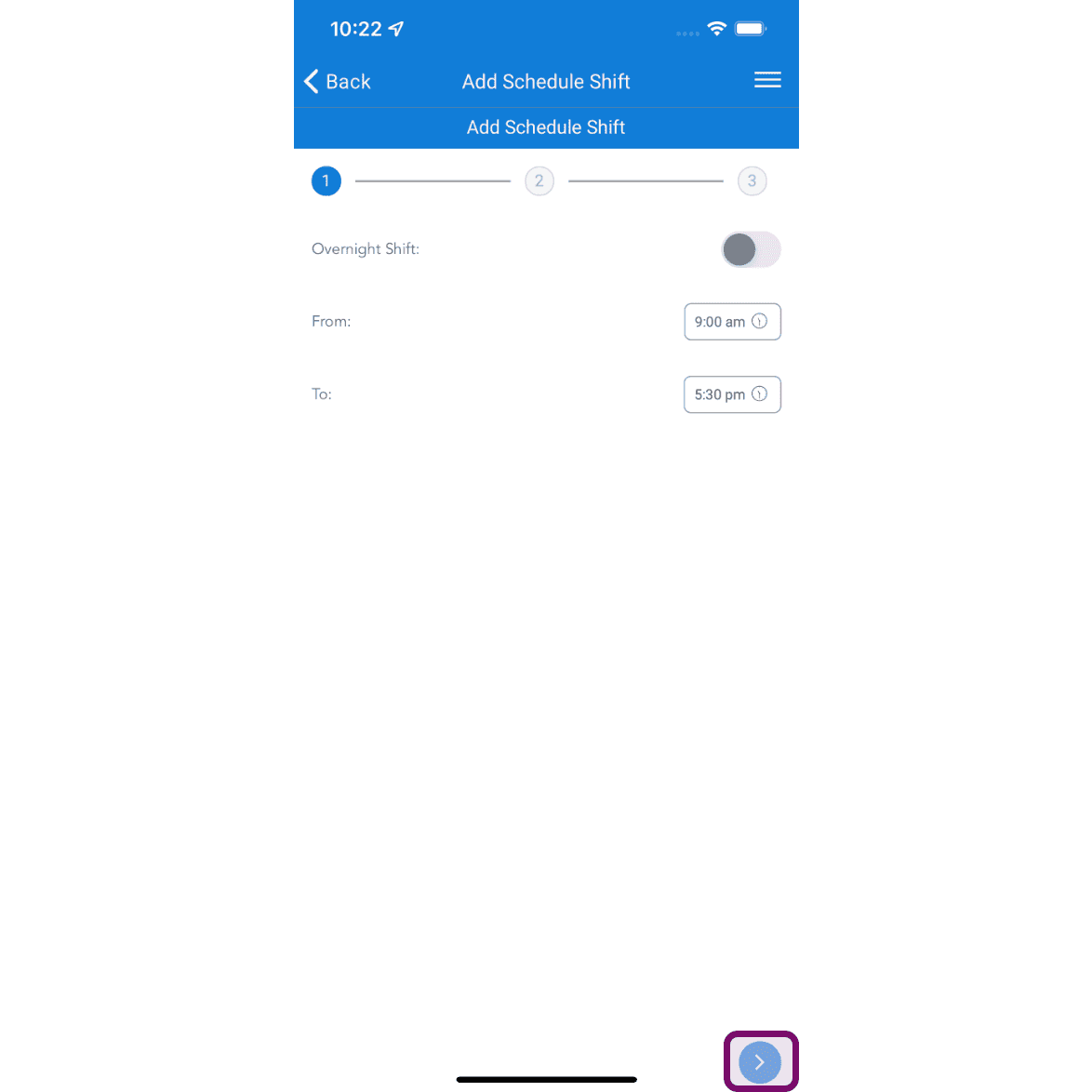
SINC mobile Add Schedule Shift wizard with From and To time fields and the next-step arrow highlighted

Añade notas si es necesario y, después, pulsa el botón Siguiente.
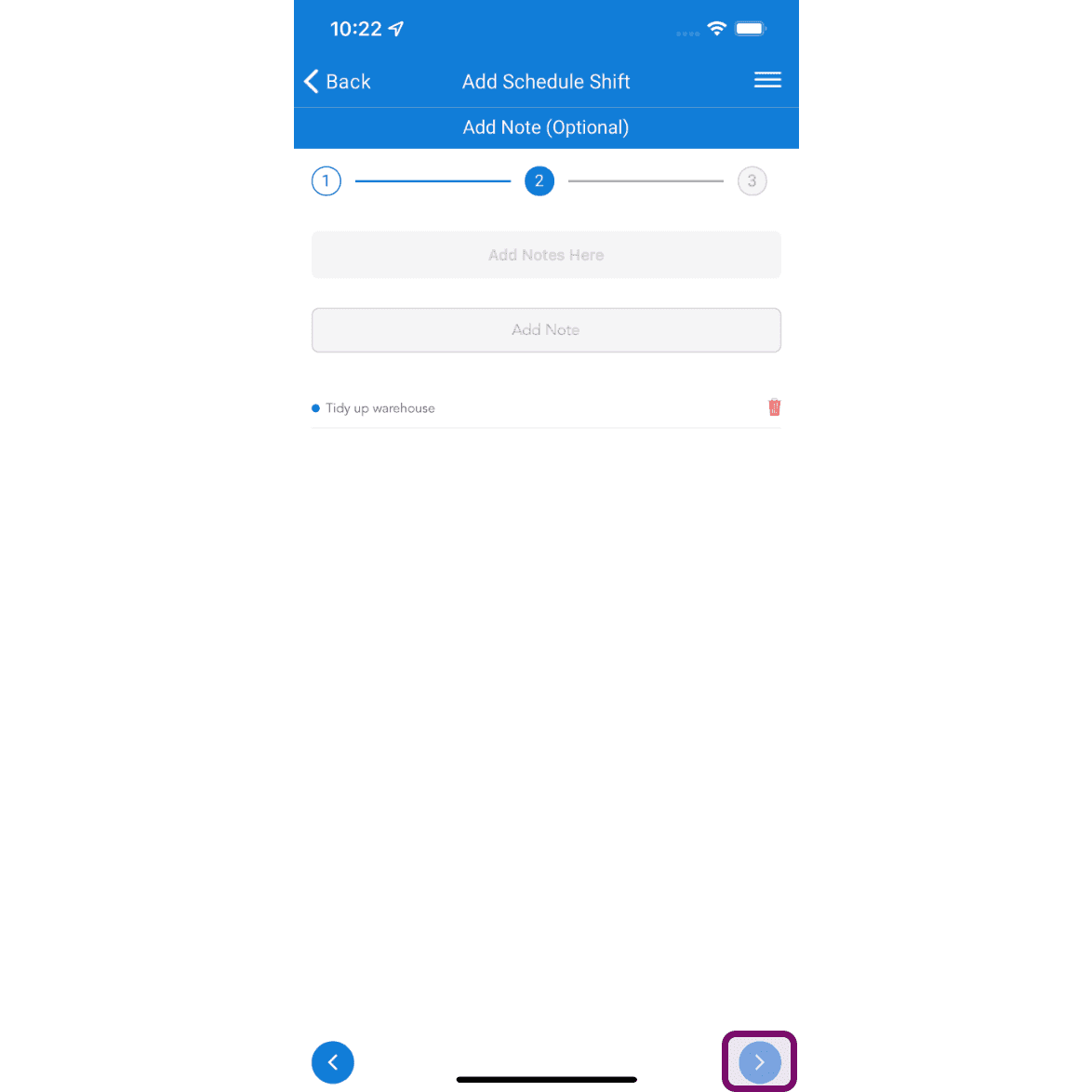
Mobile Add Schedule Shift screen showing the optional notes step with the Next arrow button outlined in pink

Pulsa el botón Enviar para añadir el turno.
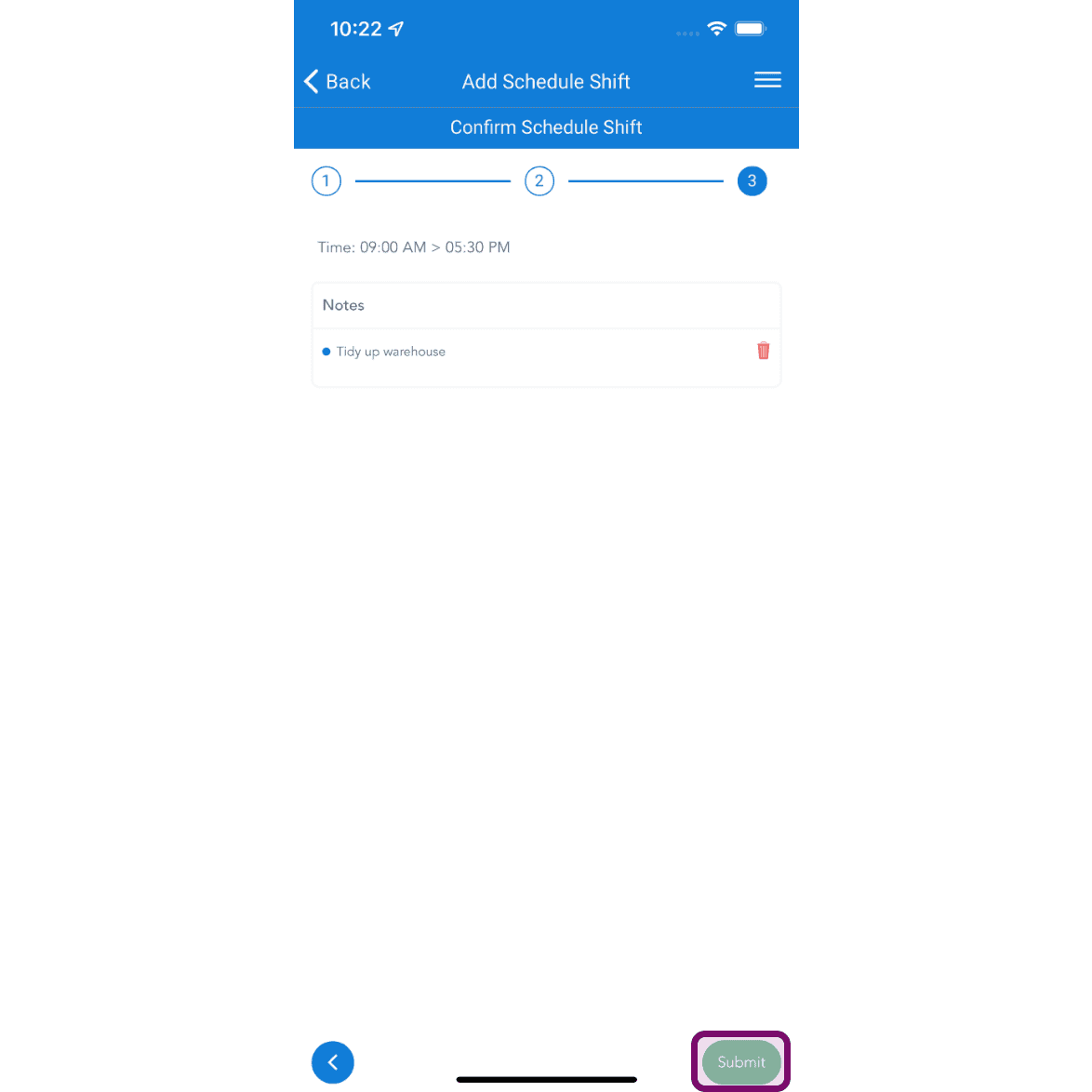
SINC mobile Confirm Schedule Shift step showing shift time and notes with the Submit button circled

Puedes añadir varios turnos al día y asignar plantillas predeterminadas para agilizar la programación de los empleados habituales.
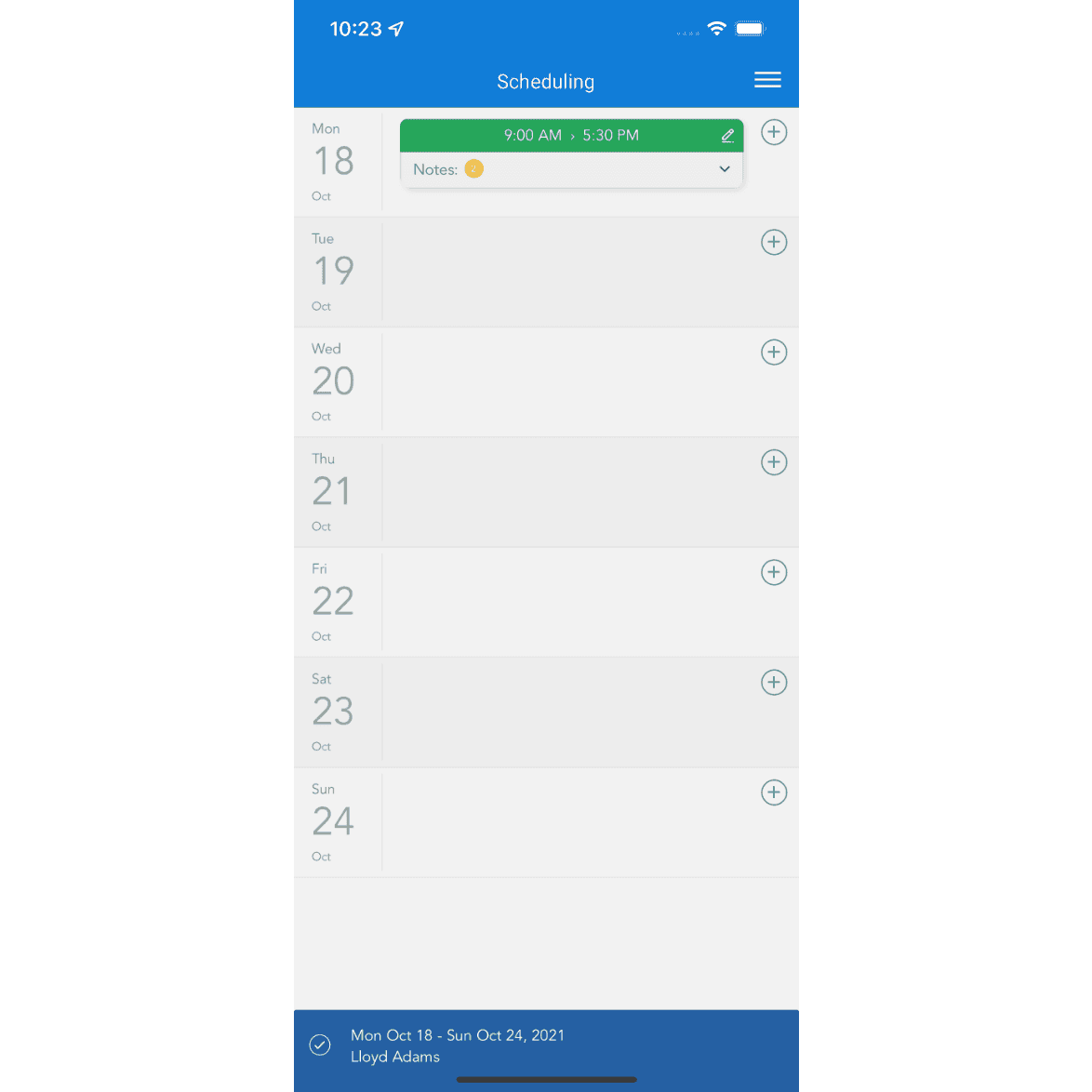
Weekly scheduling calendar showing a shift from 9:00 AM to 5:30 PM on Monday

¿Esto respondió tu pregunta?