Cómo editar un equipo

En este tutorial, te mostramos cómo editar un equipo

SINC Support Team
SINC Support Team
Mar 1st, 2023

En la versión web: haz clic en Menú Personal Equipos.
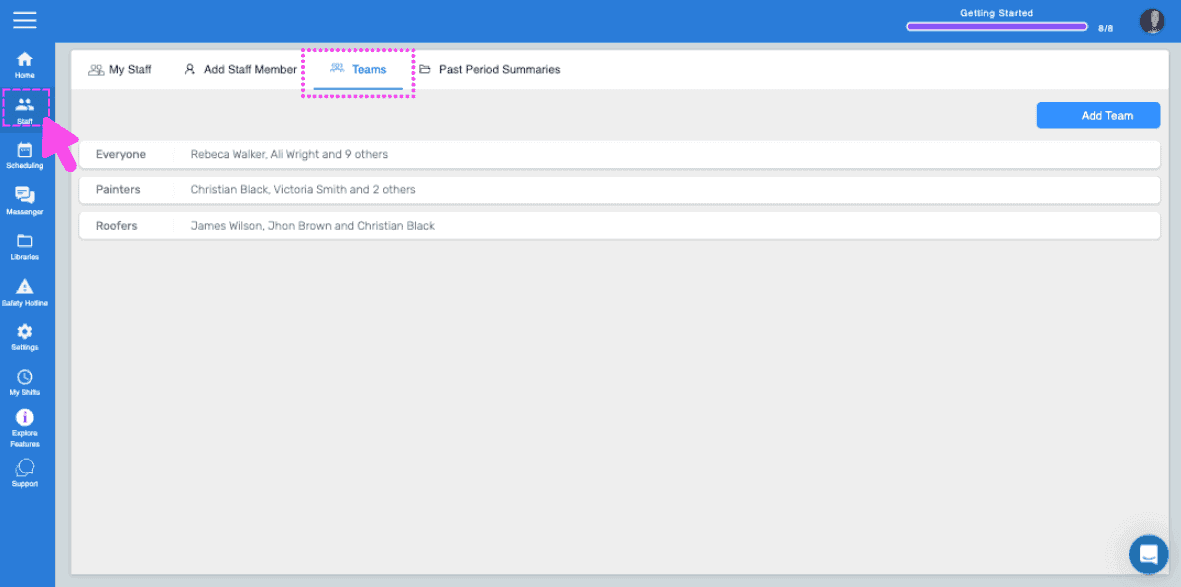
SINC web My Staff breadcrumb menu with the Teams tab highlighted in a pink dashed box

Haz clic en el equipo que quieras editar.
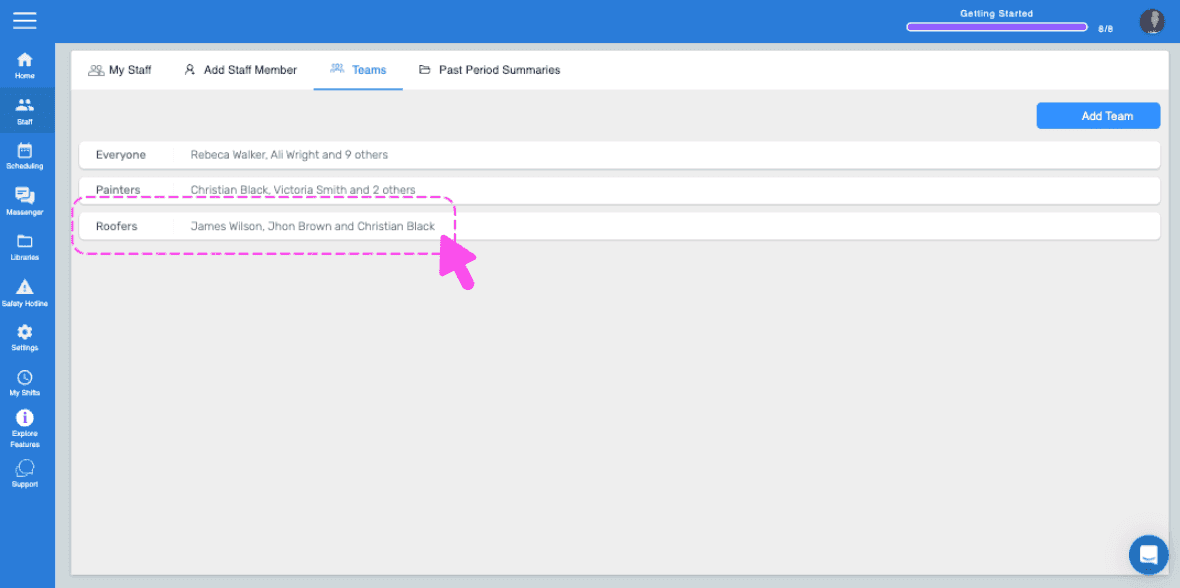
Web Teams list with the Painters team row outlined in pink and an arrow pointing to it

Para editar el nombre del equipo, haz clic en Editar junto a Nombre del equipo.
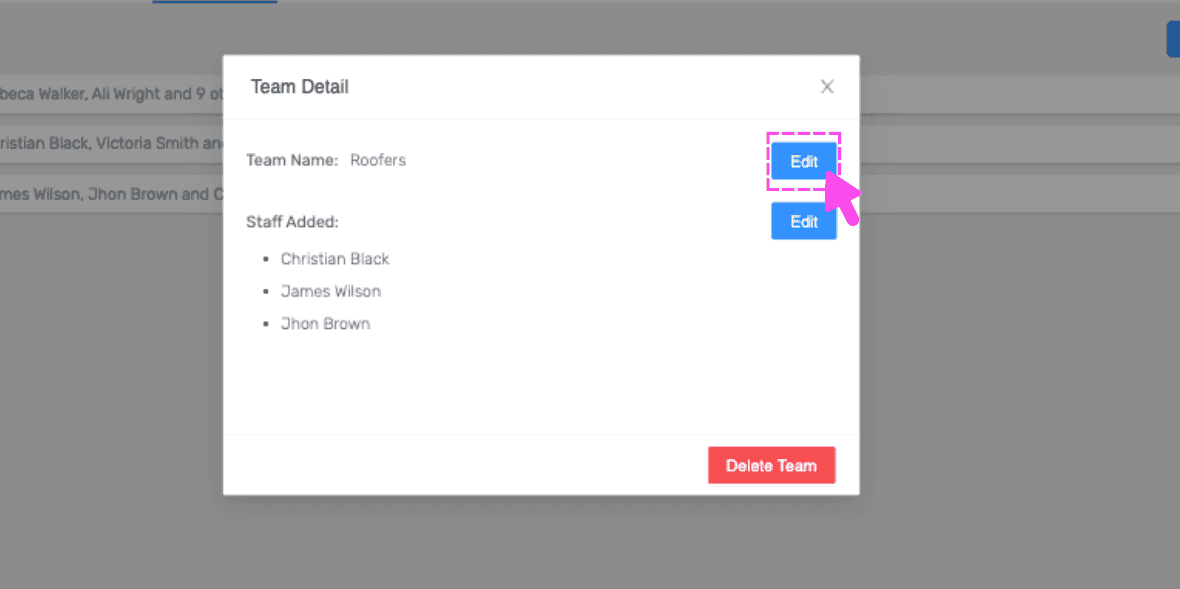
SINC web Team Detail popup listing team members with a pink arrow pointing to the Edit button next to Team Name

Para editar a los miembros del equipo, haz clic en Editar, junto a Personal añadido.
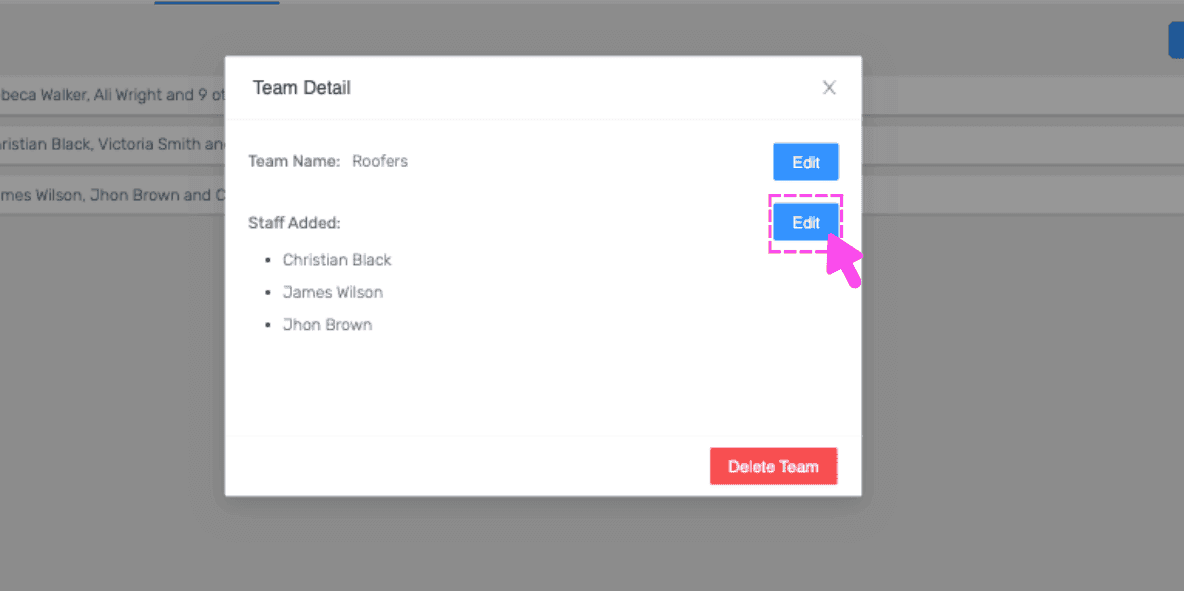
Team Detail popup with a pink arrow pointing to the Edit button next to Staff Added

Para eliminar un equipo, haz clic en Eliminar equipo.
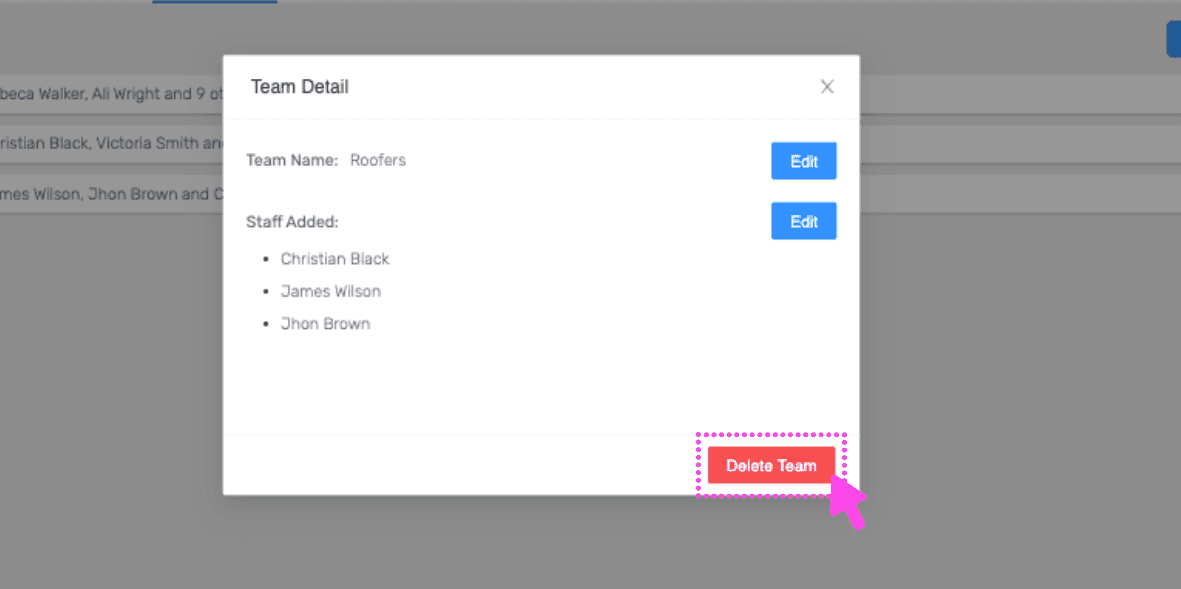
Web Team Detail popup listing team members with the Delete Team button circled in pink

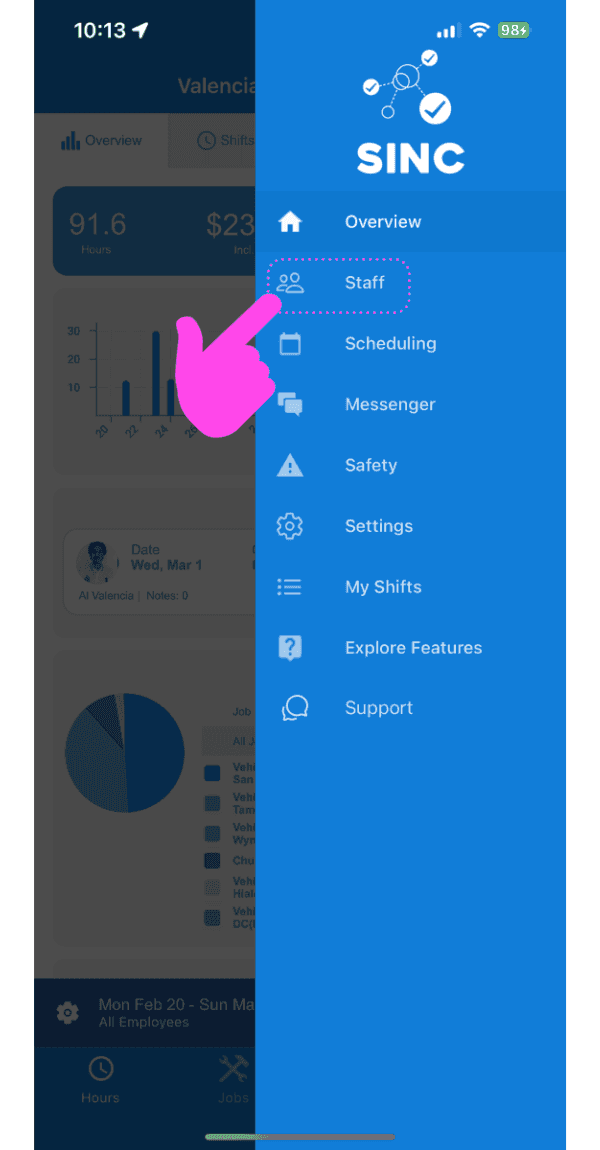
En el móvil: toca Personal.

SINC mobile app side menu with a pink hand pointing to the Staff option

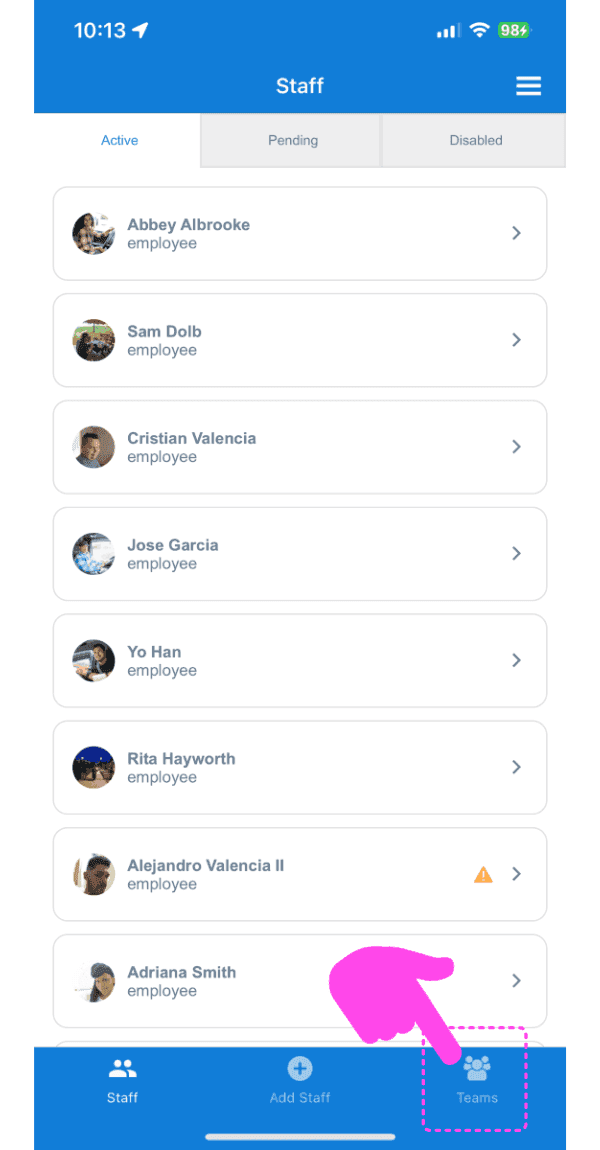
Toca Equipos.

SINC mobile Staff list on the Active tab with a pink arrow pointing to the Teams tab at the bottom

Para editar el nombre del equipo, pulsa Editar junto a Nombre del equipo.
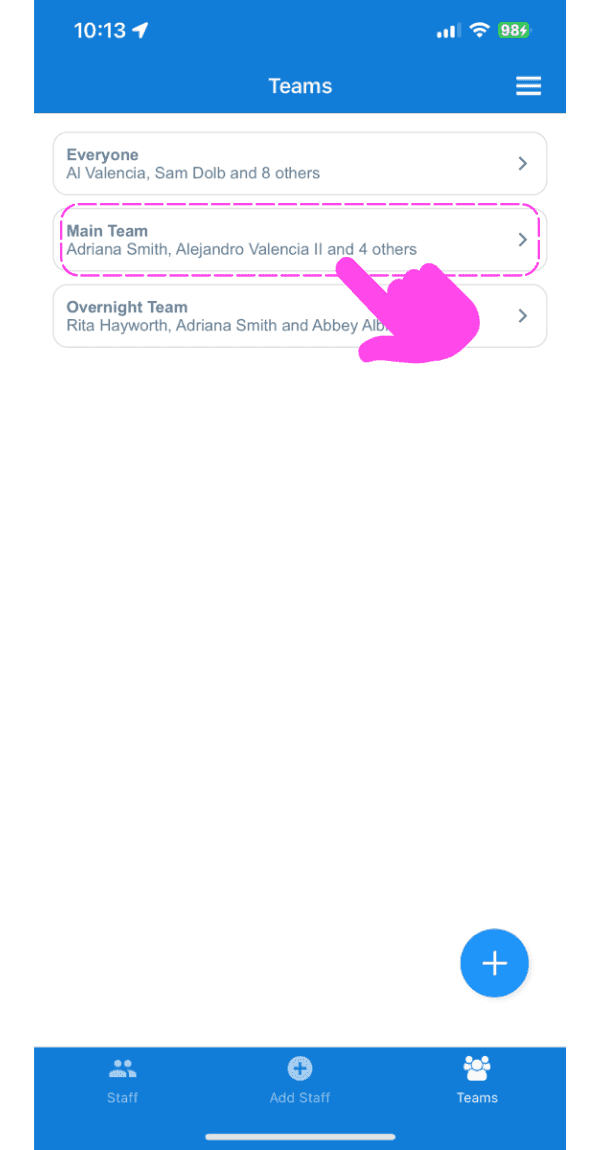
Teams list screen with a pink arrow pointing to the Main Team entry

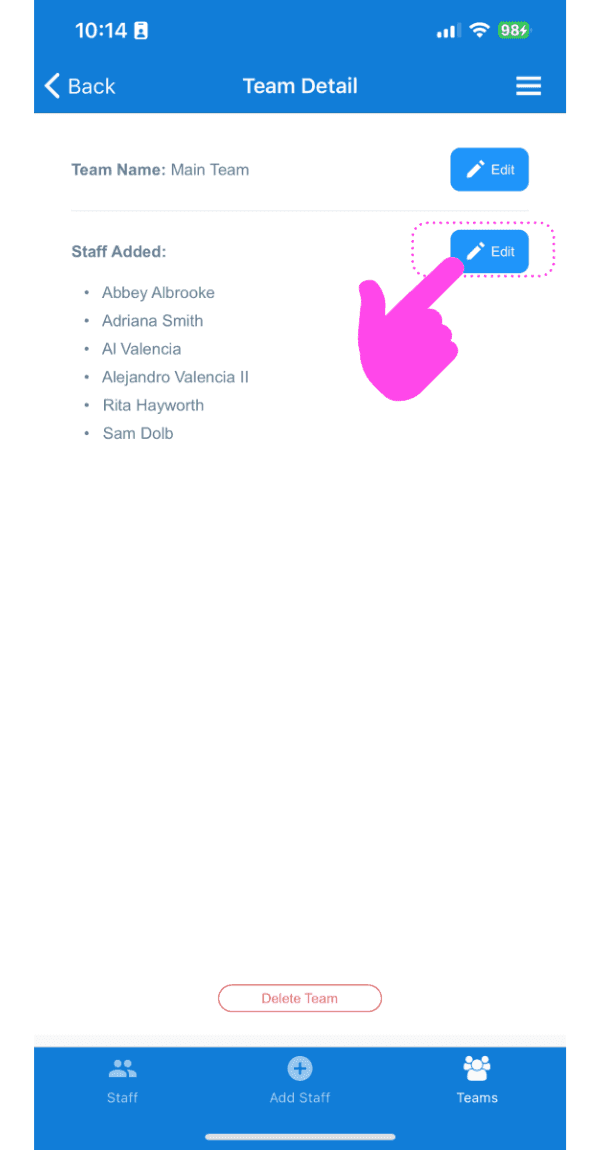
Para editar a los miembros del equipo, pulsa Editar junto a Personal añadido.
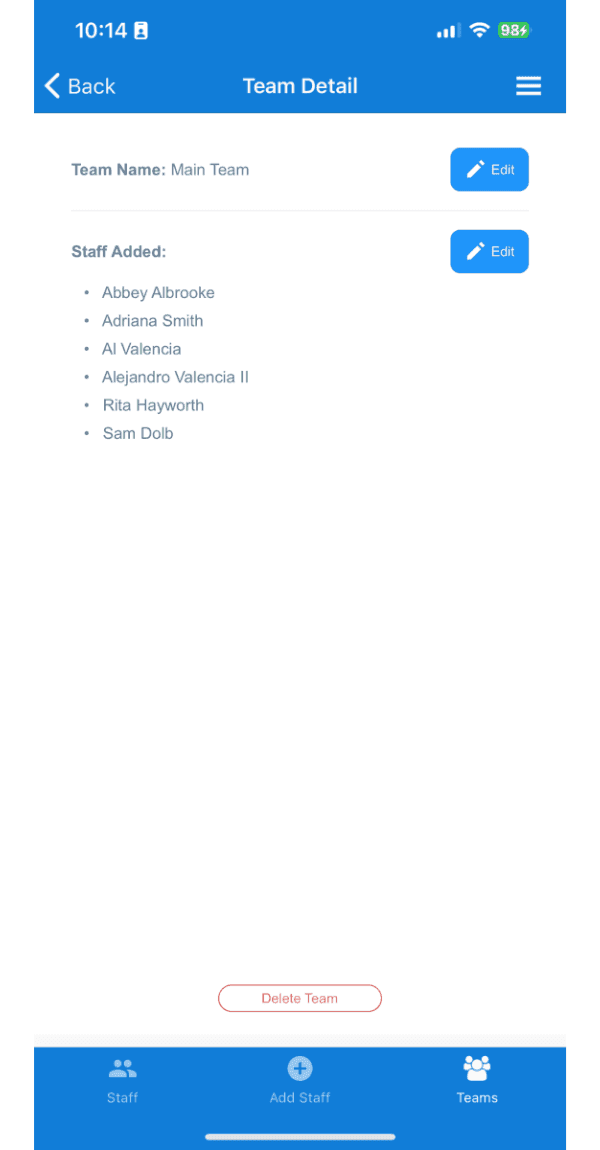
SINC mobile app Team Detail screen with the Edit button next to Staff Added outlined in pink

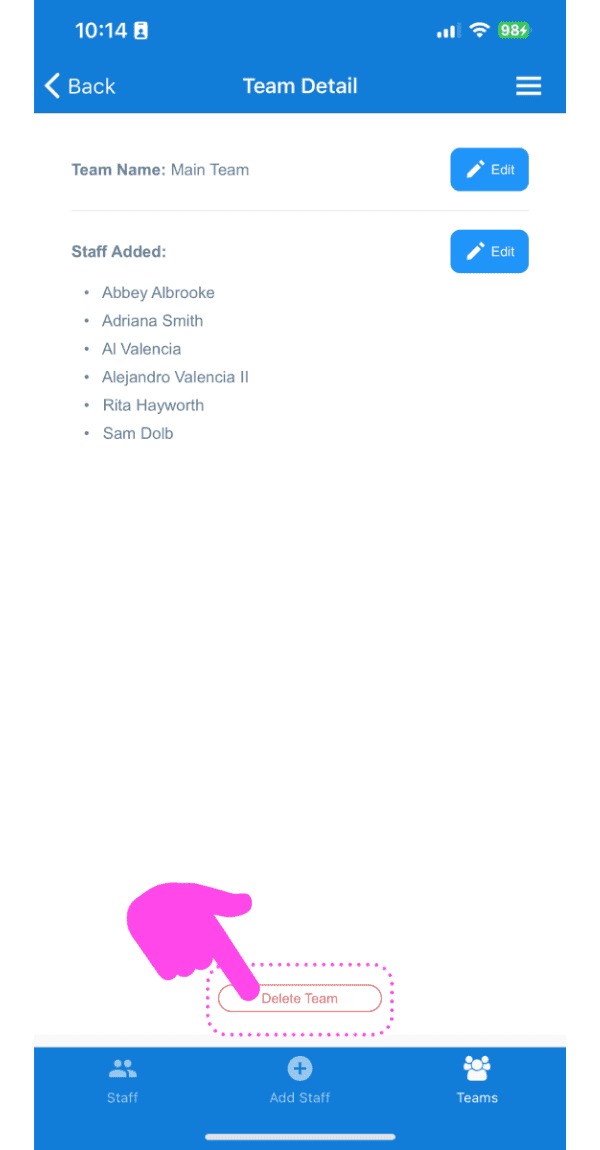
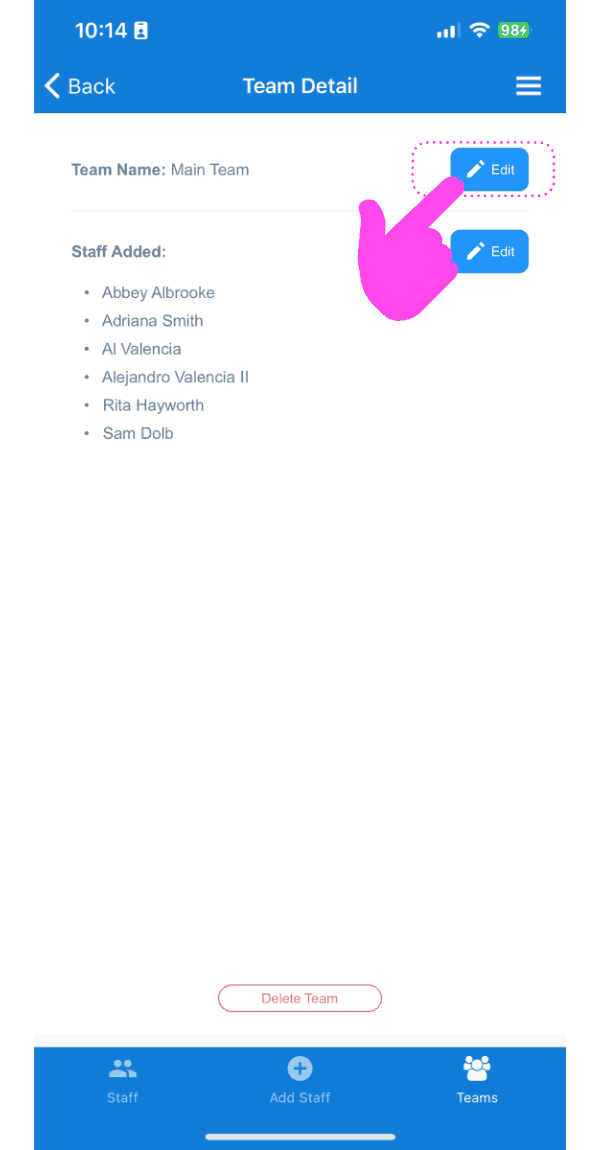
Para eliminar un equipo, toca el icono de la papelera situado en la parte inferior izquierda.
Team Detail screen showing the staff list with the Edit button highlighted by a pink arrow
Team Detail screen listing staff members added to the team, with a pink arrow pointing to the Edit button
SINC mobile Team Detail screen with a pink hand pointing to the Delete Team button

¿Esto respondió tu pregunta?