Cómo marcar a un miembro del personal como inactivo

En SINC no se elimina a los empleados: se les marca como inactivos. Ya no podrán fichar y no contarán para el límite de usuarios.

Sam Dolbel
Sam Dolbel
Feb 28th, 2023

Ten en cuenta que, si el miembro del personal que quieres inactivar es ADMINISTRADOR, debes seguir la guía para administradores. Cuando un miembro del personal deja tu organización, solo tienes que marcarlo como inactivo. Pulsa en Personal
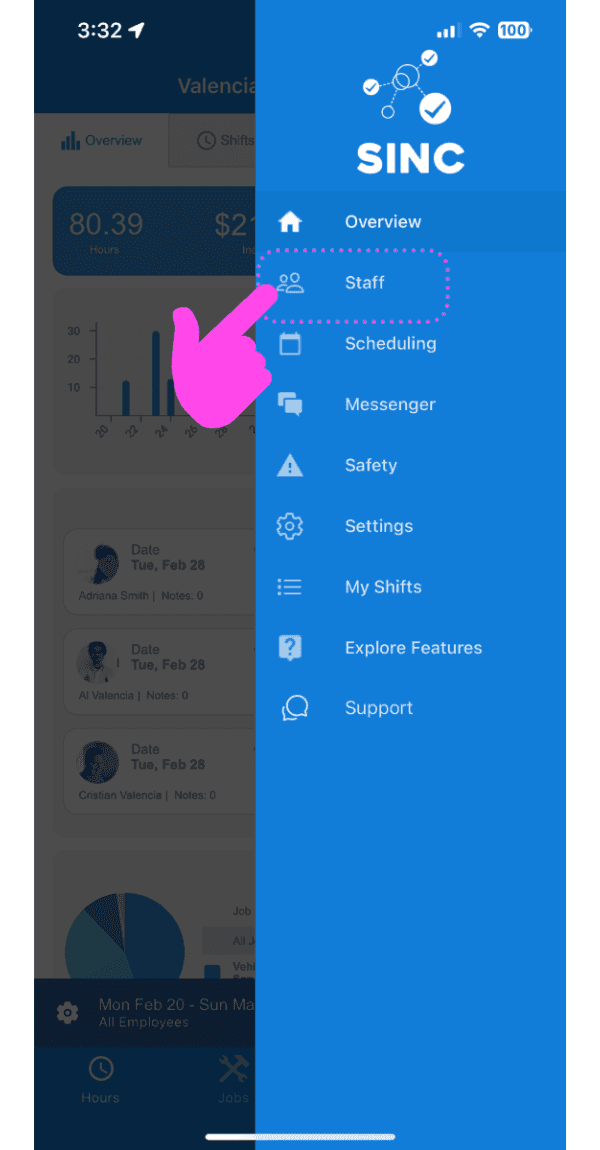
SINC mobile app side menu open with a pink arrow pointing to the Staff icon

Toca El nombre del miembro del personal
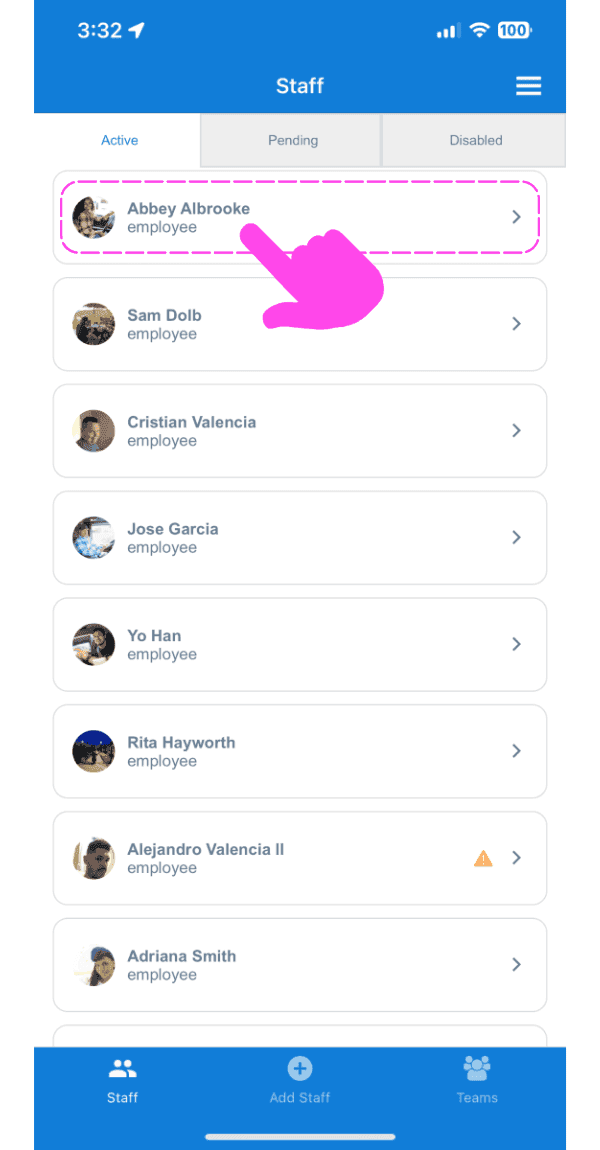
Mobile Staff list on the Active tab with a pink arrow pointing to a staff member's name

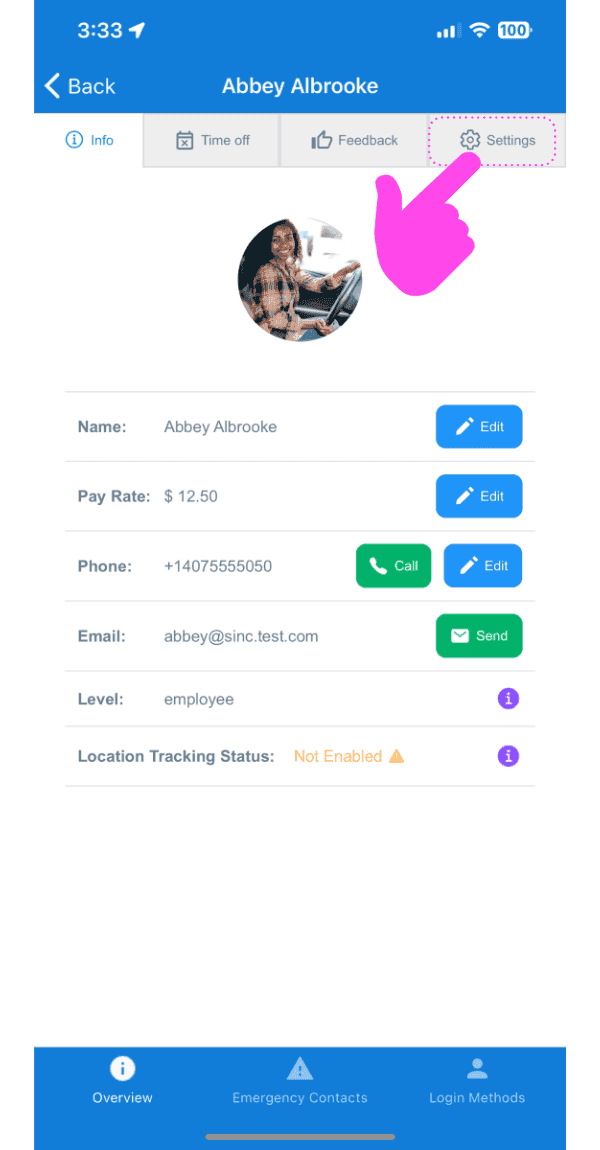
Toca Ajustes

SINC mobile staff profile screen with a pink arrow pointing to the Settings tab

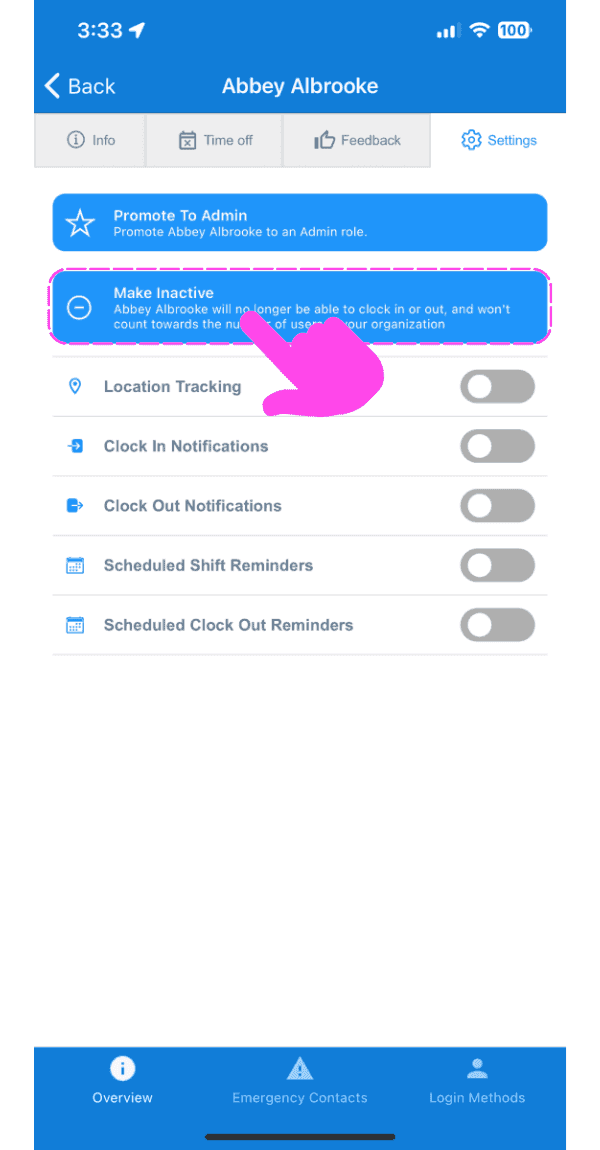
Pulsa Marcar como inactivo

SINC mobile staff Settings screen with the Make Inactive option outlined in pink and a hand pointing to it

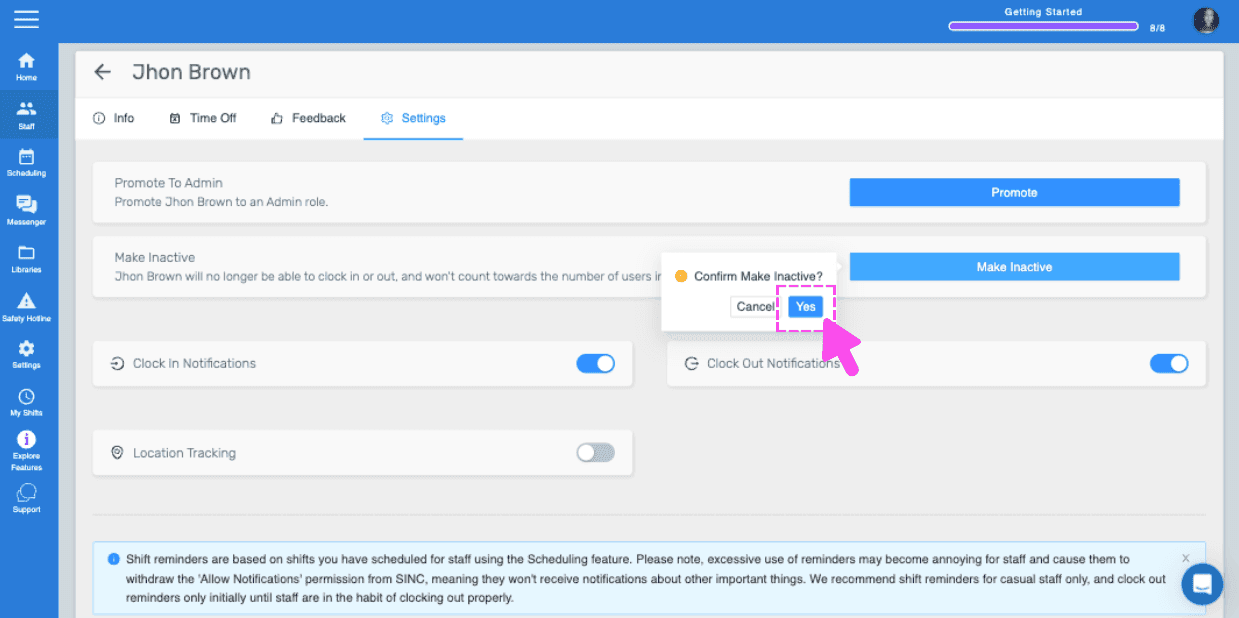
Pulsa Confirmar (versión web) Haz clic en Sí
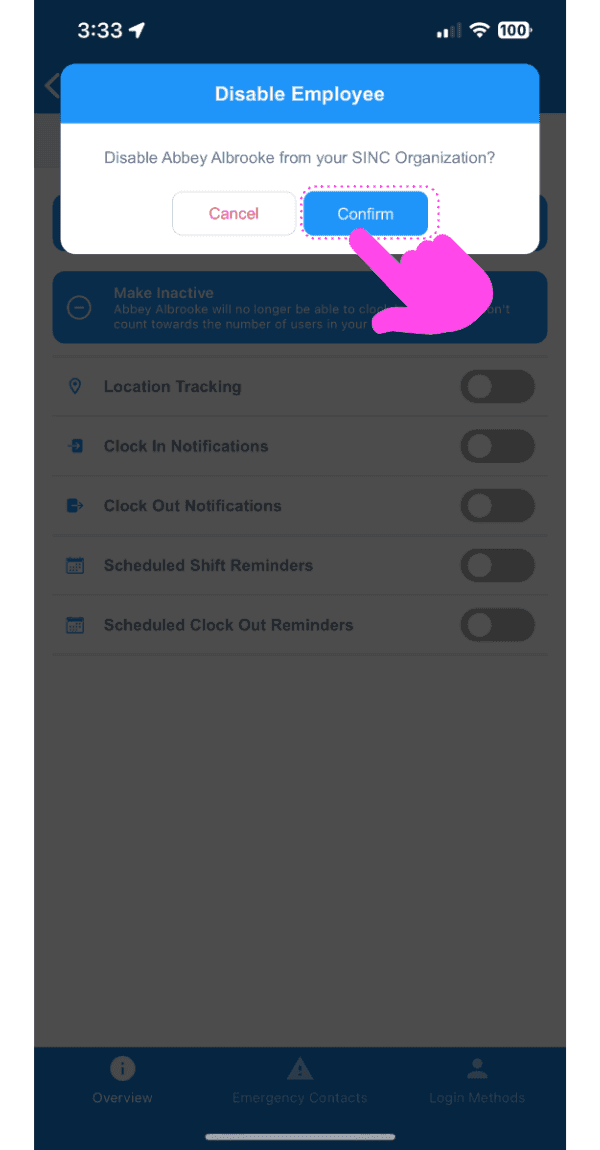
Disable Employee confirmation dialog with a pink arrow pointing to the Confirm button

Ten en cuenta: si los cambios no se reflejan en el dispositivo del empleado, pídele que elimine la aplicación SINC, reinicie el teléfono y vuelva a instalar SINC. Si usas la versión web, se verá así:
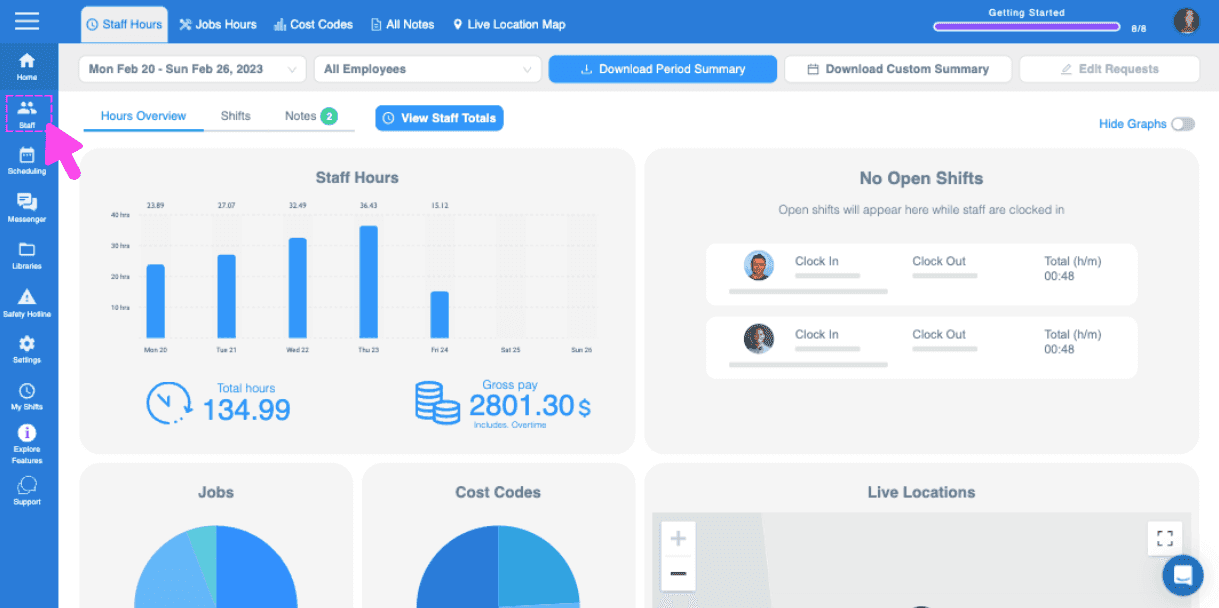
SINC web dashboard Staff Hours overview with a pink arrow pointing to a sidebar navigation icon
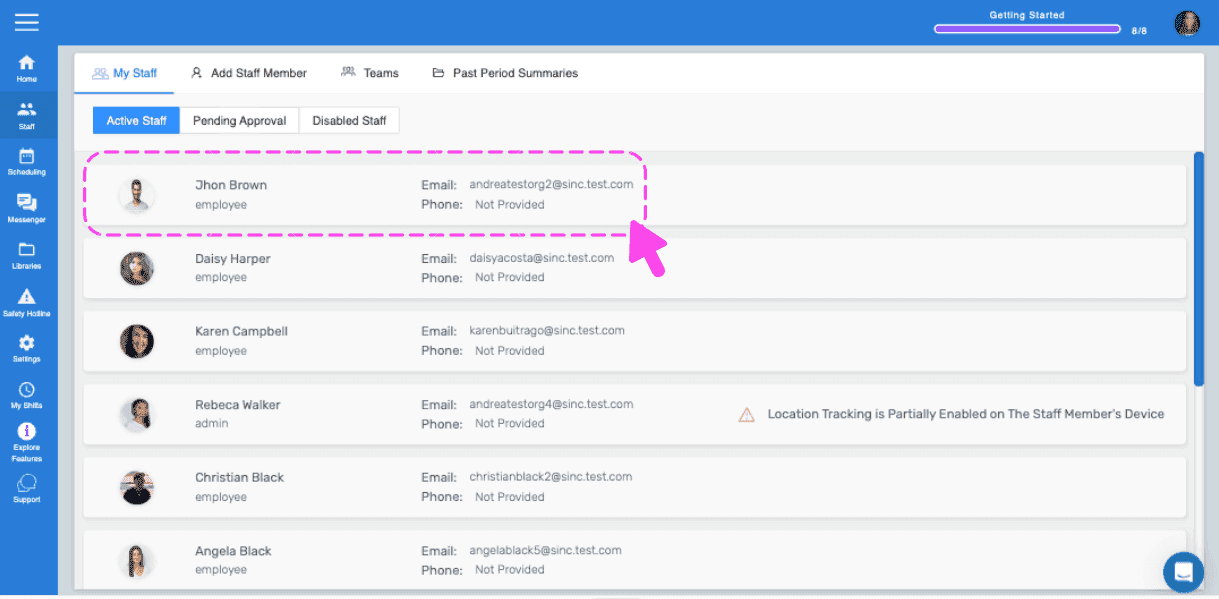
Web dashboard Staff list with a pink dashed outline and arrow highlighting an employee row
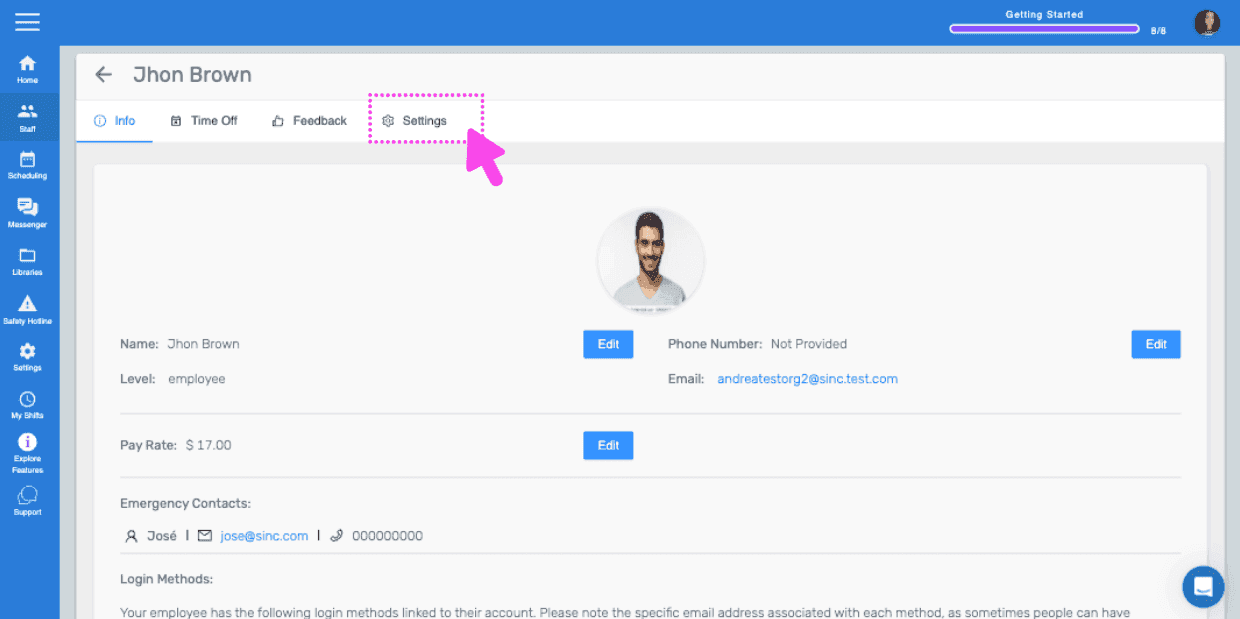
Staff member Info screen showing photo, name, pay rate, and phone, with a pink arrow pointing to the Settings tab
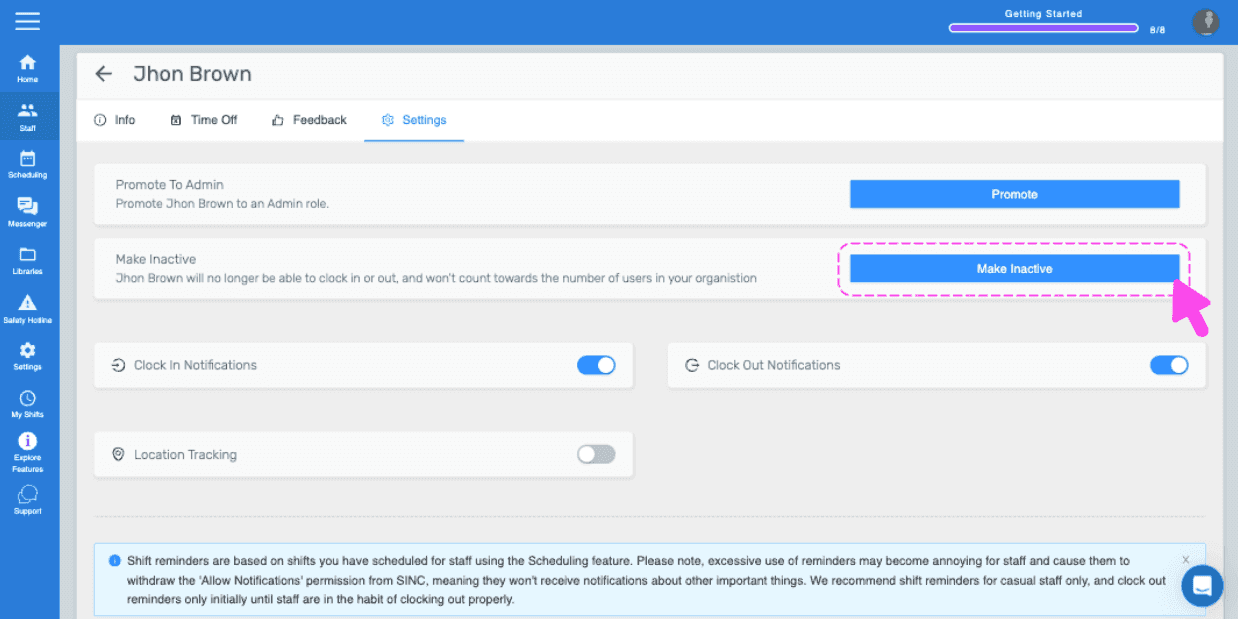
SINC web staff Settings tab with the Make Inactive button highlighted in pink
Staff member Settings tab with a Make Inactive confirmation popup and the Yes button highlighted by a pink arrow

¿Esto respondió tu pregunta?