Cómo asignar a un empleado el rol de administrador

En esta guía explicaremos el proceso para ascender a un empleado al rol de administrador.

Sam Dolbel
Sam Dolbel
Mar 27th, 2023

Para añadir un nuevo administrador, primero debes invitarlo como empleado normal. Una vez hecho esto: toca en Menú Personal
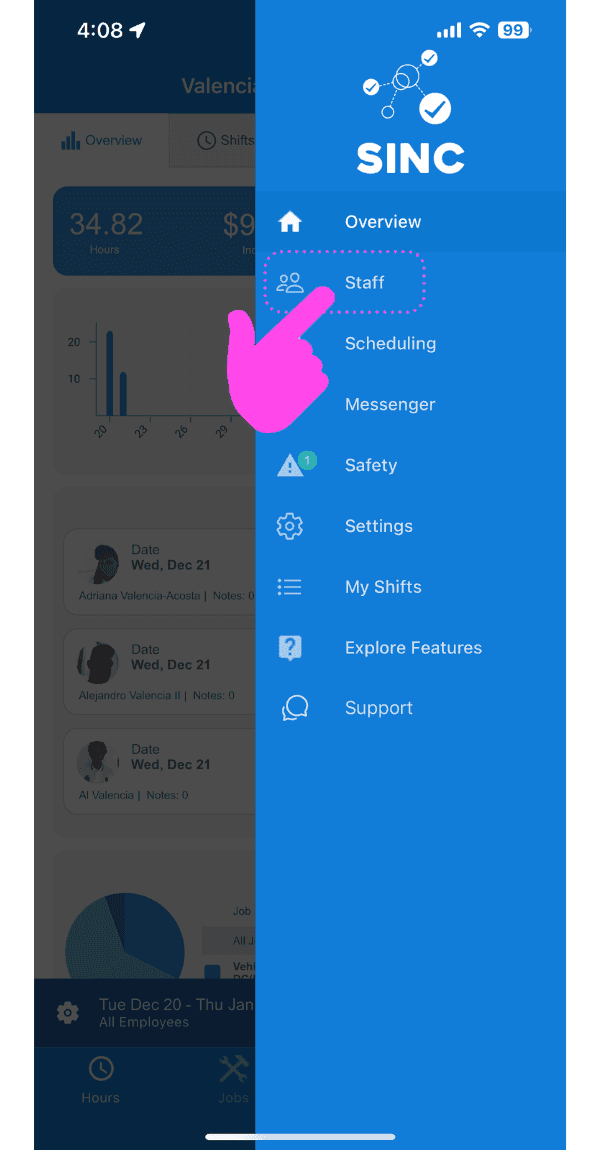
SINC mobile side menu with a pink arrow pointing to the Staff option

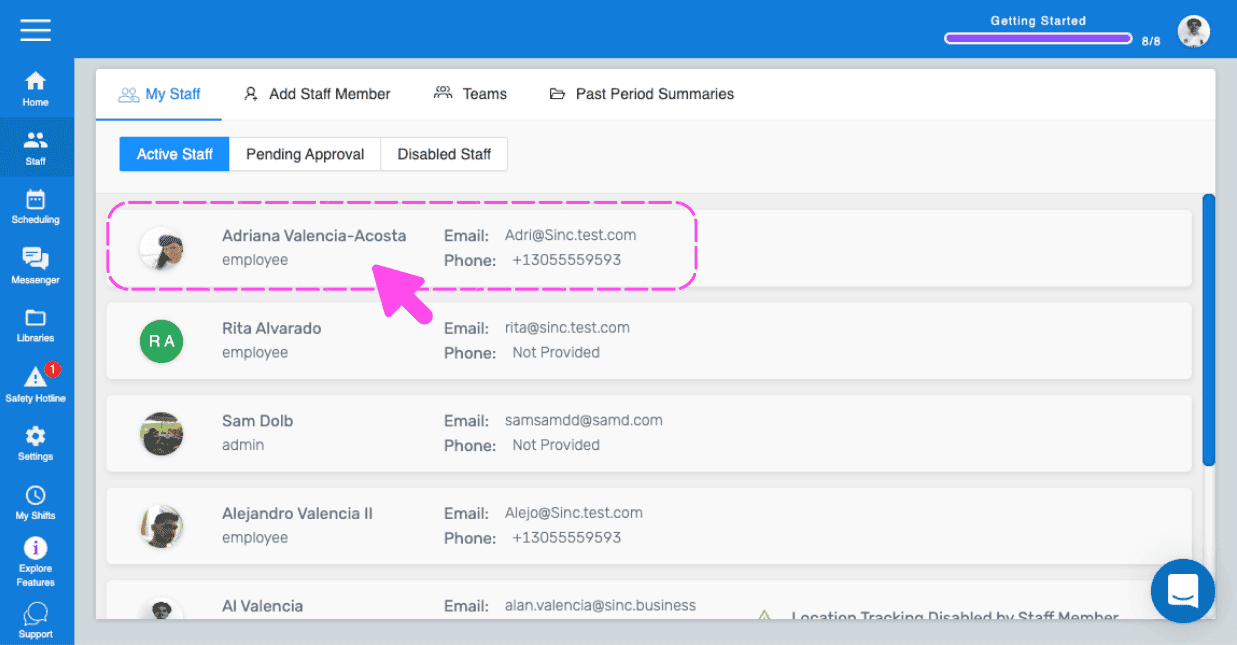
Pulsa en el nombre del miembro del personal al que quieres ascender a administrador
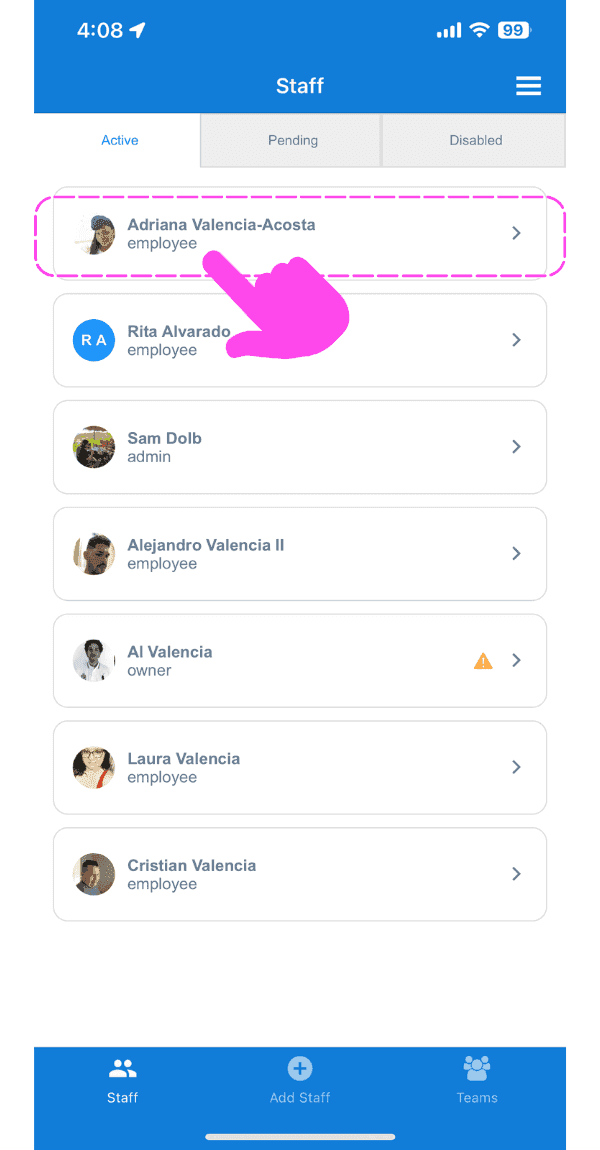
Staff list screen with a pink hand pointing to an employee's name highlighted in a dashed box at the top

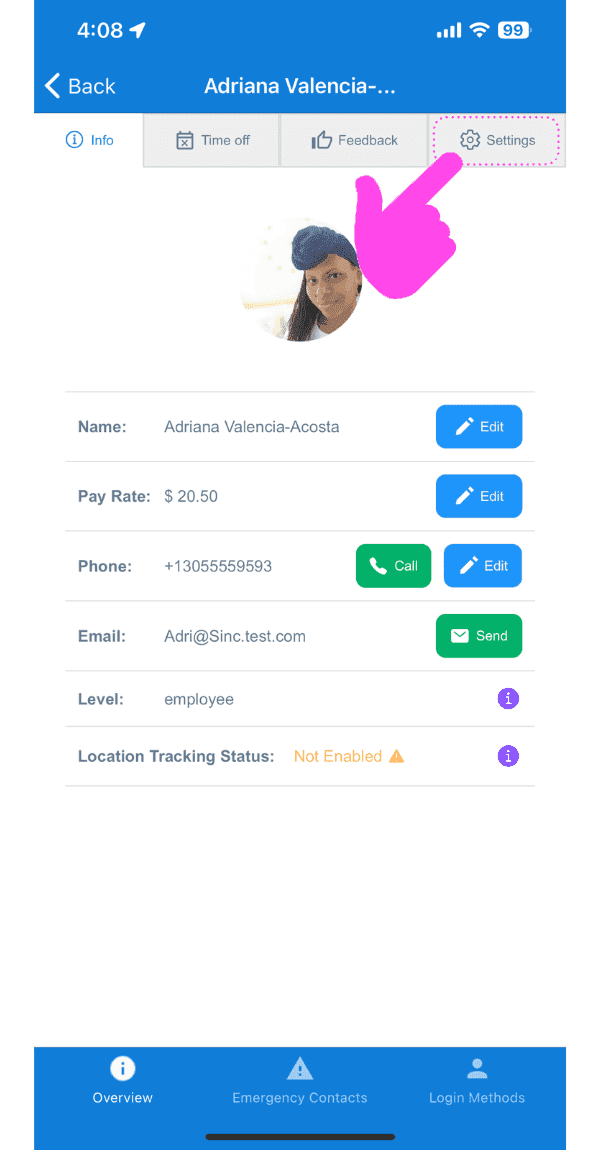
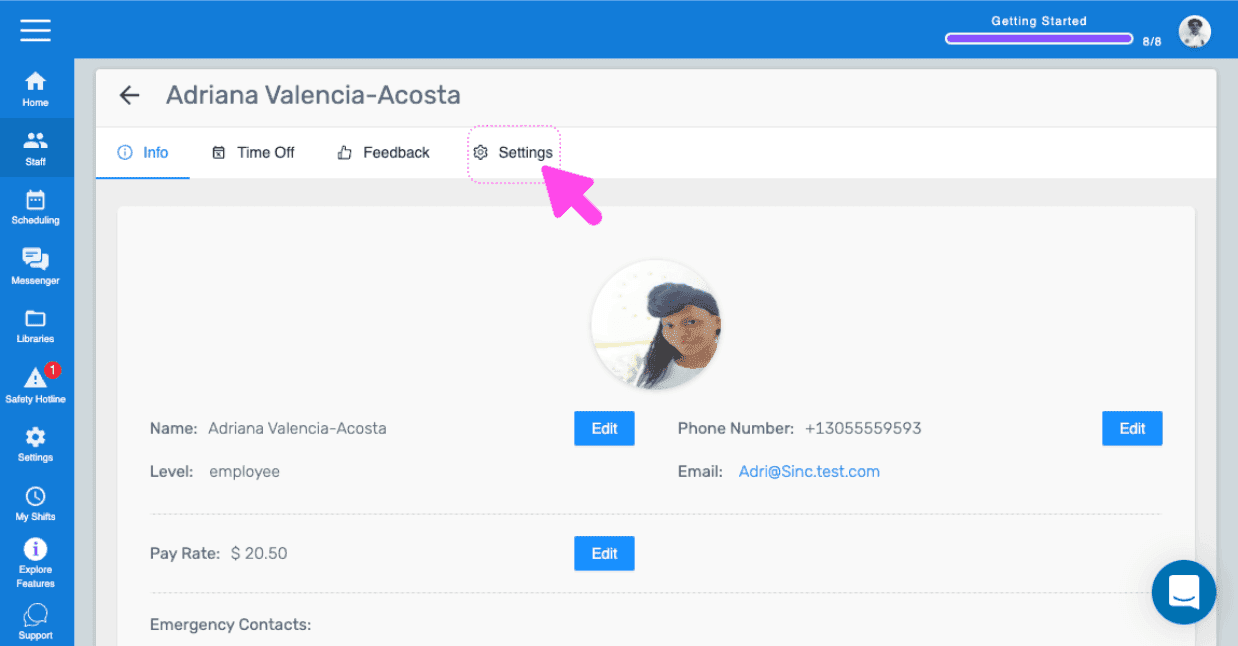
Pulsa en Ajustes

SINC mobile staff profile screen with a pink arrow pointing to the Settings tab

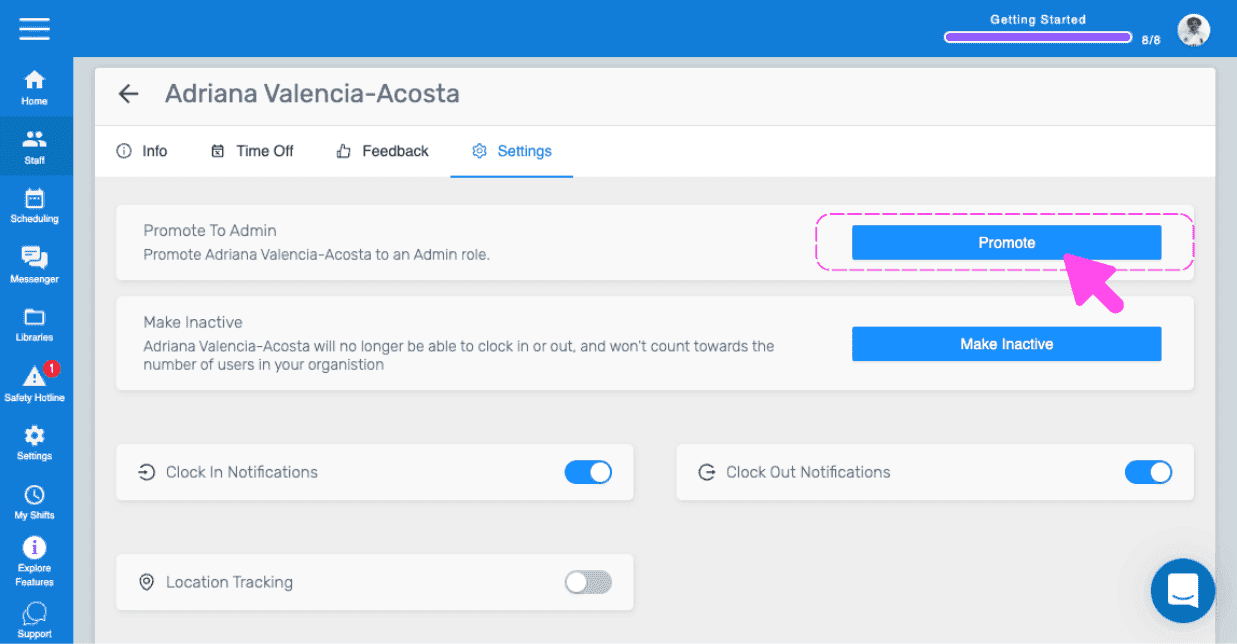
Toca Promover a administrador (versión web) Haz clic en Promover
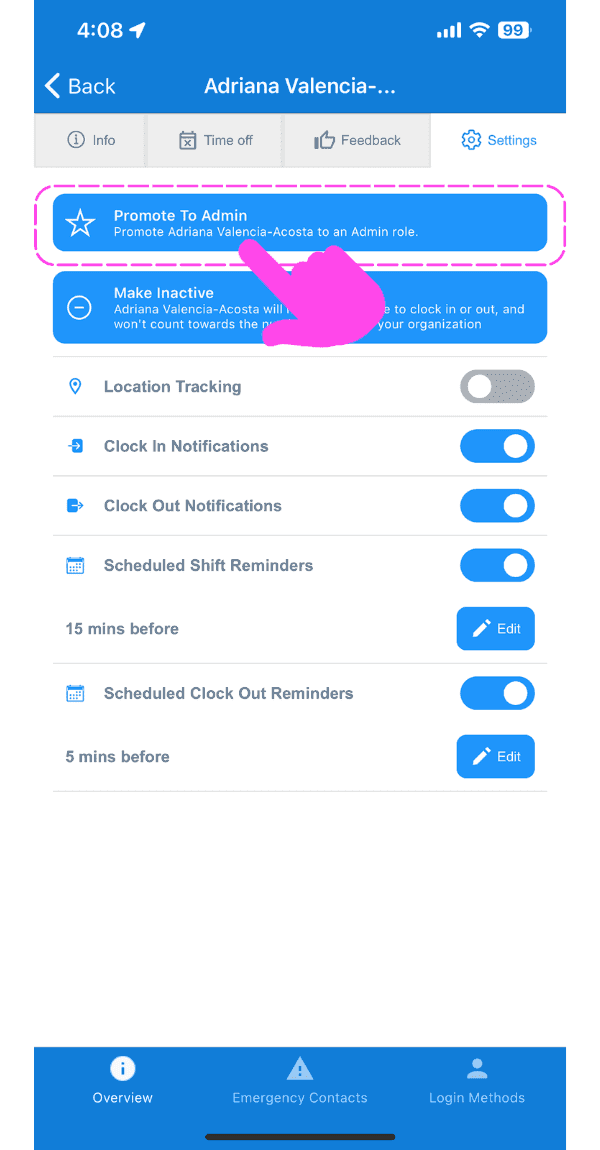
Mobile staff Settings tab with the Promote To Admin button outlined in pink and an arrow pointing to it

Si estás usando la versión web, se verá así:
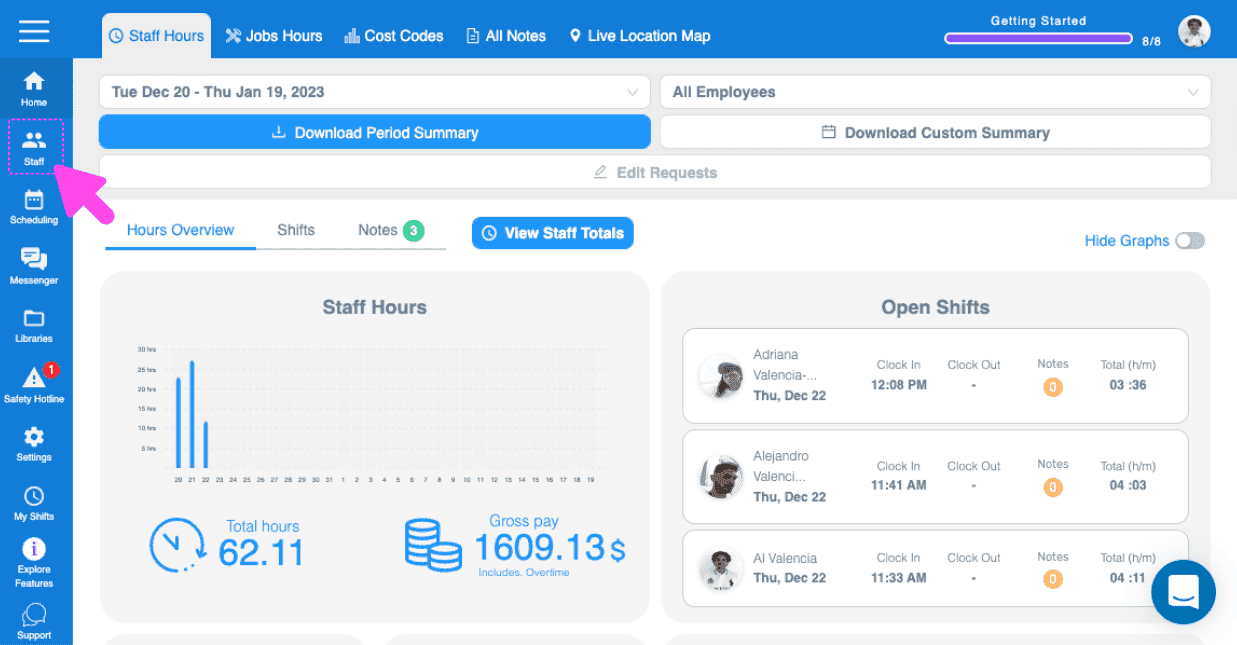
SINC web Staff Hours dashboard with a pink arrow pointing to the Staff icon in the left sidebar
Active Staff list with an employee's row highlighted showing their email and phone number
Web staff profile screen with a pink arrow pointing to the Settings tab
SINC web staff Settings tab with a pink arrow pointing to the Promote button under Promote To Admin
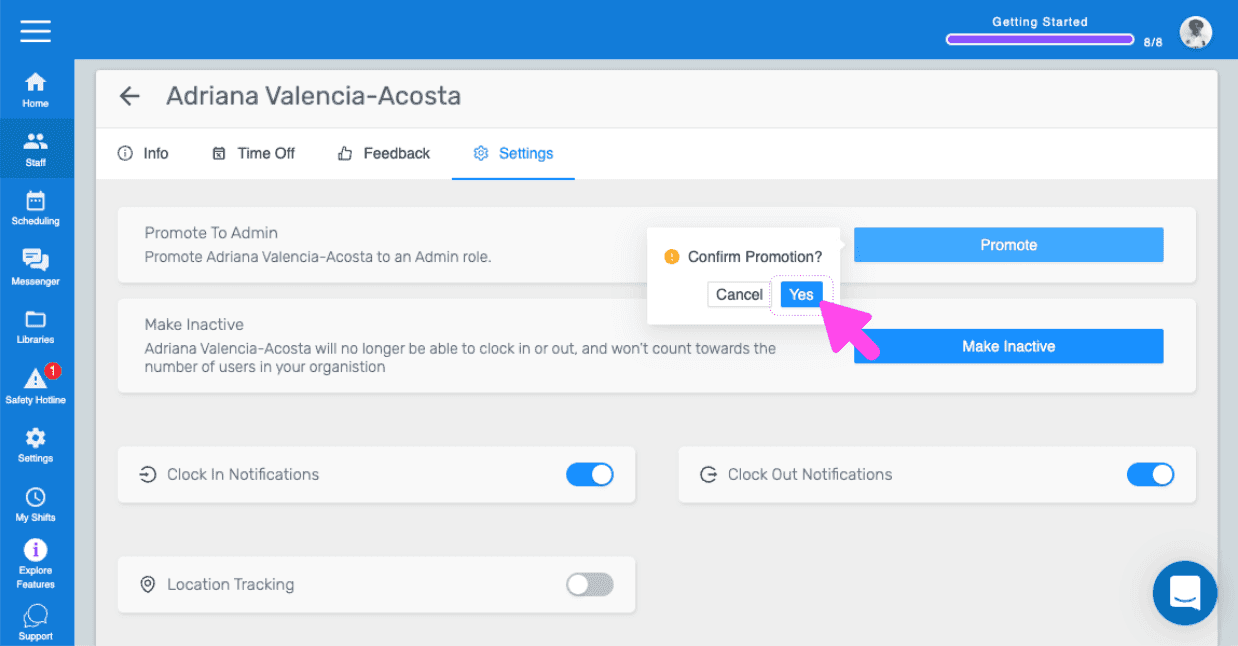
SINC web staff Settings tab showing a Confirm Promotion popup with a pink arrow pointing to the Yes button

¿Esto respondió tu pregunta?