Cómo restaurar a un miembro del personal

¿Tienes algún empleado que haya vuelto a trabajar contigo? No es necesario enviarle una nueva invitación; solo sigue estas instrucciones.

Sam Dolbel
Sam Dolbel
Feb 28th, 2023

Toca Menú Personal
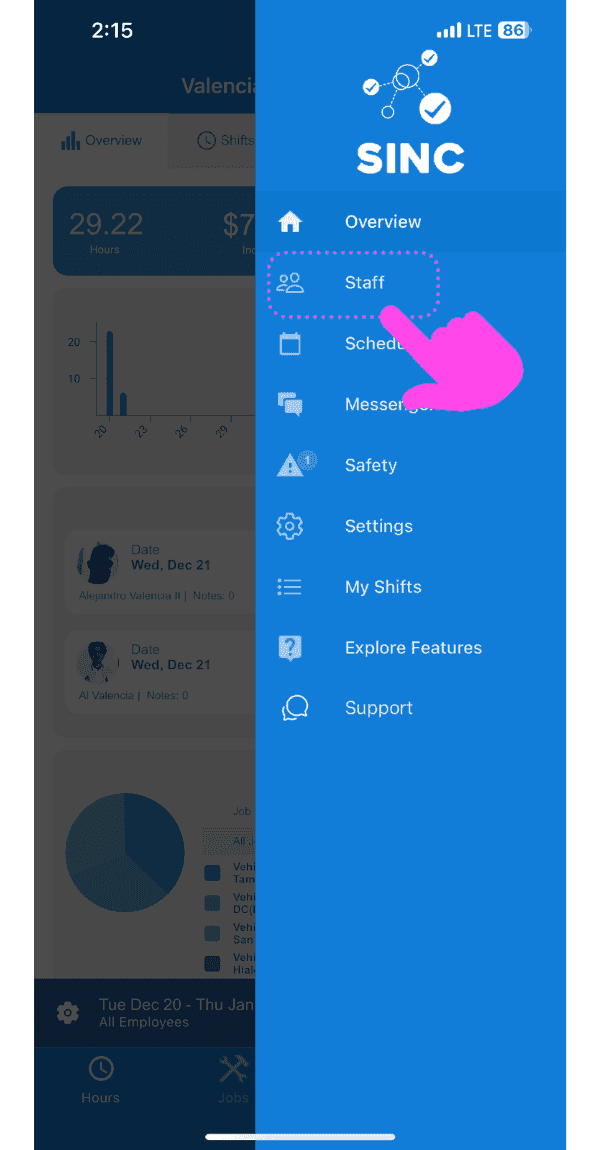
SINC mobile side menu with a pink arrow pointing to the Staff menu item

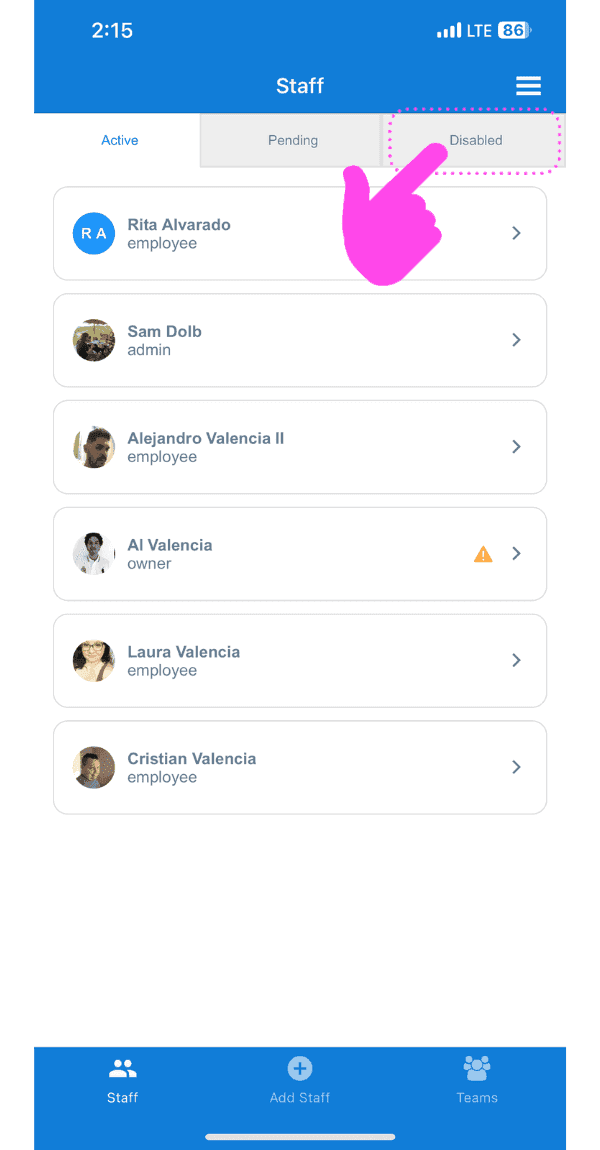
Toca Personal deshabilitado

SINC mobile Staff screen with a pink hand pointing to the Disabled tab

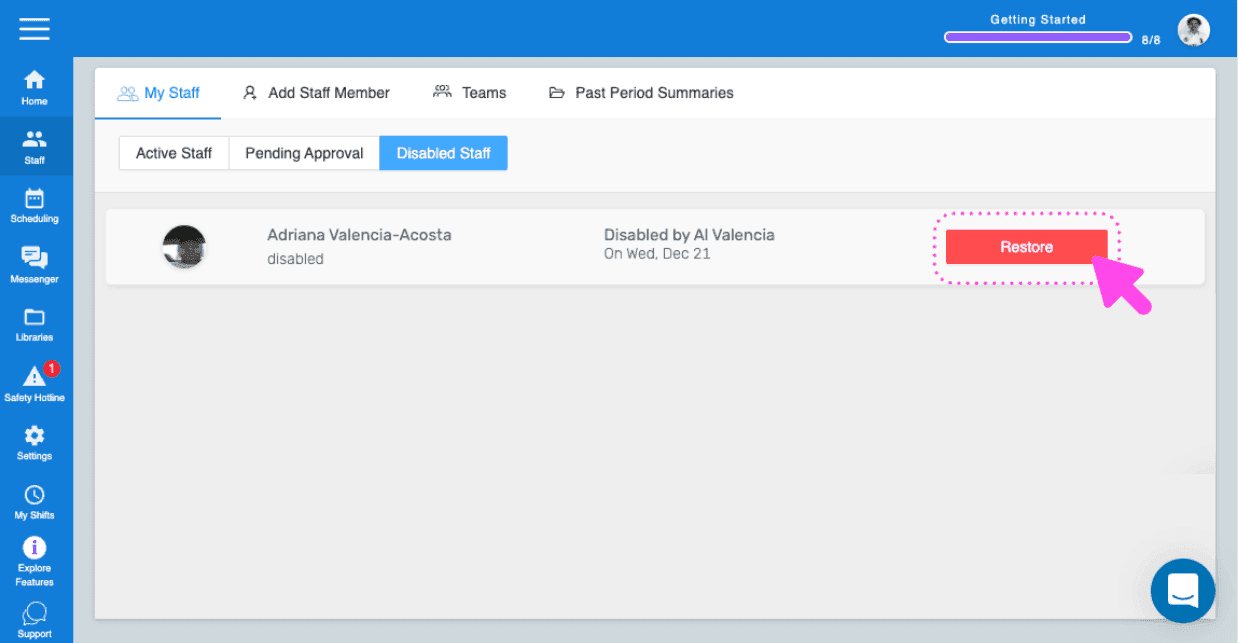
Toca Restaurar (junto al miembro del personal que quieras restaurar)
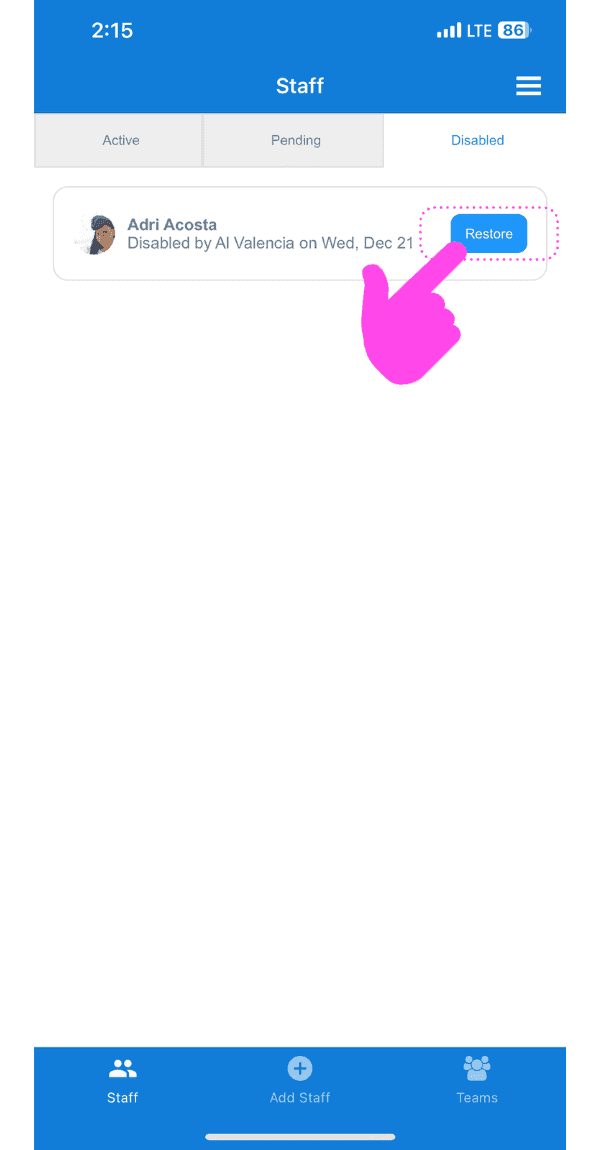
Staff Disabled tab showing a disabled employee with the Restore button highlighted by a pink arrow

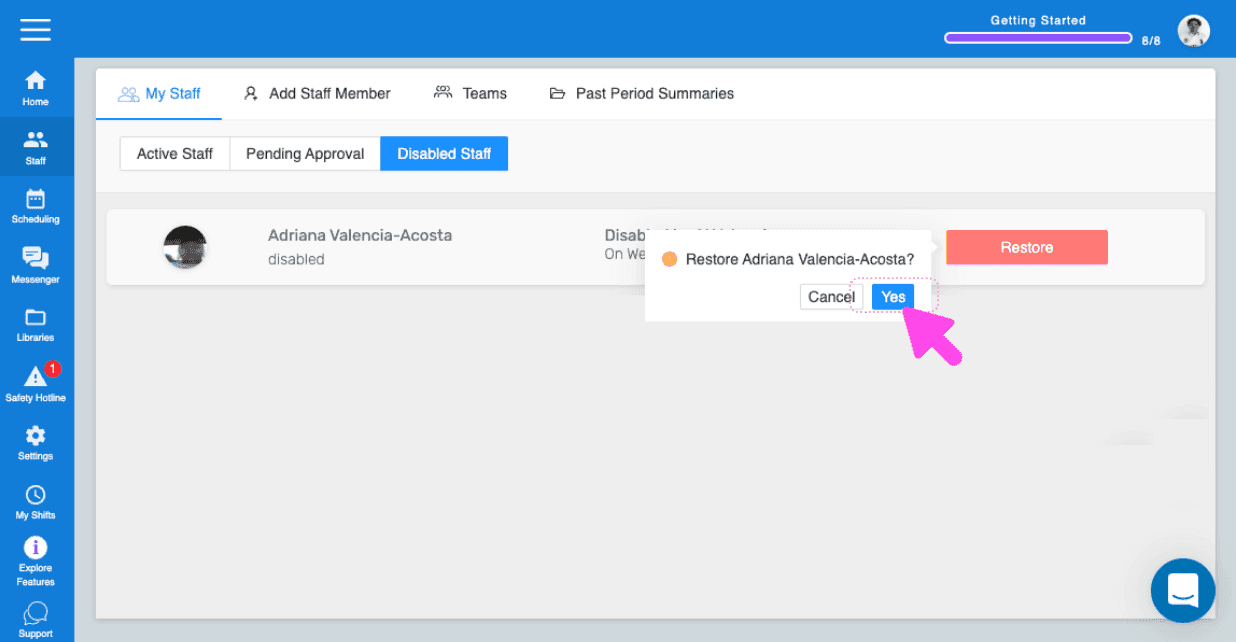
Pulsa Aceptar (versión web) Haz clic en Sí
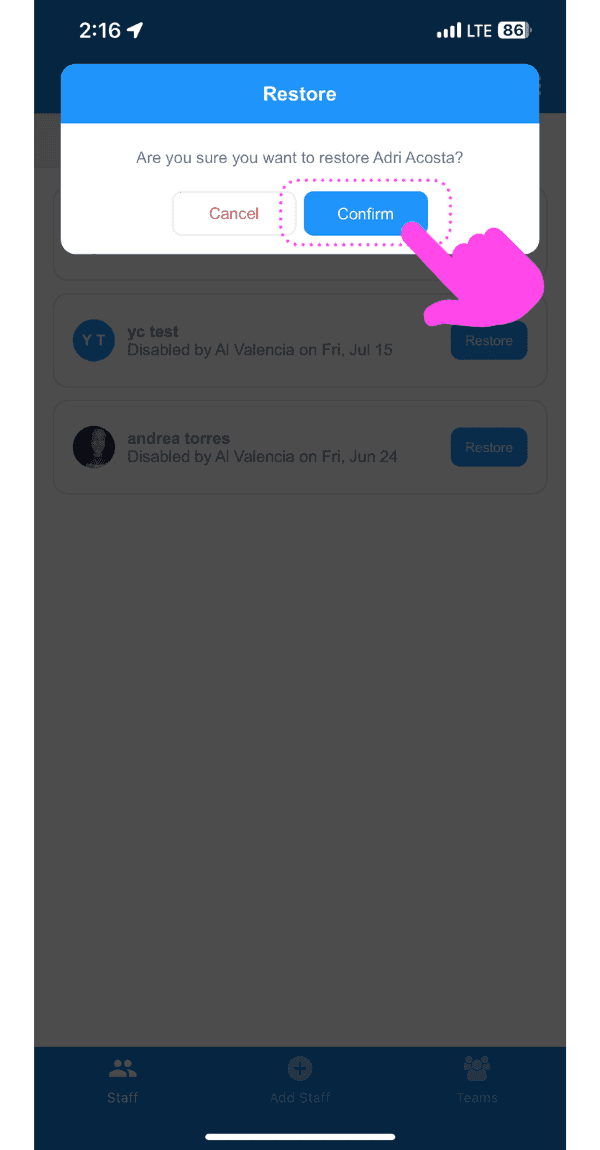
SINC mobile restore confirmation dialog with the Confirm button highlighted in pink

Ten en cuenta: si los cambios no se reflejan en el dispositivo del empleado, pídele que elimine la aplicación SINC, reinicie el teléfono y vuelva a instalar SINC. Si utilizas la versión web, se verá así:
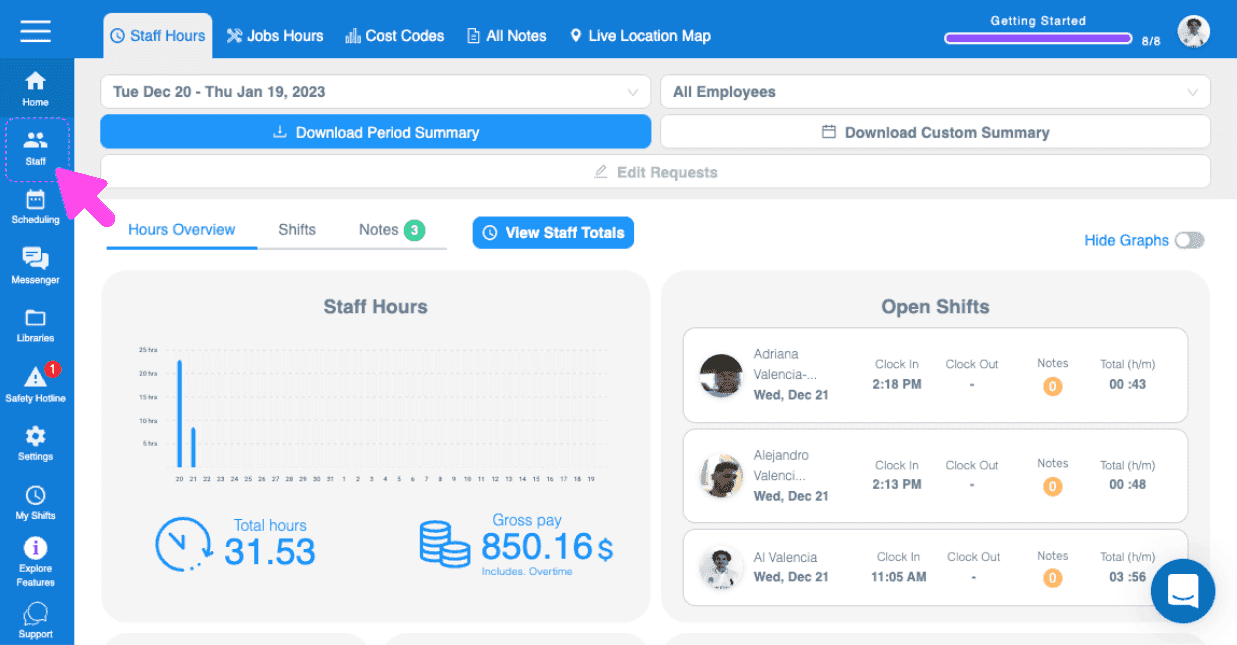
SINC web dashboard Overview page with a pink arrow pointing to the Staff icon in the left sidebar navigation
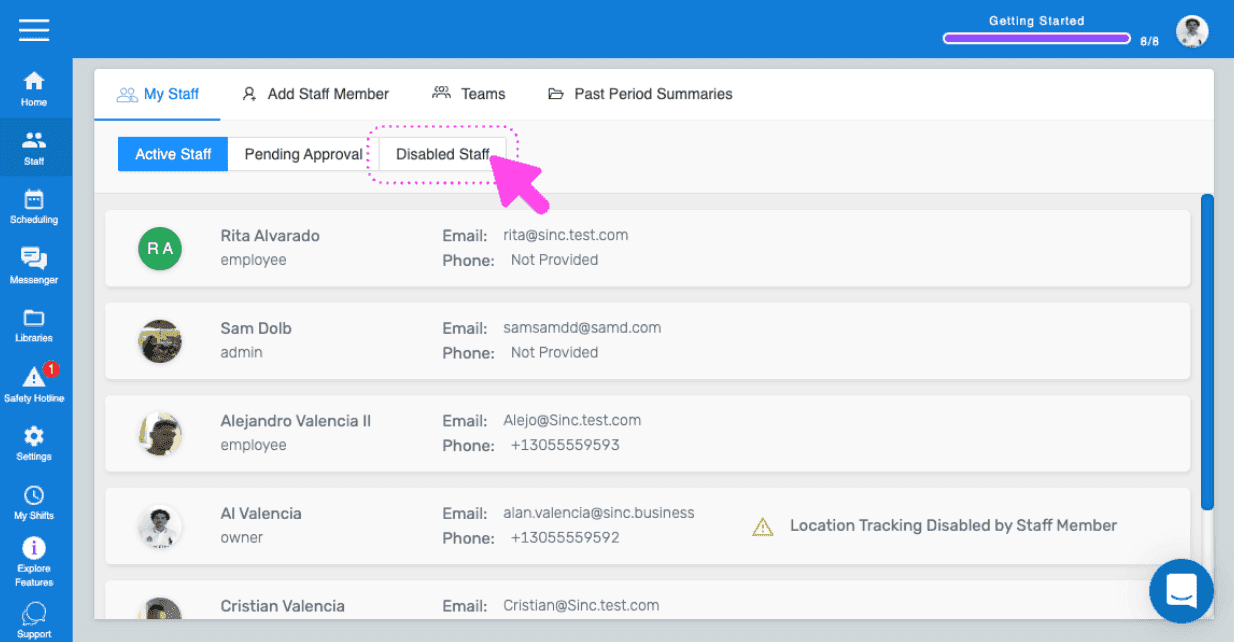
SINC web My Staff page with a pink arrow pointing to the Disabled Staff tab
Web My Staff Disabled Staff tab with a staff member's red Restore button outlined in pink
SINC web Disabled Staff tab showing a Restore confirmation dialog with a pink arrow pointing to the Yes button

¿Esto respondió tu pregunta?