Cómo volver a convertir a un administrador en empleado

En esta guía explicaremos el proceso para cambiar el rol de Administrador a Empleado.

SINC Support Team
SINC Support Team
Mar 27th, 2023

Si un miembro del personal ha sido ascendido a administrador y es necesario revertir el cambio, sigue estos pasos. Toca Personal
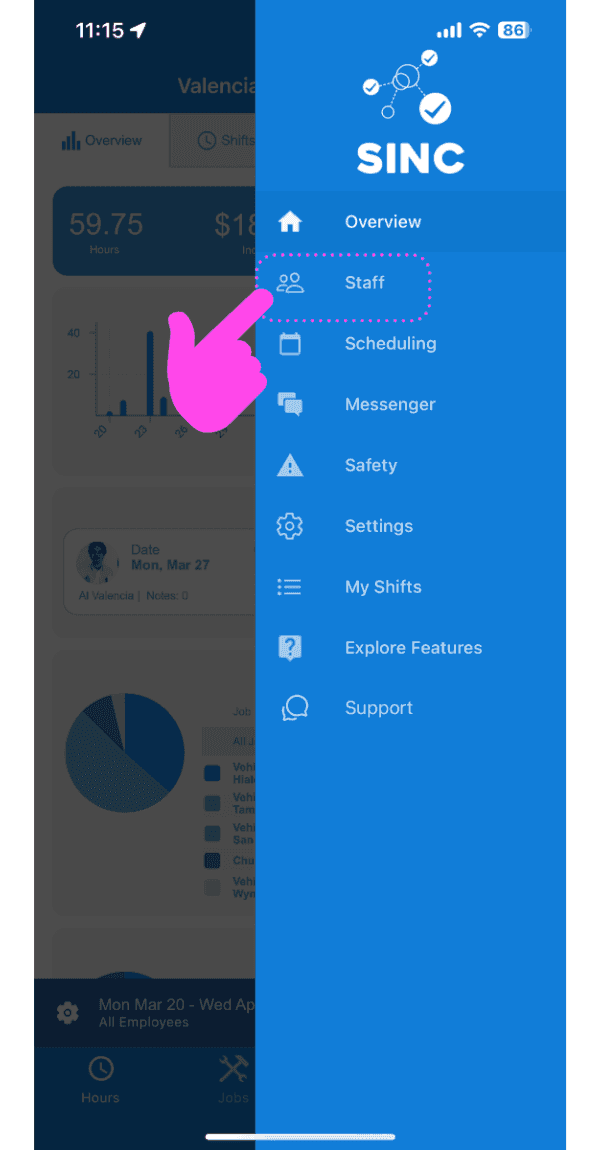
SINC mobile app side menu with a pink arrow pointing to the Staff menu item

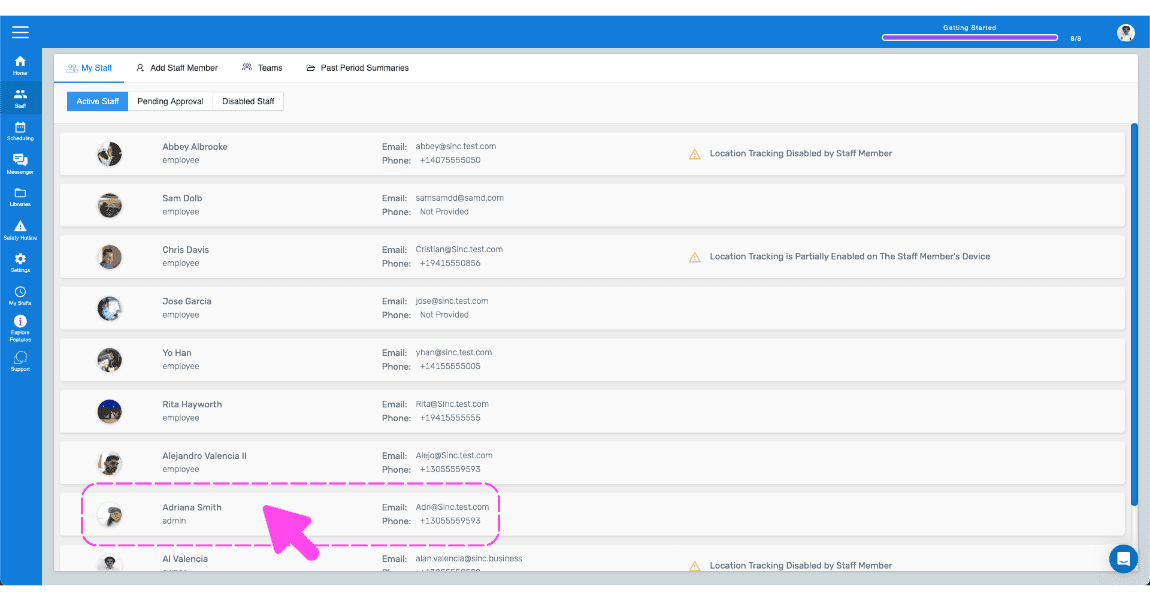
Pulsa en el nombre del miembro del personal al que quieras devolver el rol de empleado
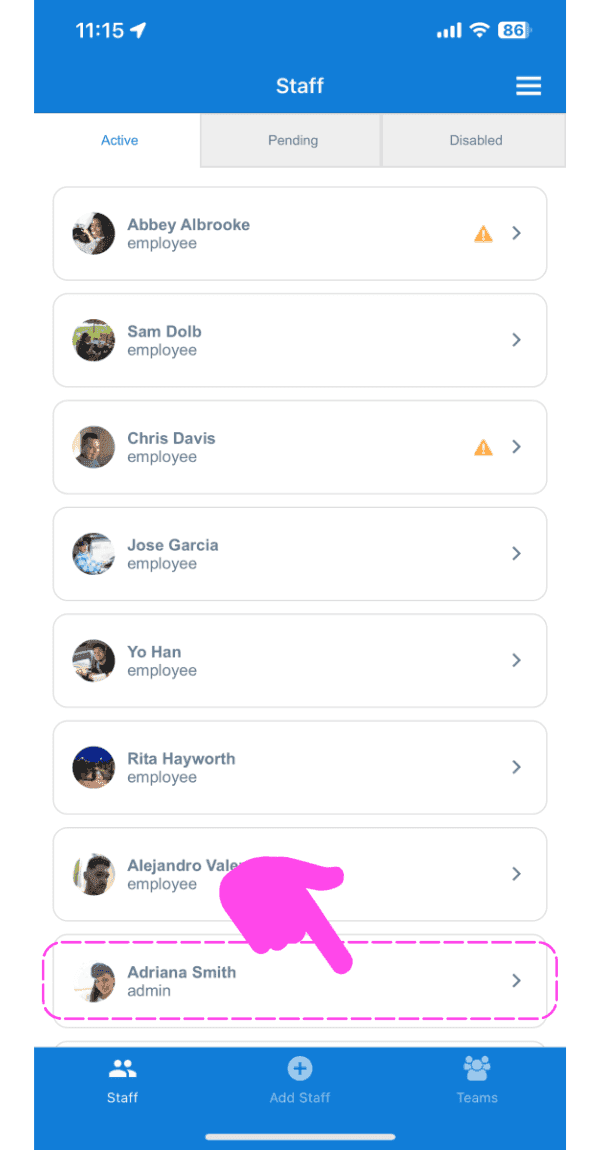
SINC mobile app Staff Active list with a pink arrow and dashed box highlighting an admin staff member's row

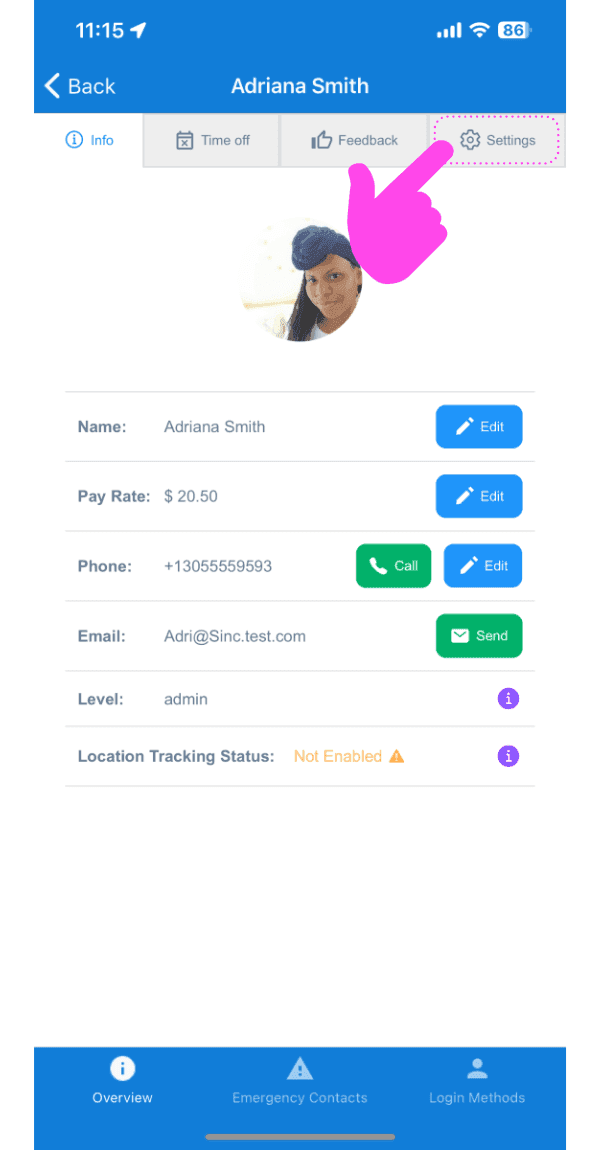
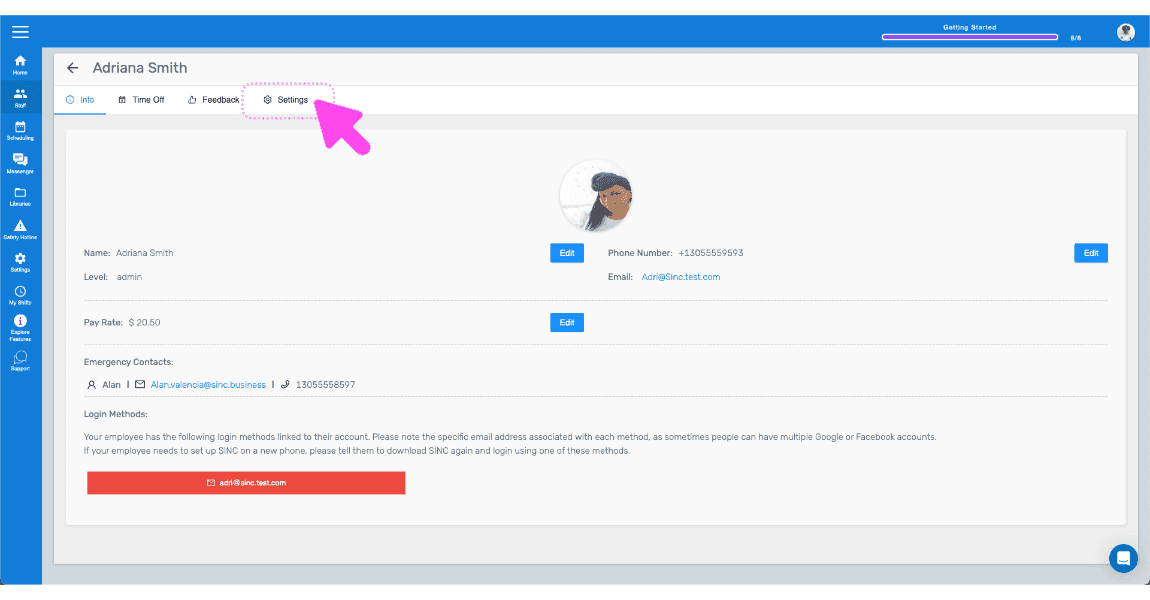
Toca Ajustes

Staff profile screen with the Settings tab highlighted by a pink arrow

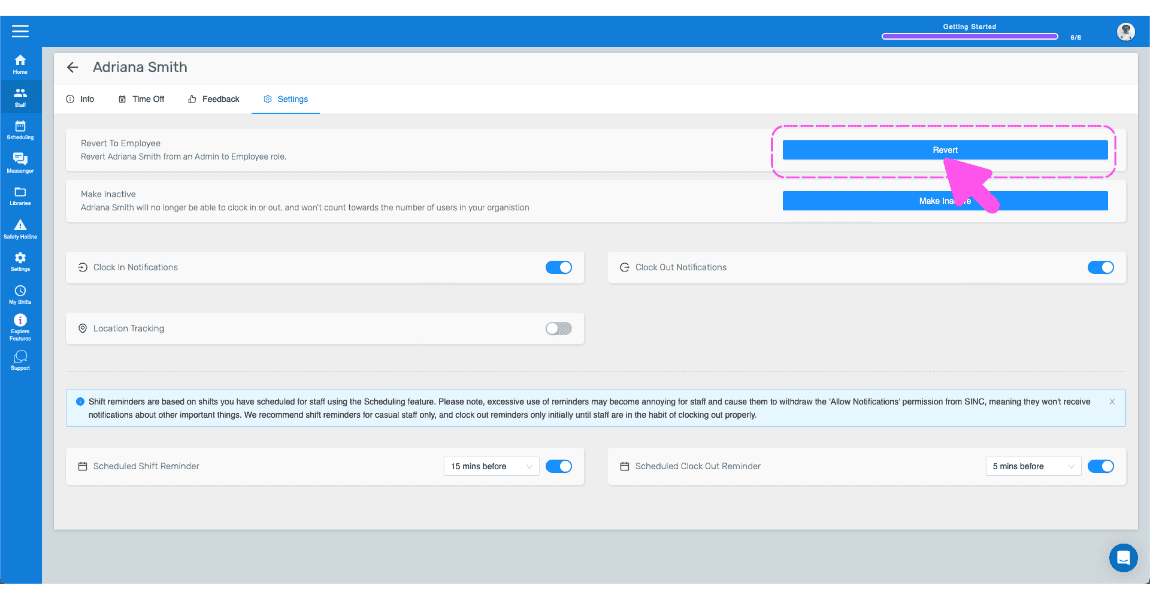
Pulsa en Volver a empleado (versión web) Haz clic en Volver
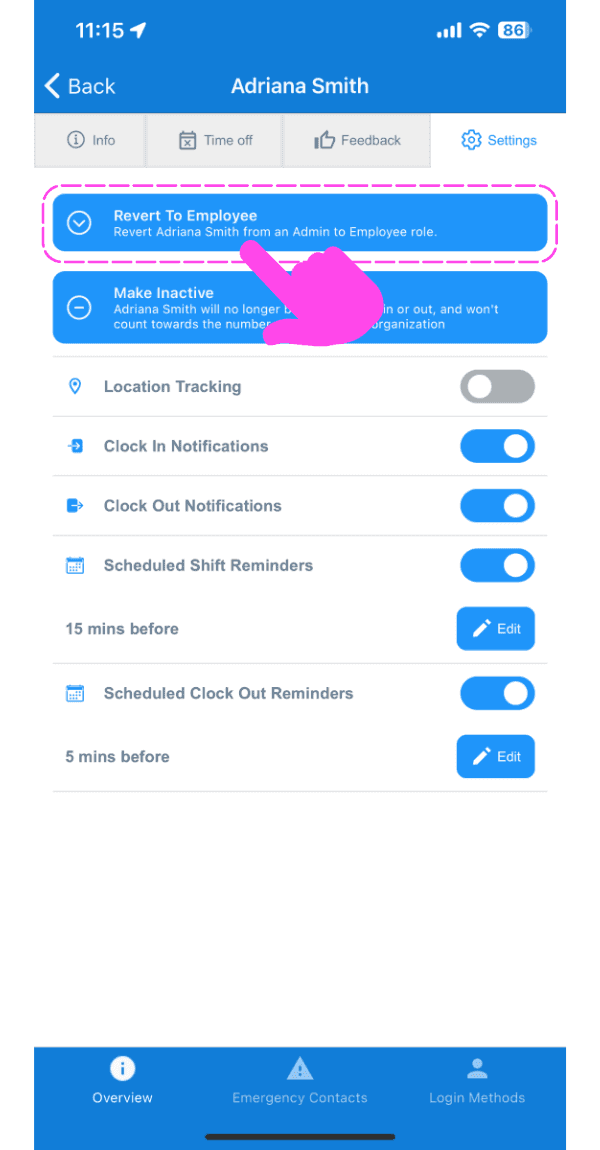
Staff member Settings screen with the Revert To Employee button highlighted by a pink dashed box and arrow

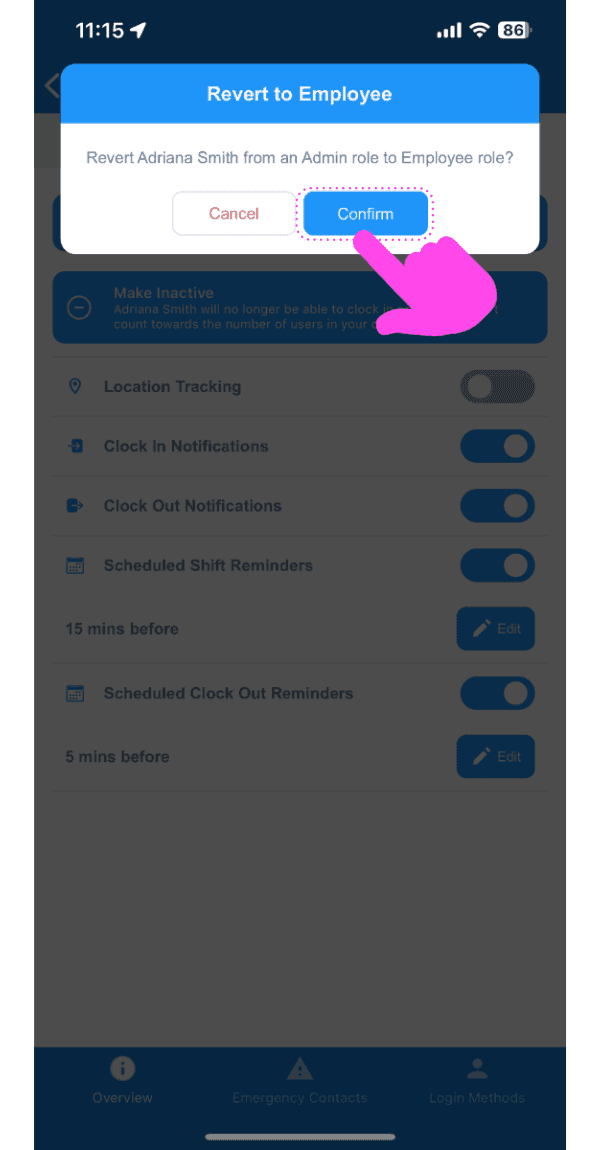
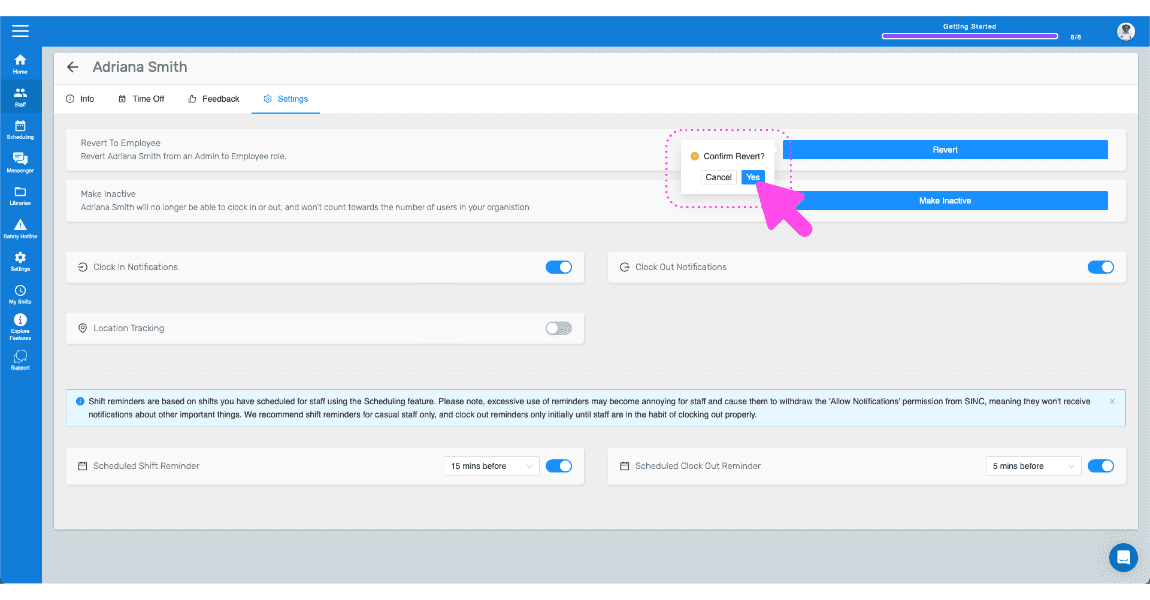
Pulsa Confirmar

SINC mobile confirmation popup for reverting an admin to employee role, with the Confirm button highlighted

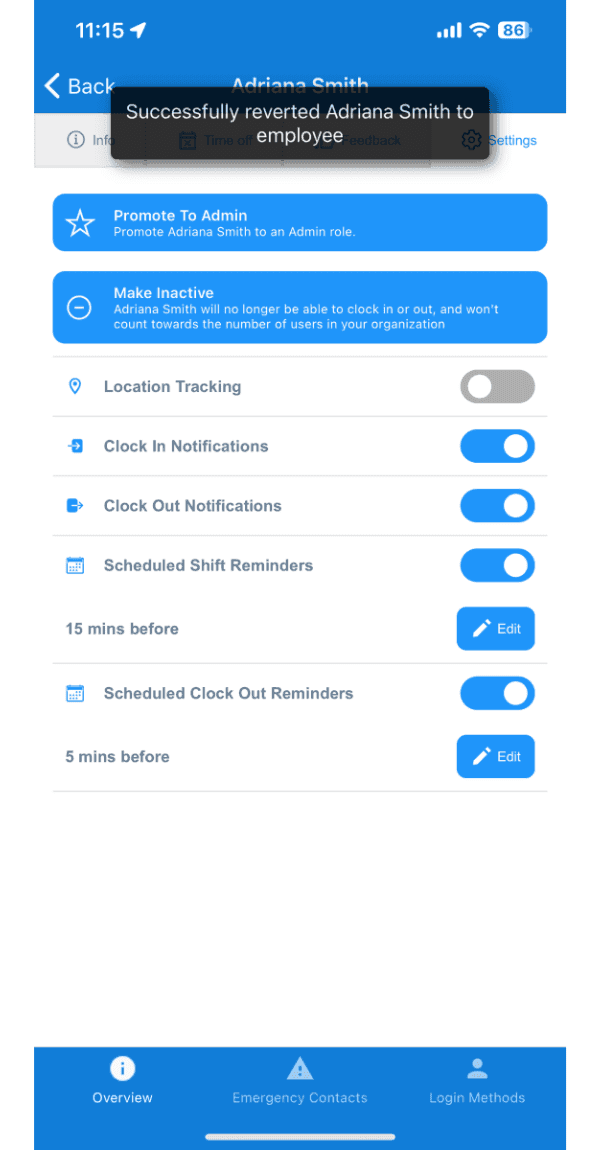
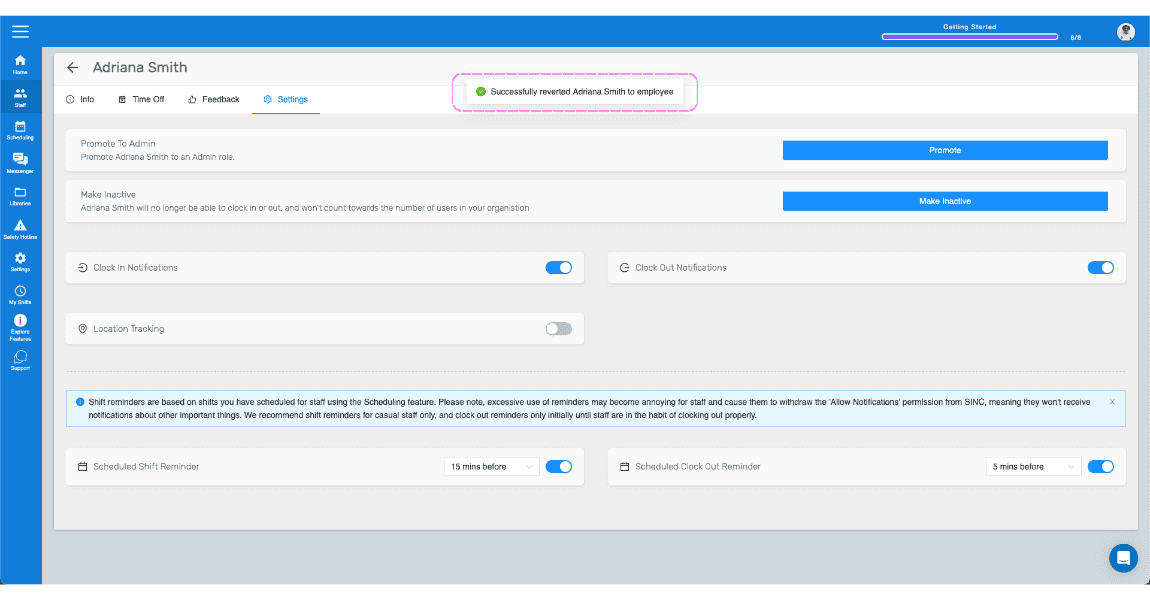
Aquí recibirás una confirmación

Staff member Overview screen showing a confirmation toast that the employee was reverted from admin

Si utilizas la versión web, se verá así:
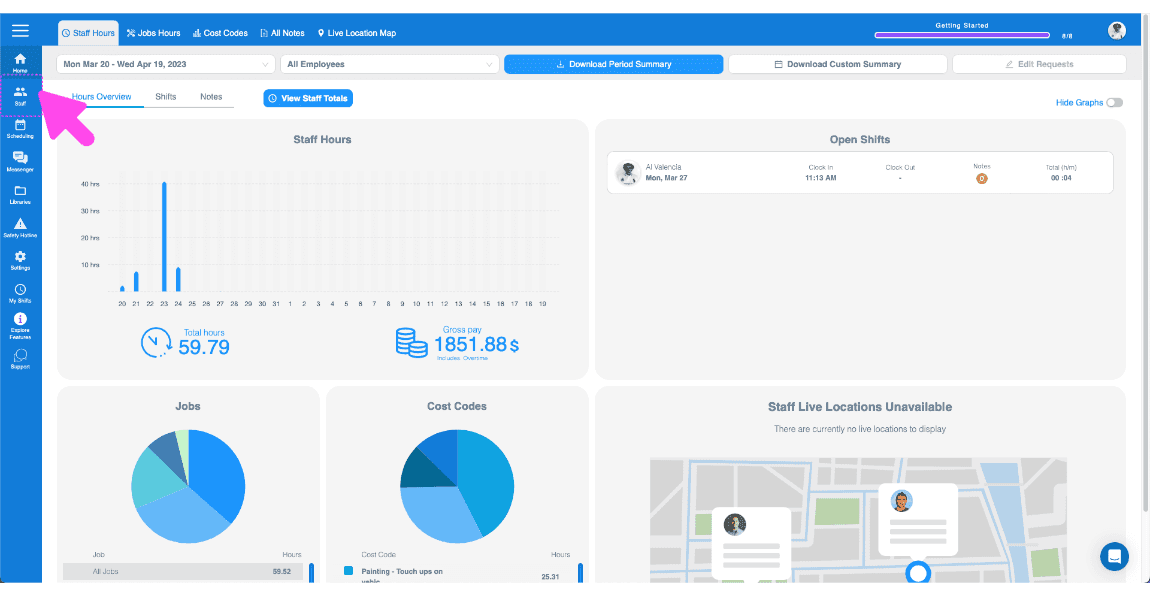
SINC web Staff Hours dashboard overview with a pink arrow pointing to a sidebar navigation icon
SINC web dashboard Staff list with a pink arrow pointing to a highlighted employee row
SINC web staff profile screen with a pink arrow pointing to the Settings tab
Web staff Settings tab with the blue Revert To Employee button outlined in pink and an arrow pointing to it
SINC mobile staff Settings tab showing a Confirm Revert dialog with a pink arrow pointing to the Yes button
Staff settings screen showing a confirmation banner that the staff member was reverted to employee

¿Esto respondió tu pregunta?