Añadir tiempo libre

Veamos cómo añadir un periodo de ausencia para un miembro del personal.

SINC Support Team
SINC Support Team
Jun 13th, 2022

Esta sección muestra cómo añadir un periodo de ausencia para un miembro del personal. En la versión web: haz clic en Menú Personal Mi personal Personal activo
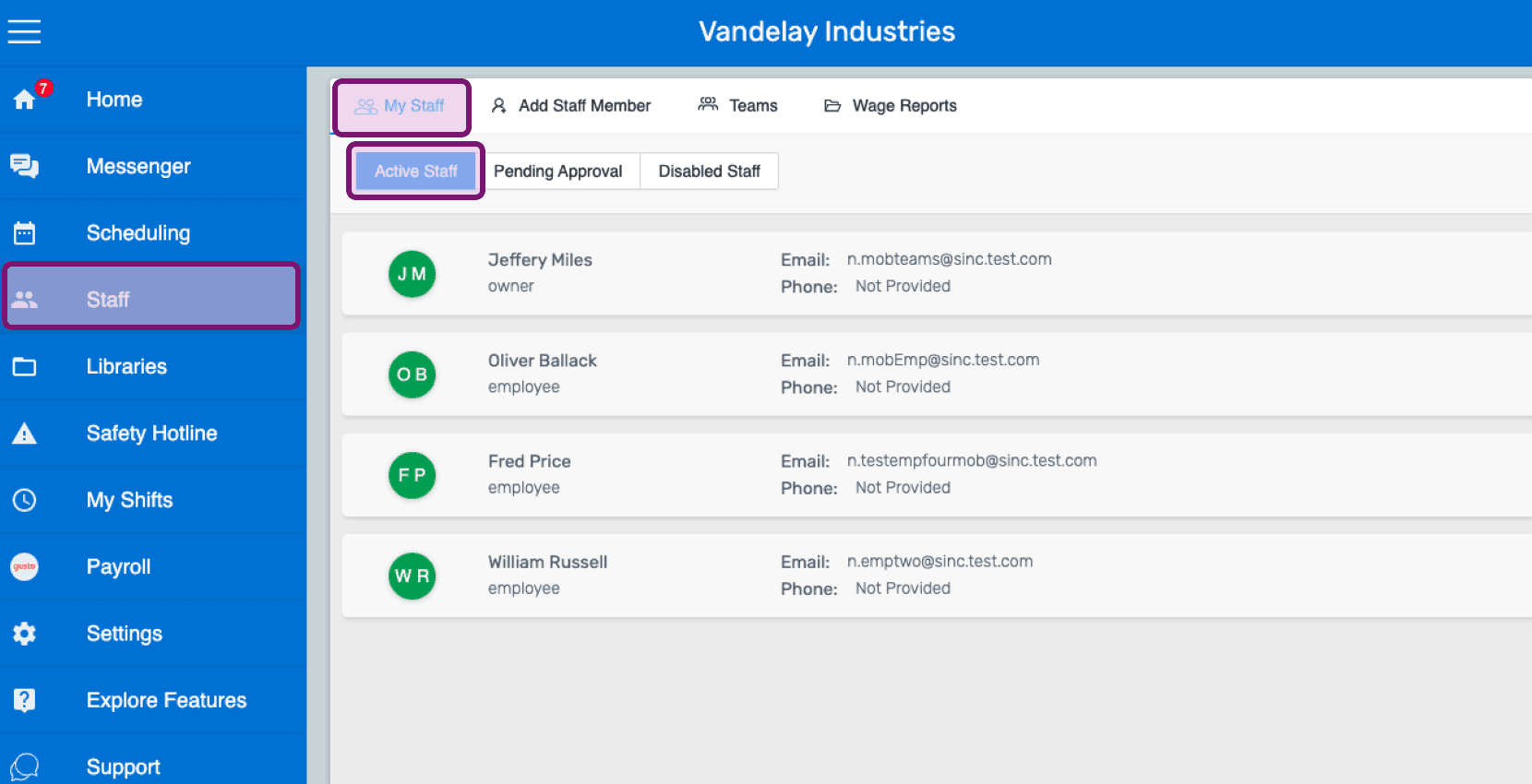
Staff list screen with the My Staff and Staff sidebar navigation options circled in pink

Haz clic en Nombre del miembro del personal
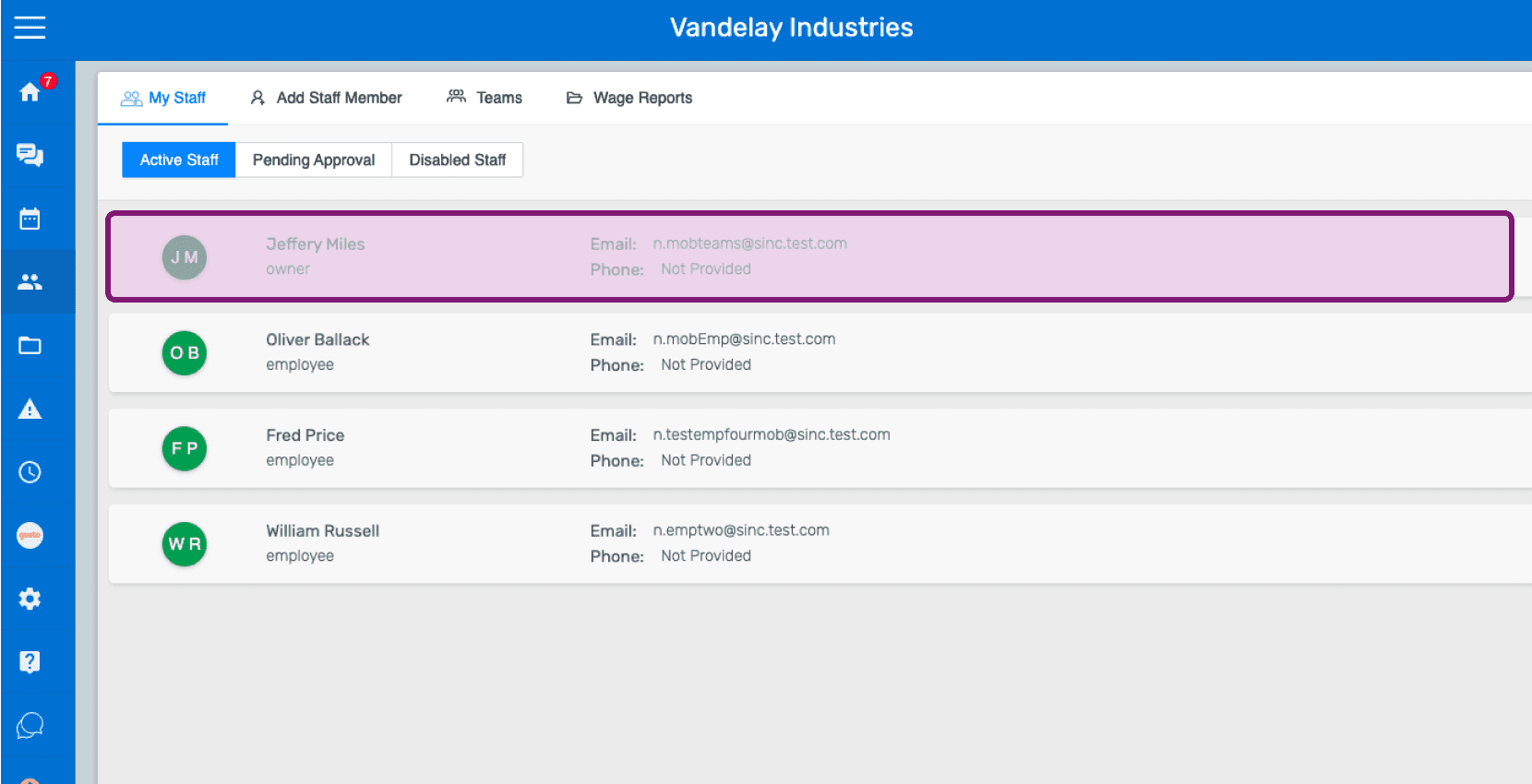
SINC web My Staff list with an employee's name highlighted to add time off for

Haz clic en Ausencias Añadir ausencia
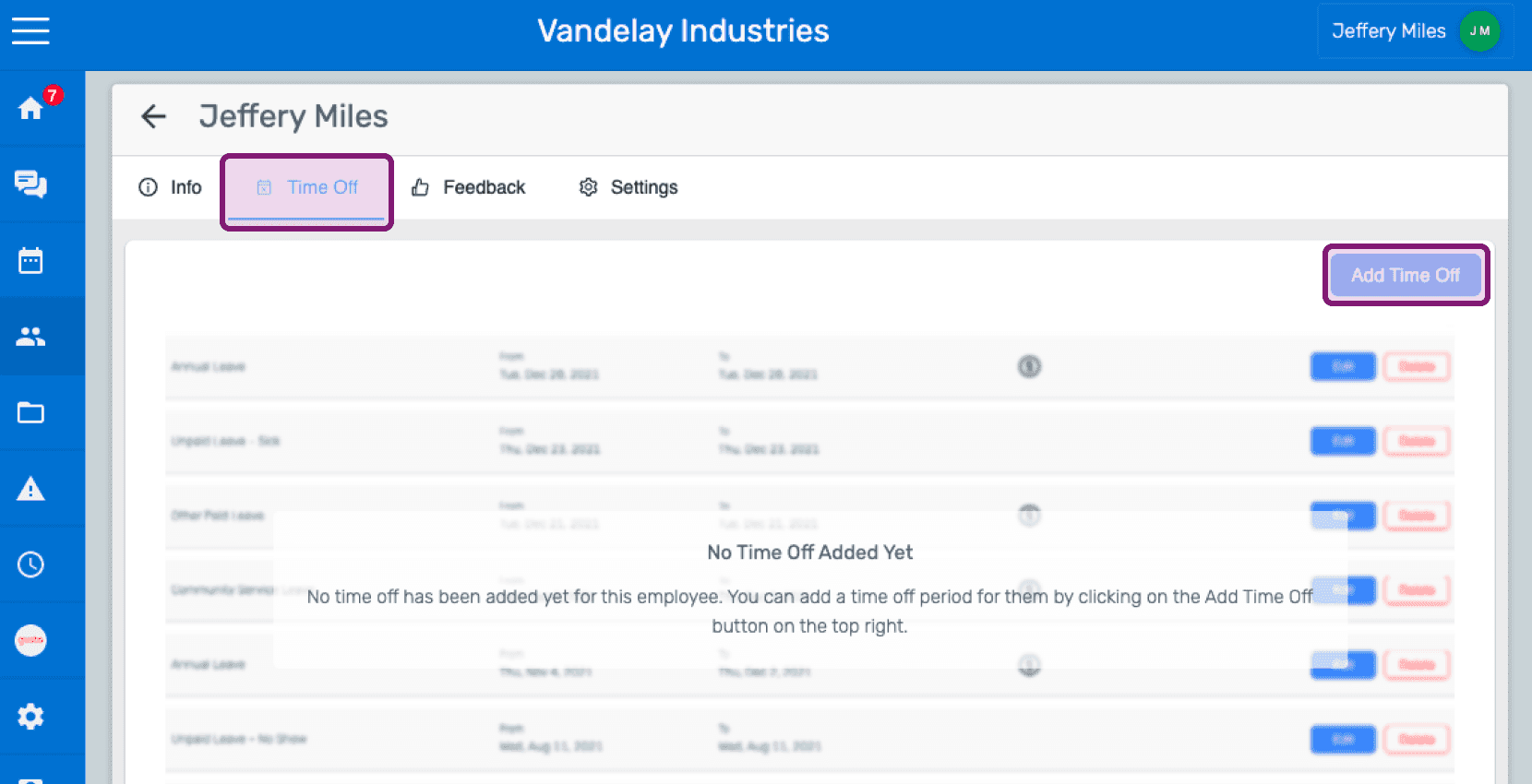
Web employee Time Off tab with no time off added yet and the Add Time Off button outlined in pink

Selecciona la categoría de ausencia en el menú desplegable.
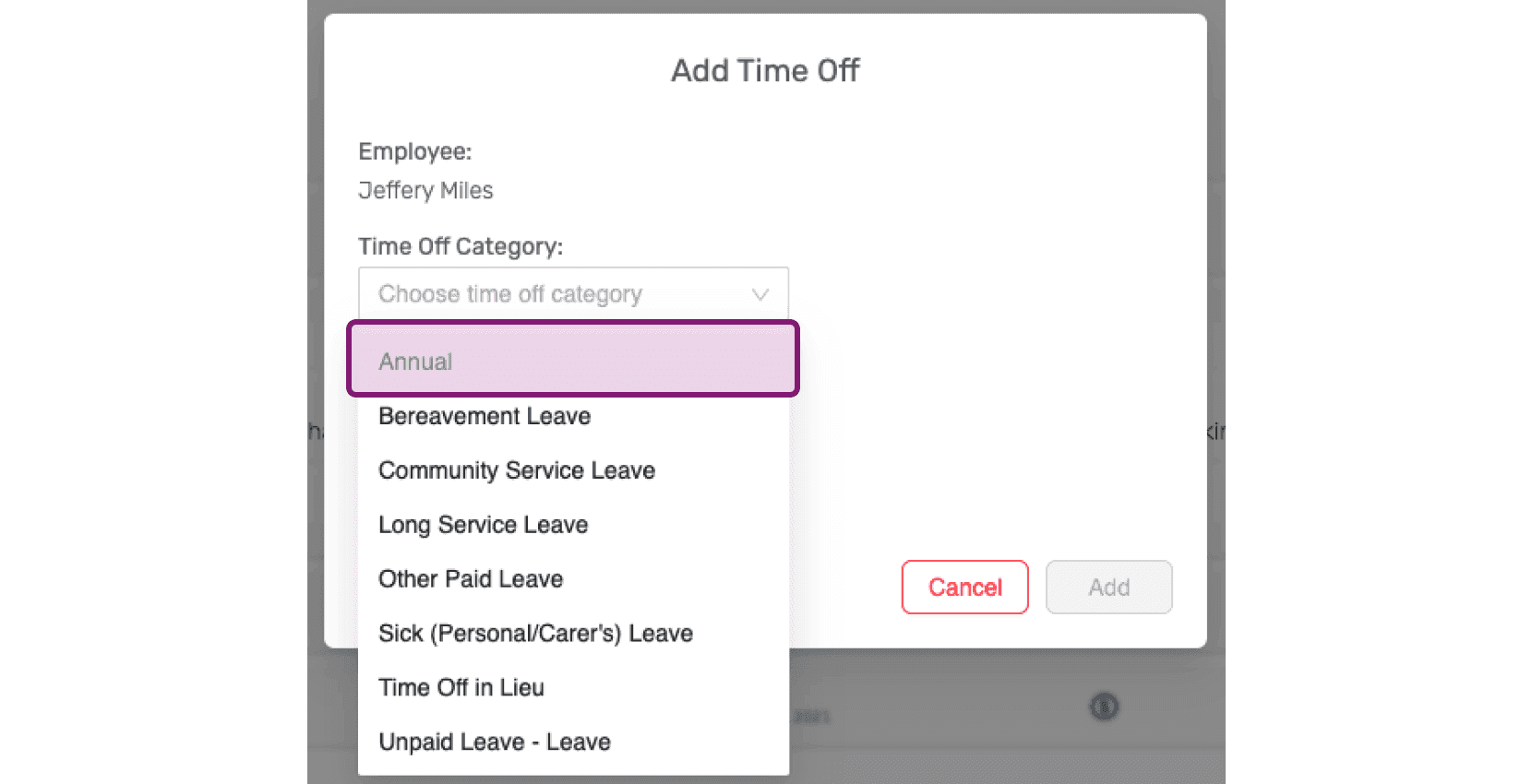
SINC web Add Time Off dialog with the Time Off Category dropdown open and Annual highlighted

Selecciona el periodo de ausencia en el selector de fechas.
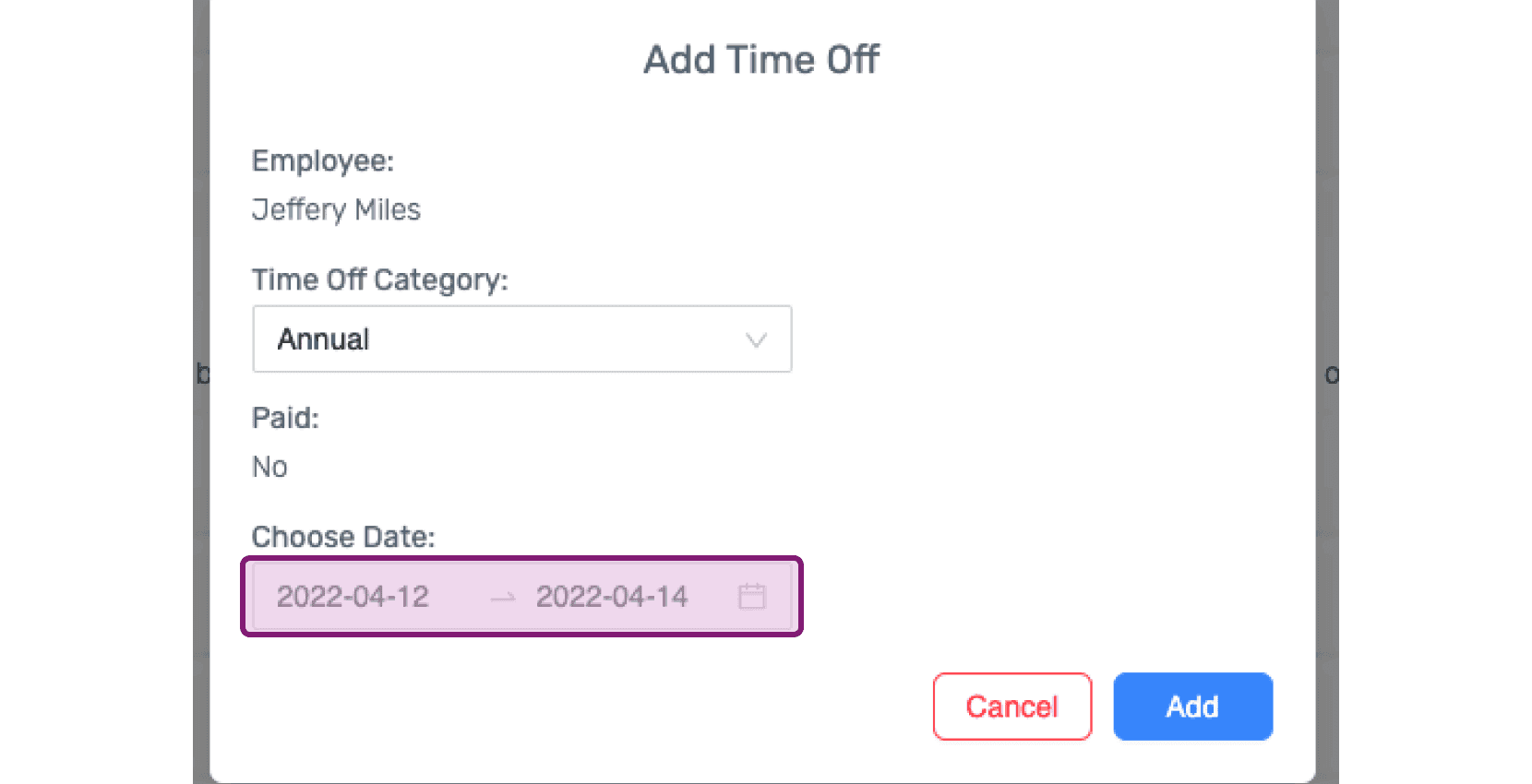
Add Time Off popup with the Choose Date range field highlighted

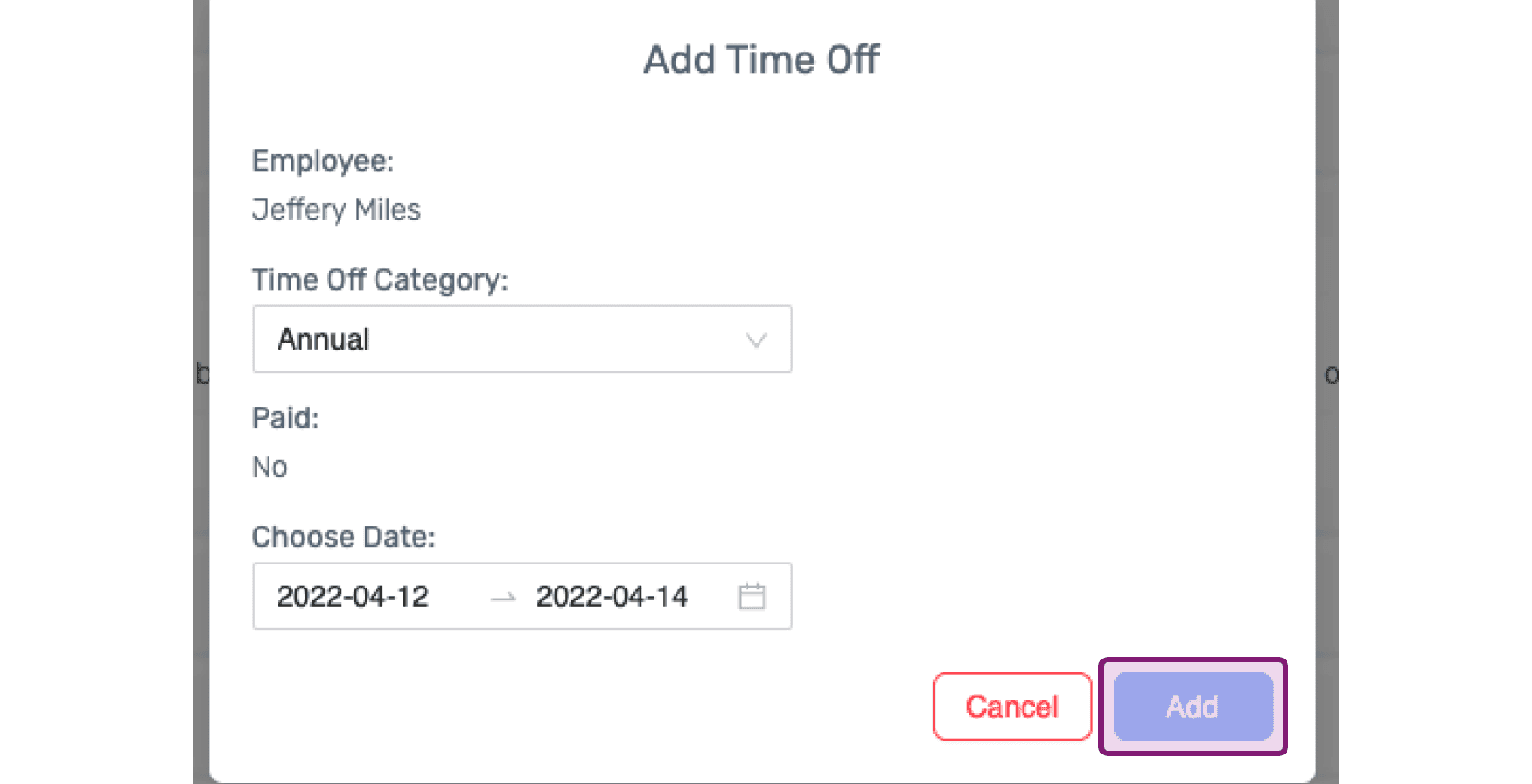
Haz clic en Añadir

Web Add Time Off popup with the Add button circled in pink

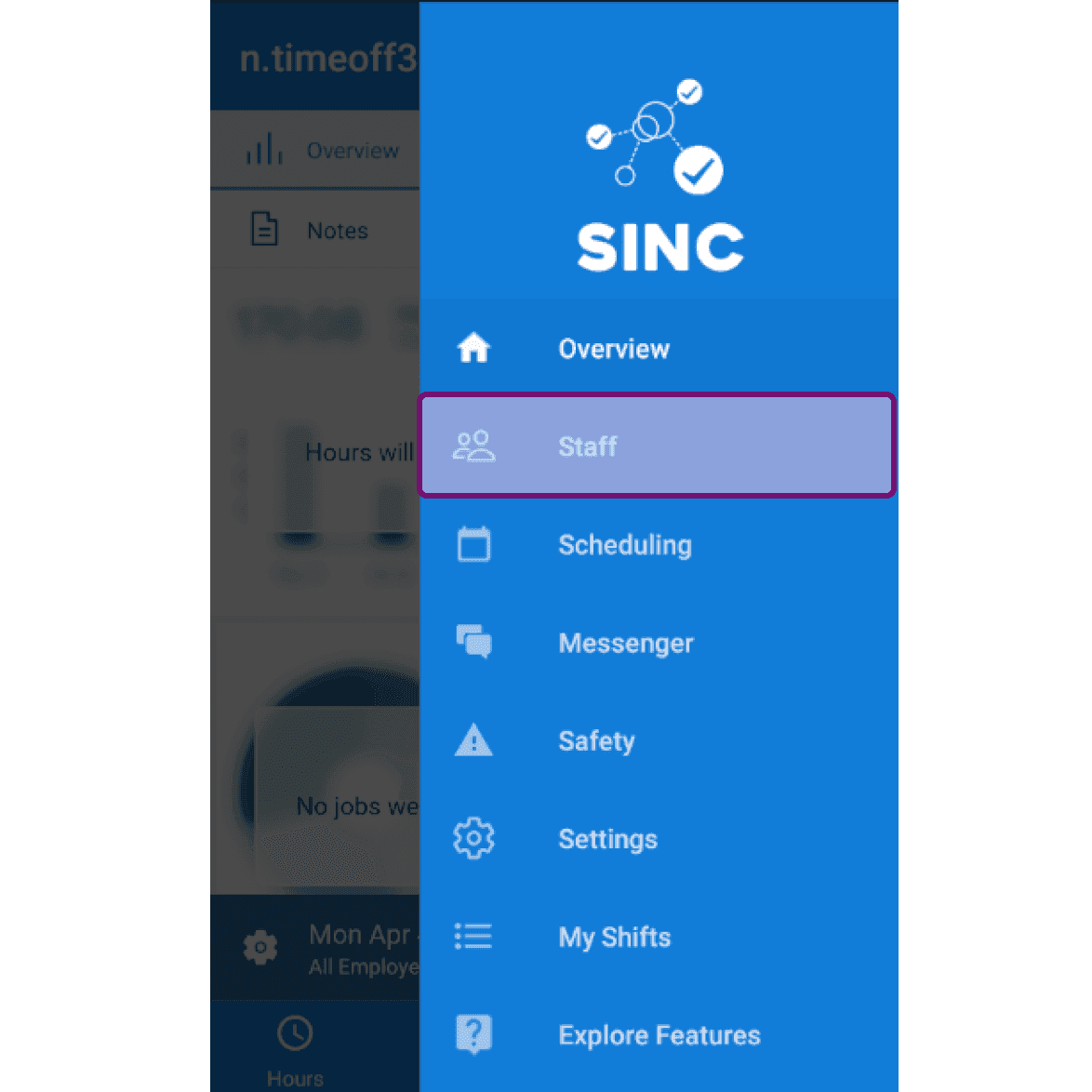
En el móvil: toca Menú Personal

SINC mobile app side menu with the Staff option highlighted

Toca Personal Activos nombre del miembro del personal
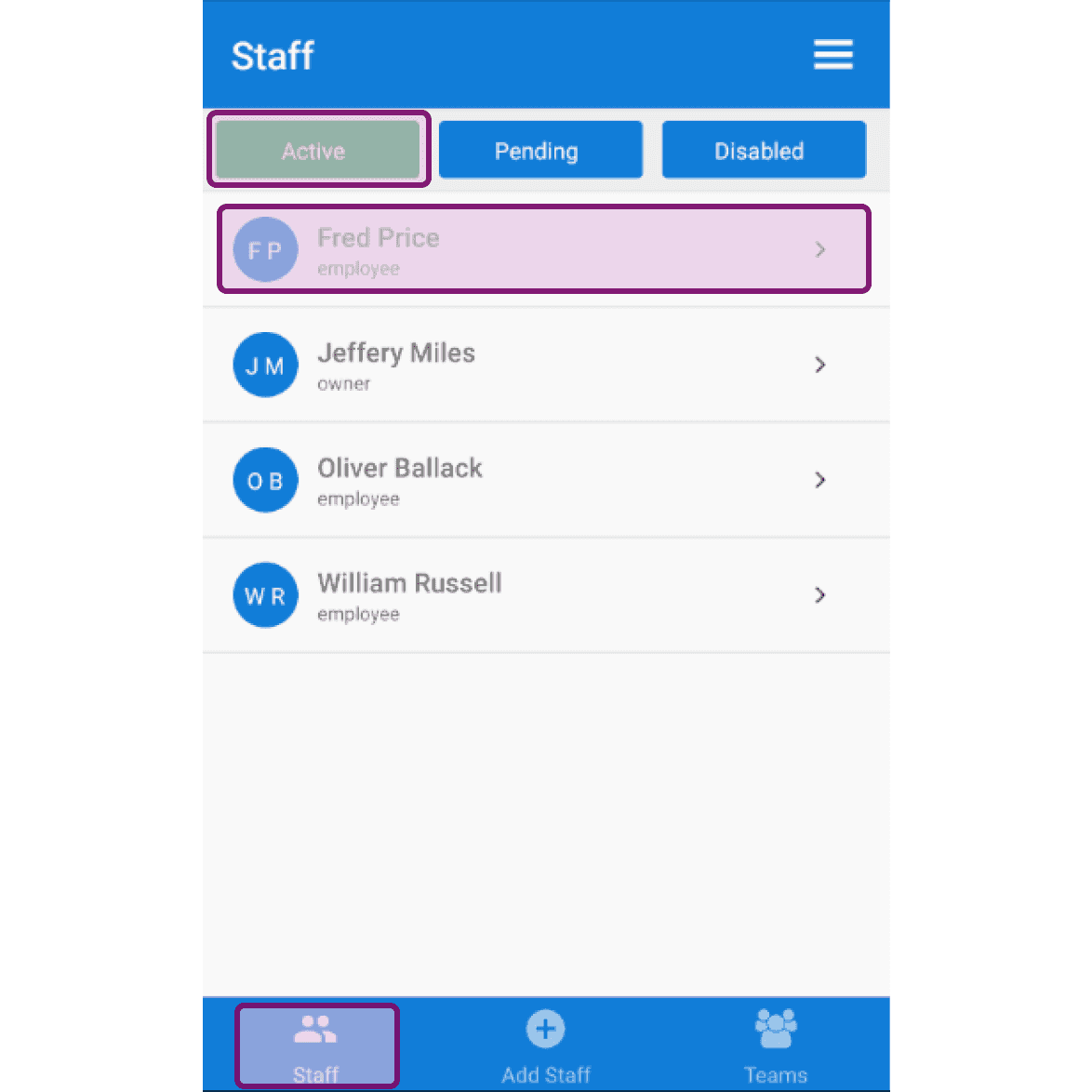
SINC mobile Staff screen on the Active tab with an employee's row outlined in purple

Toca en Ausencias el icono + en la esquina inferior derecha
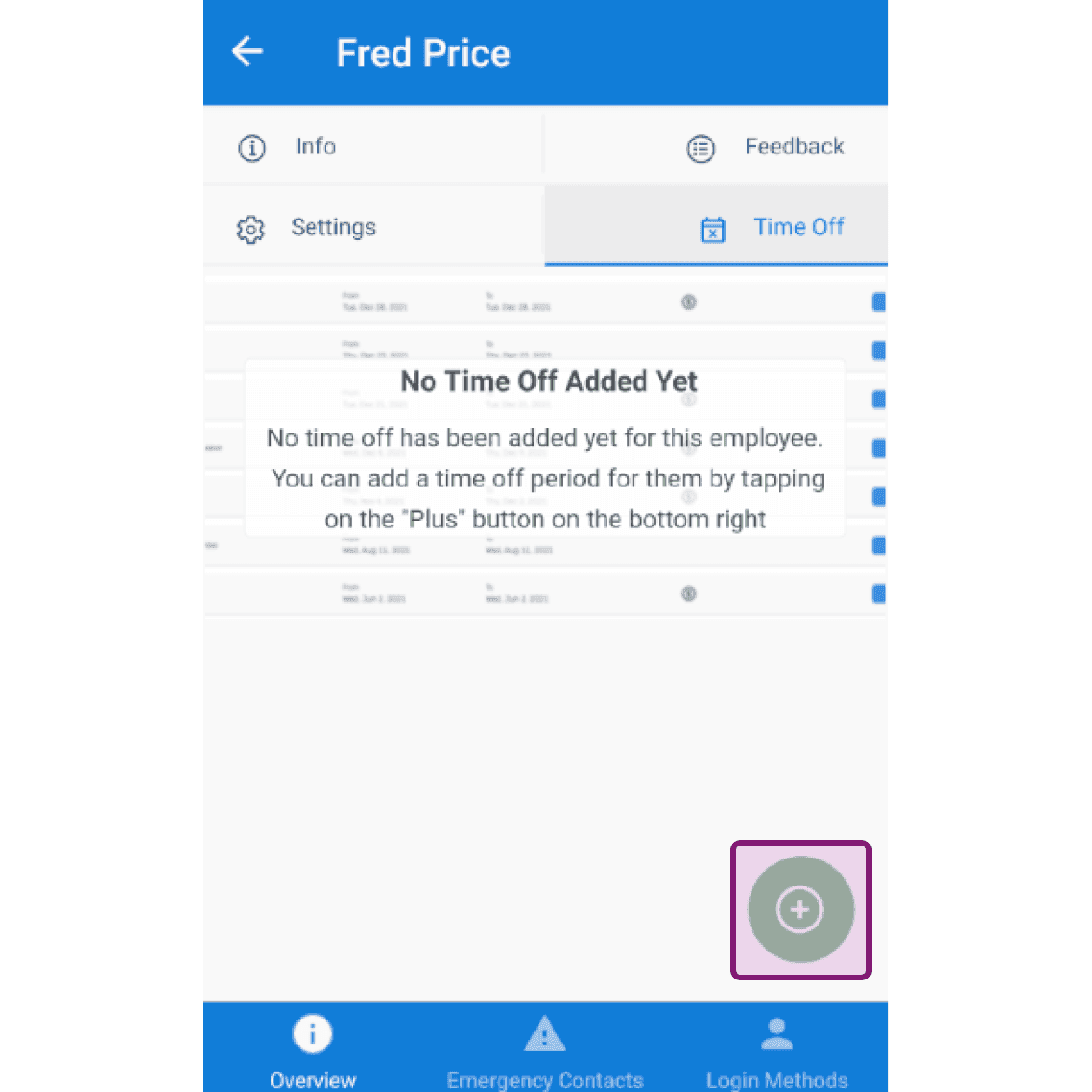
Employee Time Off tab showing "No Time Off Added Yet" message with the add button outlined

Toca la categoría de permisos en la lista.
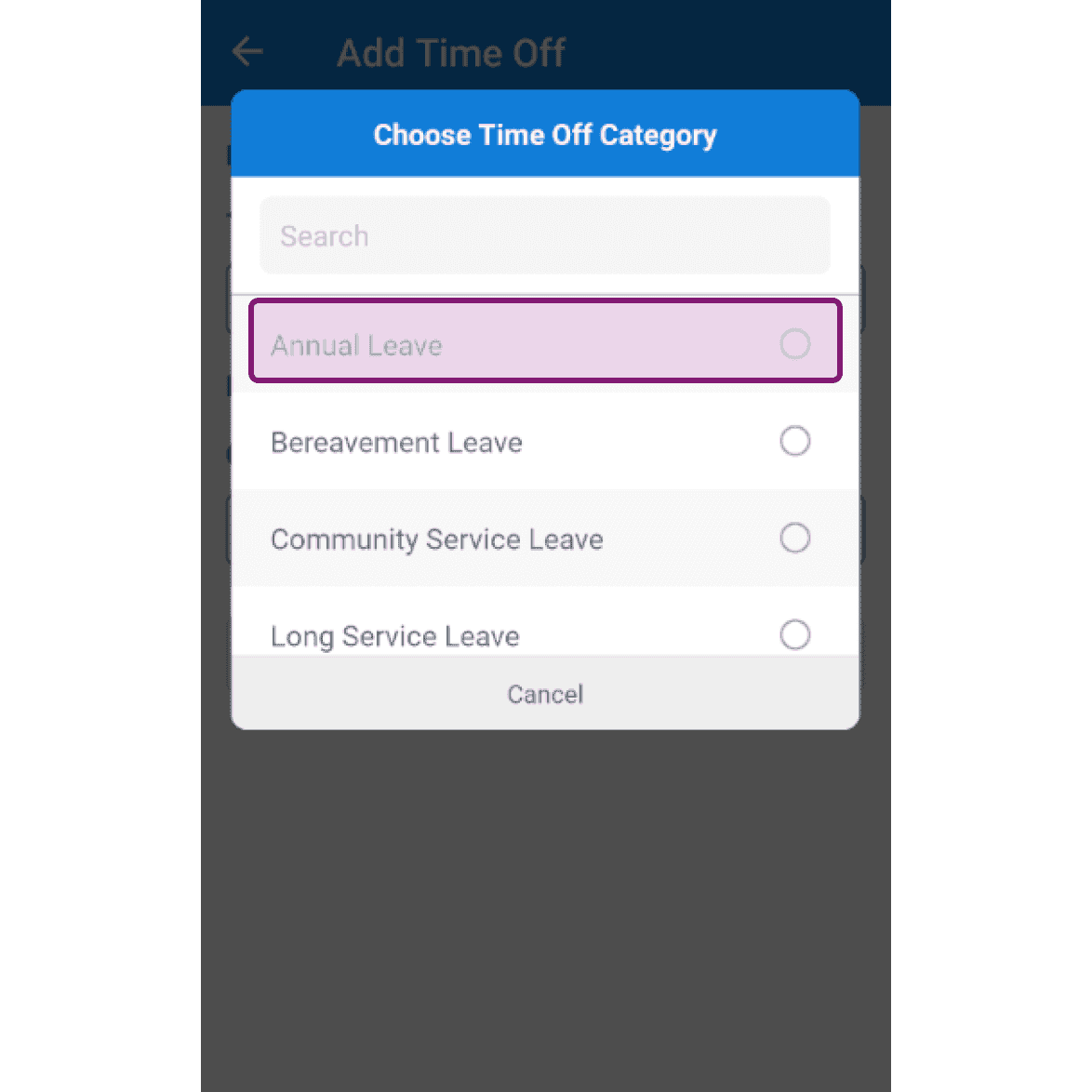
SINC mobile app Choose Time Off Category popup with the Annual Leave option outlined in pink

Pulsa el botón Elegir fecha para seleccionar el periodo de vacaciones.
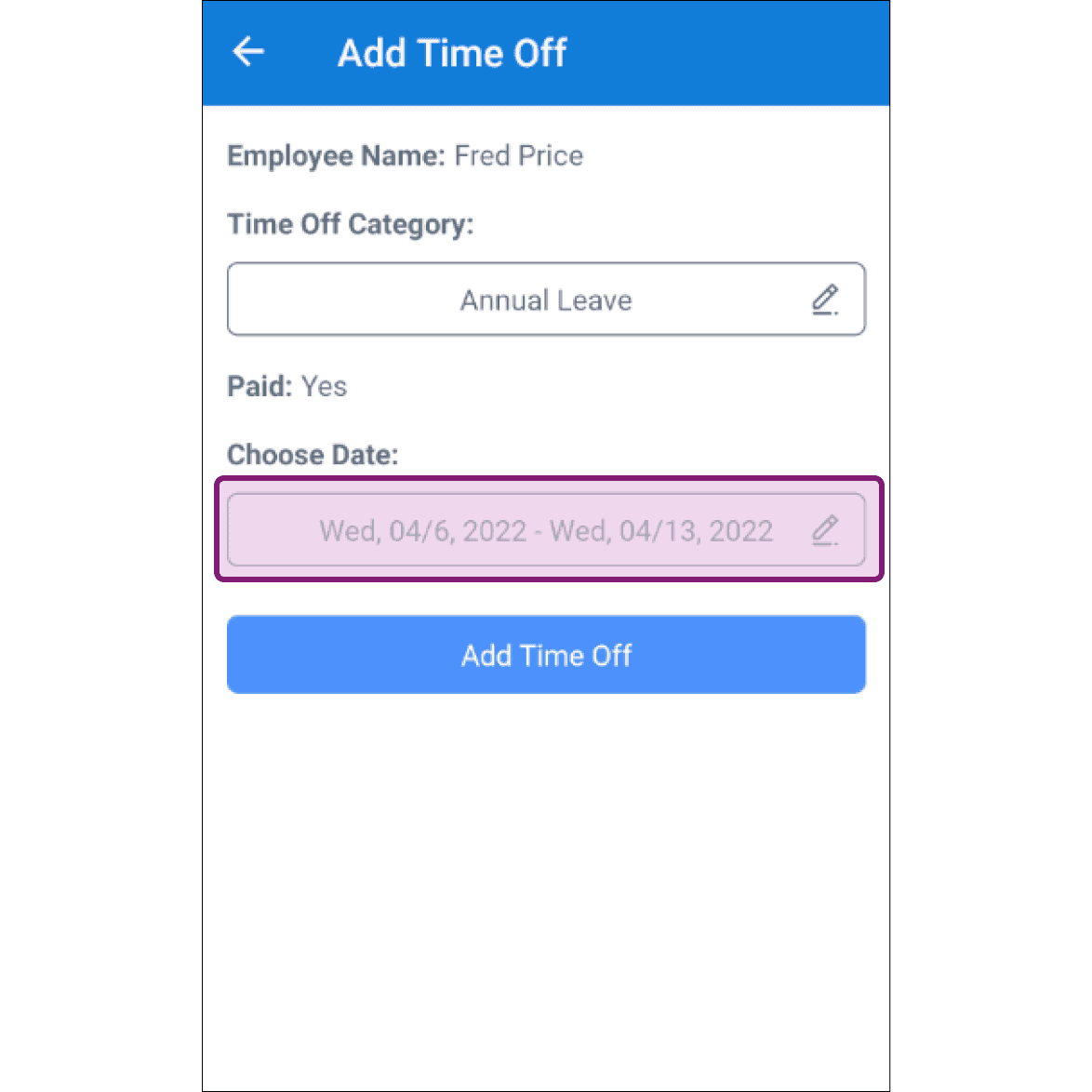
Add Time Off screen with the Choose Date field outlined in purple

Toca Añadir ausencia. Ten en cuenta que los empleados no podrán fichar durante el periodo de ausencia y los administradores no podrán programarles un turno durante dicho periodo.
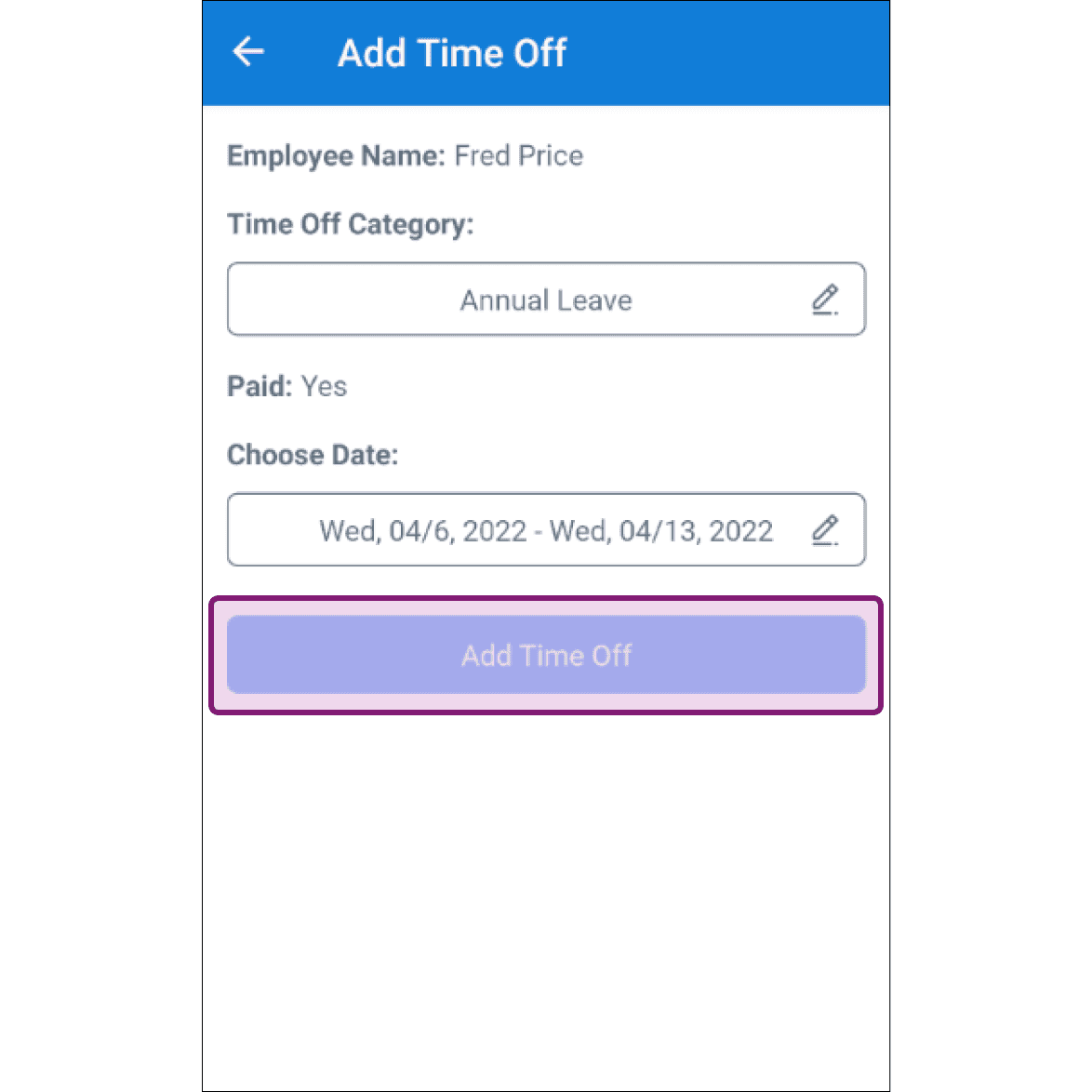
Add Time Off screen showing employee name, category, and dates with the Add Time Off button highlighted

¿Esto respondió tu pregunta?