Eliminar las hojas de horas de los empleados

En esta guía explicaremos cómo un administrador puede eliminar un turno.

Sam Dolbel
Sam Dolbel
Mar 3rd, 2023

En el móvil: pulsa en Resumen Turnos
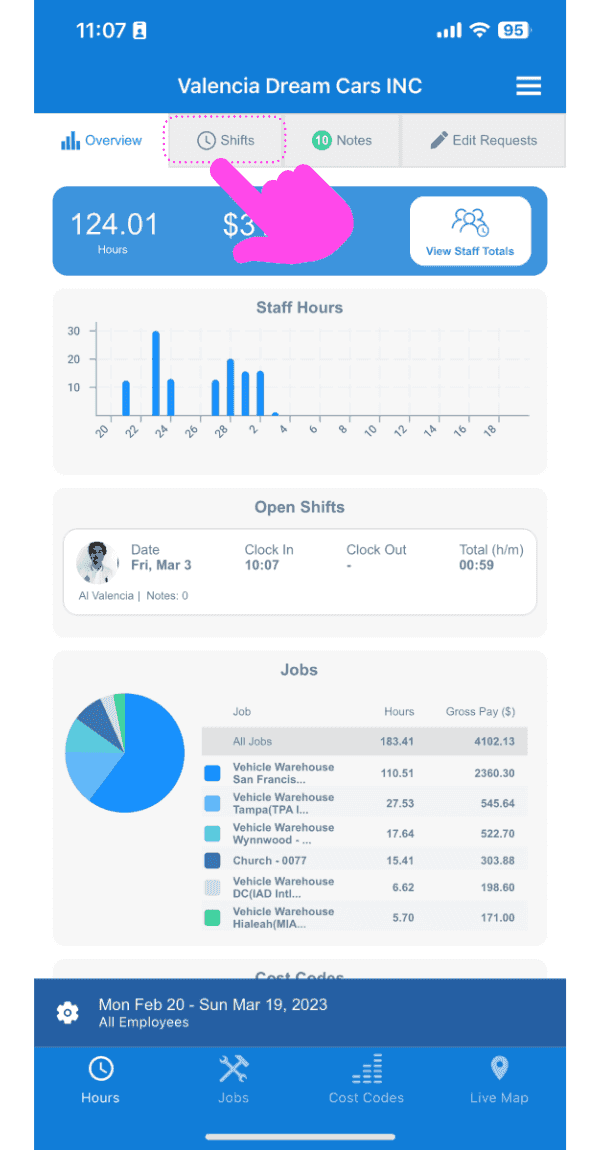
SINC mobile app Overview screen with a pink arrow pointing to the Shifts tab at the top

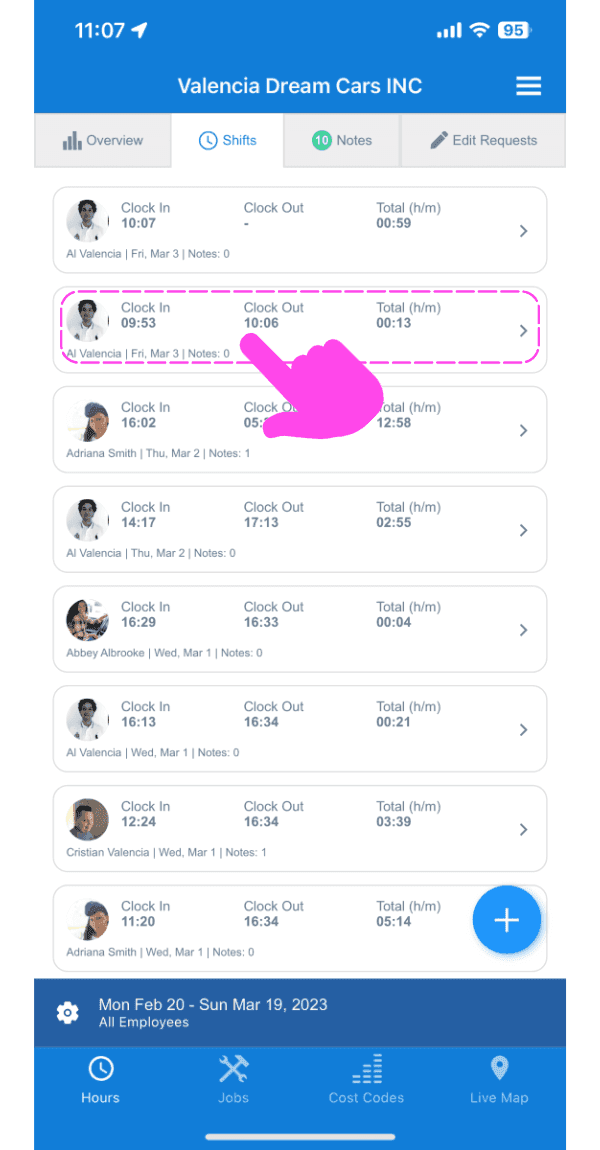
Toca el turno que quieras eliminar

SINC mobile Shifts list with a pink arrow pointing to the shift row to be deleted

Toca La papelera de la parte inferior izquierda de la pantalla
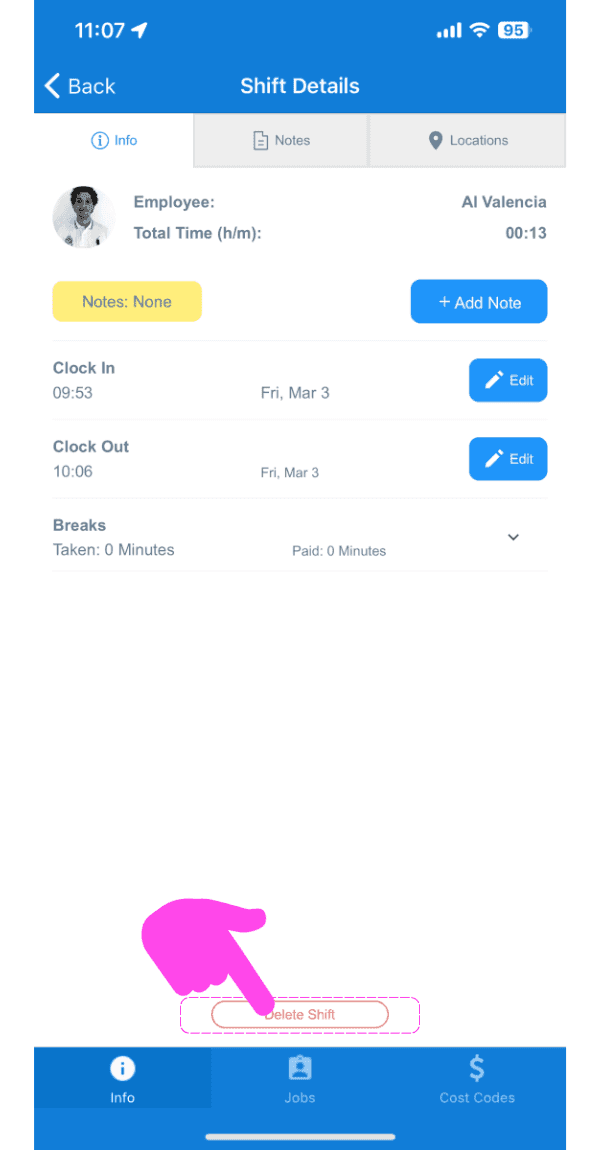
Mobile Shift Details screen with a pink arrow pointing to the trash can icon at the bottom left

Añade un motivo para eliminar el turno y confirma
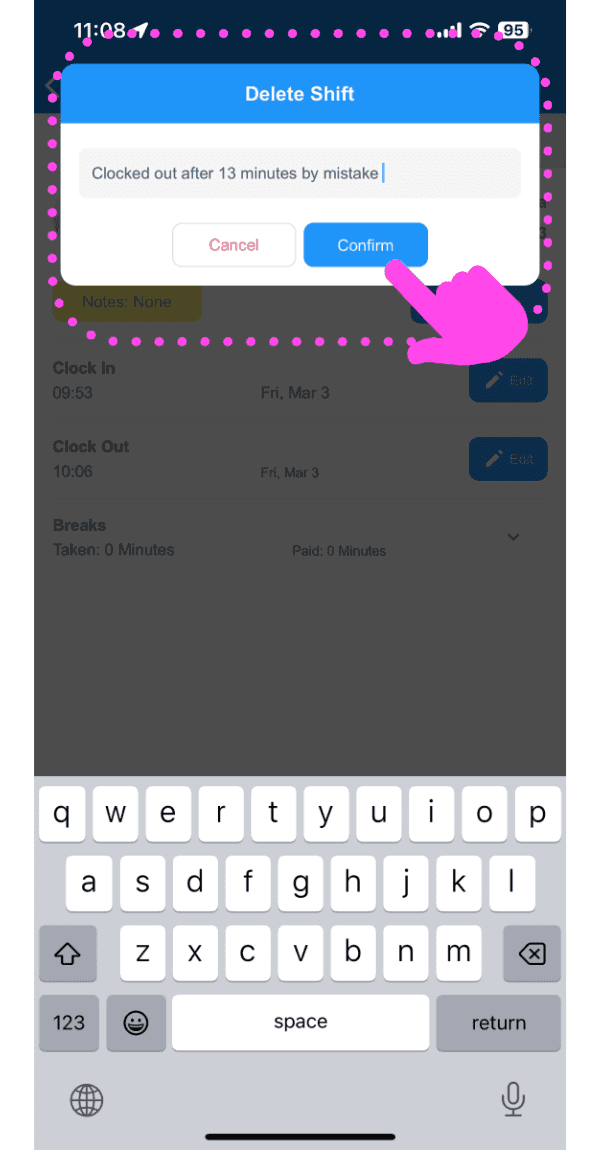
SINC mobile Delete Shift dialog with a typed reason and a pink hand pointing to the Confirm button

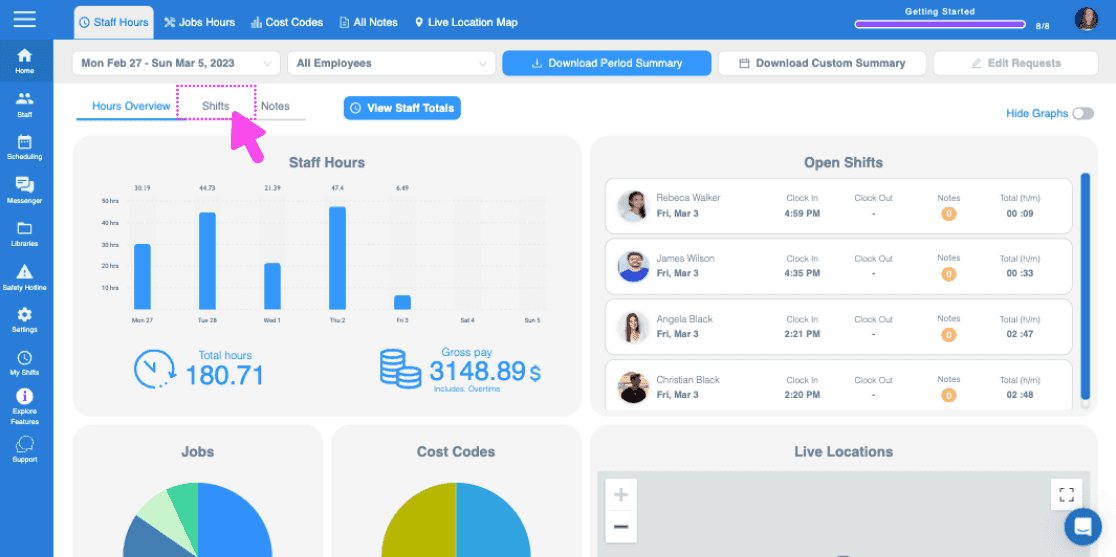
En la web: Haz clic en Turnos

Staff Hours dashboard with a pink arrow pointing to the Shifts tab above staff hours charts

Haz clic en Nombre del miembro del personal
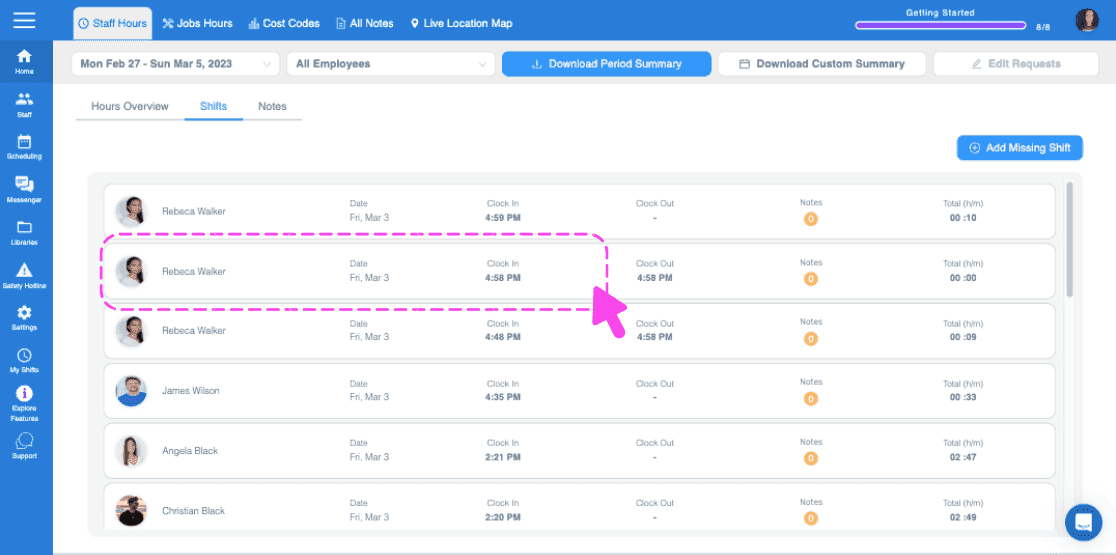
Web Shifts tab with a pink arrow pointing to a staff member's row showing clock in and out times

En la pestaña Turno, haz clic en Eliminar turno
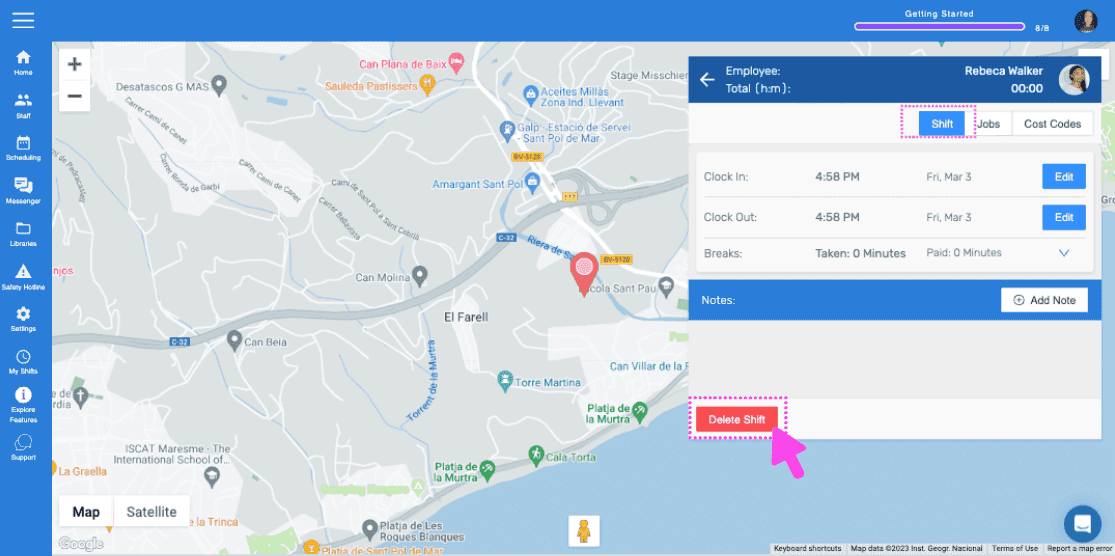
SINC web employee shift detail screen with a pink arrow pointing to the Delete Shift button

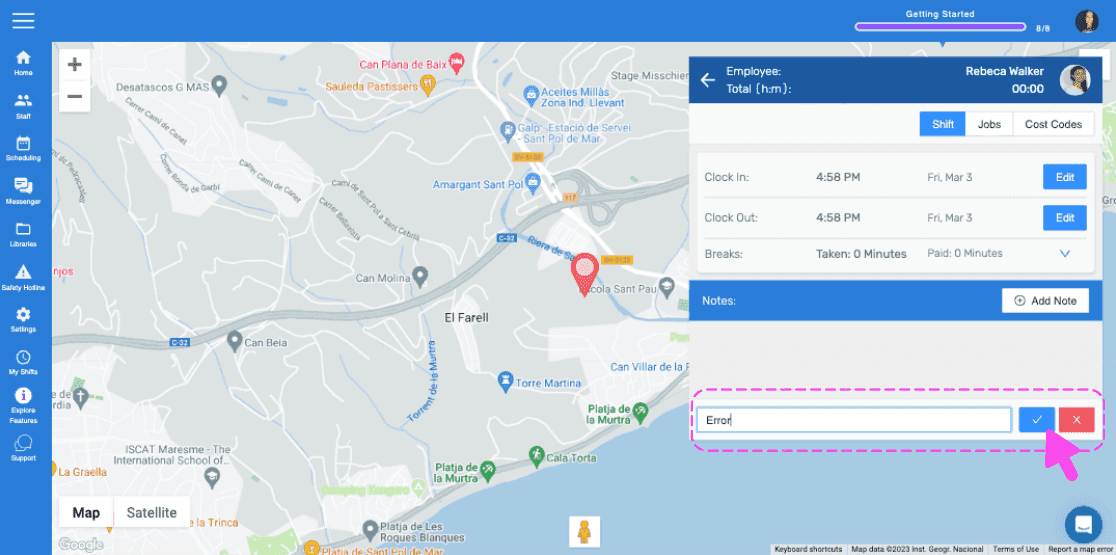
Escribe el motivo por el que eliminas el turno (Se enviará al empleado como notificación)
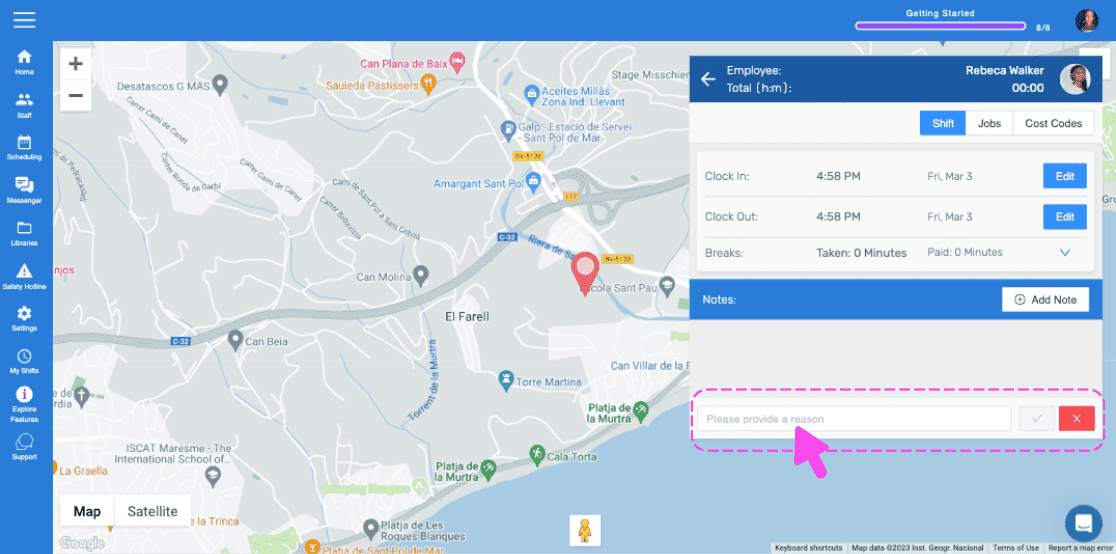
SINC web employee shift detail screen with a map and a pink arrow pointing to the reason text field for deleting a shift

Toca Confirmar

Live location map with an employee shift details panel and an editable timesheet notes field outlined in pink

¿Esto respondió tu pregunta?