Editar partes de horas en SINC

En esta guía explicaremos cómo editar un turno como administrador.

Sam Dolbel
Sam Dolbel
Mar 3rd, 2023

En el móvil: pulsa en Menú Resumen Turnos
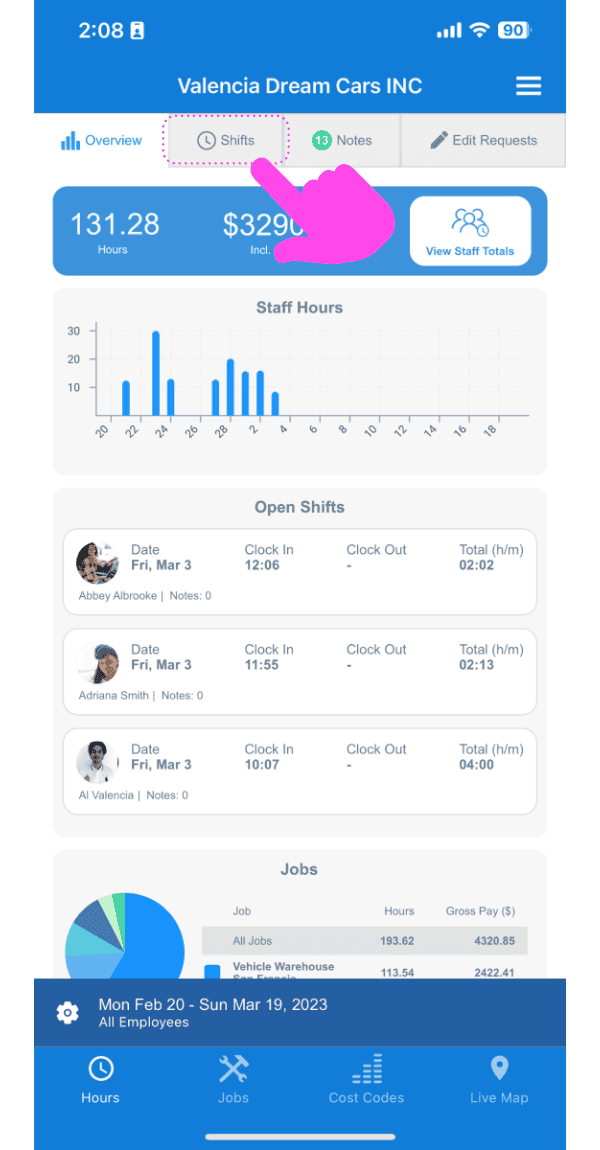
SINC web dashboard with a pink arrow pointing to the Shifts tab above the open shifts list

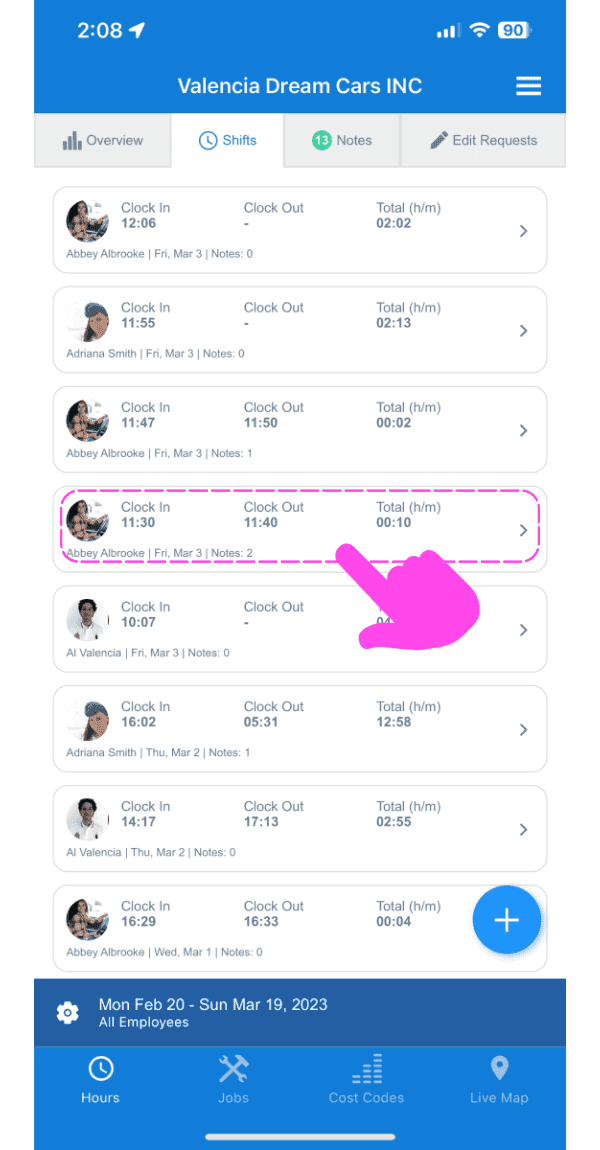
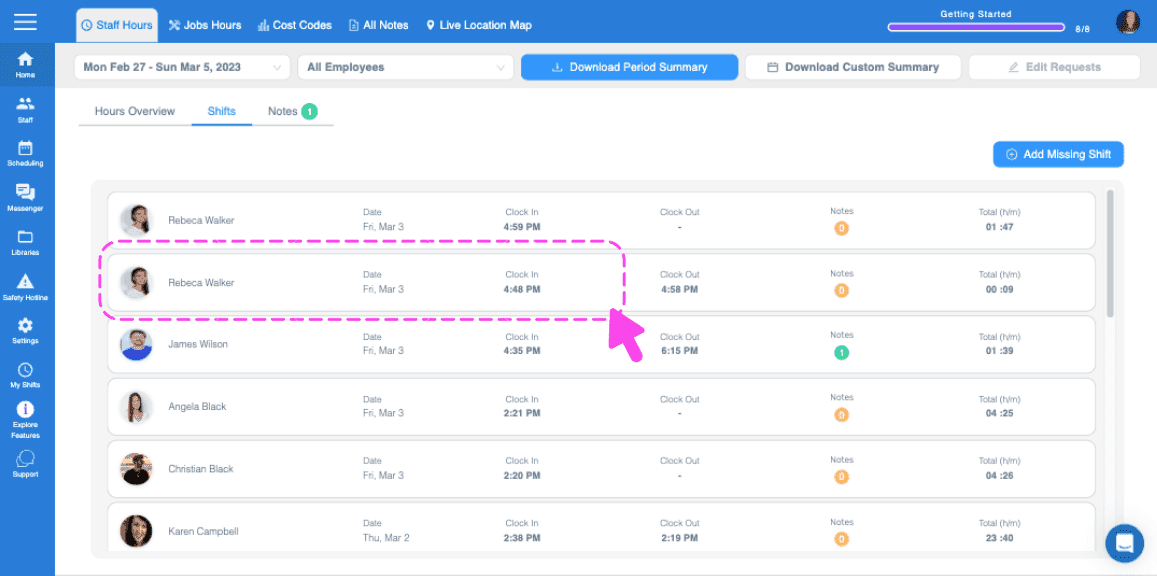
Toca en el turno que quieras editar

SINC mobile Shifts list with a pink arrow pointing to a specific shift entry outlined in pink

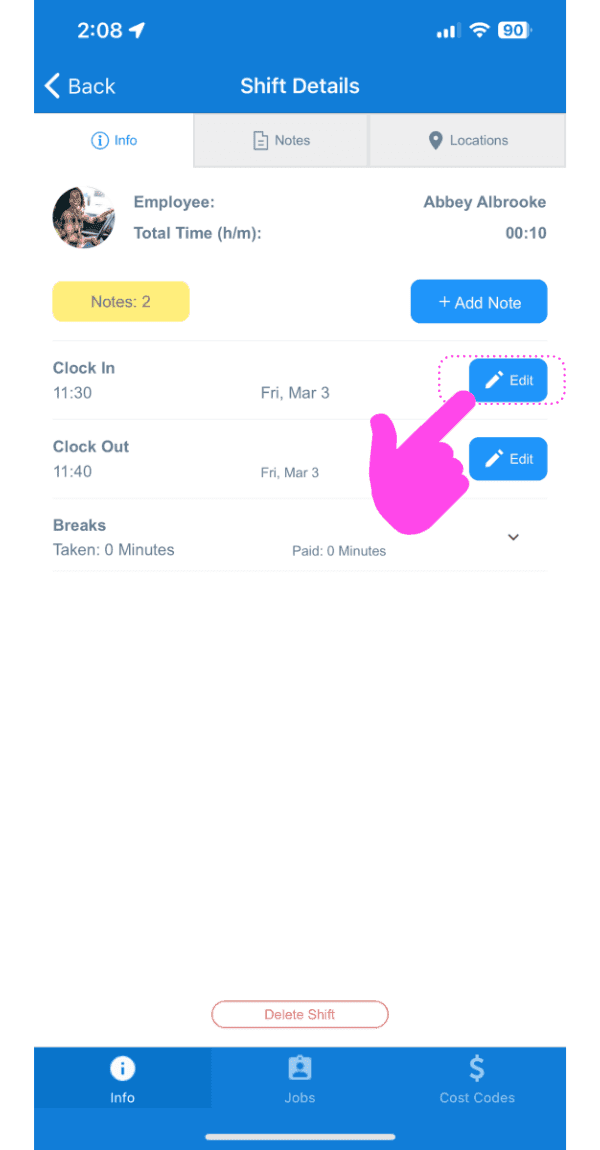
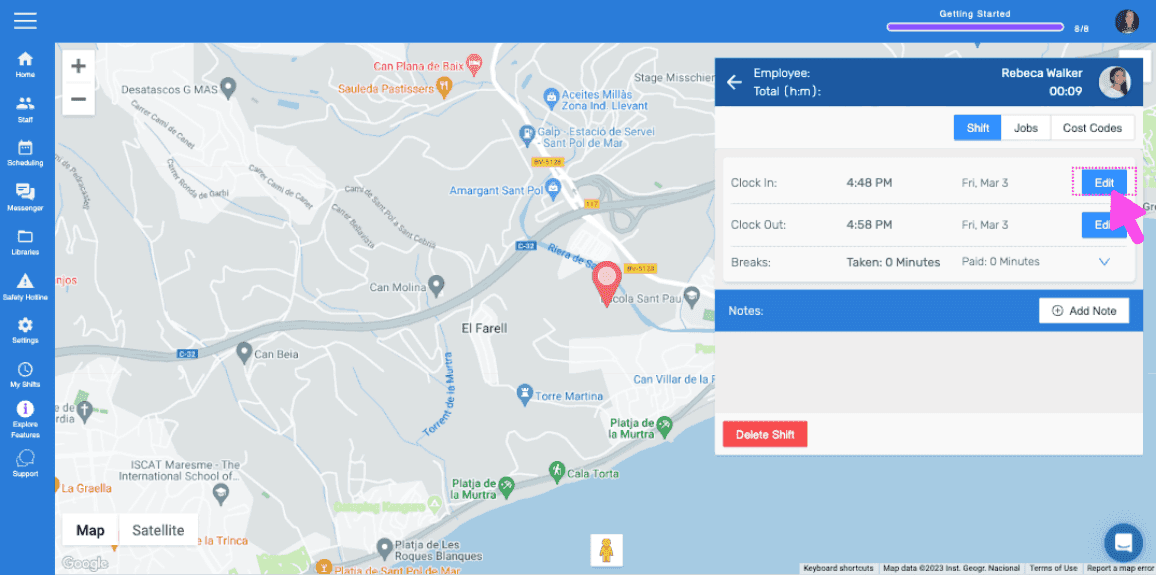
Pulsa en Editar

Shift Details screen with a pink arrow pointing to the Edit button next to Clock In

Introduce un motivo para la edición. Esta medida de transparencia se comunicará al miembro del personal mediante una notificación push.
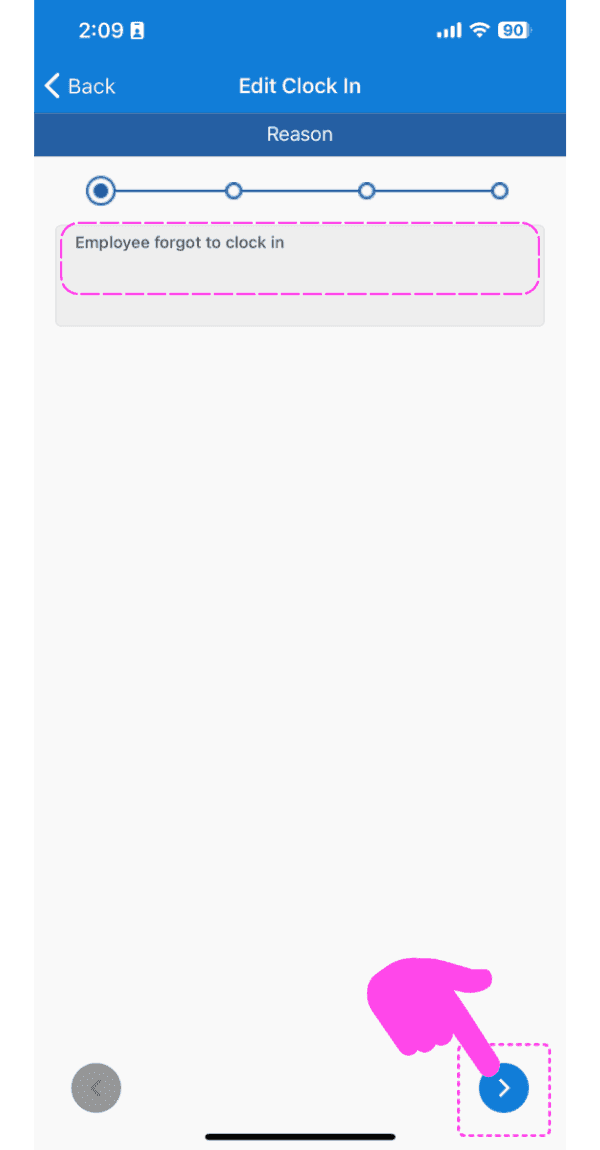
SINC mobile app Edit Clock In screen with the reason text field outlined in pink and an arrow pointing to the next button

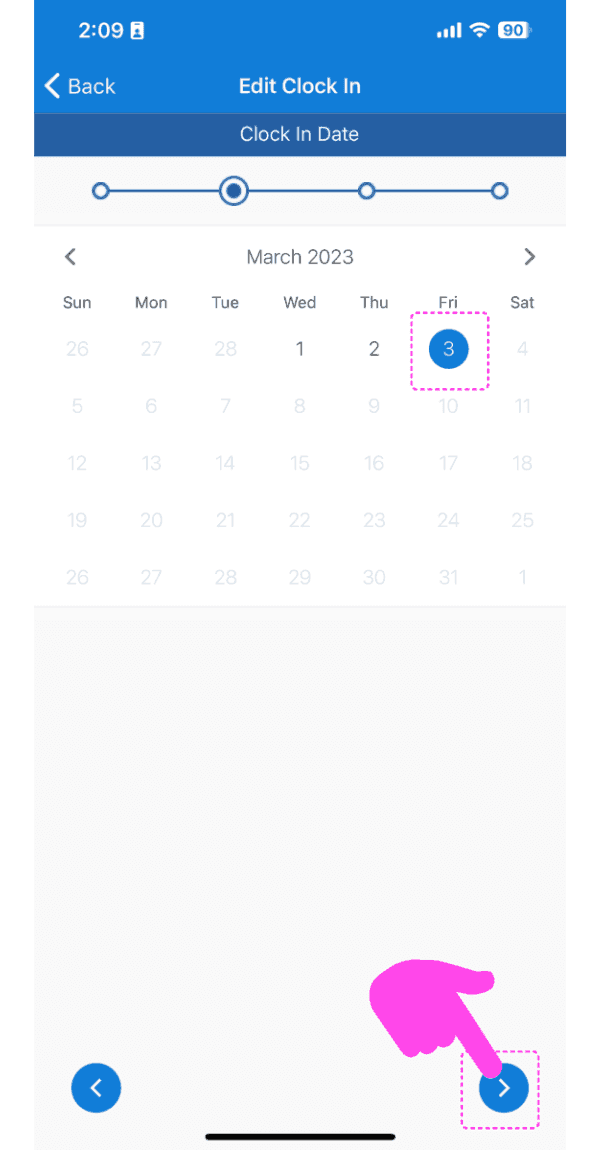
Selecciona la fecha

Edit Clock In calendar screen with a selected date and the next-arrow button highlighted in pink

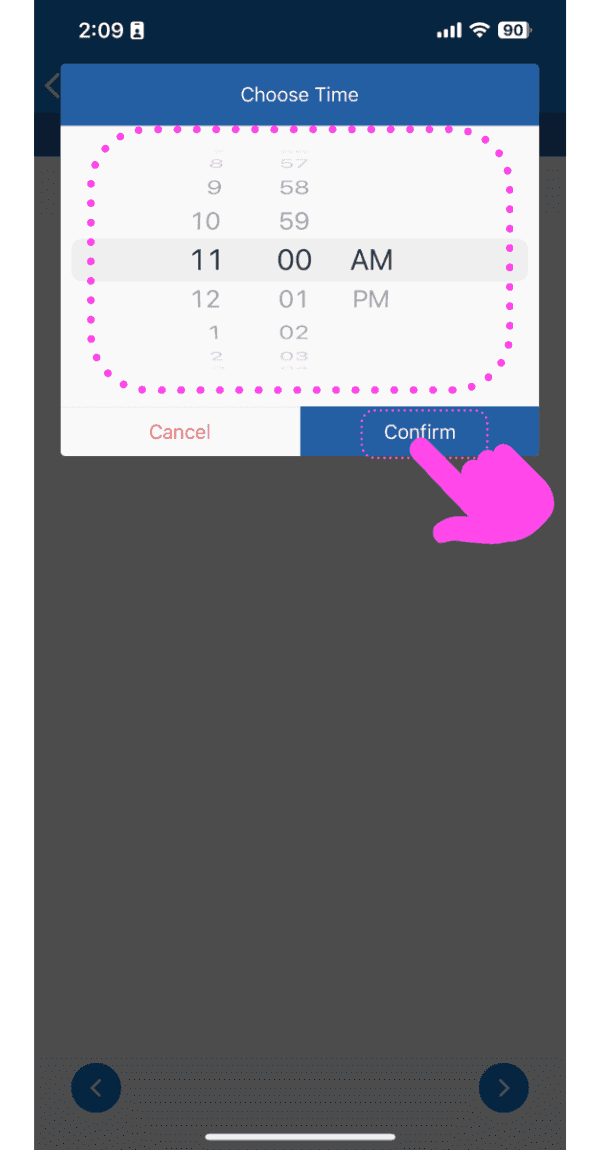
Selecciona la nueva hora

Choose Time picker set to 11:00 AM with the Confirm button highlighted by a pink arrow

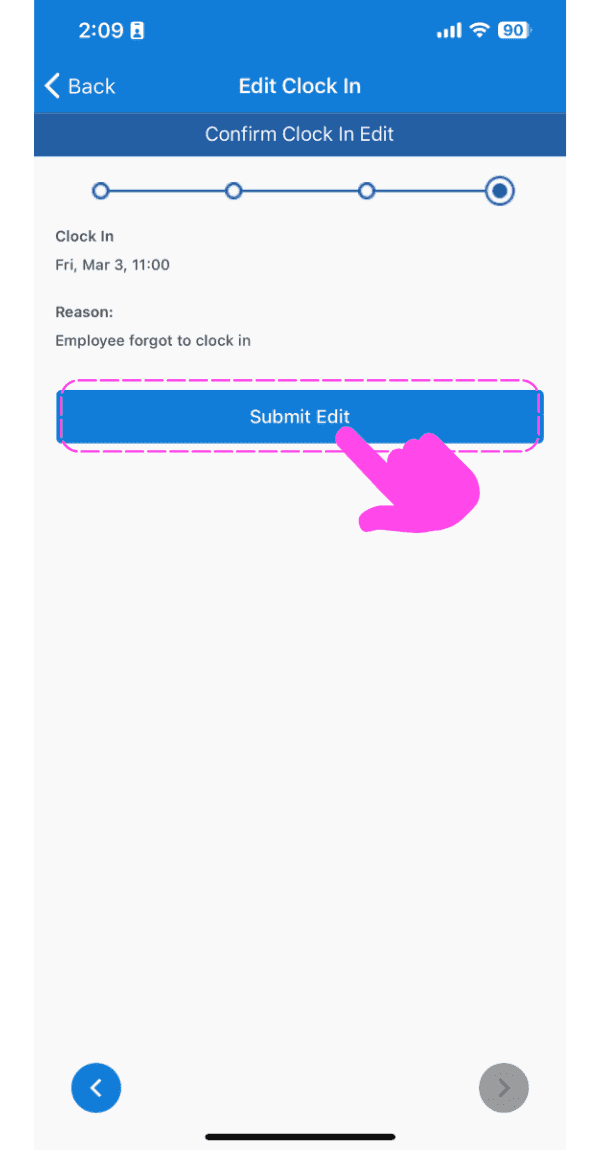
Enviar cambios

SINC mobile Edit Clock In confirmation screen with the Submit Edit button highlighted in pink

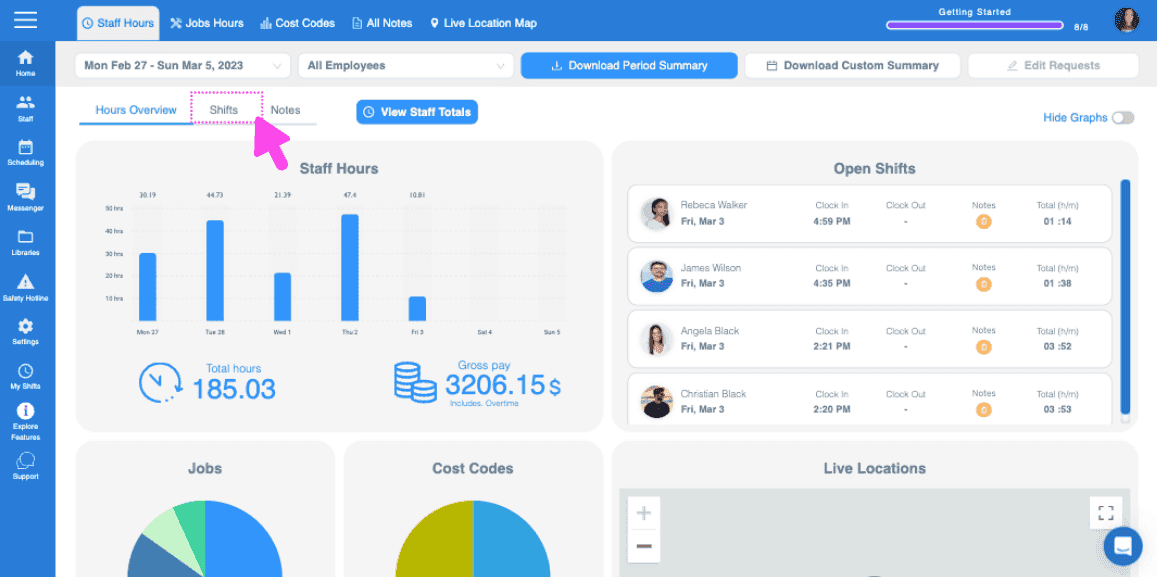
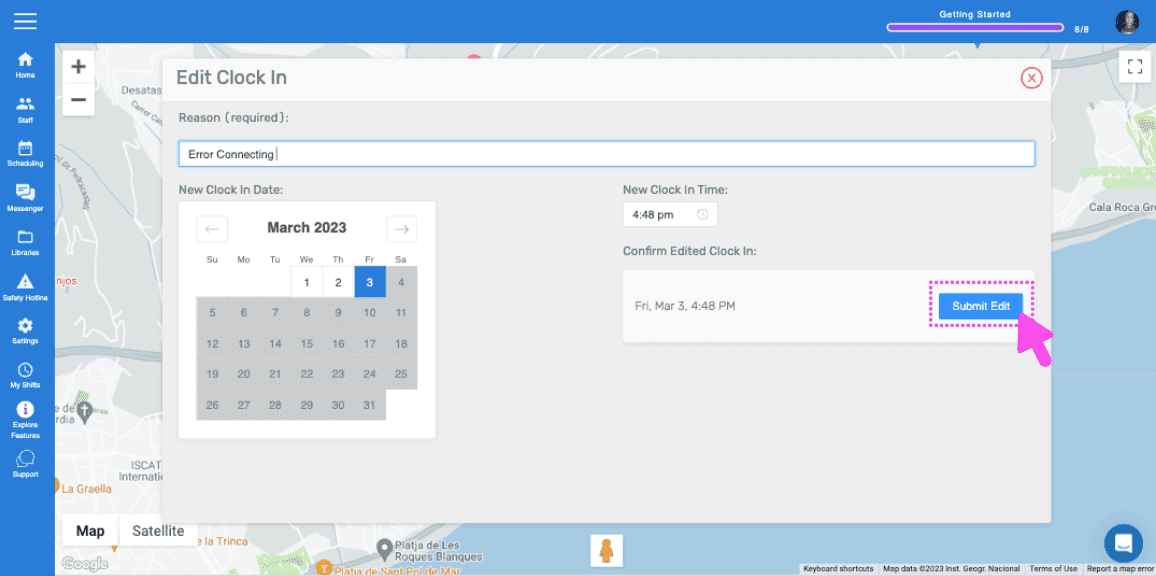
En la versión web se ve así:

Web dashboard Hours Overview screen with the Shifts tab highlighted by a pink arrow
SINC web Shifts list with two employee shift rows outlined in pink
Web dashboard map view of an employee's shift location with a pink arrow pointing to the Edit button next to Clock In
SINC web Edit Clock In screen with a date picker and the Submit Edit button

¿Esto respondió tu pregunta?