Cómo añadir un turno de trabajo que falta

En esta guía se explica cómo un administrador puede añadir un turno de trabajo para un miembro del personal o para sí mismo en SINC.

SINC Support Team
SINC Support Team
Oct 19th, 2021

En ocasiones tendrás que añadir manualmente un turno de trabajo. Ve a Menú Resumen y pulsa en Turnos
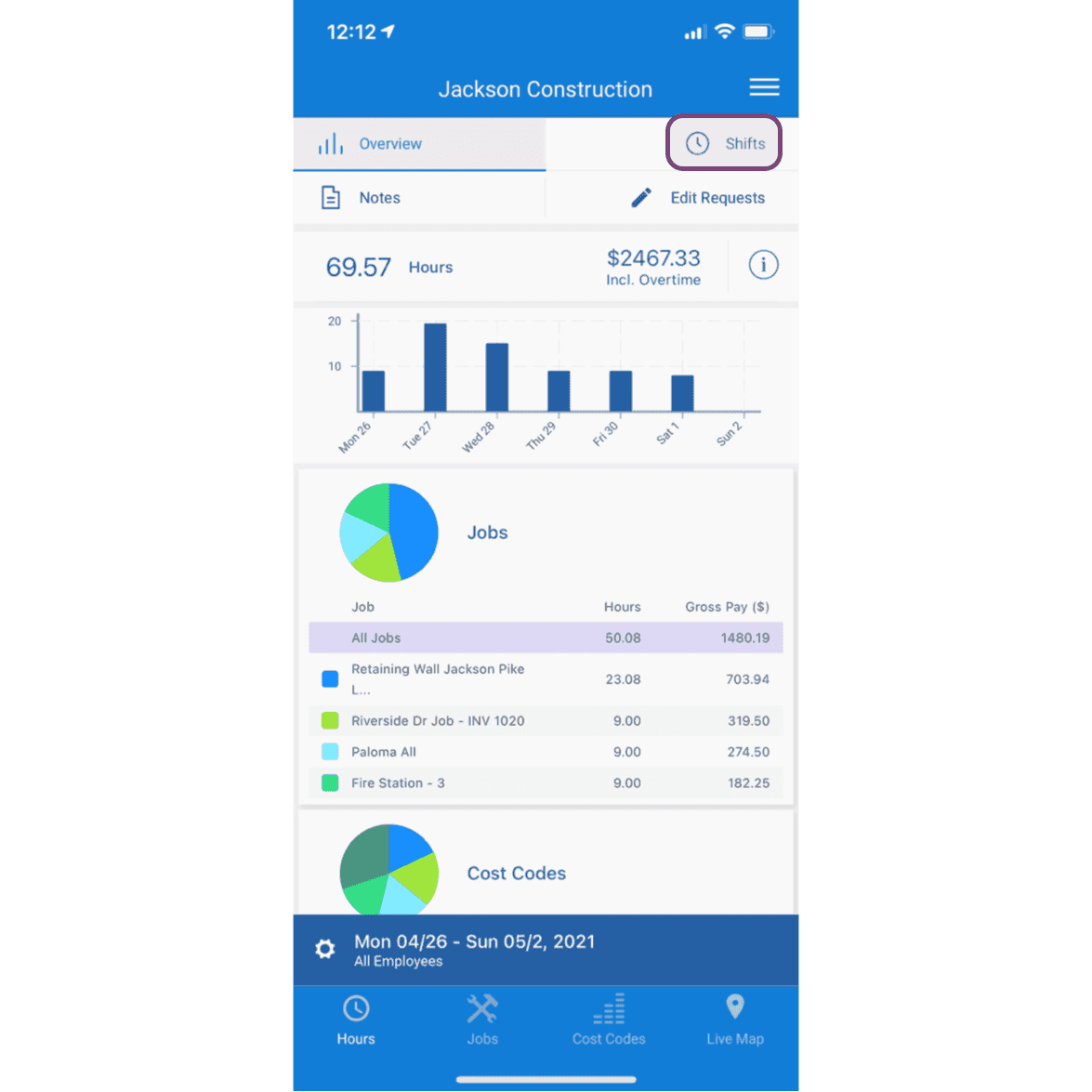
SINC mobile app Overview screen with the Shifts tab circled at the top of the page

Pulsa el turno al que quieras añadir un turno de trabajo.
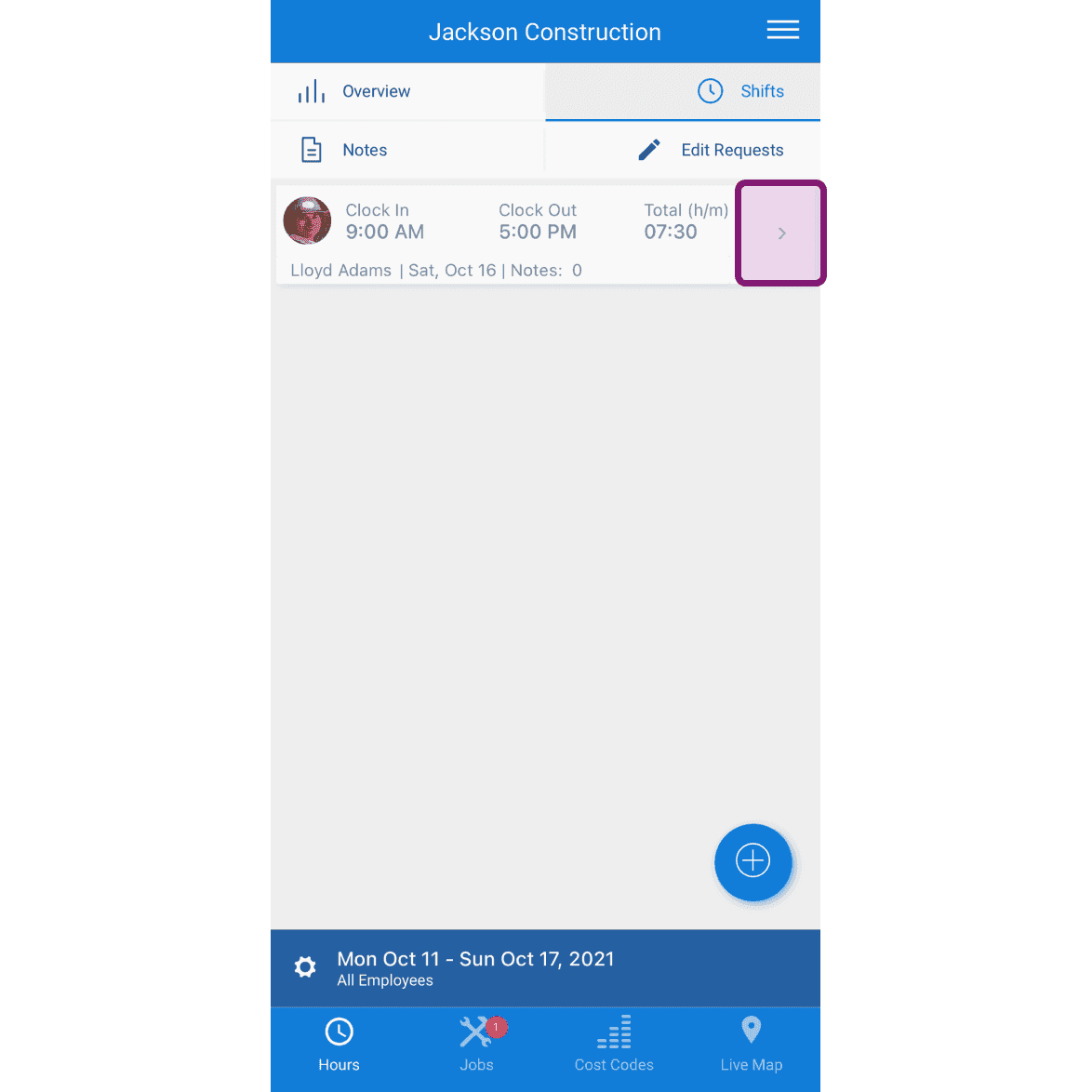
SINC mobile Shifts list with a pink-highlighted row showing the shift to add a job shift to

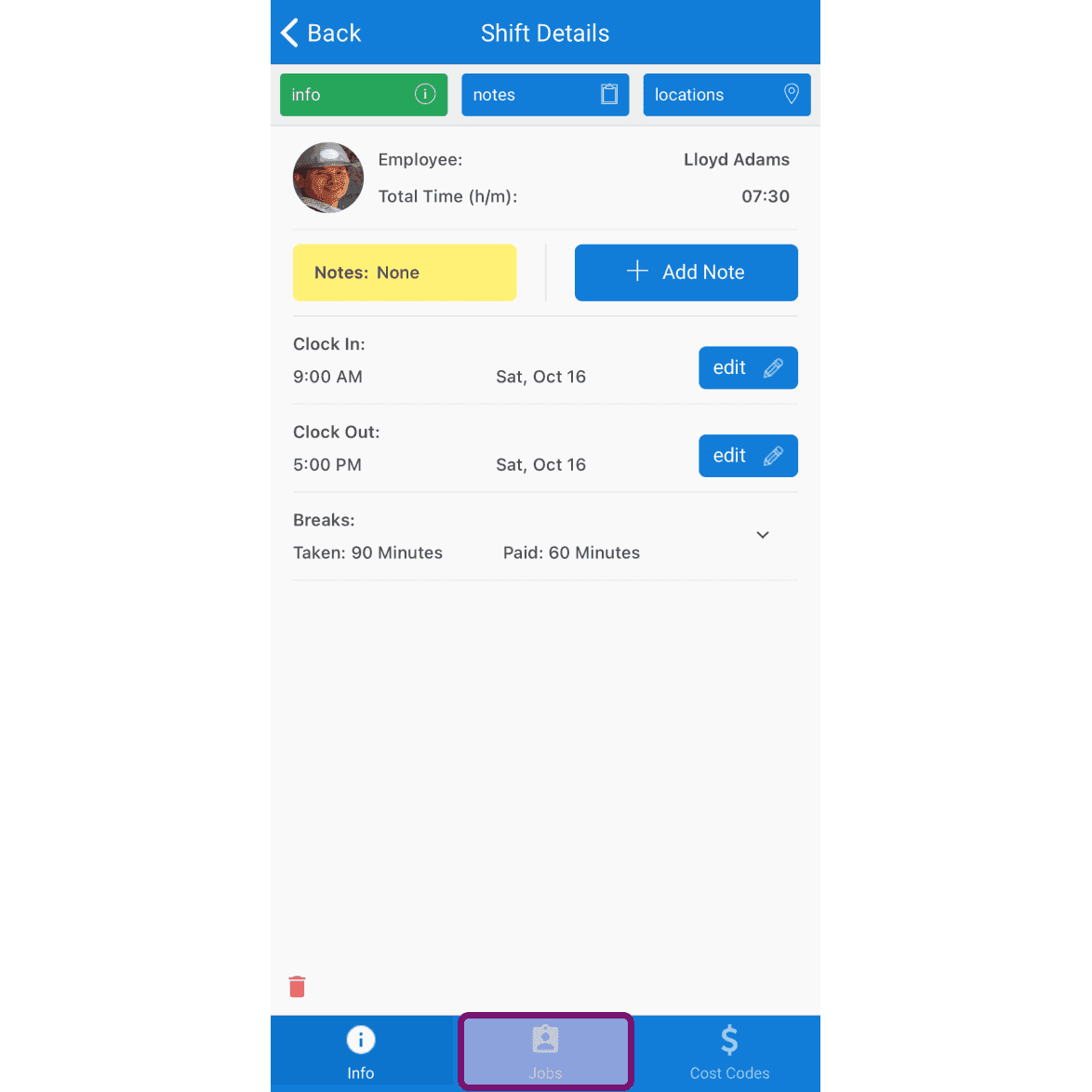
Toca la pestaña «Empleos»

Mobile Shift Details screen with the Jobs tab at the bottom outlined in pink

Toca el botón + situado en la parte inferior derecha de la pantalla
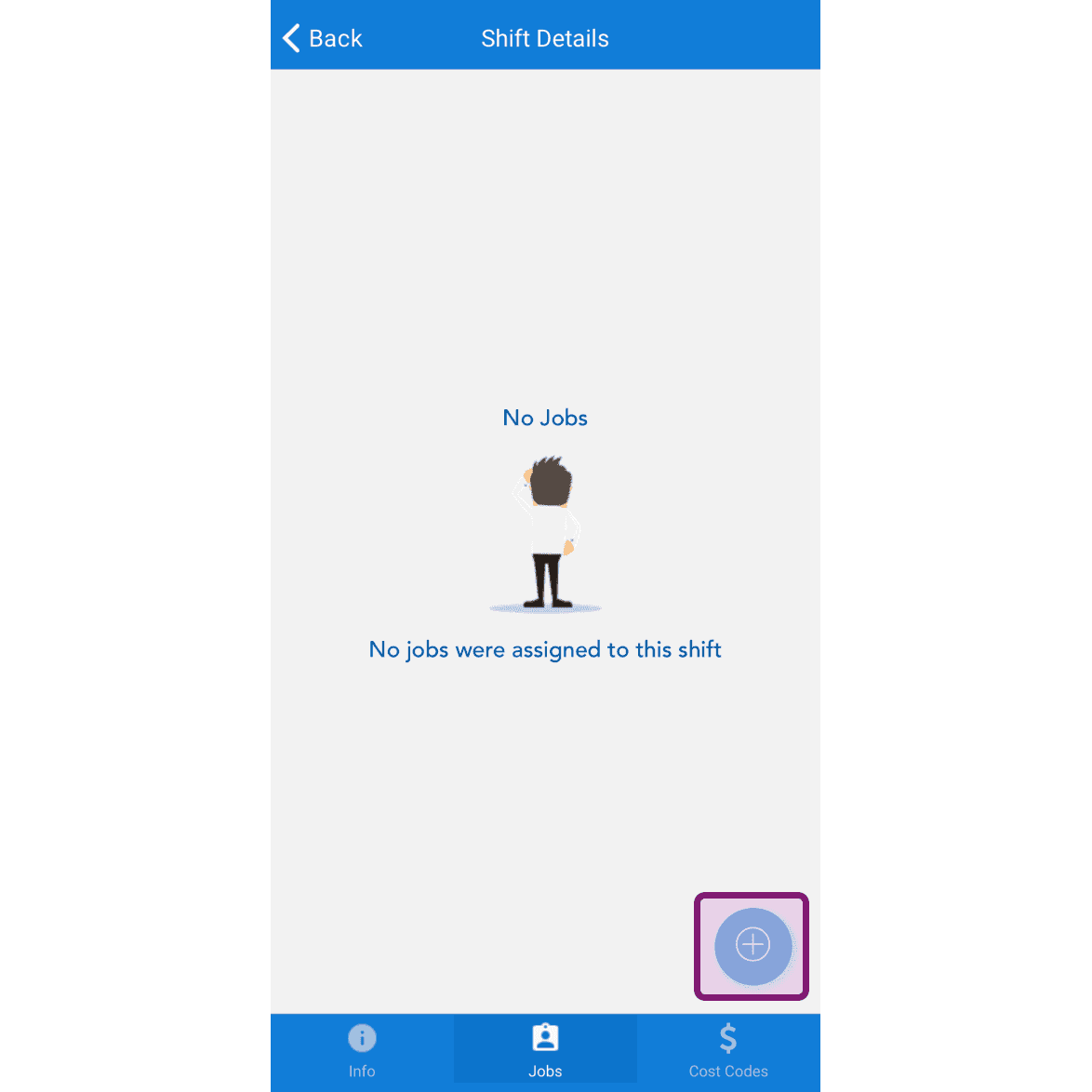
SINC mobile Shift Details Jobs tab showing a No Jobs message with the plus button circled in the bottom right

Selecciona el trabajo y pulsa « Confirmar»
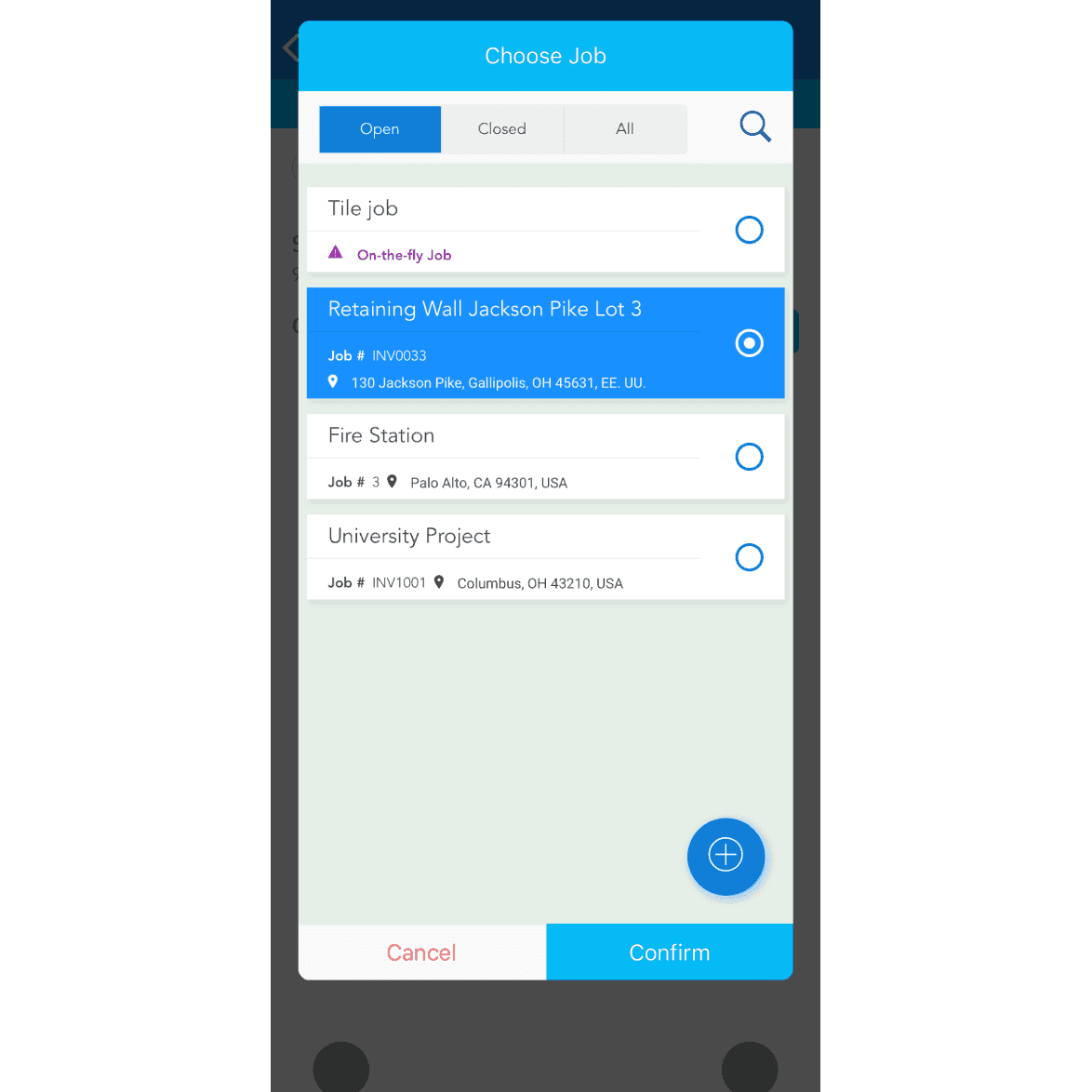
Choose Job screen listing open jobs with the Retaining Wall job selected and a Confirm button

Si el trabajo no existe, toca el botón + en la esquina inferior derecha de la pantalla para añadir uno nuevo.
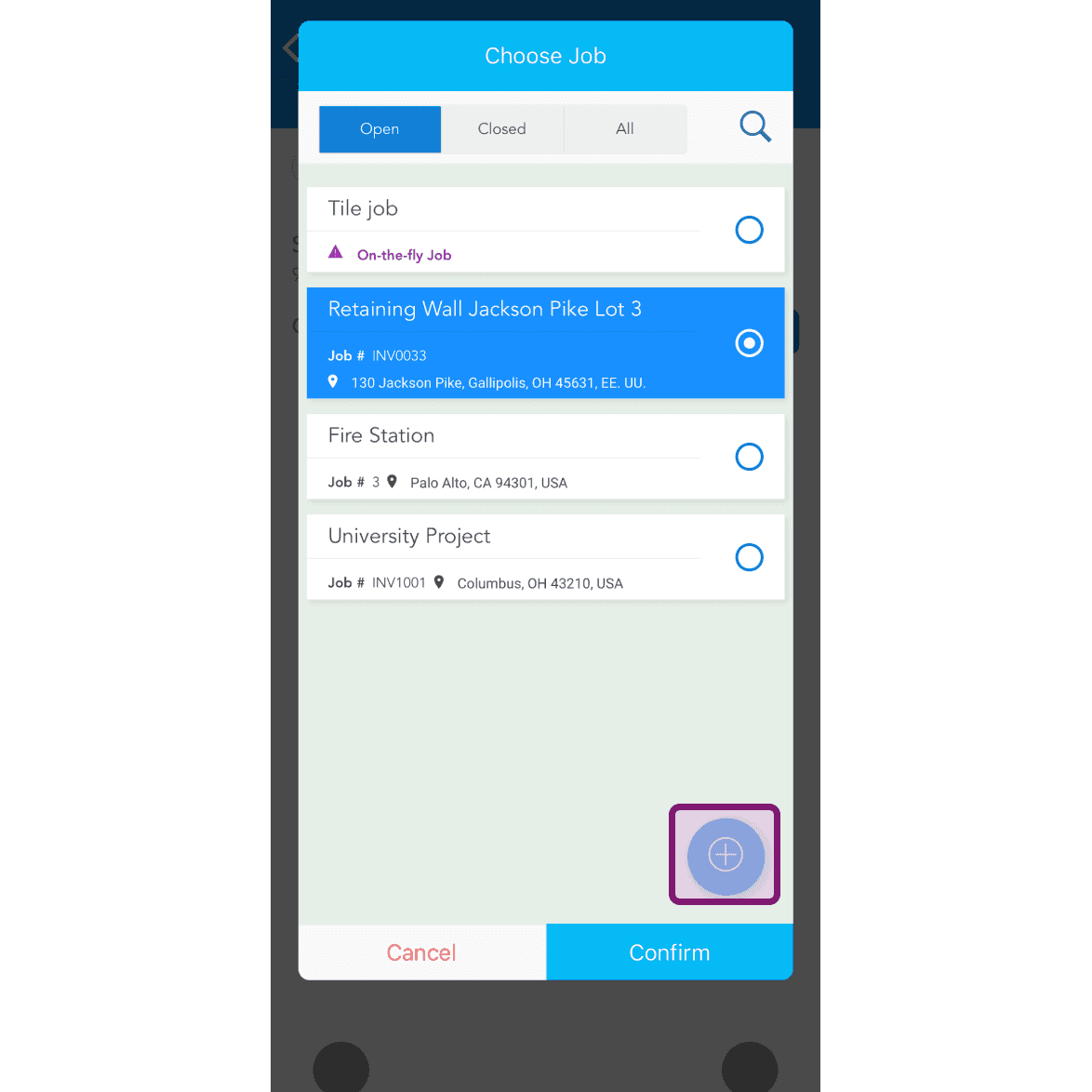
Mobile Choose Job popup listing open jobs with the add button circled in purple in the bottom right

La duración predeterminada del trabajo se seleccionará según el horario del turno. Para editarla, toca Selector de hora
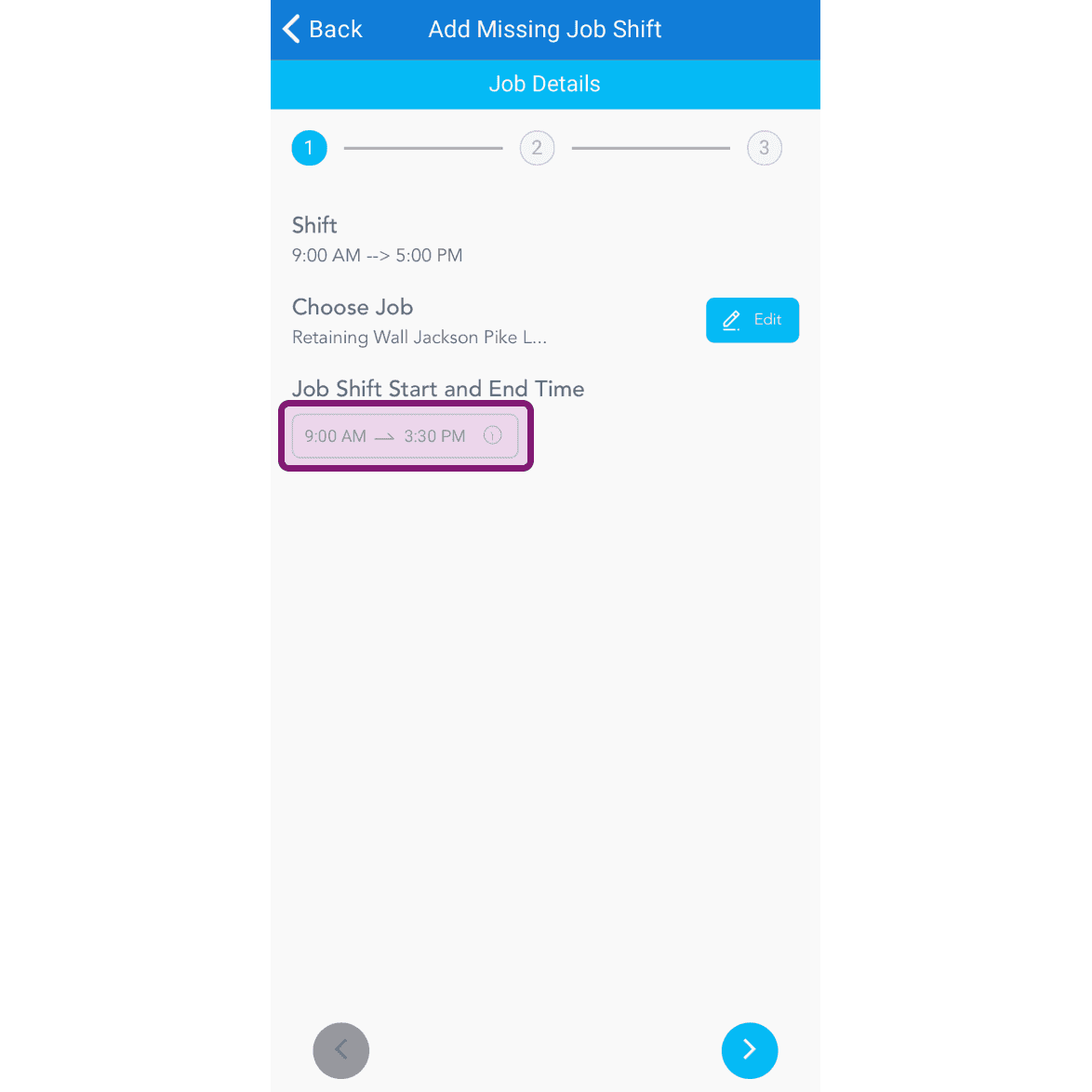
SINC mobile Add Missing Job Shift screen with the Job Shift Start and End Time field outlined in purple

El turno de trabajo no tenía un código de coste.
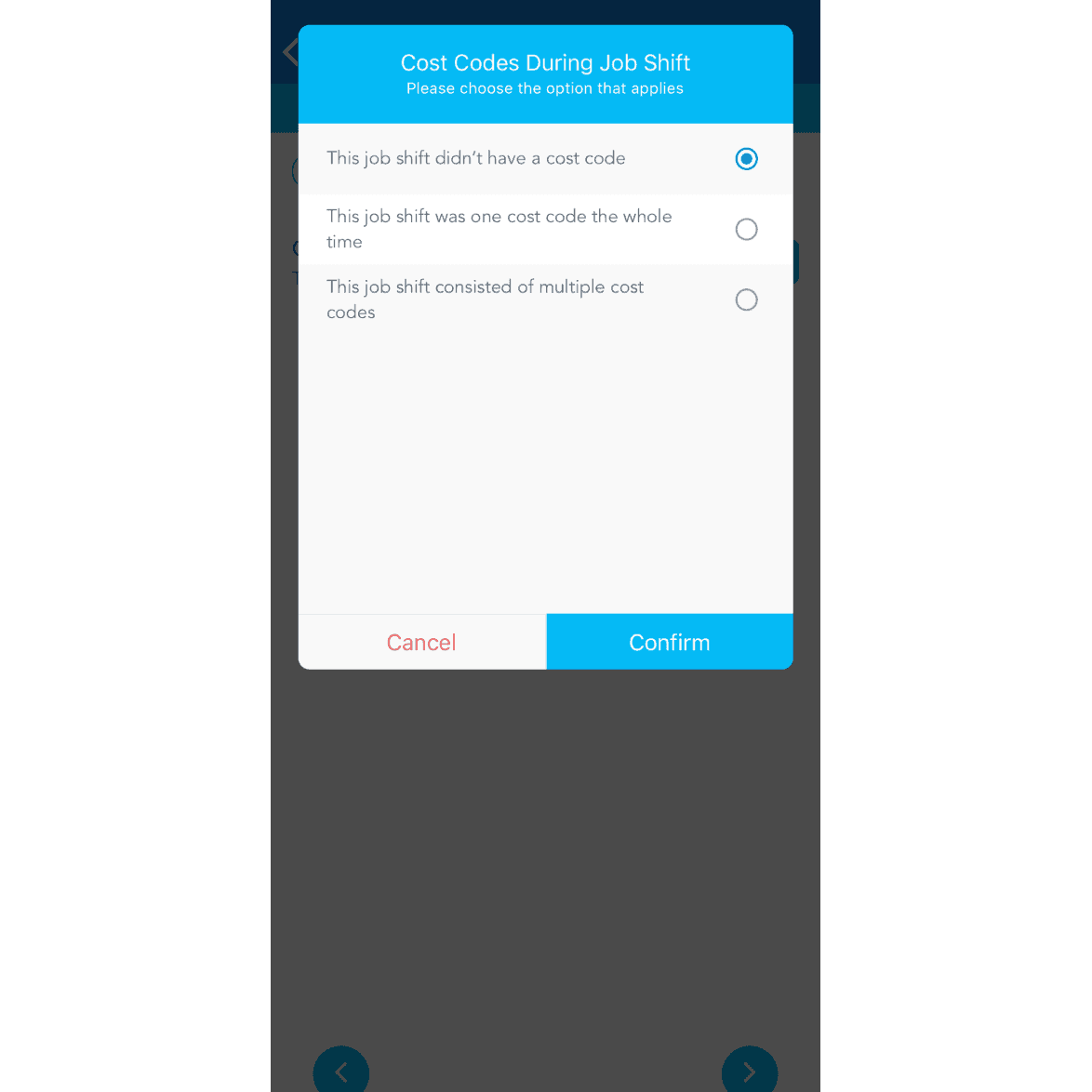
SINC mobile dialog asking about cost codes during a job shift, with 'This job shift didn't have a cost code' selected

El turno de trabajo siempre correspondió al mismo código de coste.
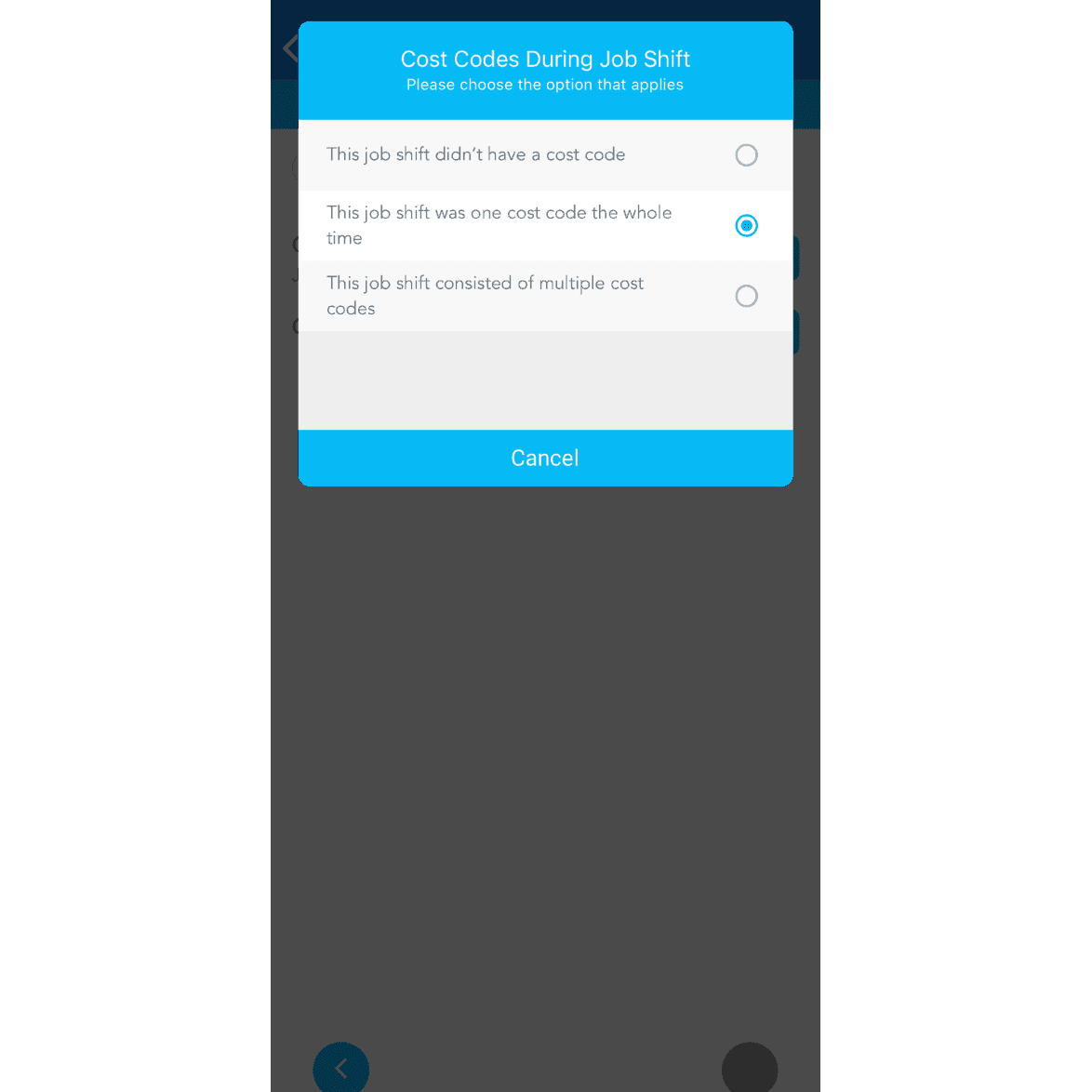
Cost Codes During Job Shift dialog with the option "This job shift was one cost code the whole time" selected

Si al trabajo se le asignaron varios códigos de costos, toca El trabajo incluía varios códigos de costos
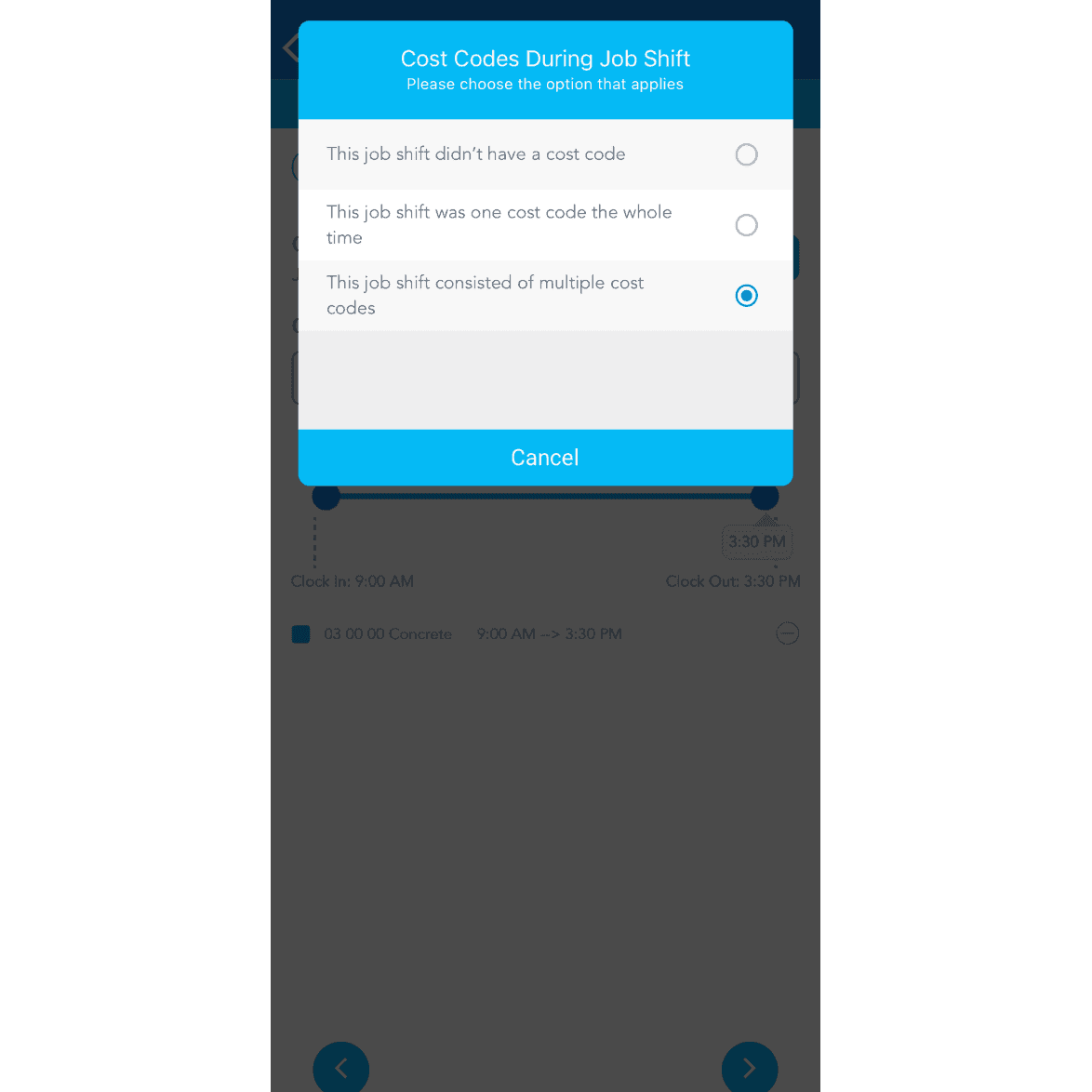
SINC mobile app popup asking which cost code option applies to a job shift, with 'consisted of multiple cost codes' selected

Para añadir más códigos de costes, toca Añadir otro código
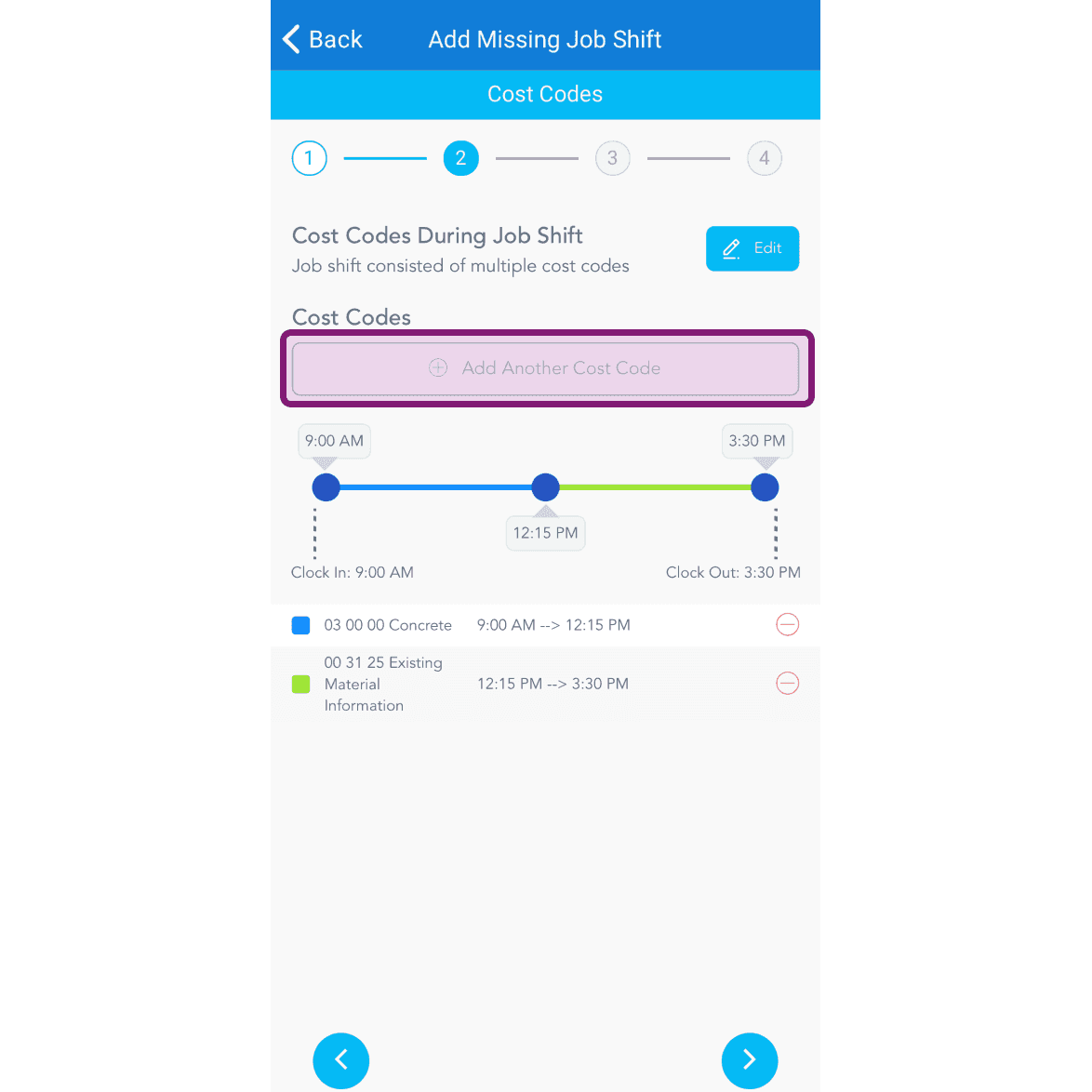
Add Missing Job Shift screen, Cost Codes step, with the Add Another Cost Code button outlined in pink

Para ajustar la hora, desliza el indicador por la barra.
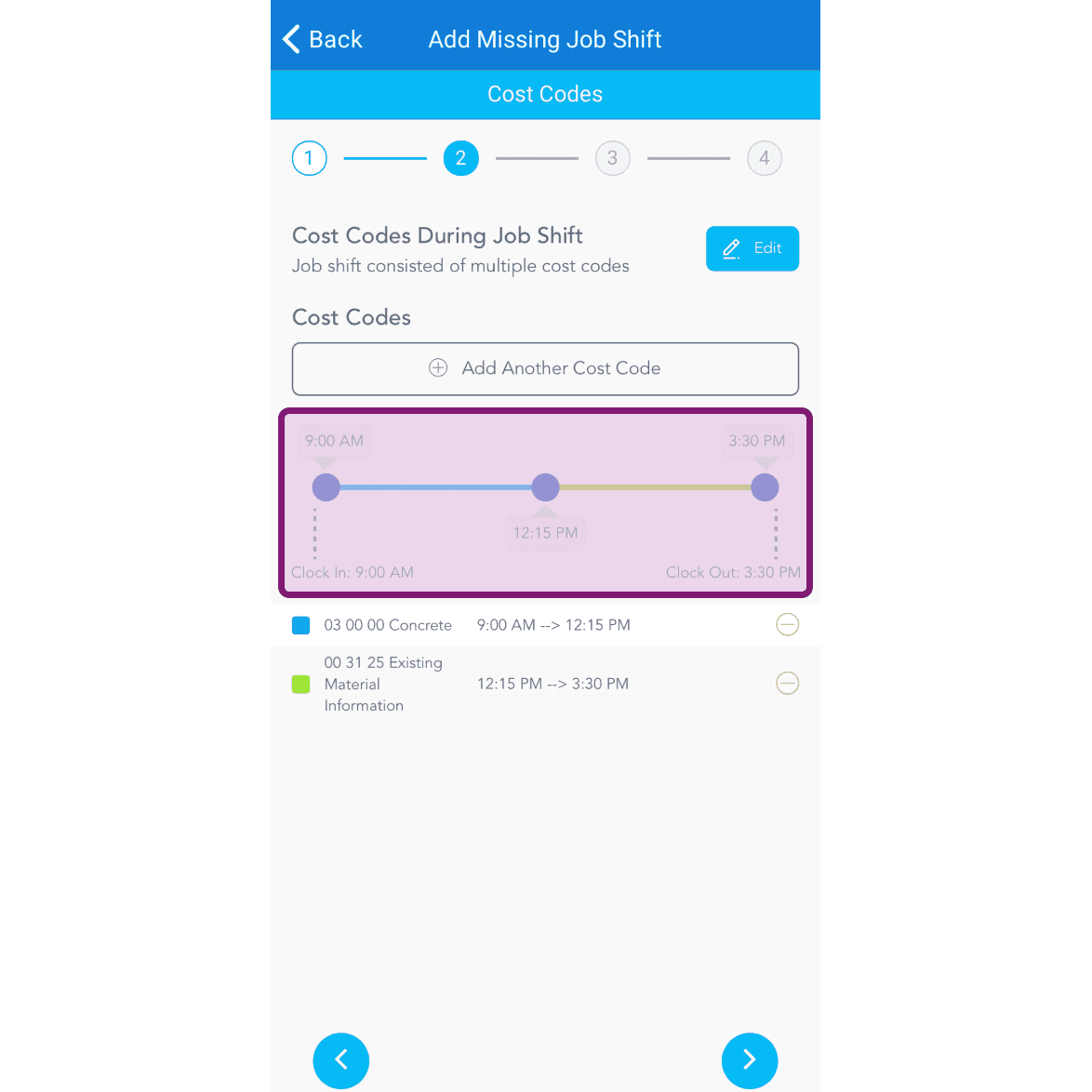
Add Missing Job Shift Cost Codes screen with a purple-highlighted time slider showing two cost code segments

Si el trabajo no tiene notas, toca la flecha siguiente . De lo contrario, introduce la nota. Para añadir una imagen (opcional), toca Hacer una foto o Elegir de las fotos.
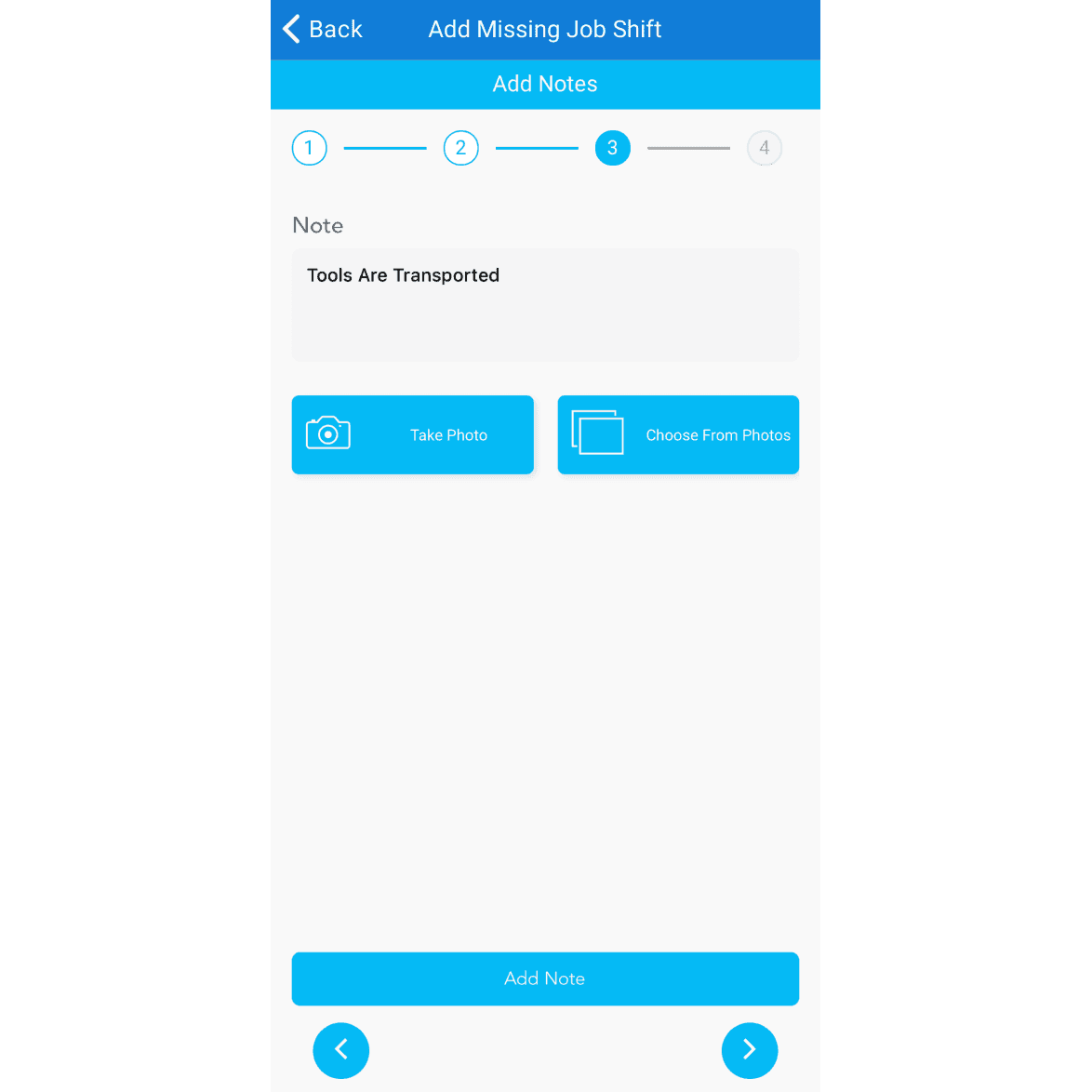
SINC mobile Add Missing Job Shift notes step showing a note field with Take Photo and Choose From Photos buttons

Para añadir otra nota, toca Añadir otra nota
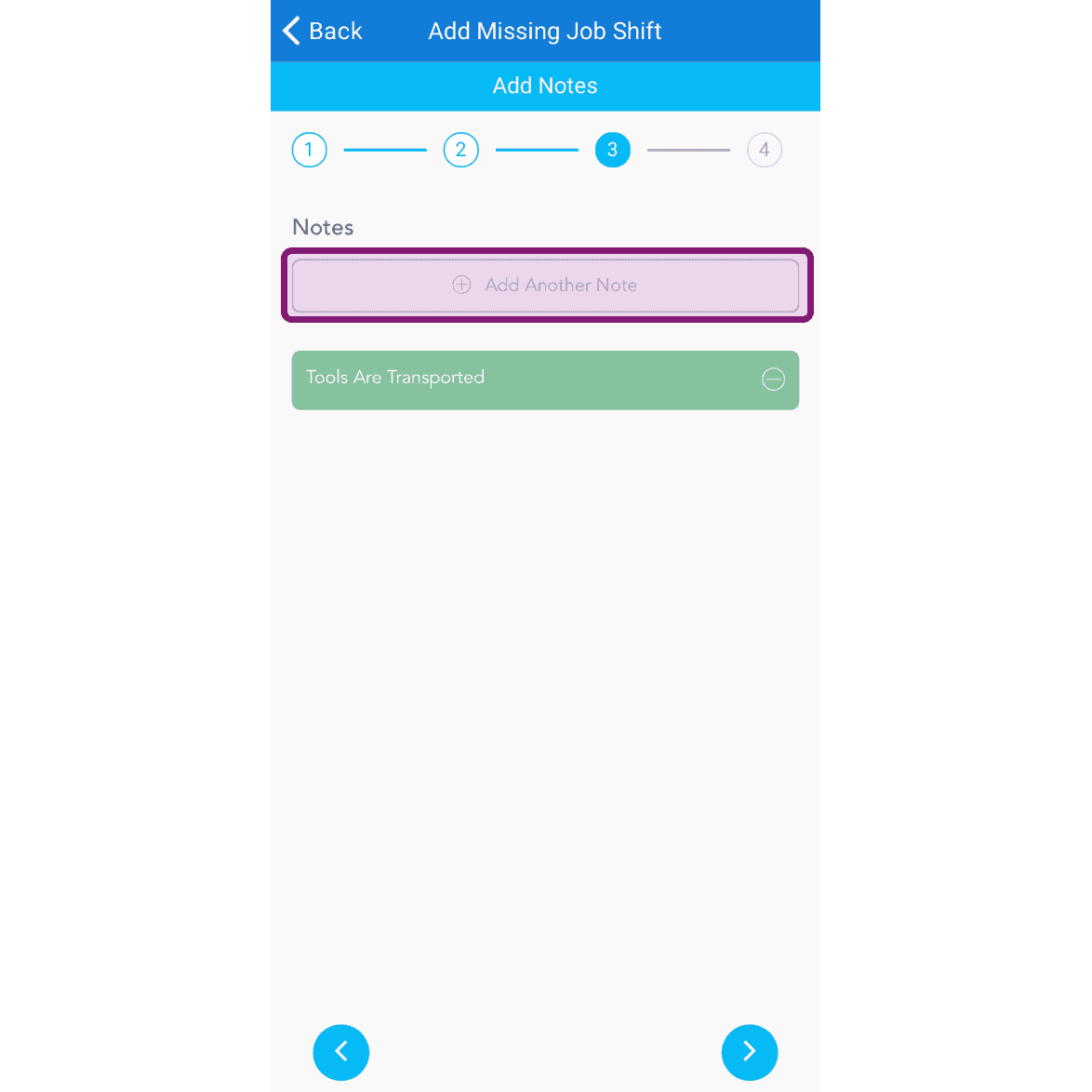
Add Missing Job Shift Notes step with the Add Another Note field outlined in purple

Revisa los detalles del trabajo que falta y pulsa Confirmar
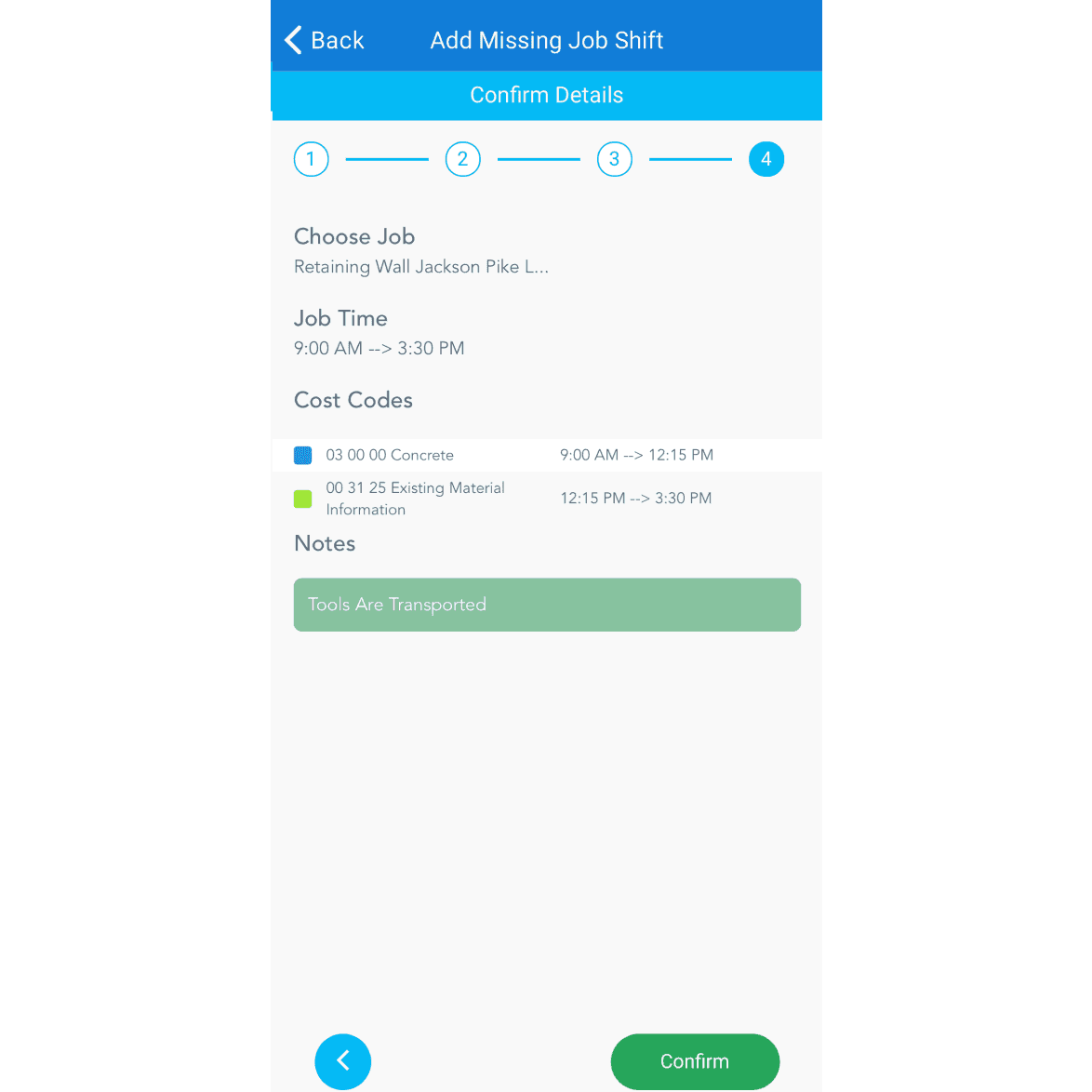
SINC mobile Add Missing Job Shift confirmation screen showing job, time, cost codes, and notes

Si estás usando la versión web, se verá así:
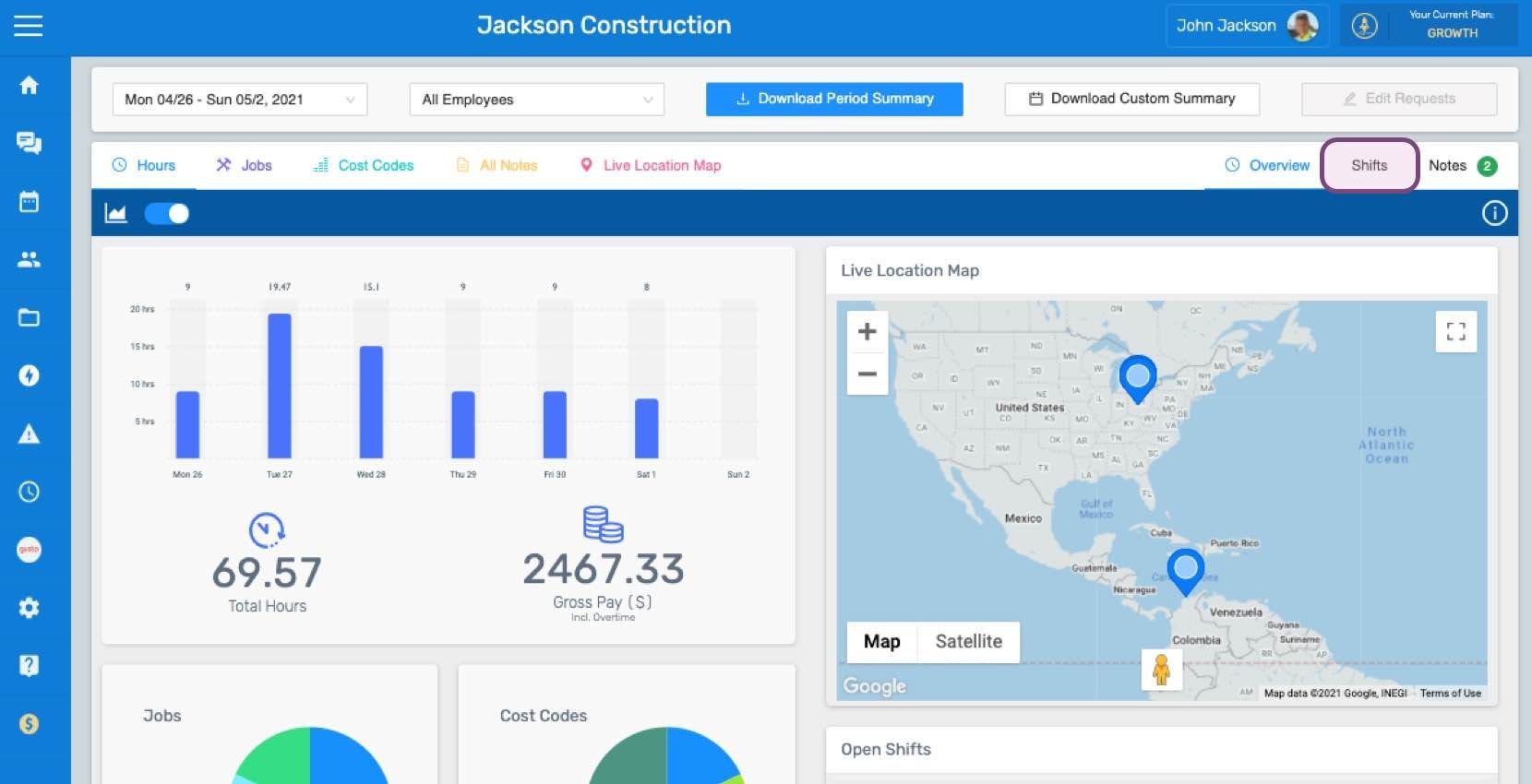
SINC web dashboard Overview page showing a staff hours bar chart and a Live Location Map with staff location pins
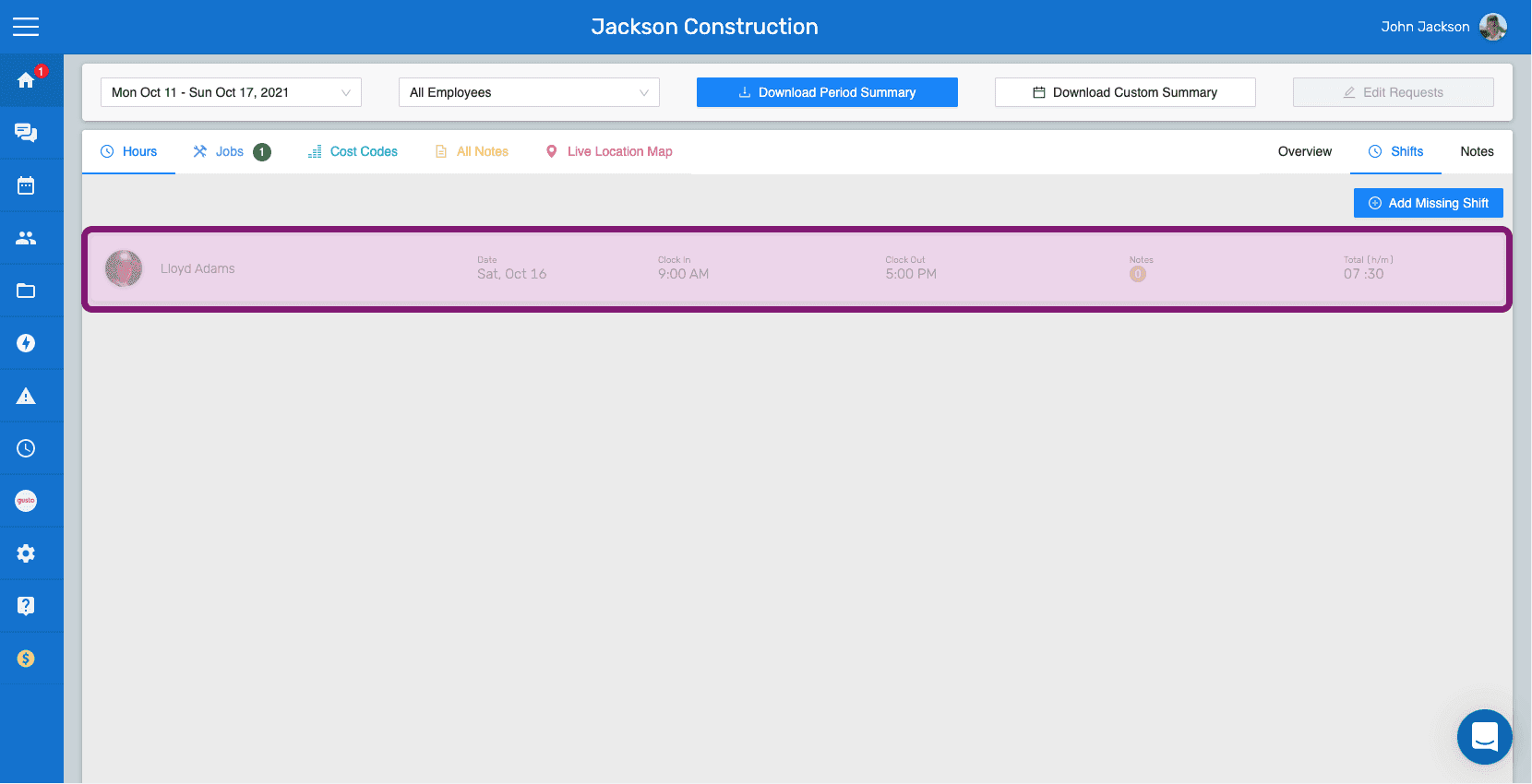
SINC web Shifts tab with the Add Missing Shift button and a highlighted shift row
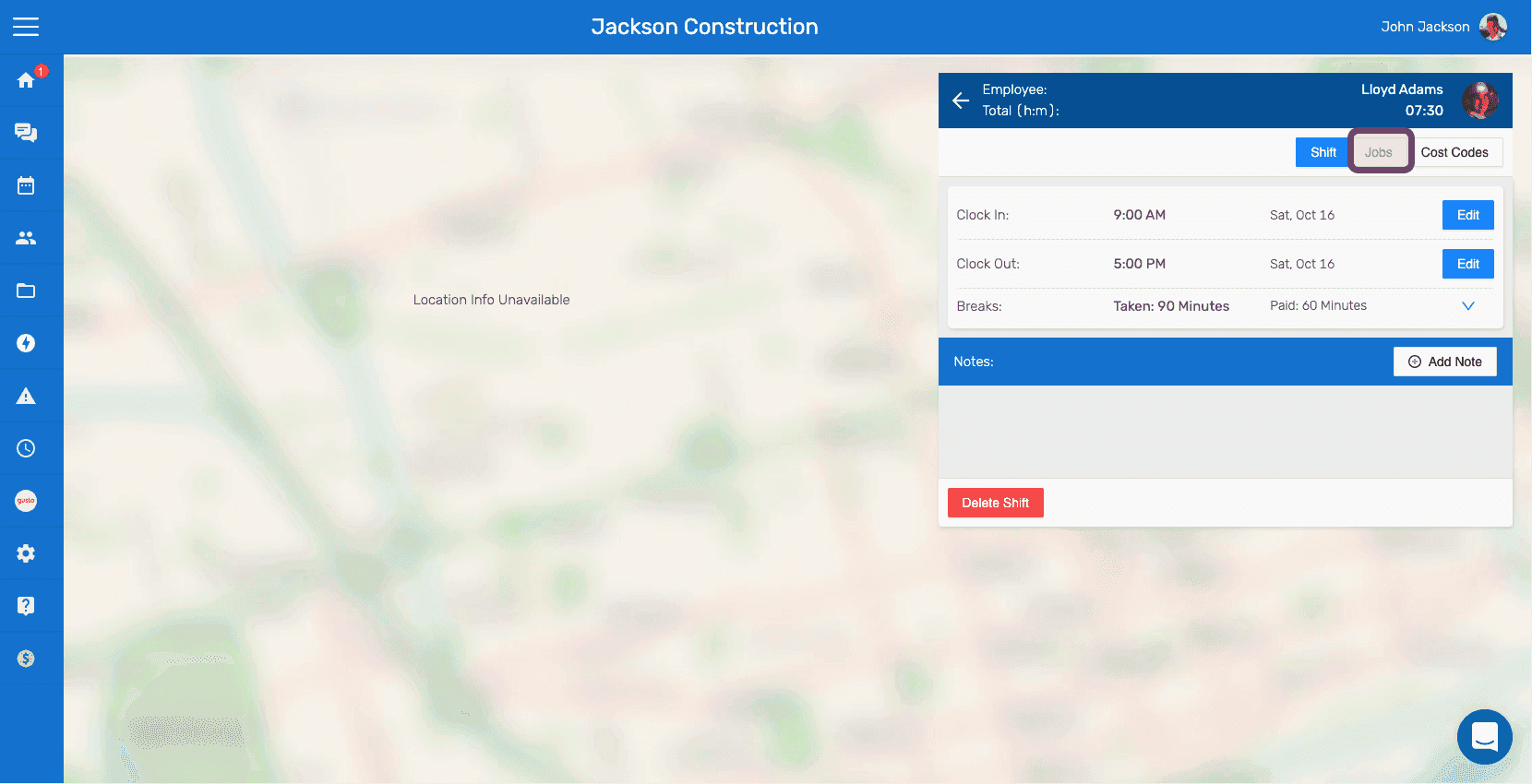
Web shift details panel next to a map with the Jobs tab outlined in pink
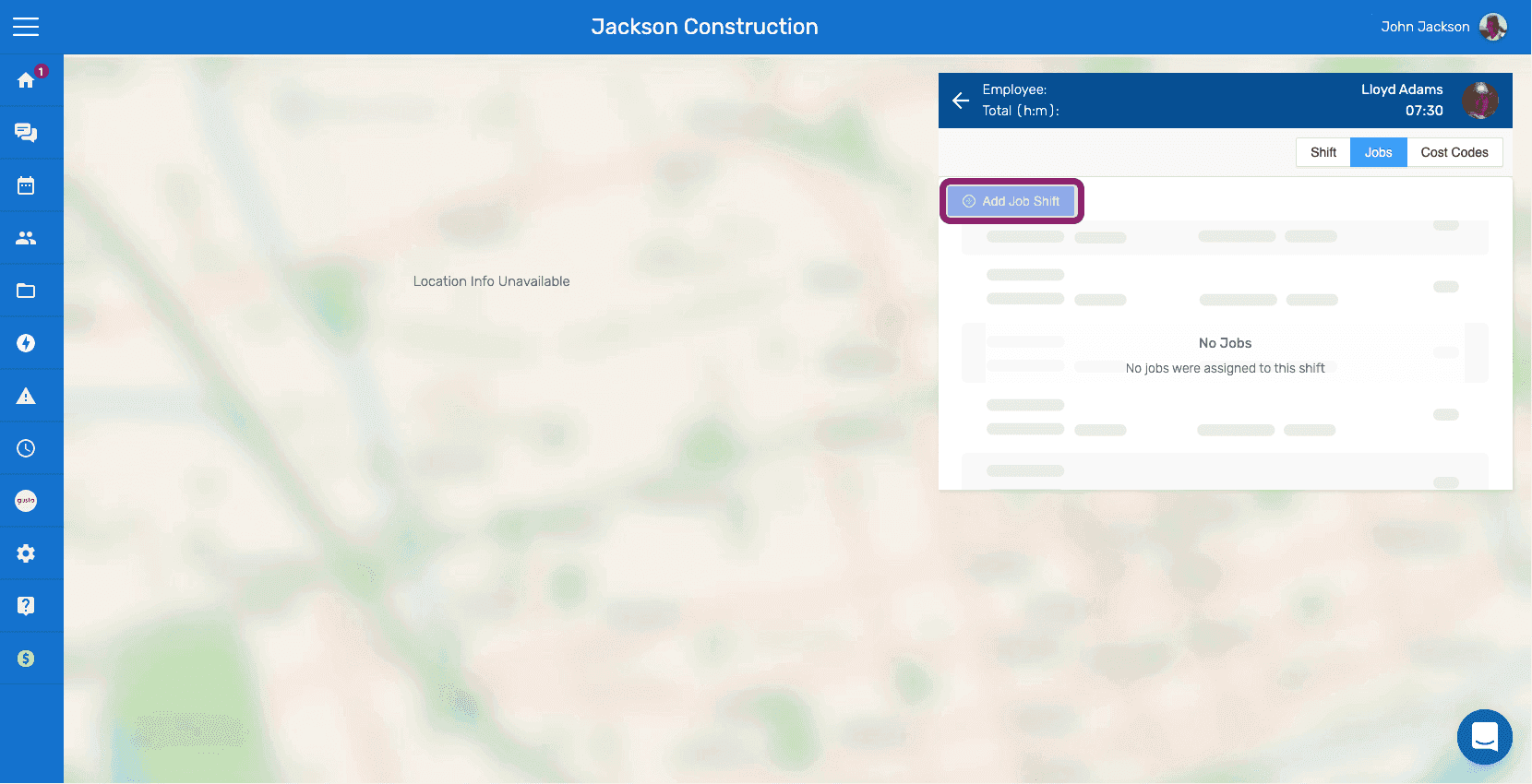
SINC web employee shift detail panel with the Add Job Shift button circled under the Jobs tab
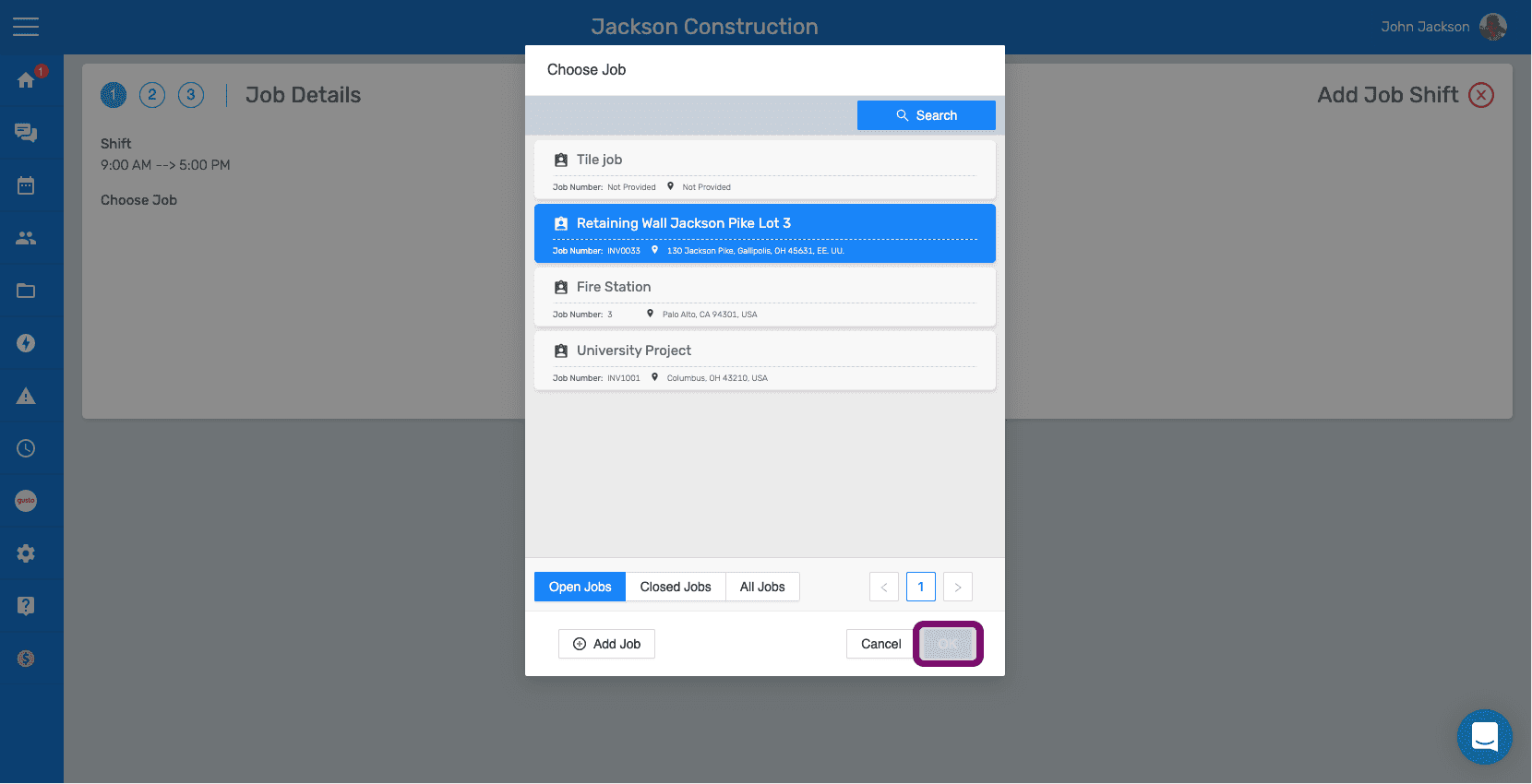
Job Details Choose Job popup with the Retaining Wall job selected and the Confirm button highlighted
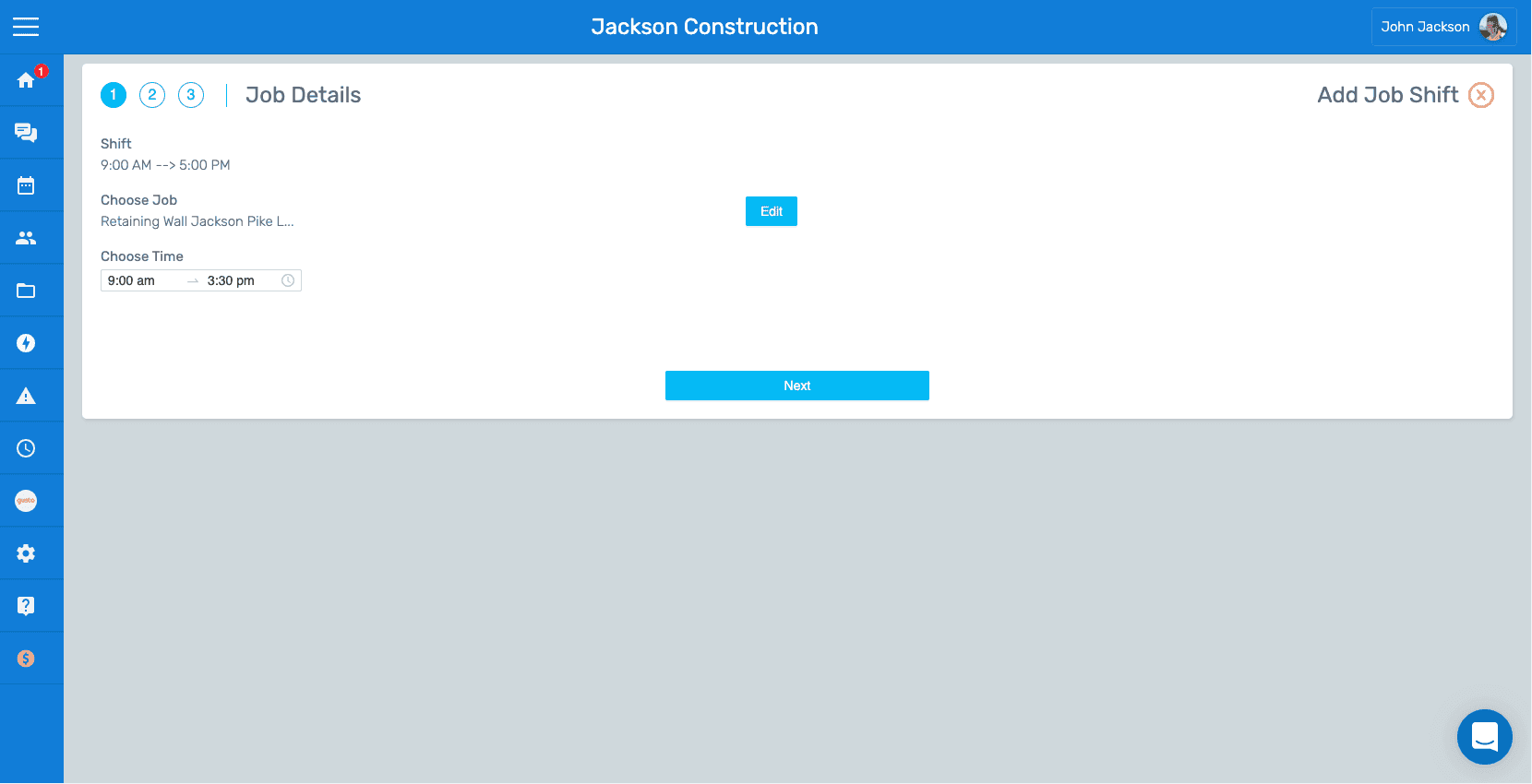
SINC app Job Details step showing the selected job and time range with an Edit button
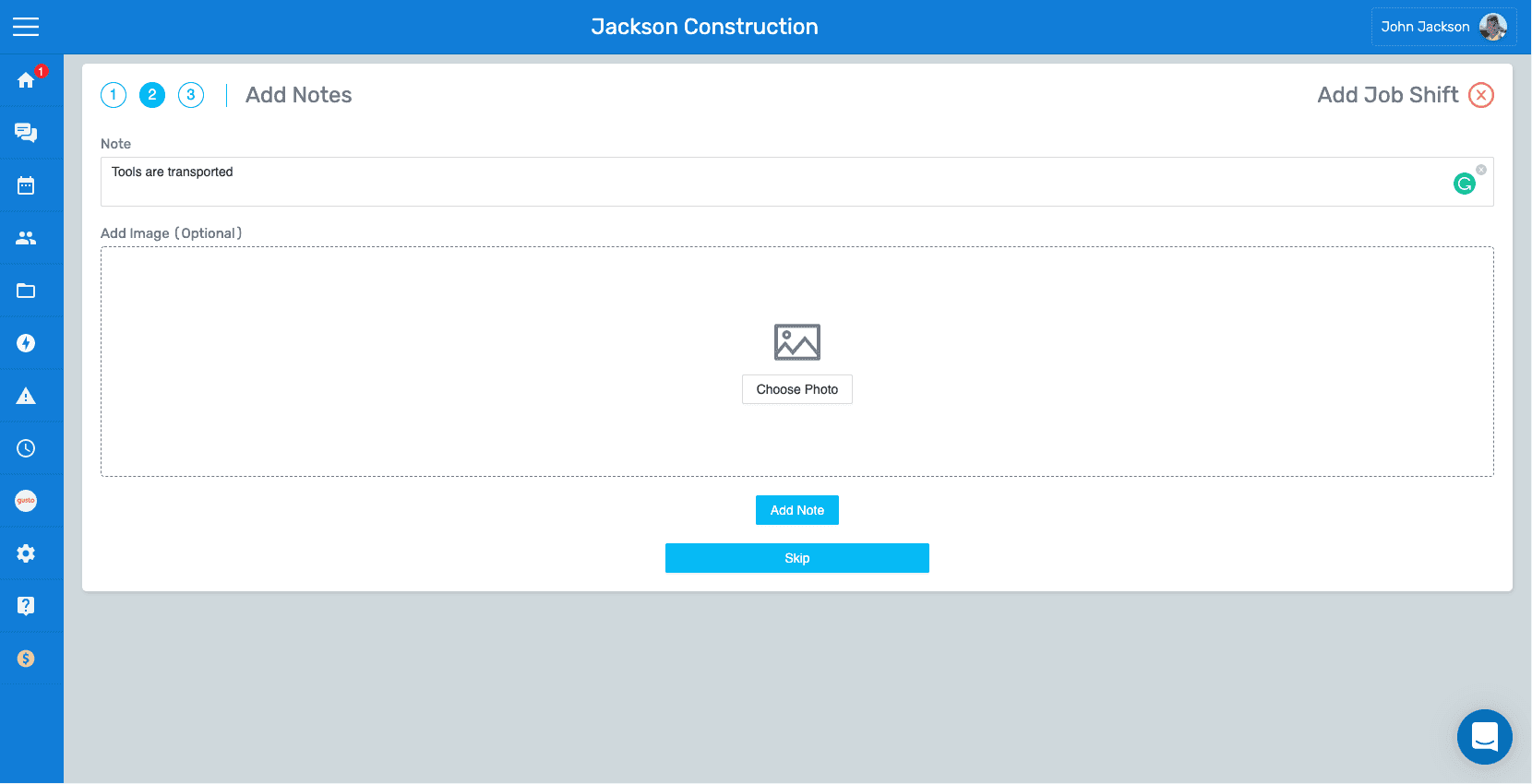
SINC web Add Notes screen showing a note text field and Choose Photo image upload area
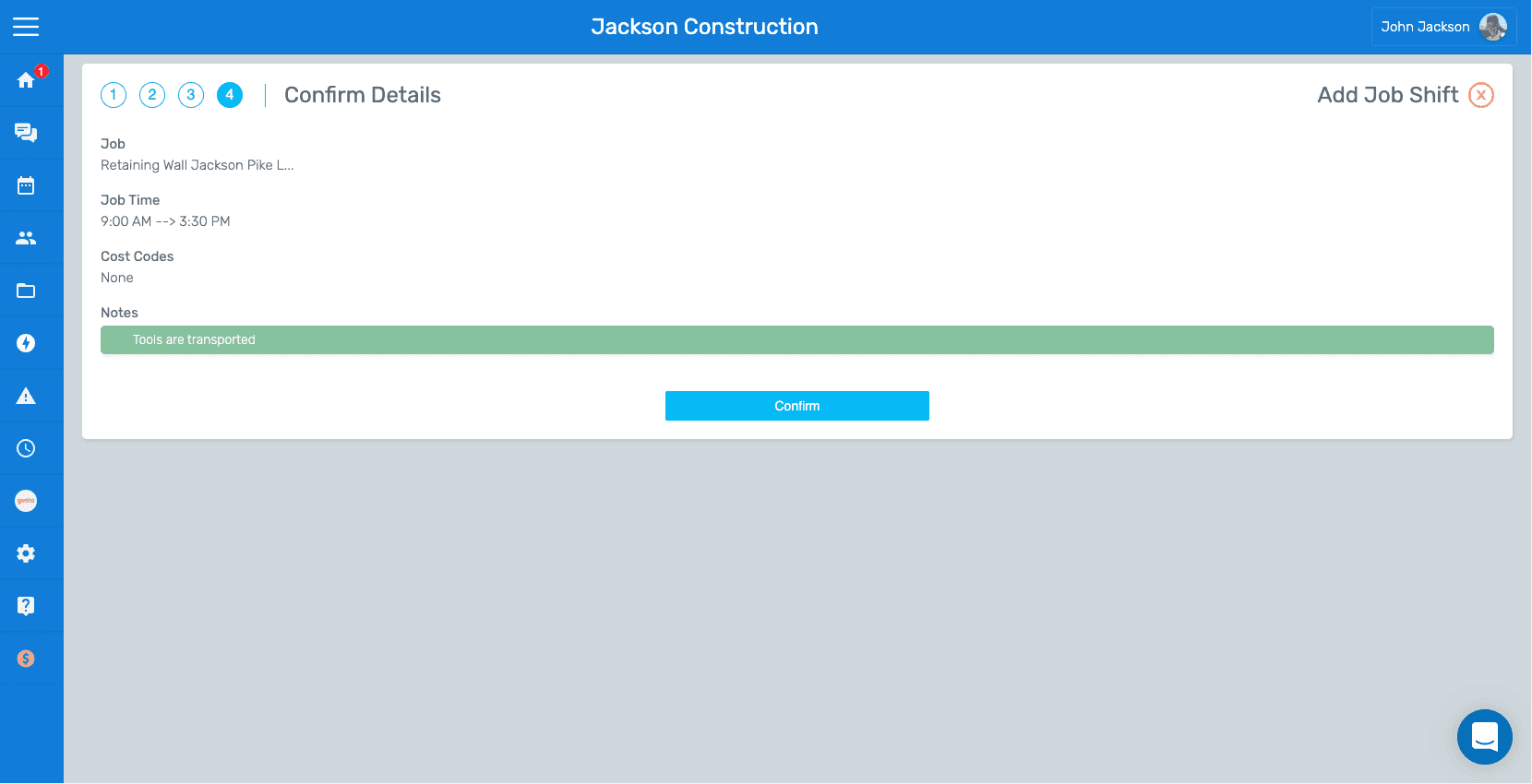
SINC web Add Job Shift wizard on the Confirm Details step showing job time and notes with the Confirm button

¿Esto respondió tu pregunta?