Cómo añadir un turno que falta

Esta guía explica cómo un administrador puede añadir un turno para un miembro del personal o para sí mismo en SINC.

Sam Dolbel
Sam Dolbel
Mar 6th, 2023

En ocasiones, tendrás que añadir manualmente la hoja de horas de un empleado. Ve a Menú Resumen y pulsa en Turnos
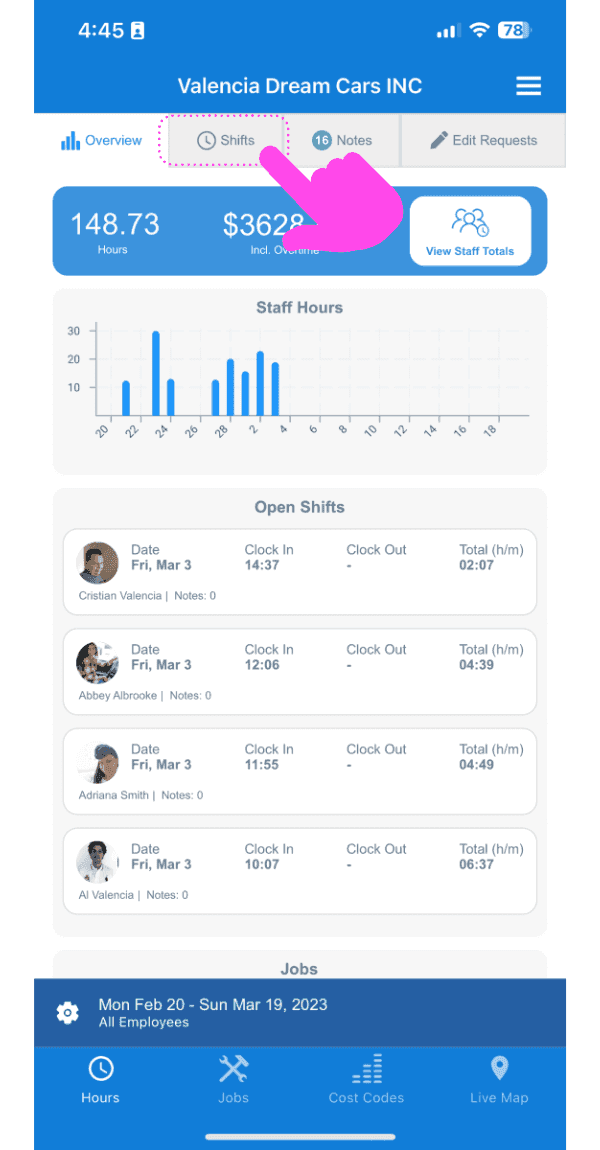
SINC web dashboard with a pink arrow pointing to the Shifts tab showing staff hours and open shifts

Toca el botón + de la esquina inferior derecha de la pantalla
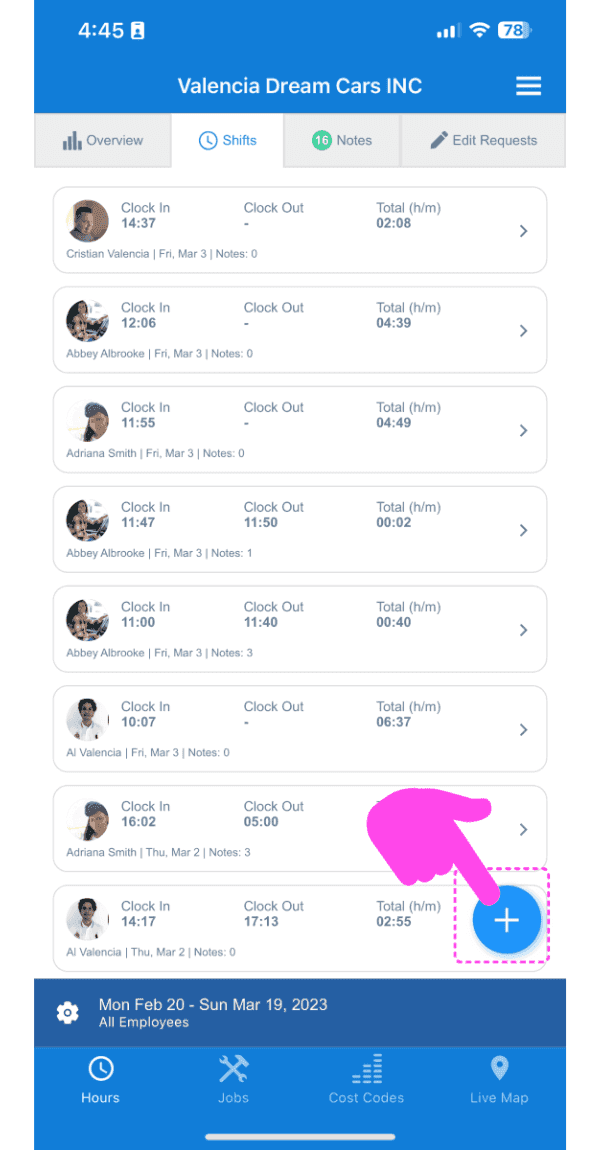
SINC mobile Shifts list with a pink arrow pointing to the plus button in the bottom right corner

Selecciona al empleado al que quieres añadirle una hoja de horas y pulsa Confirmar.
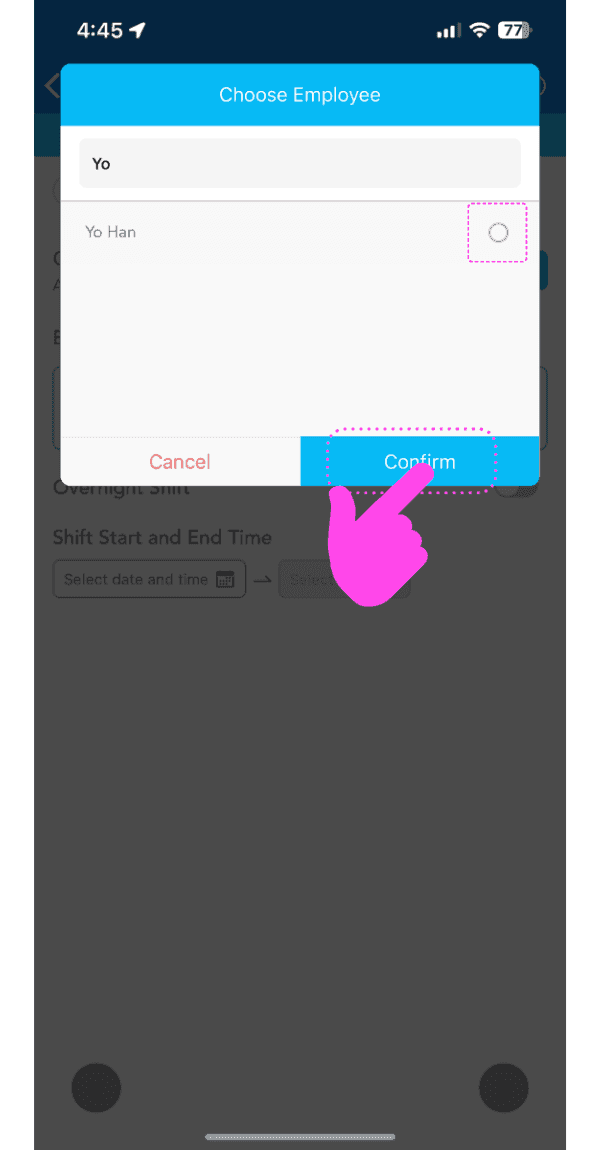
Choose Employee popup with an employee selected and a pink arrow pointing to the Confirm button

Sigue el asistente para añadir las fechas y horas del turno que falta. Nota: La fecha y la hora predeterminadas ya estarán seleccionadas según el último turno del empleado.
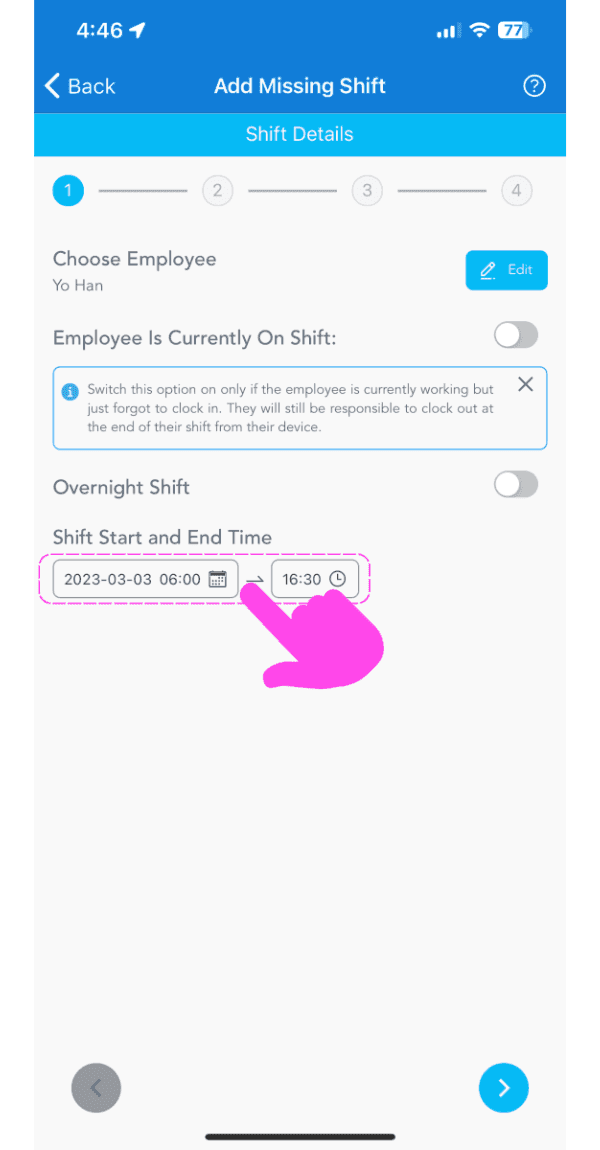
SINC mobile app Add Missing Shift wizard with the shift start and end time fields highlighted in pink

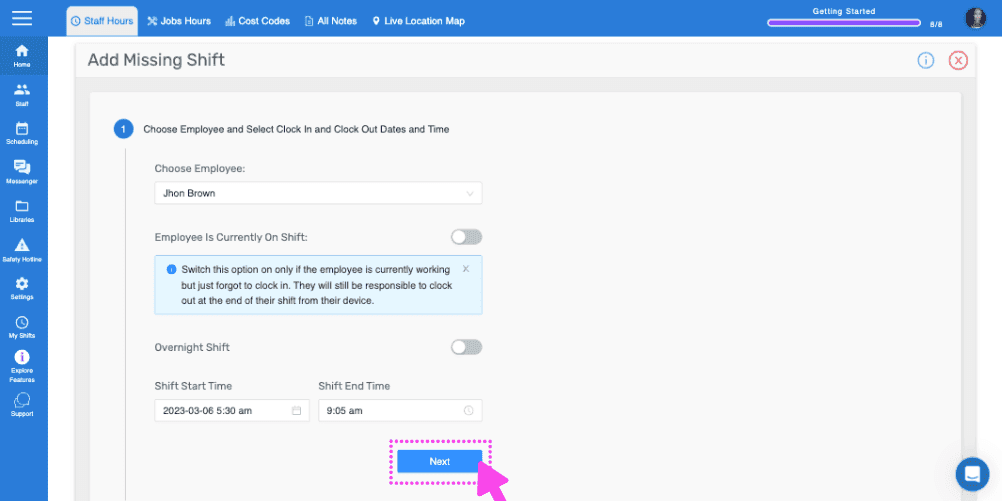
Si el empleado ya está en su turno y aún no ha registrado su salida, activa El empleado está actualmente en turno. Al activar esta opción, solo tendrás que seleccionar la hora de inicio del turno.
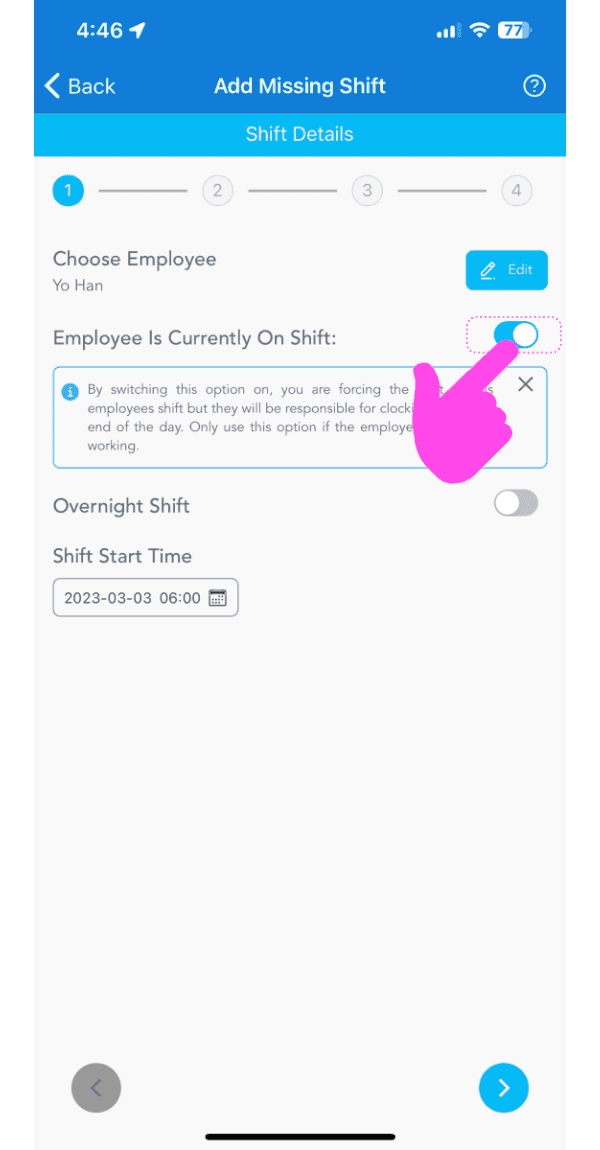
Add Missing Shift screen with the Employee Is Currently On Shift toggle highlighted by a pink arrow

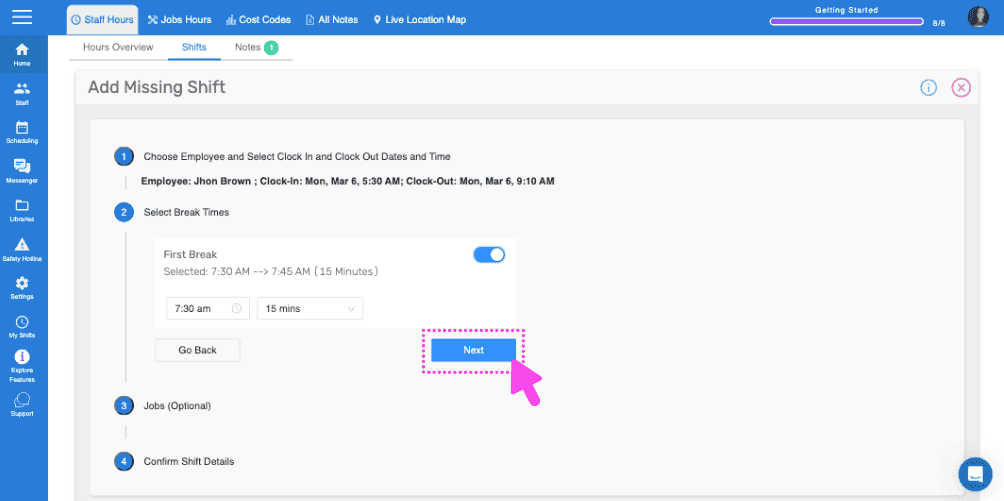
Añade todos los descansos a los que tenía derecho: según la configuración de descansos de la organización, se seleccionará de forma predeterminada una hora. Si el empleado no hizo el descanso correspondiente, pulsa Sin descanso. Para cambiar la hora de inicio del descanso, pulsa el selector de hora; para cambiar su duración, pulsa el botón de duración.
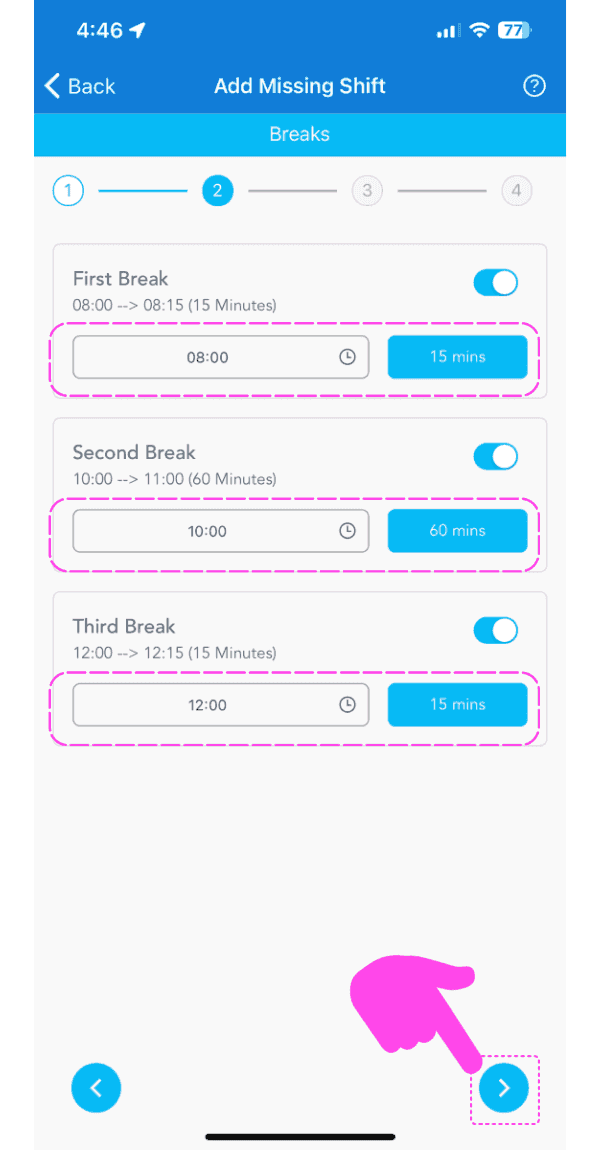
Add Missing Shift Breaks screen showing three break toggles and times highlighted in pink dashed boxes

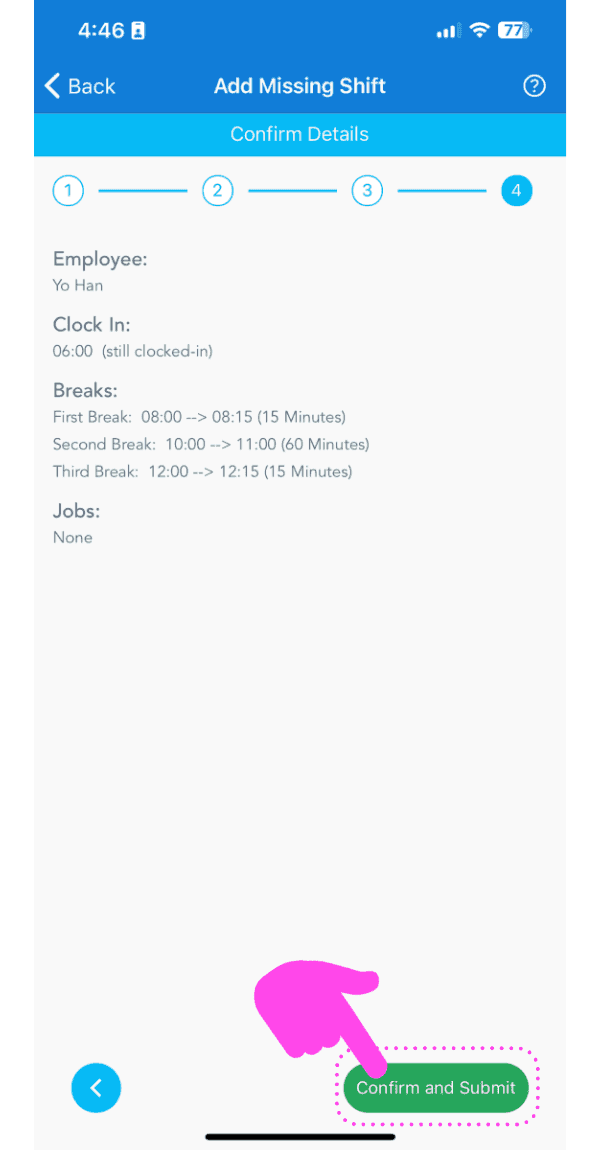
Revisa los detalles del turno faltante y pulsa Confirmar
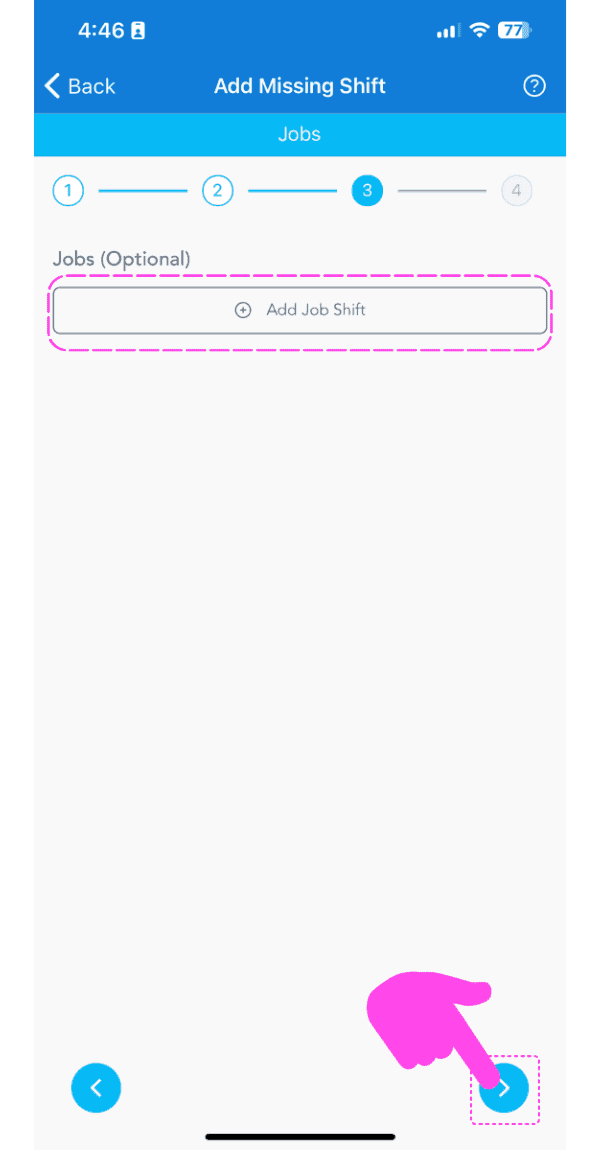
SINC mobile Add Missing Shift wizard on the optional Jobs step, with a pink hand pointing to the next arrow button
Add Missing Shift Confirm Details screen with the Confirm and Submit button highlighted by a pink arrow

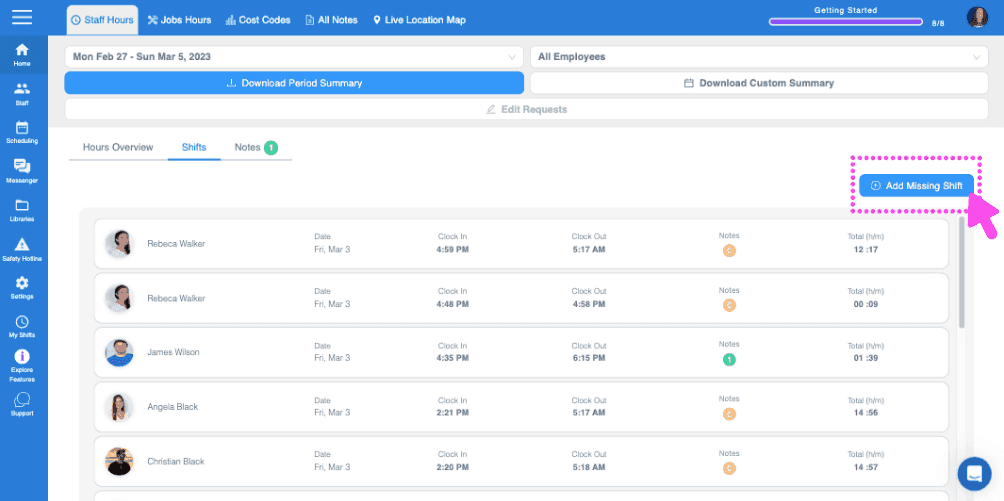
Si estás utilizando la versión web, se verá así:
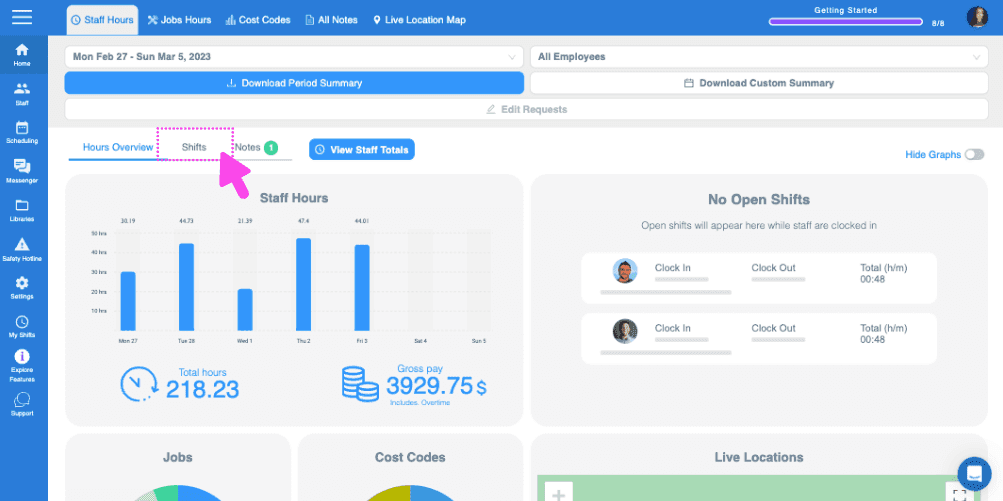
SINC web timekeeping dashboard with the Hours Overview tab highlighted above the staff hours graph
Web dashboard Shifts tab with a pink arrow pointing to the Add Missing Shift button in the top right
SINC web Add Missing Shift wizard with the Choose Employee field and the Next button highlighted
Web Add Missing Shift wizard showing break time selection with the Next button outlined in pink
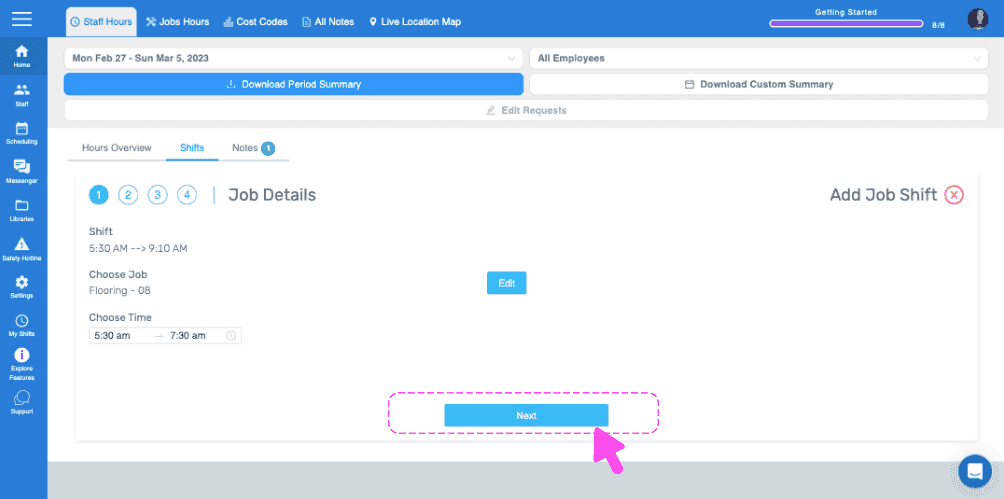
SINC web Job Details wizard showing the chosen job and time with a pink arrow pointing to the Next button
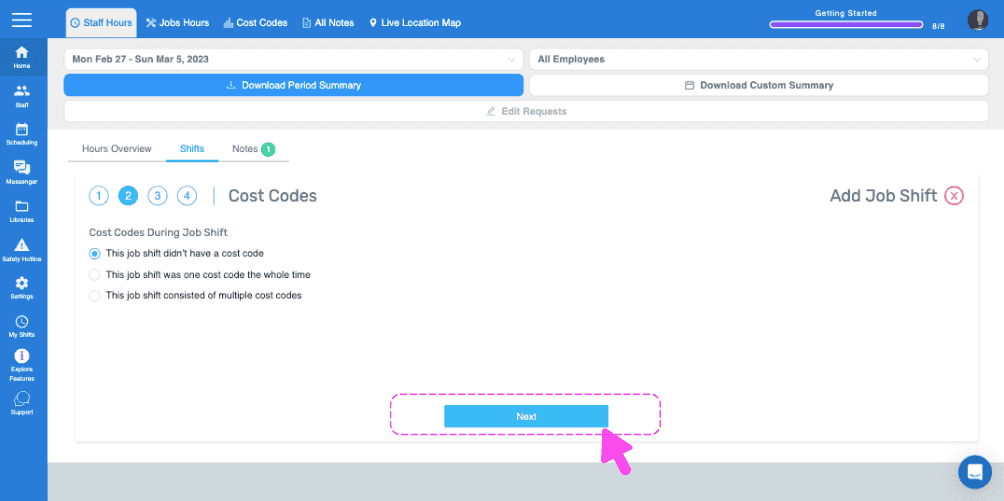
Add Job Shift wizard Cost Codes step with a pink arrow pointing to the Next button
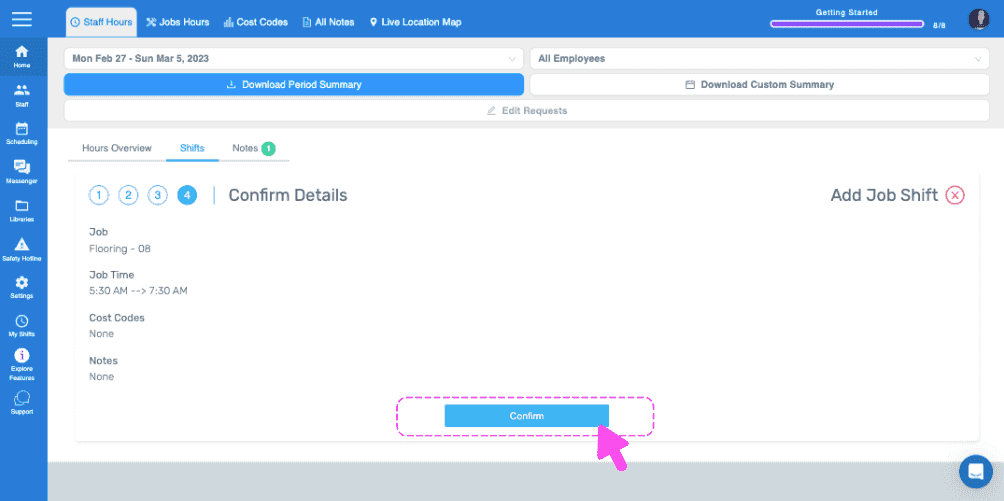
Web Confirm Details step for a job shift with the Confirm button circled in pink
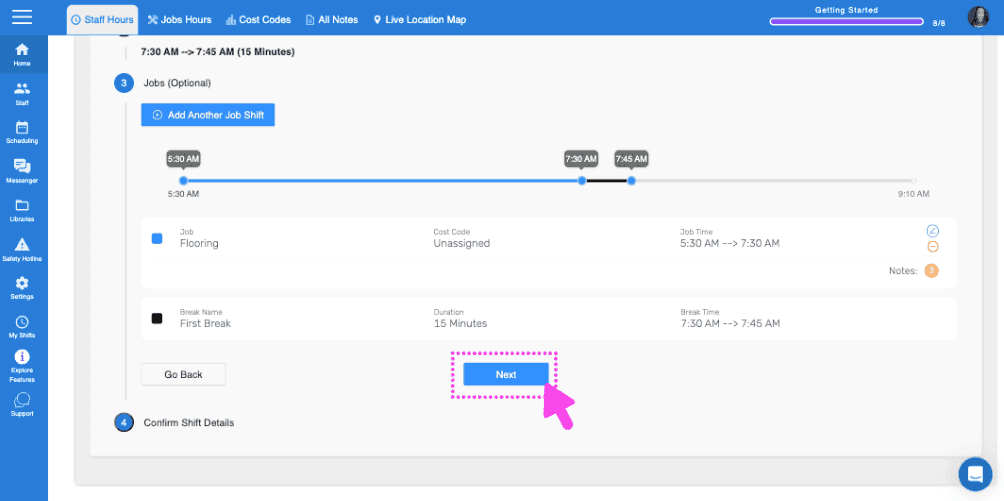
SINC web Add Job Shift wizard with a pink arrow pointing to the Next button on the shift timeline step
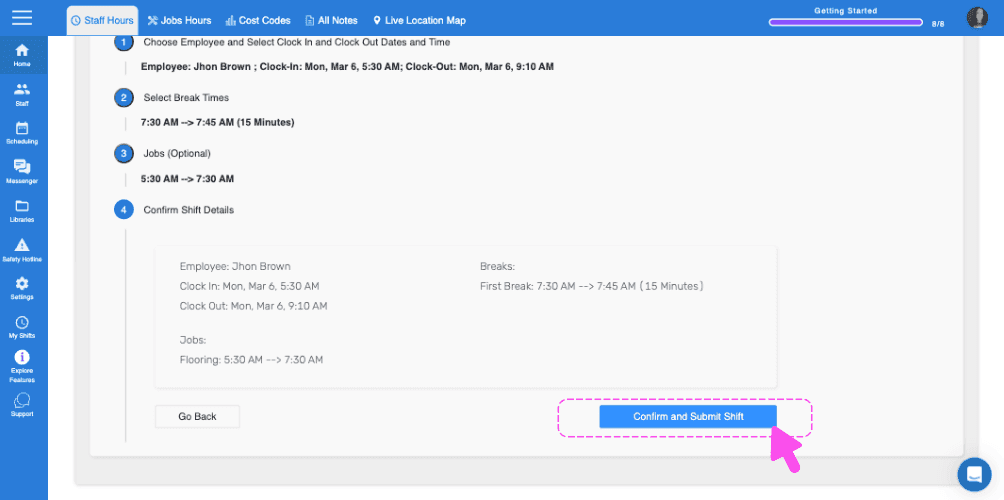
SINC web Add Missing Shift wizard Confirm Shift Details step with a pink arrow pointing to the Confirm and Submit Shift button
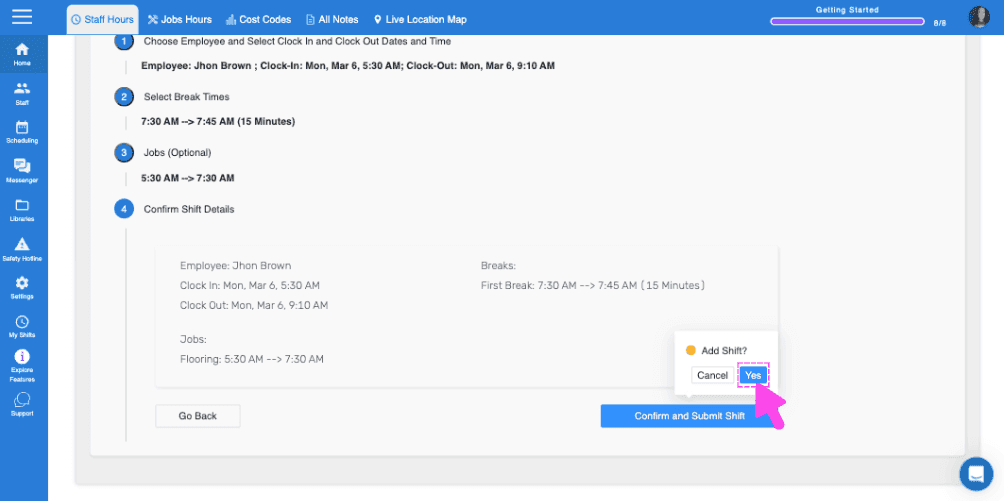
Web add-shift confirmation screen showing shift and break details with a pink arrow pointing to the Yes button

¿Esto respondió tu pregunta?