
Text- oder Bildnachricht im Chat senden

Diese Anleitung zeigt, wie du Text oder Bilder als Nachricht versendest.

SINC Support Team
SINC Support Team
Mar 10th, 2023

Wählen Sie zunächst einen Chat aus der Chatliste aus. In der mobilen App: Tippen Sie in der Liste auf Chatraum

SINC mobile Chats list with a pink arrow pointing to the Everyone group chat

Tippen Sie auf das Eingabefeld, um einen Text einzugeben

SINC mobile group chat screen with a pink hand pointing to the message input box

Geben Sie eine Nachricht ein und tippen Sie auf die Schaltfläche Senden. Die Nachricht wird zugestellt.

Mobile app chat conversation with a typed message and the Send arrow button highlighted by a pink arrow

Um ein Bild als Nachricht zu senden, tippe auf die Schaltfläche „Kamera“.
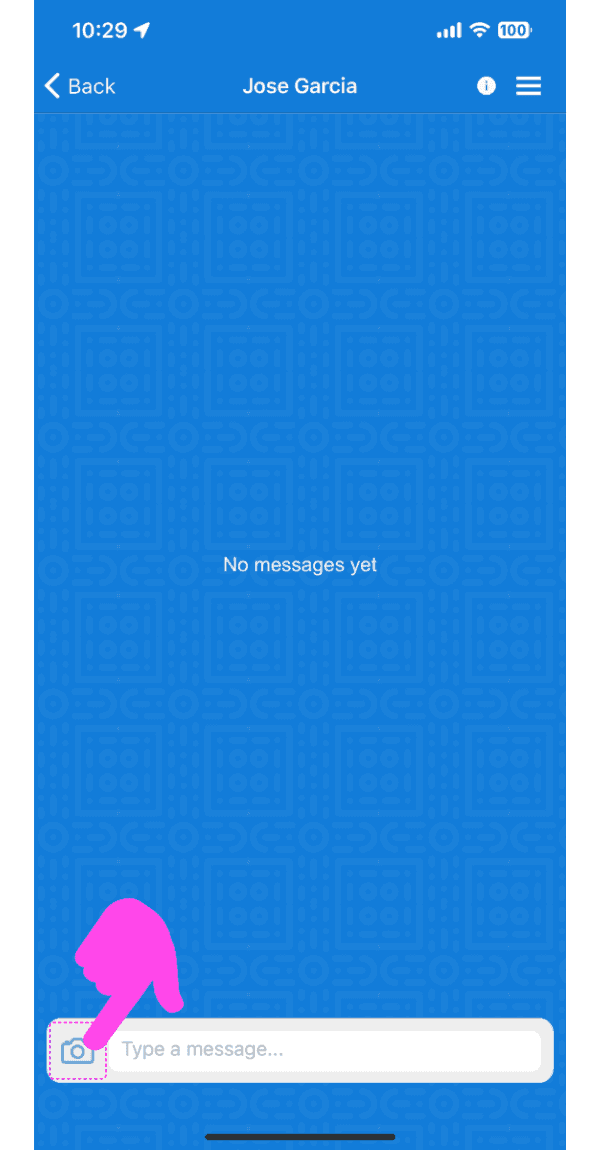
SINC mobile chat conversation screen with a pink arrow pointing to the camera icon by the message field

Wählen Sie eine Option: Nehmen Sie entweder ein Foto auf oder wählen Sie ein Foto aus der Galerie aus.

Send Photo screen with dashed-highlighted Take Photo and Choose From Photos options above the Send Photo button

Tippe auf die Schaltfläche Foto senden
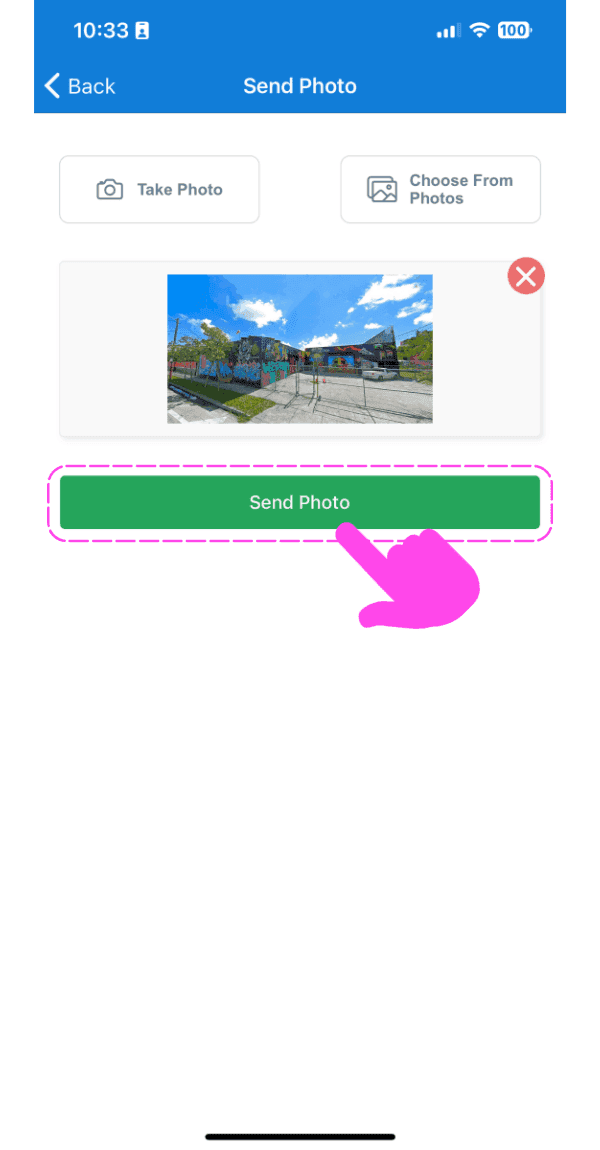
SINC mobile Send Photo screen with an image preview and a pink arrow pointing to the Send Photo button

Die Bildnachricht wird nach Anzeige des Upload-Fortschritts zugestellt.
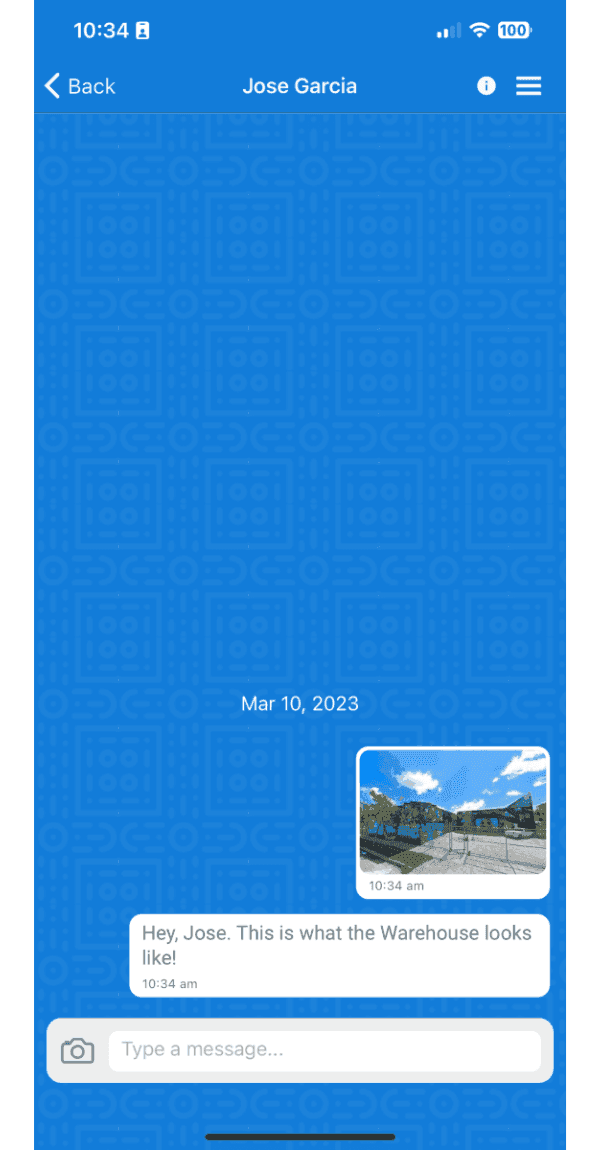
Mobile chat conversation showing a sent photo of a warehouse with an accompanying text message

In der Webversion: Klicken Sie auf einen Chat in der Liste
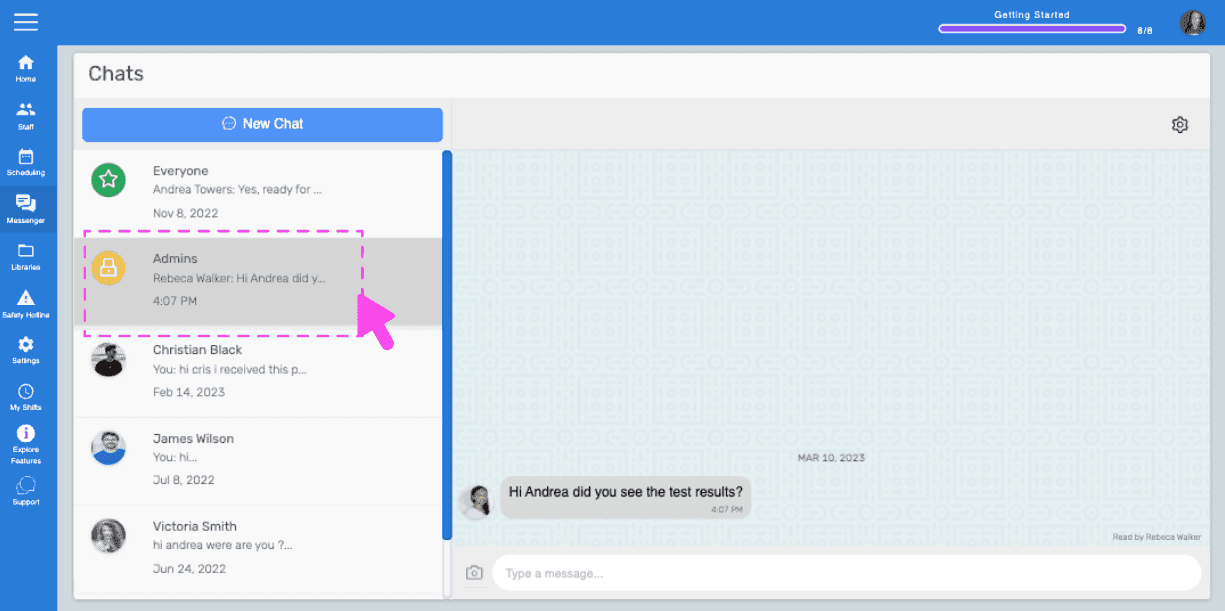
SINC web Chats screen with a pink arrow pointing to a conversation selected from the list on the left

Klicken Sie auf das Eingabefeld und beginnen Sie mit der Eingabe, um eine Textnachricht zu senden.
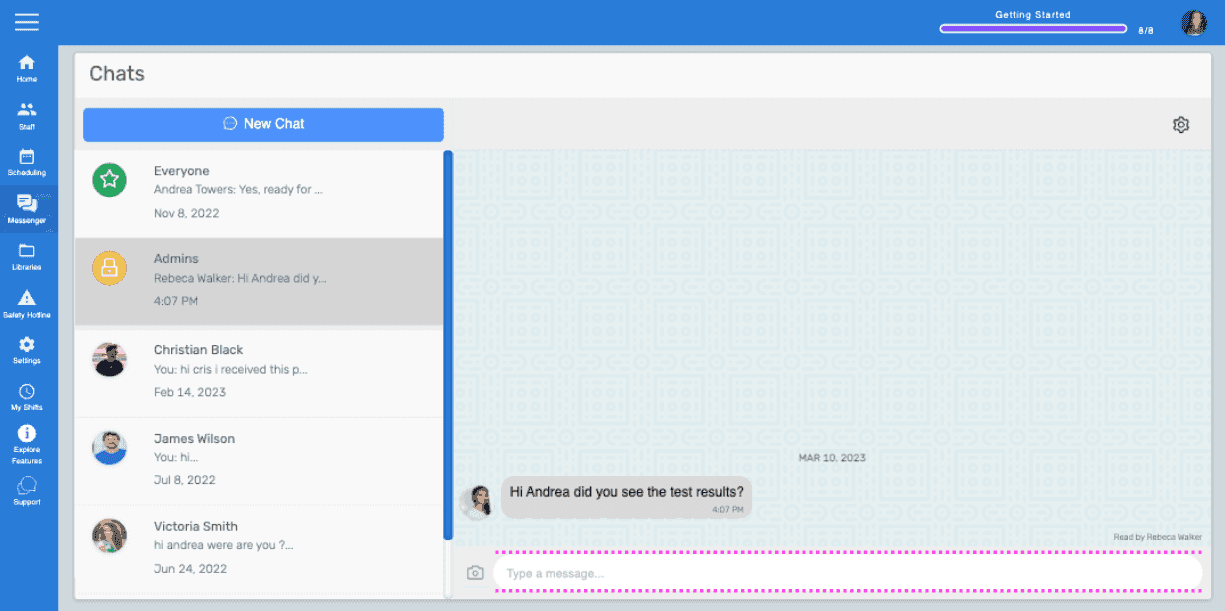
Chats screen with a message thread open and the text input box highlighted at the bottom

Klicke auf das Senden-Symbol oder drücke die Eingabetaste, um die Textnachricht zu senden. Die Nachricht wird zugestellt.
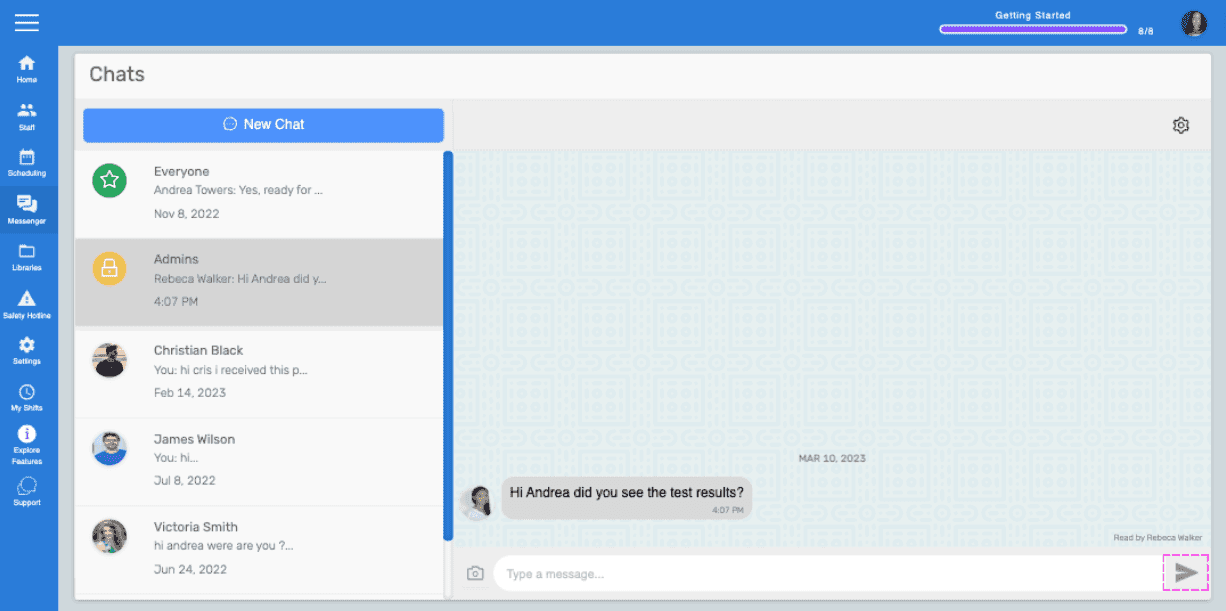
Web Chats screen showing a message thread with a pink arrow pointing to the Send icon

Um ein Bild als Nachricht zu senden, klicken Sie auf das „Kamera“-Symbol.
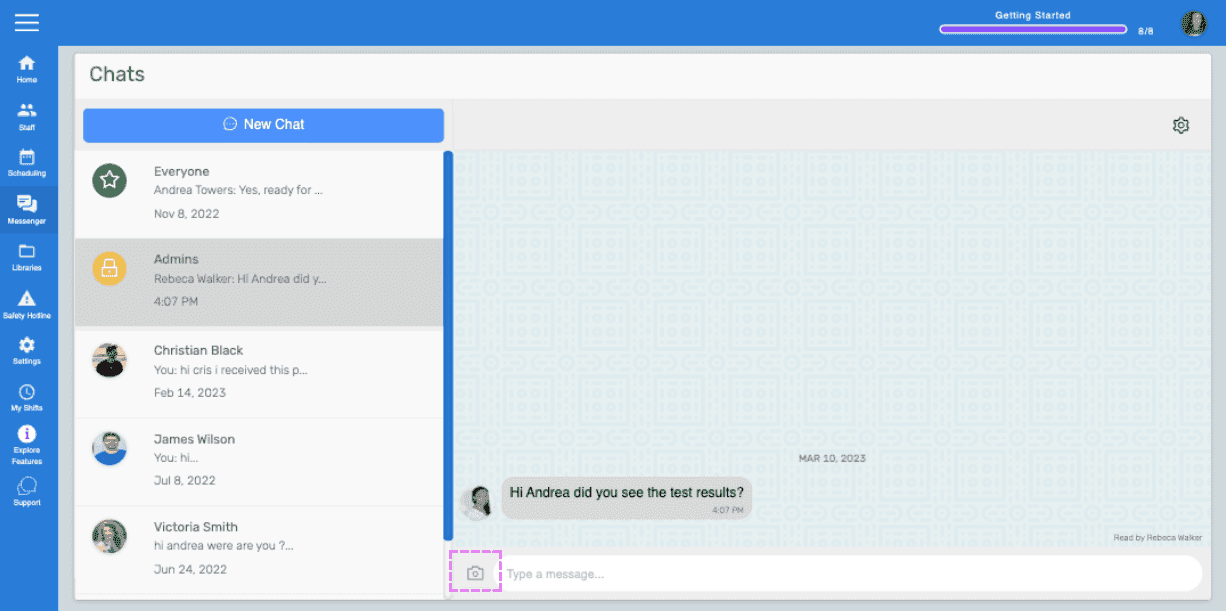
SINC web Chats screen with the camera icon highlighted next to the message input box

Wählen Sie im Datei-Browser/Finder ein Bild aus und klicken Sie anschließend auf die Schaltfläche „Bild senden“.
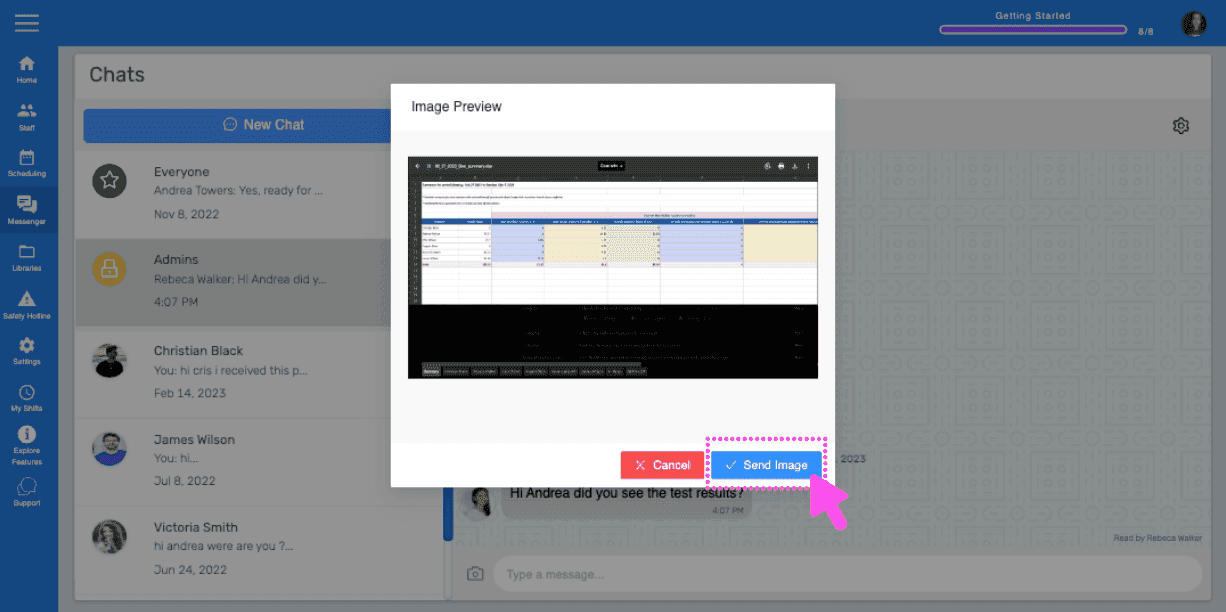
SINC web Chat Image Preview dialog with a pink arrow pointing to the Send Image button

Die Bildnachricht wird zugestellt, sobald der Upload abgeschlossen ist.
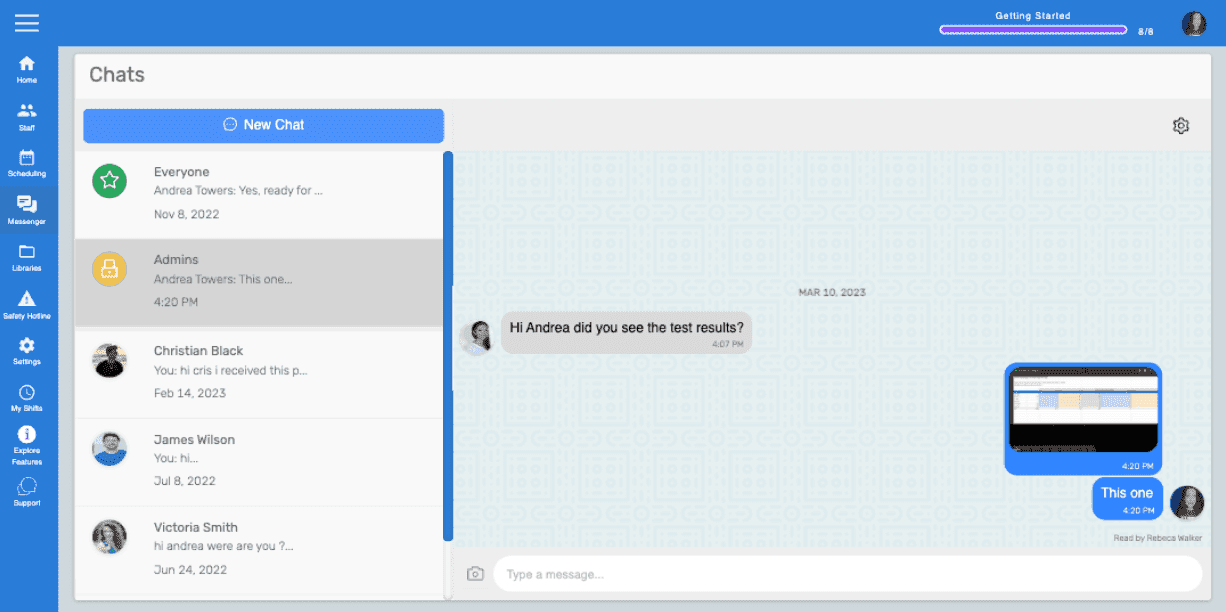
Web chat conversation window showing a text message and an uploaded image thumbnail being sent

Hat das Ihre Frage beantwortet?