Notizen zu deiner Arbeitsschicht hinzufügen

In diesem Leitfaden erfahren Sie, wie Sie als Mitarbeiter in SINC Notizen zu Ihren Arbeitsschichten hinzufügen können.

SINC Support Team
SINC Support Team
Mar 10th, 2023

Anhand der folgenden Screenshots kannst du während einer Arbeitsschicht eine Notiz hinzufügen. Auf dem Smartphone kannst du einer offenen Arbeitsschicht eine Notiz hinzufügen: Tippe auf Notiz hinzufügen
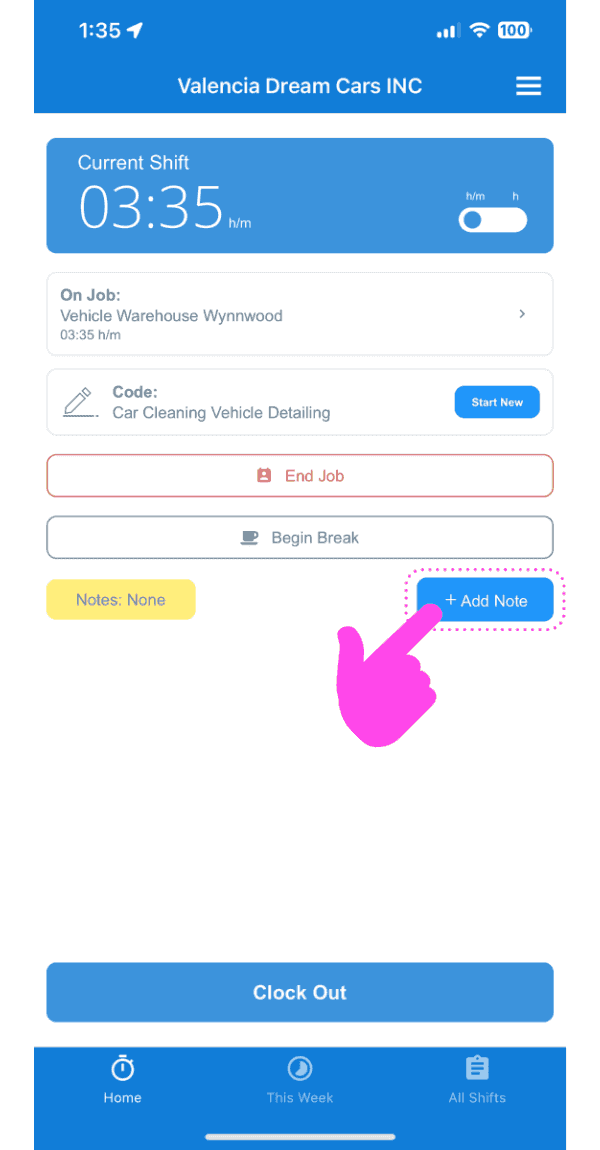
SINC mobile current shift screen with a pink arrow pointing to the Add Note button

Tippe auf Notiz zur Arbeitsschicht hinzufügen
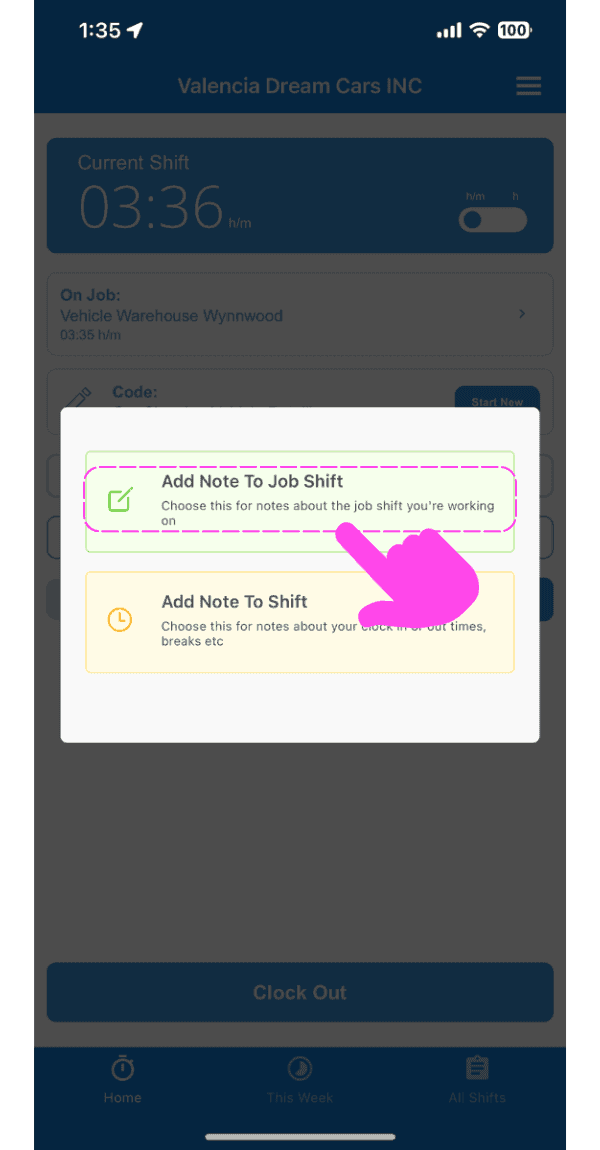
Add Note popup with a pink arrow pointing to the "Add Note To Job Shift" option above "Add Note To Shift"

Geben Sie eine Beschreibung der Notiz ein.
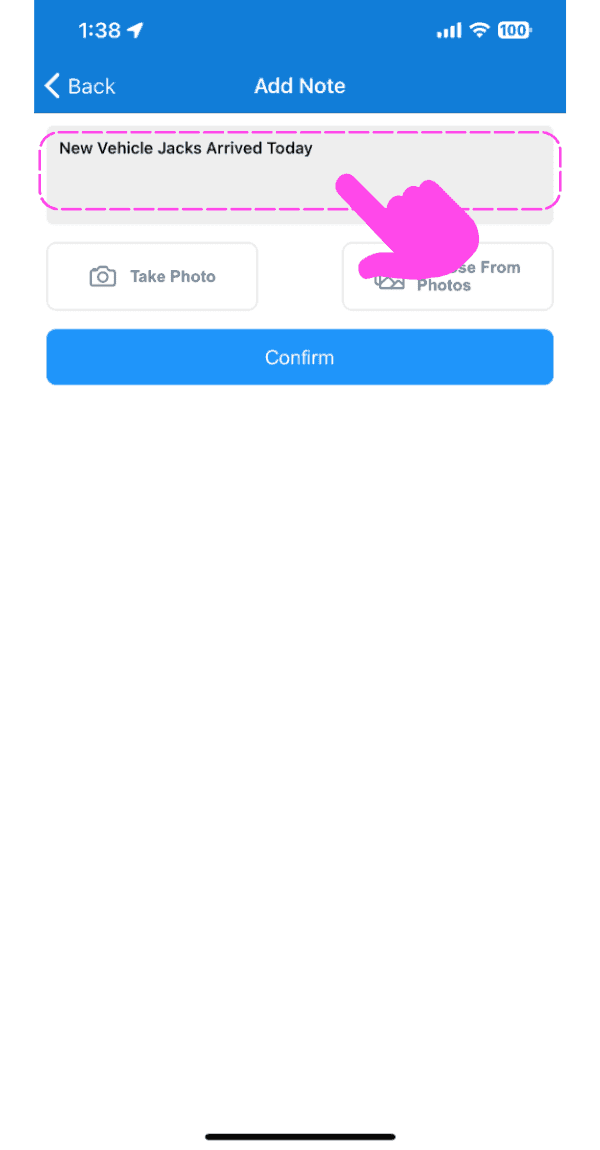
SINC mobile Add Note screen with a pink arrow pointing to the note description text field

Lade optional ein Bild hoch, das sich auf die Notiz bezieht.
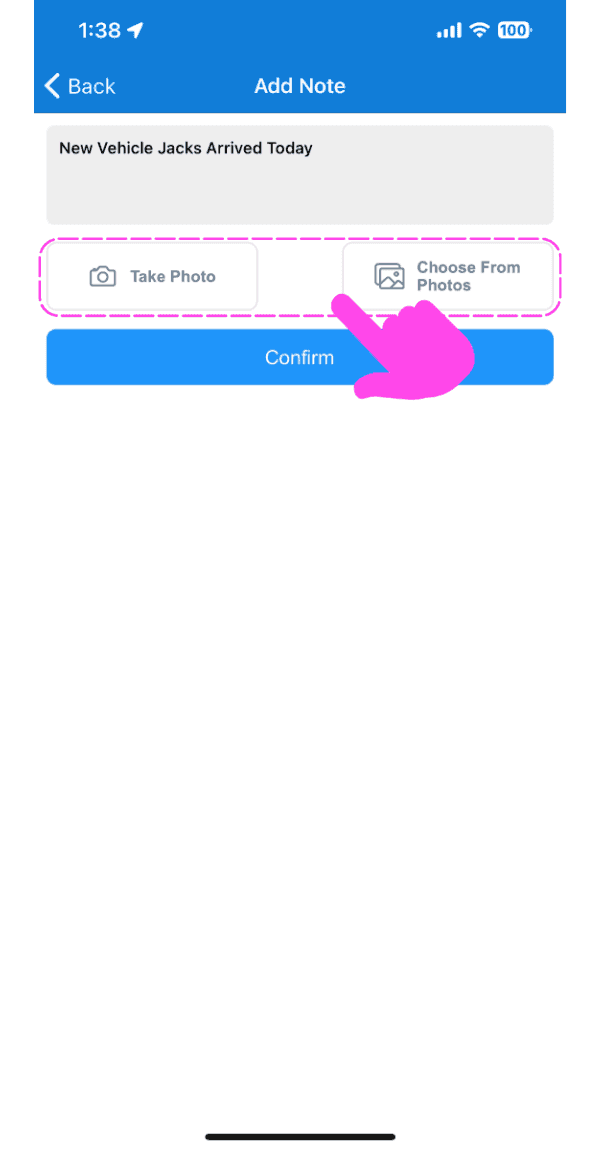
Mobile Add Note screen with Take Photo and Choose From Photos options outlined in pink

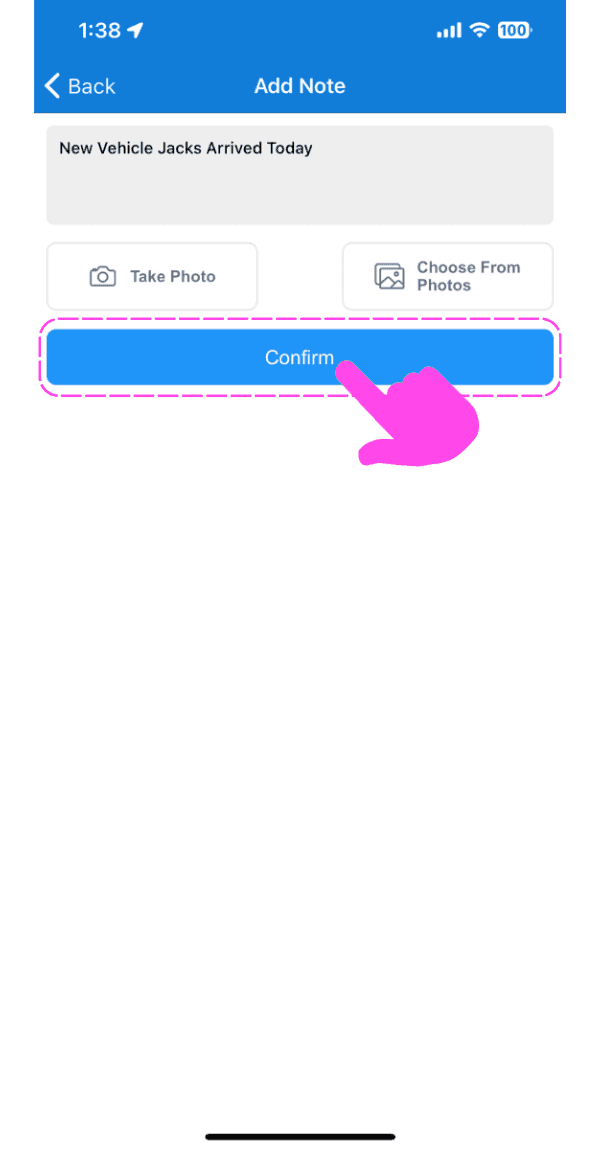
Tippen Sie auf Bestätigen

SINC mobile Add Note screen with typed note text and a pink hand pointing to the Confirm button

Im Web: Um einer offenen Schicht eine Notiz hinzuzufügen: Klicke auf Notiz hinzufügen
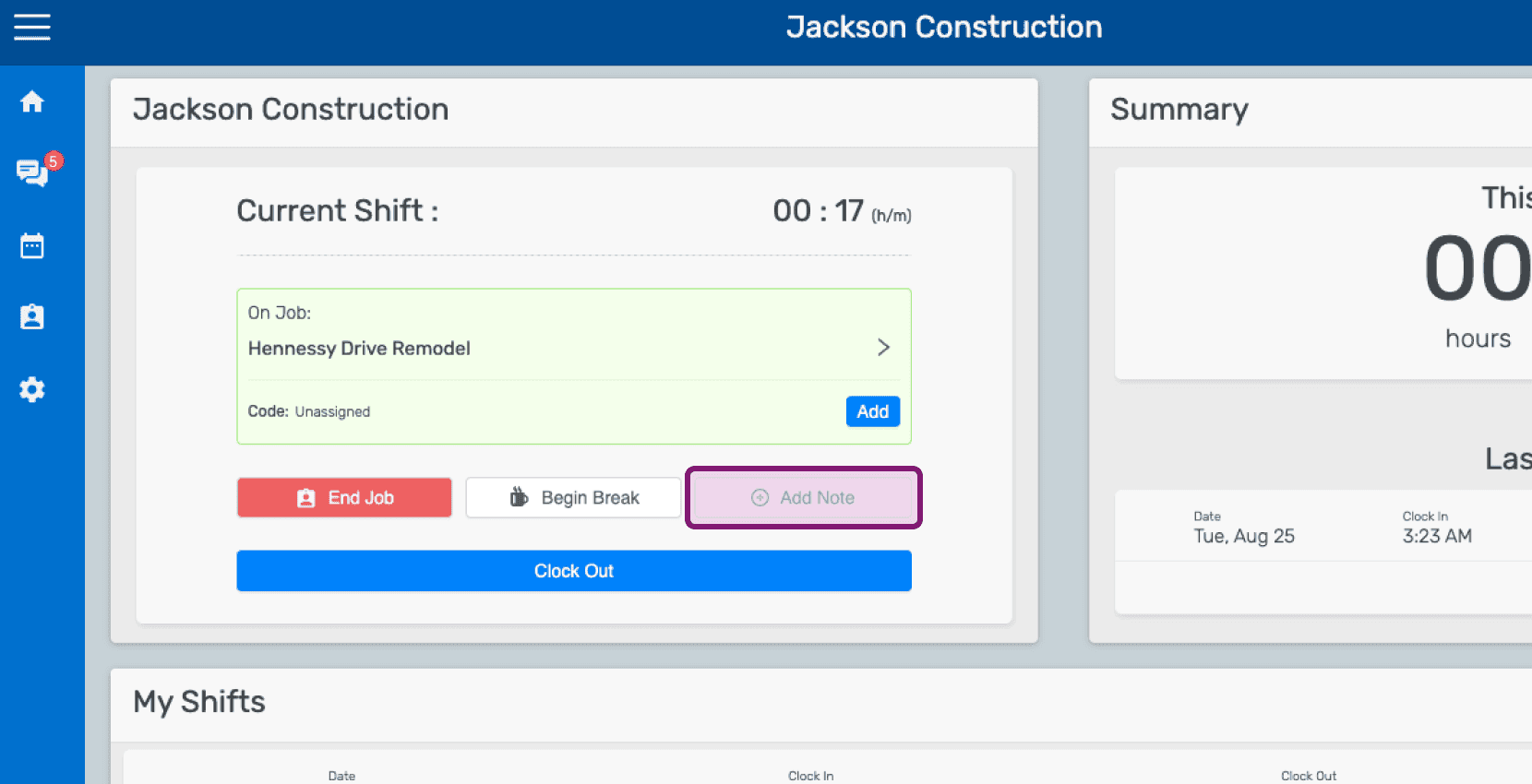
Mobile home dashboard showing an open job shift with the Add Note button highlighted

Klicken Sie auf Notiz zur Arbeitsschicht hinzufügen
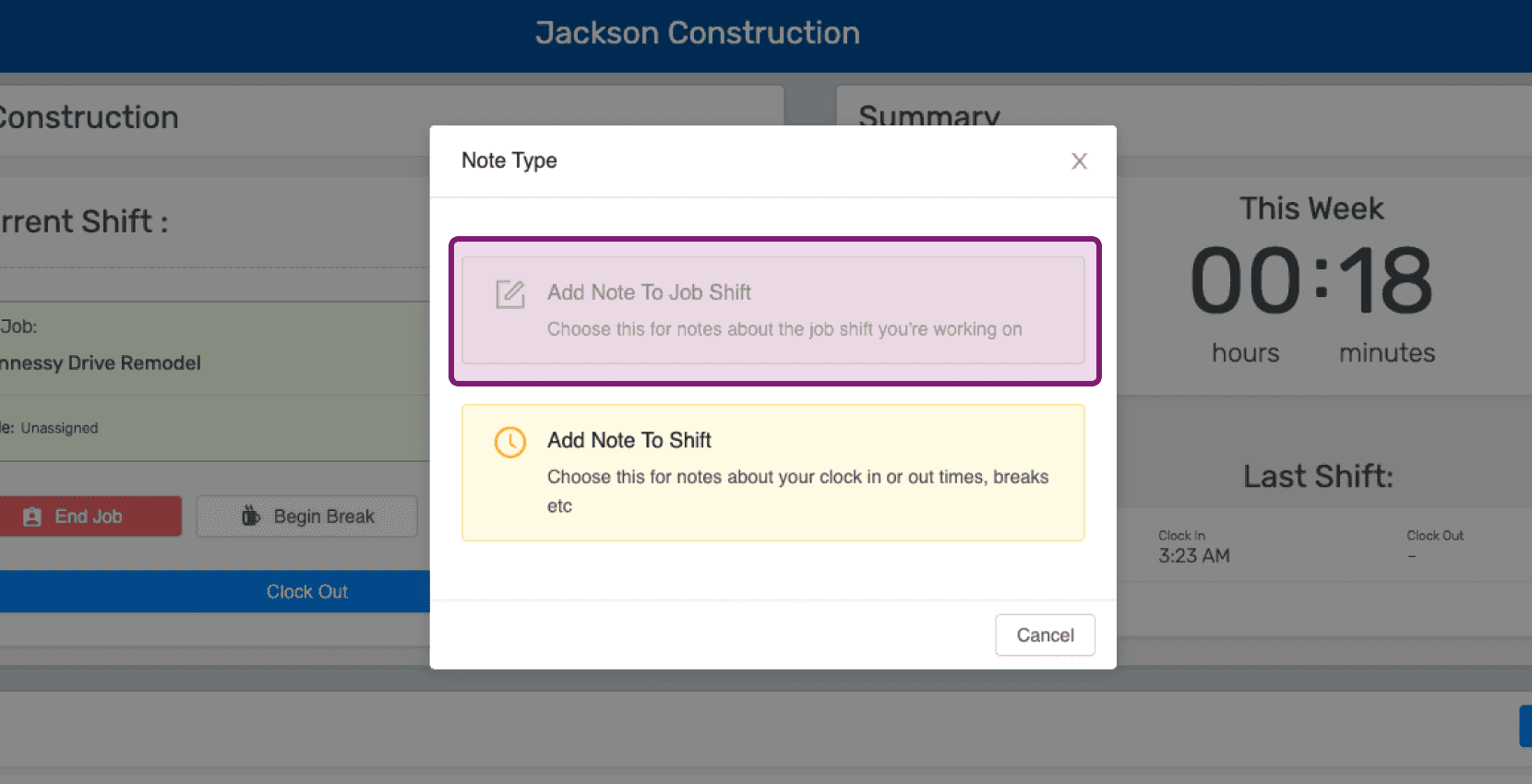
Mobile Note Type popup with the 'Add Note To Job Shift' option outlined in purple

Geben Sie eine Beschreibung der Notiz ein.
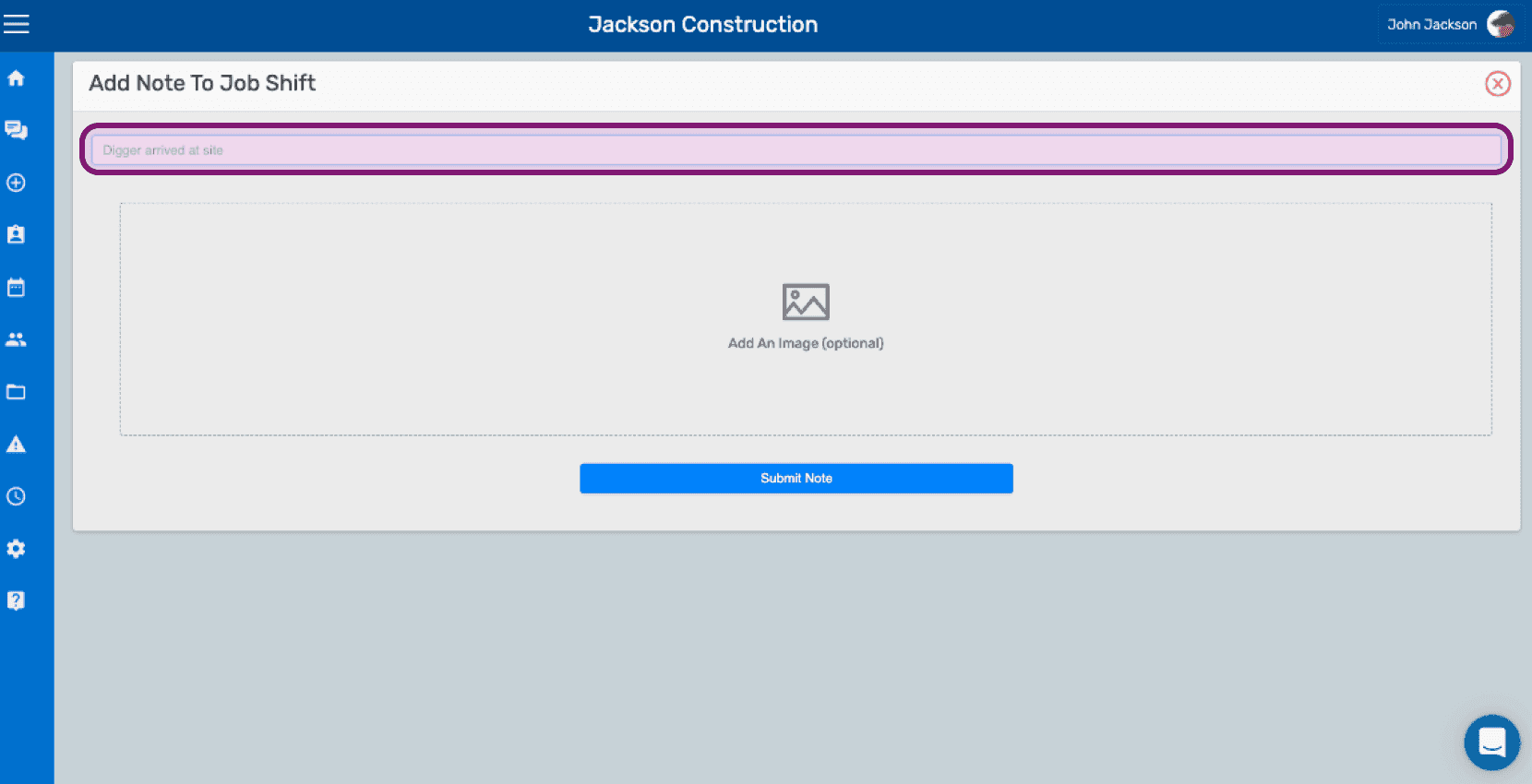
SINC web Add Note To Job Shift screen with the note text field outlined above the image upload area

Lade bei Bedarf ein Bild hoch, das sich auf die Notiz bezieht.
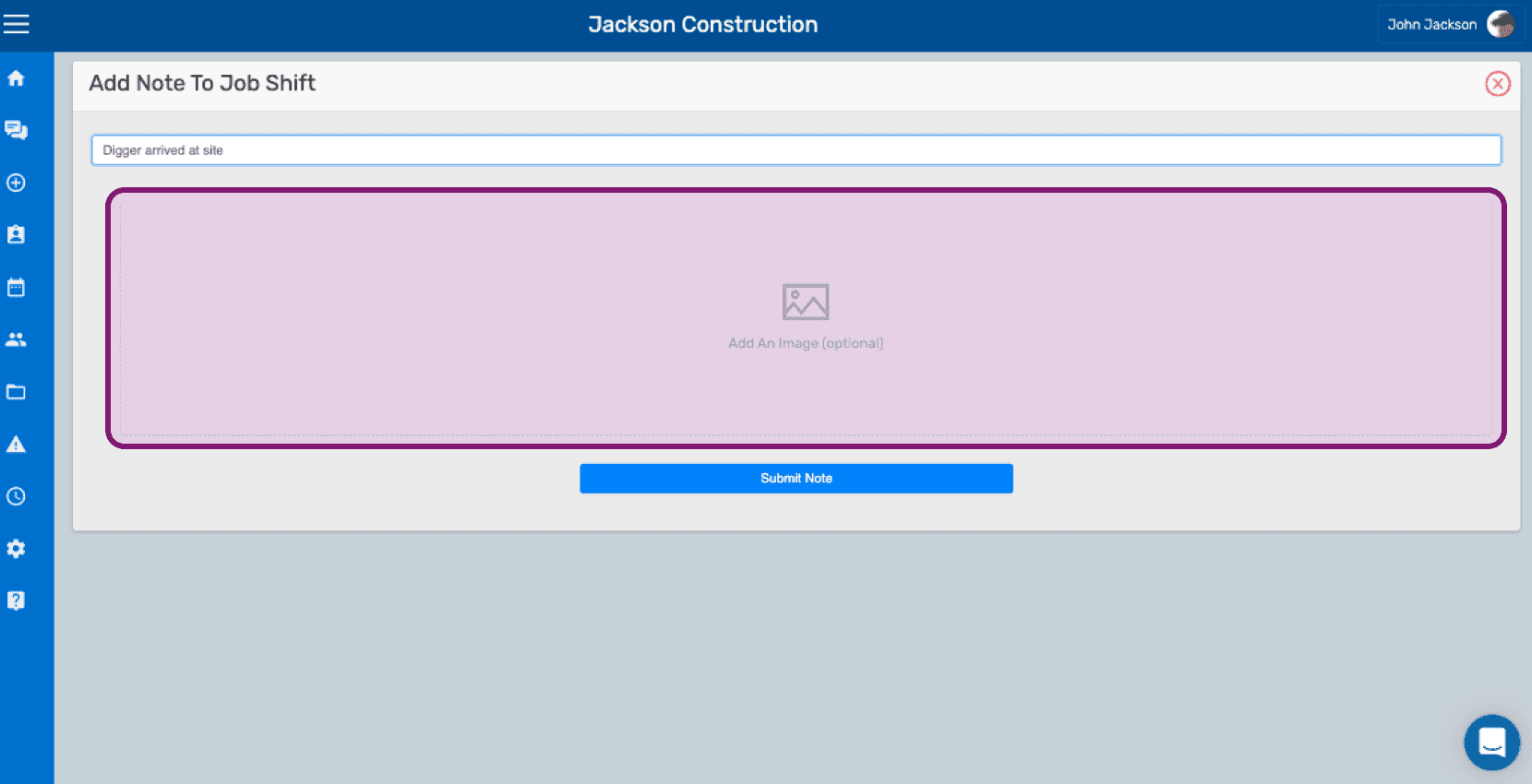
SINC web Add Note To Job Shift screen with the optional image upload area outlined in pink

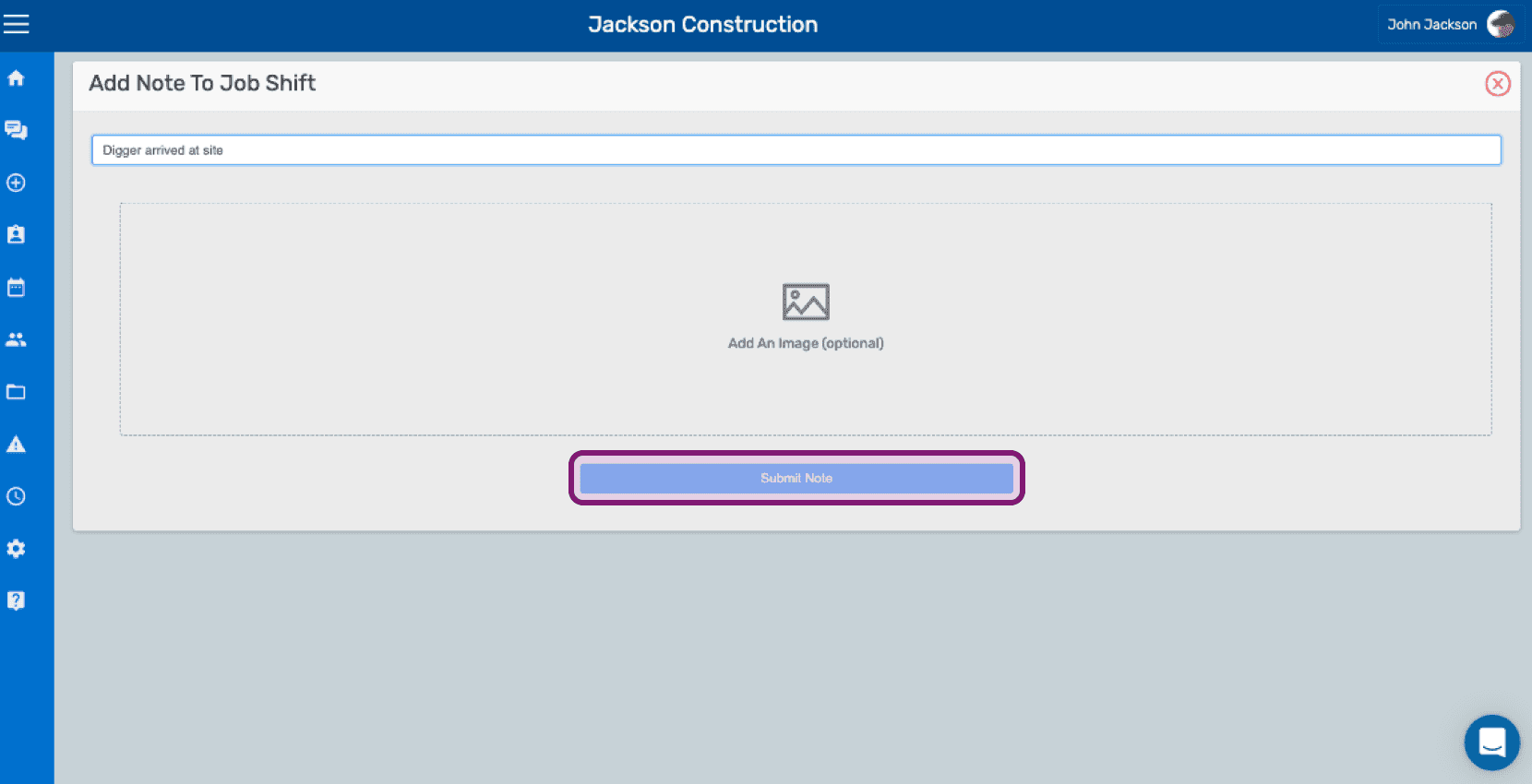
Klicken Sie auf Notiz absenden

Add Note To Job Shift screen with a text field, optional image upload, and the Submit Note button outlined

Hat das Ihre Frage beantwortet?