Notizen zu deinem Stundenzettel hinzufügen

In diesem Leitfaden zeigen wir Ihnen, wie Sie Ihren Schichten in Sinc Notizen hinzufügen können.

Sam Dolbel
Sam Dolbel
May 26th, 2023

Es gibt zwei Möglichkeiten, einer Schicht Notizen hinzuzufügen: während der Schicht oder zu einer bereits beendeten Schicht. Um auf dem Mobilgerät einer offenen Schicht eine Notiz hinzuzufügen: Tippe auf Notiz hinzufügen
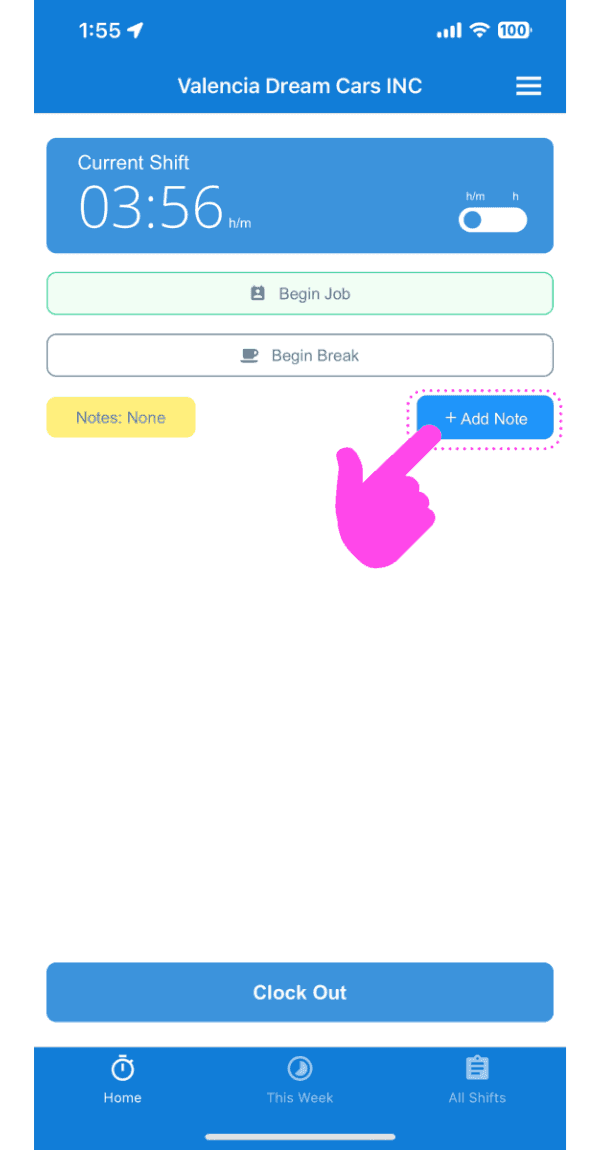
SINC mobile app current shift screen with a pink hand pointing to the Add Note button

Geben Sie eine Beschreibung der Notiz ein.
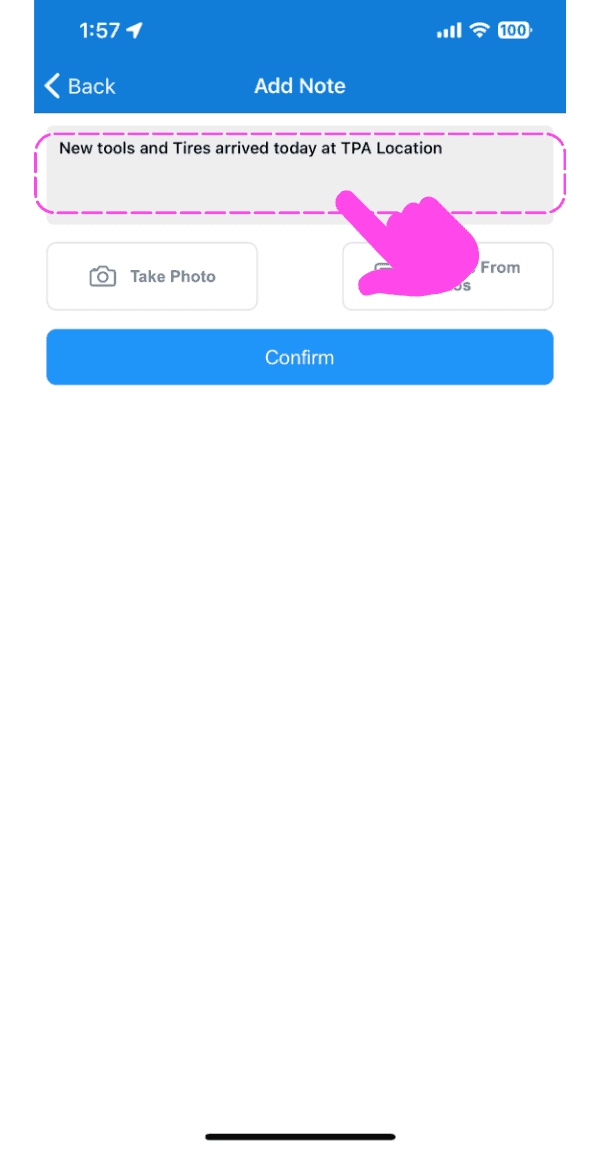
Add Note screen with a text field containing a note, pointed out by a pink arrow

Laden Sie bei Bedarf ein Bild hoch, das zum Hinweis passt.
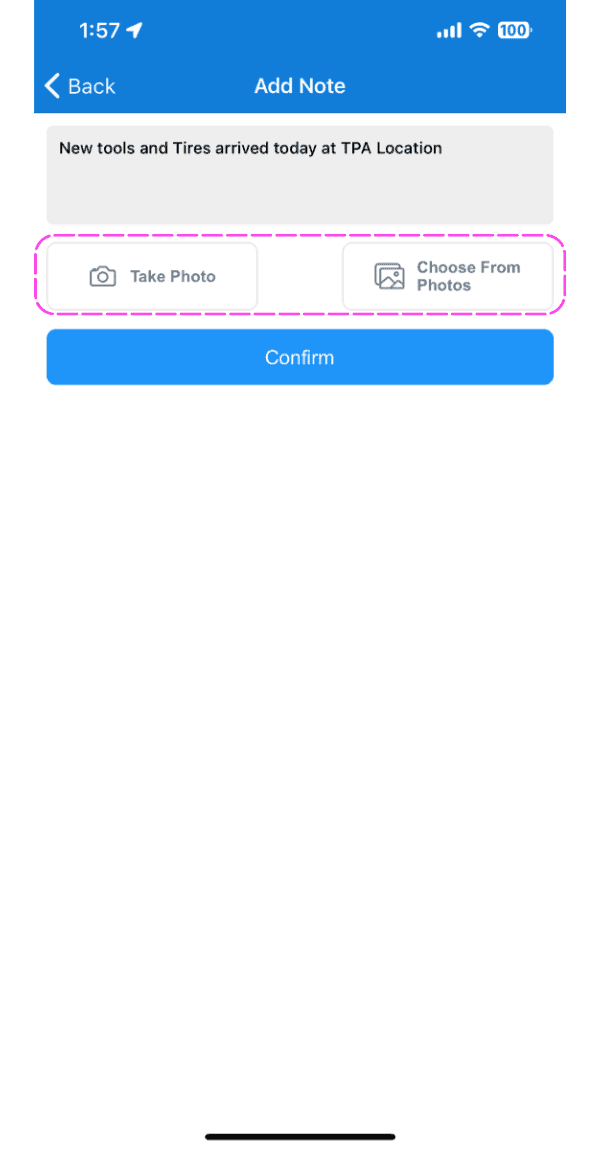
Add Note screen with Take Photo and Choose From Photos buttons highlighted by a pink dashed box

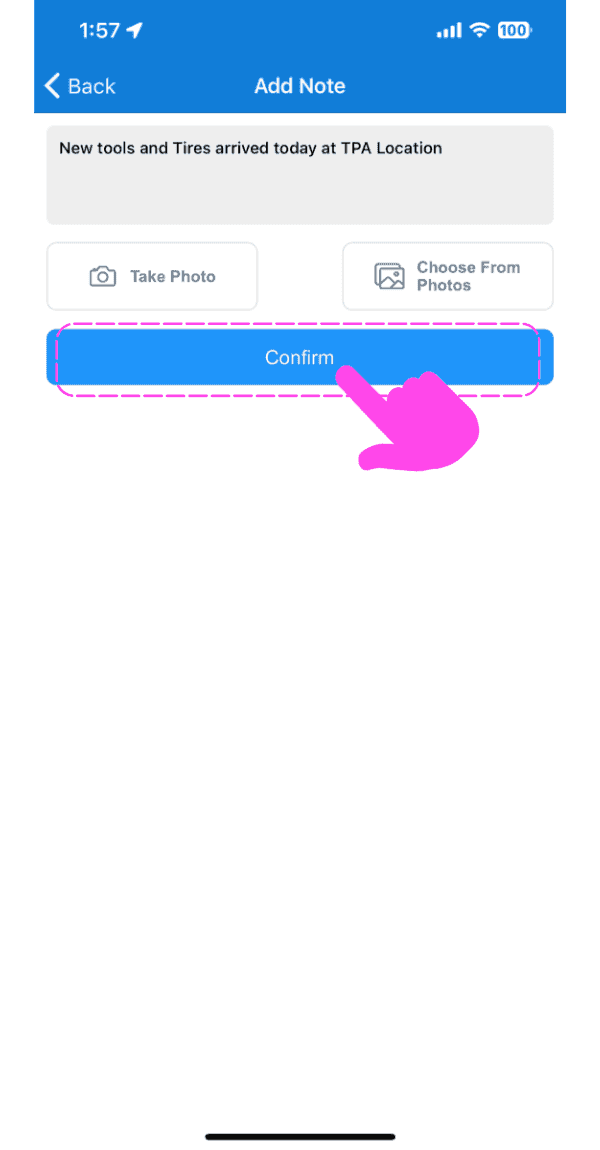
Tippen Sie auf Bestätigen

SINC mobile Add Note screen with a pink hand pointing to the Confirm button

Um einer vergangenen Schicht eine Notiz hinzuzufügen: Tippe auf Menü Meine Schichten
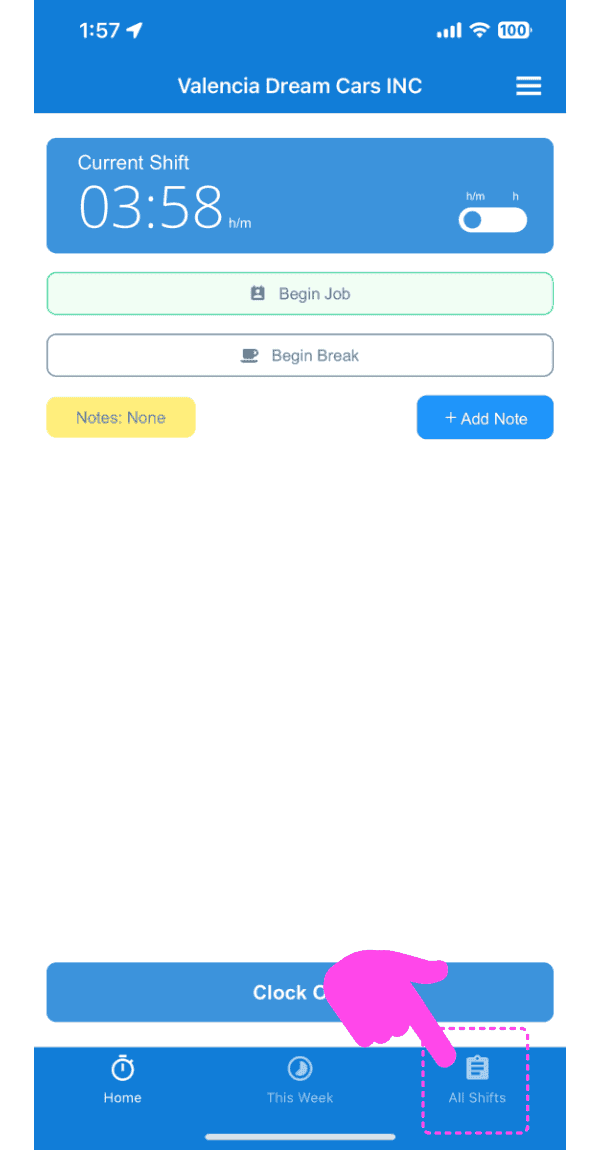
Mobile app Current Shift screen with the All Shifts tab highlighted by a pink arrow

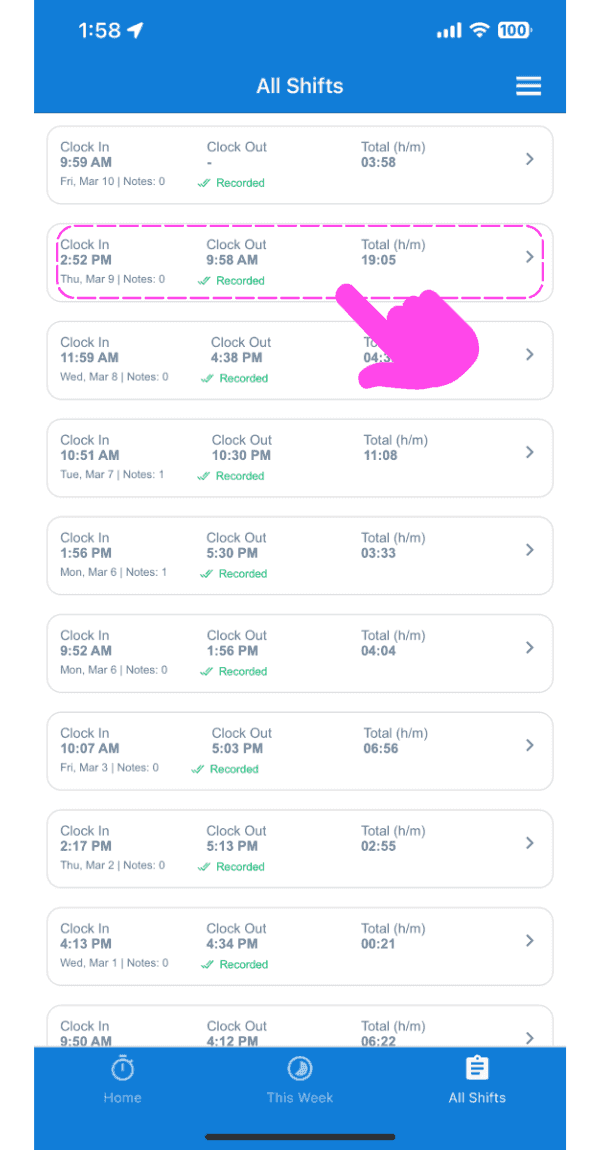
Tippe auf Die betreffende Schicht

SINC mobile All Shifts list with a pink arrow pointing to a highlighted shift entry

Unter dem Tab Info auf Notiz hinzufügen tippen
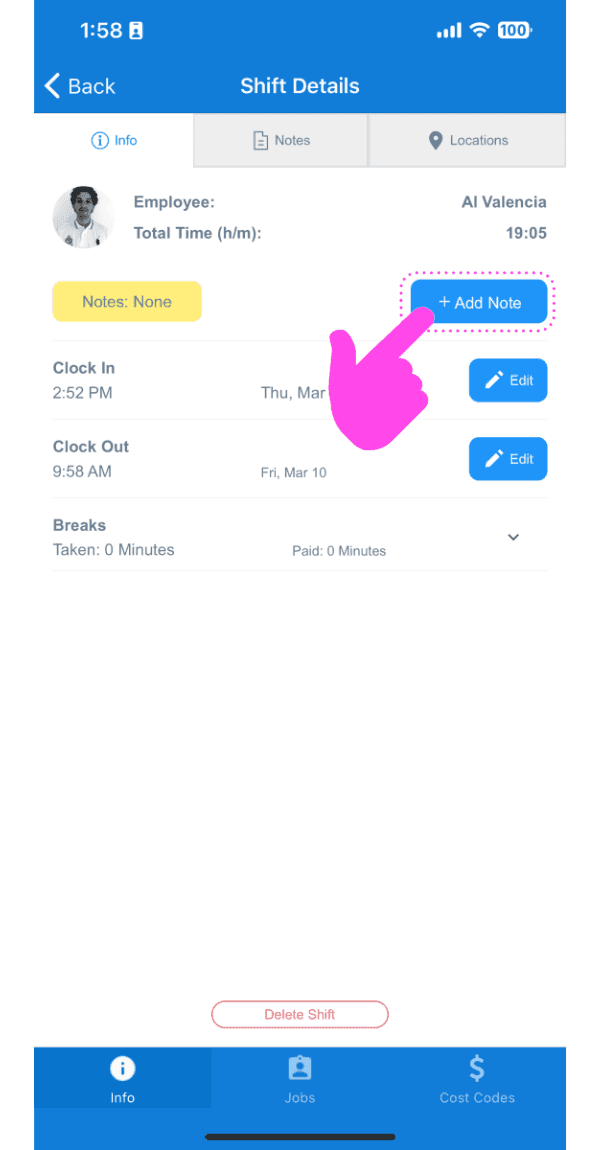
Shift Details Info tab with a pink arrow pointing to the Add Note button

Geben Sie eine Beschreibung der Notiz ein.
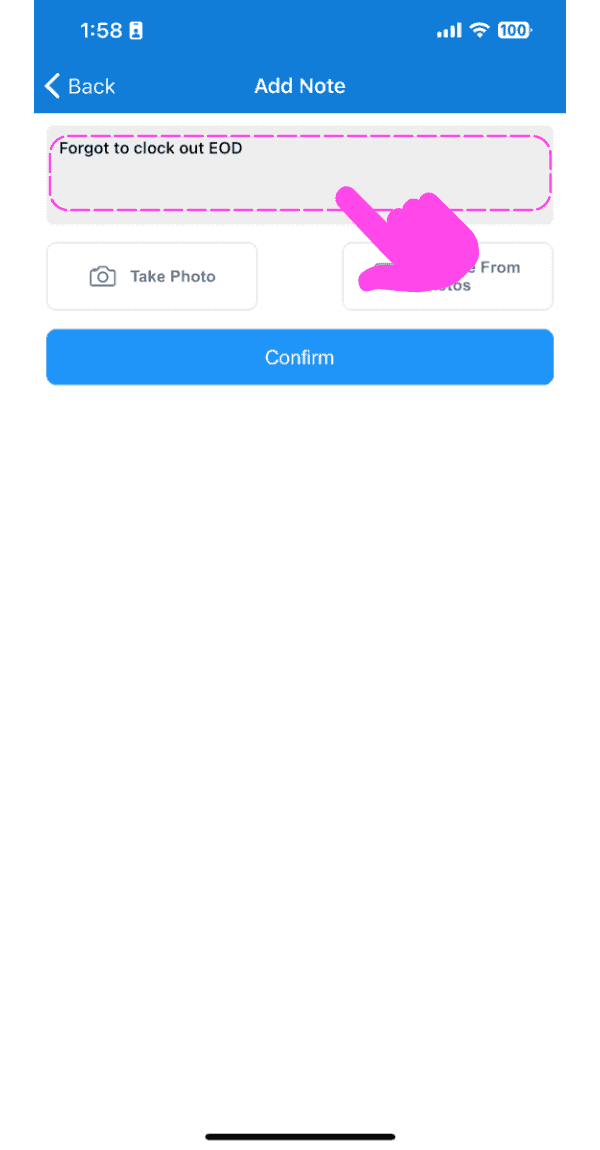
SINC mobile Add Note screen for a time sheet with a description entered and the Confirm button below

Laden Sie optional ein Bild hoch, das sich auf die Notiz bezieht.
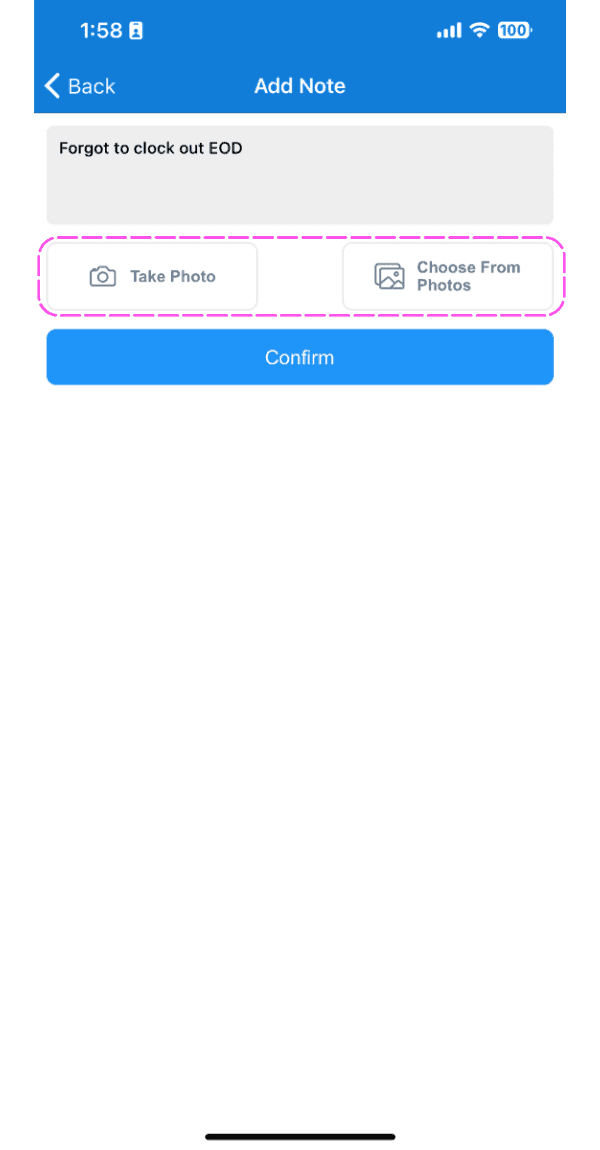
Mobile Add Note screen for a timesheet note with photo upload options outlined in pink

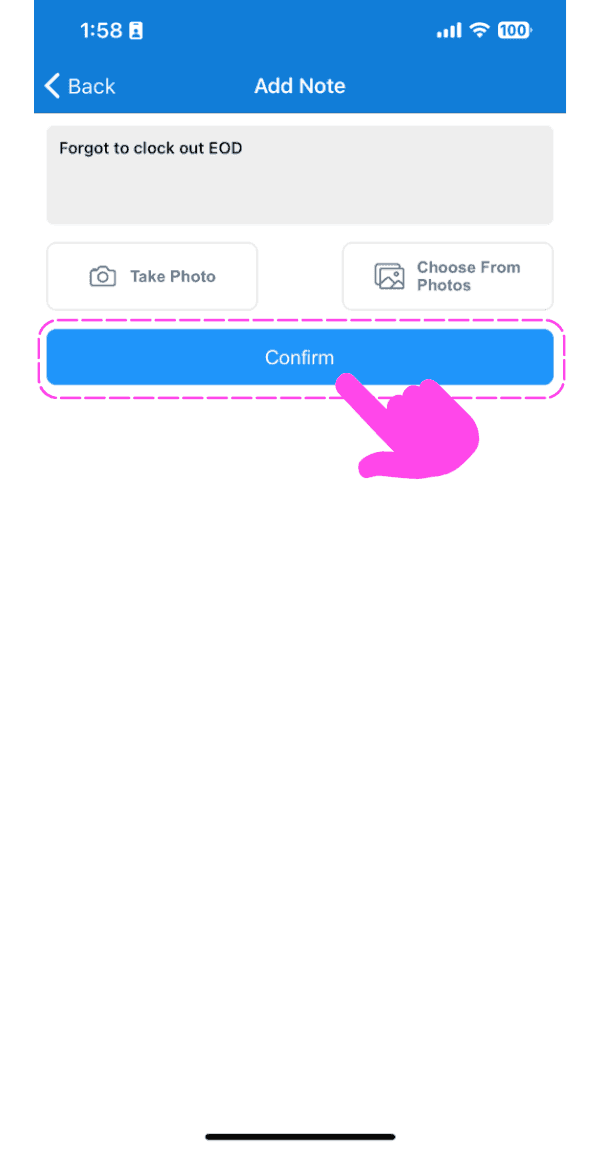
Tippe auf Bestätigen

SINC mobile Add Note screen with typed note text and a pink hand pointing to the Confirm button

Im Web: Um einer offenen Schicht eine Notiz hinzuzufügen, klicken Sie auf Notiz hinzufügen
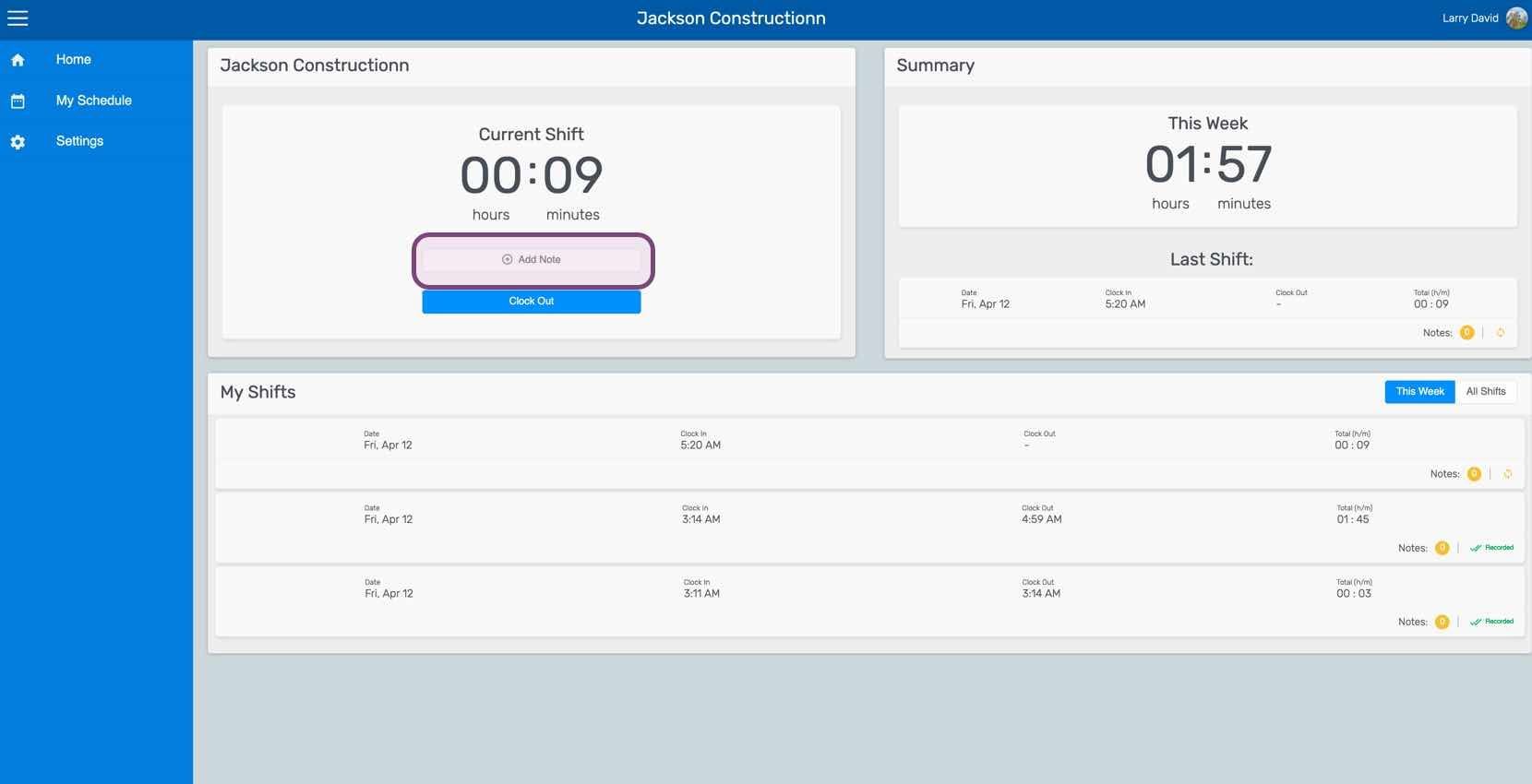
Web dashboard Current Shift panel with the Add Note button highlighted

Geben Sie eine Beschreibung der Notiz ein.
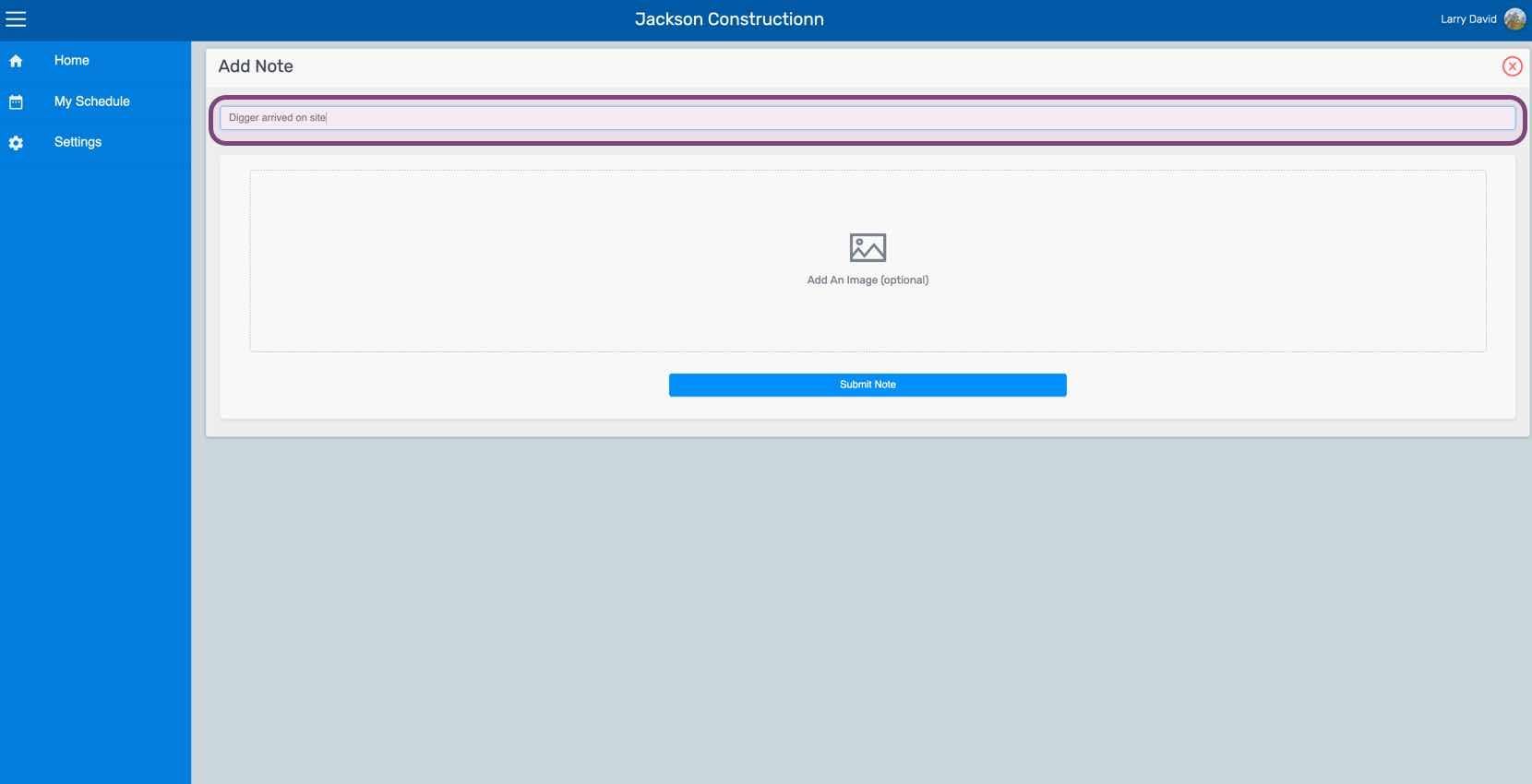
Web Add Note screen with the note text field outlined in purple and an optional image upload area

Laden Sie bei Bedarf ein Bild hoch, das sich auf die Notiz bezieht.
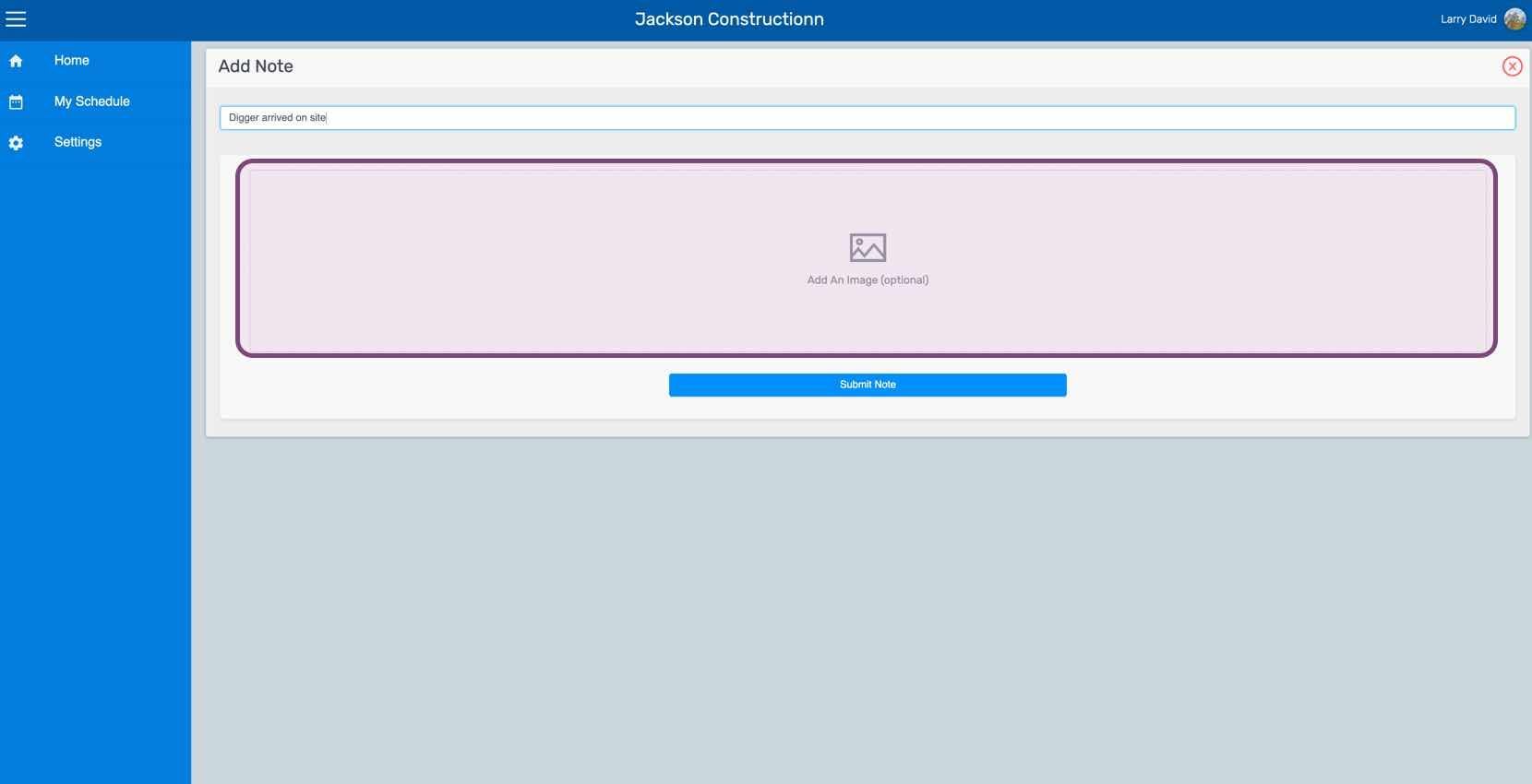
SINC web Add Note screen with the note text field and image upload area outlined

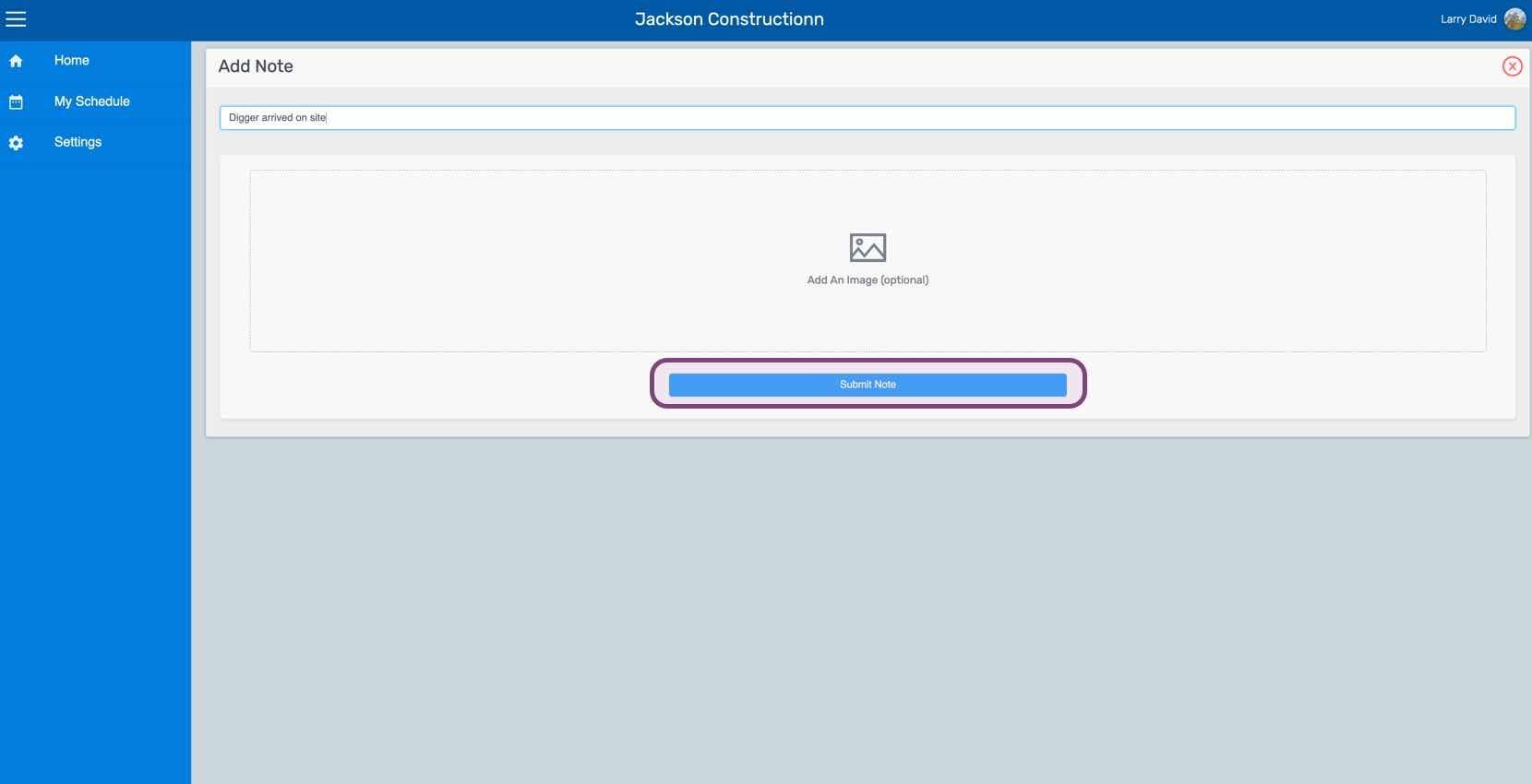
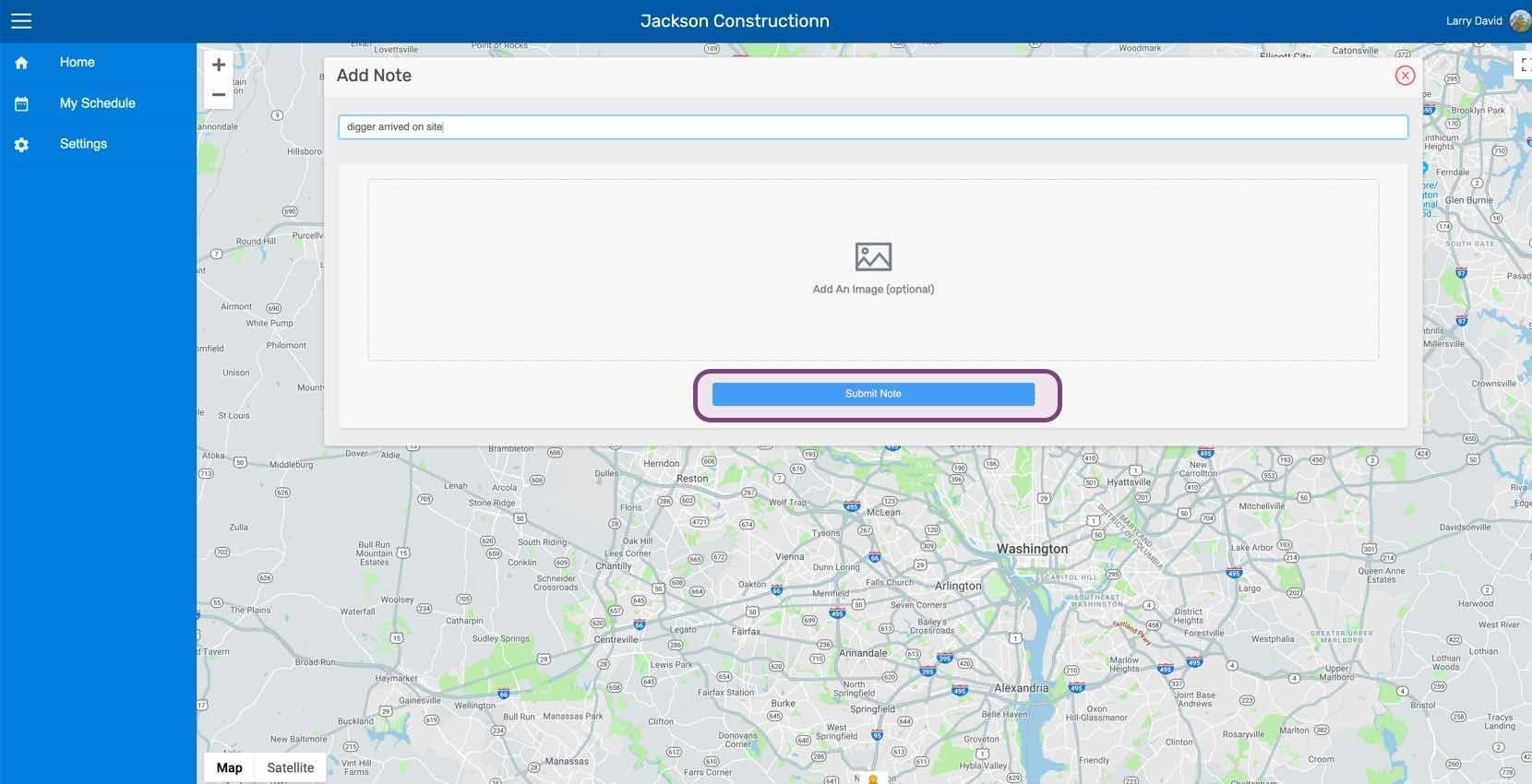
Klicken Sie auf Notiz absenden

SINC web Add Note screen with the Submit Note button circled in pink

Um eine Notiz zu einer vergangenen Schicht hinzuzufügen: Klicke auf Meine Schichten
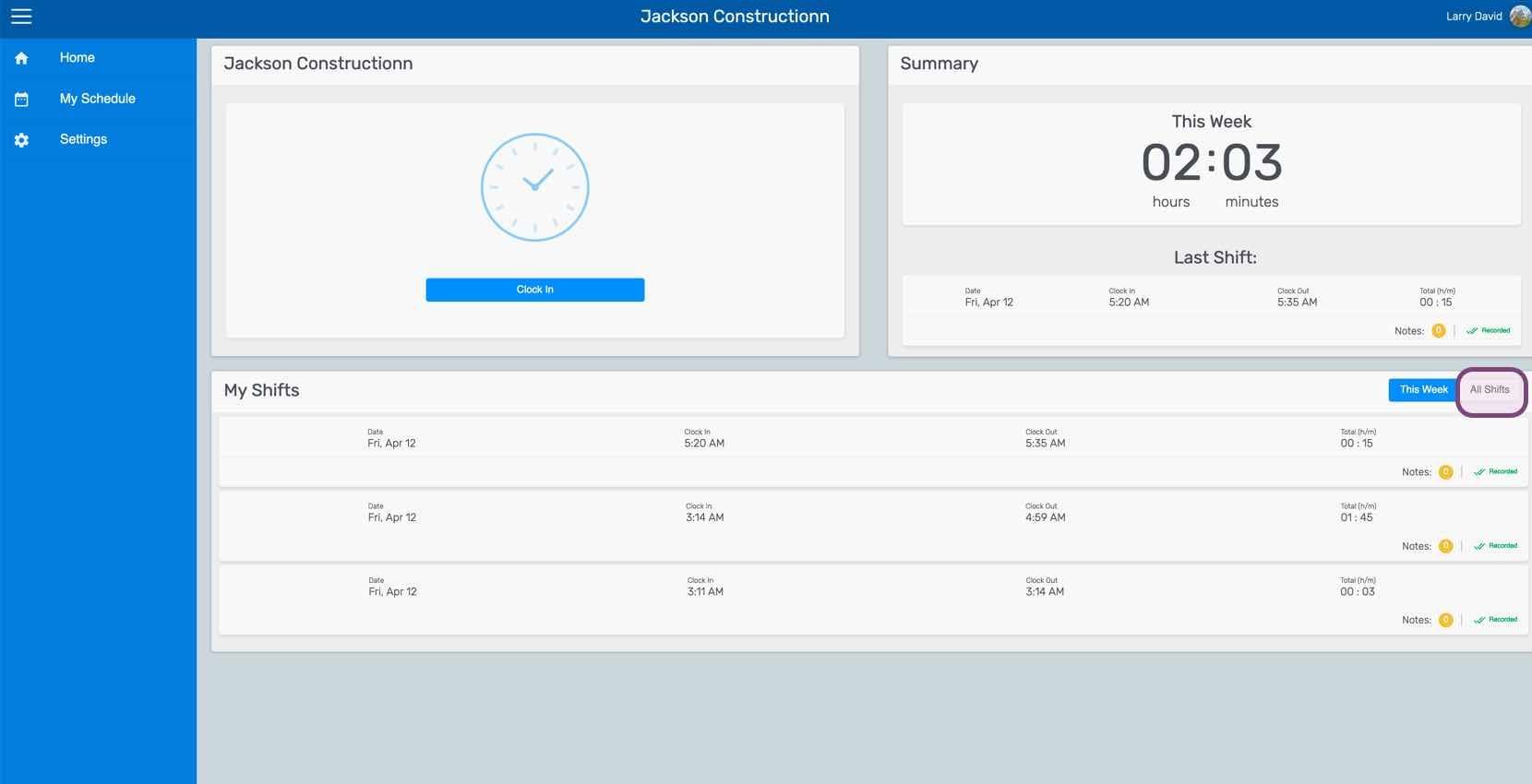
Employee home dashboard showing the Clock In button, weekly summary, and My Shifts list with This Week tab circled

Klicken Sie auf Die fragliche Schicht
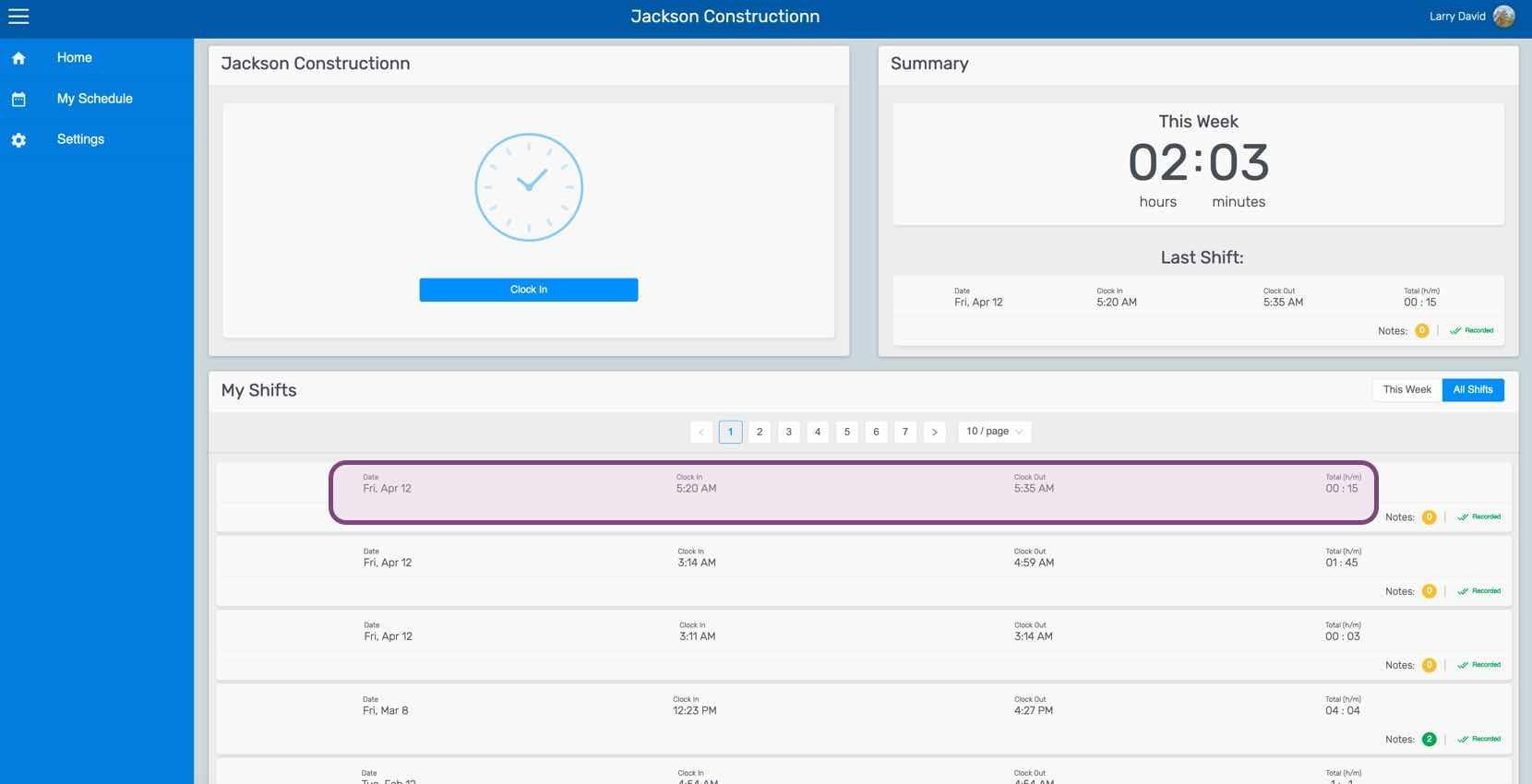
SINC web My Shifts list with a specific shift row circled in pink

Klicken Sie im Tab Schicht auf Notiz hinzufügen.
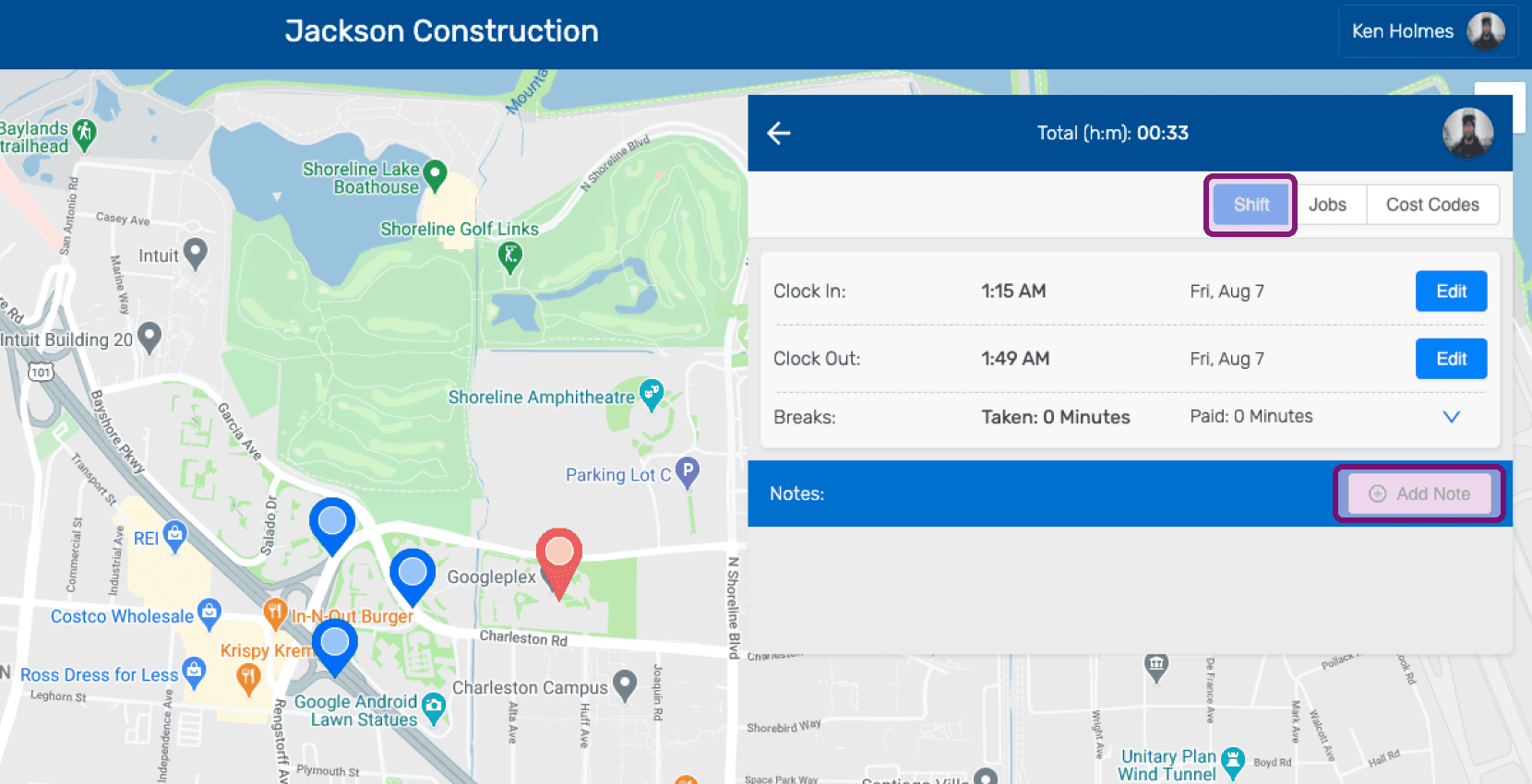
Shift details screen with the Add Note button outlined in pink

Geben Sie eine Beschreibung der Notiz ein.
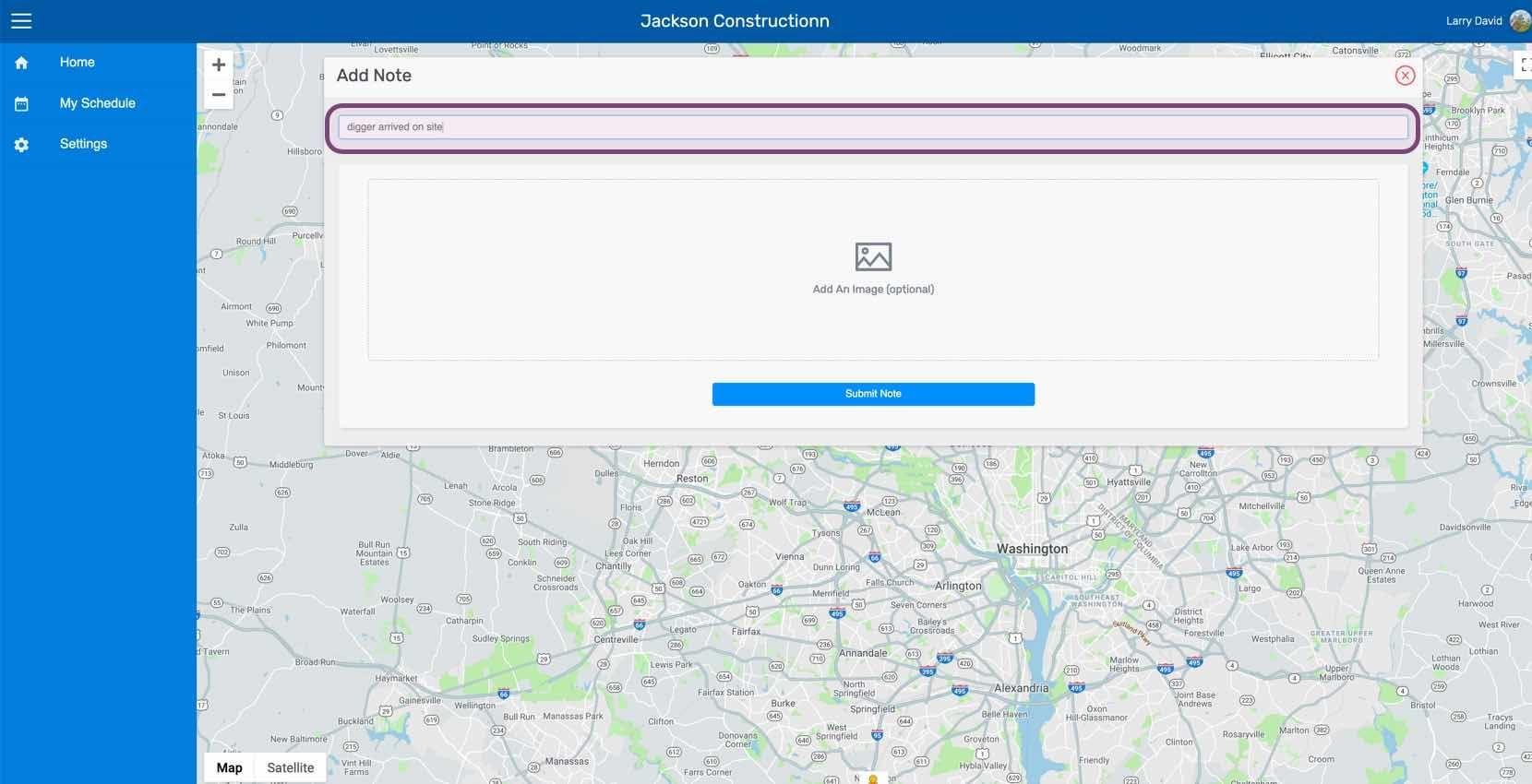
Web Add Note form with the description text field circled and an optional Add An Image area below

Laden Sie bei Bedarf ein Bild hoch, das sich auf die Notiz bezieht.
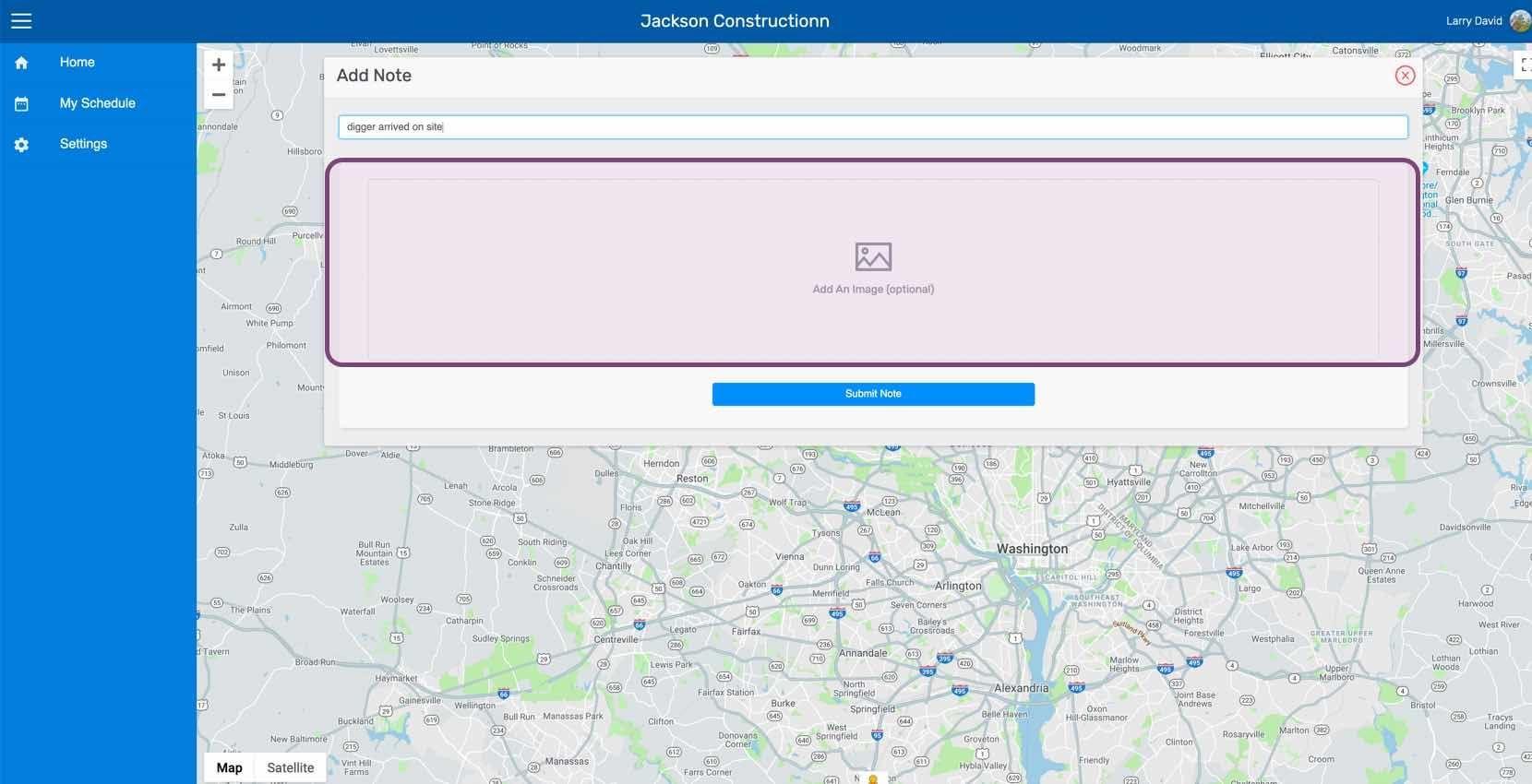
SINC web Add Note screen with the image upload area highlighted above a location map

Klicke auf Notiz absenden

Web Add Note screen with a map background and the Submit Note button outlined in pink

Hat das Ihre Frage beantwortet?