So bearbeitest du dein Profilbild

In dieser Anleitung erfahren Sie, wie Sie als Mitarbeiter Ihr Profilbild bearbeiten oder hochladen.

SINC Support Team
SINC Support Team
Mar 14th, 2023

Auf dem Mobilgerät: Tippe auf Menü Einstellungen
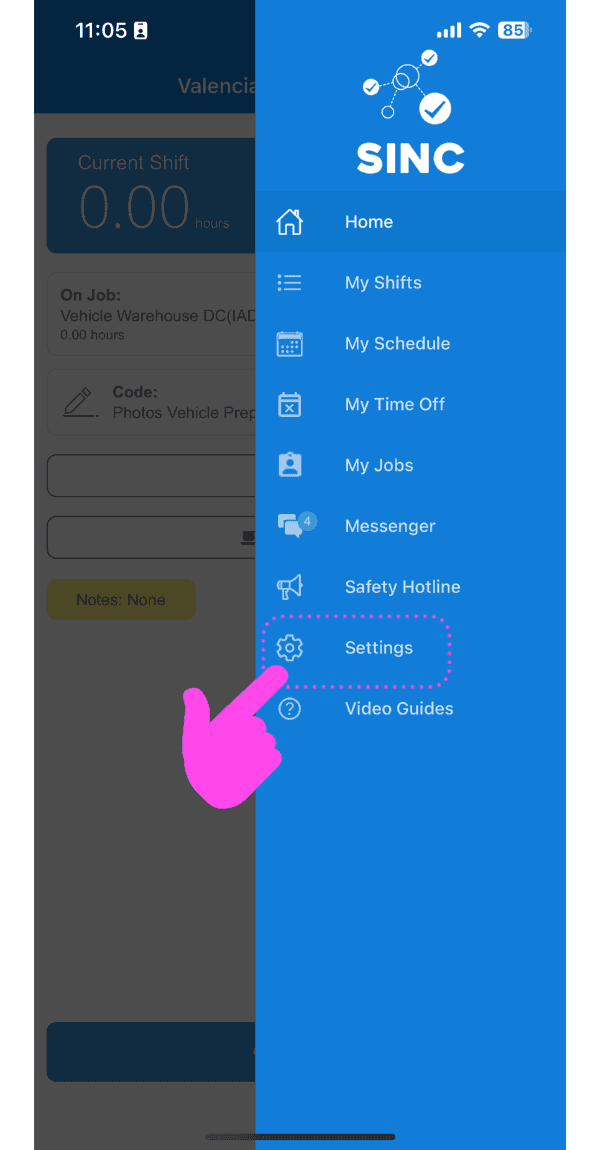
SINC mobile app side menu with a pink hand pointing to the Settings menu item

Tippe unter „Profil Info“ oben rechts auf das Kamerasymbol.
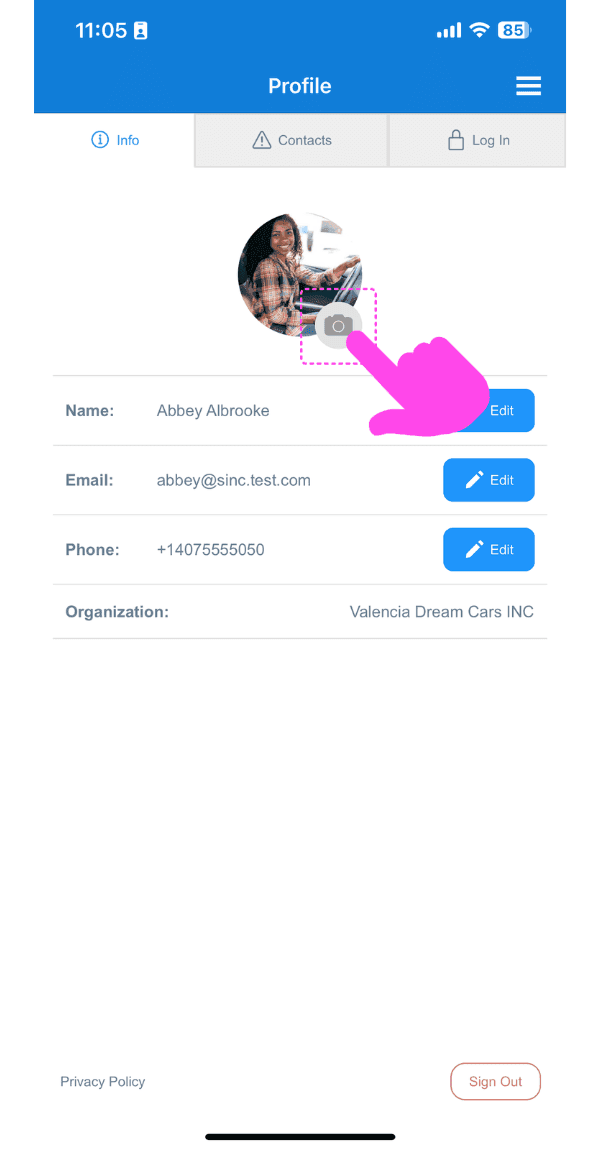
Profile Info screen with the camera icon on the profile photo highlighted by a pink arrow

Tippe auf Foto hochladen

Profile Picture screen showing an uploaded photo with edit and delete icons highlighted by a pink arrow

Tippen Sie auf Berechtigung erteilen und gestatten Sie SINC den Zugriff auf Ihre Fotos, falls Sie dazu aufgefordert werden. Wählen Sie anschließend das hochzuladende Bild aus.
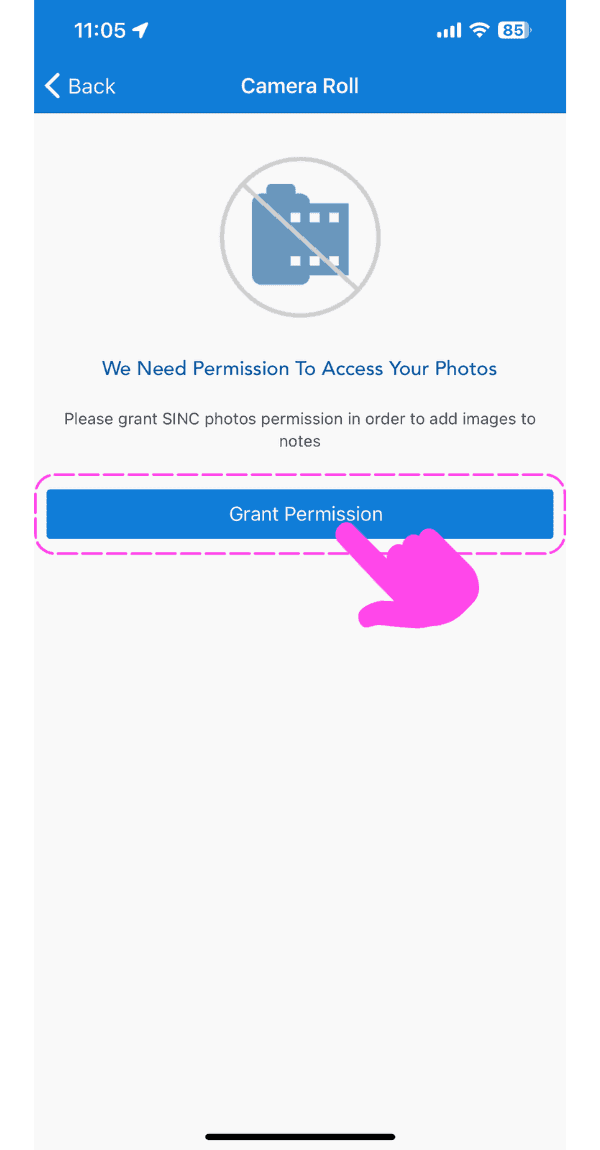
SINC mobile photo access permission screen with a pink hand pointing to the Grant Permission button

Zurück zur Registerkarte Profile: Tippe oben links auf den Pfeil nach links.

Profile Picture screen showing an uploaded photo with the Back button highlighted by a pink arrow

Um das hochgeladene Bild zu bearbeiten: Klicken Sie auf das Kamerasymbol.
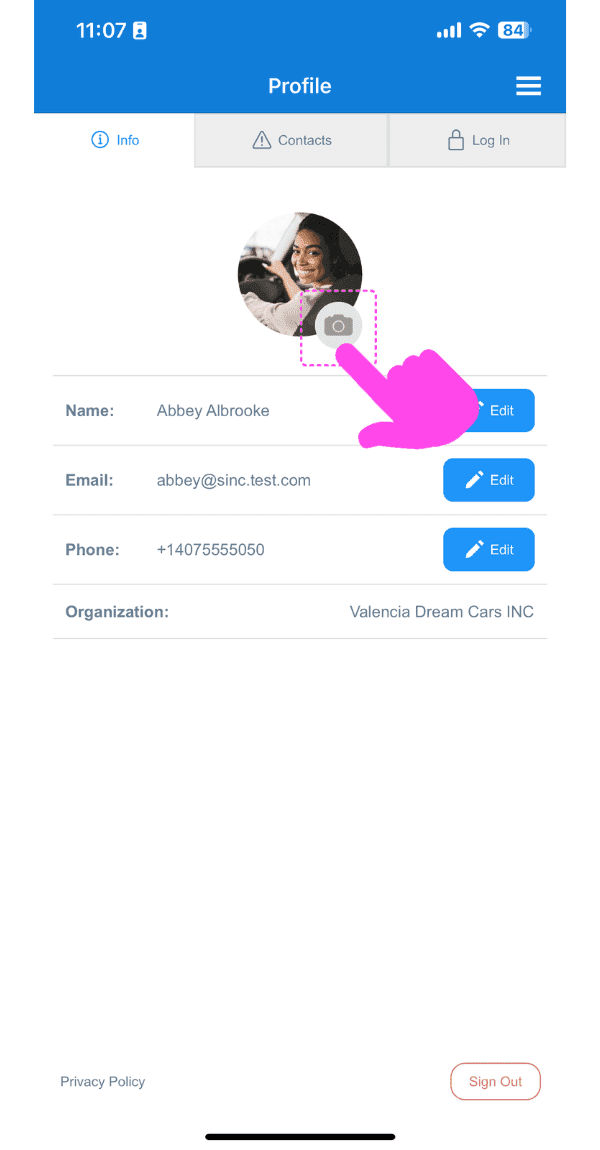
SINC mobile Profile screen with a pink arrow pointing to the camera icon on the profile photo

Um dein hochgeladenes Foto zu ändern, tippe auf Foto ändern.

Profile Picture screen with a pink arrow pointing to the edit icon on the profile photo, next to the delete icon

Um dein hochgeladenes Foto zu löschen, tippe auf Foto löschen.

SINC mobile Profile Picture screen with a pink arrow pointing to the delete photo icon on the avatar

Im Web: Navigiere zu Menü Einstellungen
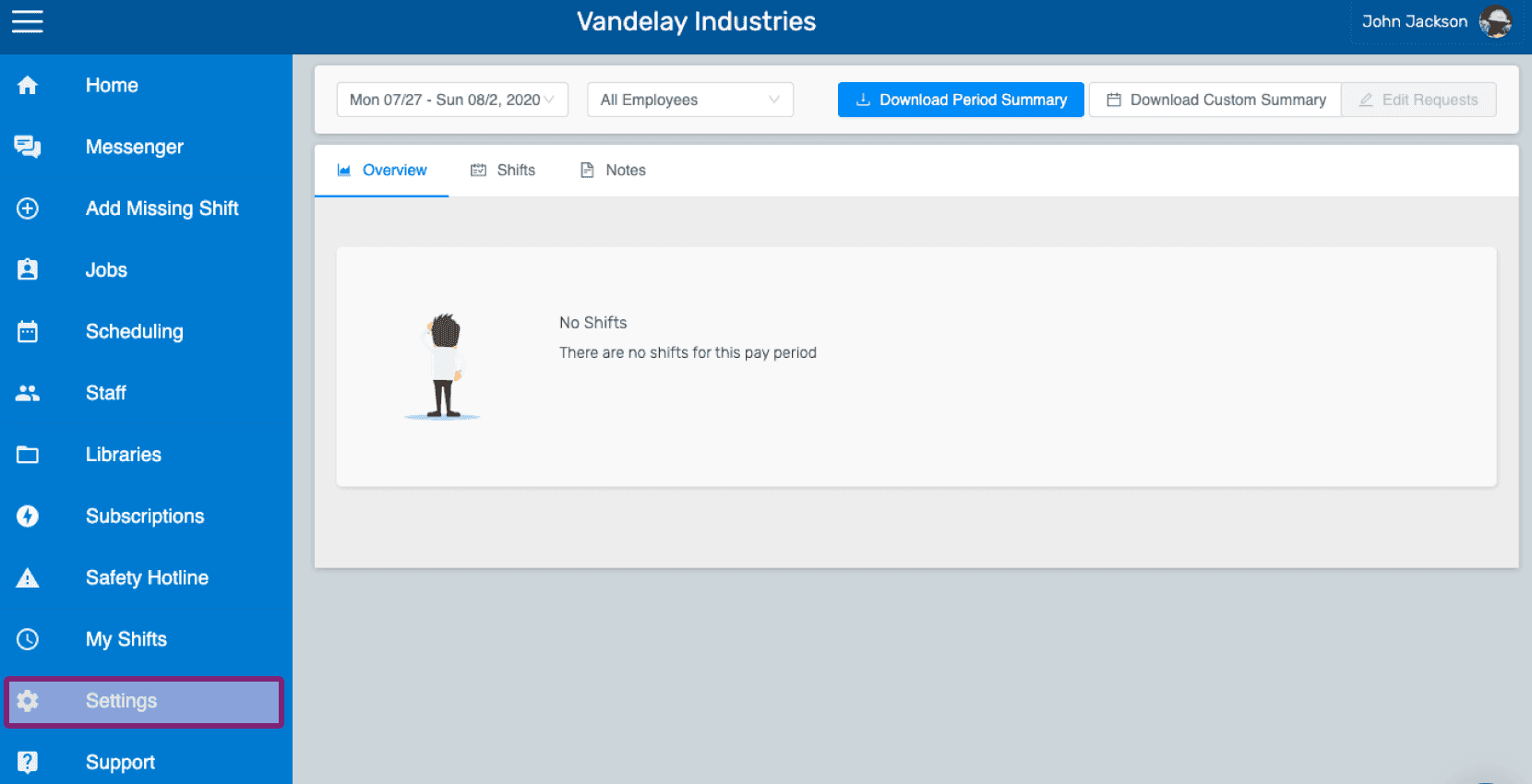
Web employee dashboard with the Settings icon highlighted in the left side menu

Tippen Sie im Profil-Tab auf das Kamerasymbol.
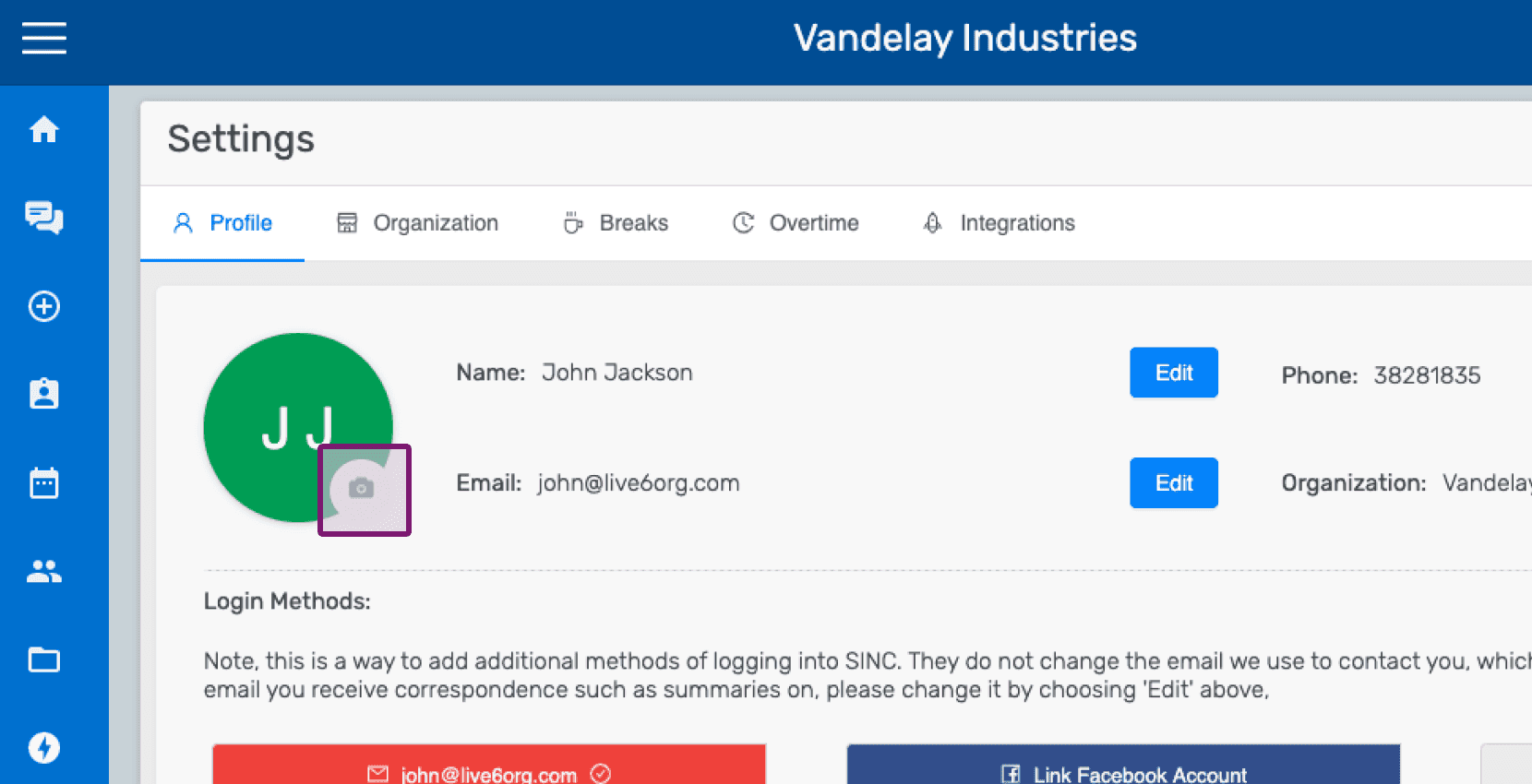
SINC web Settings Profile tab with the camera icon circled on the profile picture

Klicken Sie auf Foto auswählen und wählen Sie das Foto aus, das hochgeladen werden soll.
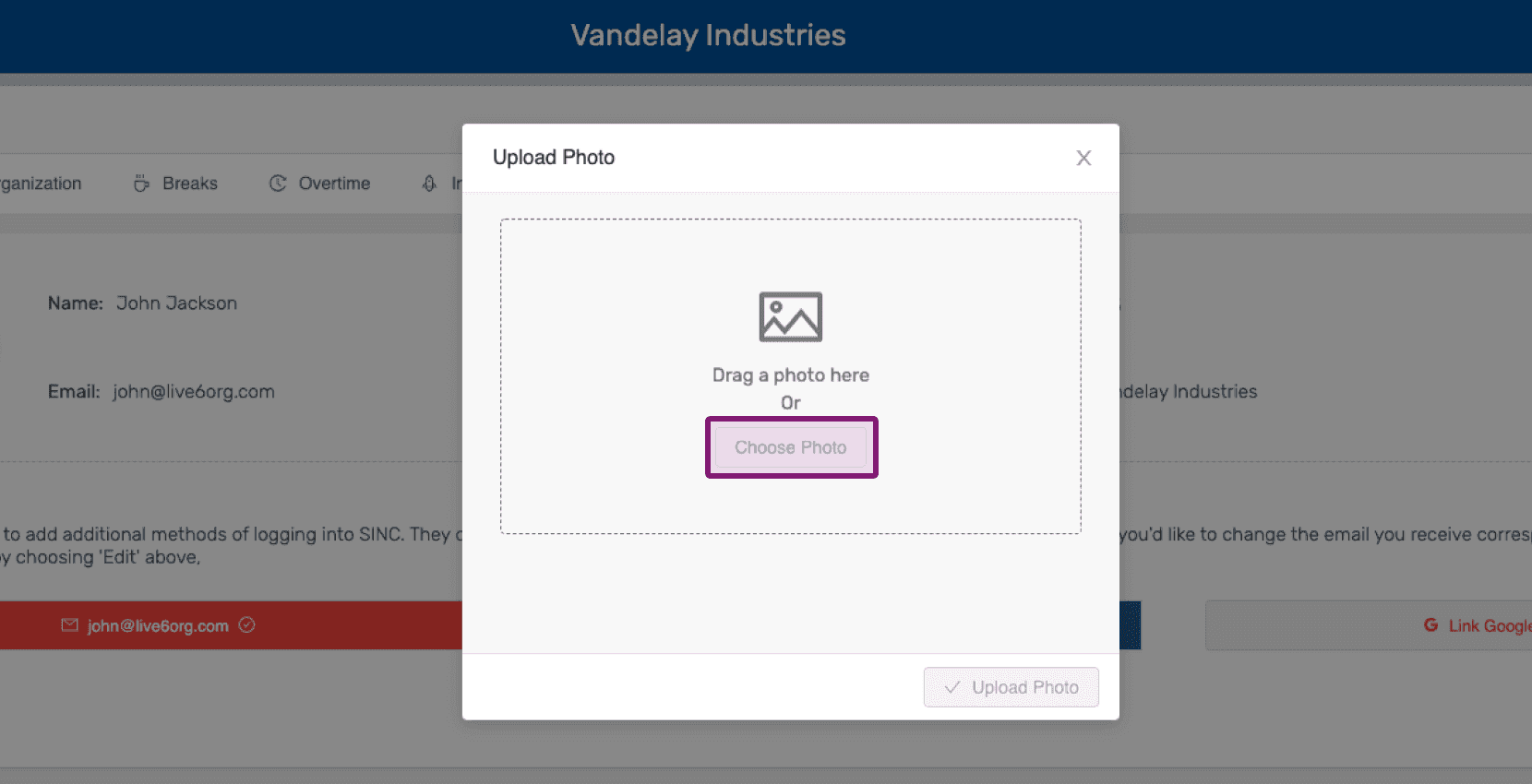
Upload Photo popup with the Choose Photo button highlighted

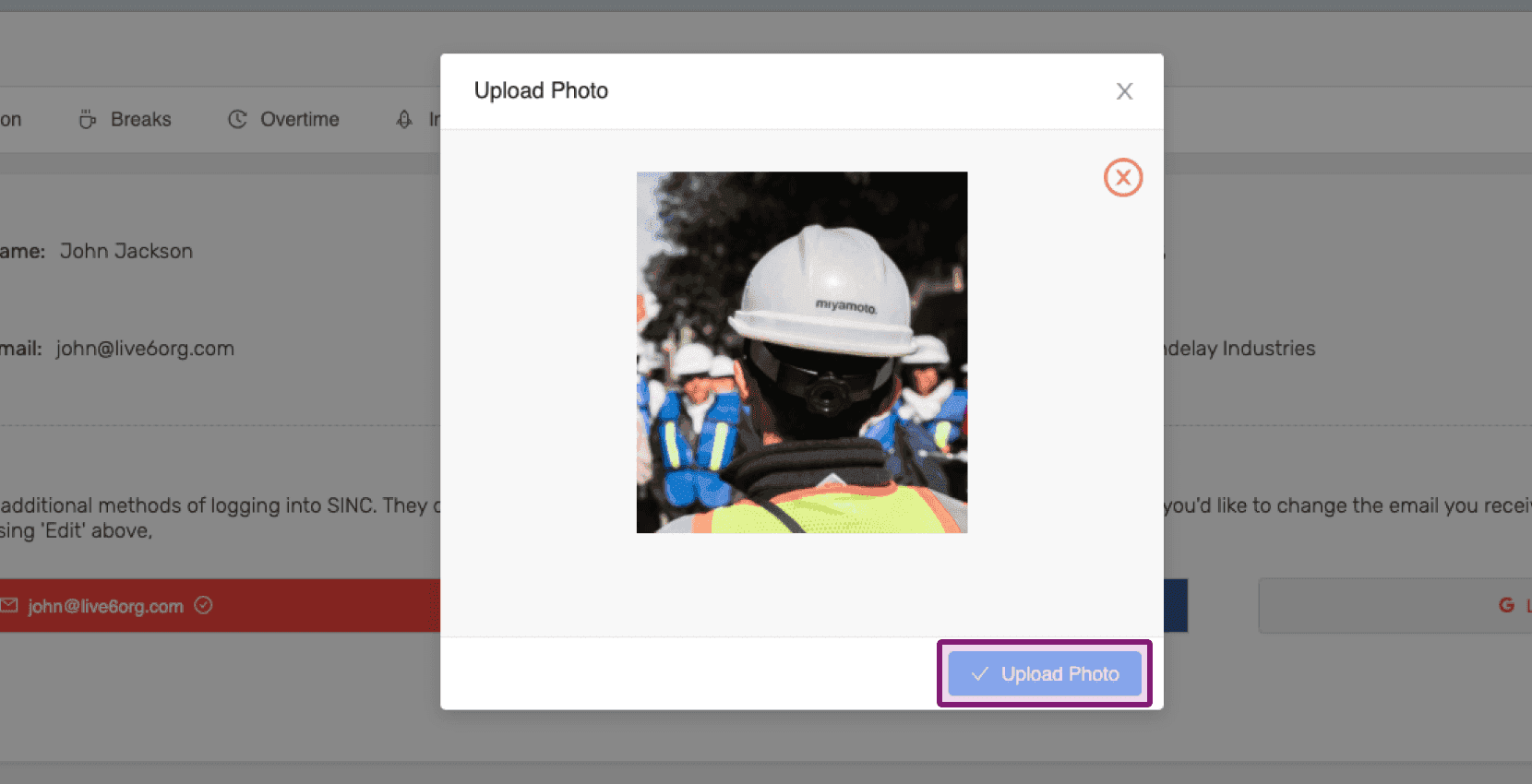
Klicken Sie auf Foto hochladen.

Web Upload Photo popup showing a preview image with the Upload Photo button outlined in purple

Um das hochgeladene Bild zu bearbeiten, klicken Sie auf das Kamerasymbol.
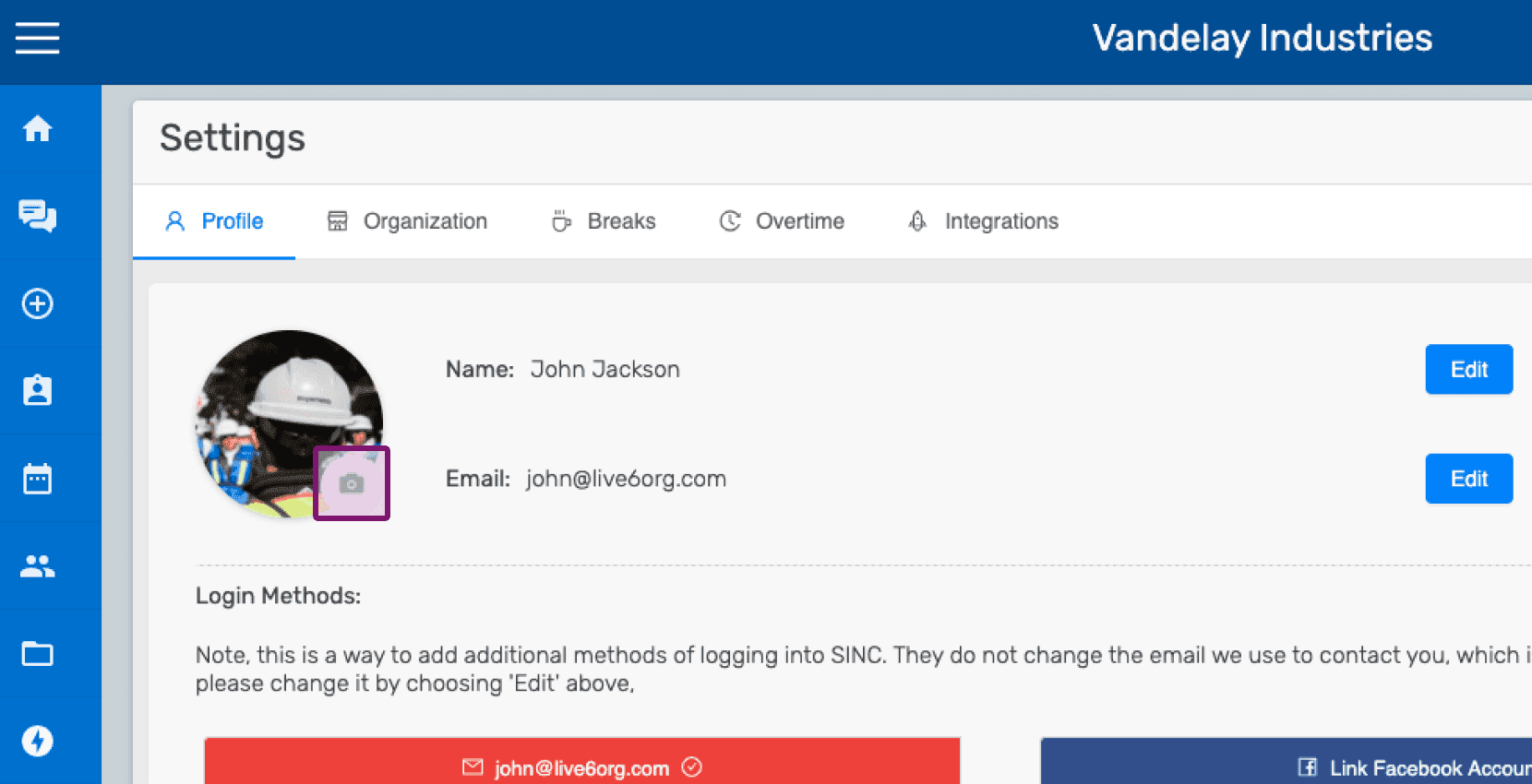
SINC web Settings Profile screen with the camera icon outlined for uploading a profile picture

Um Ihr hochgeladenes Bild zu ändern, klicken Sie unten rechts auf dem Profilbild auf das Ändern-Symbol.
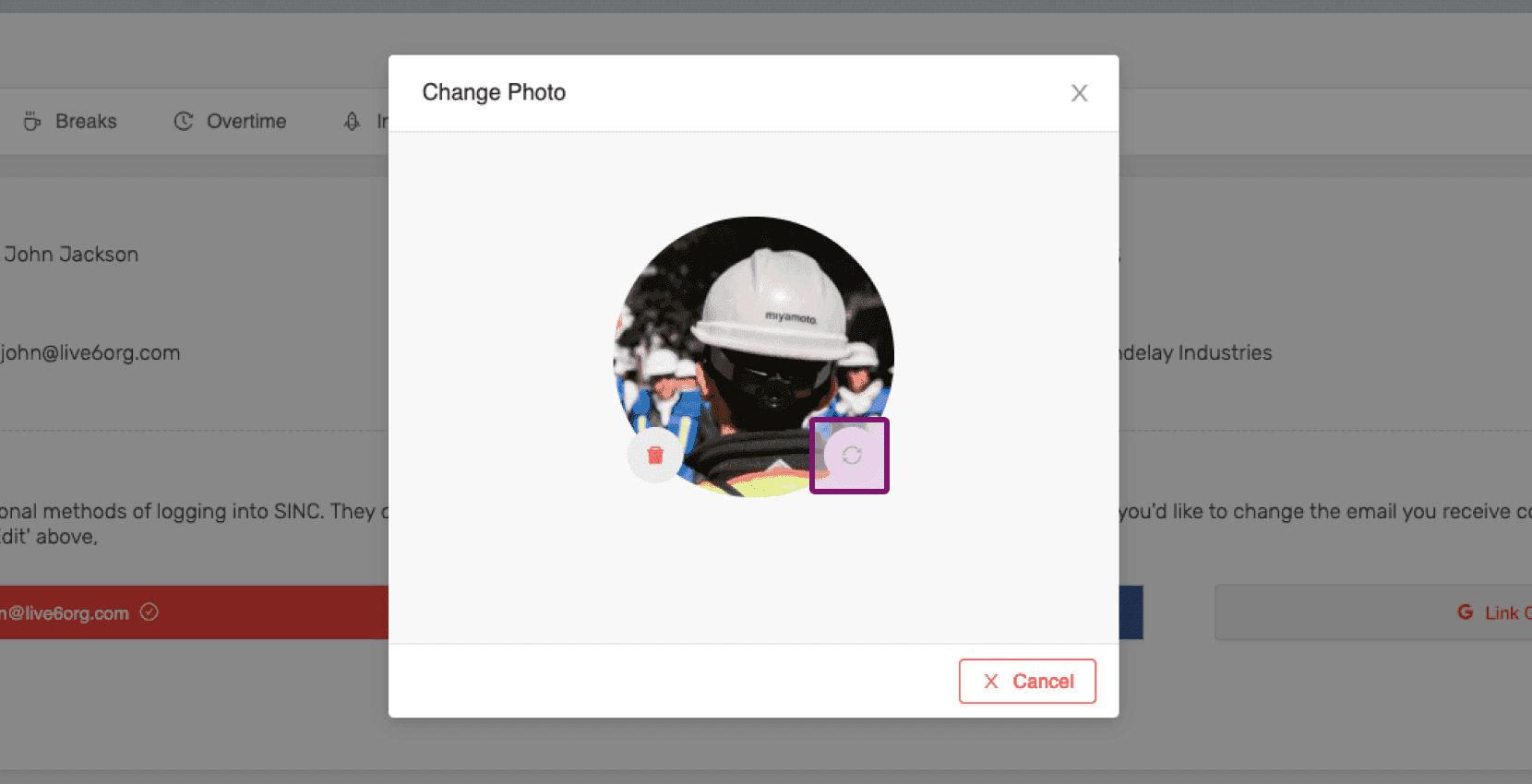
SINC web Change Photo dialog with the picture change icon on the profile photo circled in purple

Um dein hochgeladenes Bild zu löschen, klicke unten links auf das Löschsymbol des Profilbilds.
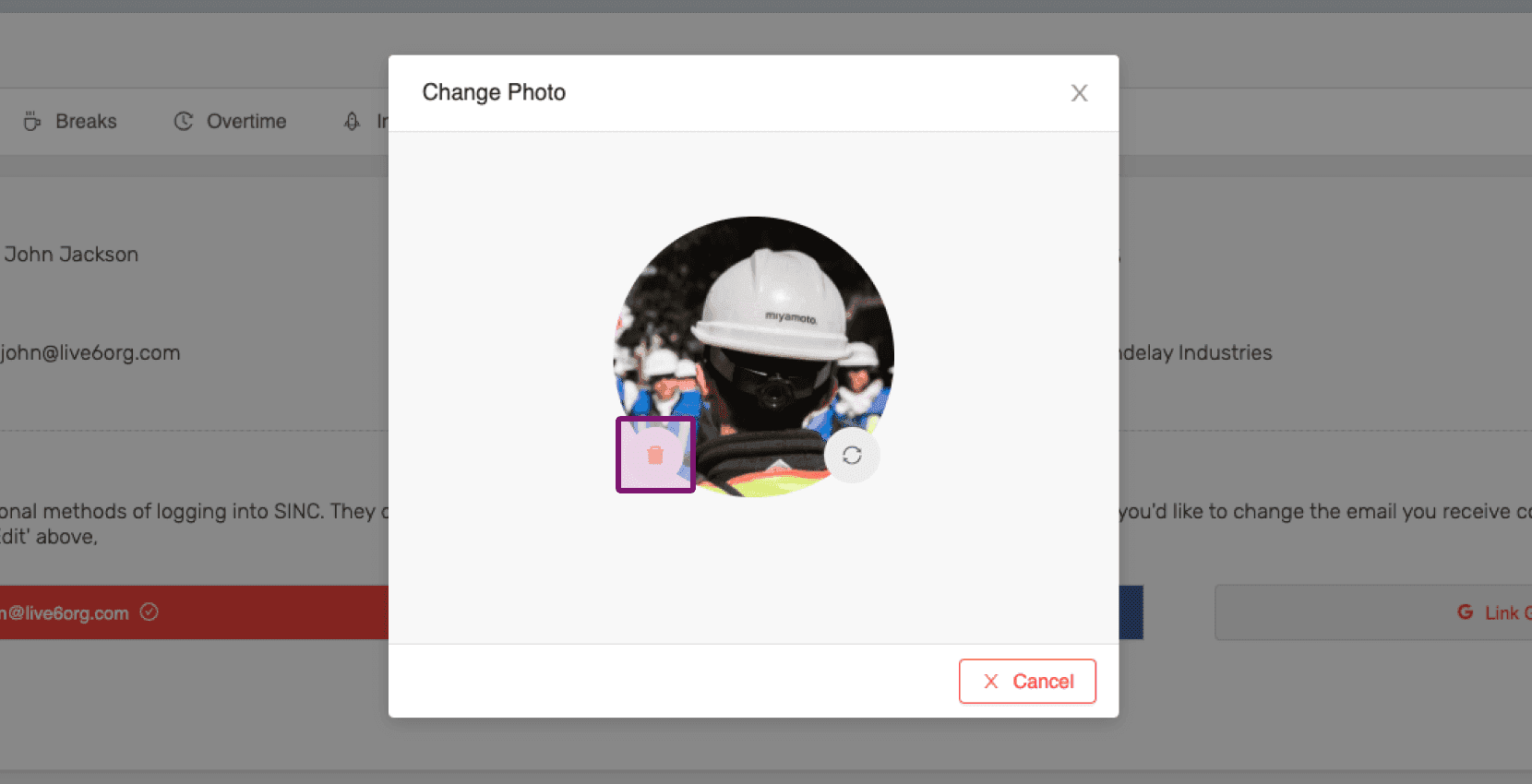
Change Photo dialog with the delete icon on the profile picture outlined in pink

Hat das Ihre Frage beantwortet?