Änderung eines Stundenzettels beantragen

In diesem Leitfaden erfahren Sie, wie Sie als Mitarbeiter Änderungen an Ihren Schichten beantragen können.

Sam Dolbel
Sam Dolbel
May 26th, 2023

Auf dem Smartphone: Tippe auf Menü Meine Schichten
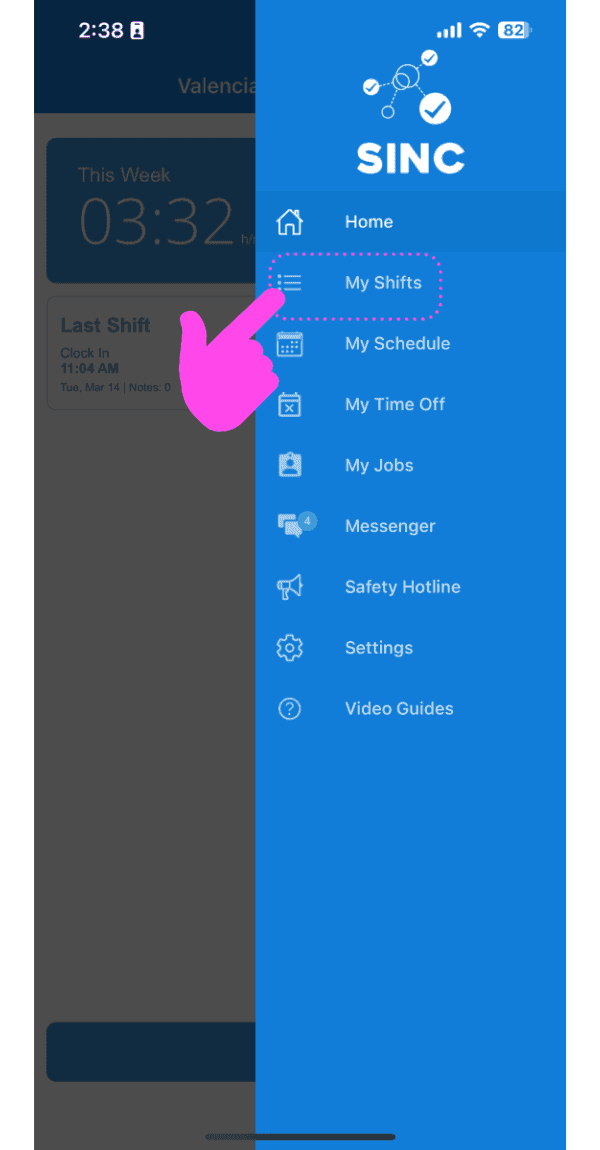
SINC mobile app side menu with a pink hand pointing to the My Shifts menu item

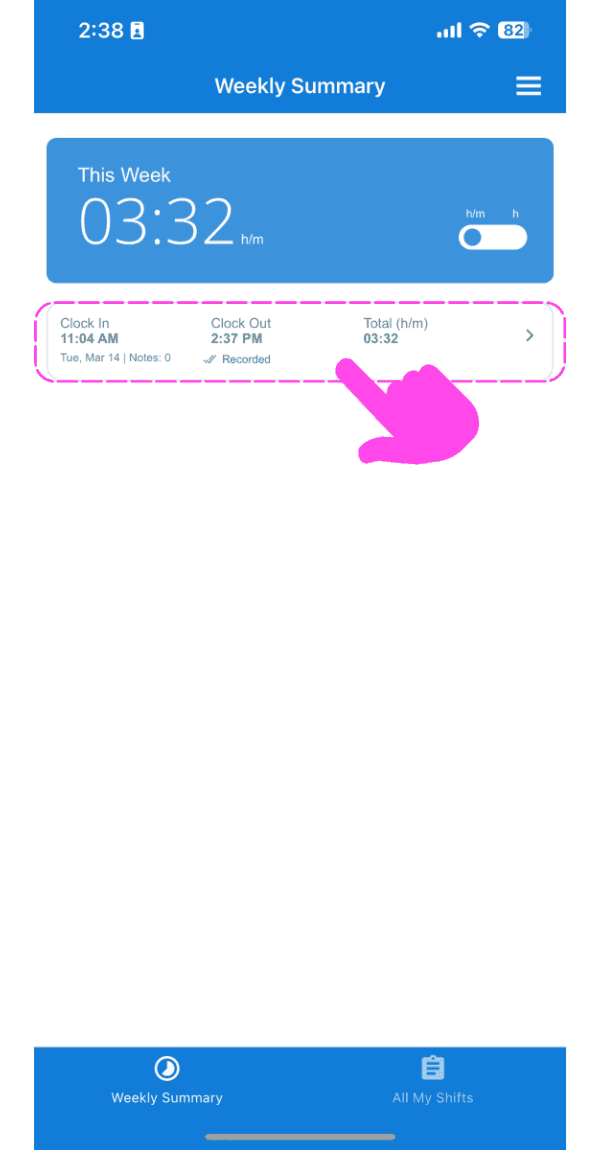
Tippe auf Die Frage nach dem Wandel

Weekly Summary screen with a clock-in/clock-out shift entry outlined in pink

Unter dem Tab Info auf Bearbeiten tippen (neben der Uhrzeit für das Ein- oder Ausstempeln, die du bearbeiten möchtest)
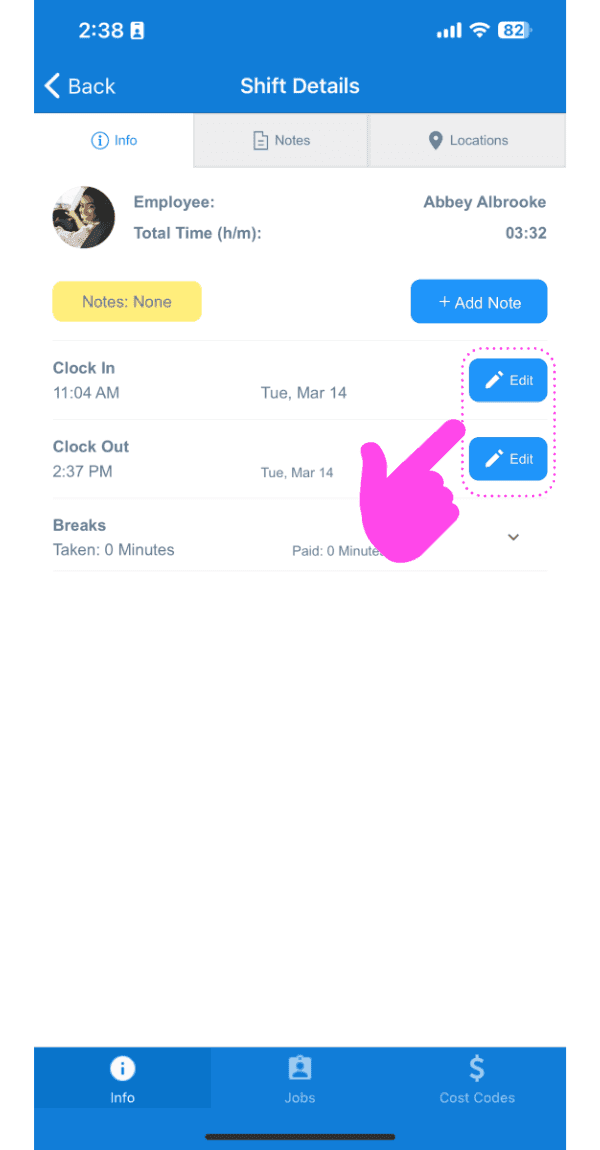
Shift Details screen showing Clock In and Clock Out times with their Edit buttons highlighted in pink

Geben Sie einen Grund für die Änderungsanfrage an.
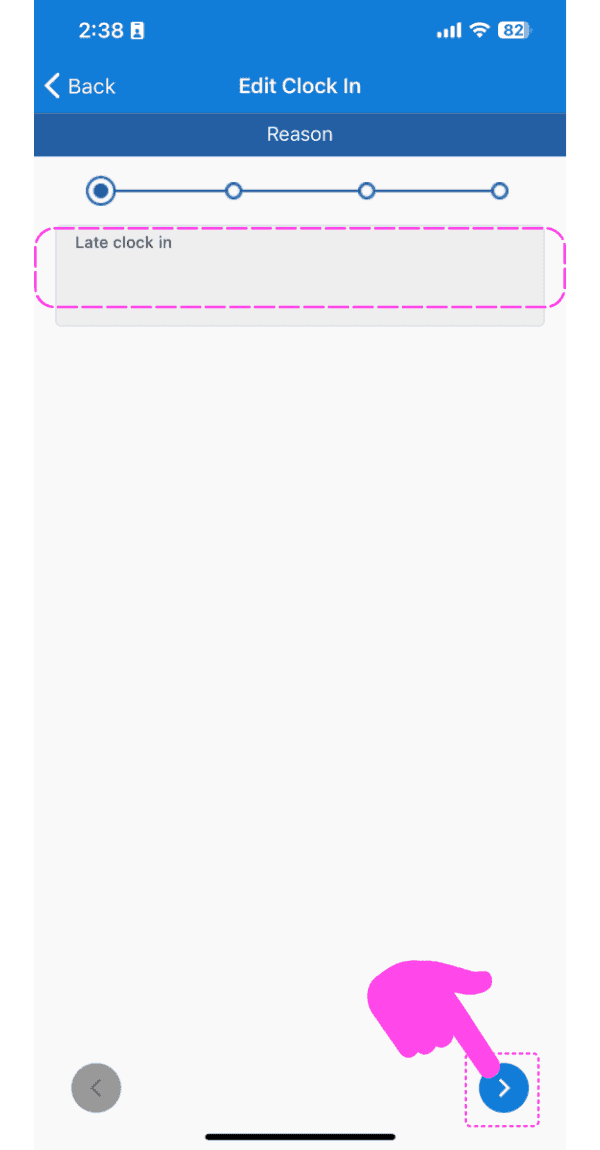
SINC mobile Edit Clock In reason screen with a pink hand pointing to the next arrow button

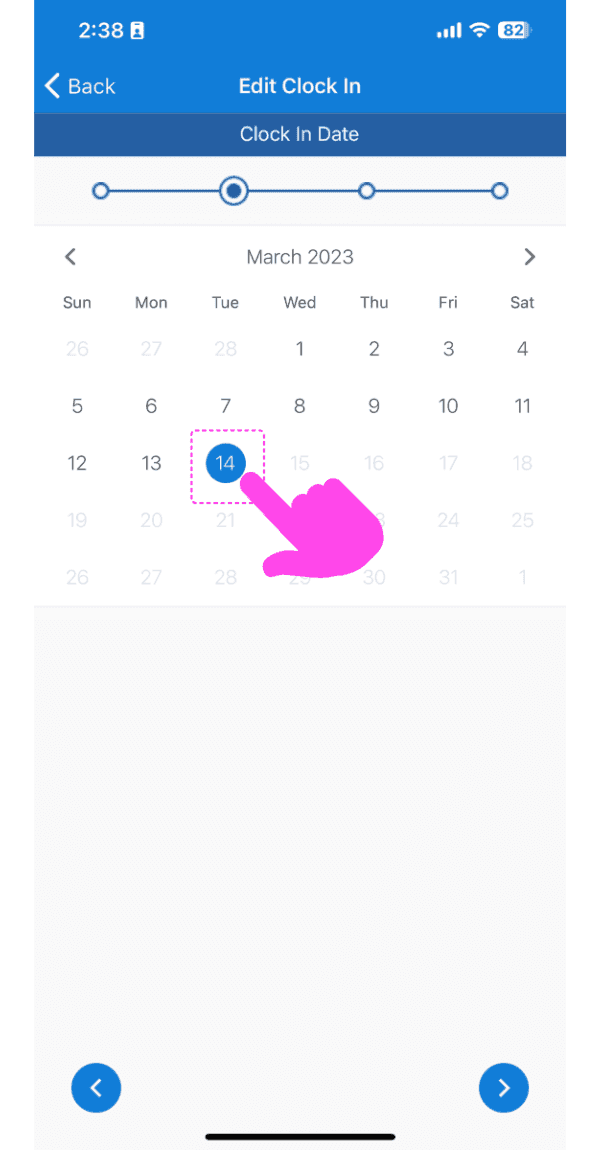
Wählen Sie das neue Datum aus.

Edit Clock In date picker calendar with March 14 selected and highlighted by a pink arrow

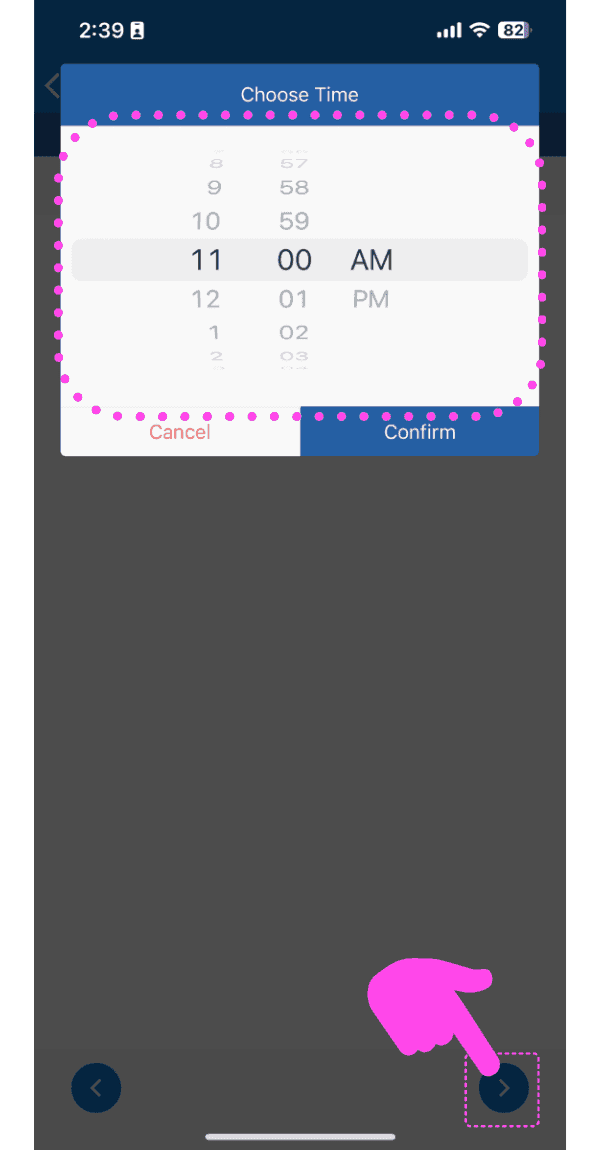
Wählen Sie die neue Uhrzeit aus.

SINC mobile time picker wheel set to 11:00 AM with the next-step arrow highlighted in pink

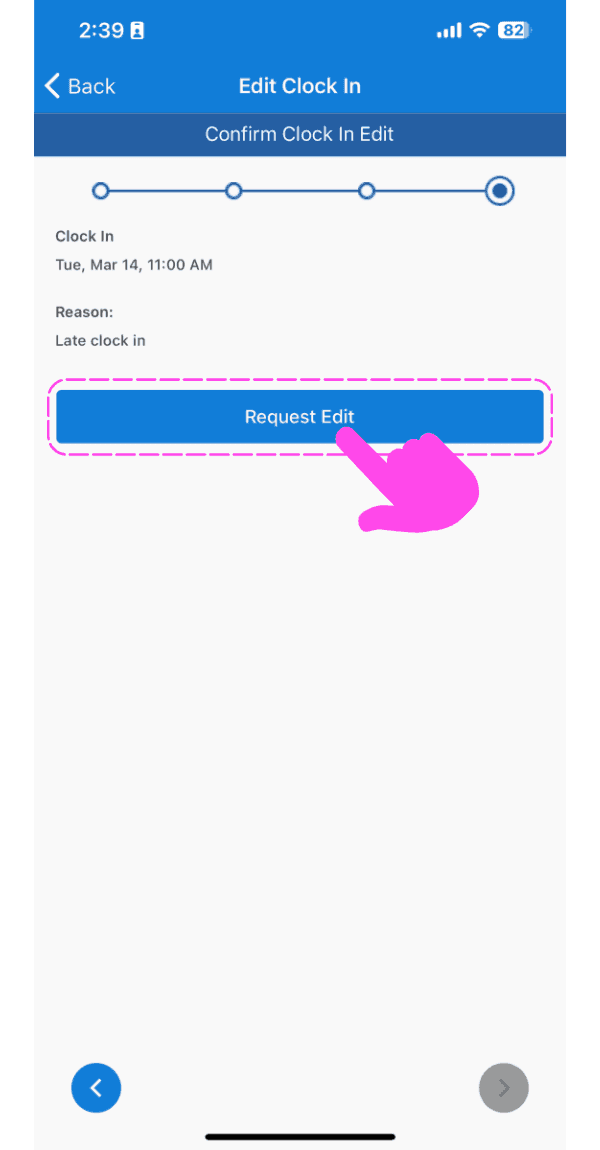
Auf Bearbeitung anfordern tippen

Confirm Clock In Edit screen with a pink arrow pointing to the Request Edit button

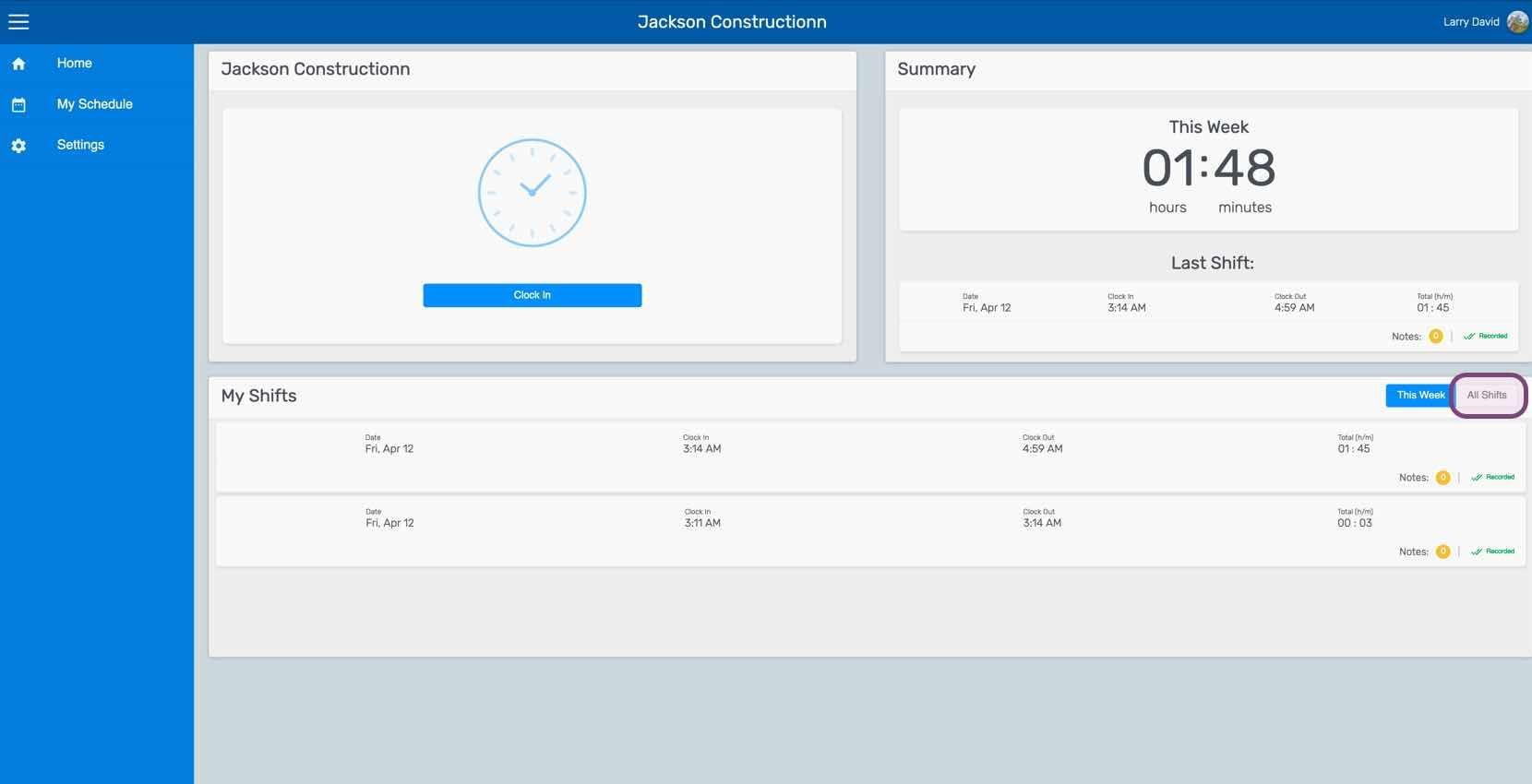
Im Web: Klicke auf Meine Schichten

SINC web dashboard with the All Shifts tab circled next to the My Shifts list

Klicken Sie auf Die betreffende Schicht
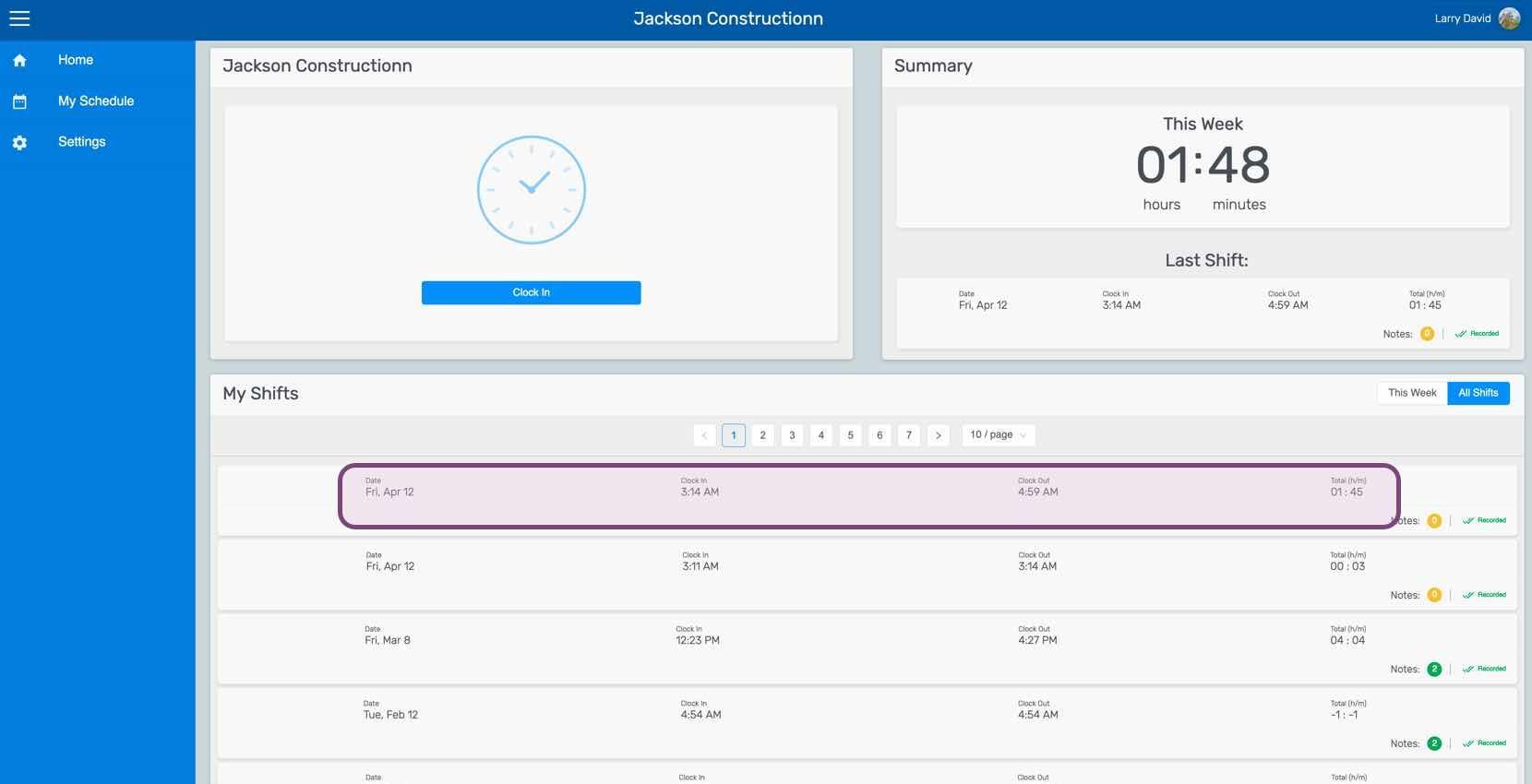
Web employee dashboard with a specific shift row in the My Shifts table outlined in pink

Klicken Sie im Tab Shift auf Bearbeiten (neben der Uhrzeit für das Ein- oder Ausstempeln, die Sie bearbeiten möchten).
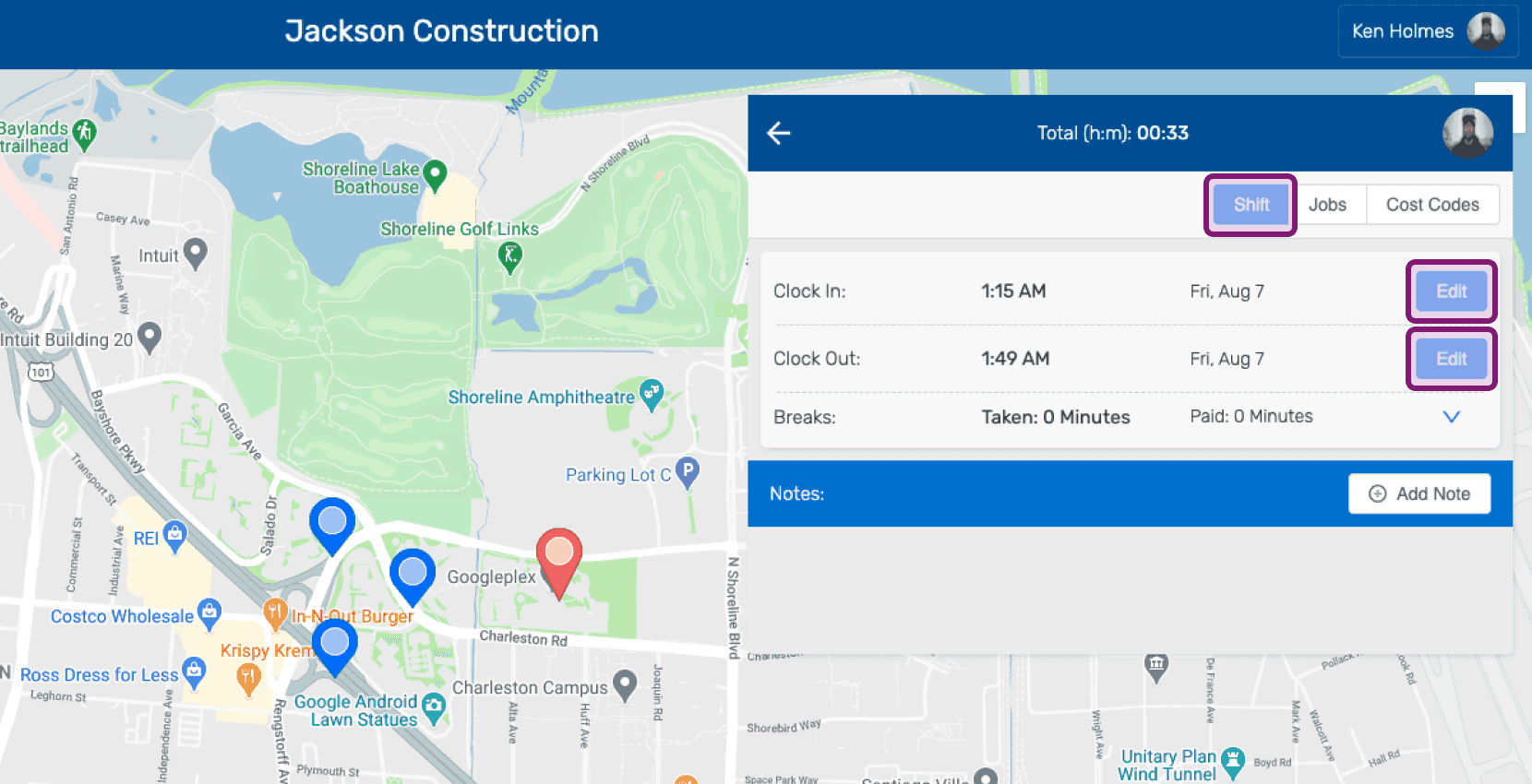
SINC web shift detail panel showing Clock In and Clock Out times with the Edit buttons circled

Geben Sie einen Grund für die Änderungsanfrage an.
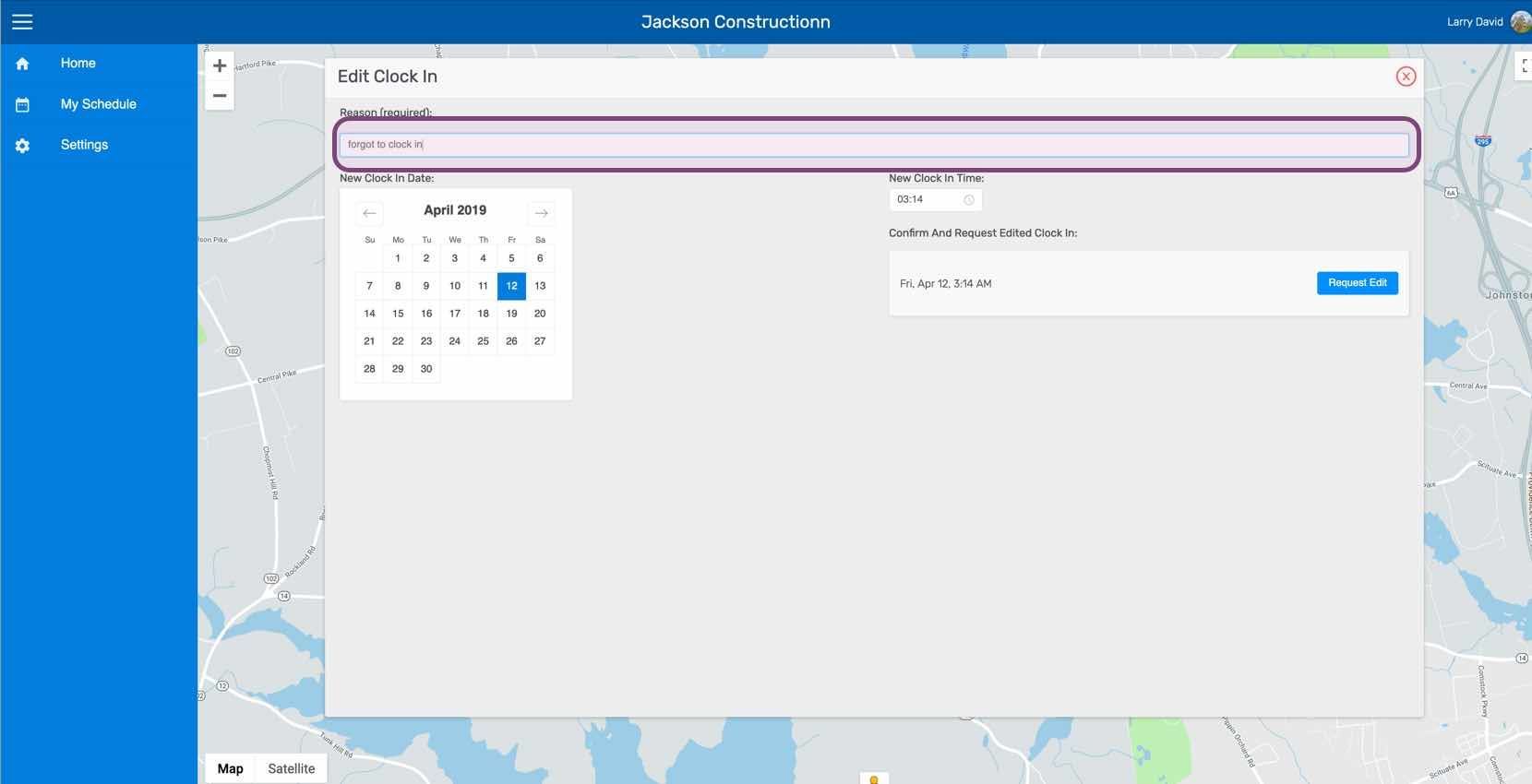
Edit Clock In screen with the reason text field highlighted above a map

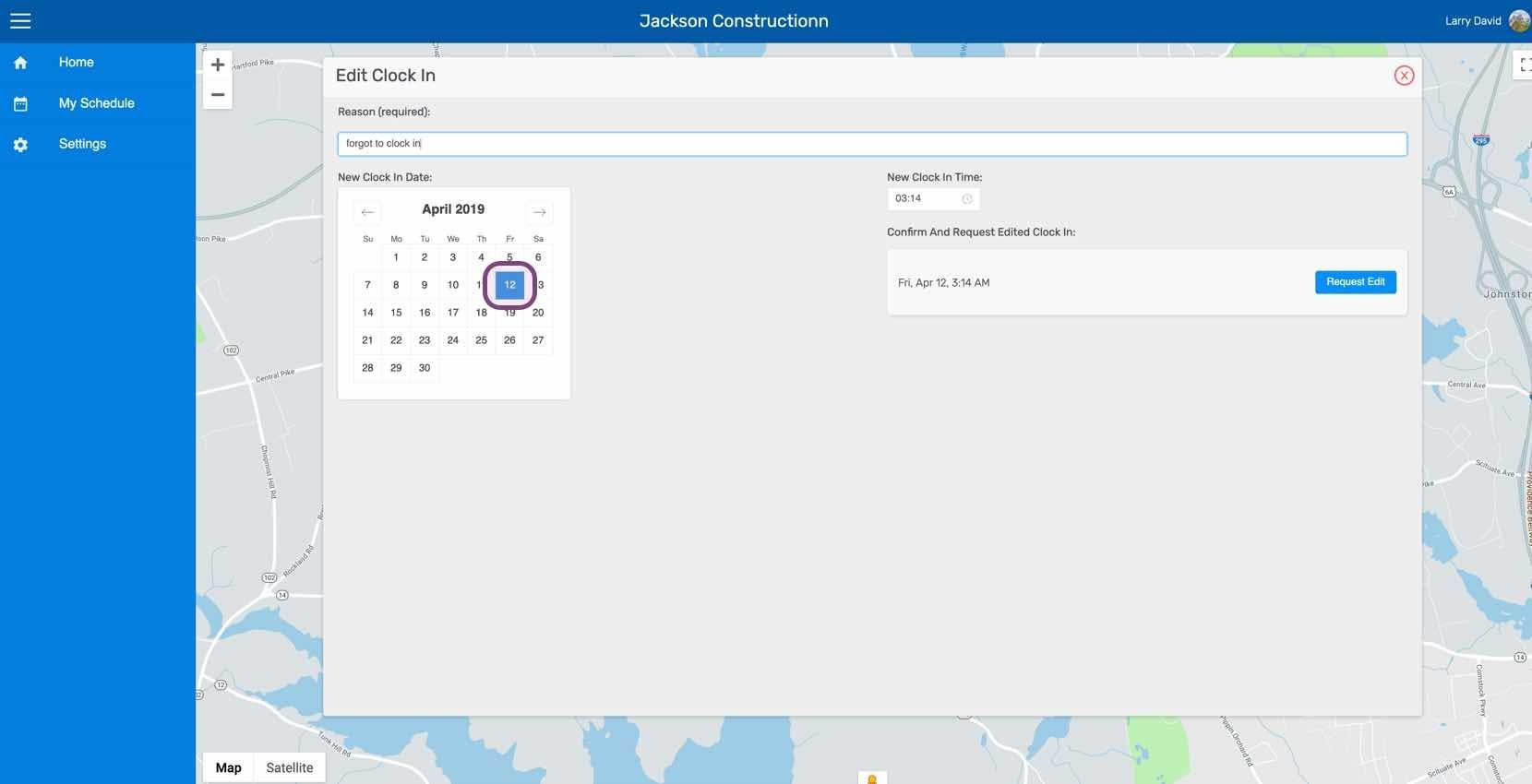
Wählen Sie das neue Datum aus.

Web Edit Clock In screen with a date selected on the calendar and Request Edit button

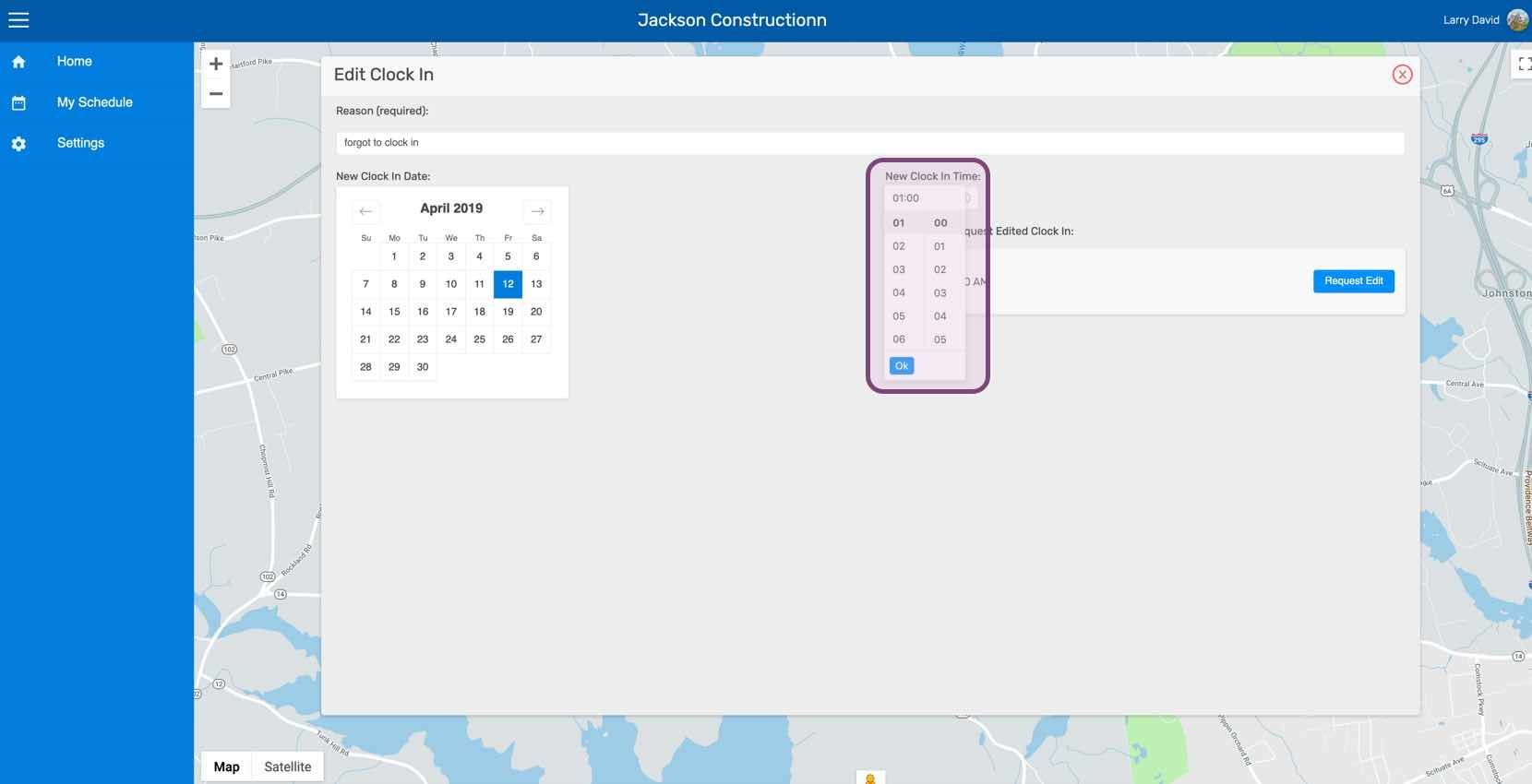
Neue Uhrzeit auswählen.

SINC web Edit Clock In screen with the New Clock In Time picker outlined in purple

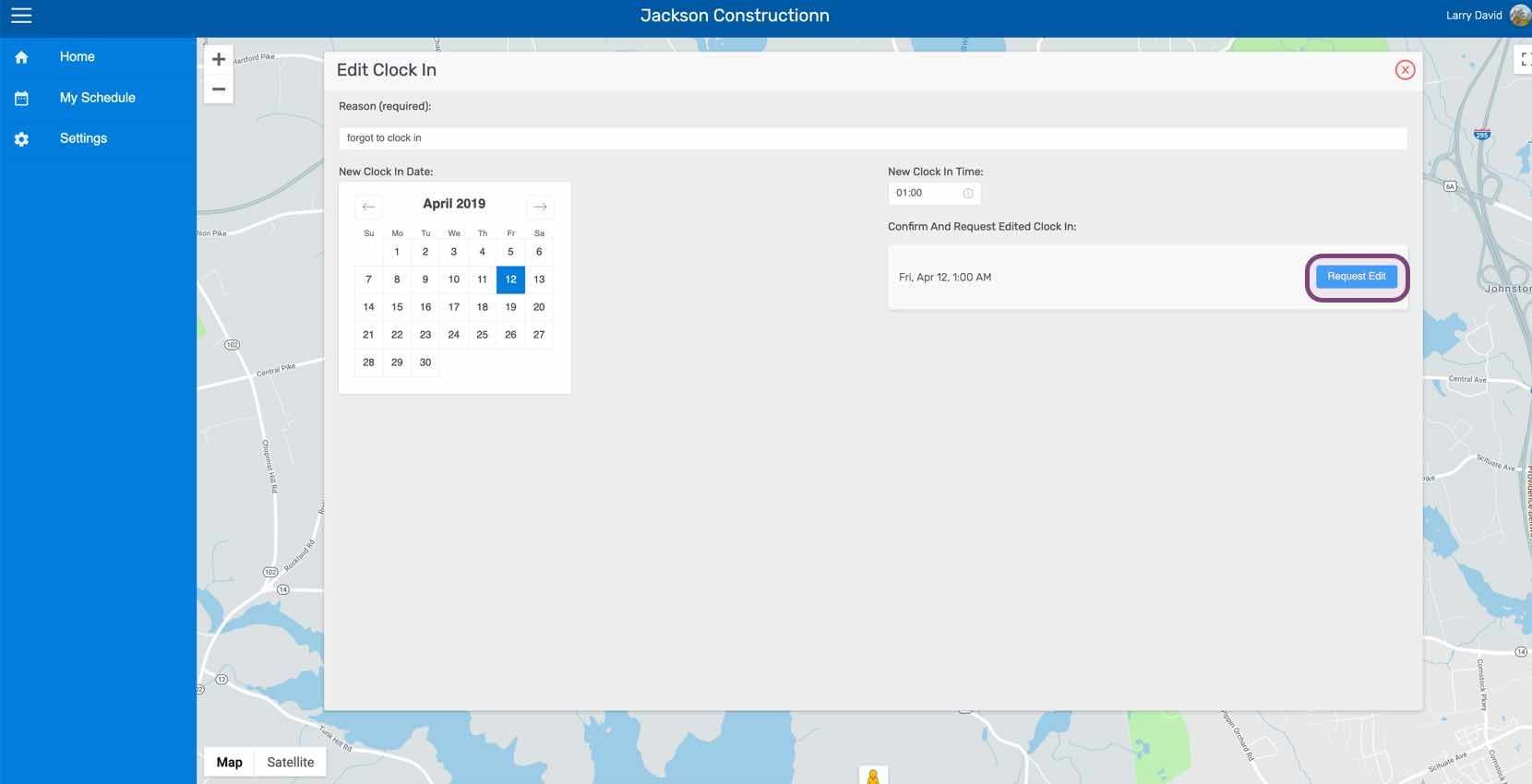
Klicke auf Bearbeitung anfordern

SINC web Edit Clock In screen with the Request Edit button outlined in purple

Hat das Ihre Frage beantwortet?