Bestätigung der Verletzung

Dieser Leitfaden zeigt, wie Mitarbeitende ihre Schichten unter Angabe von Verletzungen abschließen können.

Sam Dolbel
Sam Dolbel
Feb 27th, 2023

Hinweis: Diese Funktion ist derzeit nur für Nutzer von Growth und Enterprise verfügbar. Der Bildschirm zur Verletzungsbestätigung wird nur angezeigt, wenn du Schichten mit Job-Schichten ausstempelst. Um Job-Schichten in einer Schicht zu erfassen, aktiviere Job Tracking. Erfasse eine Schicht mit einer Job-Schicht und schiebe anschließend den Button nach rechts, um das Ausstempeln zu bestätigen.
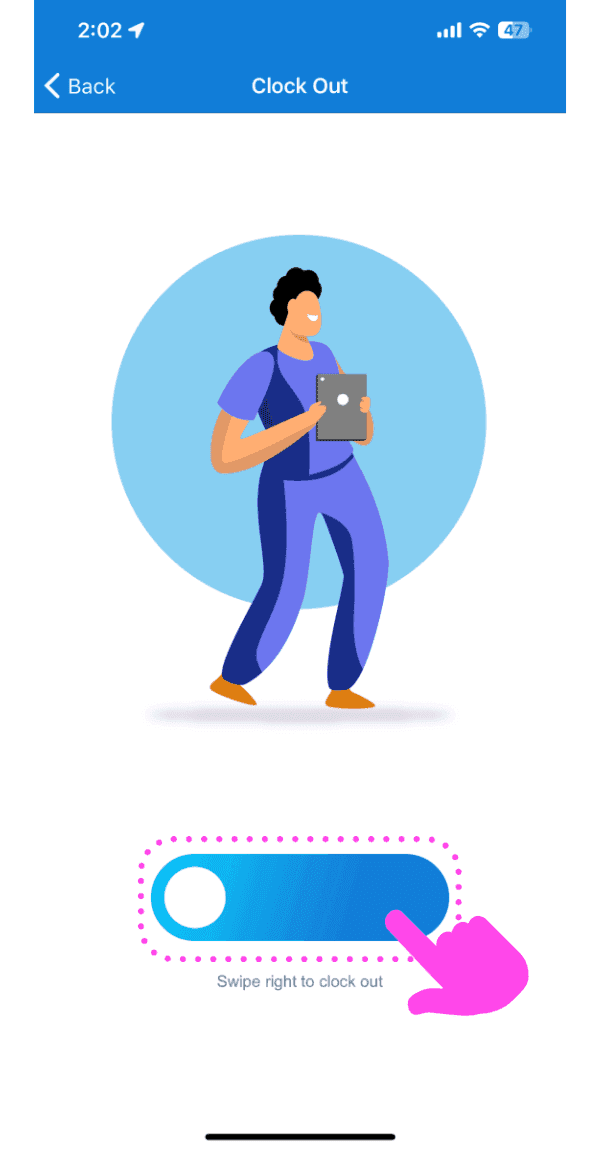
Mobile Clock Out screen with a worker illustration and the slide-to-confirm button outlined in pink

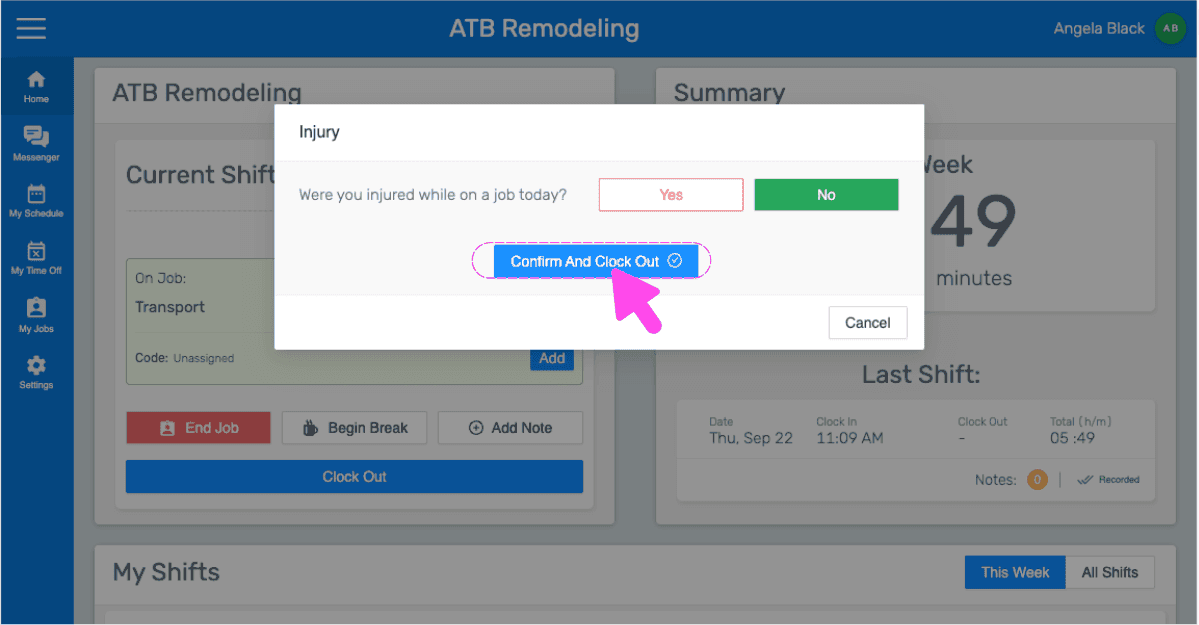
Beantworte die Frage „Hast du dich heute bei der Arbeit verletzt?“ Wenn du nicht verletzt bist, tippe auf Nein und anschließend auf Schicht abschicken.
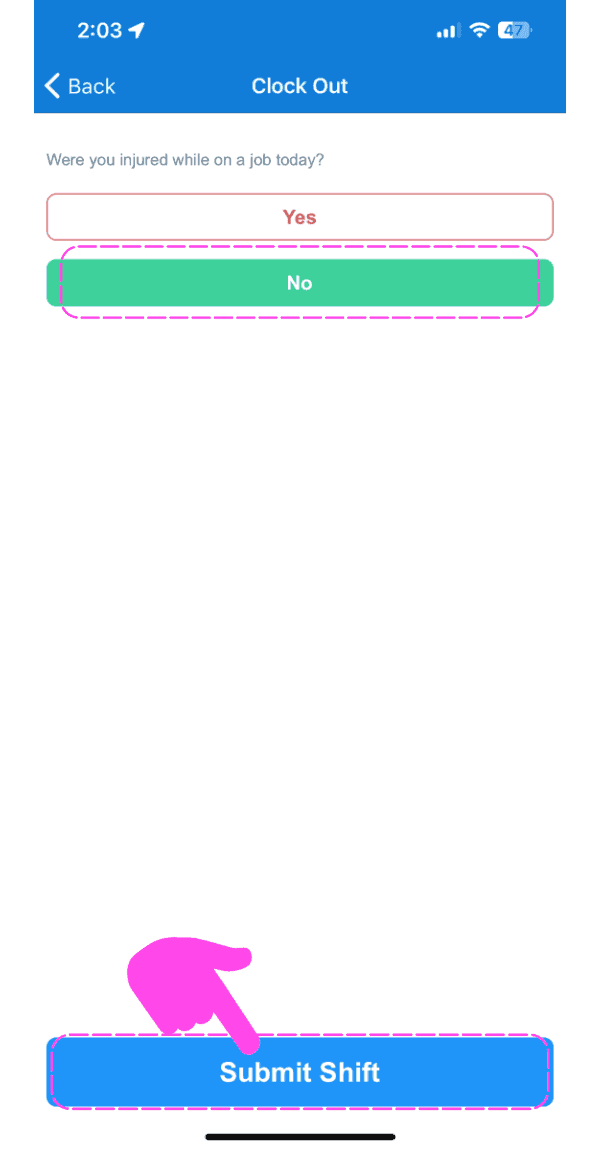
SINC mobile Clock Out screen asking about injury, with a pink hand pointing to the Submit Shift button

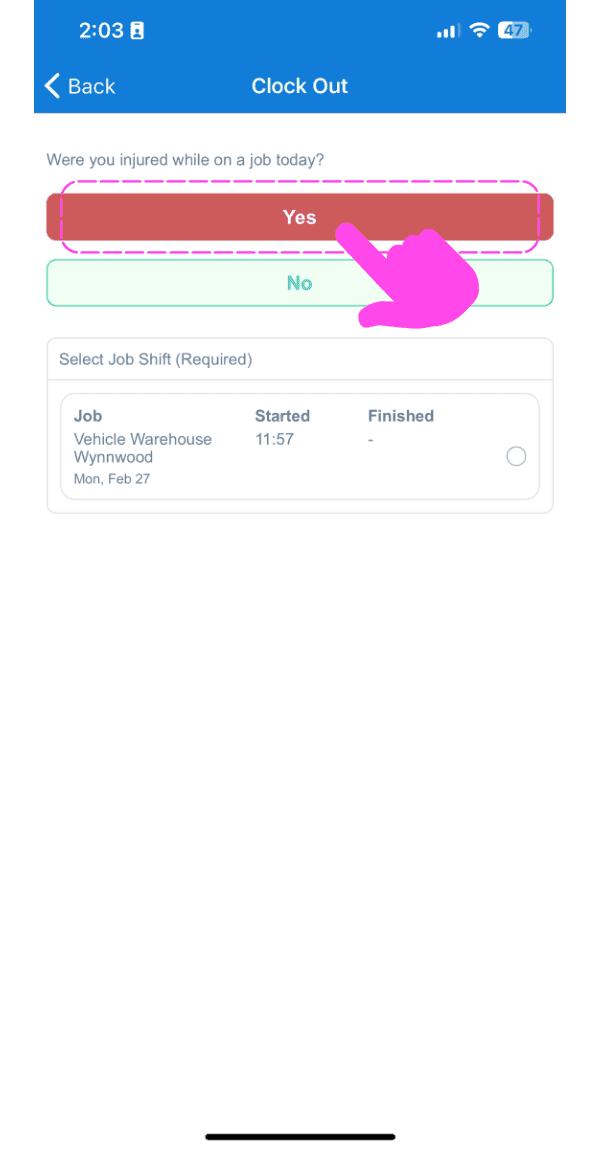
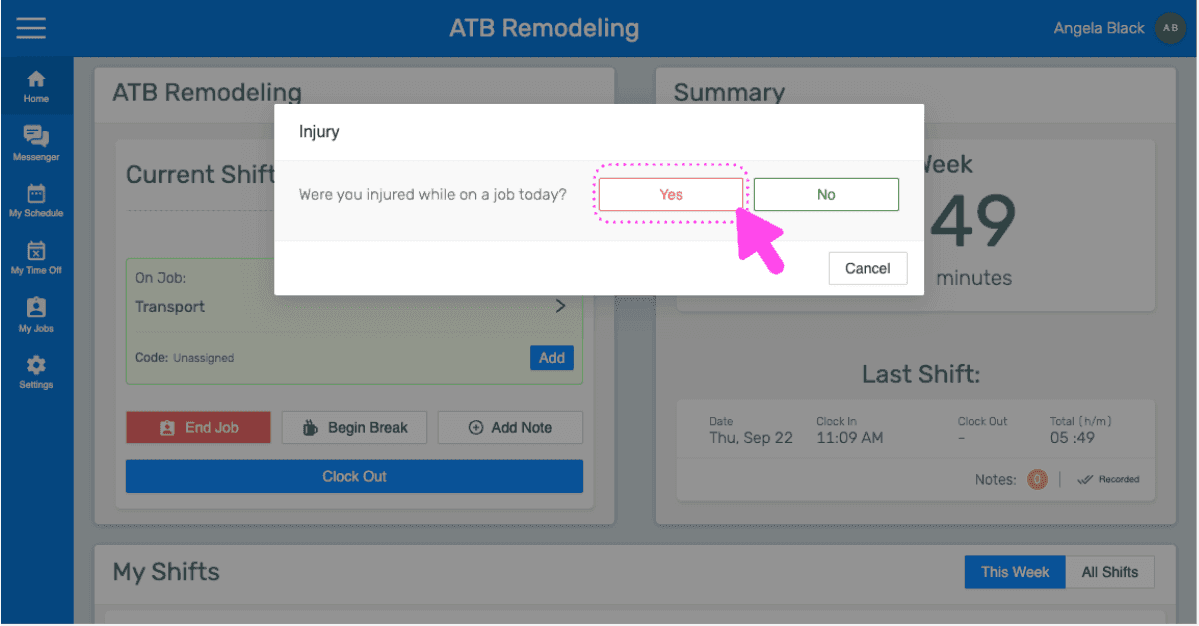
Bei einer Verletzung auf Ja tippen

Clock Out screen asking if the employee was injured, with a pink arrow on the Yes button

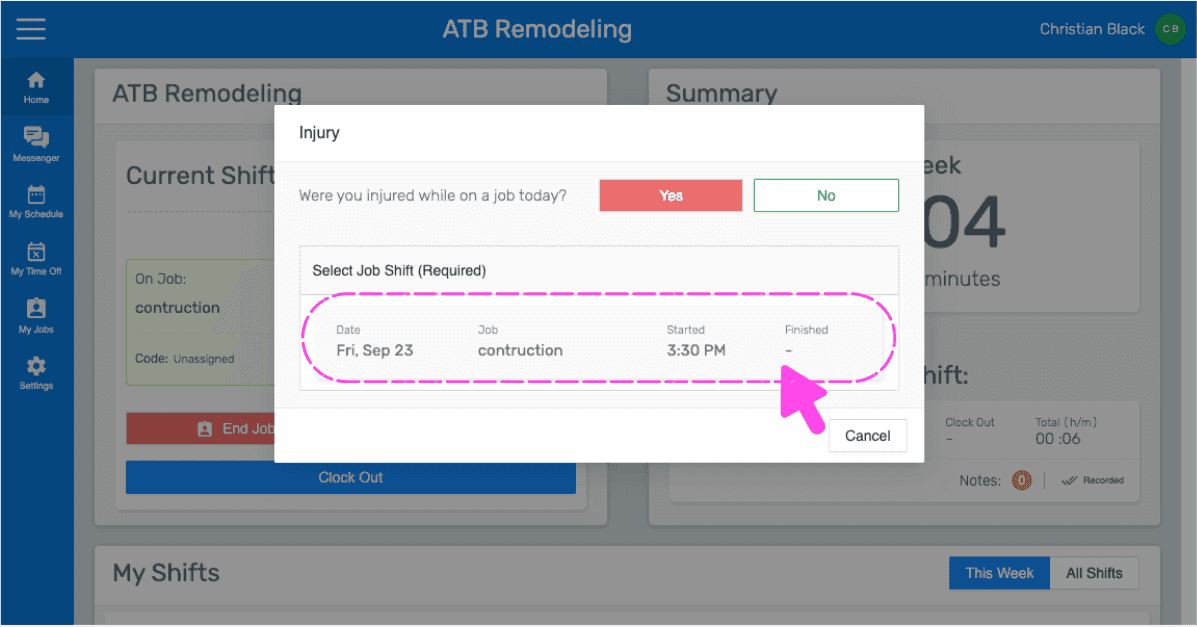
Tippe auf Arbeitsschicht, in der sich die Verletzung ereignet hat
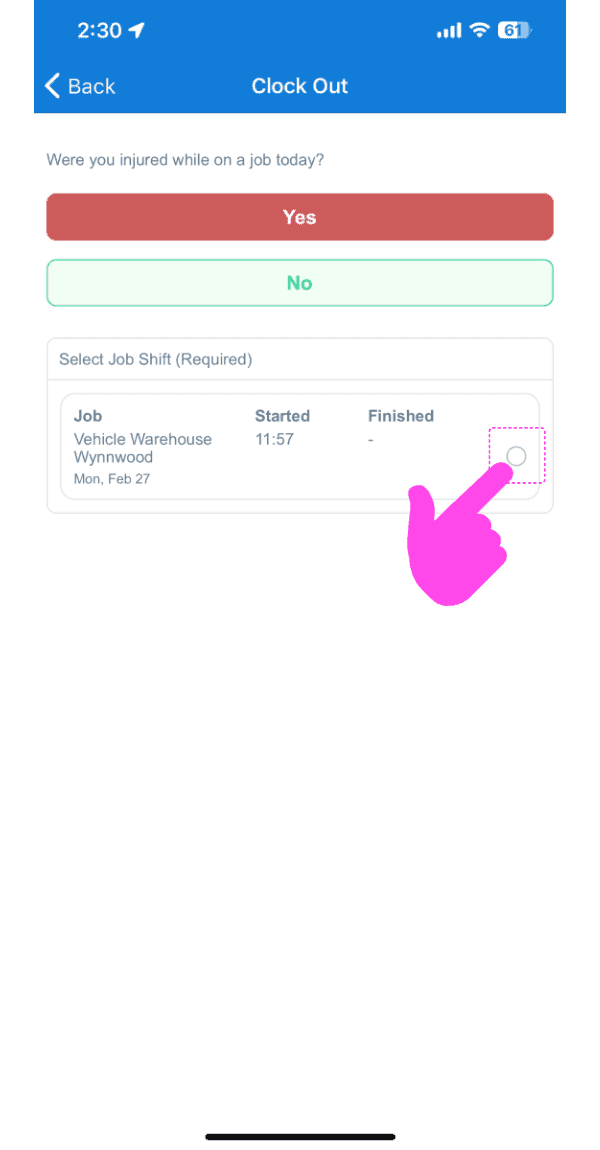
Mobile Clock Out screen asking if injured, with a pink arrow pointing to the job shift selection circle

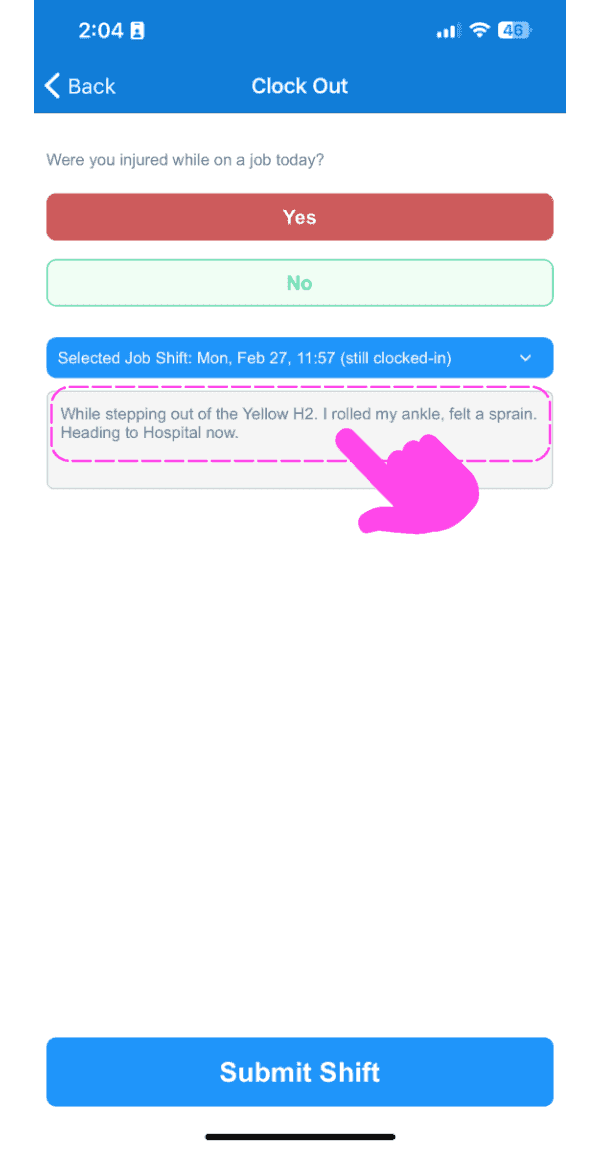
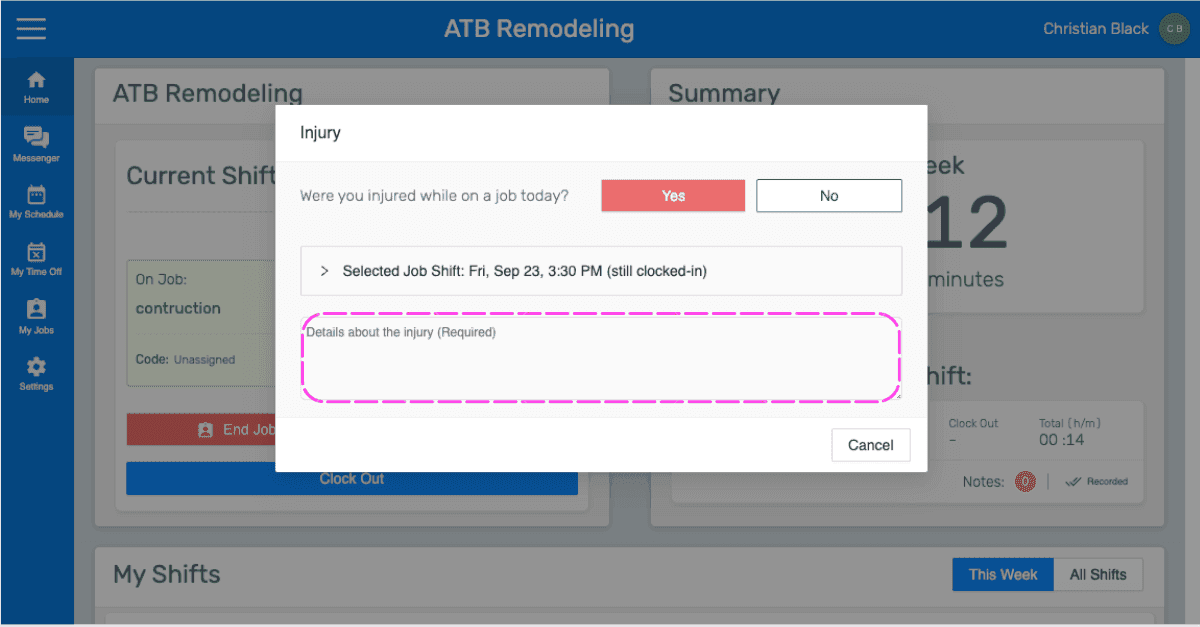
Eingeben Details zur Verletzung

SINC mobile Clock Out screen with a pink arrow pointing to the injury details text box above the Submit Shift button

Tippe auf Schicht einreichen. Wenn eine Schicht mit einer Verletzung abgeschlossen wird, werden die Verletzungsdetails am Ende des Tages in den Tagesberichten des jeweiligen Auftrags aufgeführt.
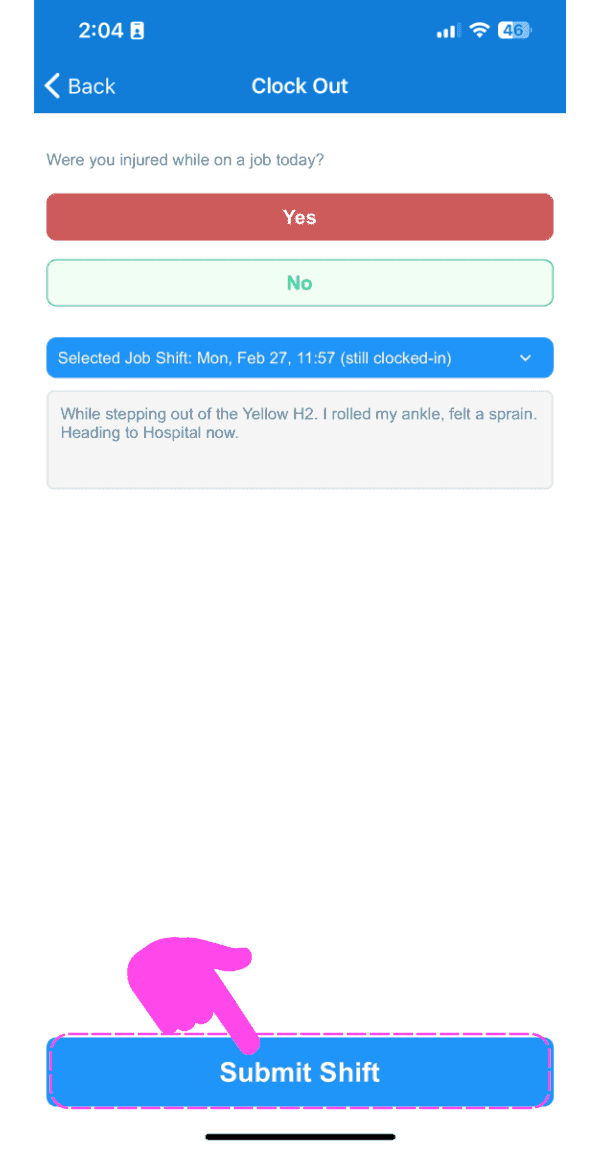
SINC mobile Clock Out screen with 'Yes' selected for the injury question and a pink arrow pointing to the Submit Shift button

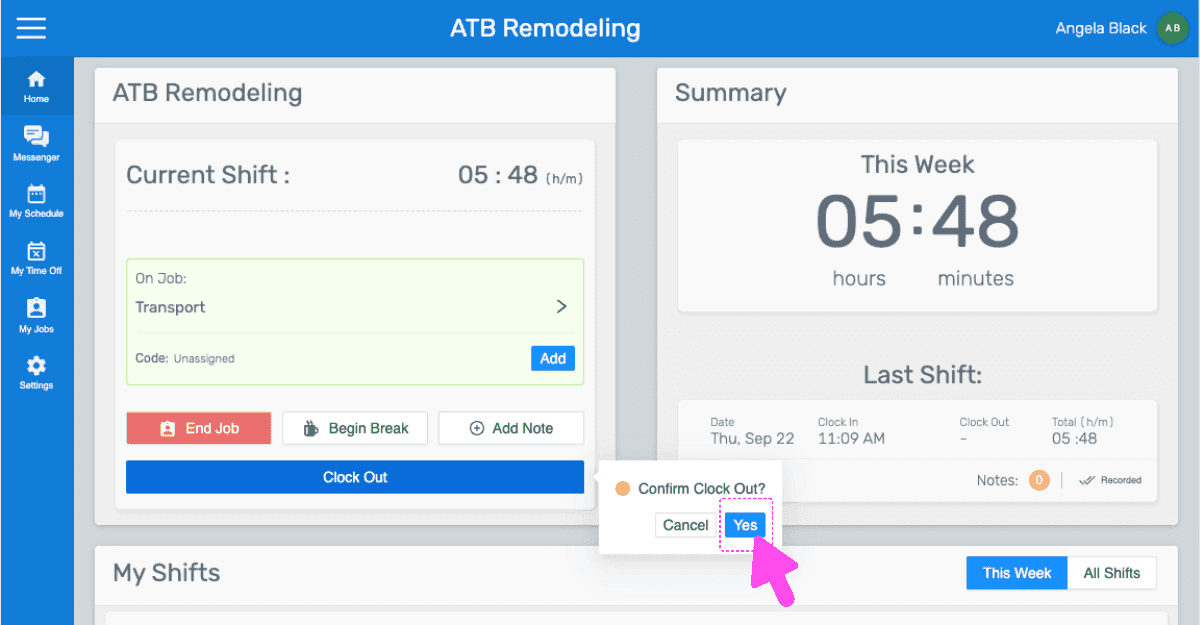
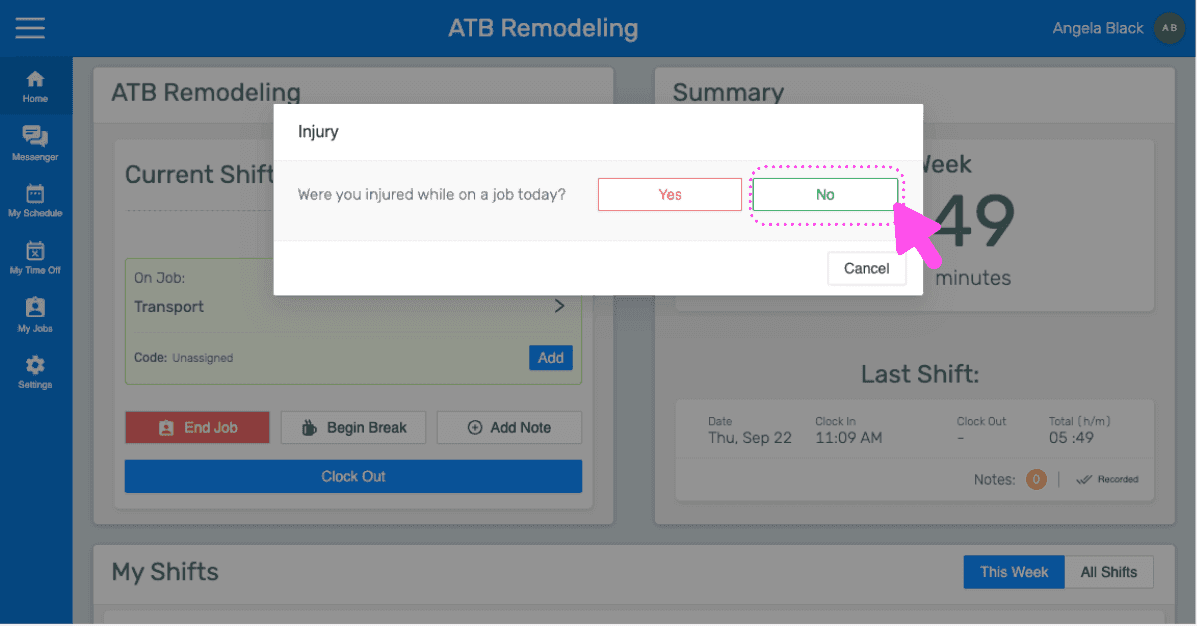
Wenn Sie die Webversion verwenden, sieht sie so aus:
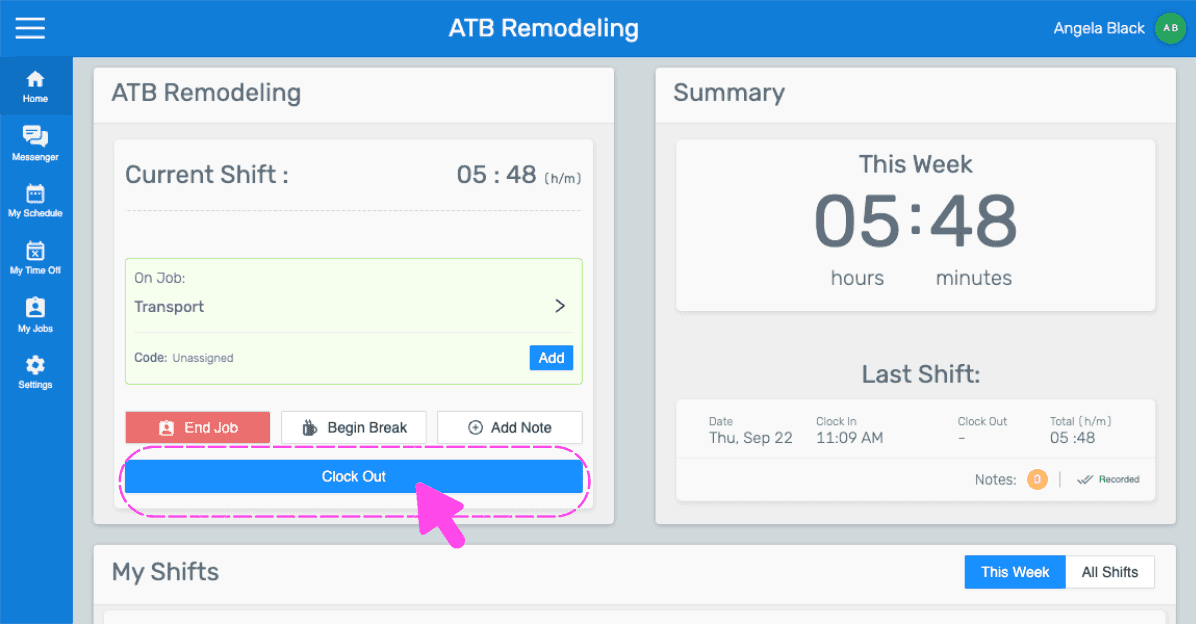
Mobile job shift screen showing hours worked with the Clock Out button outlined in pink
SINC web shift screen showing a Confirm Clock Out popup with the Yes button highlighted by a pink arrow
Mobile app injury sign-off popup asking if you were injured on the job, with the No button highlighted
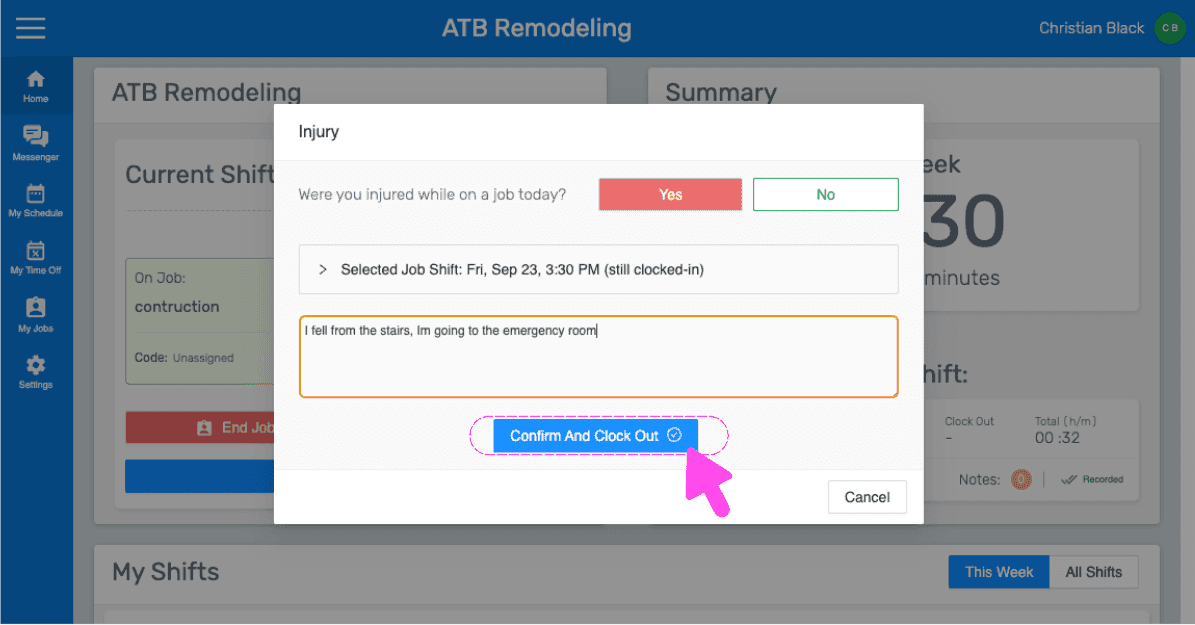
SINC web dashboard injury popup asking if the employee was injured, with Confirm And Clock Out button highlighted
SINC mobile Injury popup asking whether you were injured on a job today, with the Yes button highlighted
Injury sign-off popup asking if injured on a job today, with the job shift selection row circled in pink
SINC web Injury modal asking if the employee was injured, with the details text field highlighted
Injury popup on the web dashboard asking if the employee was injured, with a pink arrow pointing to the Confirm And Clock Out button
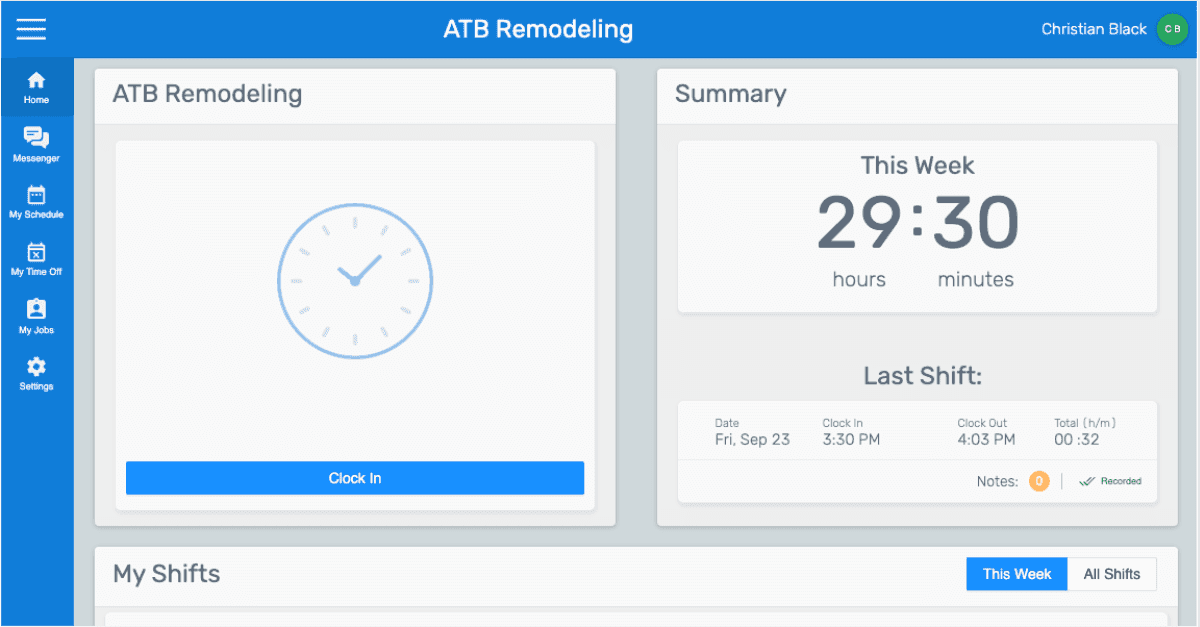
SINC web employee dashboard for ATB Remodeling showing the Clock In button and this week's hours summary

Hat das Ihre Frage beantwortet?