Aufträge: Kostencodes

Sam Dolbel
Sam Dolbel
Feb 24th, 2023

Kostenstellencodes sind ein wichtiger Bestandteil jedes erfolgreichen Systems zur Auftragskostenrechnung. Sie ermöglichen es Ihnen, nicht nur nachzuverfolgen, an welchem Auftrag Ihre Mitarbeiter während ihrer Schicht gearbeitet haben, sondern auch, welche Aufgaben innerhalb dieses Auftrags sie erledigt haben.

Erste Schritte: Tippen Sie auf Menü Einstellungen
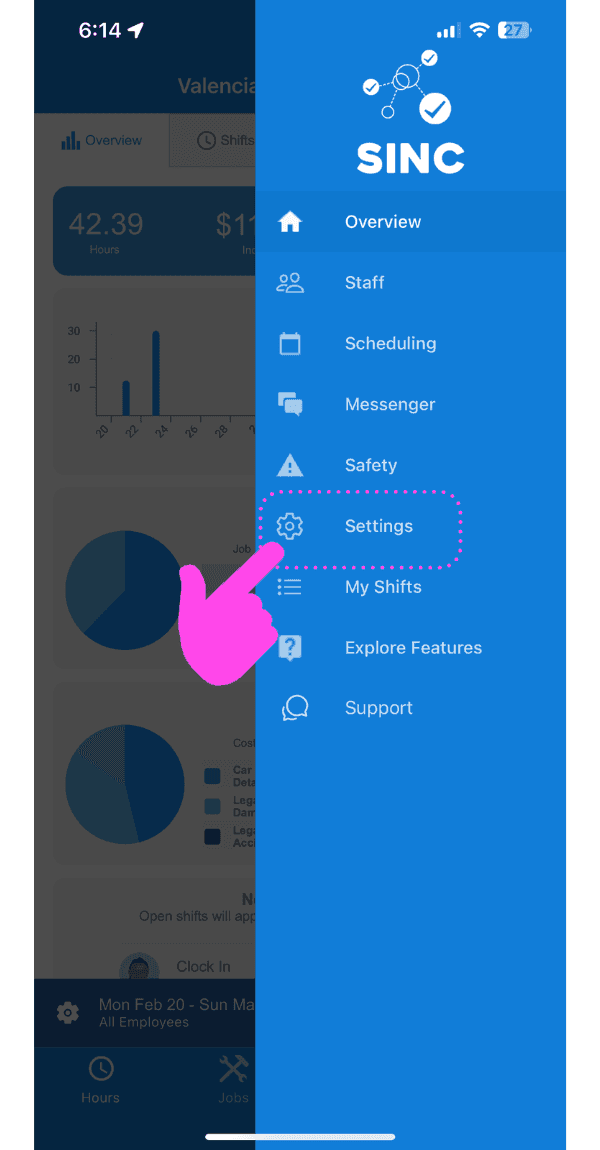
SINC mobile app side menu open with a pink arrow pointing to the Settings gear icon in a dashed highlight

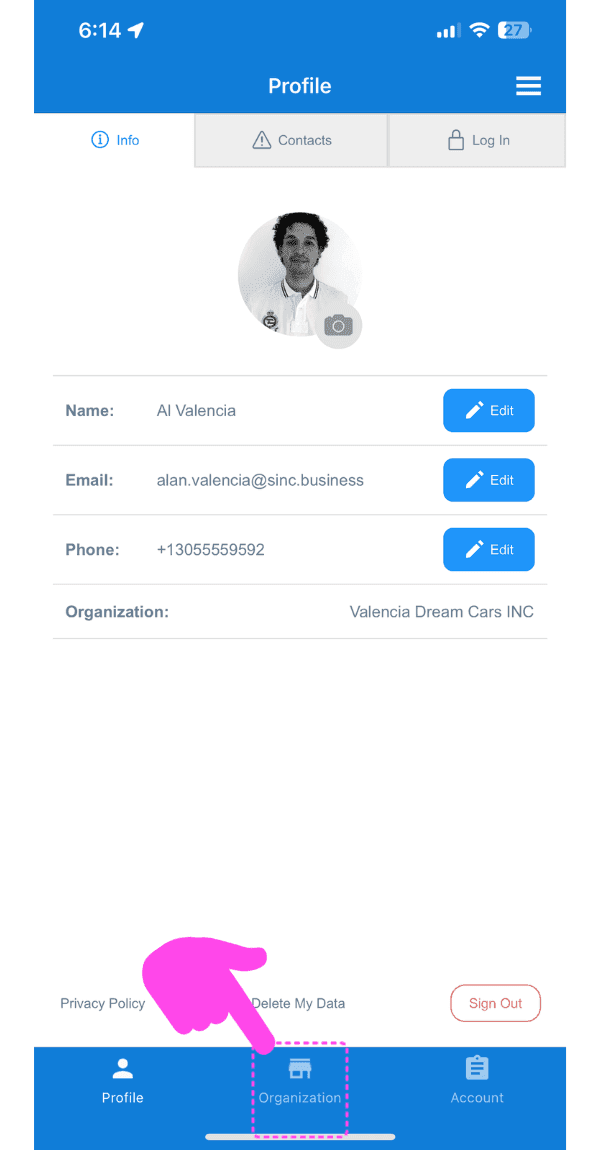
Tippe auf Organisation

SINC mobile Profile screen with a pink arrow pointing to the Organization icon in the bottom navigation bar

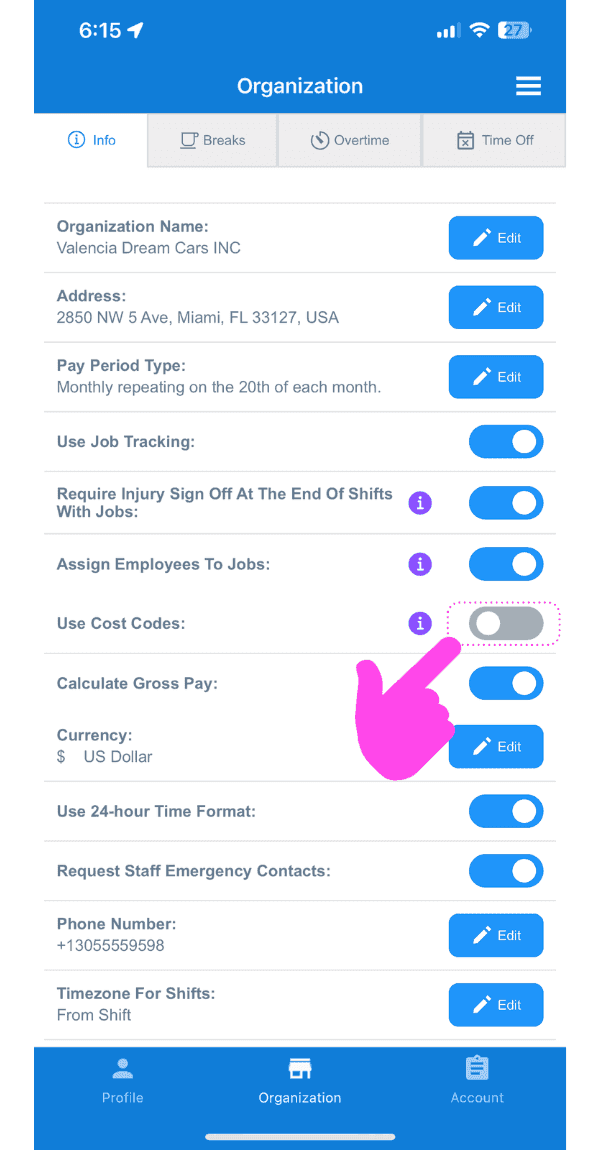
Aktivieren Kostencodes verwenden

Web Organization settings Info tab with the Use Cost Codes toggle circled and a pink arrow pointing to it

Jetzt fügen wir einen Kostencode hinzu! Tippen Sie in der Übersichtsansicht auf Kostencodes
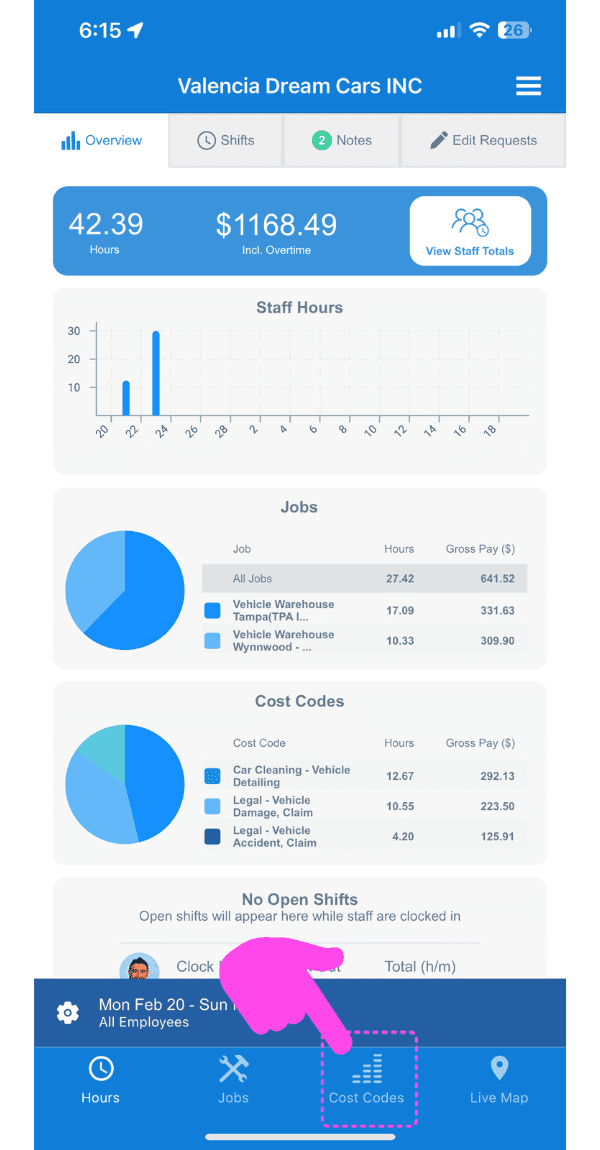
SINC mobile job overview screen with a pink hand pointing to the Cost Codes tab at the bottom

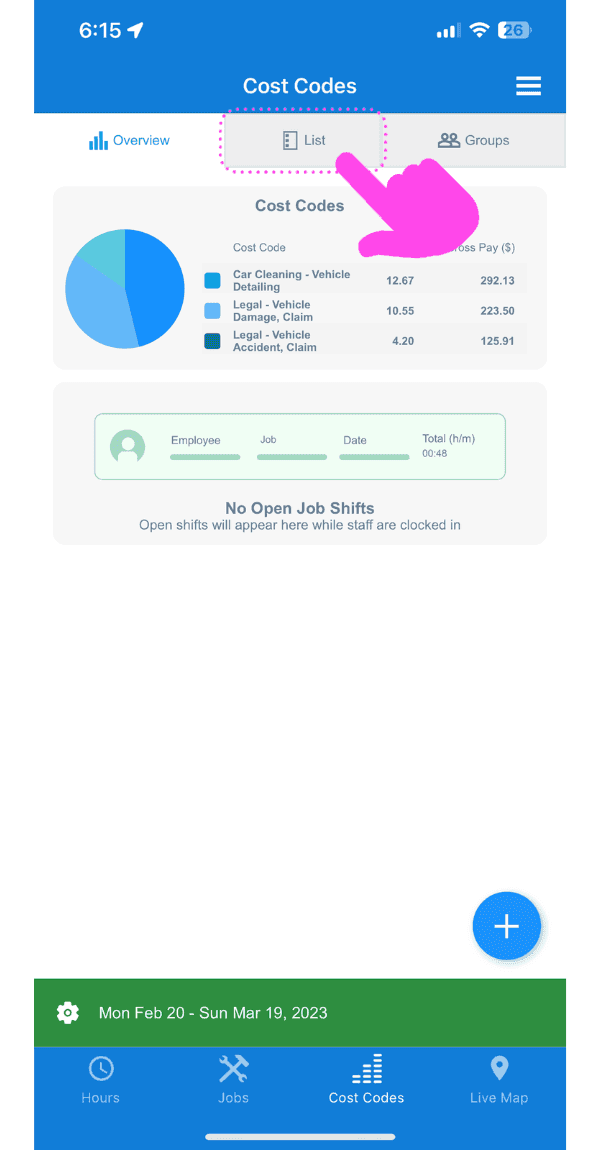
Tippe auf Liste

Cost Codes screen with a pink arrow pointing to the List tab above a cost codes pie chart

Tippe unten rechts auf die Schaltfläche +.
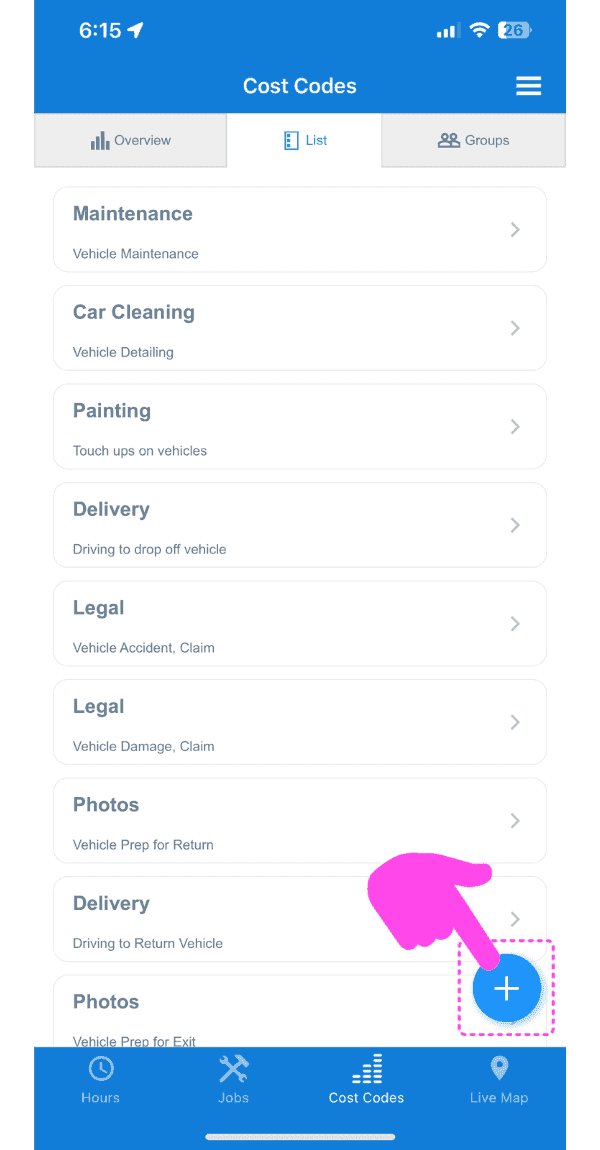
Mobile Cost Codes list with a pink arrow pointing to the plus button in the bottom right

Ab hier haben Sie zwei Möglichkeiten. Die erste besteht darin, Ihren eigenen benutzerdefinierten Kostencode anzulegen, indem Sie einen Codenamen und optional eine Beschreibung hinzufügen.
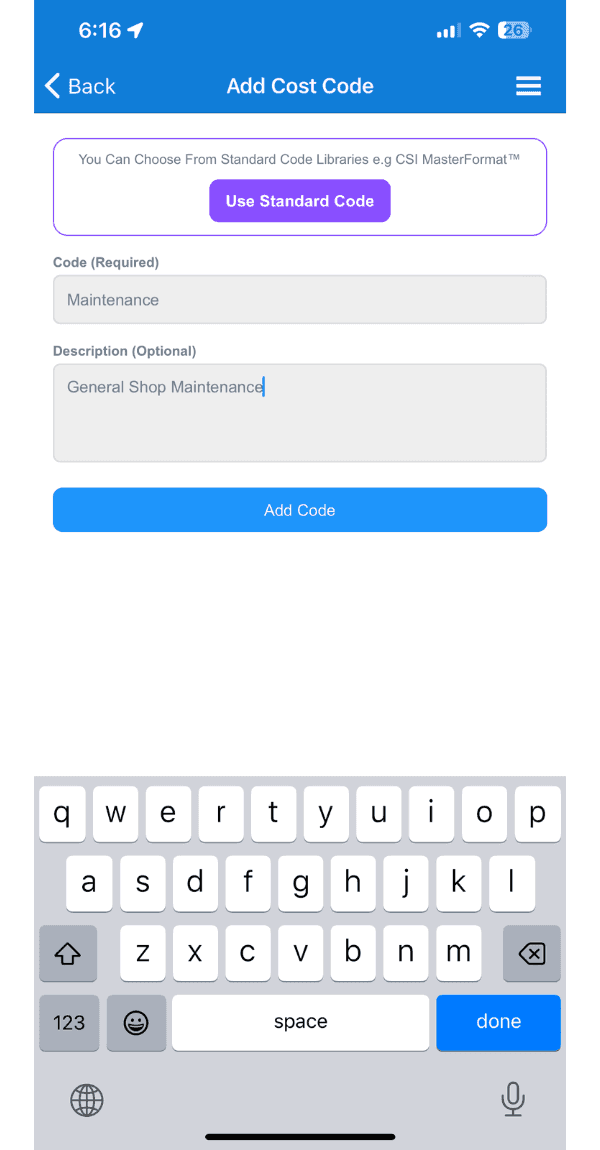
SINC mobile Add Cost Code screen showing Code and Description fields with the Add Code button and keyboard open

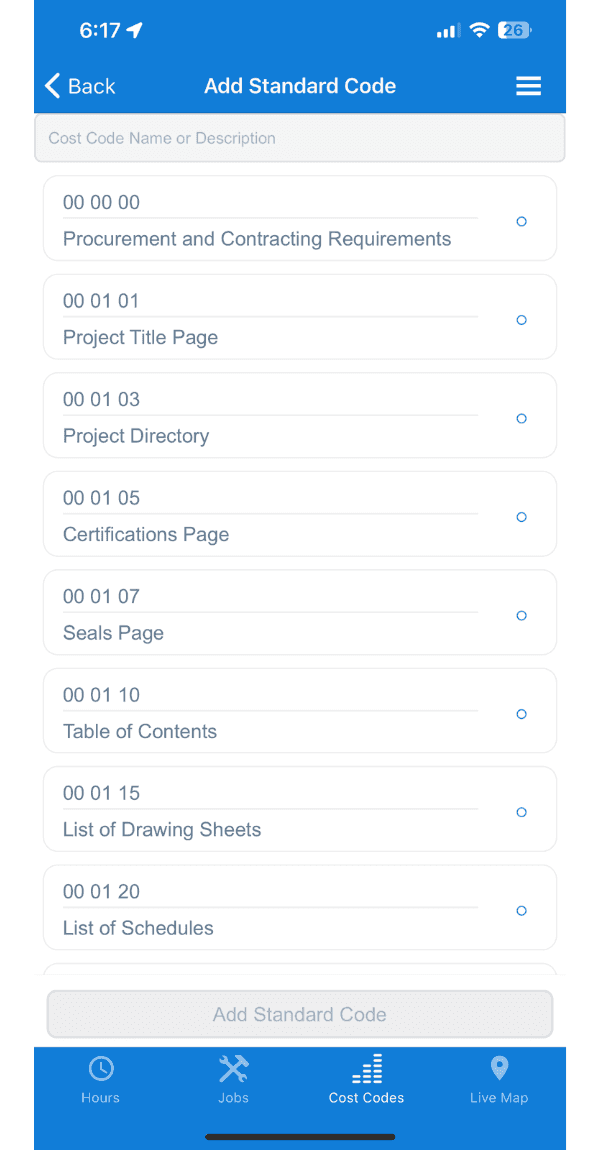
Die andere Möglichkeit besteht darin, aus unseren vorkonfigurierten CSI MasterFormat™-Kostencodes für die branchenübliche Baukostenrechnung auszuwählen.
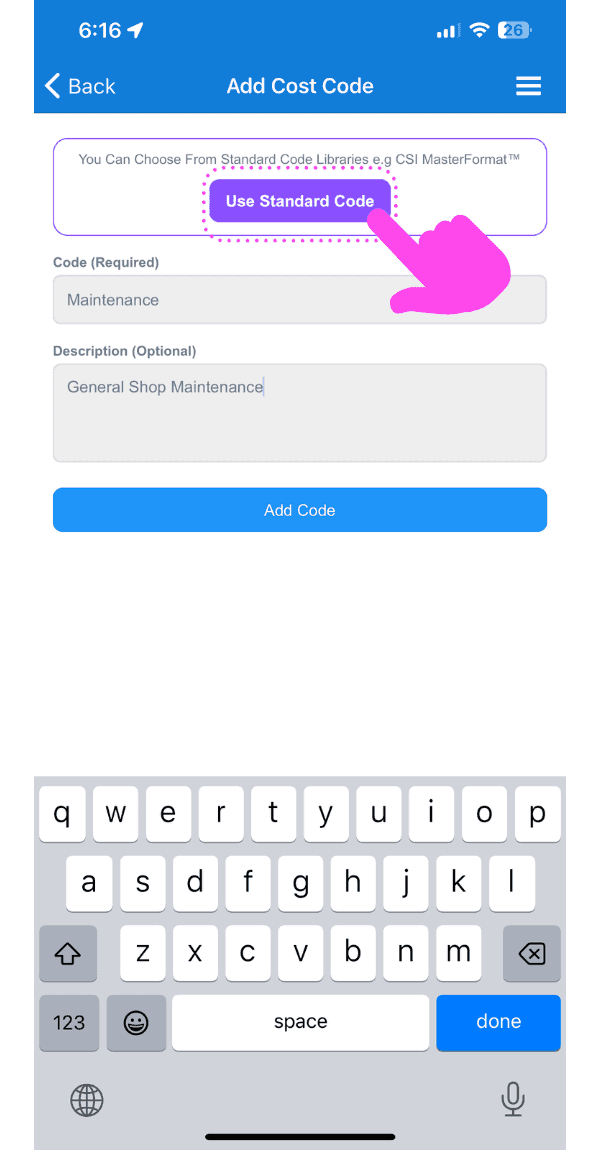
SINC mobile Add Cost Code screen with a pink arrow pointing to the Use Standard Code button
Add Standard Code screen listing preloaded CSI cost codes such as Procurement and Project Title Page

Wenn Sie die Auswahl an Codes, aus denen Ihr Team wählen kann, einschränken möchten, können Sie Kostencode-Gruppen erstellen. Um Ihre erste Gruppe zu erstellen, tippen Sie auf Gruppen.
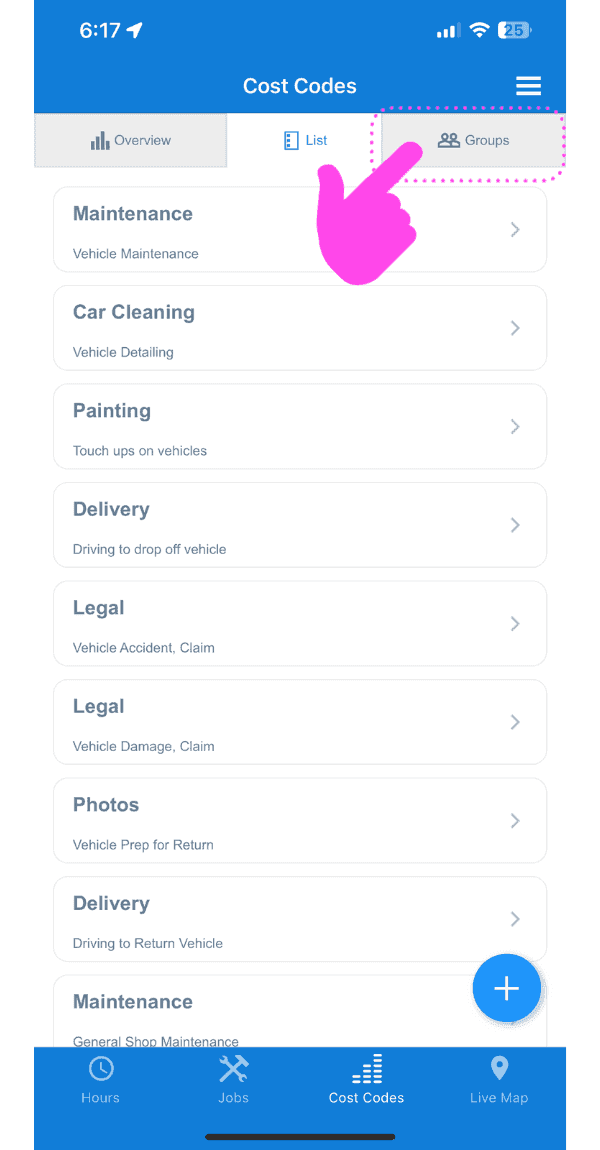
SINC mobile app Cost Codes screen with the Groups tab outlined in a pink dashed box and an arrow pointing to it

Tippe unten rechts auf die Schaltfläche +.
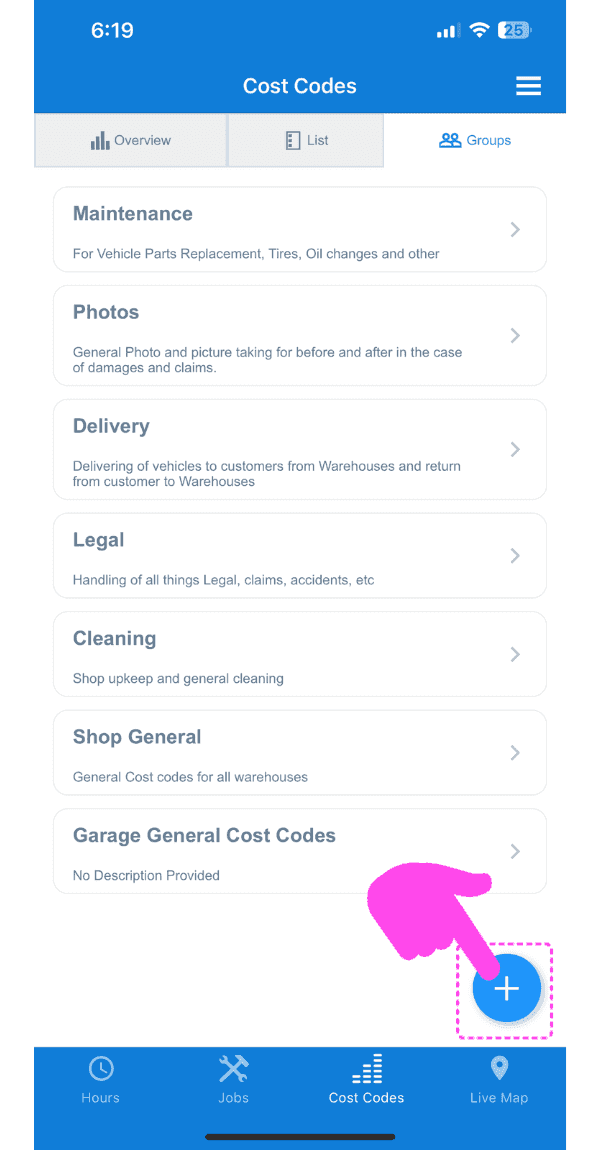
Cost Codes screen listing code categories with a pink arrow pointing to the + add button

Gib der Gruppe einen Namen und eine Beschreibung und tippe auf Codegruppe hinzufügen
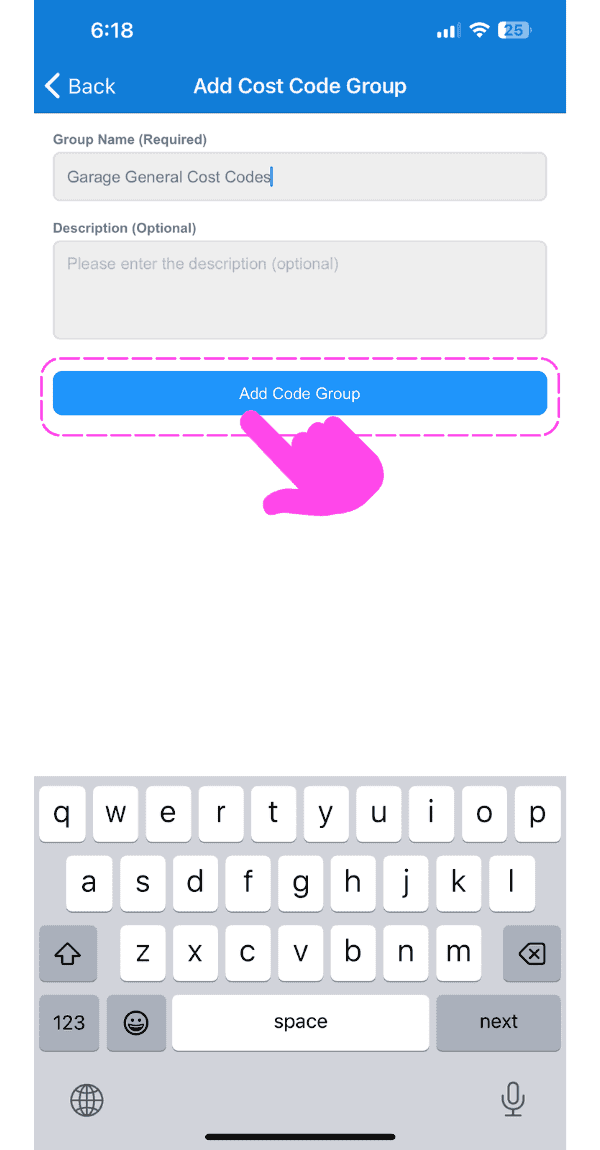
Add Cost Code Group screen with group name entered and the Add Code Group button highlighted by a pink arrow

Tippen Sie anschließend auf Codes, um der Gruppe Codes hinzuzufügen.
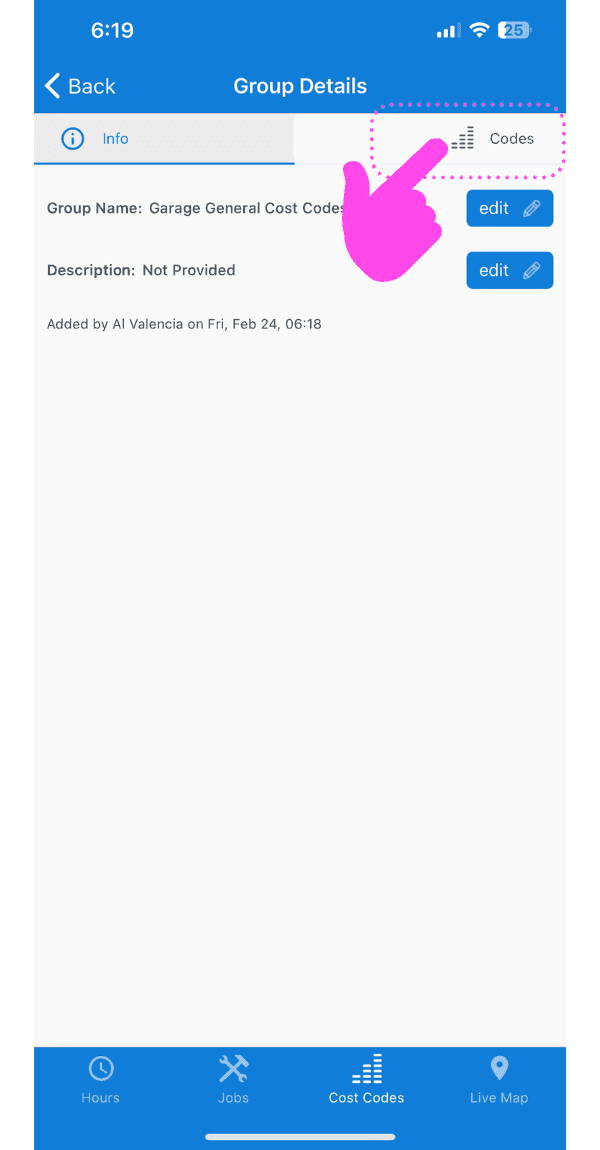
SINC mobile Group Details screen with a pink hand pointing to the Codes tab in the top right

Tippe unten rechts auf die Schaltfläche +.
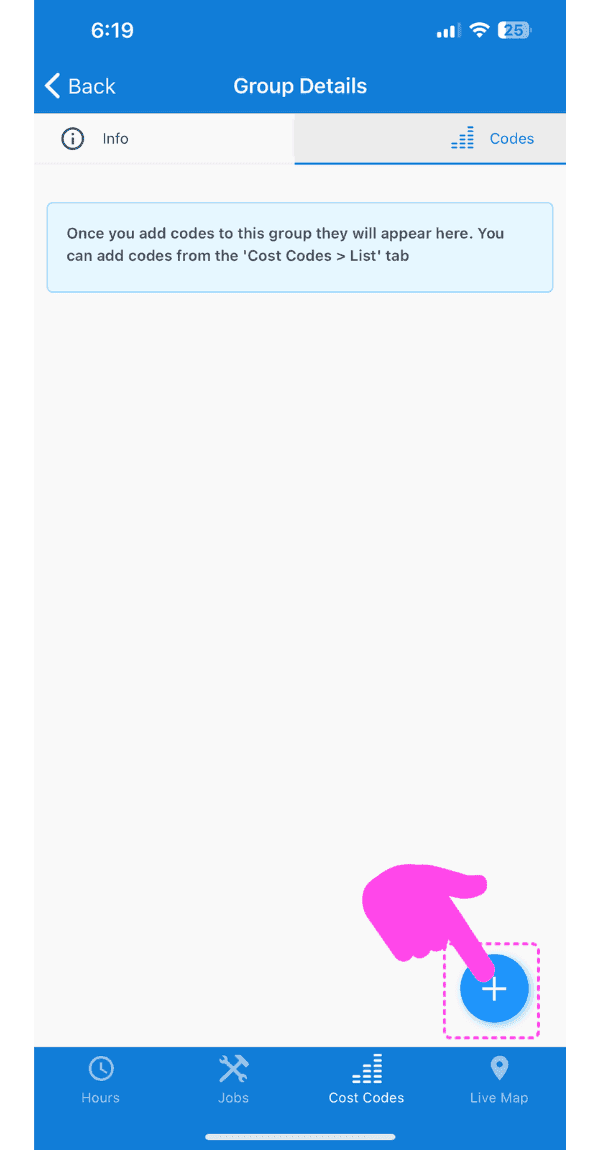
Empty Group Details Codes tab with the blue plus button circled by a pink arrow

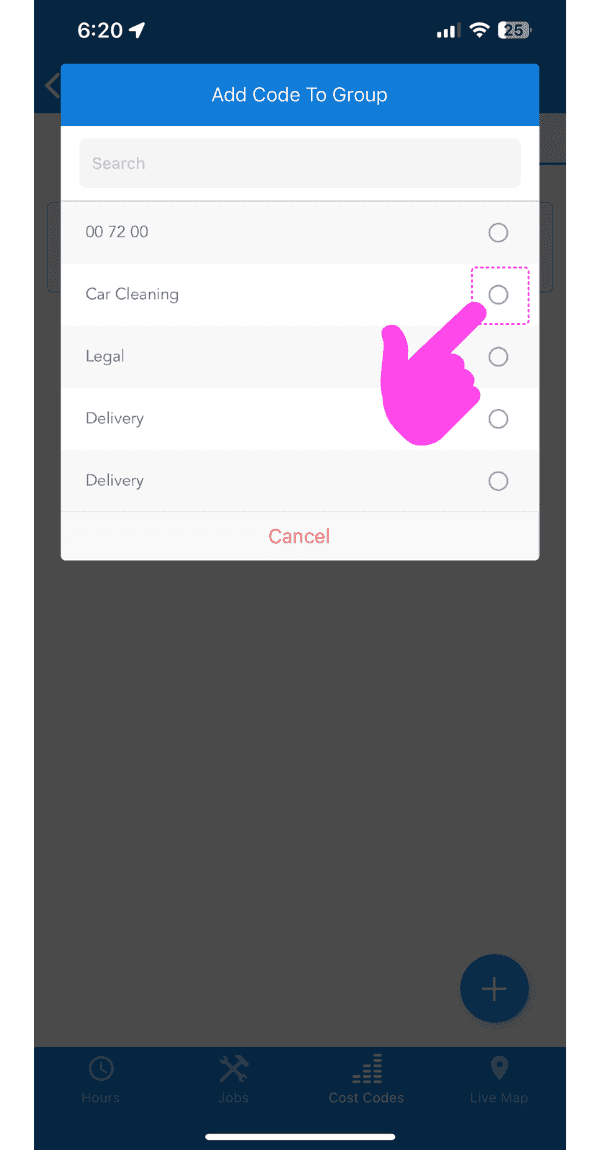
Code auswählen

SINC mobile Add Code To Group screen with a pink arrow pointing to a cost code radio button

Füge diese Codegruppe nun einem Job hinzu, indem du auf Jobs tippst.
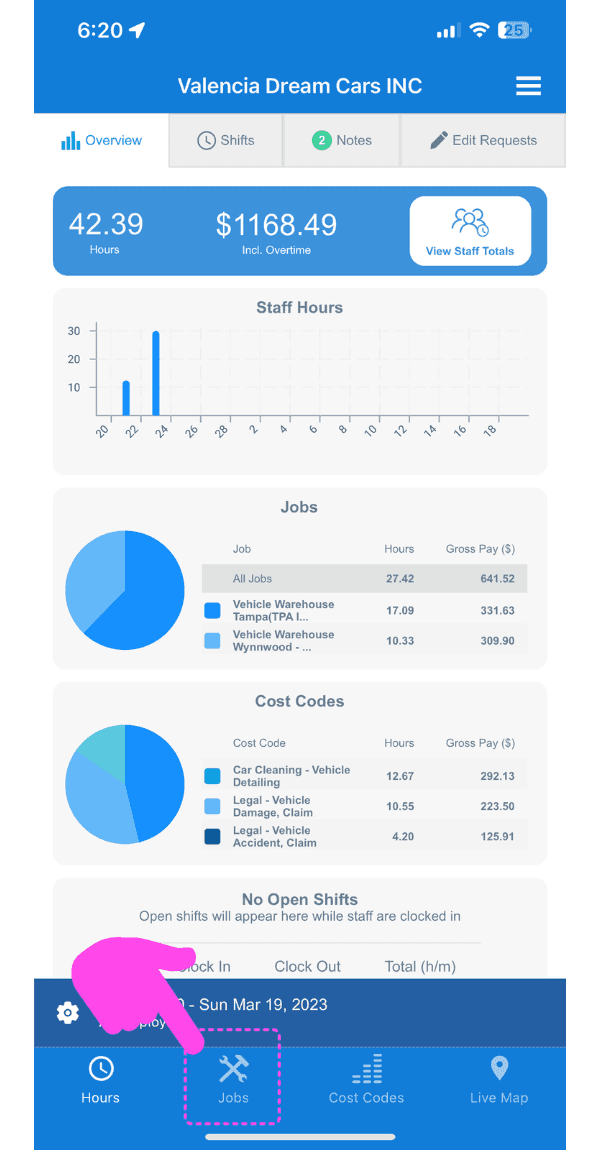
SINC mobile app Overview screen with a pink arrow pointing to the Jobs tab in the bottom navigation bar

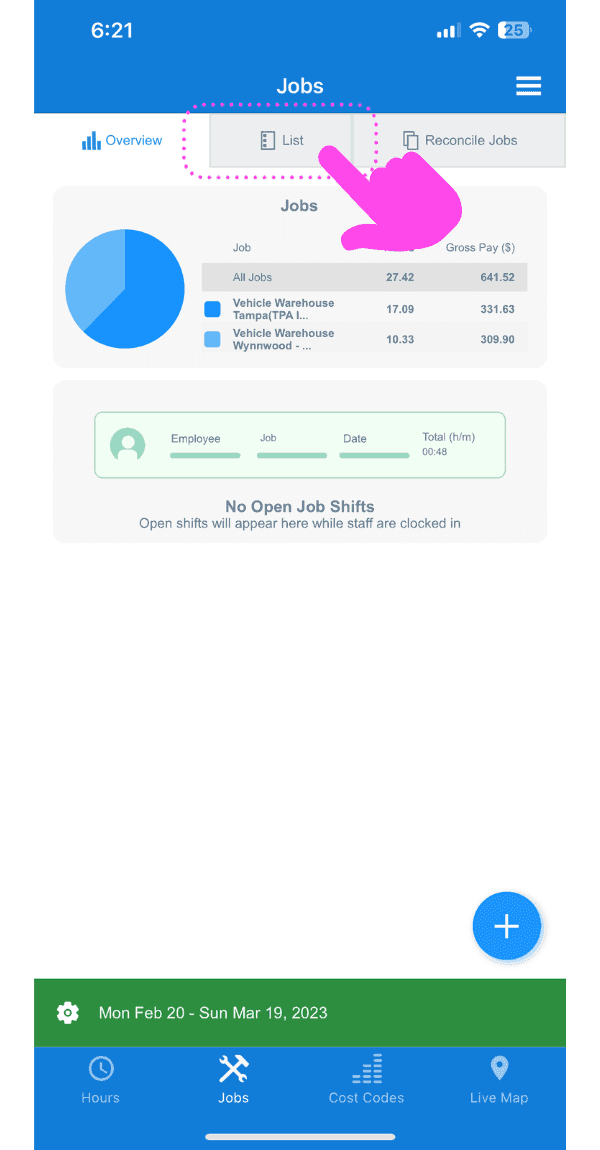
Tippe auf Liste

SINC mobile Jobs Overview screen with a pink arrow pointing to the List tab

Dann den Job, dem Sie die Codegruppe hinzufügen möchten
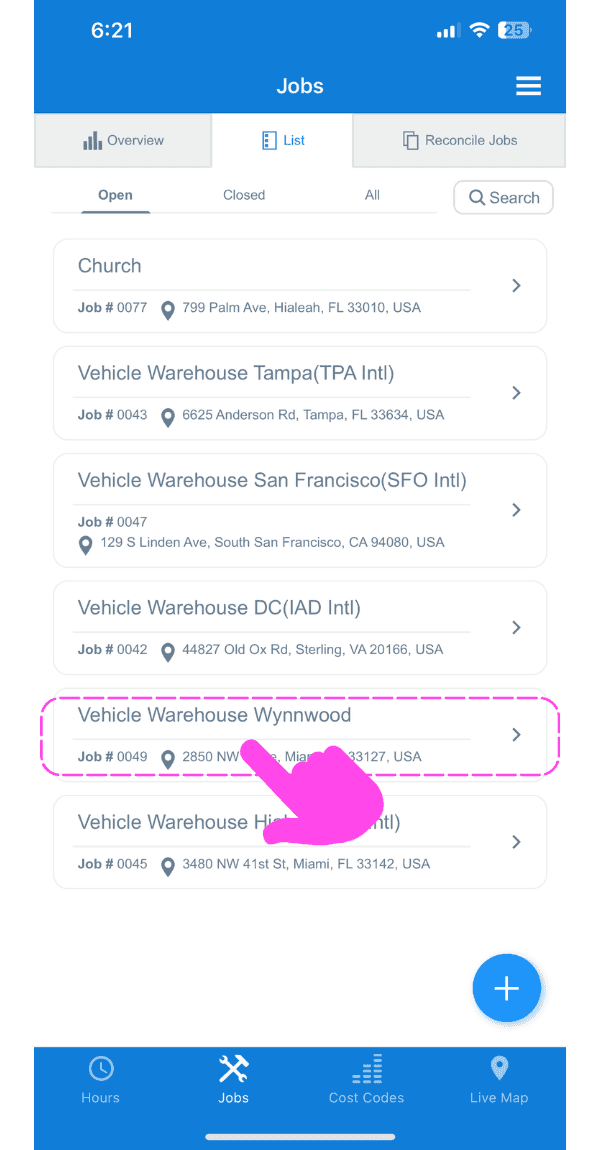
Web Jobs list showing a specific job entry, Vehicle Warehouse Wynnwood, boxed in pink with an arrow pointing to it

Tippen Sie auf Kostencodierungsgruppen
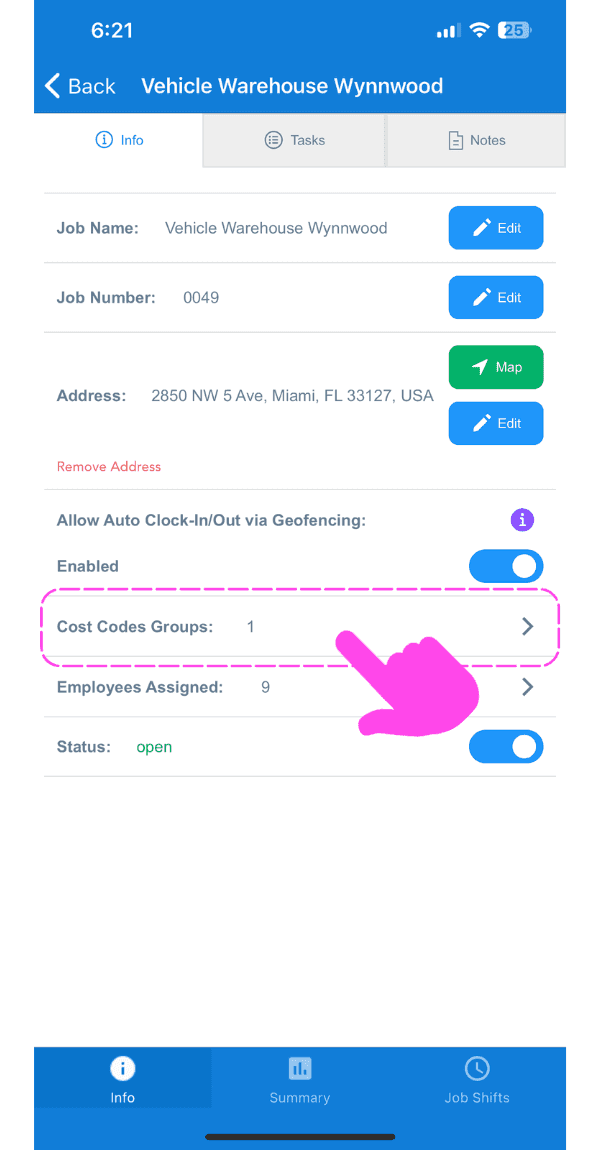
SINC mobile Job Info screen with a pink hand pointing to the Cost Codes Groups row

Tippen Sie auf Kostencodegruppe hinzufügen
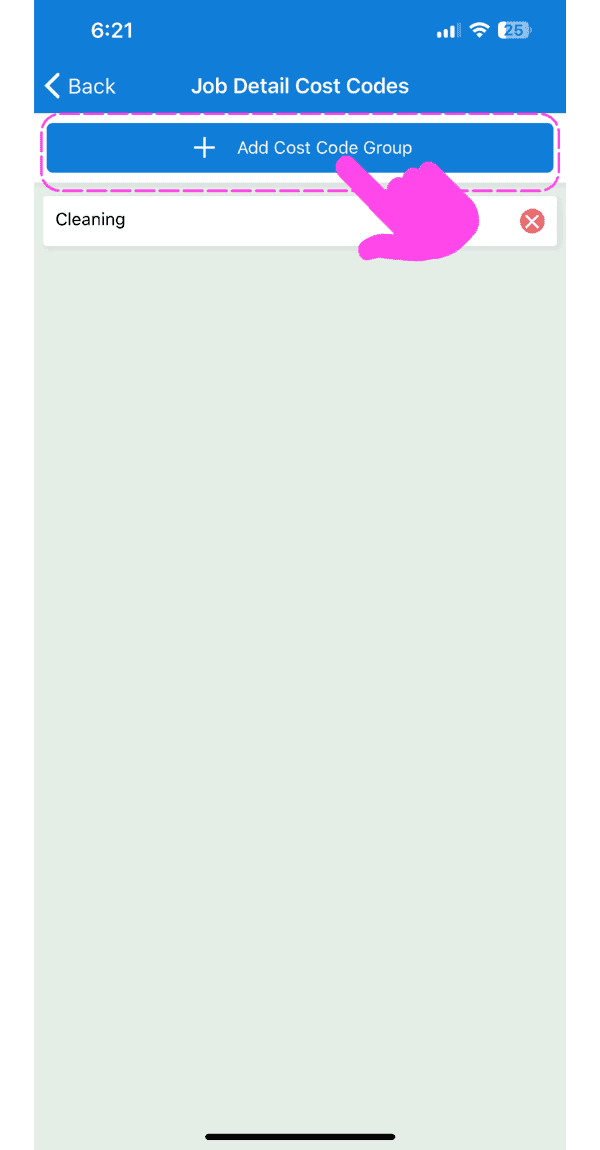
Job Detail Cost Codes screen with a pink arrow pointing to the Add Cost Code Group button

Wählen Sie die soeben erstellte Codegruppe aus
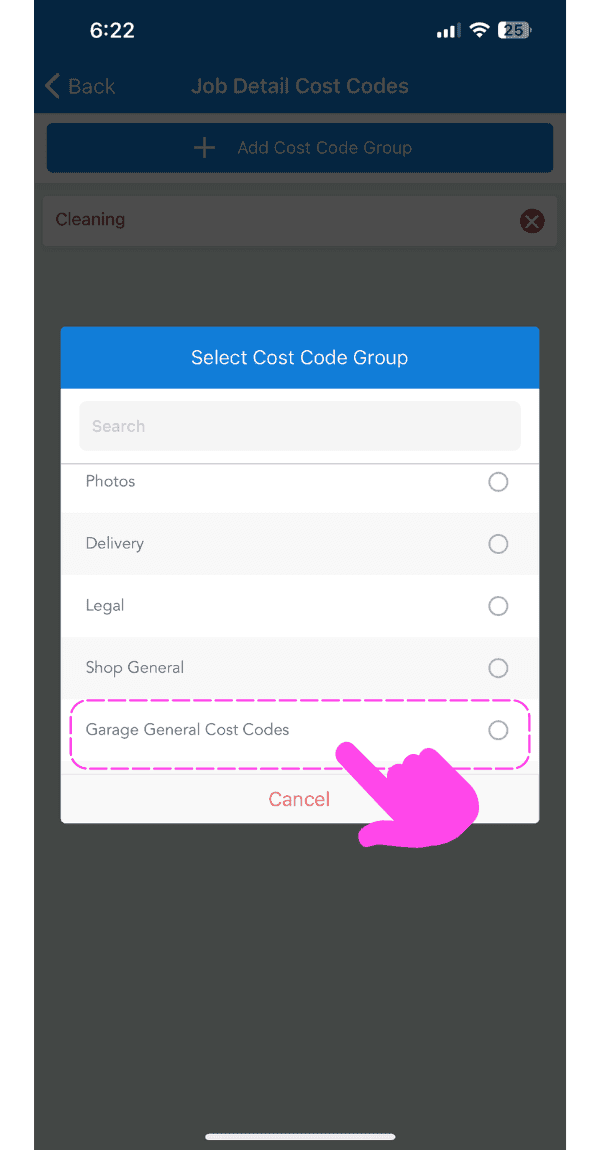
Mobile Select Cost Code Group popup with a pink arrow pointing to a highlighted cost code group option

Wenn Ihre Mitarbeiter jetzt für diesen Auftrag eingestempelt sind, können sie die Codes, die Sie dieser Gruppe hinzugefügt haben, auswählen, sobald sie einen Kostencode starten.
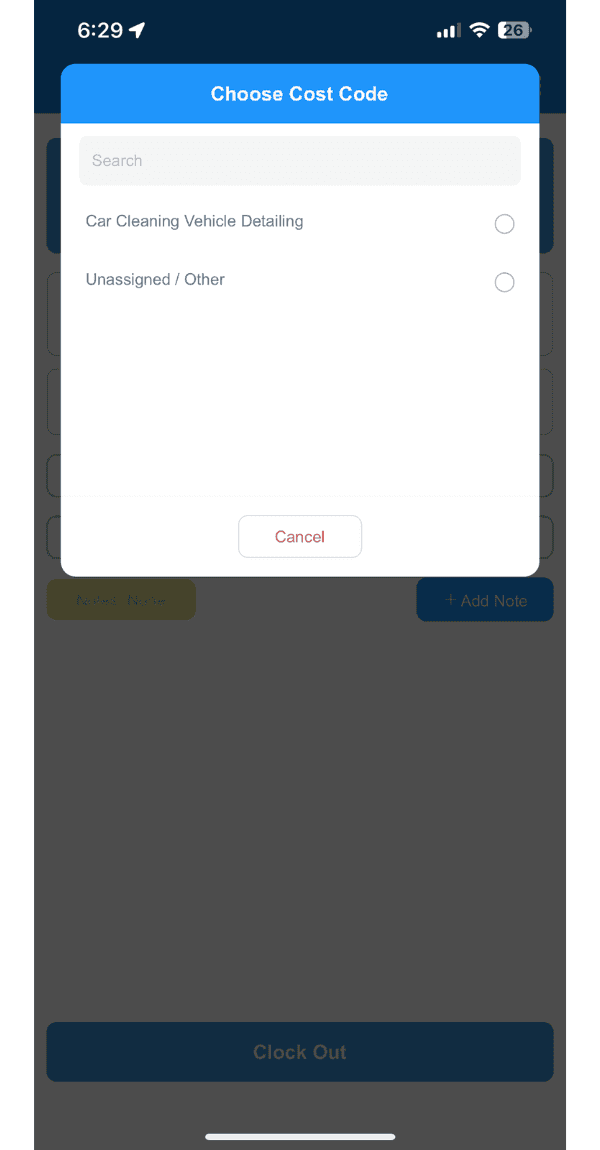
SINC mobile Choose Cost Code popup listing selectable cost codes with a Cancel button

Hat das Ihre Frage beantwortet?