Jobs: Arbeitsschicht bearbeiten

In diesem Leitfaden zeigen wir, wie Sie als Administrator eine Arbeitsschicht bearbeiten.

SINC Support Team
SINC Support Team
Feb 27th, 2023

Auf Mobilgeräten: Unter Übersicht auf Jobs tippen
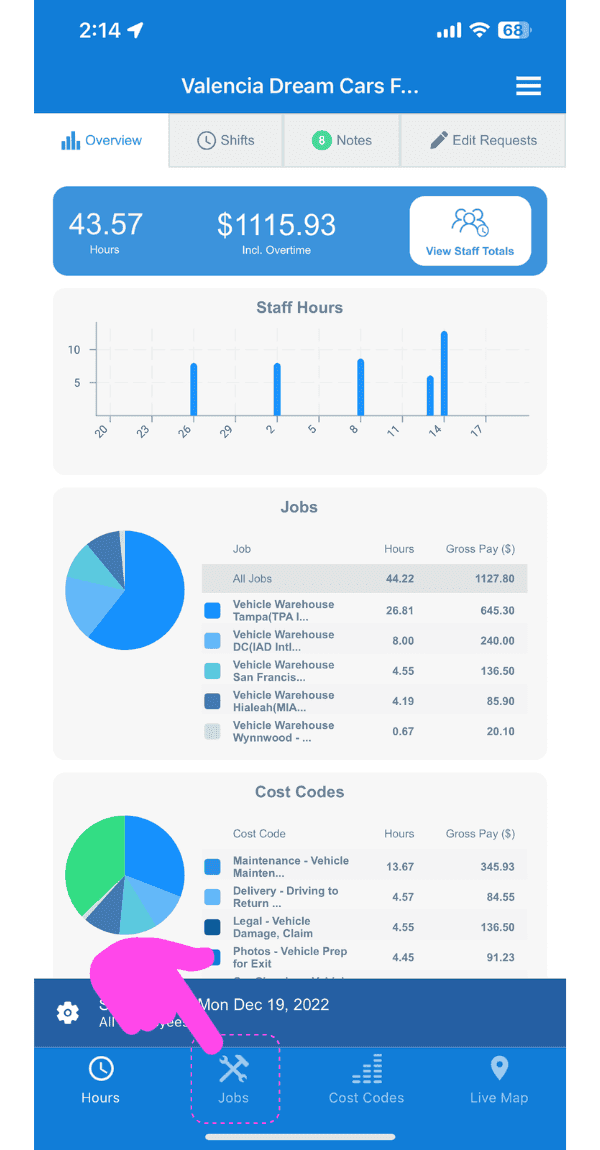
Web dashboard Overview screen with a pink arrow pointing to the Jobs tab in the sidebar

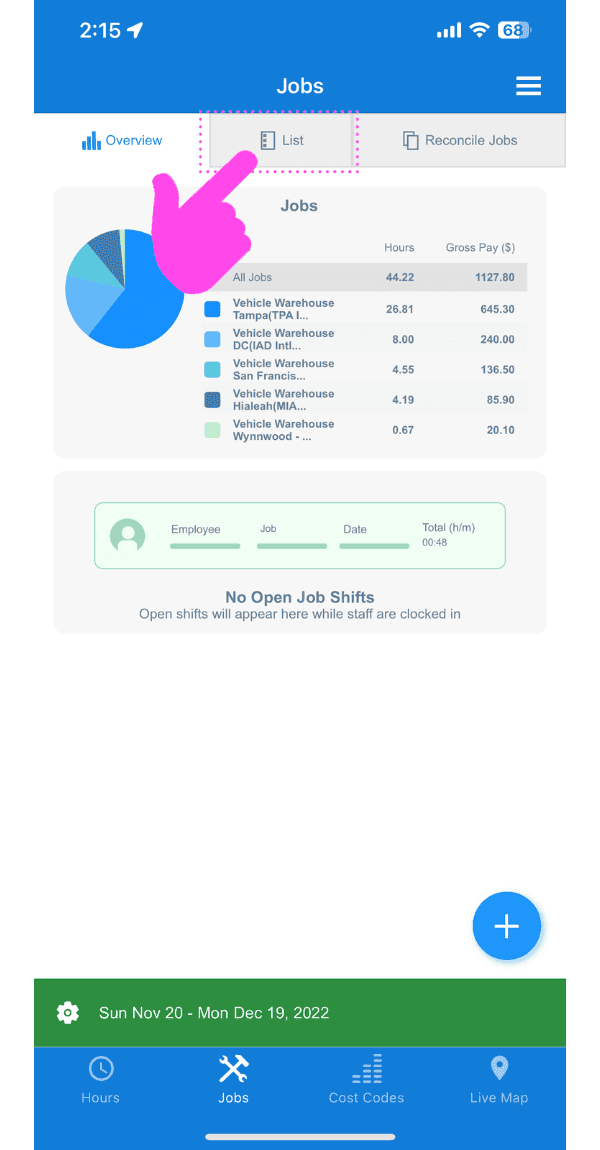
Tippe auf Liste

SINC web Jobs screen with a pink arrow pointing to the List tab above the jobs pie chart

Tippe auf den Job mit der Schicht, die du bearbeiten möchtest
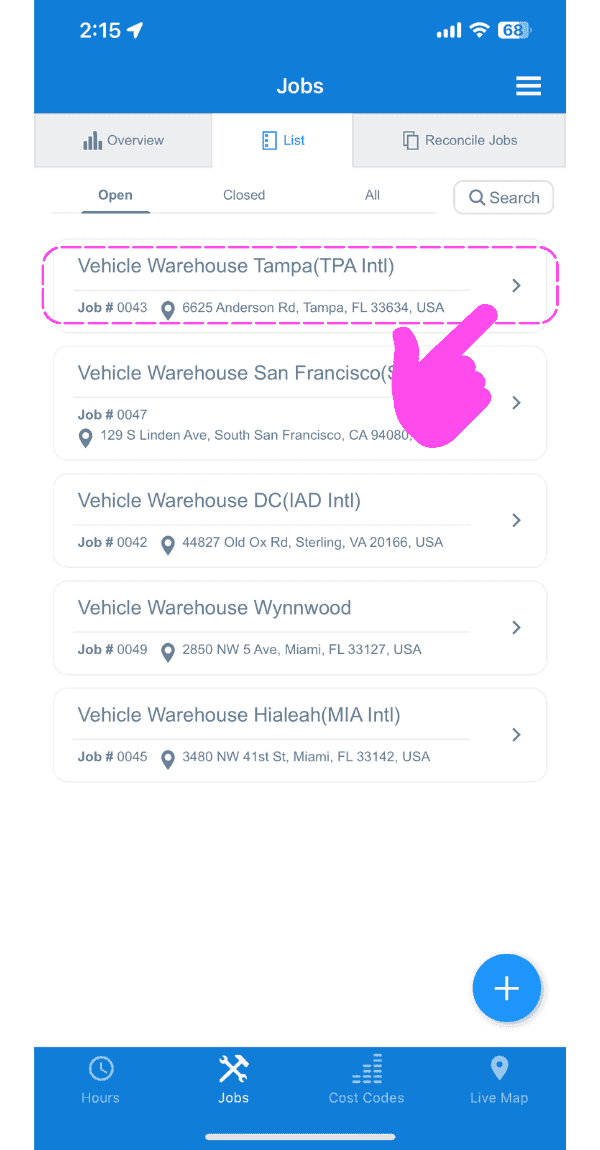
SINC mobile Jobs list with a pink hand pointing to a highlighted job entry to edit its shift

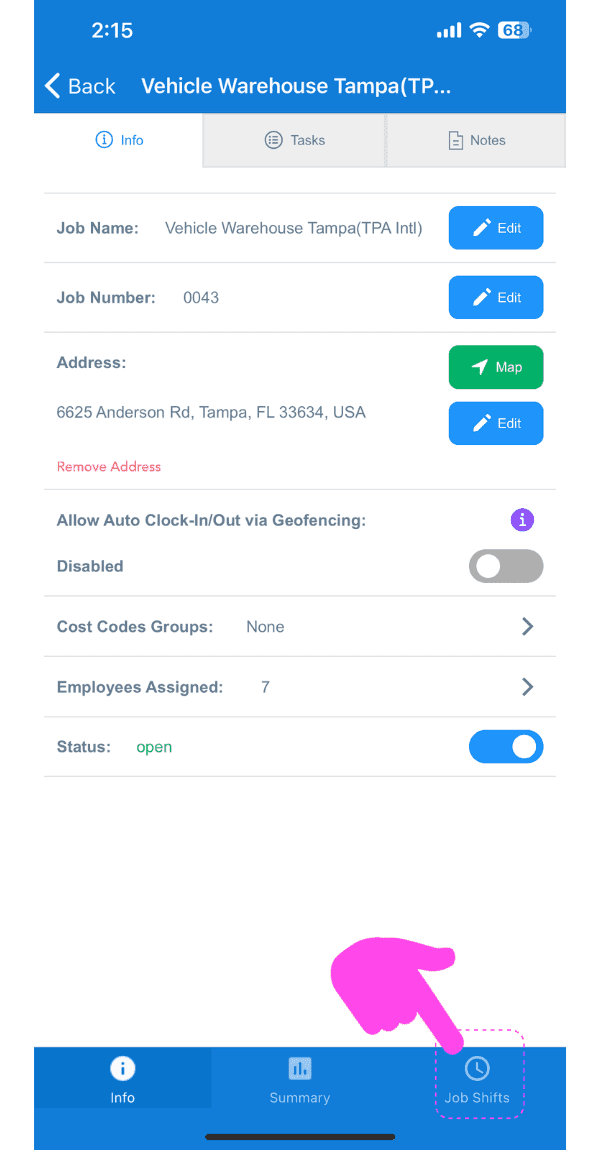
Tippe auf Arbeitsschichten

Job Info screen for Vehicle Warehouse Tampa with the Job Shifts tab at the bottom highlighted by a pink arrow

Tippe auf die Schicht, die du bearbeiten möchtest
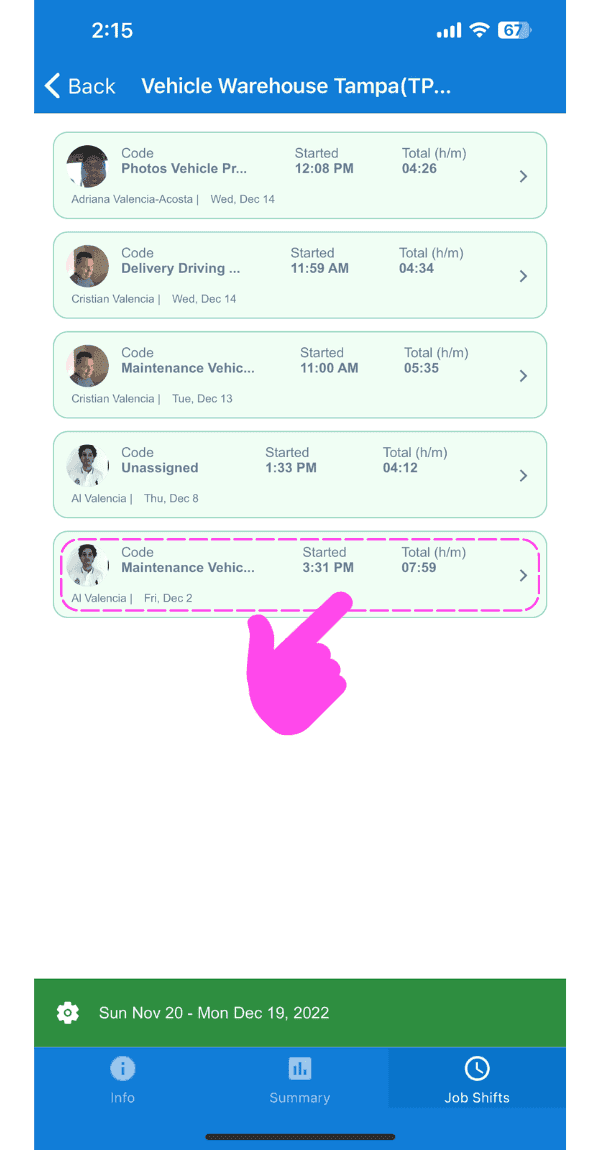
SINC mobile Job Shifts list with a pink arrow pointing to a highlighted shift entry to edit

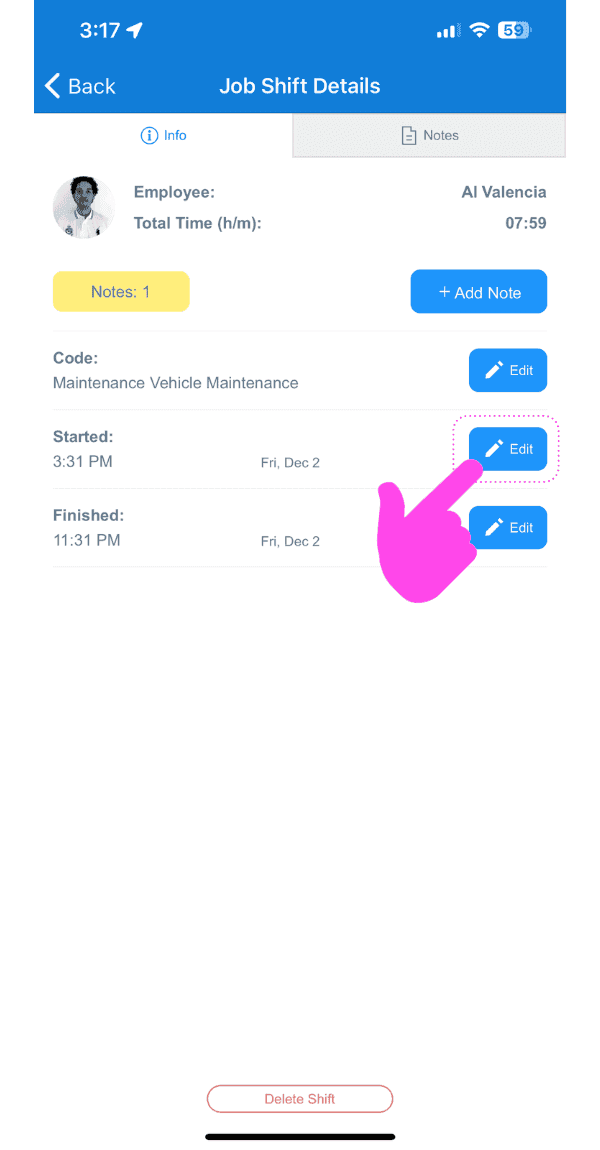
Auf Bearbeiten tippen

Job Shift Details screen with a pink arrow pointing to the Edit button next to the shift's Started time

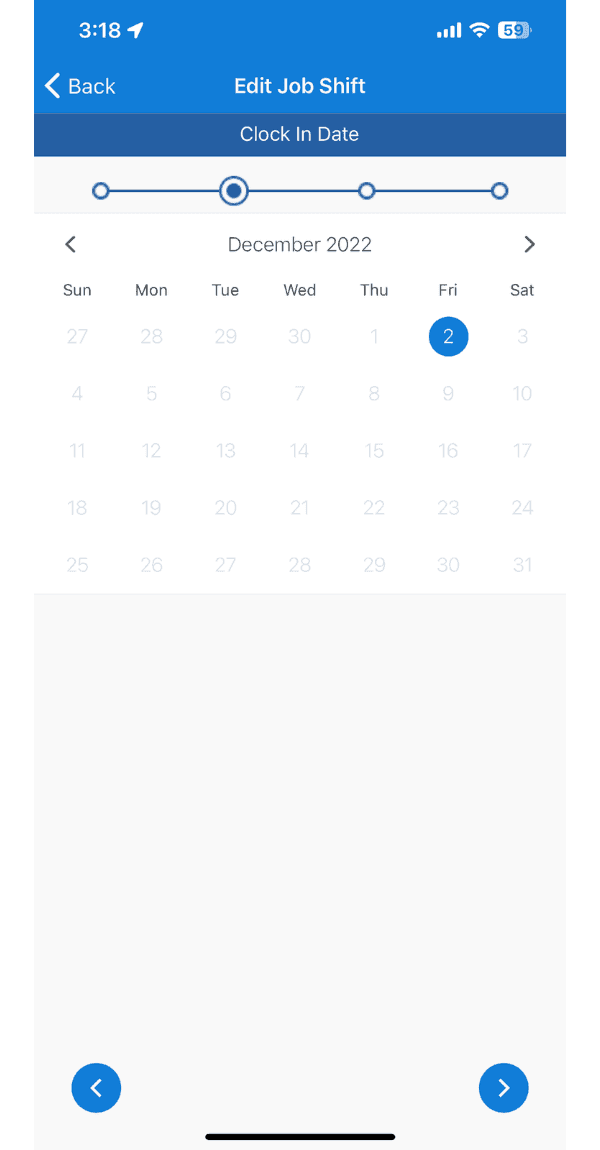
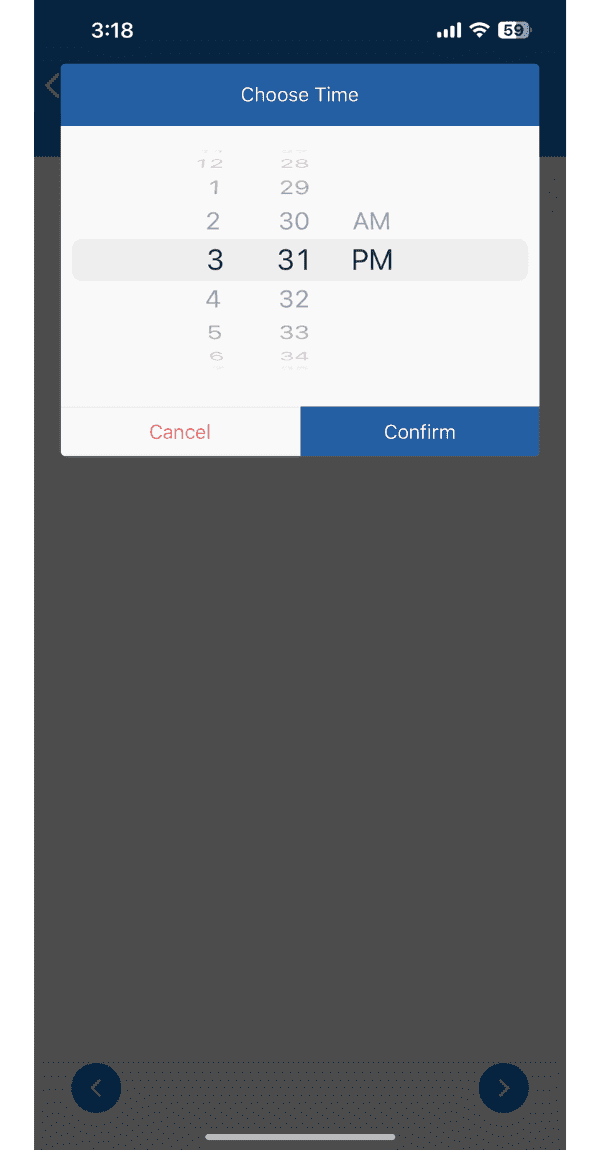
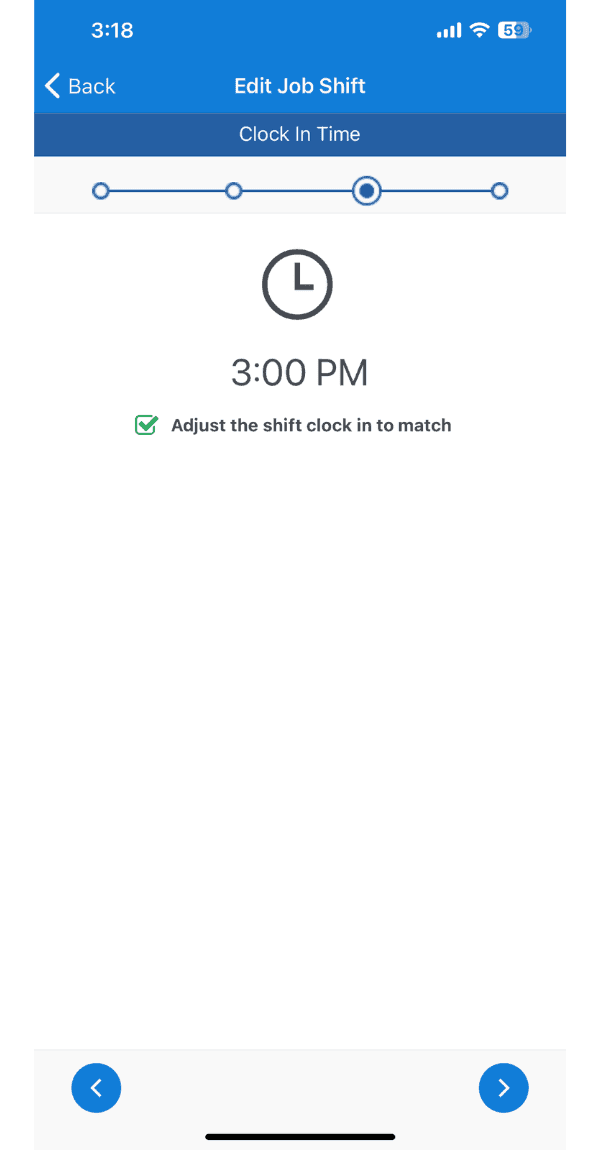
Führe die Schritte im Schichtbearbeitungs-Assistenten durch
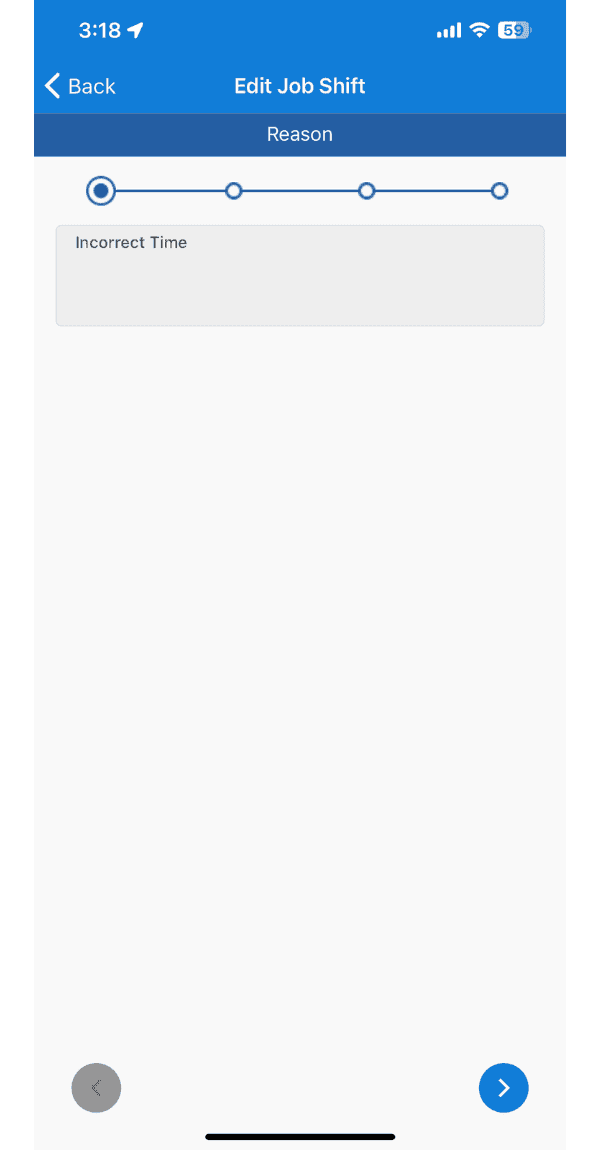
SINC mobile Edit Job Shift wizard showing the Reason step with Incorrect Time selected
Mobile Edit Job Shift screen showing the Clock In Date calendar step with December 2 selected
SINC mobile Choose Time wheel picker for setting a new clock time, with Cancel and Confirm buttons
Edit Job Shift wizard showing the Clock In Time step set to 3:00 PM

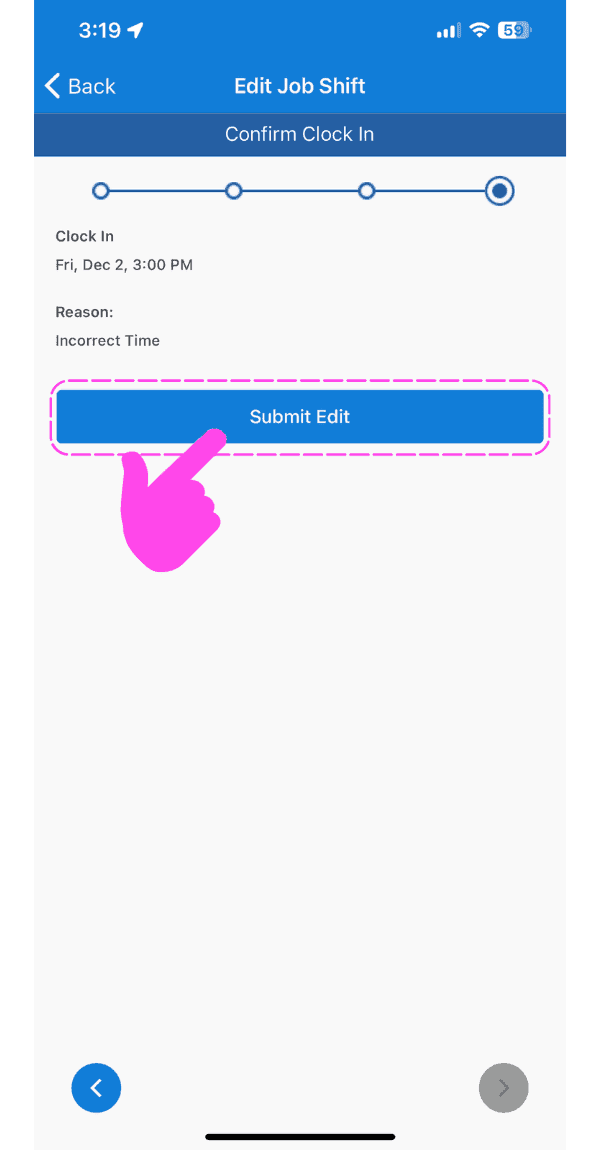
Tippe auf Bearbeitung absenden

Mobile Edit Job Shift confirmation screen with the Submit Edit button circled in pink

Um den Kostencode einer bestehenden Job-Schicht zu bearbeiten: Tippe auf Bearbeiten neben dem aktuellen Kostencode
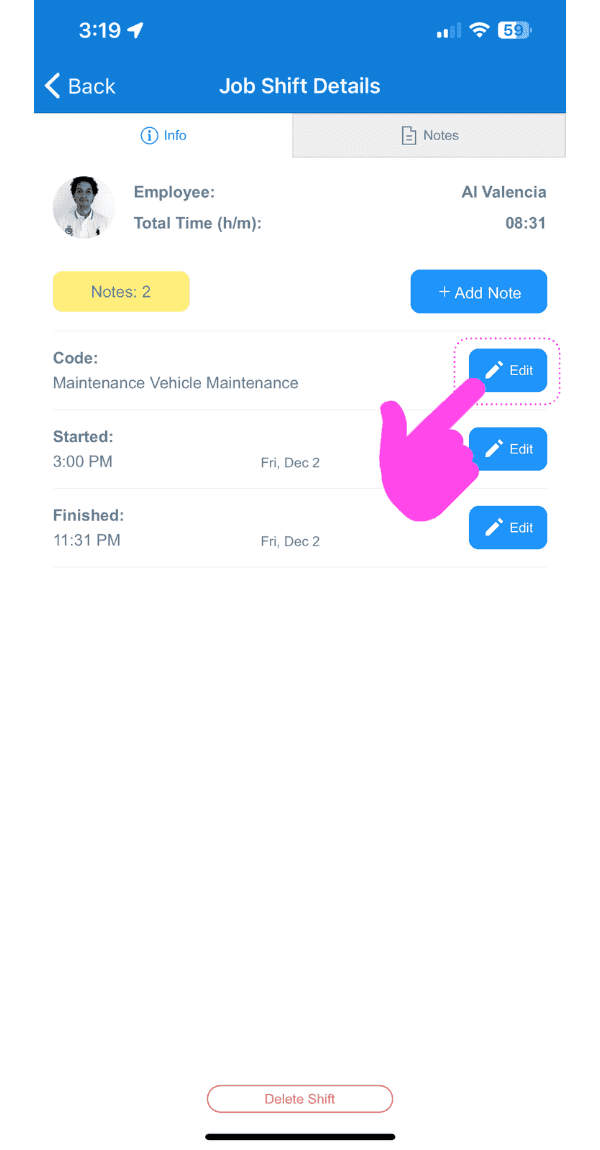
SINC mobile Job Shift Details screen with a pink arrow pointing to the Edit button next to the cost code

Wählen Sie den gewünschten Kostencode aus
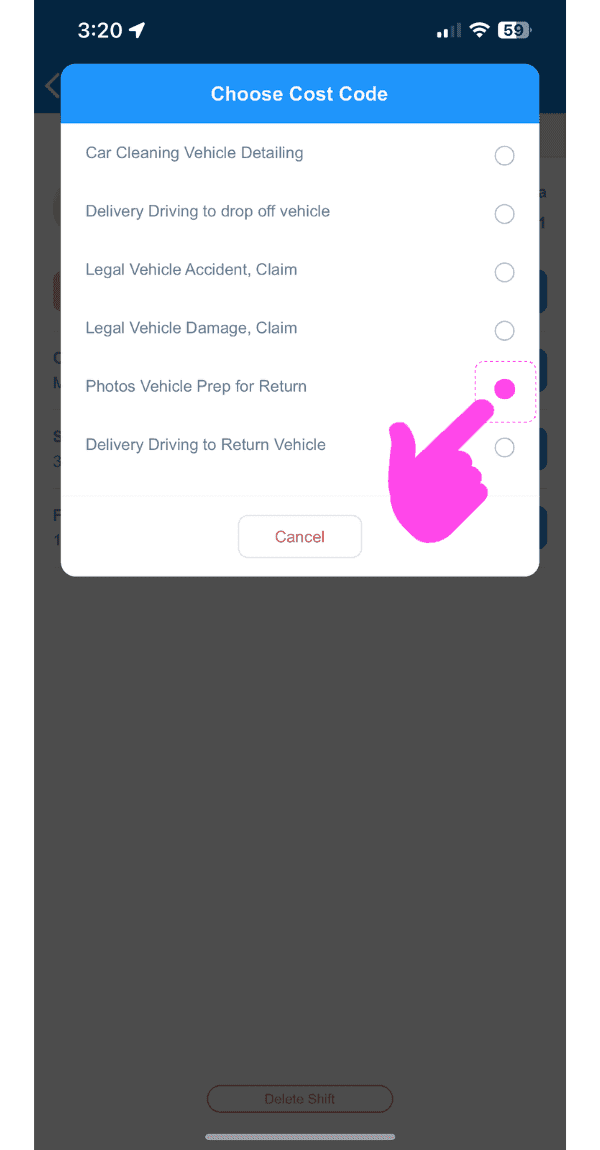
SINC mobile Choose Cost Code list with the 'Photos Vehicle Prep for Return' option circled in pink

Im Web: Klicke auf Startseite Arbeitszeiten
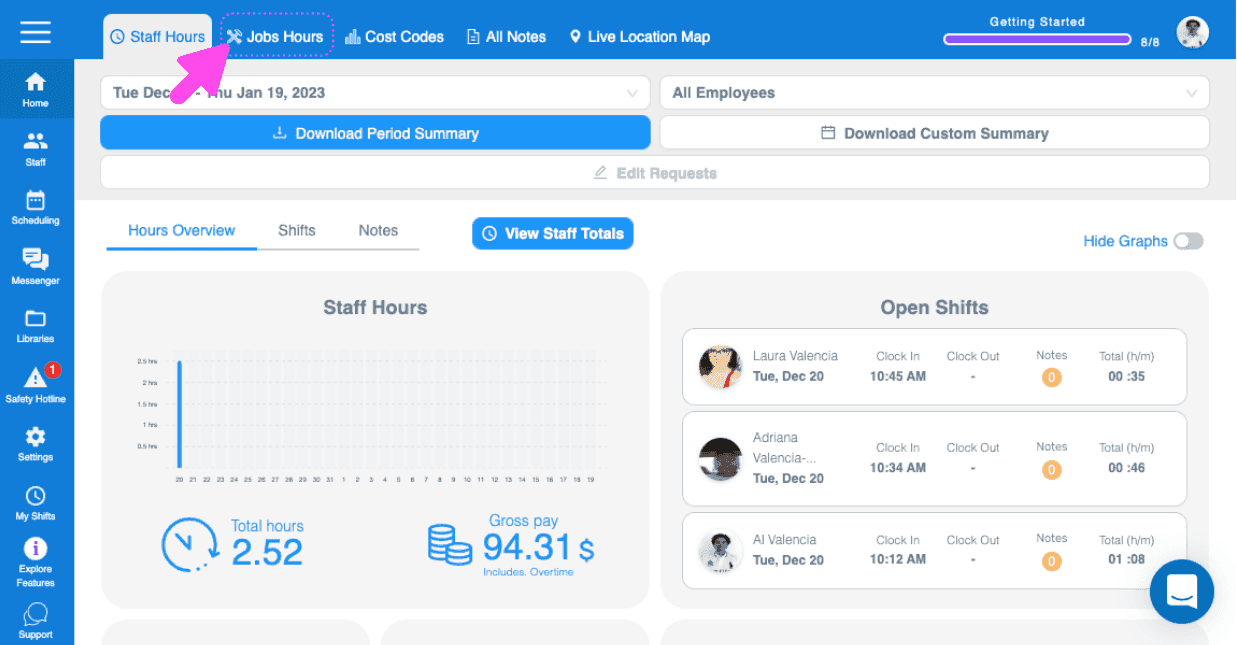
Web Jobs Hours dashboard showing an open shifts list with a pink arrow pointing to the Jobs Hours tab

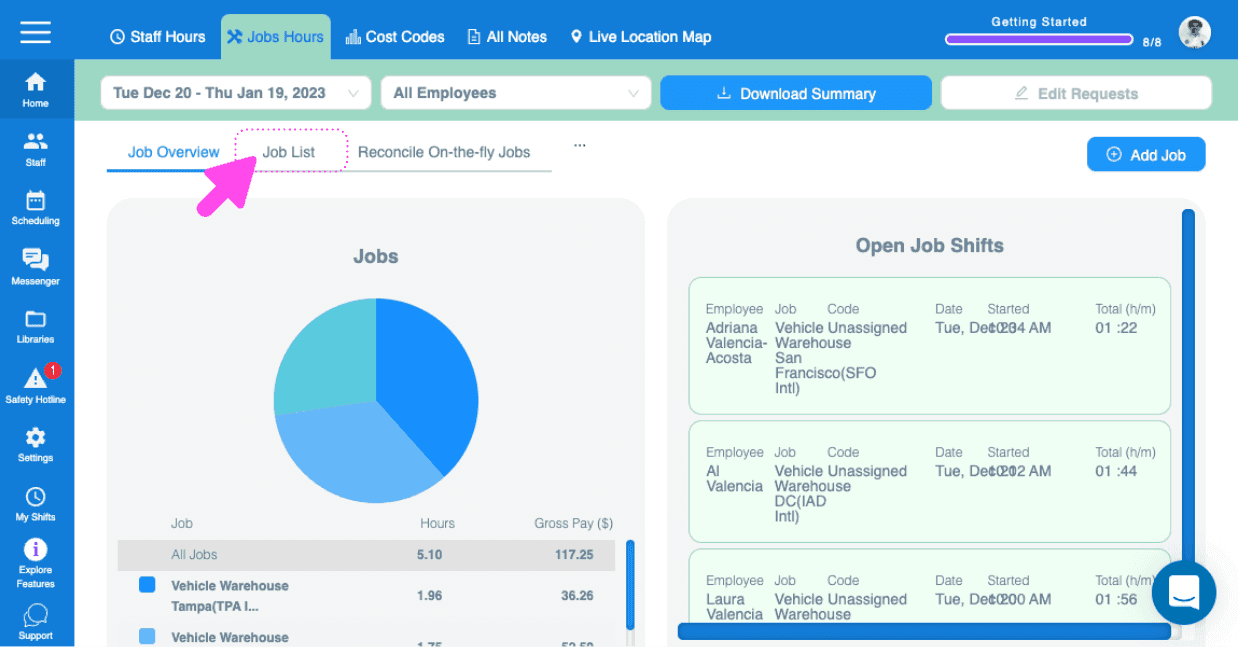
Klicken Sie auf Jobliste

SINC web Jobs Hours page with a pink arrow pointing to the Job List tab above a jobs pie chart

Klicken Sie auf den Auftrag, in dem sich die zu bearbeitende Schicht befindet
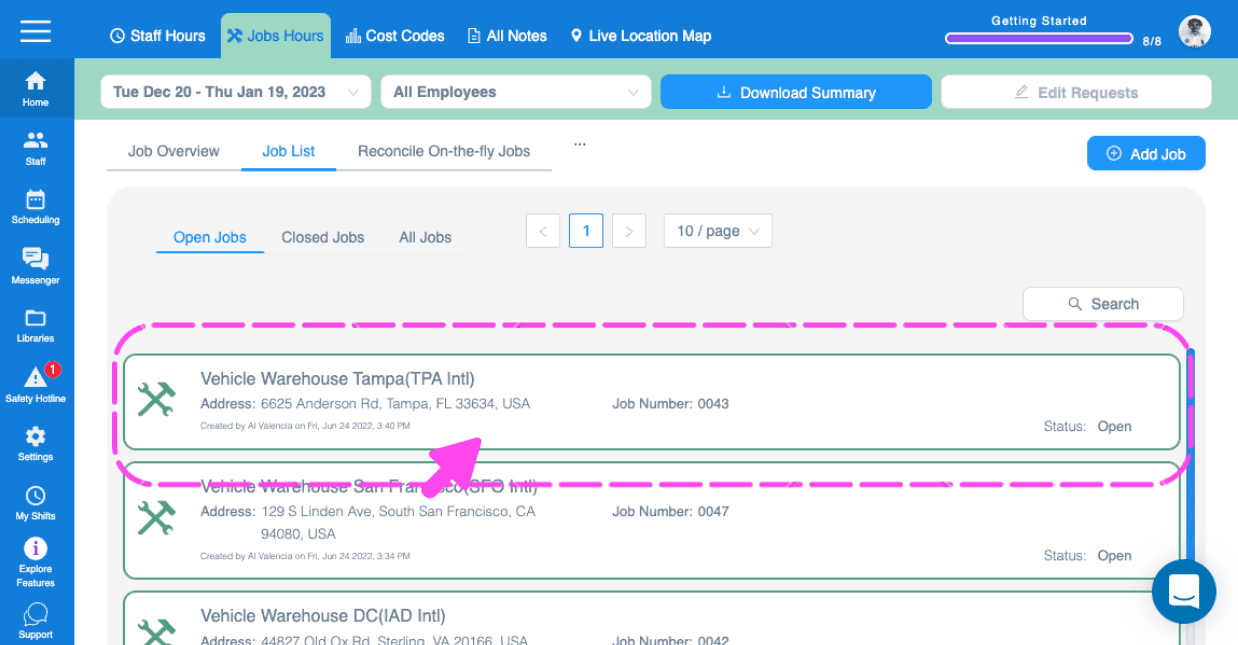
Web dashboard Job List with a pink arrow highlighting a job entry to open

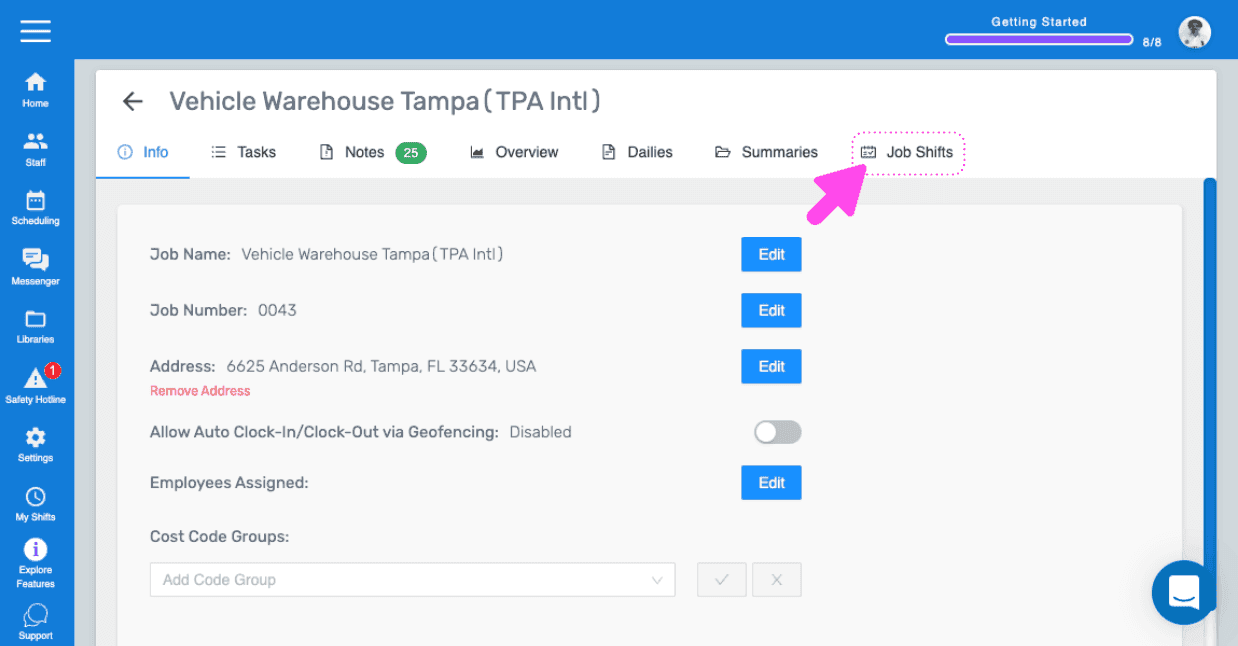
Klicken Sie auf Schichten

SINC web Job Info screen with a pink arrow pointing to the Job Shifts tab

Klicken Sie auf die Arbeitsschicht, die Sie bearbeiten möchten
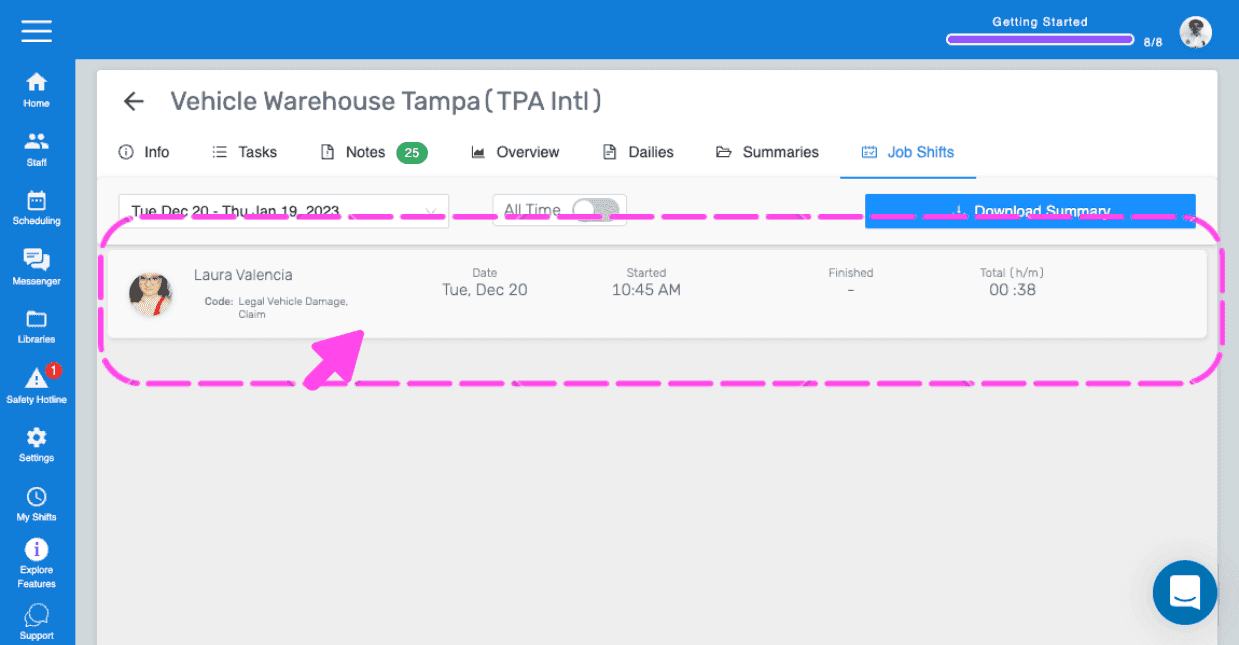
SINC mobile Job Shifts tab with a pink arrow pointing to a highlighted employee shift entry

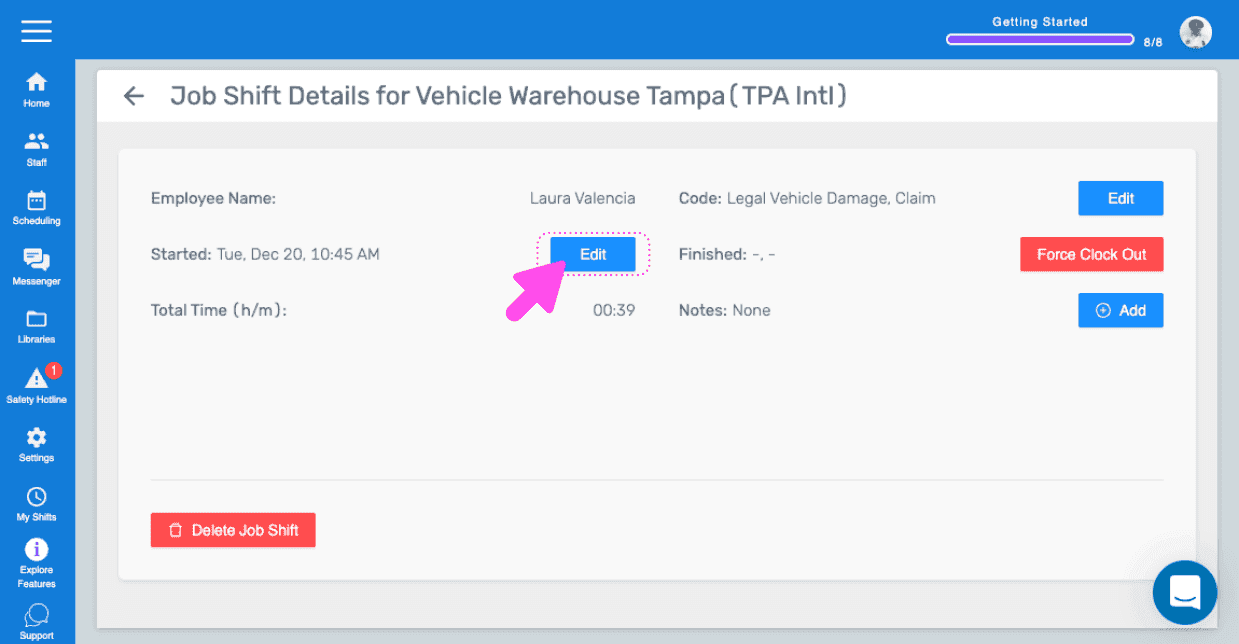
Klicke auf Bearbeiten

Job Shift Details screen with the Edit button next to the Started time highlighted by a pink arrow

Klicken Sie auf Änderungen einreichen
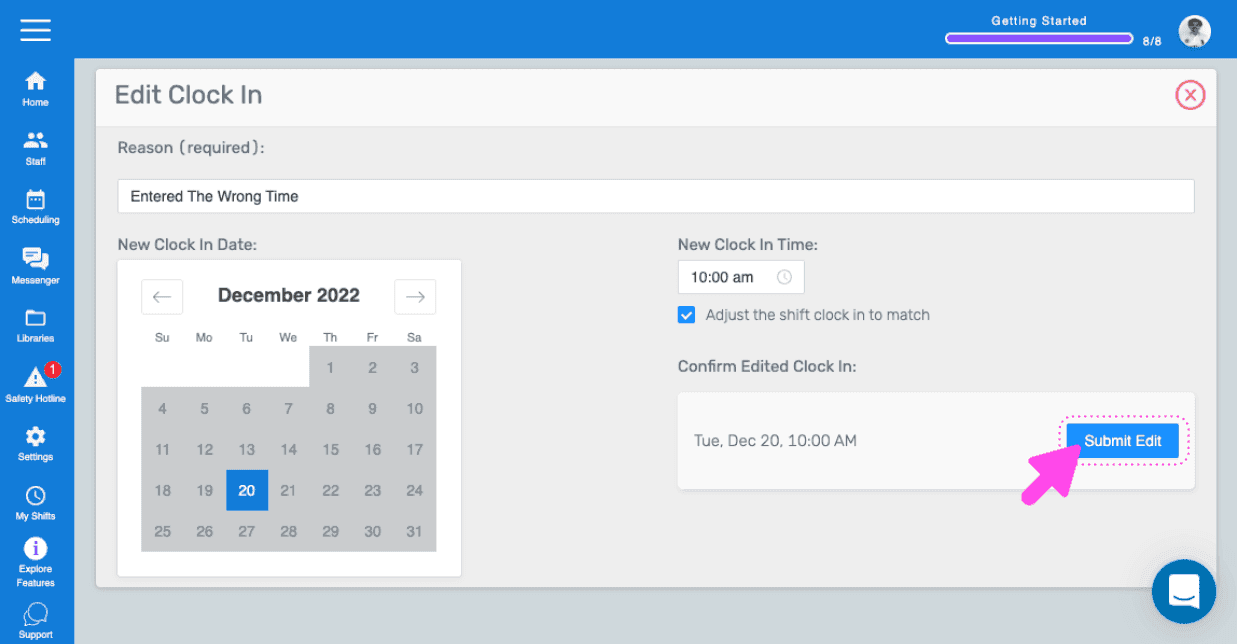
SINC web Edit Clock In form with date and time fields and the Submit Edit button highlighted

Um den Kostencode einer bestehenden Arbeitsschicht zu bearbeiten: Klicke auf Bearbeiten
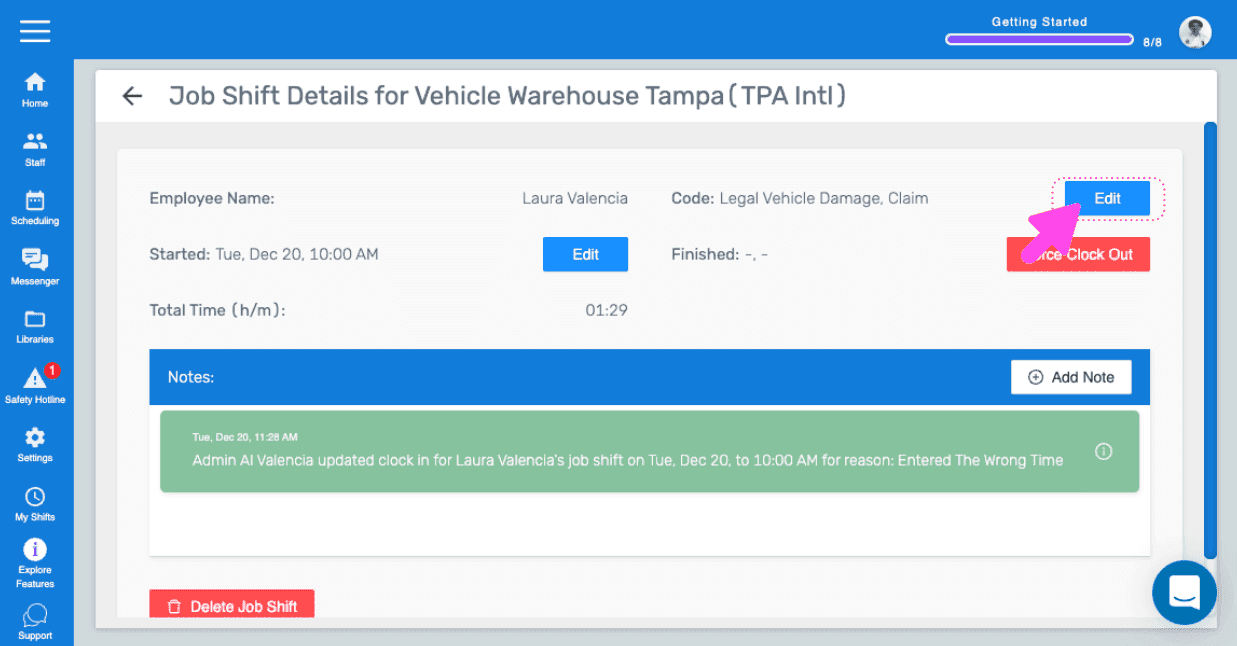
SINC web dashboard Job Shift Details screen with a pink arrow pointing to the Edit button near the Force Clock Out control

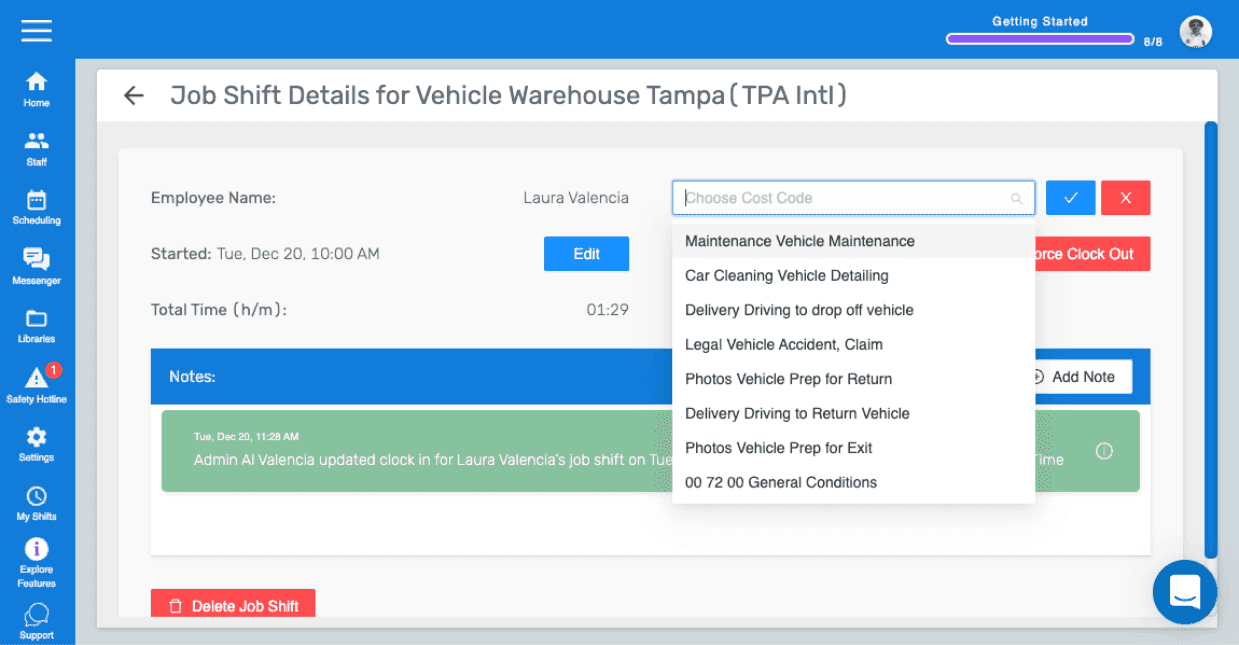
Wählen Sie den neuen Kosten-Code aus

SINC web Job Shift Details panel with the Choose Cost Code dropdown open and options listed

Hat das Ihre Frage beantwortet?