Jobs: Mitarbeiter-Walkthrough

Hier wird der Arbeitsablauf eines Mitarbeiters Schritt für Schritt erklärt.

Sam Dolbel
Sam Dolbel
Dec 15th, 2022

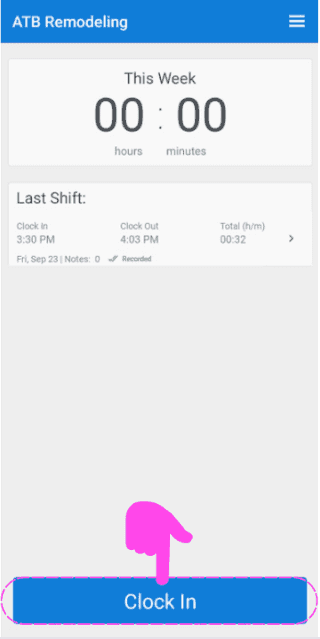
Tippe auf Einstempeln

SINC mobile app home screen with a pink hand icon pointing to the Clock In button

Schiebe den Button nach rechts, um das Einstempeln zu bestätigen
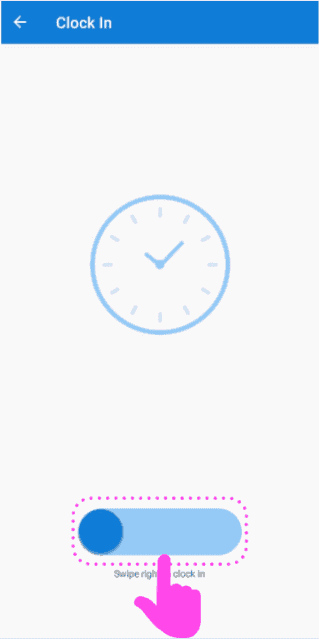
Clock In screen with a pink arrow showing how to swipe the slider right to clock in

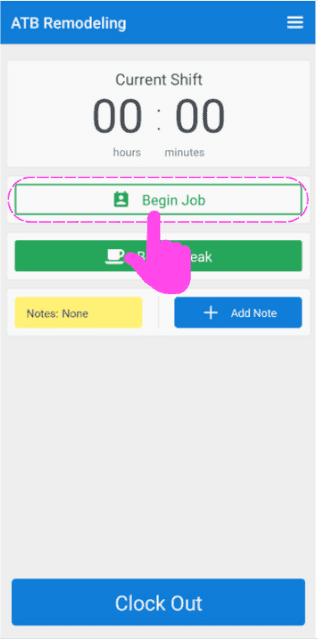
Tippe auf Auftrag starten

SINC mobile Current Shift screen with the Begin Job button circled in pink

Hier sehen Sie eine durchsuchbare Liste der verfügbaren Stellen. Wählen Sie die passende Stellenbezeichnung aus.
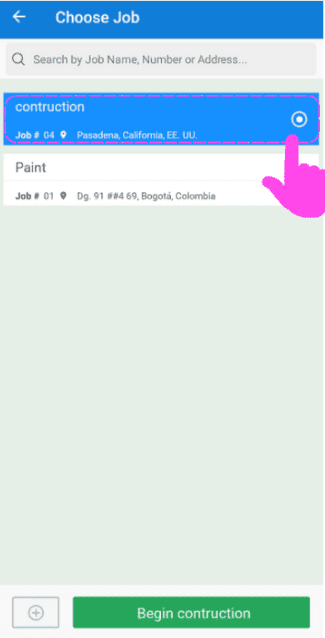
SINC mobile Choose Job screen with a pink hand pointing to a highlighted job in the searchable list

Tippen Sie nun auf Hinzufügen (neben Code: Nicht zugewiesen), um mit der Bearbeitung eines Kostencodes zu beginnen.
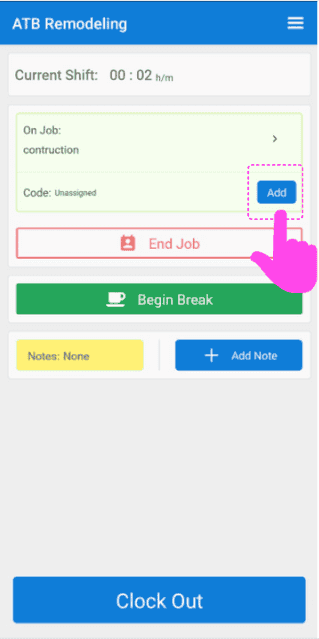
Mobile app Current Shift screen with the Add button next to the unassigned cost code highlighted by a pink arrow

Hier sehen Sie eine Liste aller Kostencodes, die der Administrator für diesen Auftrag verfügbar gemacht hat. Wählen Sie den zutreffenden aus.
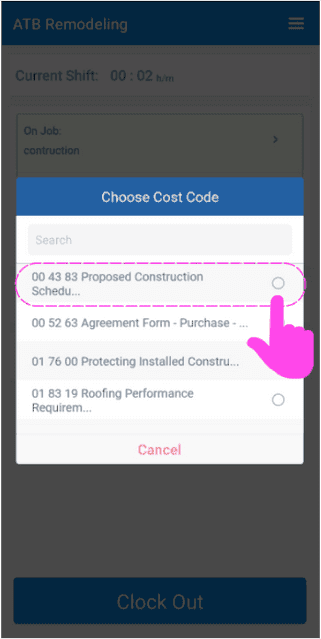
SINC mobile Choose Cost Code screen with the first cost code option highlighted in pink

Sobald Sie mit der Bearbeitung dieses Codes fertig sind und zu einem anderen wechseln möchten, tippen Sie einfach auf Bearbeiten (neben „Code:“).
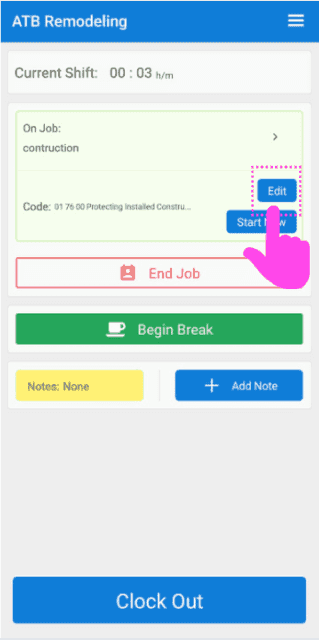
Job shift screen for ATB Remodeling with a pink hand pointing to the Edit button next to the job Code

Und wählen Sie den passenden Code aus der Liste aus
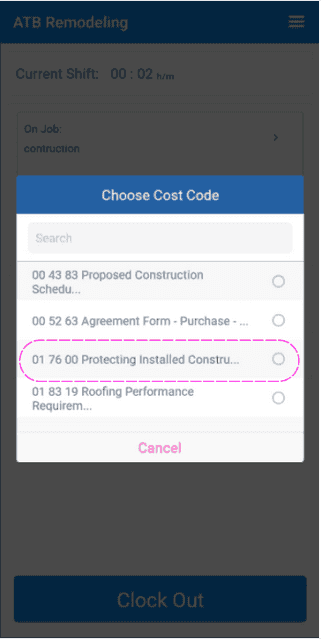
SINC mobile app Choose Cost Code list with one cost code option circled in pink

Um eine Pause zu beginnen, tippe auf Pause beginnen
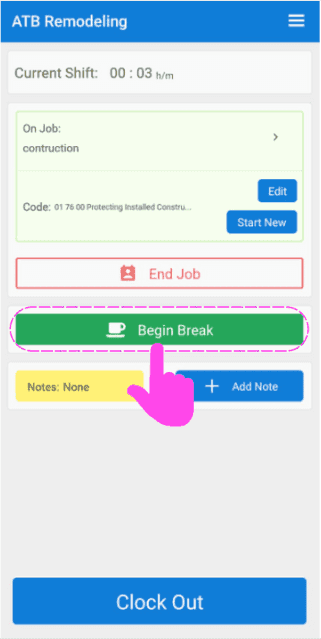
Mobile job clock-in screen with the green Begin Break button circled in pink and an arrow pointing to it

Wählen Sie die Pause aus, auf die Sie aufgrund der in dieser Schicht geleisteten Arbeitszeit Anspruch haben.
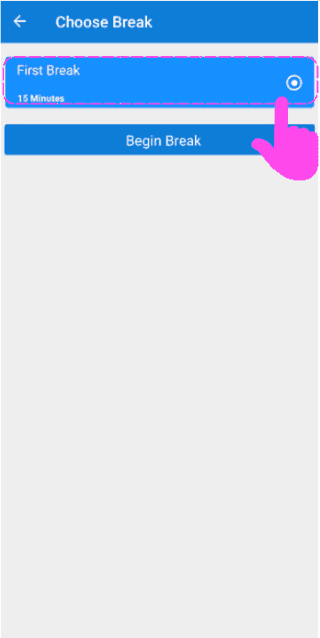
SINC mobile Choose Break screen with a pink hand pointing to the First Break option above the Begin Break button

Um die Pause zu beenden, tippe auf Pause beenden
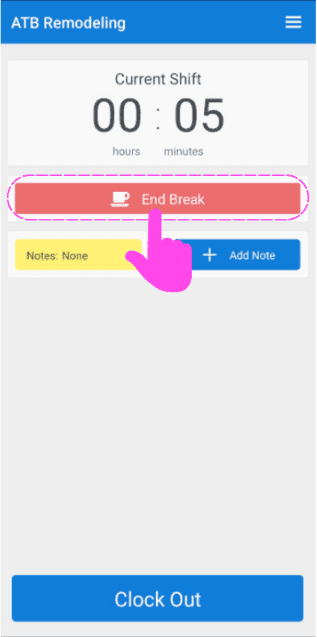
Mobile Current Shift screen during a break with a pink arrow pointing to the End Break button

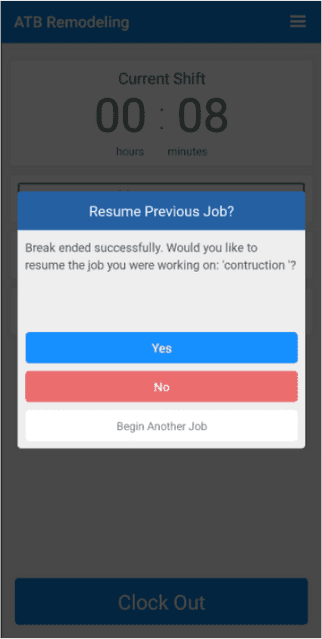
Sie werden gefragt, ob Sie die Arbeit an dem Auftrag fortsetzen möchten, an dem Sie vor der Pause gearbeitet haben, oder ob Sie einen anderen Auftrag beginnen möchten.
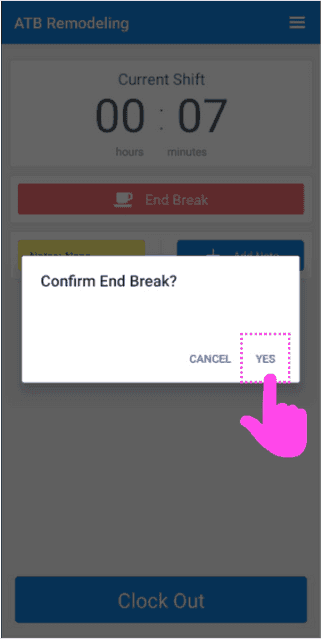
Mobile Confirm End Break popup with the Yes button circled in pink
SINC mobile app Resume Previous Job dialog with Yes, No, and Begin Another Job buttons

Um die Auftragsdetails anzuzeigen, tippe auf den Pfeil neben Auftrag läuft.
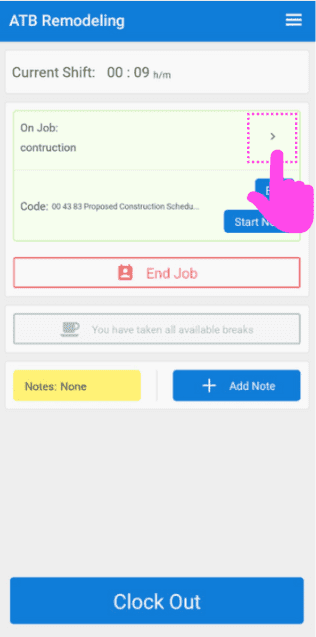
SINC mobile Current Shift screen with a pink arrow highlighting the expand arrow icon next to 'On Job'

Um schnell eine Wegbeschreibung zu deinem Job zu erhalten, tippe auf Karte
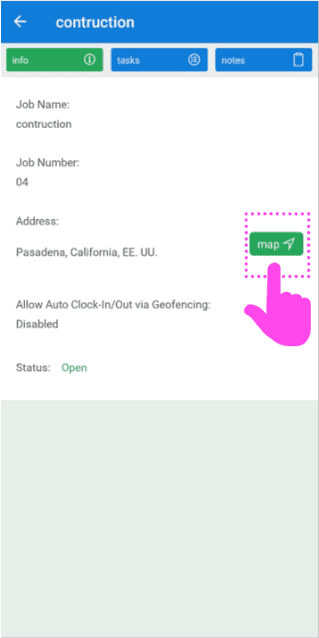
Mobile job info screen for a construction job with a pink arrow pointing to the green Map button

Um eine Liste der mit dem Auftrag verbundenen Aufgaben anzuzeigen, tippen Sie auf Aufgaben
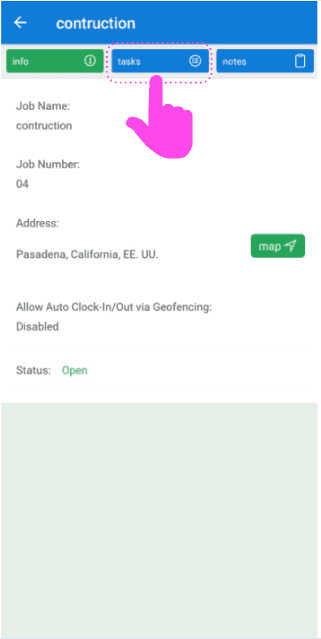
SINC mobile app job detail screen with a pink hand pointing to the Tasks tab

Hier sehen Sie eine Liste der Aufgaben für diesen Auftrag. Tippen Sie auf Aufgabenname, um die Aufgabenbeschreibungen anzuzeigen.
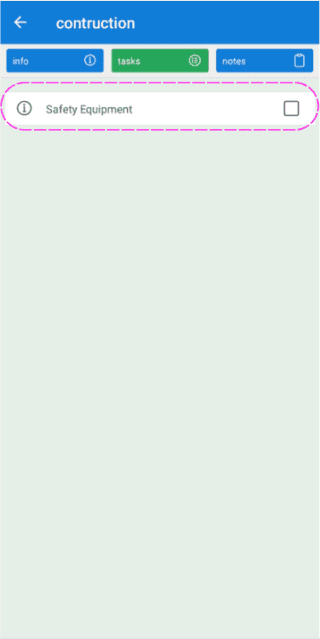
Job task list screen with the Safety Equipment task outlined in pink

Du kannst eine Aufgabe als erledigt markieren, indem du auf das Kästchen neben der Aufgabe tippst.
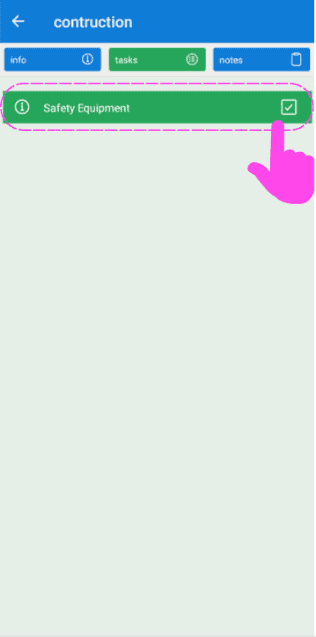
SINC mobile Job Tasks screen with the Safety Equipment task and its completion checkbox circled in pink

Um dem Auftrag eine Notiz hinzuzufügen, tippen Sie auf Notizen.
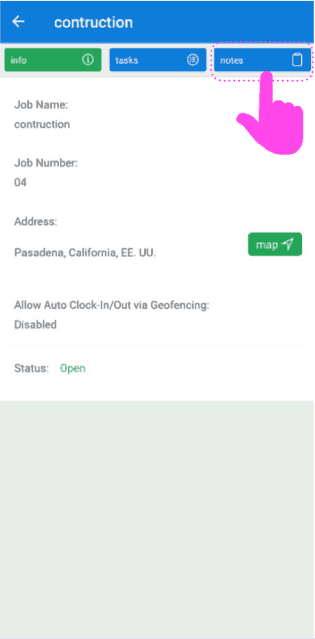
SINC mobile job detail screen with a pink arrow pointing to the Notes tab

Hier sehen Sie eine Liste aller Notizen zu diesem Auftrag. Um eine neue Notiz hinzuzufügen, tippen Sie auf +Notiz hinzufügen
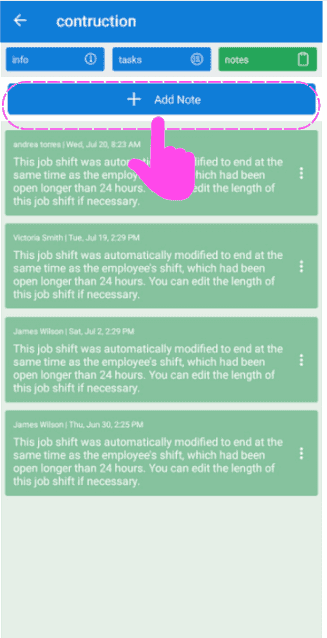
Job notes list screen with the +Add Note button outlined in pink at the top

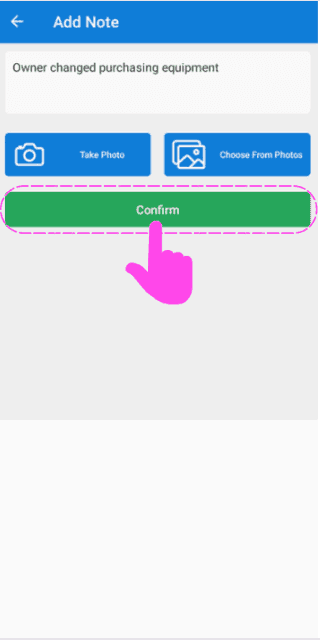
Hier können Sie eine Beschreibung eingeben, ein Foto für die Notiz aufnehmen oder ein Bild aus der Fotomediathek Ihres Geräts auswählen.
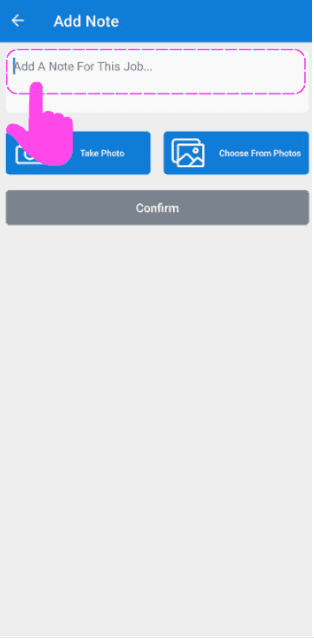
SINC mobile Add Note screen with the note text field highlighted and Take Photo and Choose From Photos buttons
Add Note screen with a typed description and a pink arrow pointing to the green Confirm button below the photo options

Wenn deine Schicht beendet ist und du dich ausstempeln möchtest, tippe auf Ausstempeln
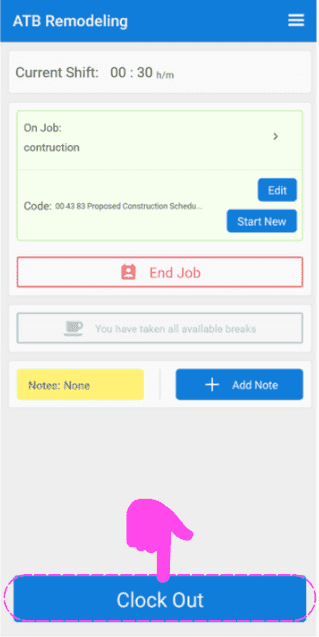
SINC mobile Current Shift screen for a job, with a pink arrow pointing to the Clock Out button

Schieben Sie den Button nach rechts, um das Ausstempeln zu bestätigen
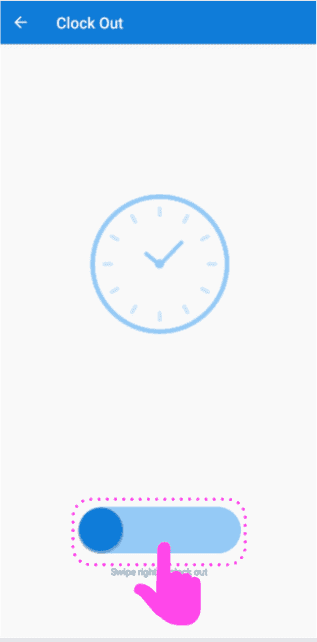
Mobile Clock Out screen with a clock icon and the slide-to-confirm button outlined in pink

Hat das Ihre Frage beantwortet?