Jobs: Eine offene Arbeitsschicht zwangsweise beenden

Verwenden Sie diese Funktion mit Vorsicht! Sie ist als letzte Möglichkeit gedacht, wenn ein Mitarbeiter keine Internetverbindung hat, um seine Schichten zu synchronisieren.

SINC Support Team
SINC Support Team
Feb 27th, 2023

Wenn ein Mitarbeiter nicht rechtzeitig eine Internetverbindung herstellen kann, um eine Zusammenfassung zu erstellen, oder aus einem anderen Grund noch nicht ausstempeln konnte, können Sie seine Arbeitsschicht mit dieser Funktion zwangsweise beenden. Diese Funktion sollte nur als letzte Möglichkeit verwendet werden.

Auf dem Mobilgerät: Tippen Sie auf die betreffende offene Schicht
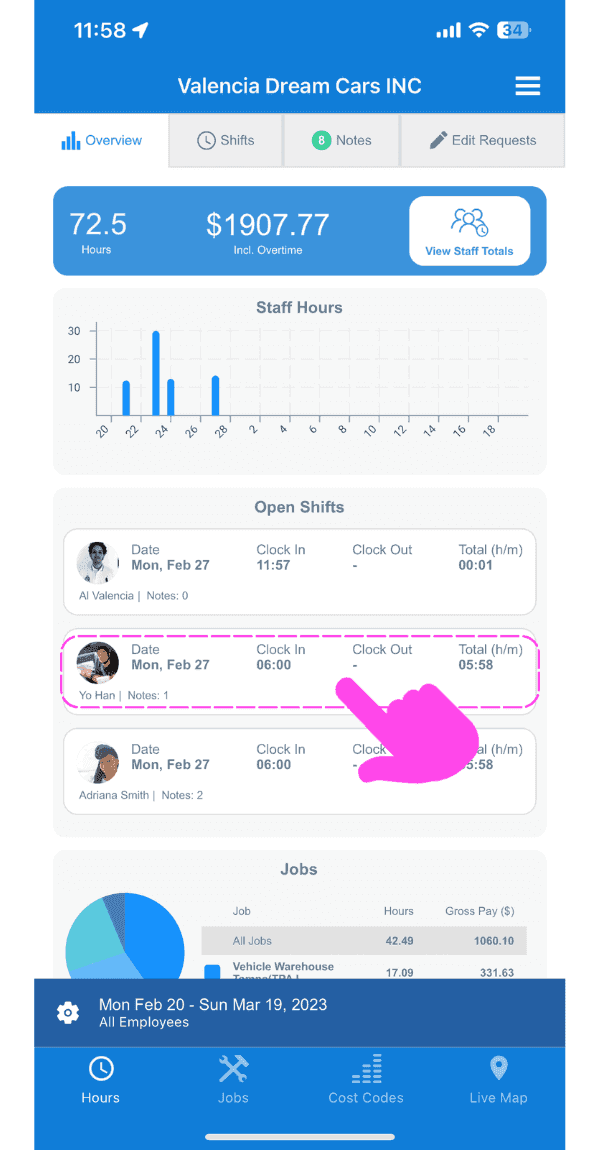
SINC web dashboard Open Shifts list with a pink hand pointing to a specific open shift row

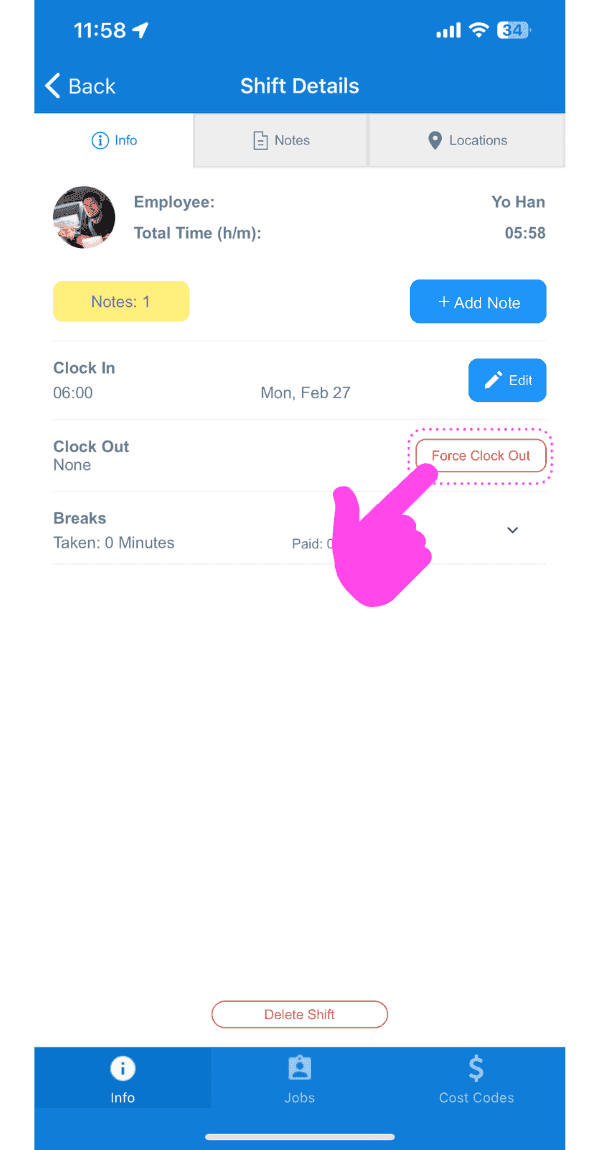
Tippen Sie auf Ausstempeln erzwingen

Shift Details screen with the Force Clock Out button outlined in pink

Datum für das neue Ausstempeln auswählen
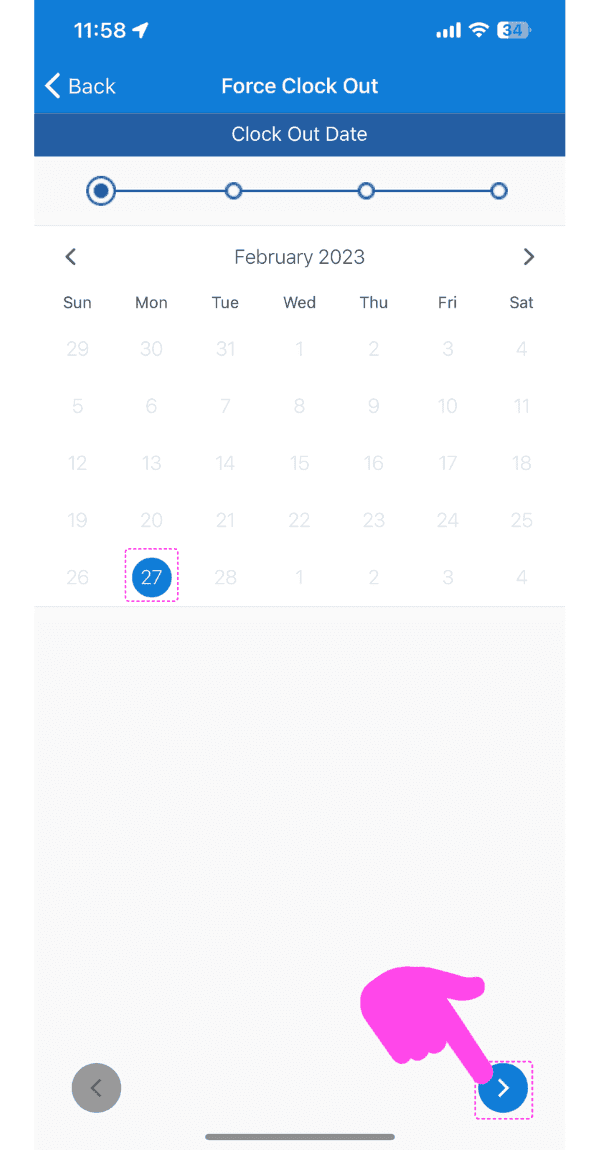
Force Clock Out screen showing a February calendar with the 27th selected and a pink arrow pointing to the next-step button

Uhrzeit für das neue Ausstempeln auswählen
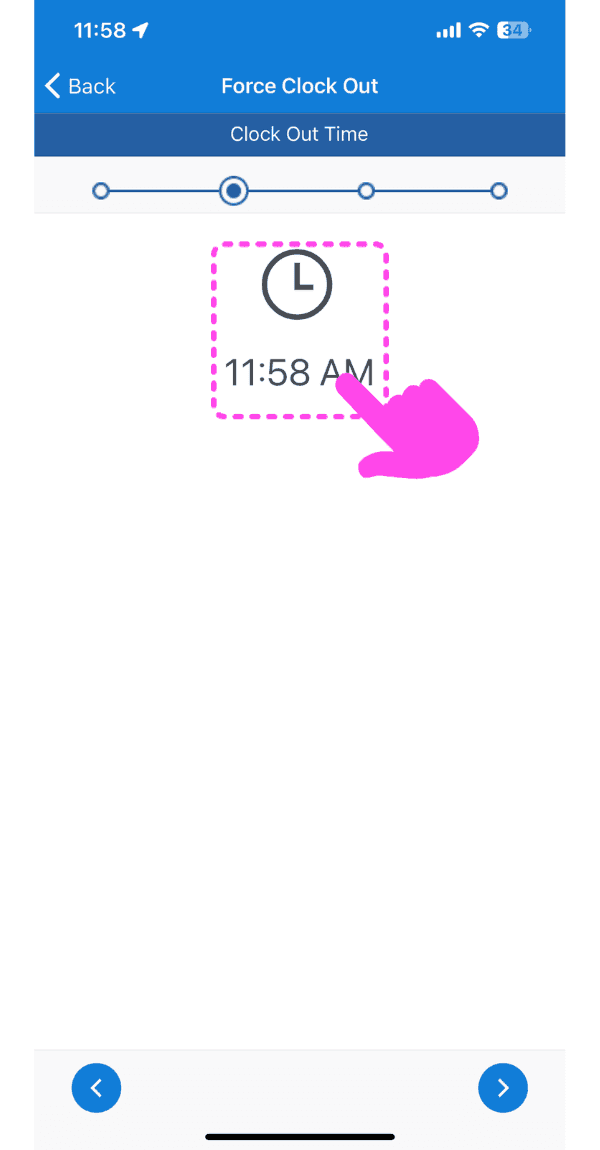
SINC mobile Force Clock Out screen with a pink arrow pointing to the clock-out time selector

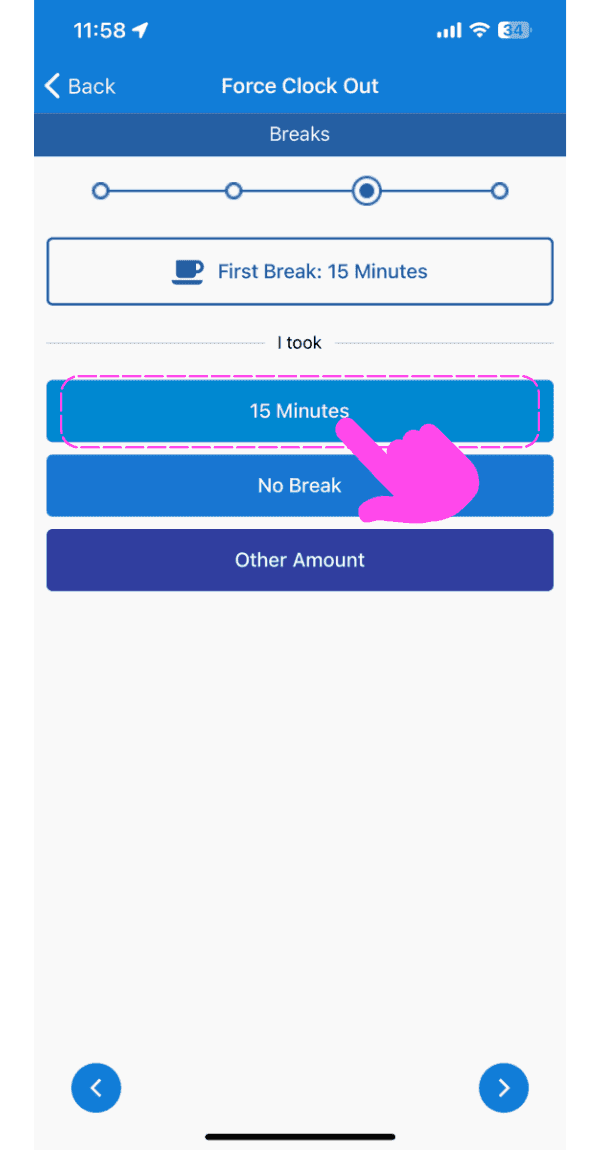
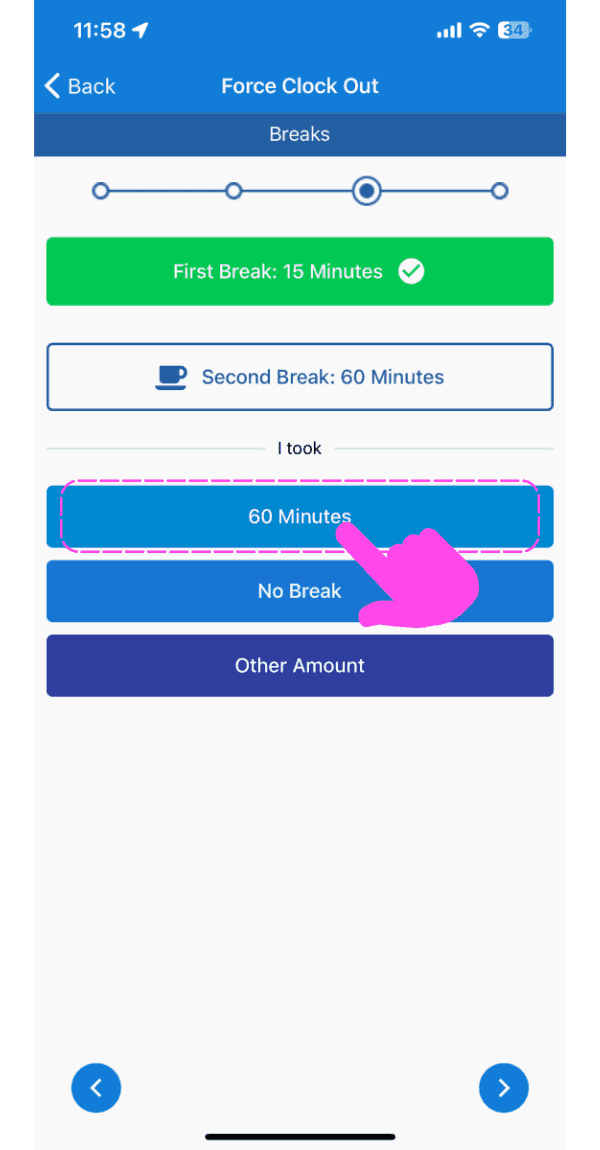
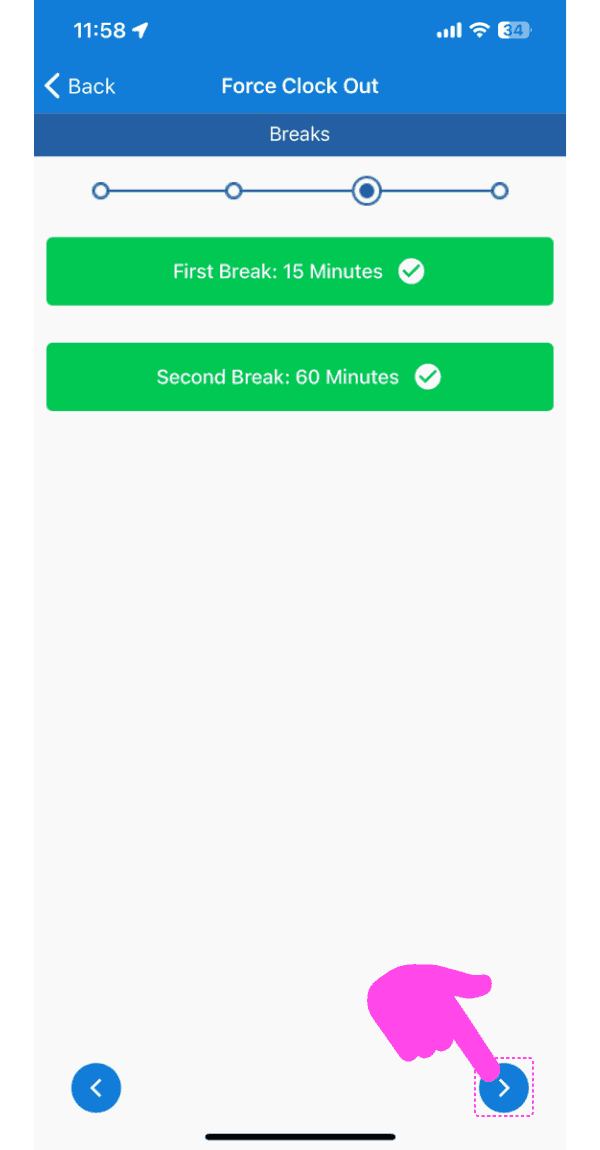
Pausenzeit auswählen

Force Clock Out breaks screen with the 15 Minutes break option highlighted by a pink arrow
SINC mobile Force Clock Out breaks screen with the 60 Minutes option highlighted in pink
Force Clock Out Breaks screen showing both breaks confirmed, with a pink arrow pointing to the next-step arrow button bottom right

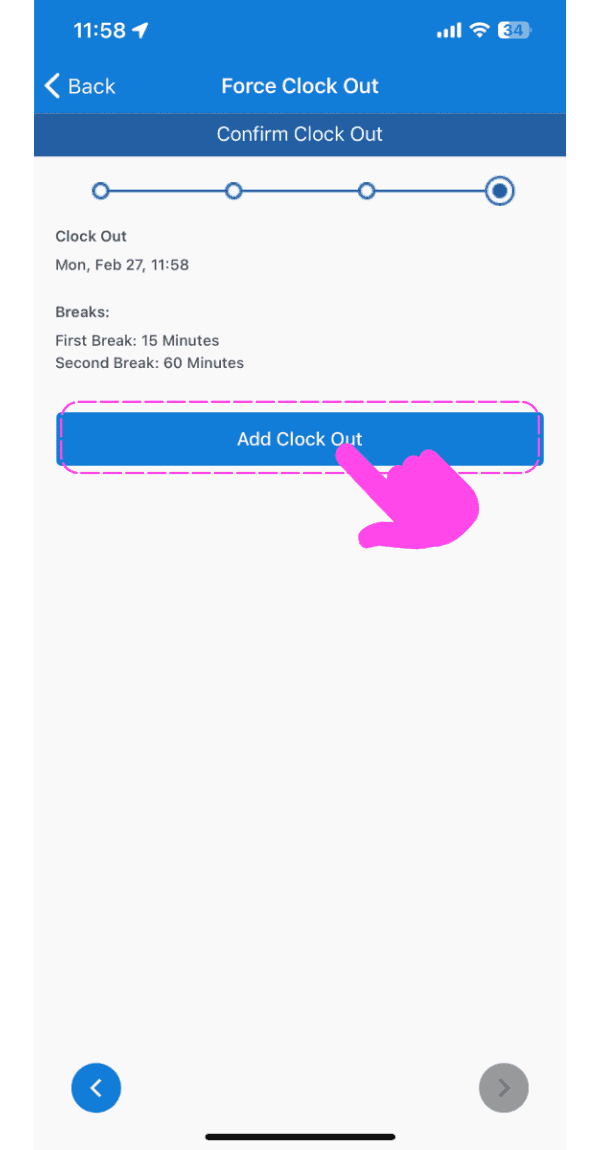
Tippe auf Ausstempeln hinzufügen

SINC mobile Confirm Clock Out screen with a pink arrow pointing to the Add Clock Out button

Im Web: Klicken Sie auf die betreffende offene Schicht
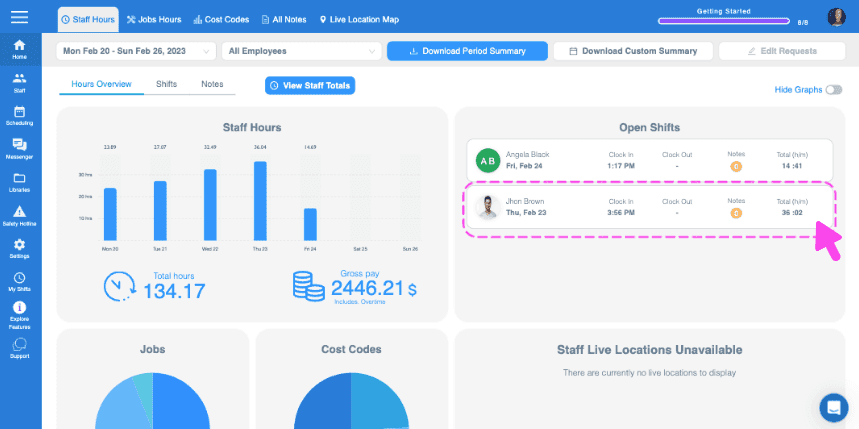
Web Staff Hours Overview with an open shift row outlined in pink and an arrow pointing to it

Klicken Sie auf Uhrzeit manuell erfassen
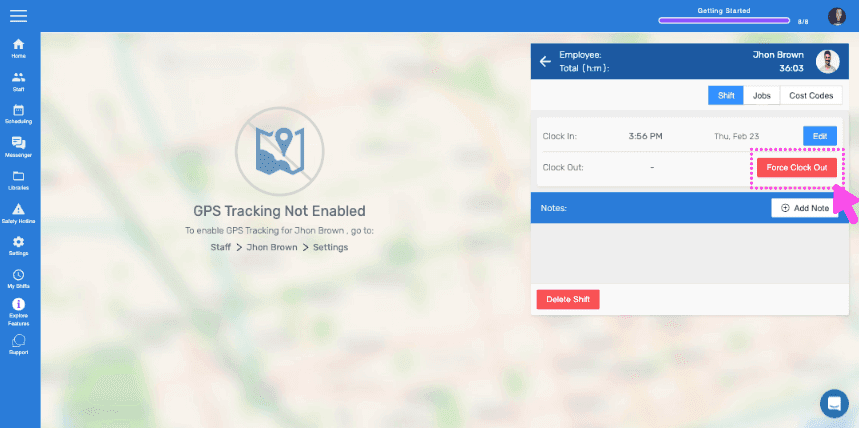
SINC web Force Clock Out panel with a pink arrow pointing to the highlighted Clock Out Time field

Wählen Sie das Datum für das neue Ausstempeln aus
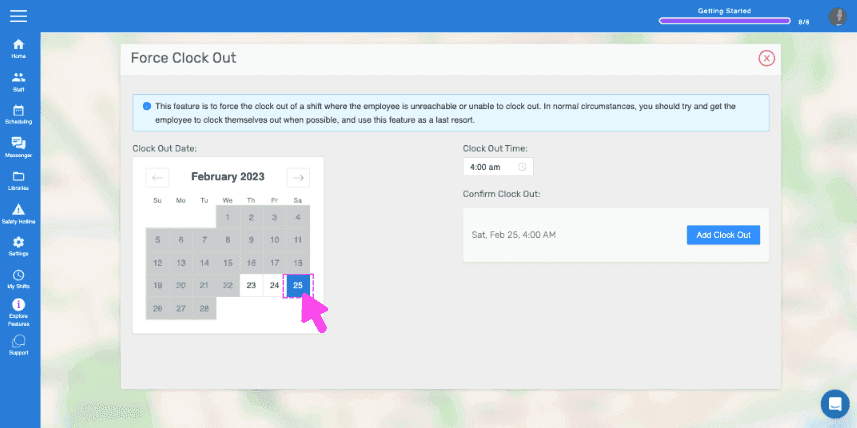
Force Clock Out screen with a calendar and a pink arrow selecting a clock-out date

Zeit für das neue Ausstempeln auswählen
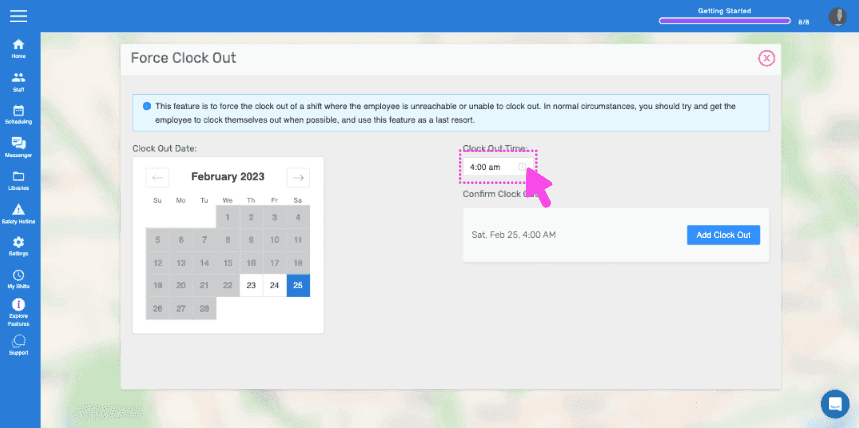
Web Force Clock Out screen with the Clock Out Time field circled in pink

Klicken Sie auf Ausstempeln hinzufügen
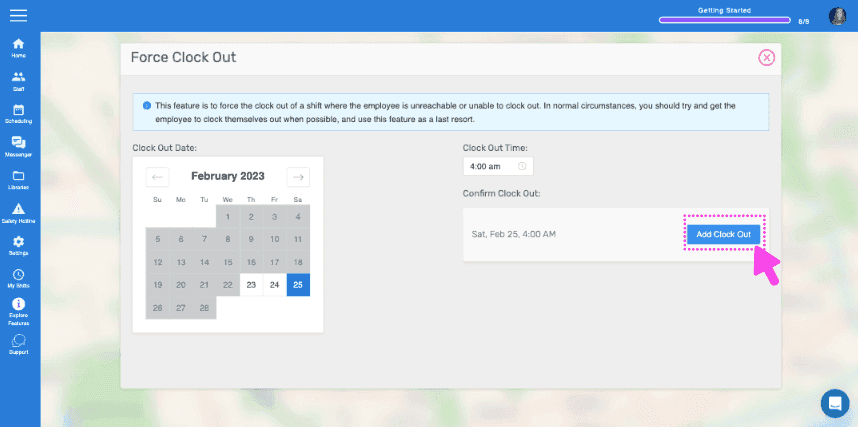
SINC web Force Clock Out screen with a pink arrow pointing to the Add Clock Out button

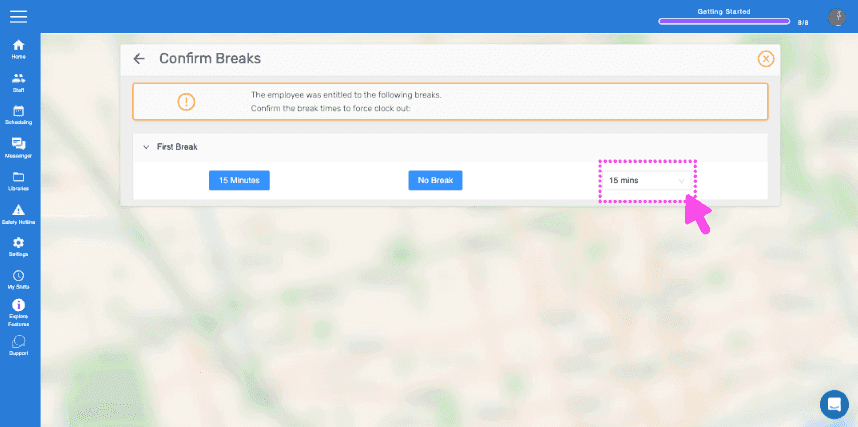
Klicken Sie auf Pausen bestätigen

SINC web Confirm Breaks dialog with a pink arrow pointing to the break time field

Klicken Sie auf Erzwungenes Ausstempeln hinzufügen
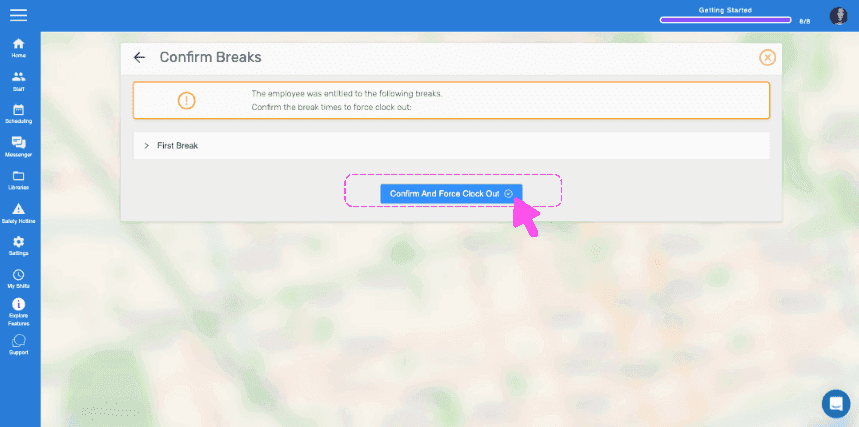
Confirm Breaks dialog with a pink arrow pointing to the Confirm And Force Clock Out button

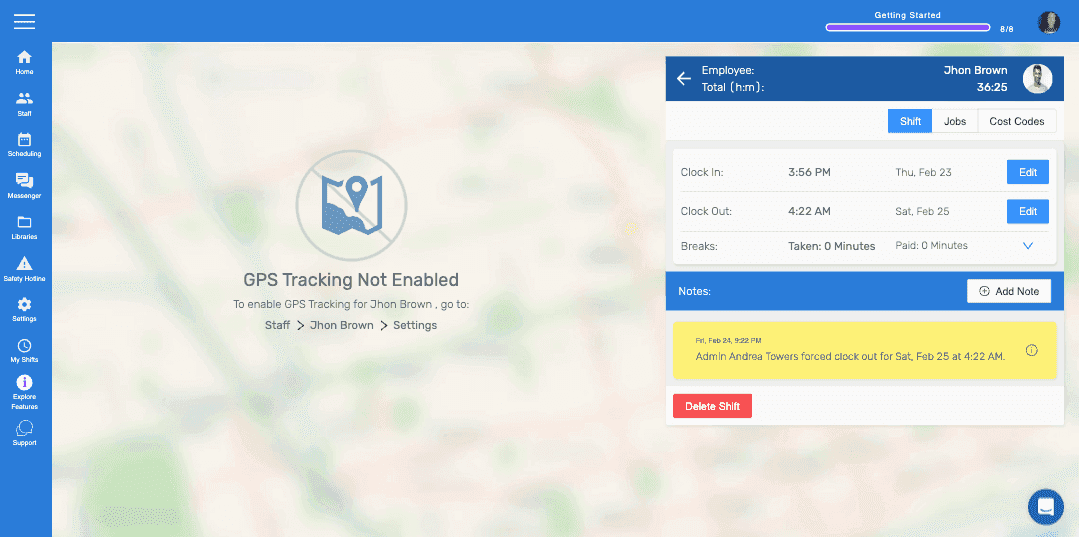
Klicke auf Abgeschlossen

SINC mobile app shift detail screen showing clock in/out times, a forced clock-out note, and the Delete Shift button

Hat das Ihre Frage beantwortet?