Jobs: Erste Schritte

Bevor Sie beginnen, Ihre Aufträge in SINC zu erfassen, müssen Sie einige Einstellungen ändern. Diese Anleitung zeigt Ihnen, wie das geht.

Sam Dolbel
Sam Dolbel
Feb 23rd, 2023

Im Web: Klicke auf der Startseite auf Einstellungen.
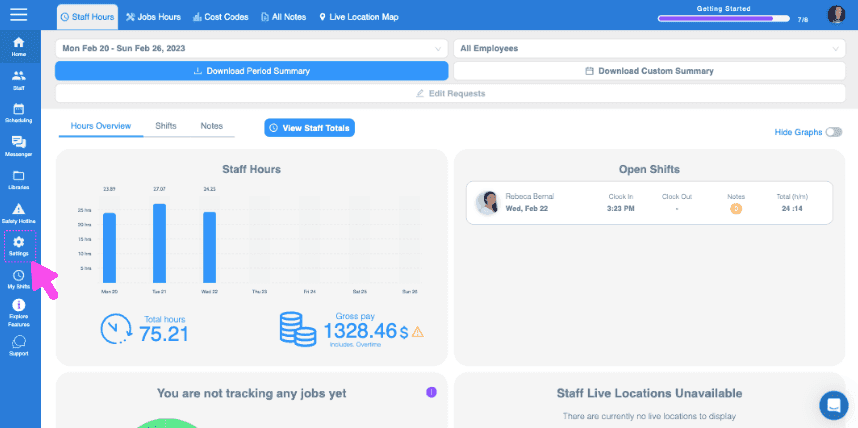
SINC web dashboard Staff Hours overview with a pink arrow pointing to the Jobs Hours tab in the top menu

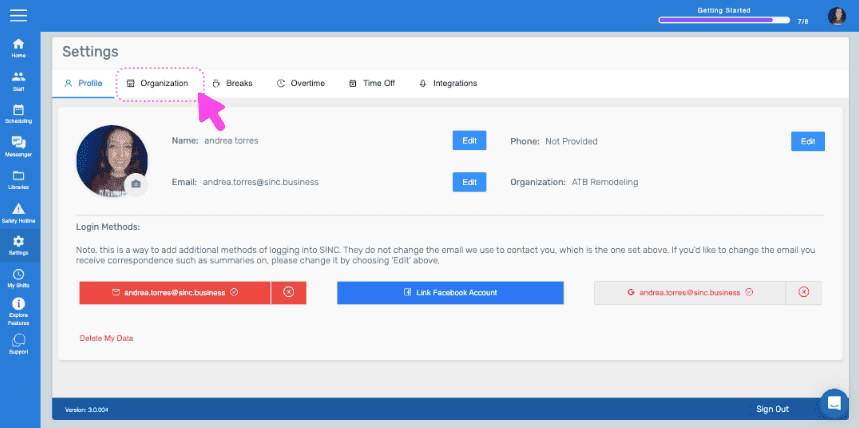
Klicken Sie auf Organisation.

SINC web Settings screen with a pink arrow pointing to the Organization tab
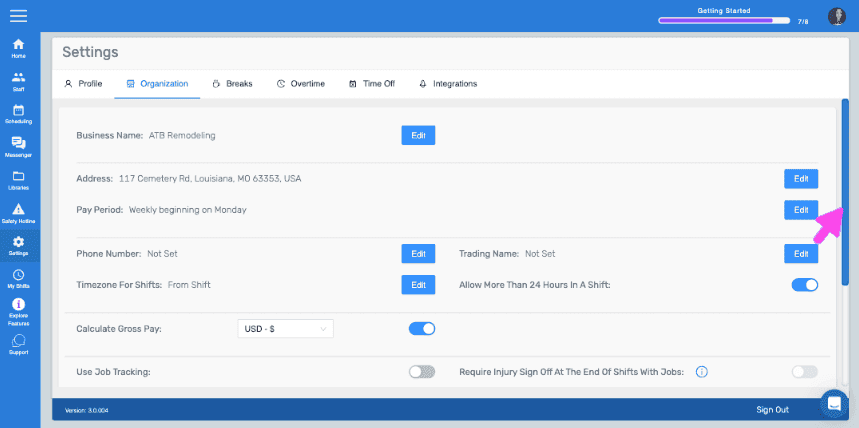
Web Settings Organization tab with a pink arrow pointing to the Edit button next to Pay Period

Aktivieren Sie Job-Tracking verwenden.
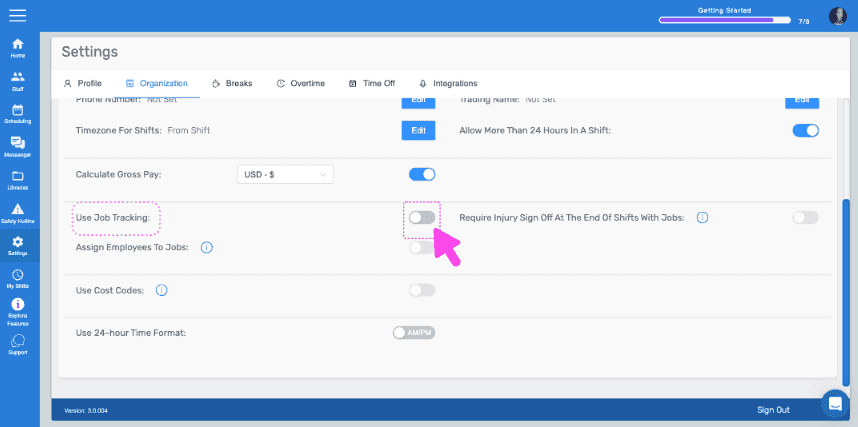
SINC web Settings Organization tab with a pink arrow pointing to the Use Job Tracking toggle switch

Klicken Sie anschließend auf Umbrüche.
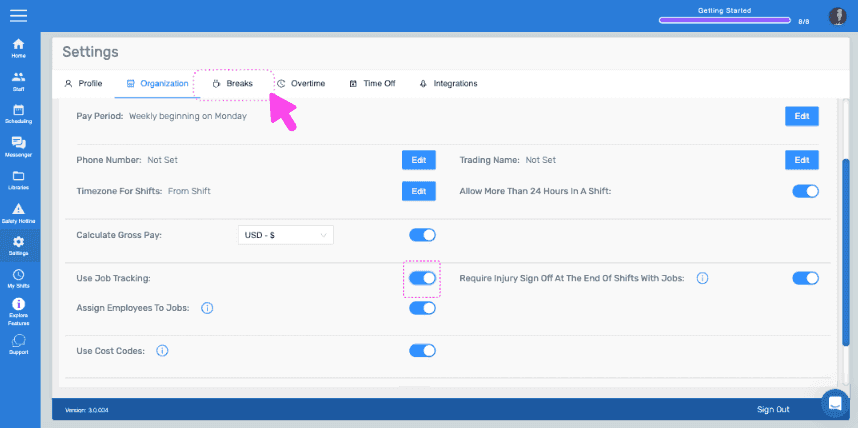
SINC web Settings page with a pink arrow pointing to the Breaks tab

Klicke auf Bearbeiten (neben dem Pausentyp).
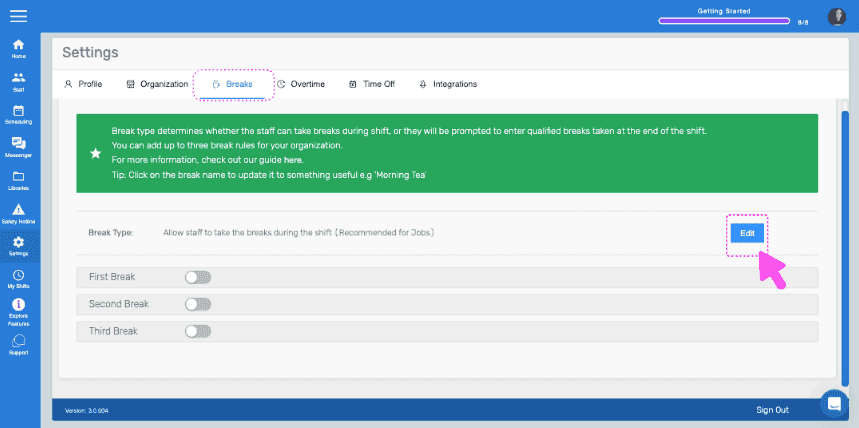
Settings Breaks tab showing break type toggles with the Edit button highlighted next to Break Type

Wählen Sie die Option „Mitarbeitende dürfen während ihrer Schicht Pausen machen“ und bestätigen Sie die Änderung.
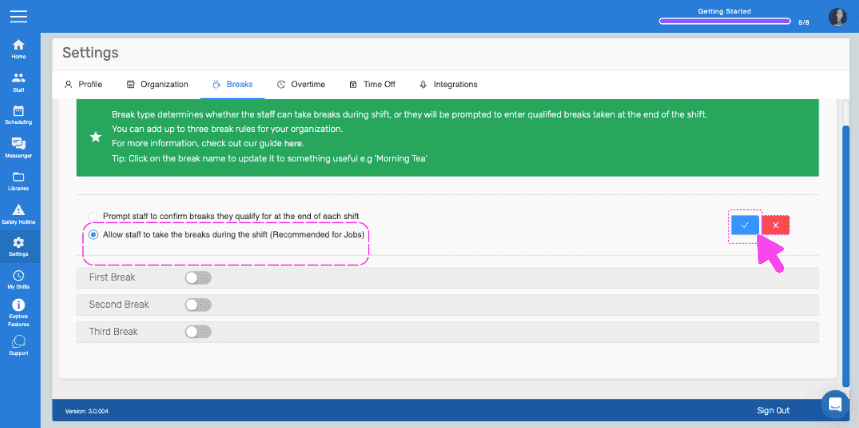
SINC web Settings Breaks tab with the 'Allow staff to take breaks during shift' option outlined in pink and an arrow pointing to the confirm button

Auf dem Smartphone: Tippe im Menü auf Einstellungen.
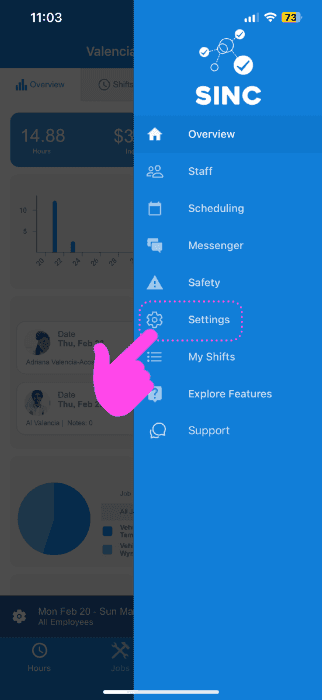
SINC mobile app menu with a pink arrow pointing to the Settings icon

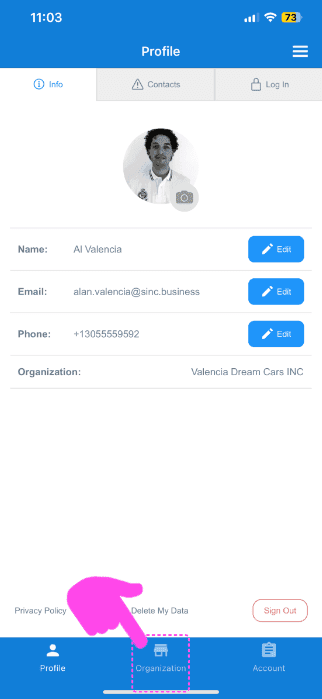
Tippen Sie auf Organisation.

SINC mobile Profile screen with a pink arrow pointing to the Organization tab in the bottom navigation bar

Aktivieren Sie Auftragsverfolgung verwenden.
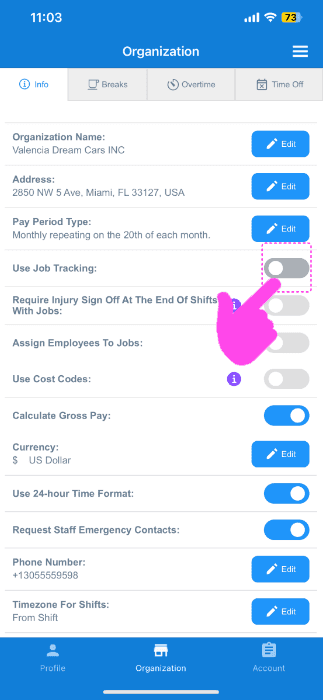
SINC mobile Organization info screen with a pink hand pointing to the Use Job Tracking toggle switch

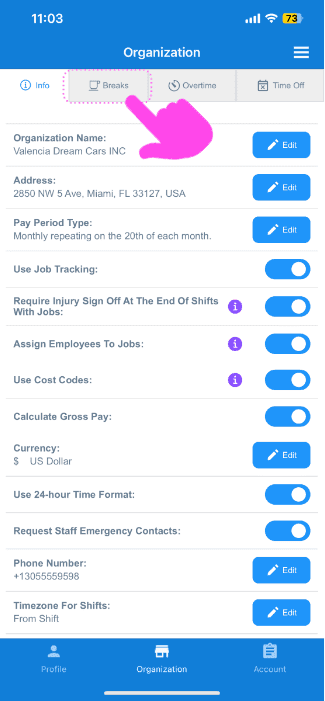
Wählen Sie breaks aus.

Organization settings screen with the Breaks tab highlighted by a pink arrow next to Info, Overtime, and Time Off

Wähle Bearbeiten (neben dem Pausentyp).
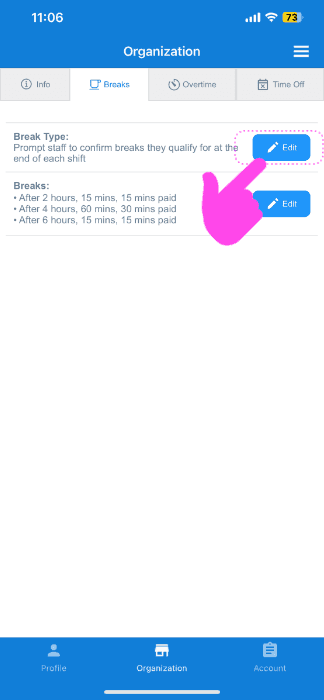
SINC app Organization Breaks tab with a pink arrow pointing to the Edit button next to break types

Tippe auf die Option „Mitarbeitenden erlauben, während ihrer Schicht Pausen zu machen“.
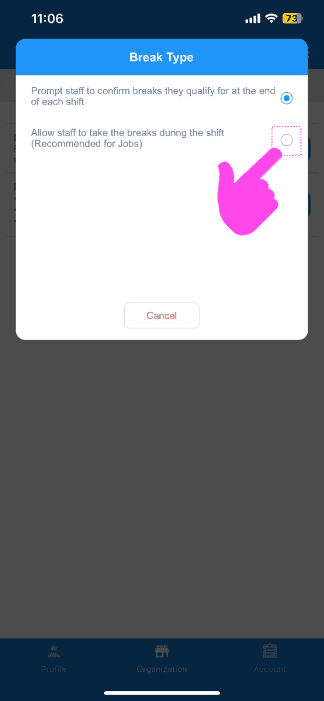
Break Type popup with a pink arrow pointing to the "Allow staff to take breaks during the shift" radio option

Jetzt können Sie Ihren ersten Job erstellen! Die nächste Anleitung zeigt Ihnen, wie das geht.

Hat das Ihre Frage beantwortet?