Bruttolohn berechnen

In diesem Tutorial zeigen wir, wie Sie die Bruttolohnberechnung in SINC aktivieren.

Sam Dolbel
Sam Dolbel
Mar 9th, 2023

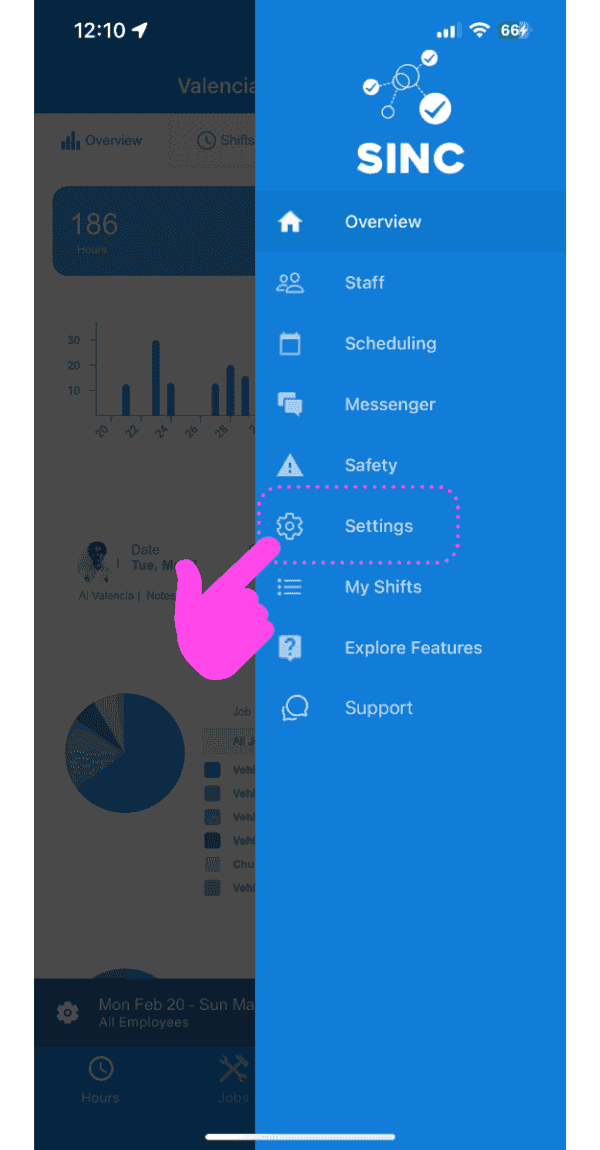
Auf Einstellungen tippen

SINC mobile app side menu with a pink hand pointing to the Settings option

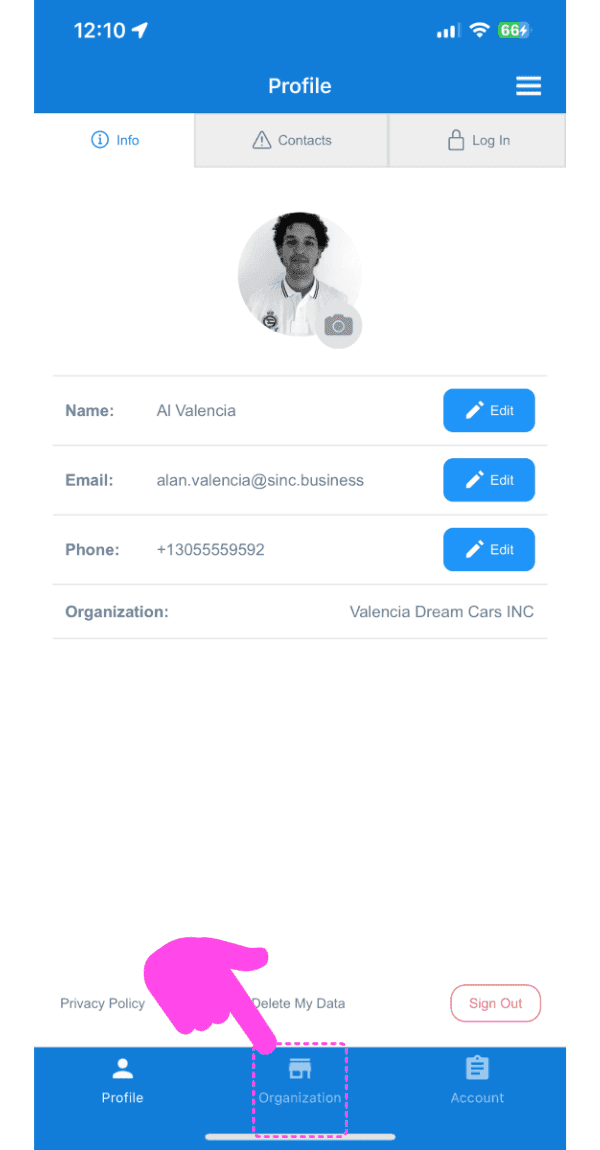
Tippen Sie auf Organisation

SINC mobile Profile screen with a pink arrow pointing to the Organization tab at the bottom

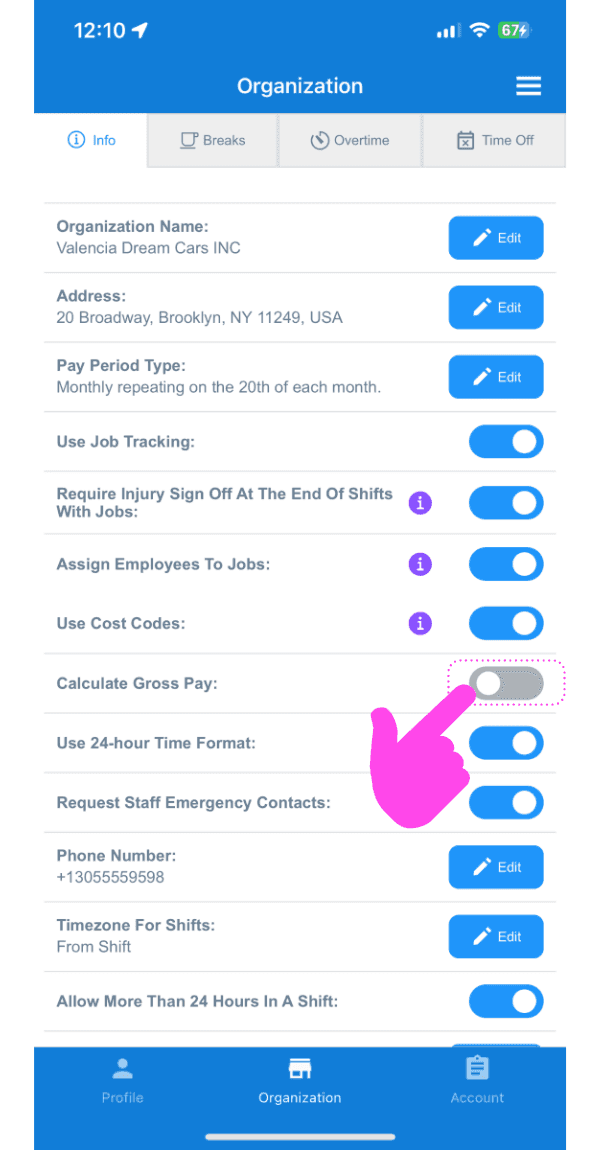
Tippe auf Bruttogehalt berechnen

Organization Info screen with a pink arrow pointing to the Calculate Gross Pay toggle switch

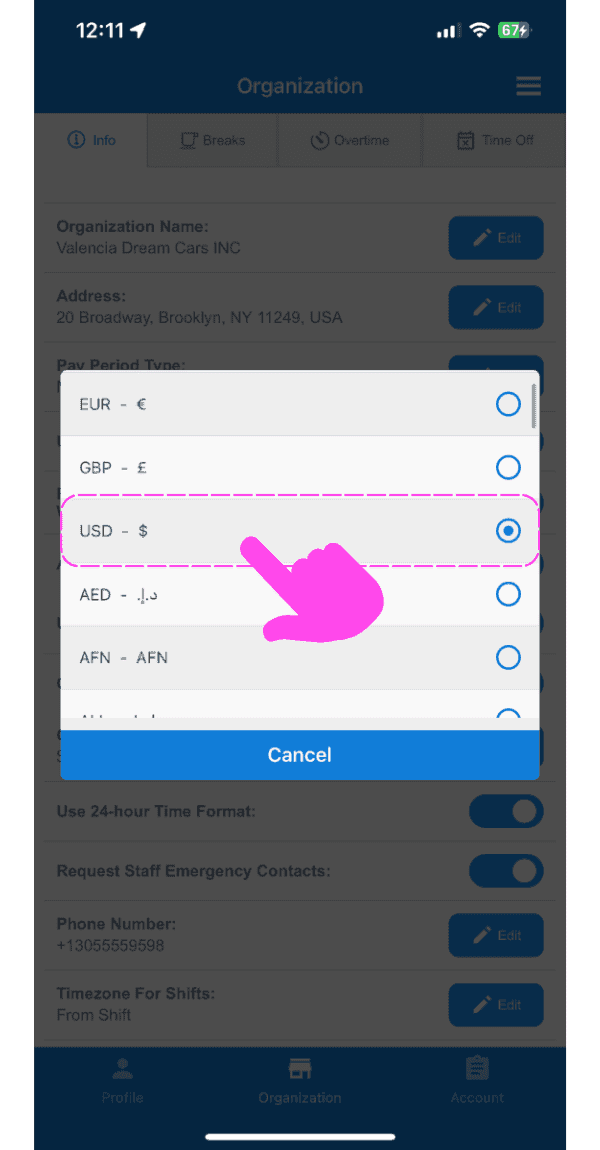
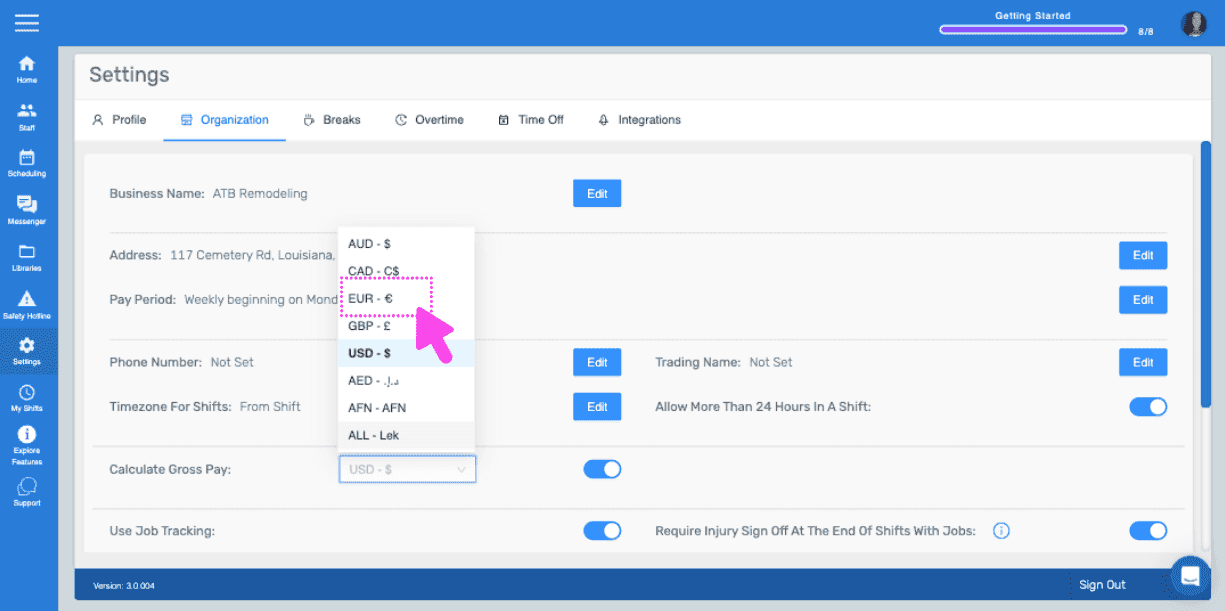
Tippe auf Bevorzugte Währung

SINC mobile app currency selection popup with USD highlighted in a pink dashed box and arrow

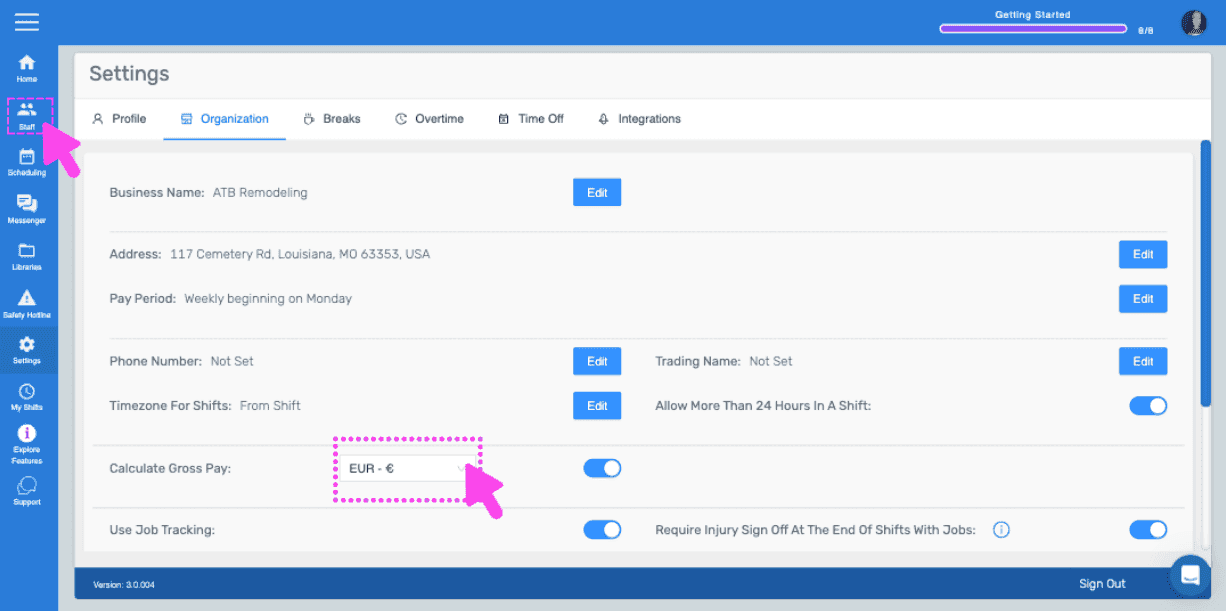
Gehen Sie nun zu den Einstellungen jedes Mitarbeiters und wählen Sie einen Lohnsatz aus. Tippen Sie auf Mitarbeiter
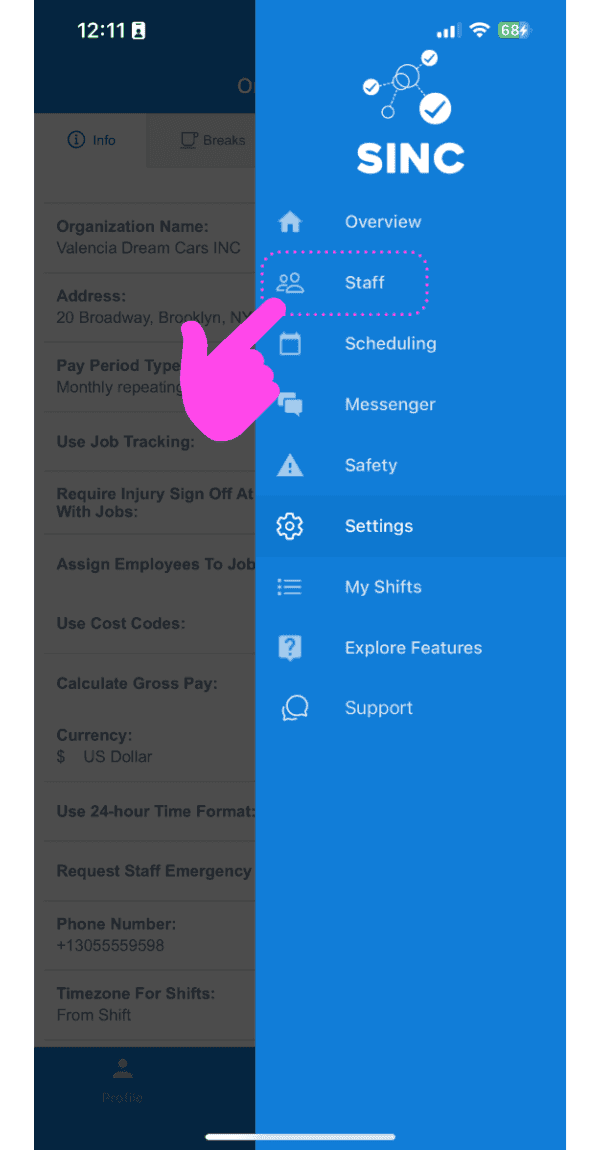
SINC mobile app menu with a pink arrow pointing to the Staff option

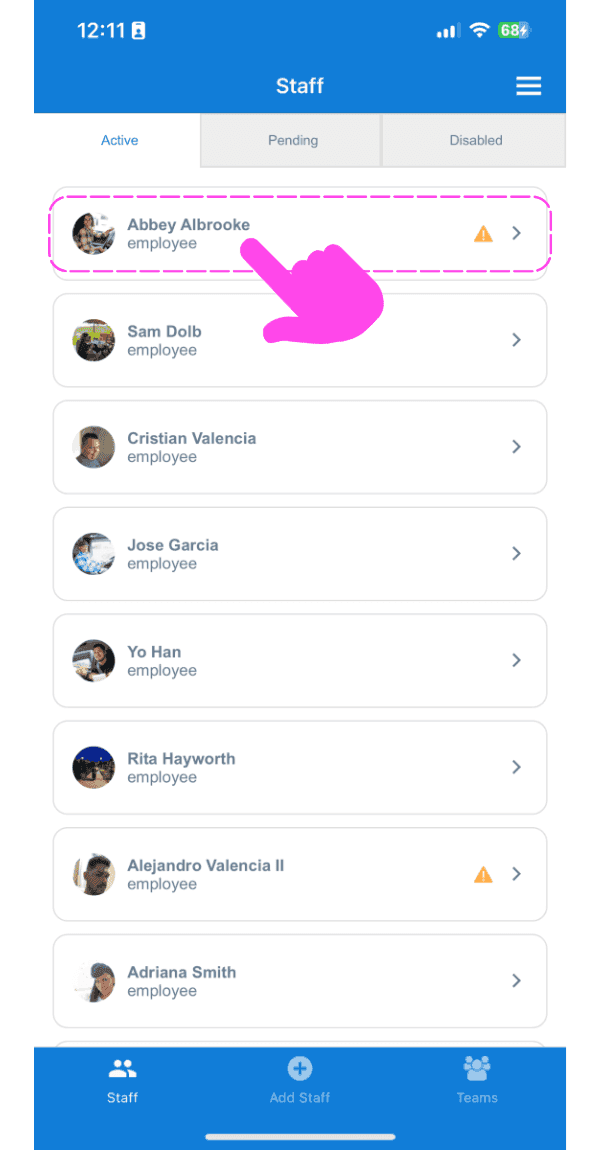
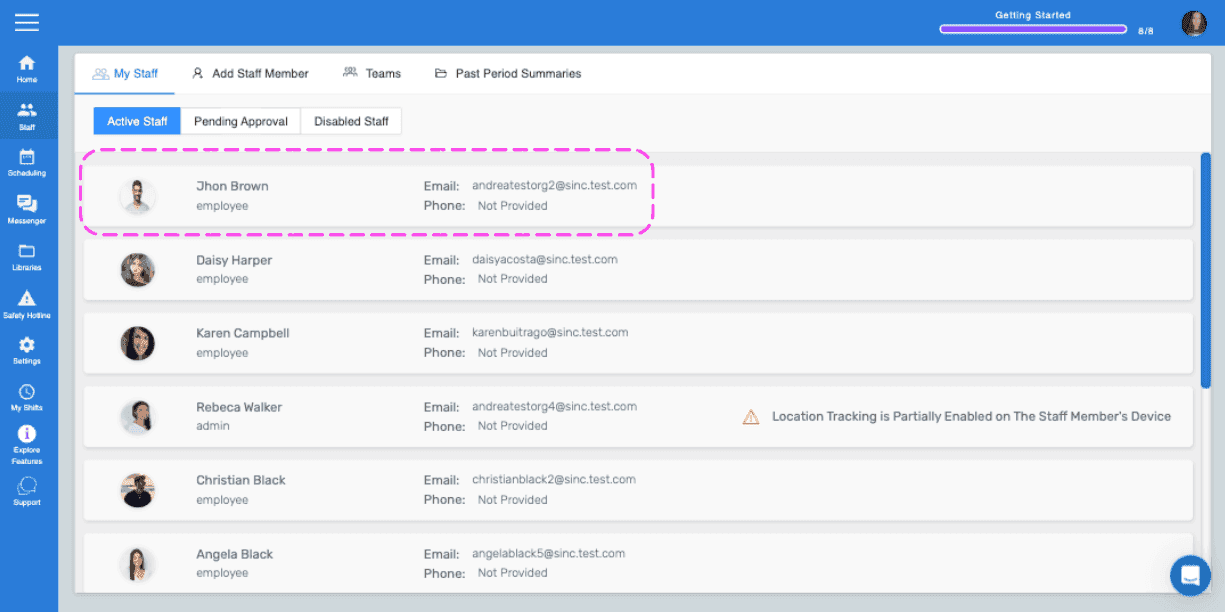
Tippen Sie auf Mitarbeitername

SINC mobile Staff list with a pink arrow pointing to Abbey Albrooke's name at the top

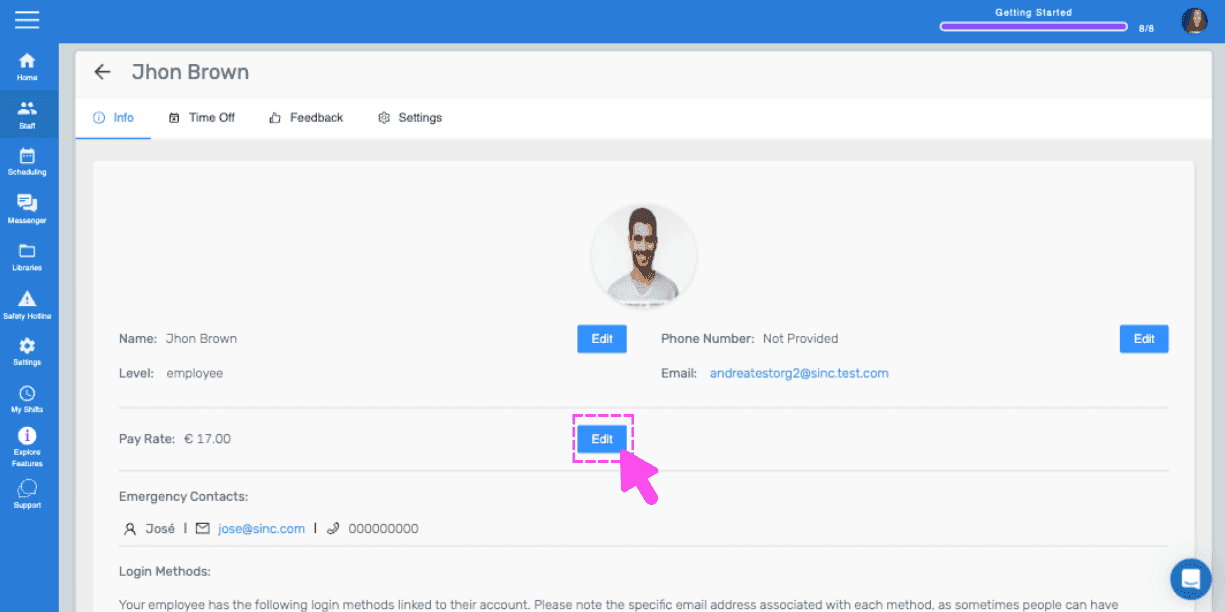
Tippen Sie auf Bearbeiten (neben „Bezahlungssatz“)
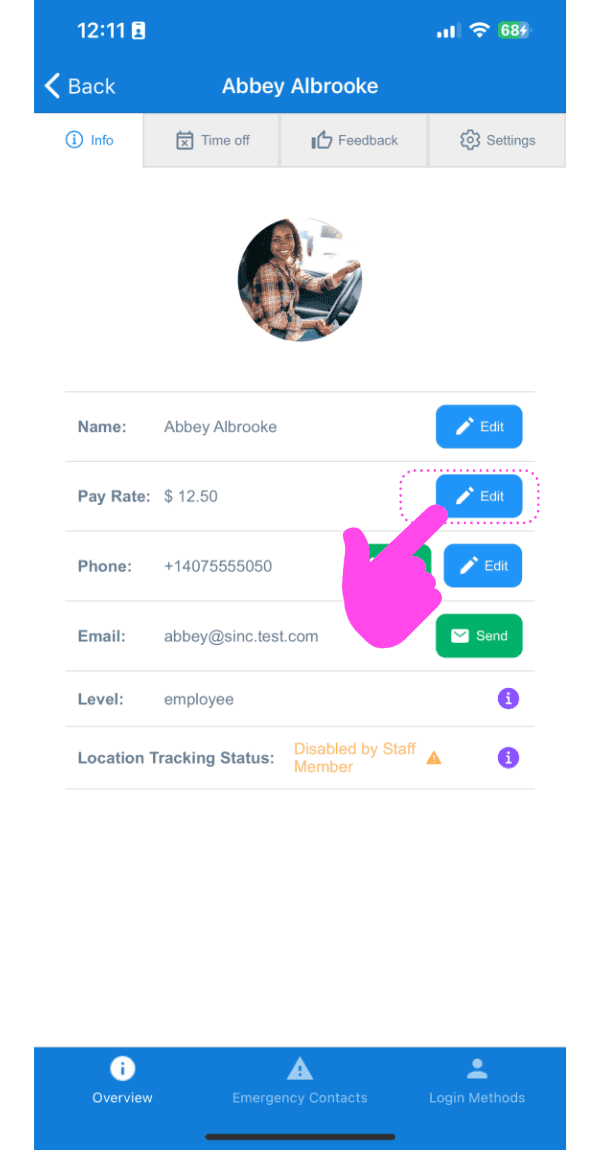
SINC mobile staff profile screen with a pink hand pointing to the Edit button next to Pay Rate

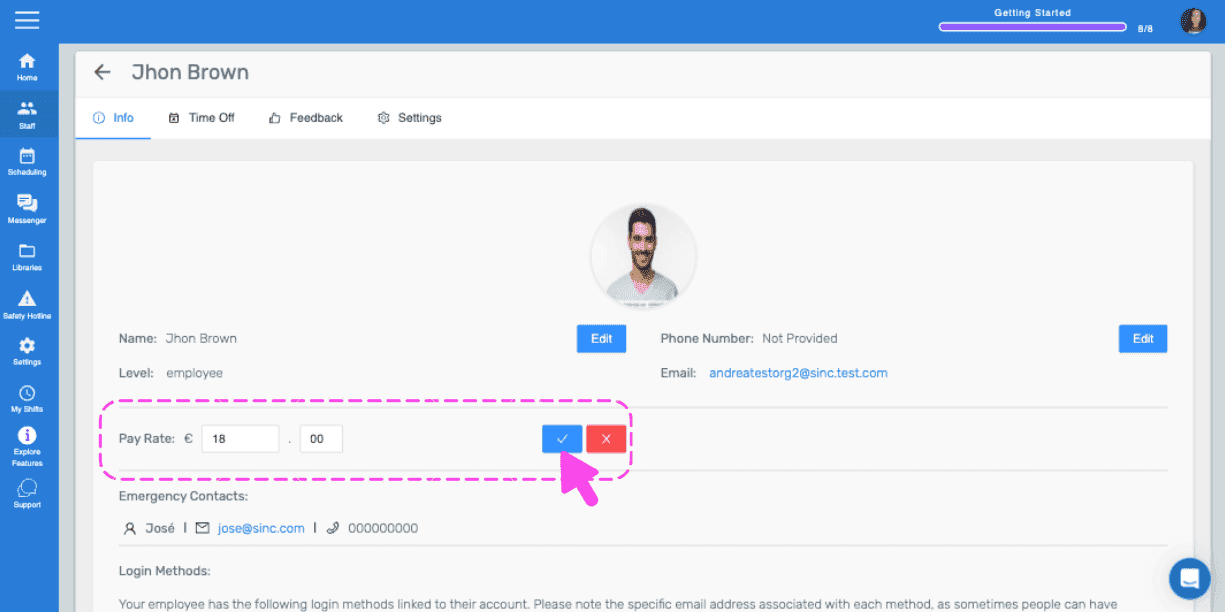
Wählen Sie den korrekten Stundenlohn für diesen Mitarbeiter aus und tippen Sie auf Bestätigen. Wiederholen Sie den Vorgang für alle weiteren Mitarbeiter, für die Sie die Bruttolohnabrechnung berechnen möchten.
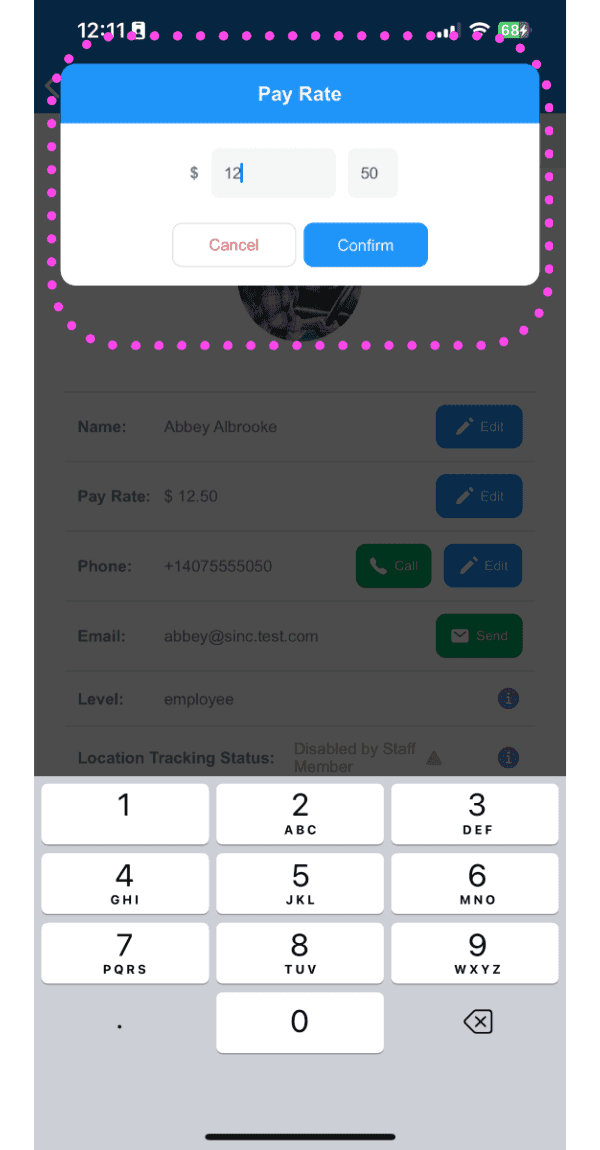
Pay Rate entry popup with a numeric keypad outlined in pink, showing the dollar amount field and Confirm button

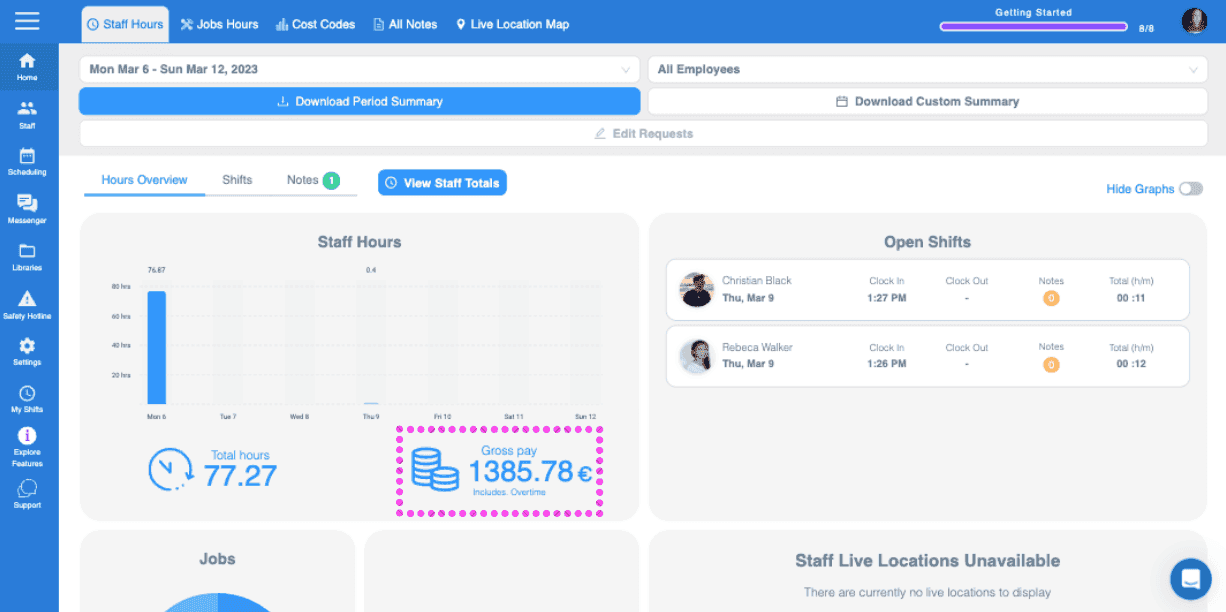
Auf der Admin-Startseite wird nun die gesamte Bruttolohnsumme für den Abrechnungszeitraum angezeigt.
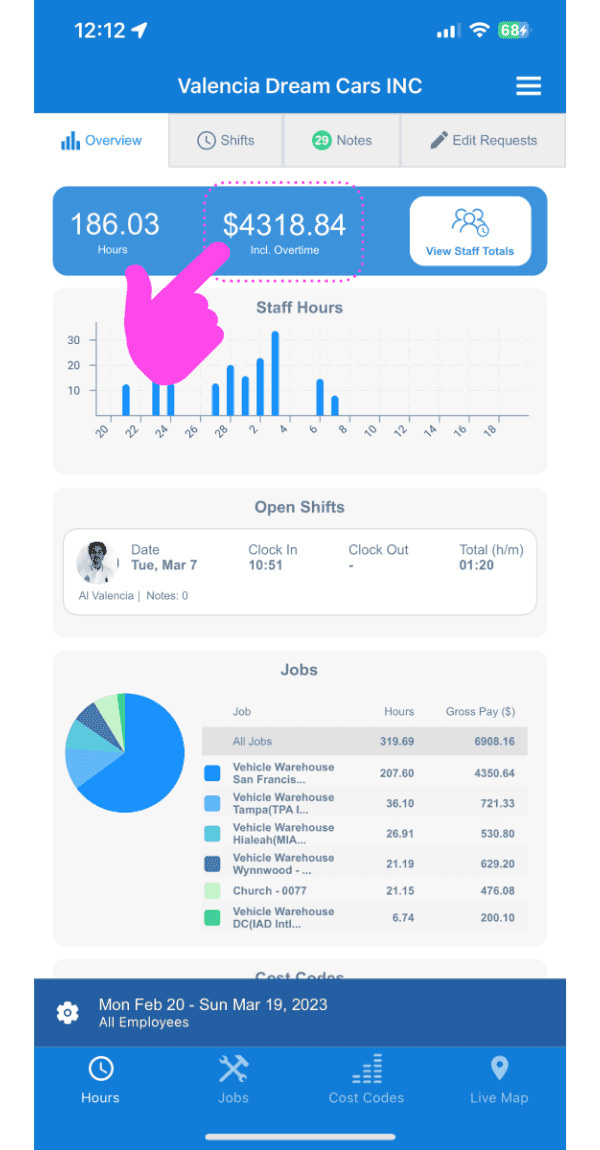
SINC mobile Overview dashboard with a pink arrow pointing to the total hours and gross pay figures

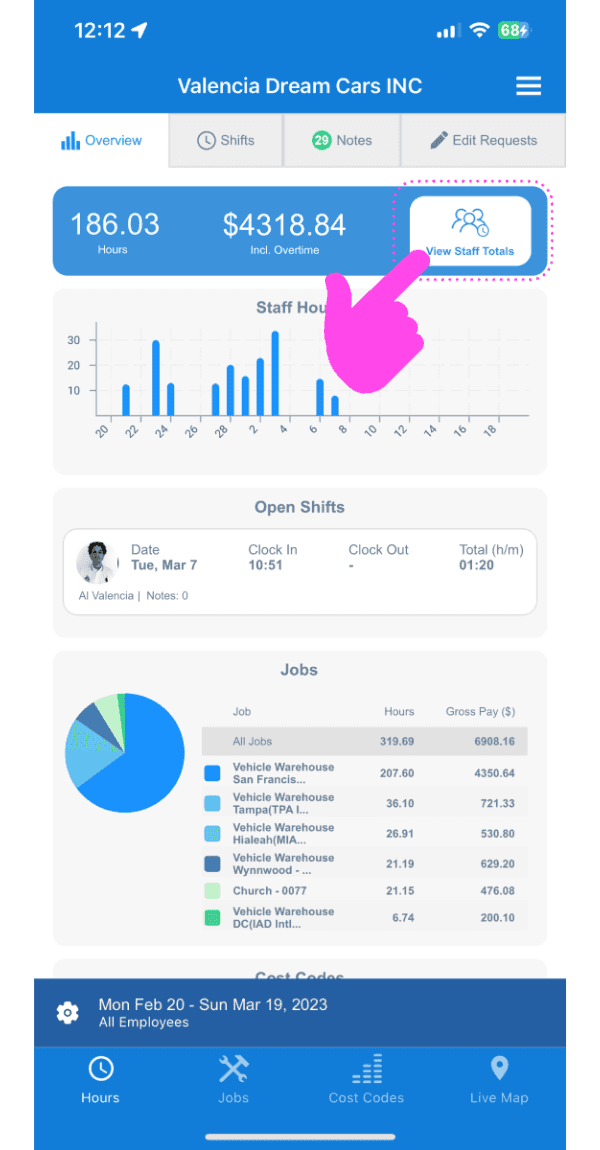
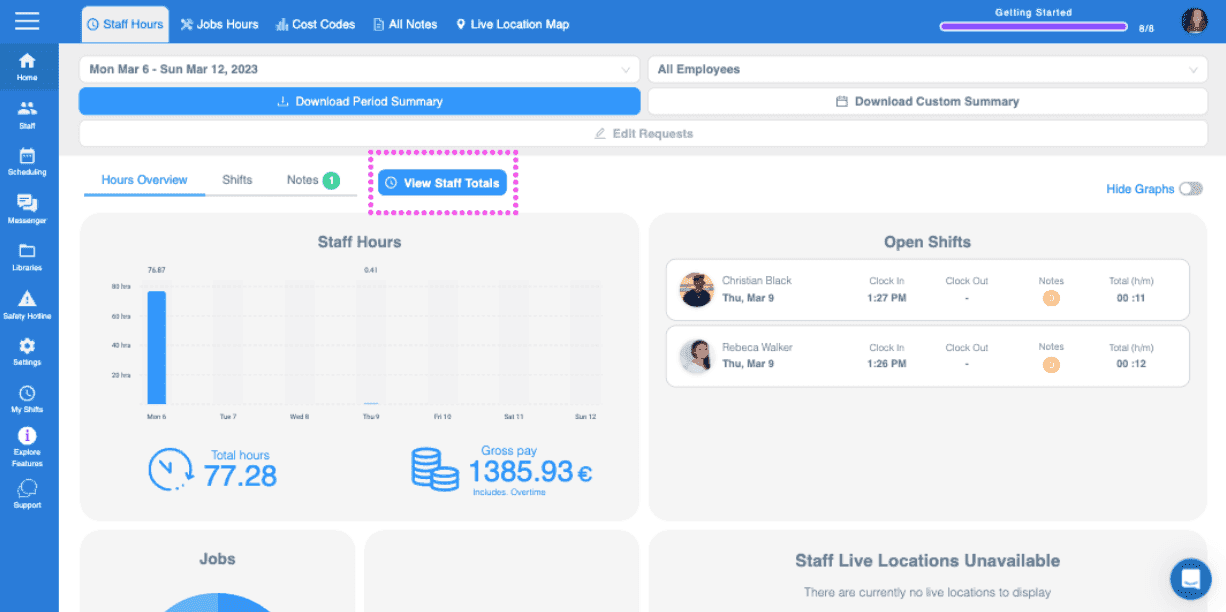
Tippe auf das Info-Symbol

SINC mobile app Overview screen with a pink arrow pointing to the View Staff Totals button

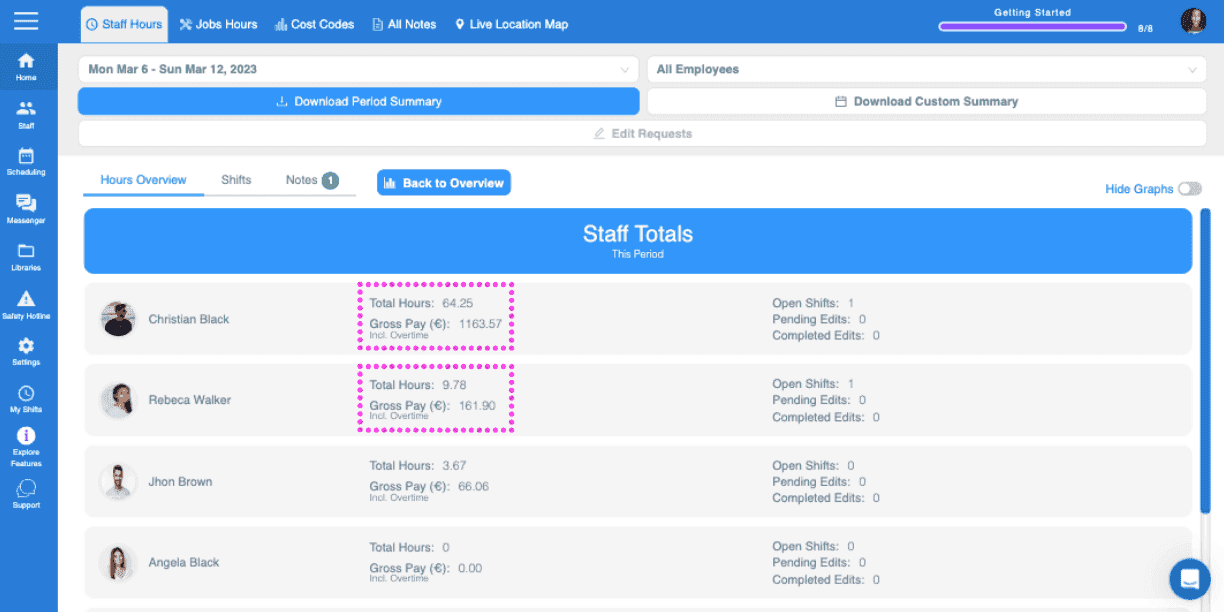
Sie sehen nun die Bruttolohnsummen für jeden einzelnen Mitarbeiter im ausgewählten Abrechnungszeitraum.
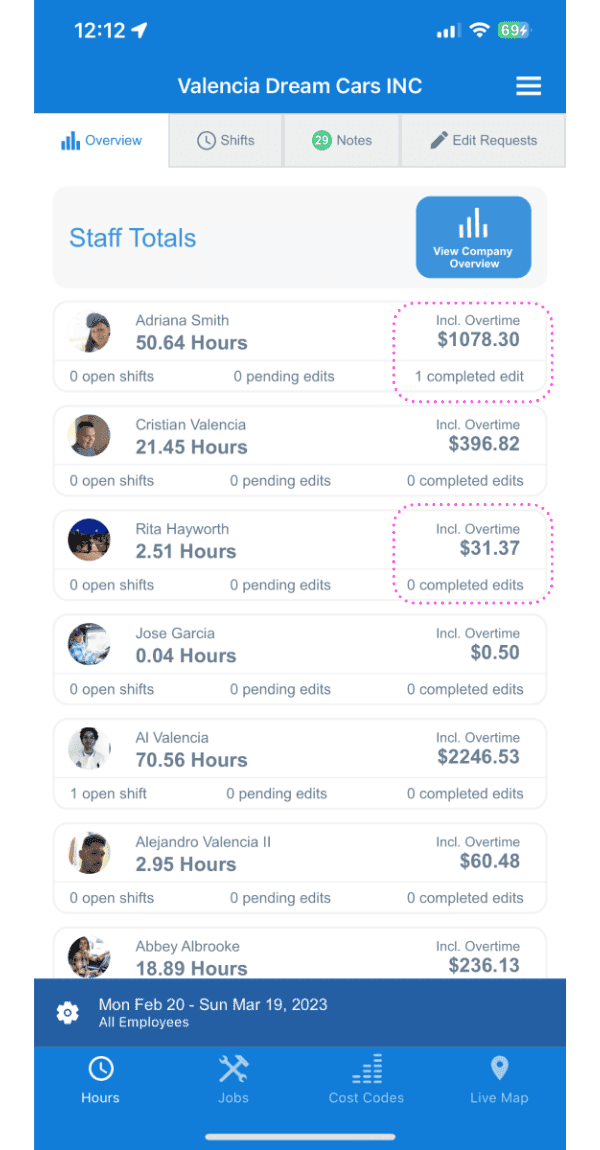
SINC mobile Staff Totals list showing hours and overtime pay, with some pay amounts circled

Wenn Sie die Webversion verwenden, sieht es so aus:
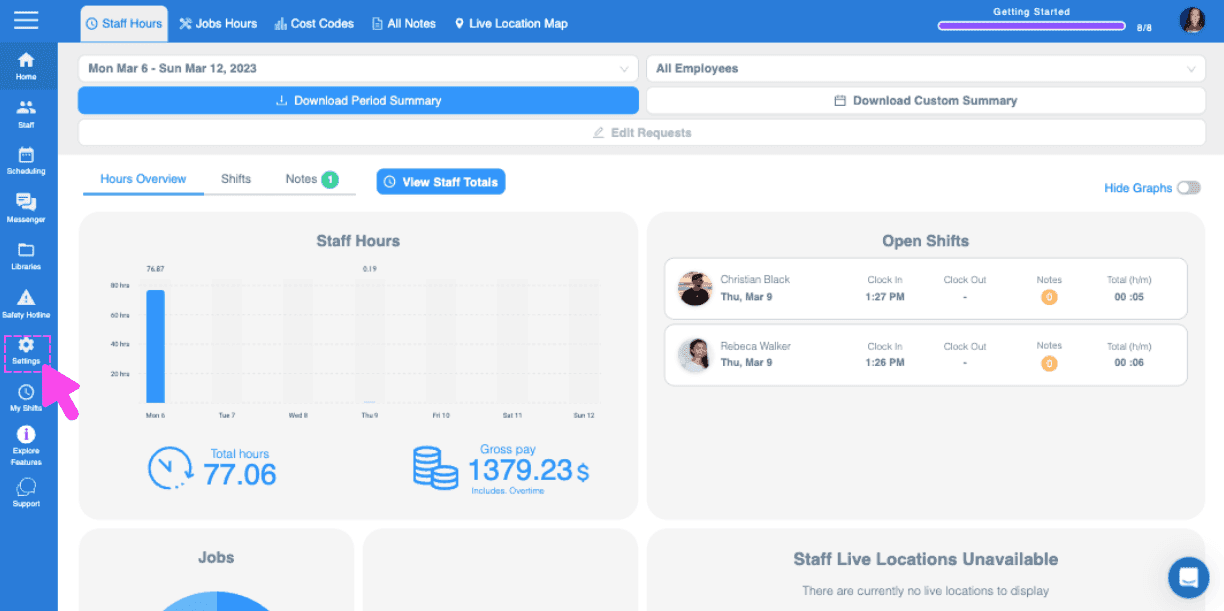
Web Staff Hours Overview dashboard with a pink arrow pointing to the side menu Settings icon
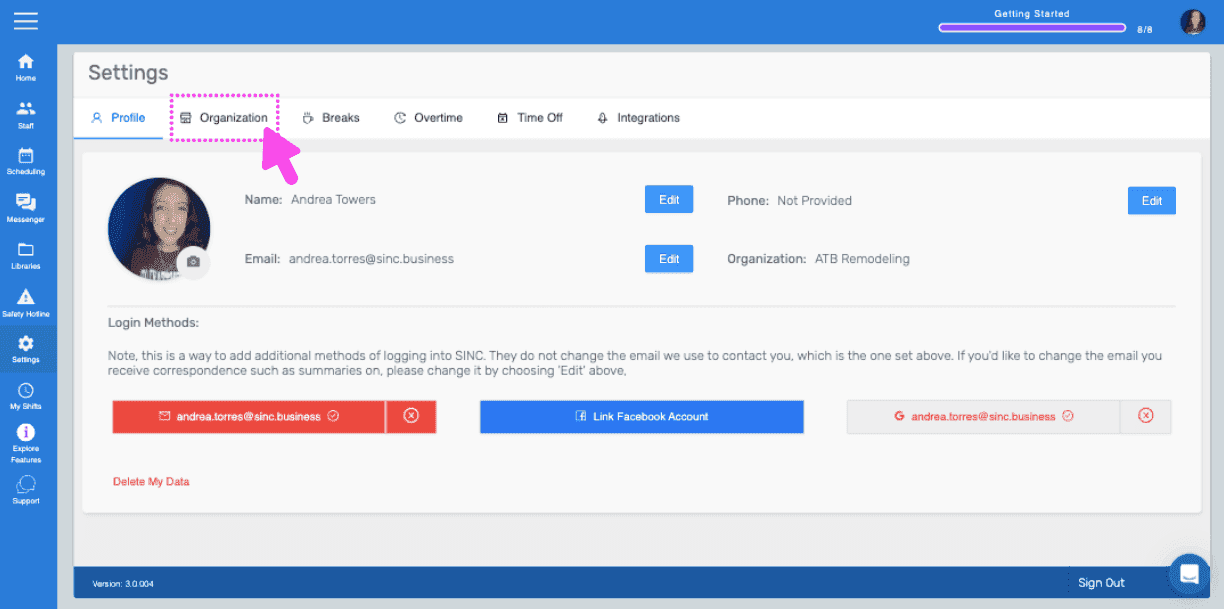
SINC web Settings Profile tab with a pink arrow pointing to the Organization tab
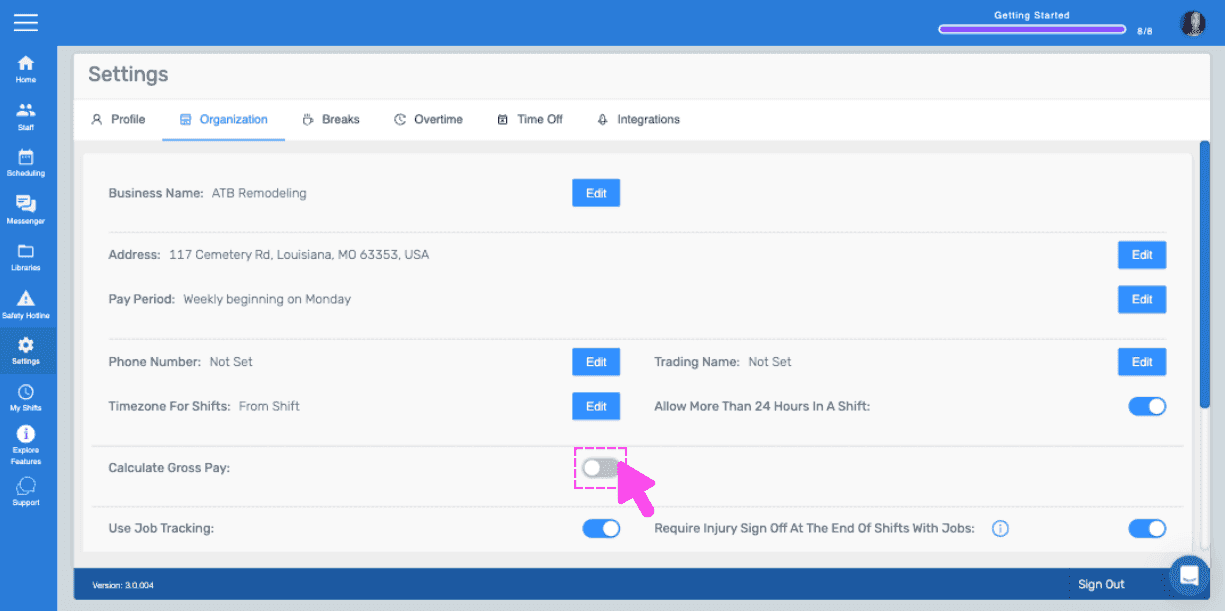
Organization settings screen with a pink arrow pointing to the Calculate Gross Pay toggle
Web Organization settings screen with a pink arrow pointing to the currency dropdown for Calculate Gross Pay
SINC web Settings Organization tab with a pink arrow pointing to the Calculate Gross Pay field
SINC web Staff list with an employee's row outlined in pink
Employee profile screen with a pink arrow pointing to the Edit button next to Pay Rate
SINC web staff profile Info tab with the Pay Rate field outlined in pink and a hand pointing to the confirm checkmark
Web dashboard Staff Hours overview with the total gross pay figure outlined in pink
SINC web dashboard Overview tab with the View Staff Totals button circled in pink
SINC web Staff Totals screen listing each employee's total hours and gross pay for the period

Hat das Ihre Frage beantwortet?