So erstellen Sie ein Team

In diesem Tutorial zeigen wir dir, wie du ein Team erstellst.

SINC Support Team
SINC Support Team
Mar 1st, 2023

Im Web: Klicke auf Menü Mitarbeitende Teams.
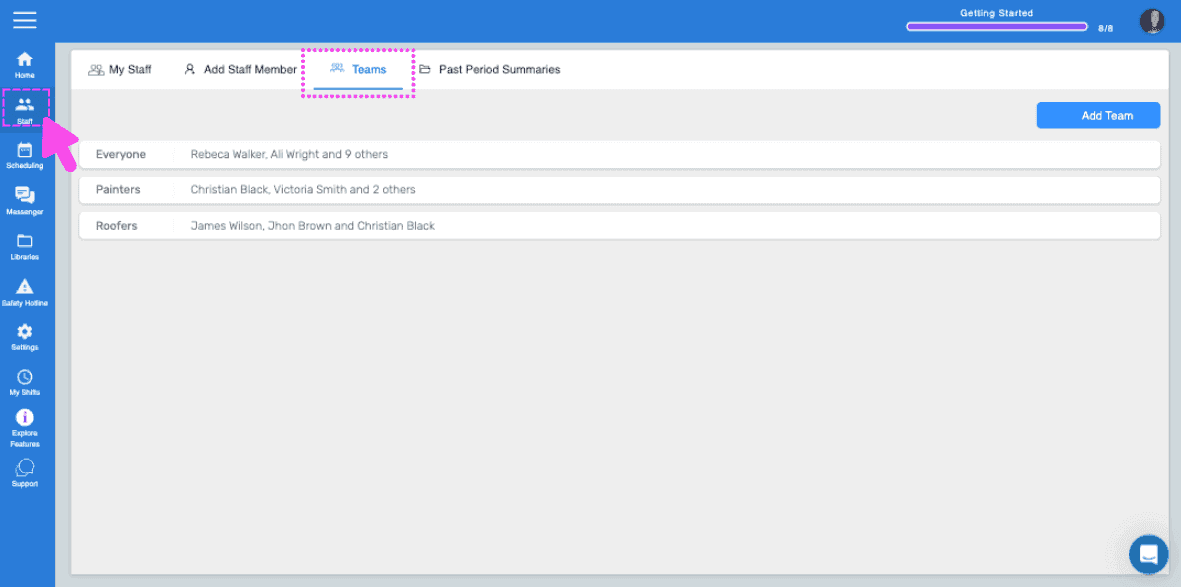
SINC web Staff screen with the Teams tab highlighted by a pink arrow showing a list of teams

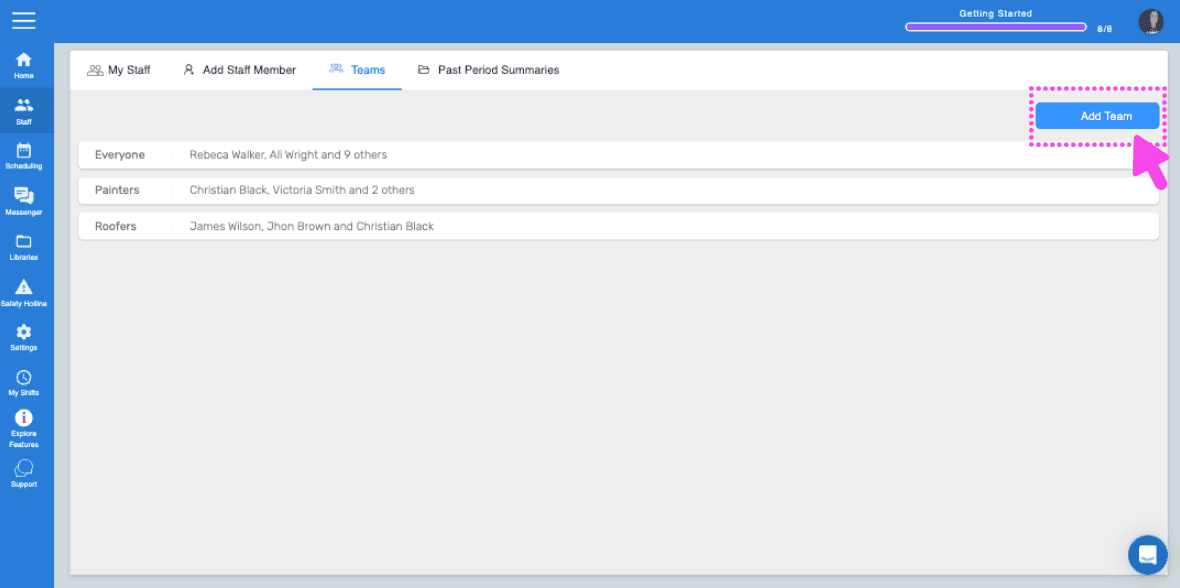
Klicke auf Team hinzufügen.

SINC web Teams tab with the Add Team button highlighted in the top right

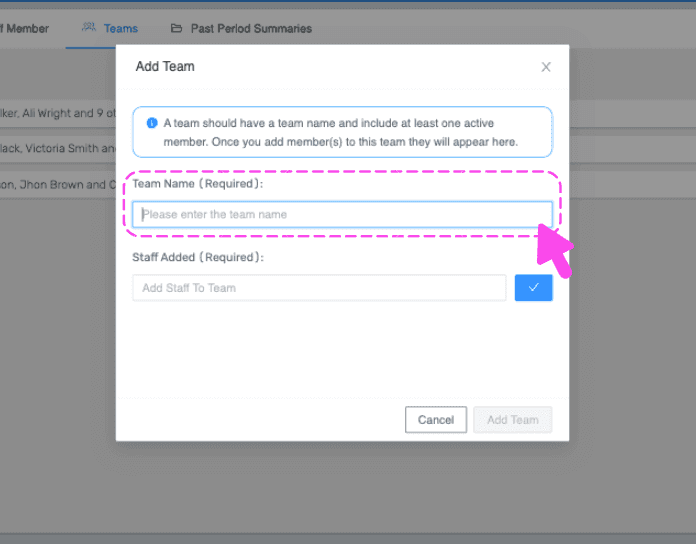
Gib einen Namen für das Team ein

Add Team popup with a pink arrow pointing to the empty required Team Name field

Wählen Sie im Dropdown-Menü die Mitarbeiter aus, die Sie diesem Team hinzufügen möchten, und klicken Sie anschließend auf Bestätigen.
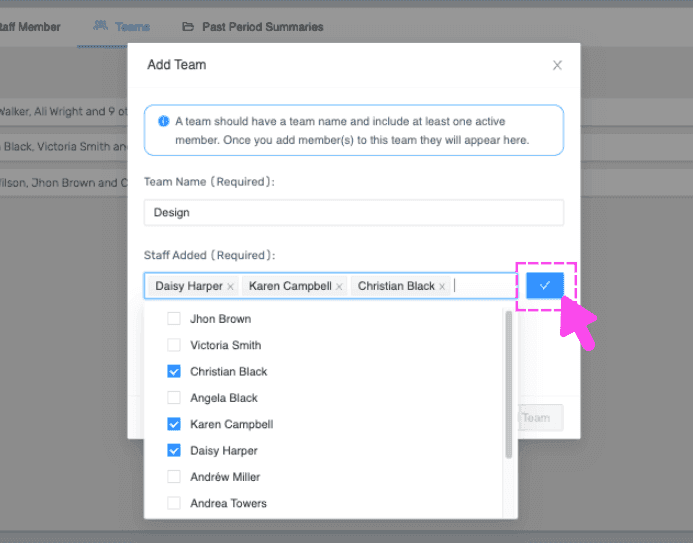
SINC web Add Team modal with a team name, selected staff checkboxes, and the confirm checkmark button highlighted

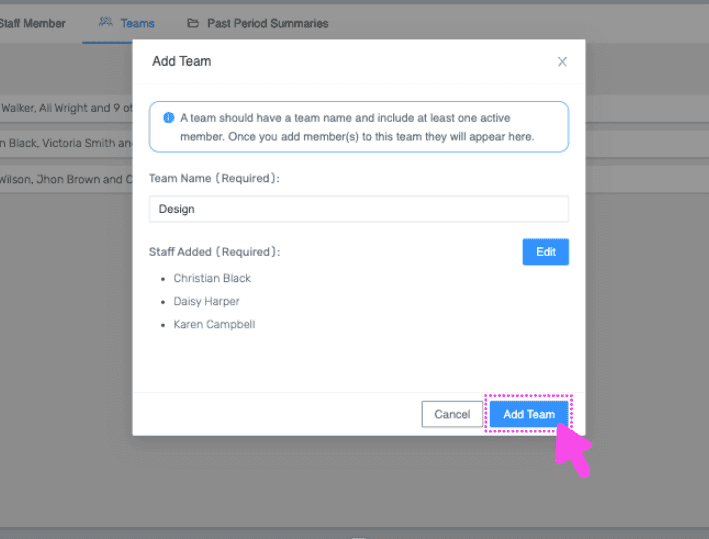
Klicken Sie auf Team hinzufügen.

Web Add Team dialog with Team Name field filled in and the Add Team button outlined in pink

Auf dem Smartphone: Tippe auf Mitarbeitende.
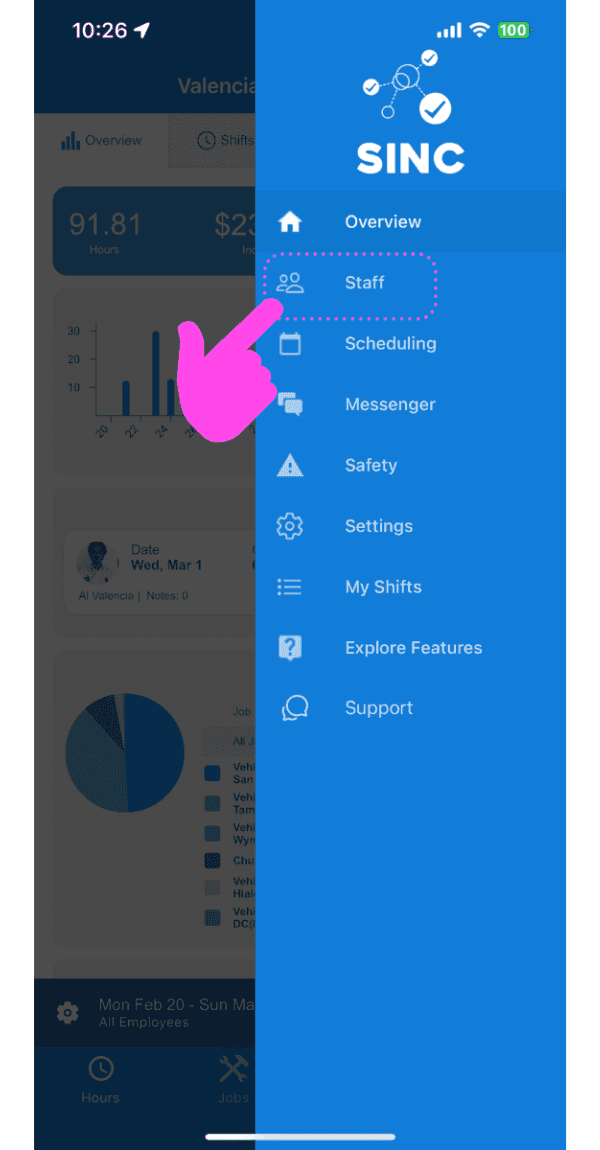
SINC mobile navigation menu with a pink hand pointing to the Staff option

Tippe auf Teams.

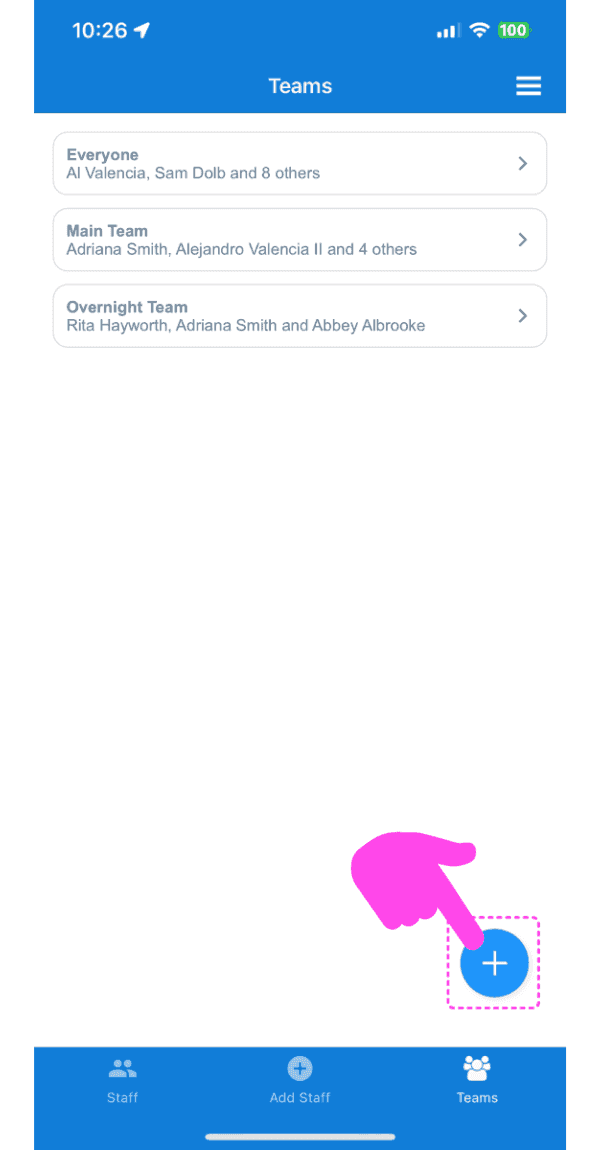
Teams list screen with a pink arrow pointing to the Add Team button in the bottom navigation

Tippe unten rechts auf dem Bildschirm auf die Plus-Schaltfläche (+).
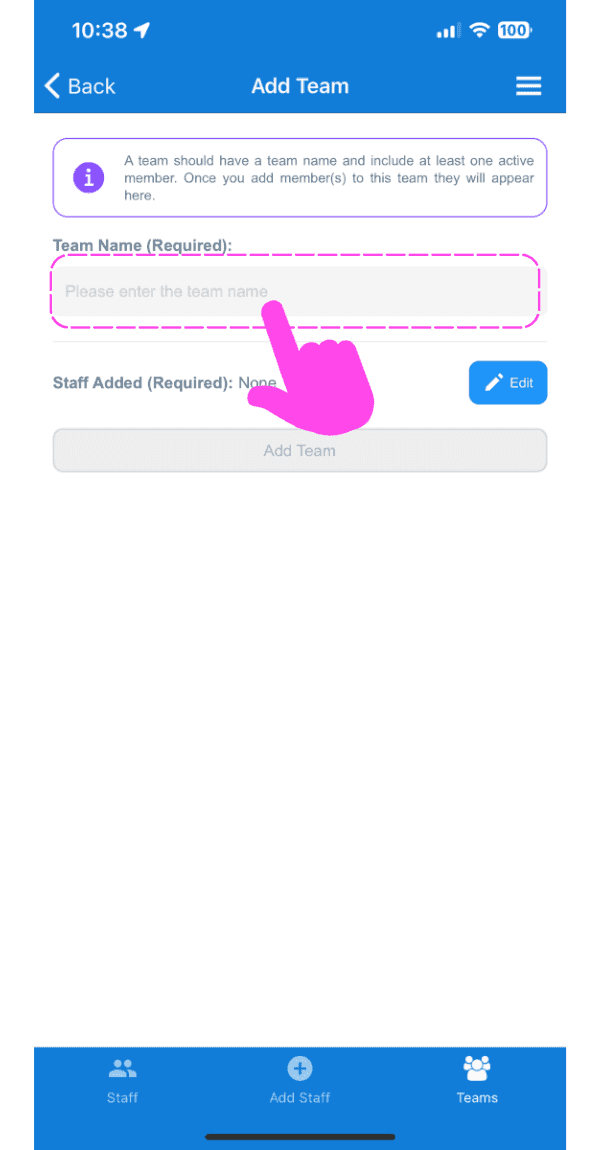
Mobile Add Team screen with a pink arrow pointing to the empty Team Name field

Gib den gewünschten Namen für das Team ein
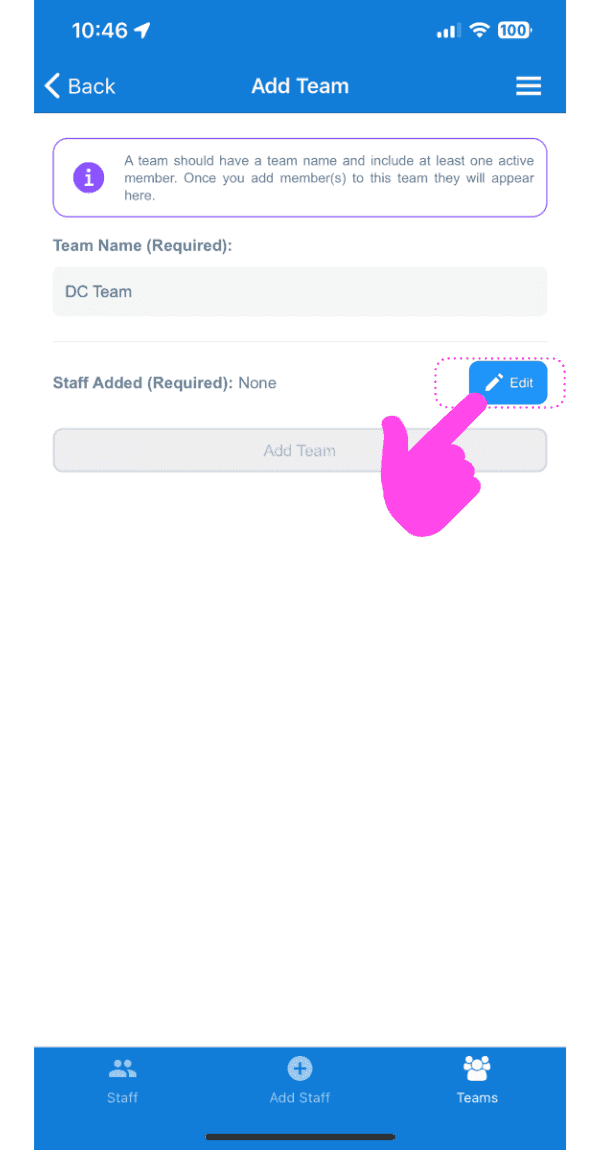
SINC mobile Add Team screen with a pink hand pointing to the Edit button next to Staff Added

Tippen Sie neben Mitarbeiter hinzugefügt (erforderlich) auf die Schaltfläche „ Bearbeiten“.
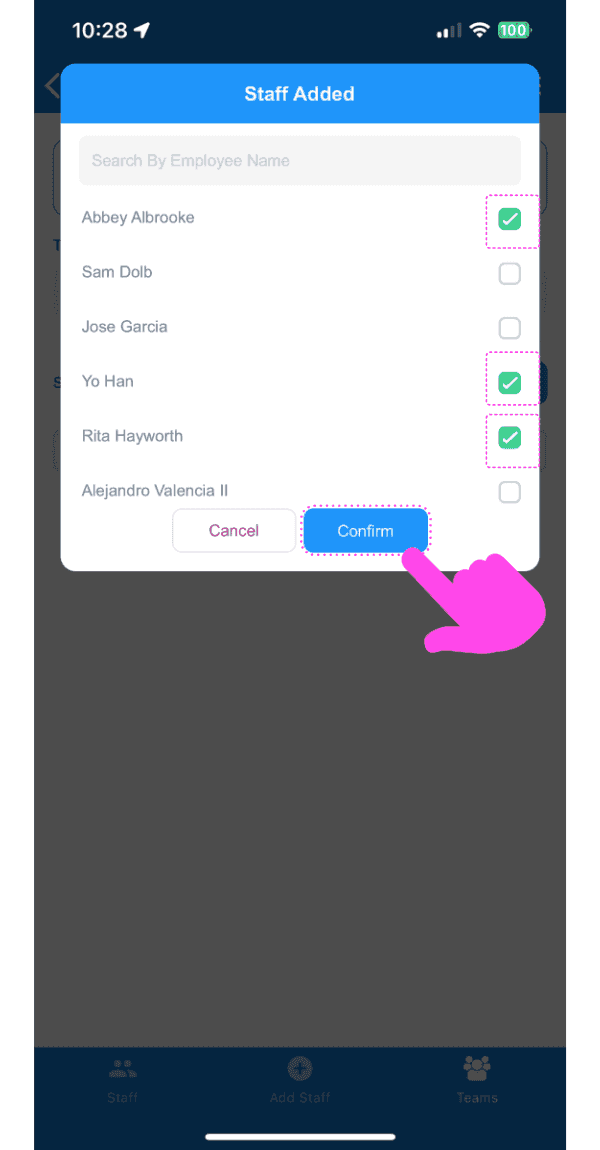
SINC mobile Staff Added dialog with employee checkboxes selected and a pink arrow pointing to the Confirm button

Wählen Sie im Dropdown-Menü die Mitarbeiter aus, die diesem Team hinzugefügt werden sollen, und tippen Sie anschließend auf Bestätigen.
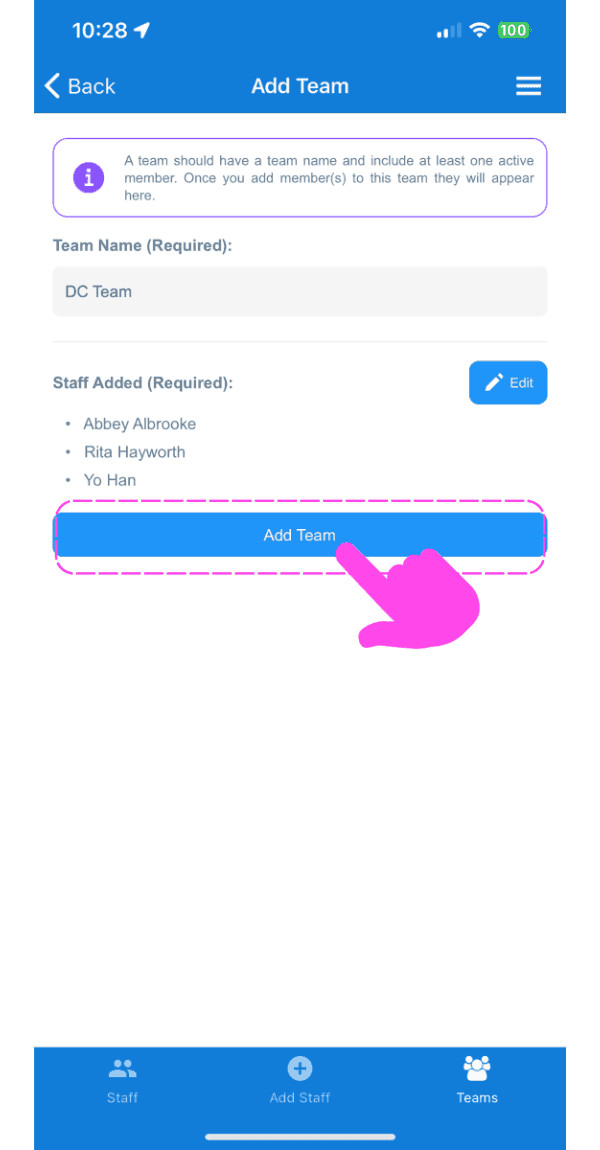
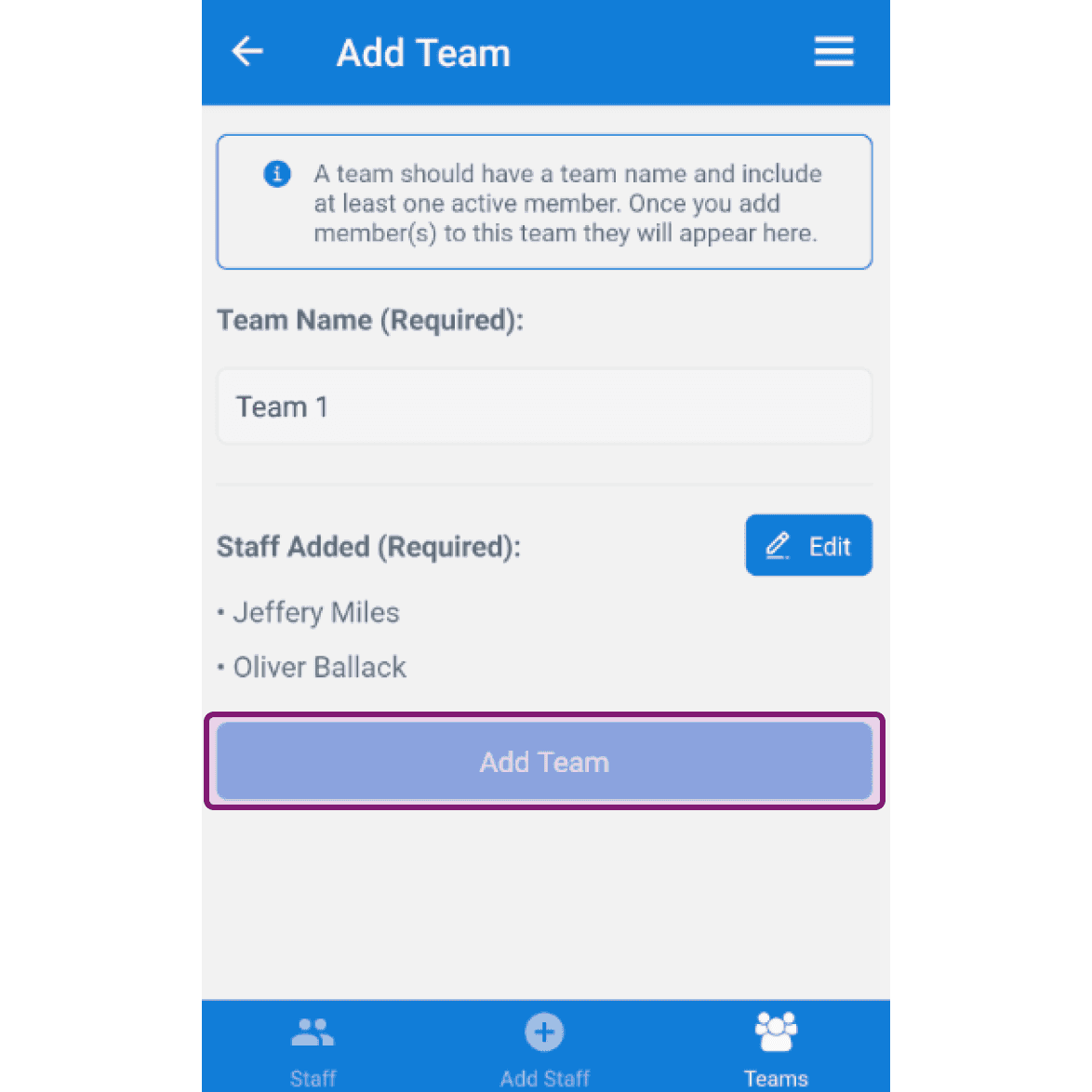
Add Team form showing team name and staff added list with a pink arrow pointing to the Add Team button

Tippe auf Team hinzufügen.

SINC mobile app Add Team screen with the Add Team button outlined in purple after entering a team name and staff

Hat das Ihre Frage beantwortet?