
So bearbeiten Sie ein Mitarbeiterprofil
In diesem Leitfaden erfahren Sie, wie Sie als Admin Mitarbeiterprofile bearbeiten können.

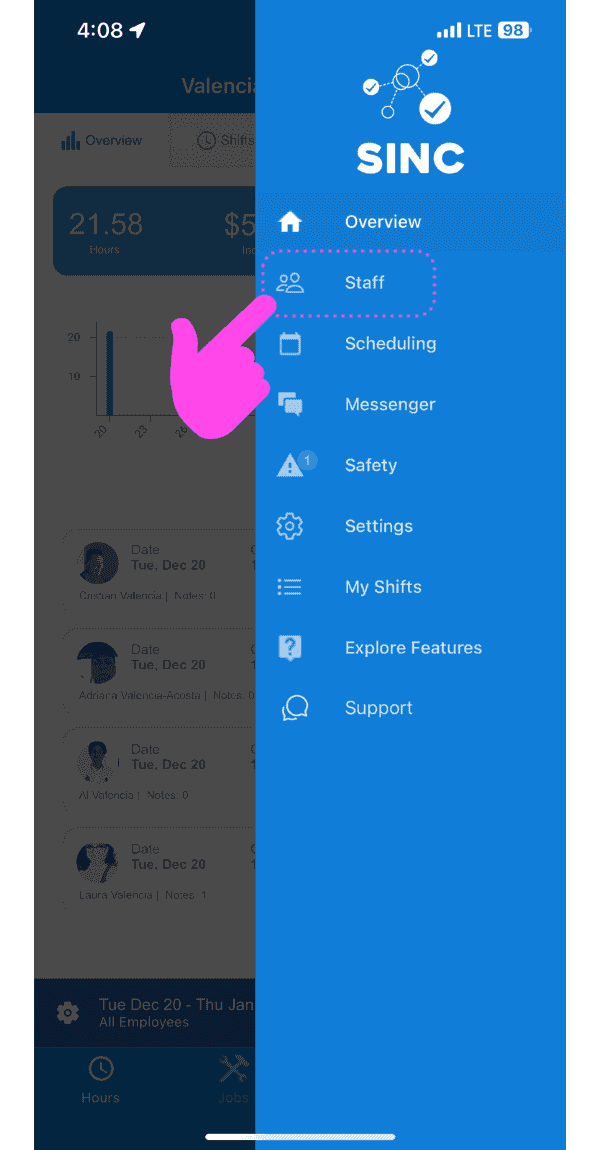
Beachten Sie, dass Änderungen, die ein Administrator am Mitarbeiterprofil vornimmt, Vorrang vor Änderungen haben, die der Mitarbeiter selbst am Profil vornimmt. Auf dem Mobilgerät: Tippen Sie auf Menü Mitarbeiter
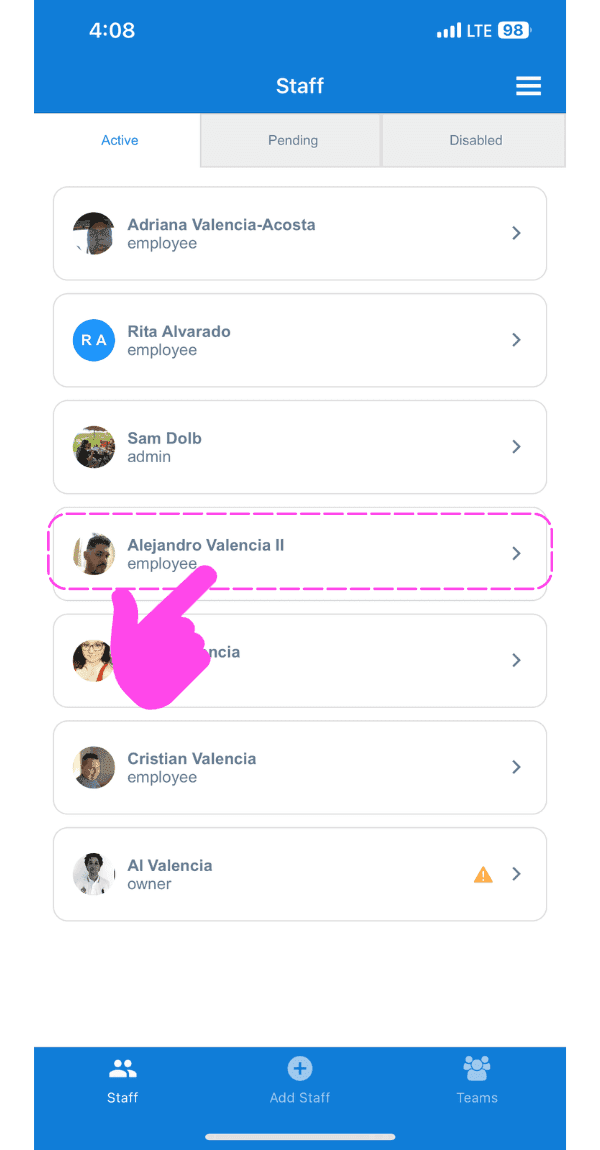
Tippen Sie auf den Pfeil neben dem Teammitglied, dessen Profil bearbeitet werden soll.
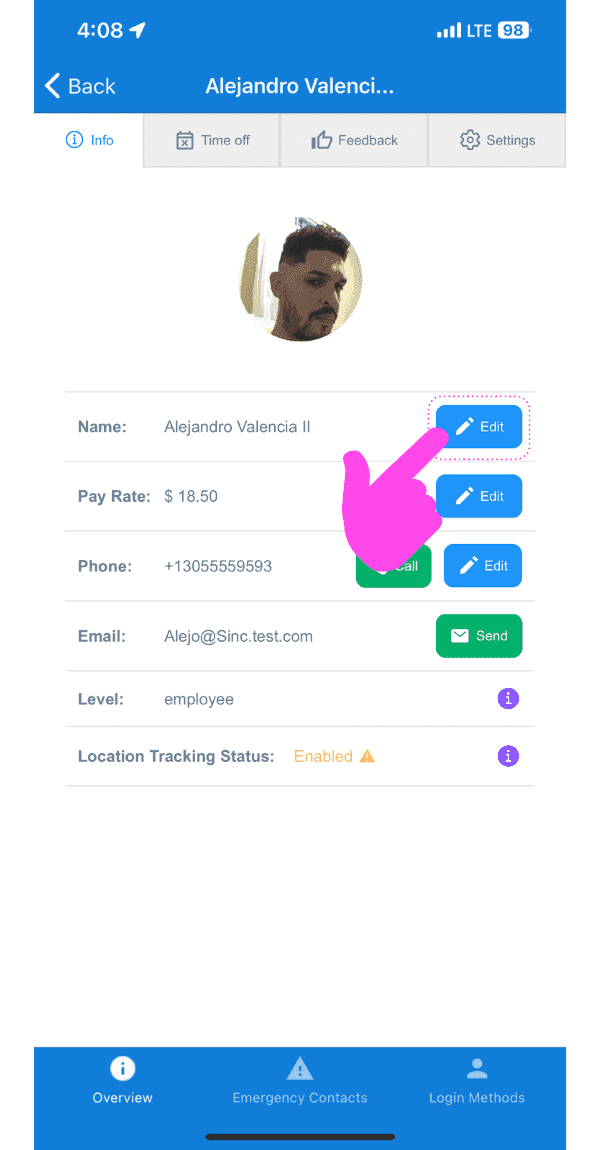
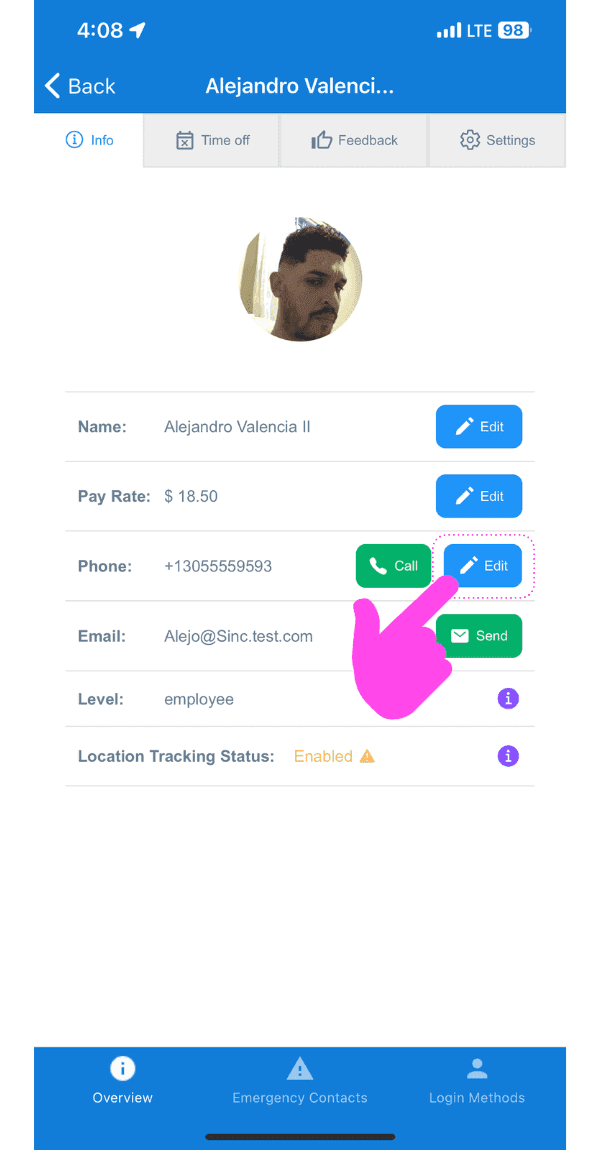
So bearbeitest du den Namen: Tippe auf Bearbeiten (neben Name).
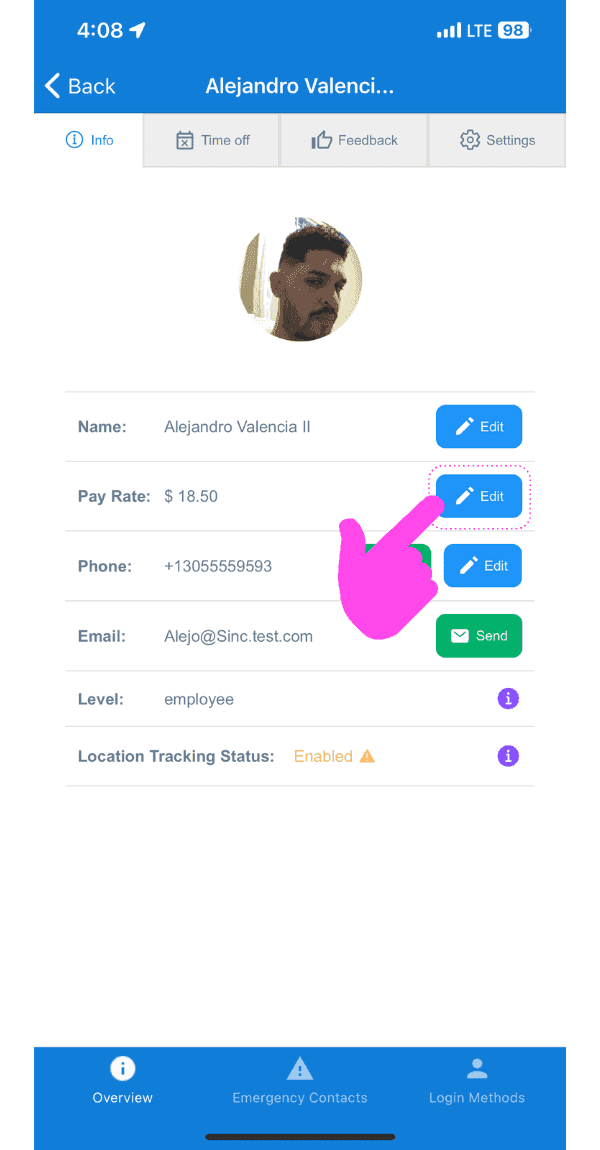
Zum Bearbeiten des Vergütungssatzes: Tippe auf Bearbeiten (neben Vergütungssatz).
So bearbeitest du die Telefonnummer: Tippe auf Bearbeiten (neben dem Telefonsymbol).
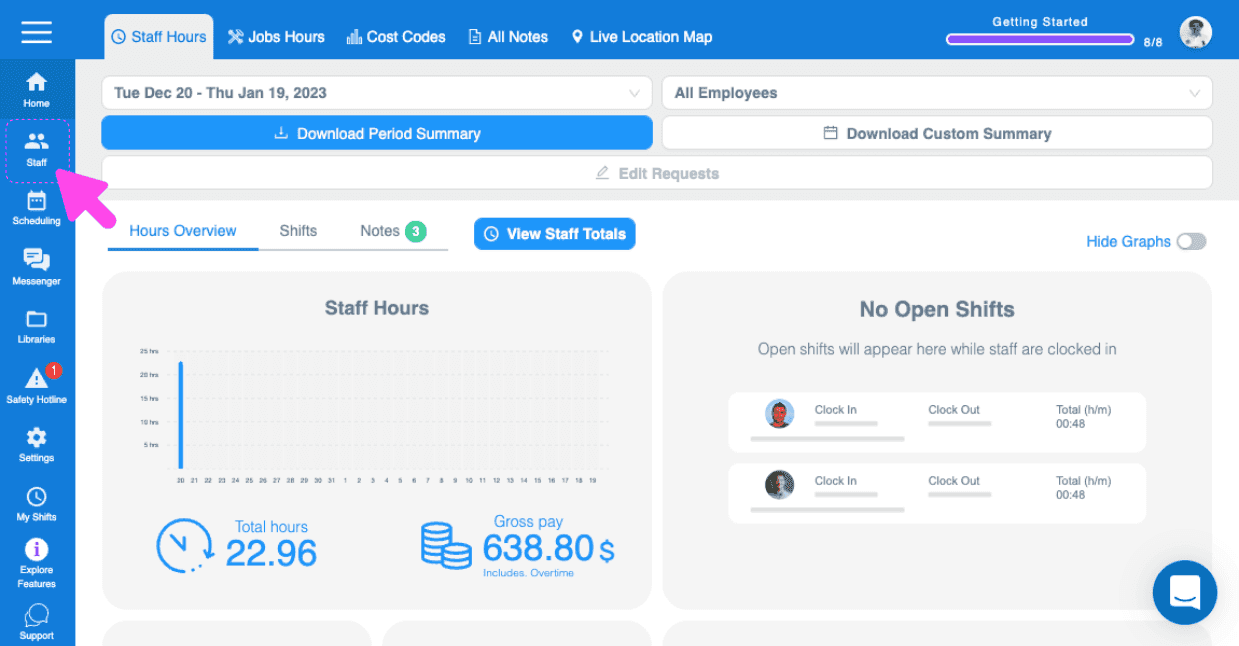
Im Web: Gehen Sie zu Menü Mitarbeitende
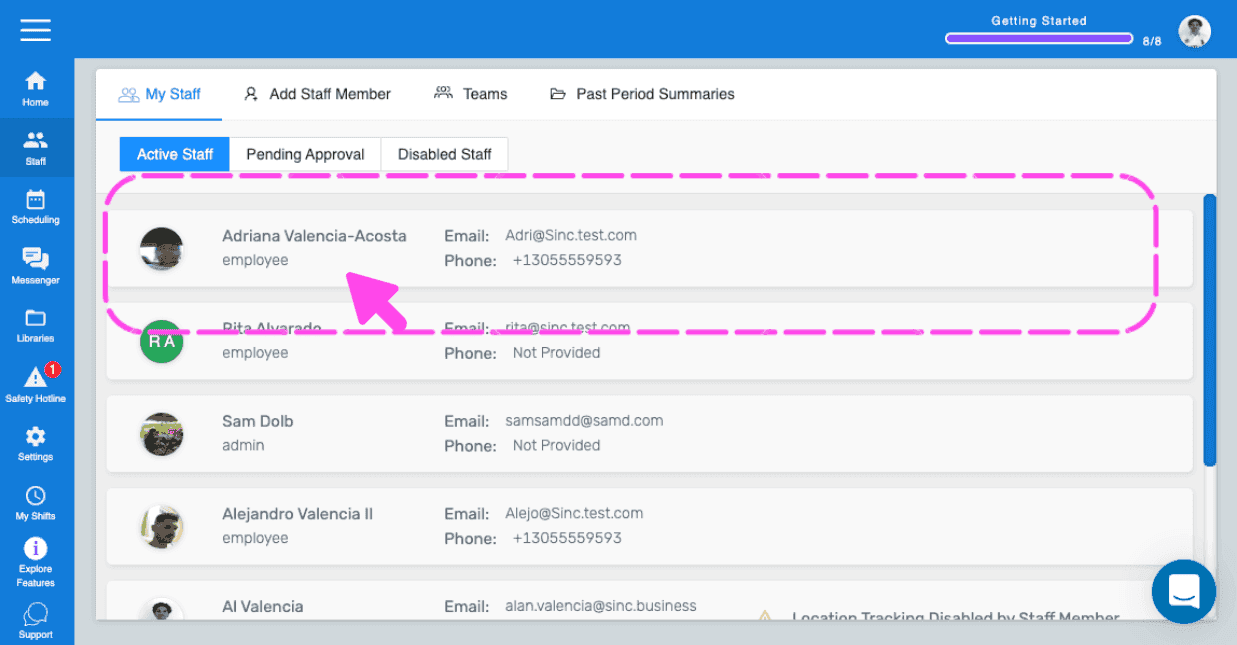
Klicken Sie auf das Teammitglied, dessen Profil bearbeitet werden soll.
Namen bearbeiten: Klicken Sie auf Bearbeiten (neben Name).
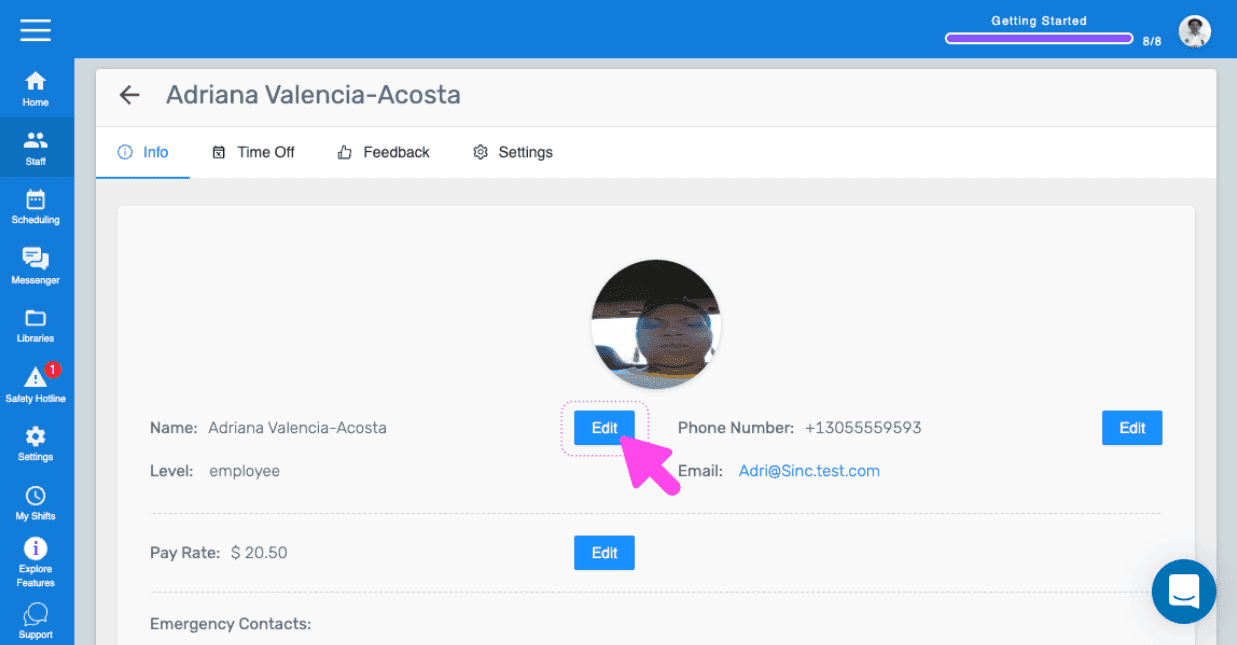
So bearbeitest du die Telefonnummer: Tippe auf Bearbeiten (neben Telefonnummer).
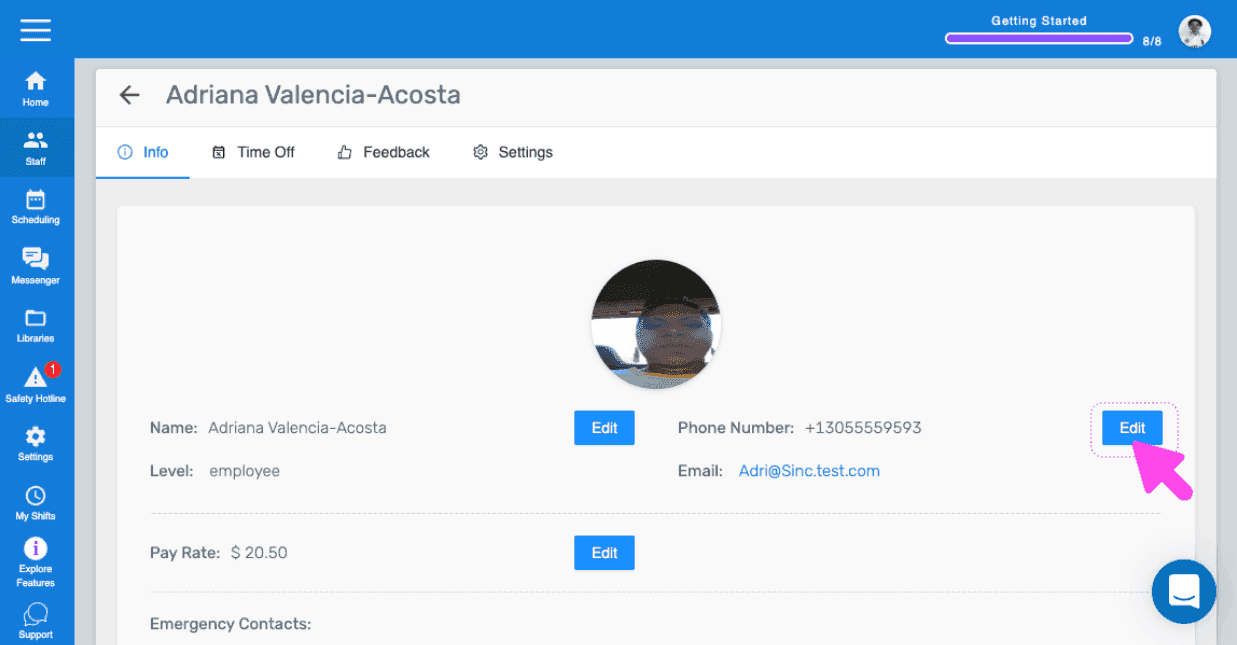
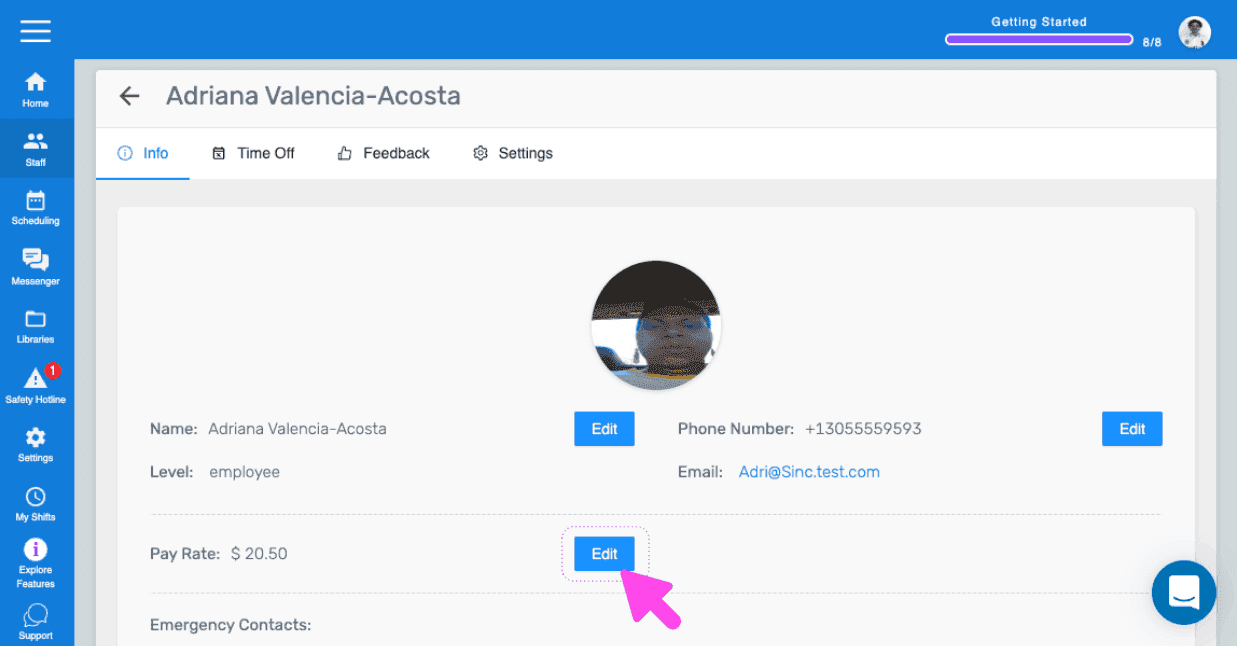
Um den Vergütungssatz zu bearbeiten: Tippe auf Bearbeiten (neben Vergütungssatz).
Hat das Ihre Frage beantwortet?