So setzen Sie ein Teammitglied auf „inaktiv“

Mitarbeiter werden in SINC nicht gelöscht, sondern deaktiviert. Sie können dann keine Arbeitszeiten mehr erfassen und werden bei der Anzahl Ihrer Nutzer nicht mitgezählt.

Sam Dolbel
Sam Dolbel
Feb 28th, 2023

Bitte beachten Sie: Wenn es sich bei dem Mitarbeitenden, den Sie deaktivieren möchten, um einen ADMIN handelt, befolgen Sie stattdessen den Admin-Leitfaden. Wenn ein Mitarbeitender Ihre Organisation verlässt, müssen Sie ihn lediglich deaktivieren. Tippen Sie auf Staff
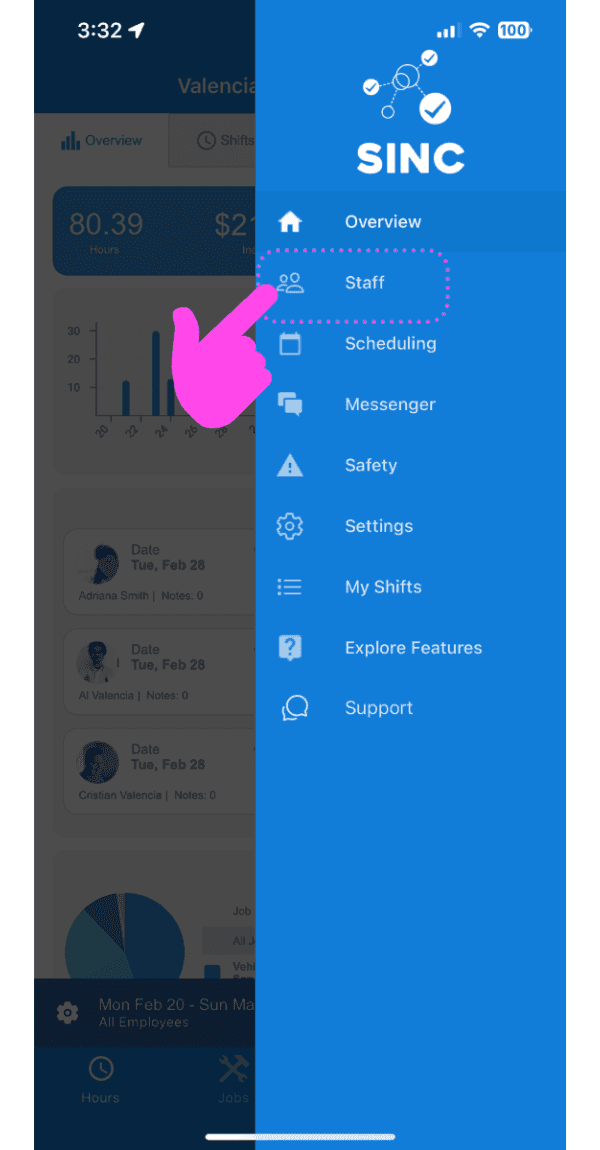
SINC mobile app side menu open with a pink arrow pointing to the Staff icon

Tippe auf den Namen des Teammitglieds
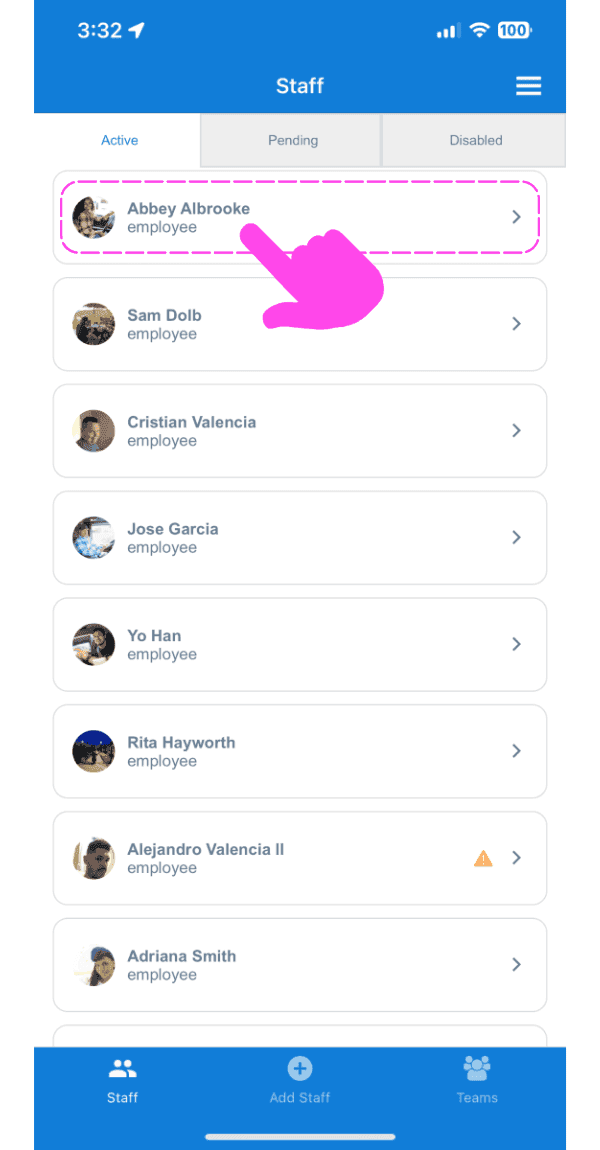
Mobile Staff list on the Active tab with a pink arrow pointing to a staff member's name

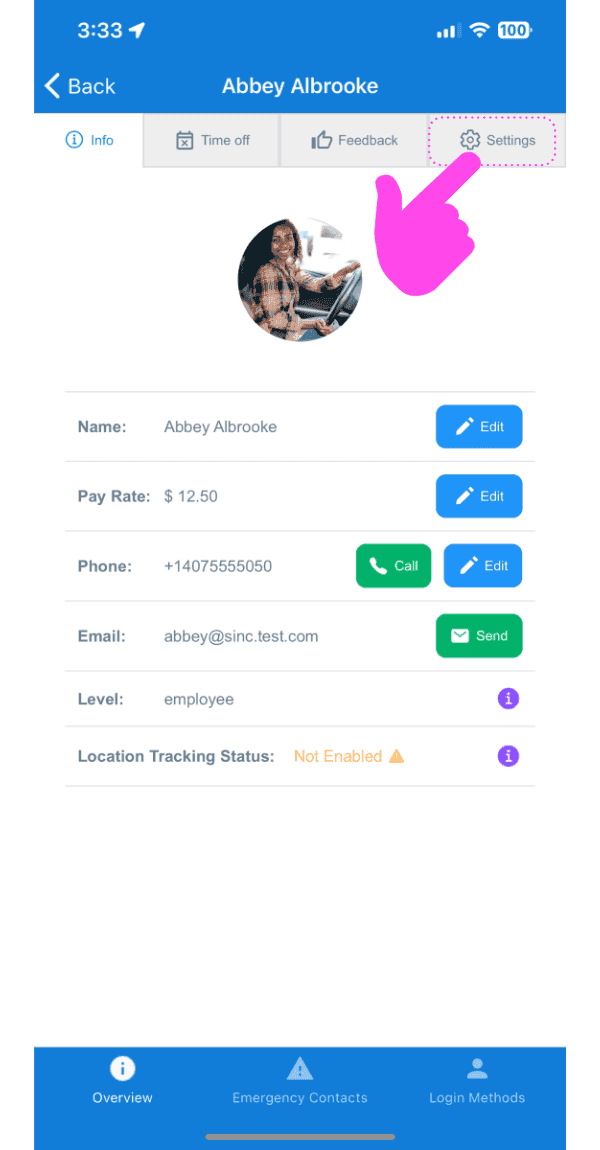
Tippen Sie auf Einstellungen

SINC mobile staff profile screen with a pink arrow pointing to the Settings tab

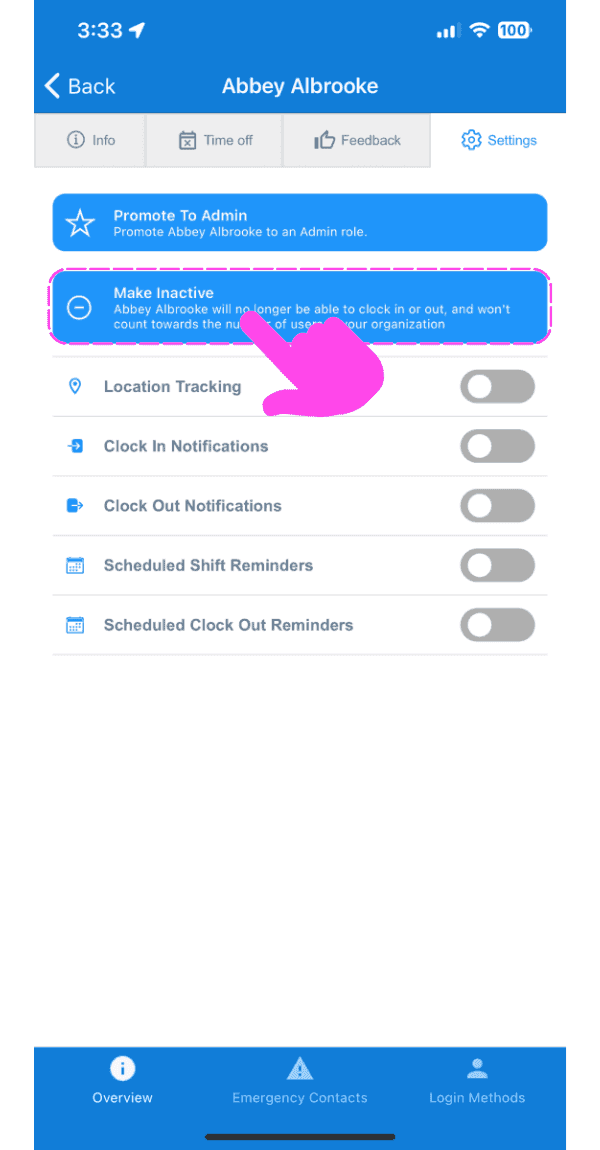
Tippe auf Inaktiv setzen

SINC mobile staff Settings screen with the Make Inactive option outlined in pink and a hand pointing to it

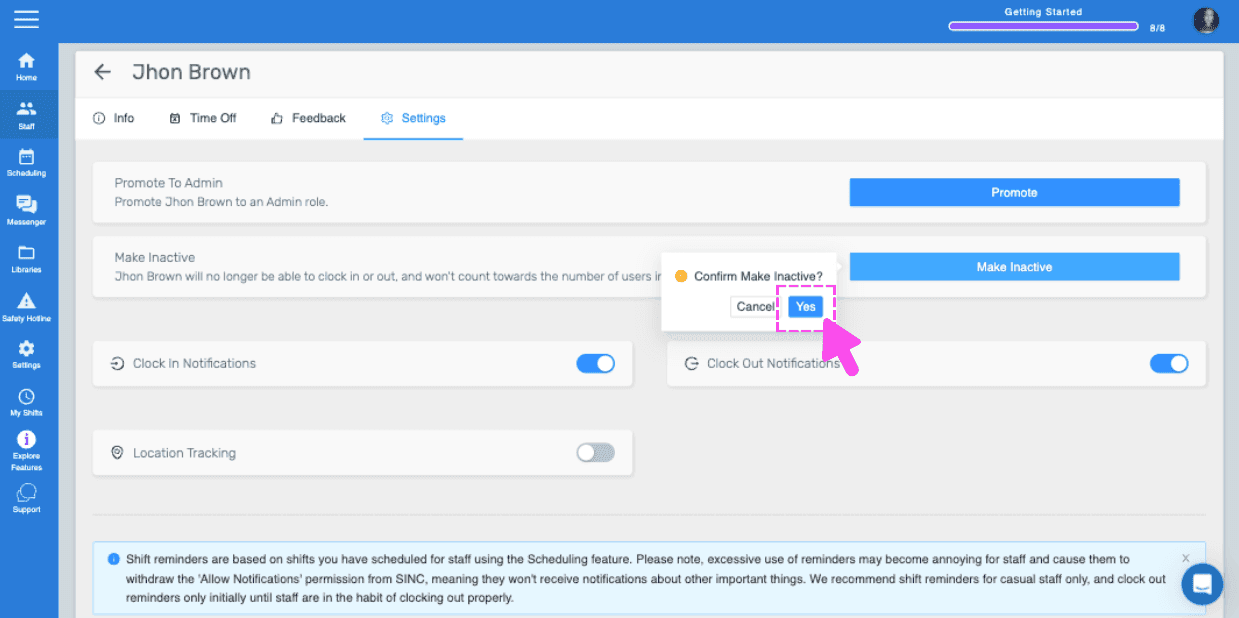
Tippe auf Bestätigen (Webversion) Klicke auf Ja
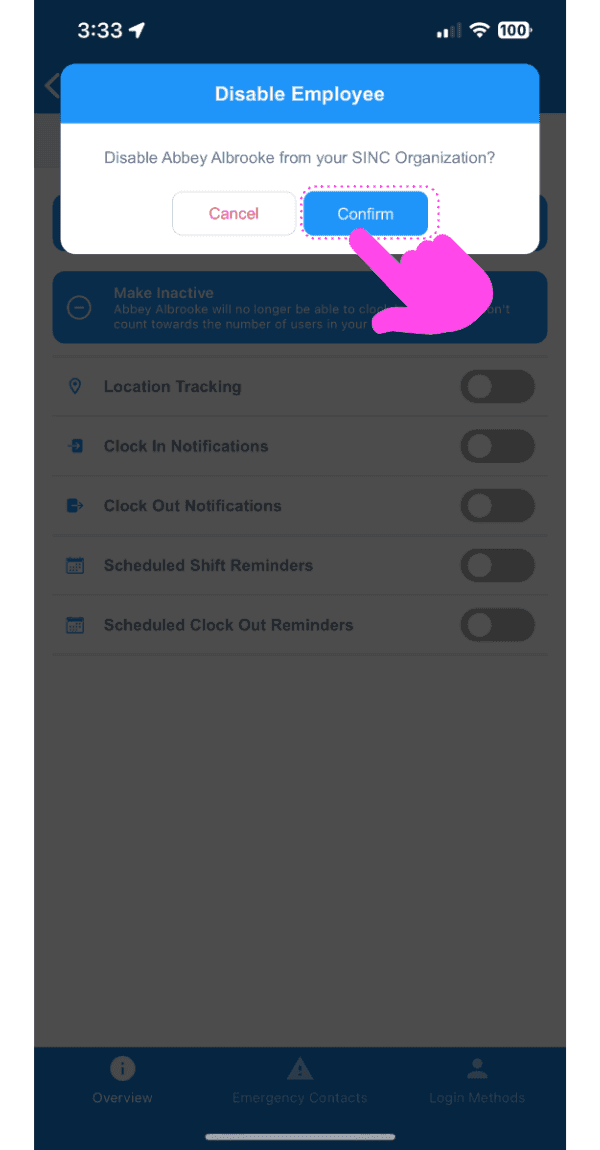
Disable Employee confirmation dialog with a pink arrow pointing to the Confirm button

Bitte beachten Sie: Wenn die Änderungen auf dem Gerät des Mitarbeiters nicht angezeigt werden, bitten Sie ihn, die SINC-App zu löschen sein Telefon neu zu starten SINC neu zu installieren. Wenn Sie die Webversion verwenden, sieht sie wie folgt aus:
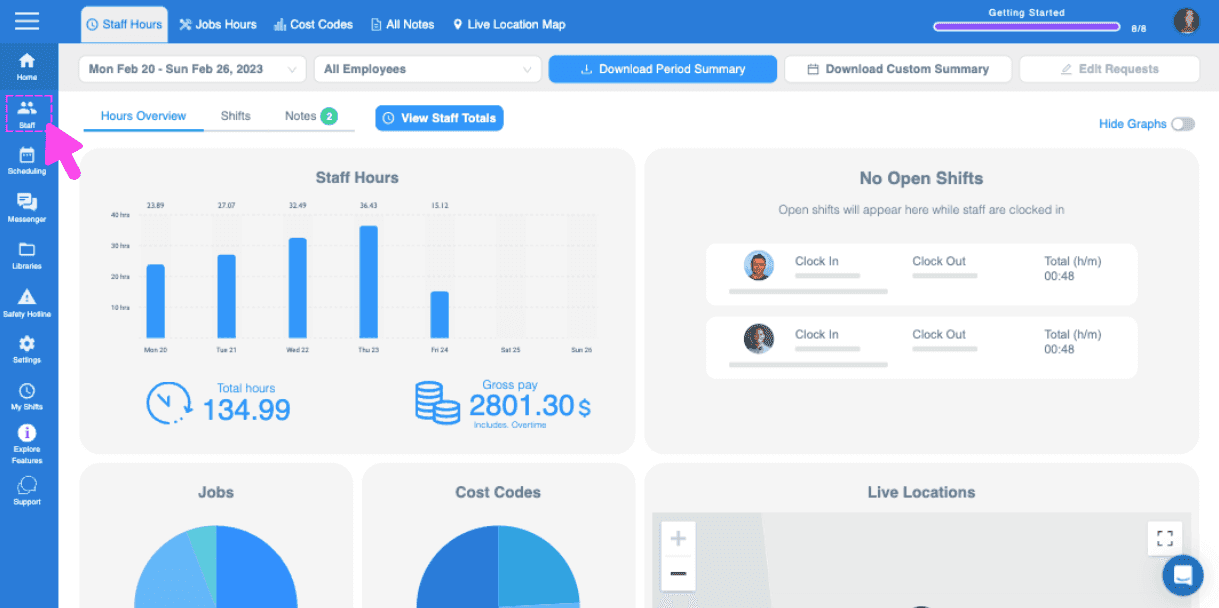
SINC web dashboard Staff Hours overview with a pink arrow pointing to a sidebar navigation icon
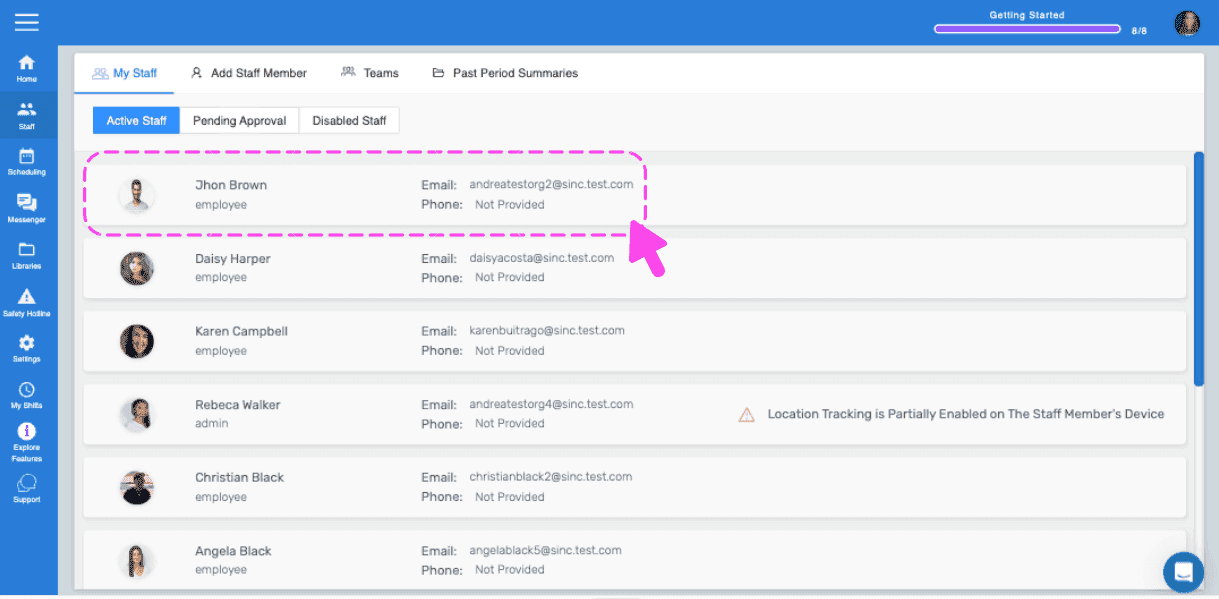
Web dashboard Staff list with a pink dashed outline and arrow highlighting an employee row
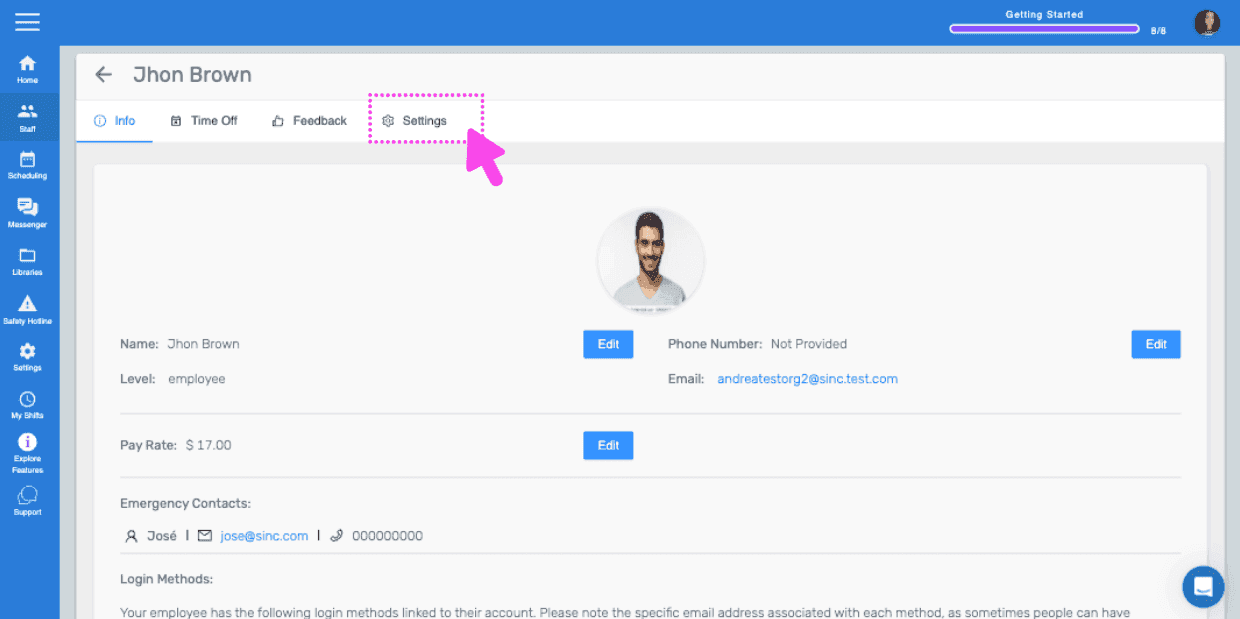
Staff member Info screen showing photo, name, pay rate, and phone, with a pink arrow pointing to the Settings tab
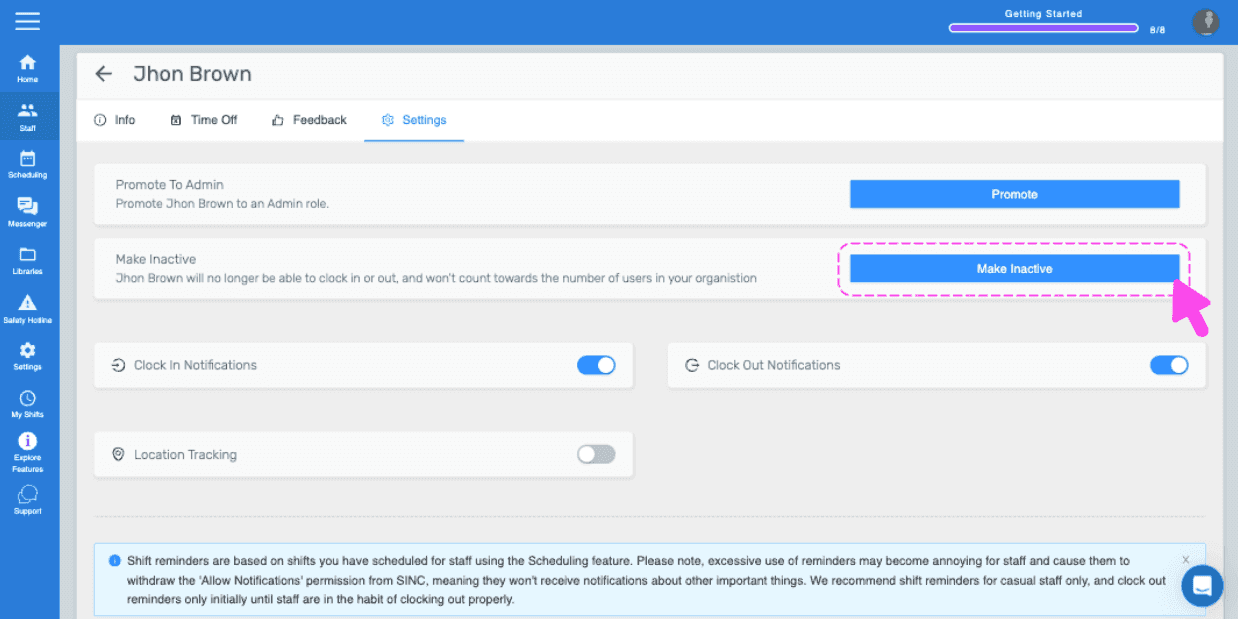
SINC web staff Settings tab with the Make Inactive button highlighted in pink
Staff member Settings tab with a Make Inactive confirmation popup and the Yes button highlighted by a pink arrow

Hat das Ihre Frage beantwortet?