So setzen Sie einen Administrator auf inaktiv

Sam Dolbel
Sam Dolbel
Feb 28th, 2023

Wenn ein Mitarbeiter mit Administratorberechtigungen Ihre Organisation verlässt, müssen Sie ihn nicht löschen – Sie müssen ihn lediglich deaktivieren. In dieser Anleitung zeigen wir Ihnen die erforderlichen Schritte. Tippen Sie auf Staff
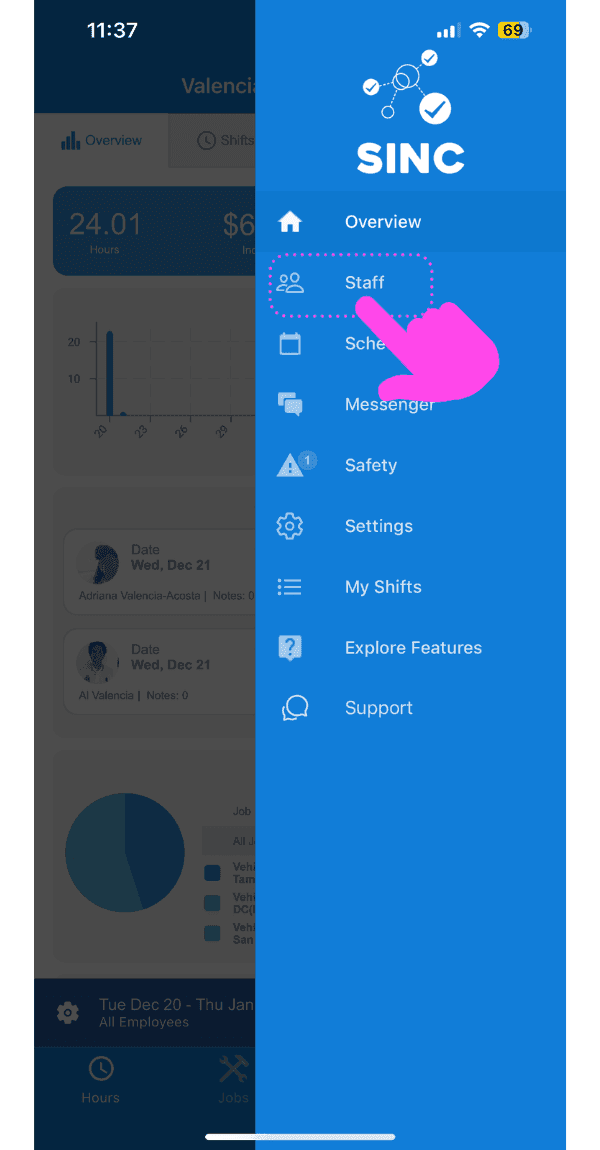
SINC mobile app side menu with a pink arrow pointing to the Staff menu item

Tippen Sie auf den Namen des Administrators
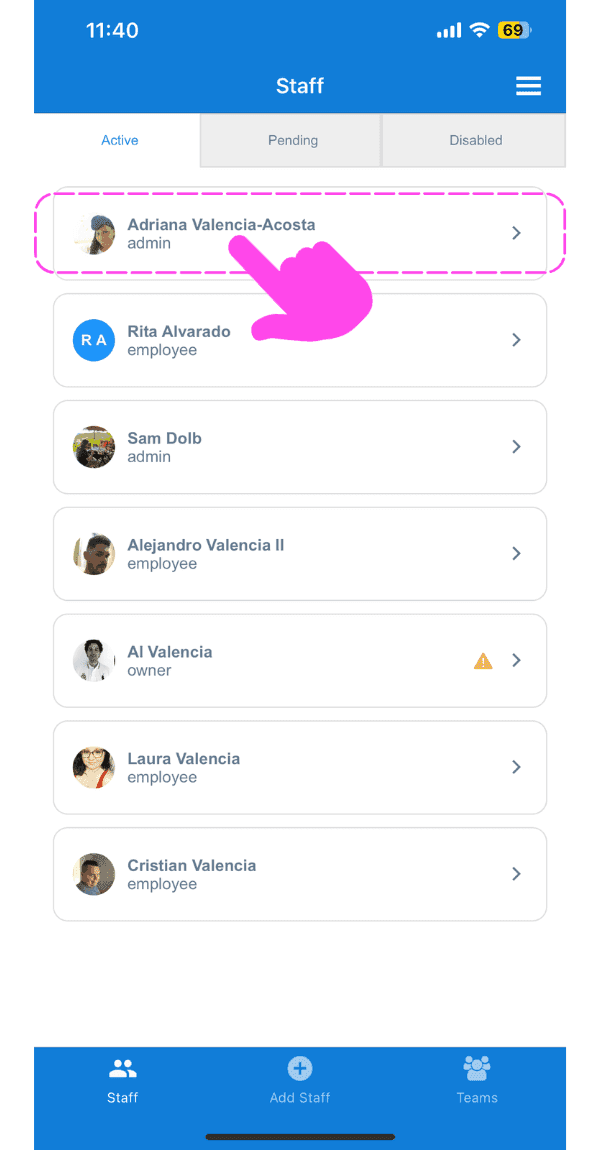
SINC mobile Staff screen with a pink hand pointing to an admin staff member's name

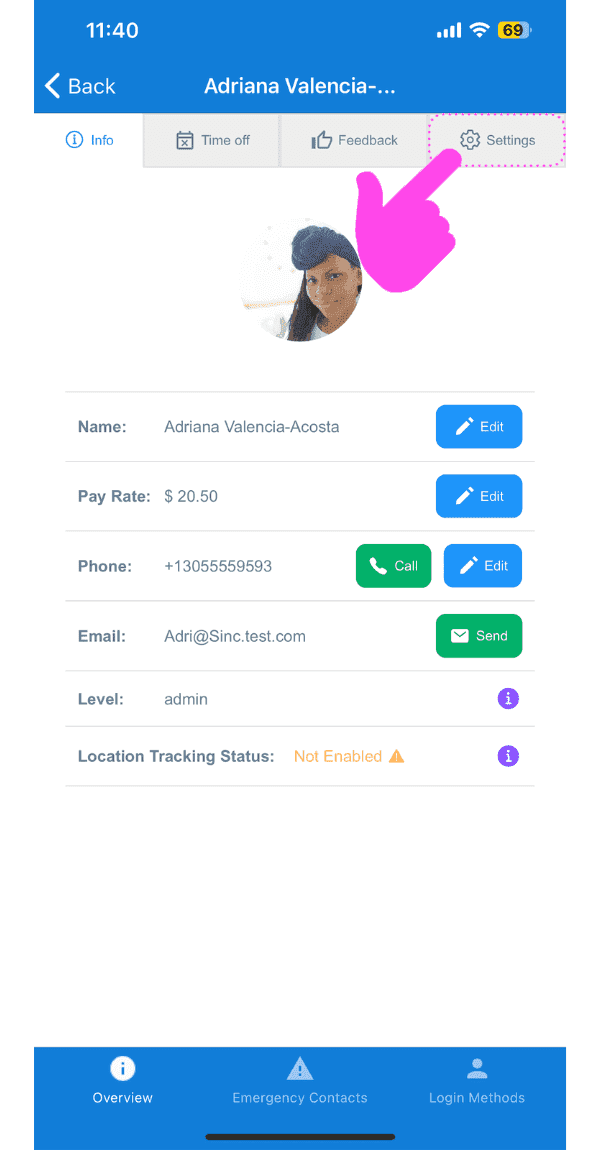
Tippen Sie auf Einstellungen

SINC mobile staff profile screen with a pink arrow pointing to the Settings tab

Tippen Sie auf Zu „Mitarbeiter“ zurückkehren
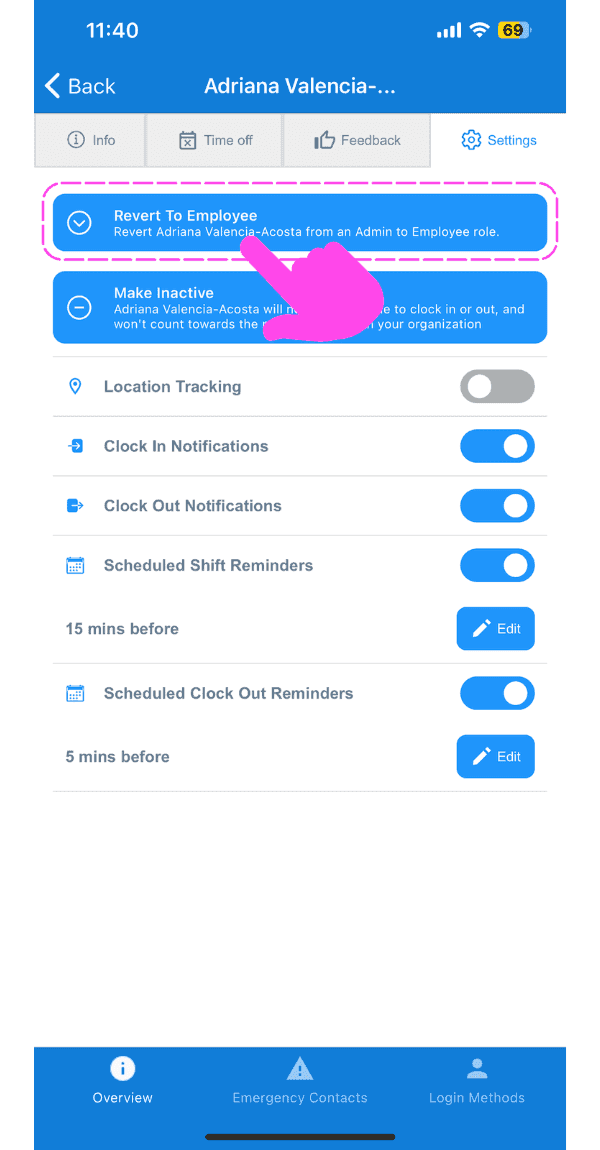
Staff member Settings tab with a pink arrow pointing to the Revert To Employee button

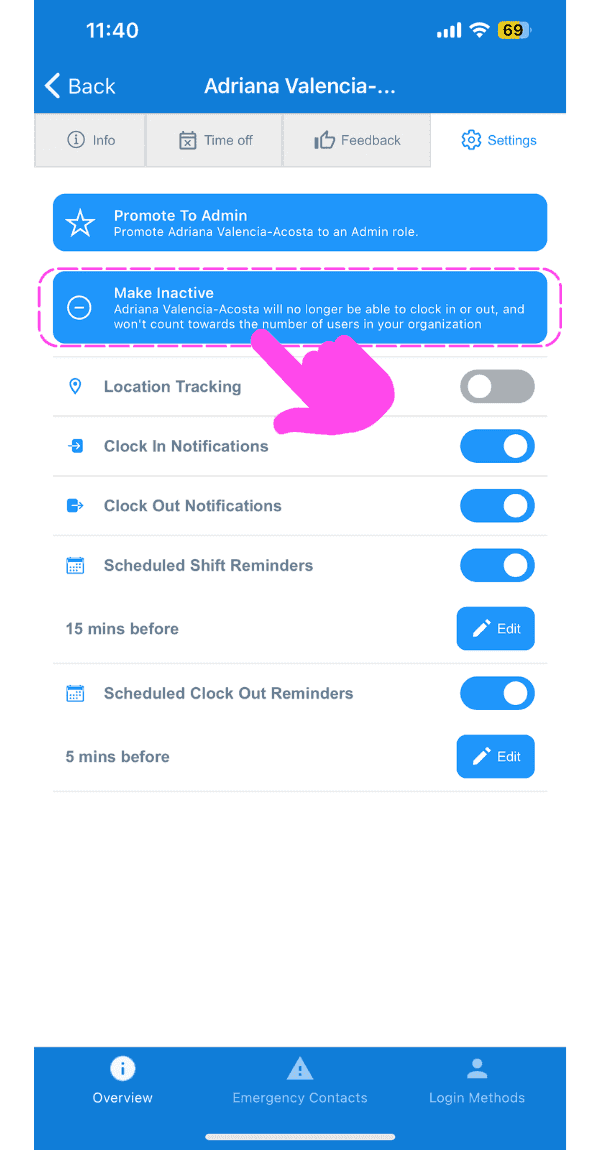
Tippe auf Deaktivieren

SINC mobile app staff settings screen with the Make Inactive banner highlighted and a pink arrow pointing to notification toggles below it

Auf Bestätigen tippen (Webversion) Auf Ja klicken
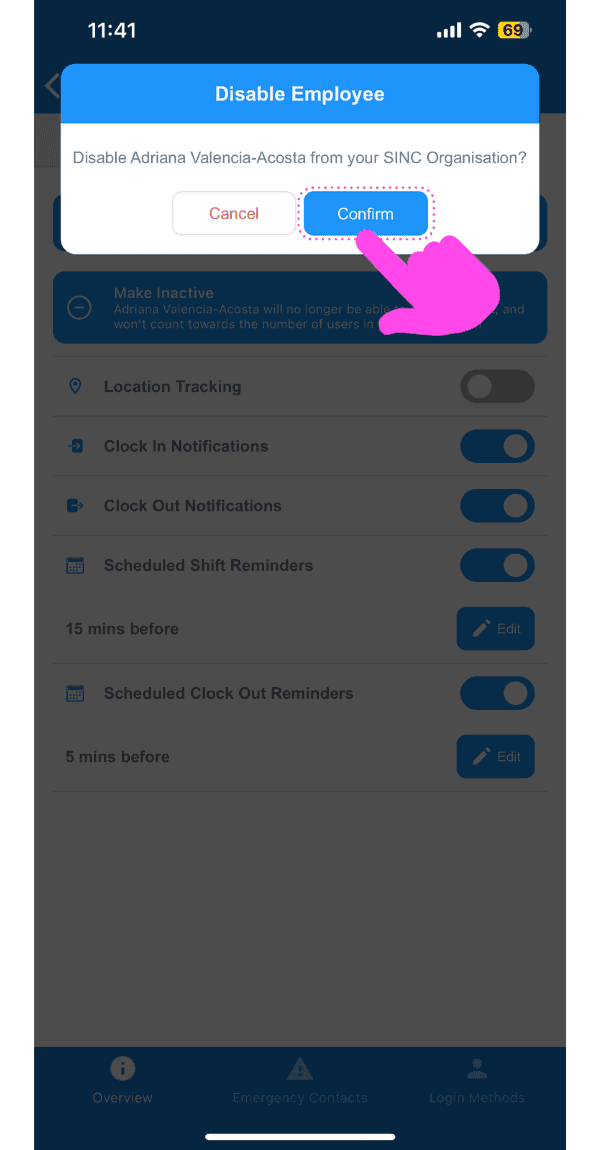
Disable Employee confirmation popup with the Confirm button highlighted by a pink arrow

Hat das Ihre Frage beantwortet?