So ernennen Sie einen Mitarbeiter zum Admin

In diesem Leitfaden zeigen wir, wie Sie einen Mitarbeiter zum Administrator ernennen.

Sam Dolbel
Sam Dolbel
Mar 27th, 2023

Um einen neuen Admin hinzuzufügen, musst du ihn zunächst als regulären Mitarbeiter einladen. Sobald das erledigt ist: Tippe auf Menü Mitarbeiter
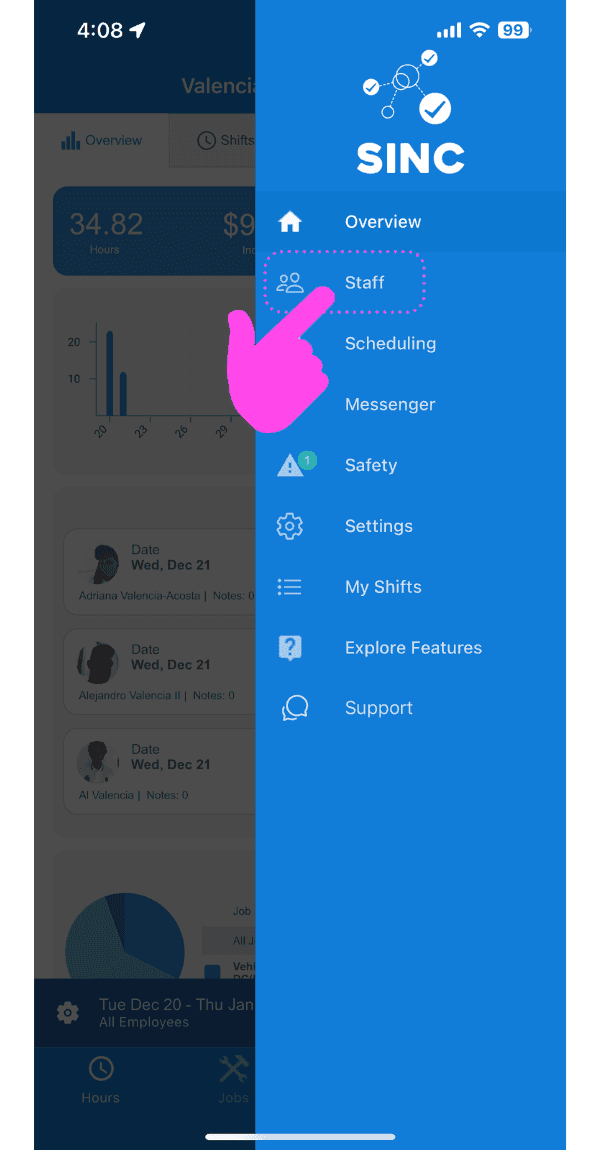
SINC mobile side menu with a pink arrow pointing to the Staff option

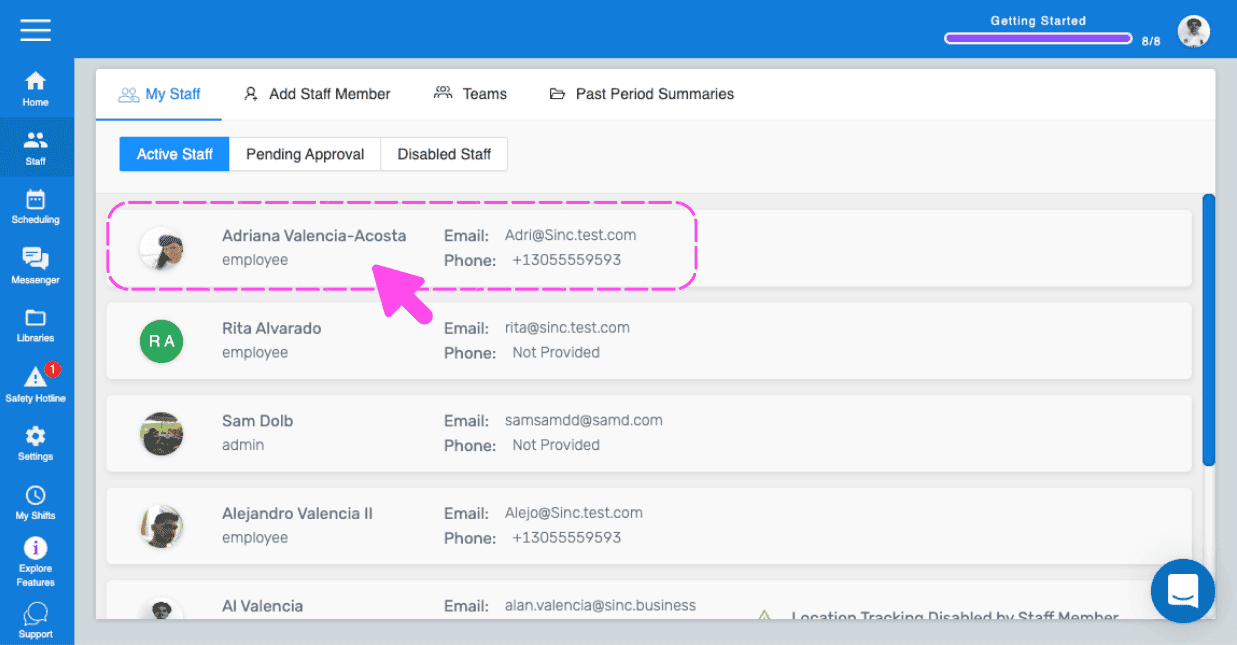
Tippe auf den Namen des Mitarbeiters, den du zum Admin machen möchtest
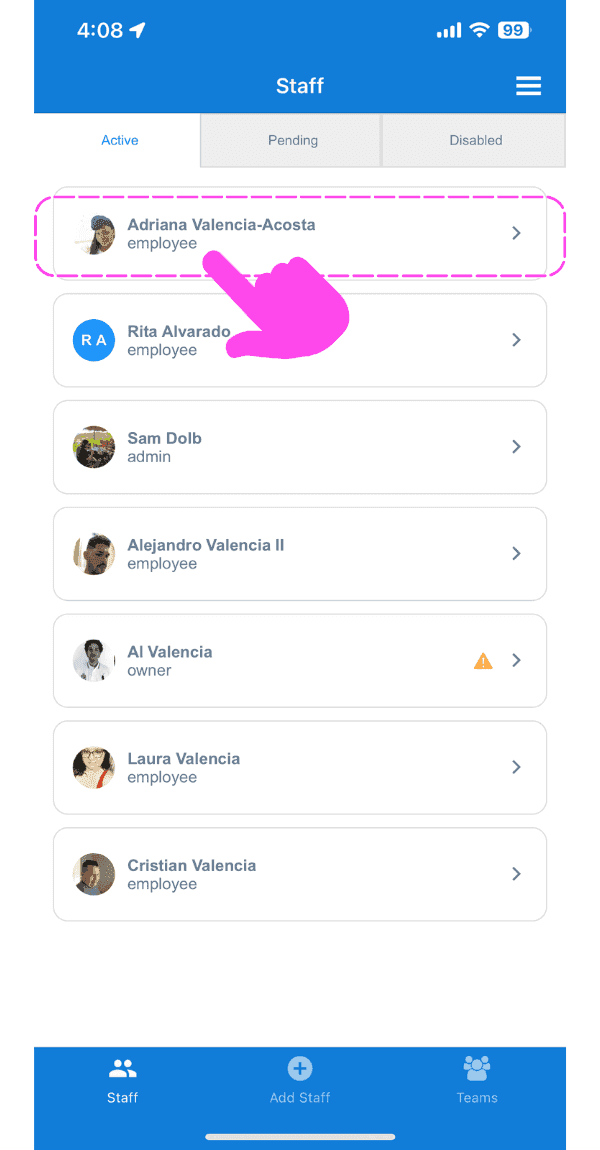
Staff list screen with a pink hand pointing to an employee's name highlighted in a dashed box at the top

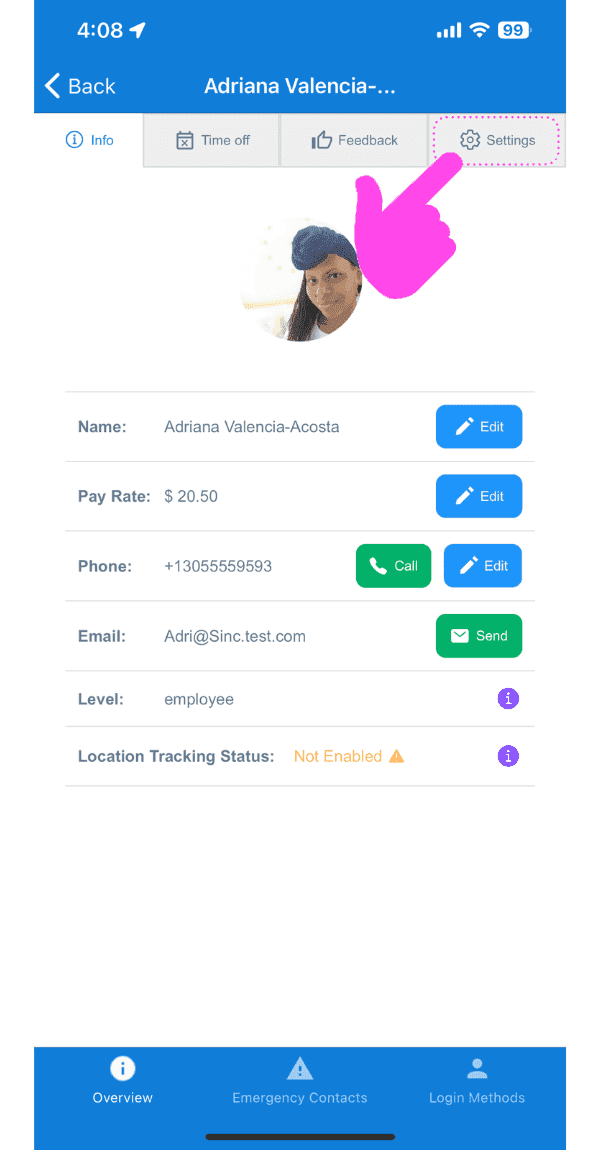
Tippen Sie auf Einstellungen

SINC mobile staff profile screen with a pink arrow pointing to the Settings tab

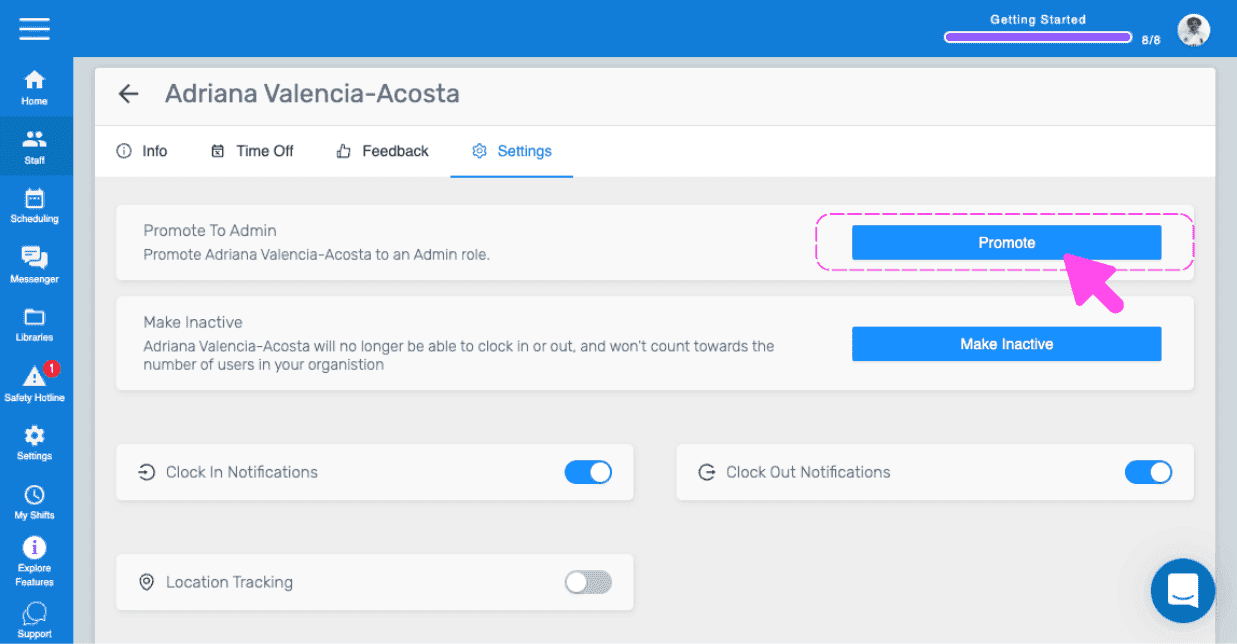
Tippe auf Zum Administrator ernennen (Webversion) Klicke auf Ernennen
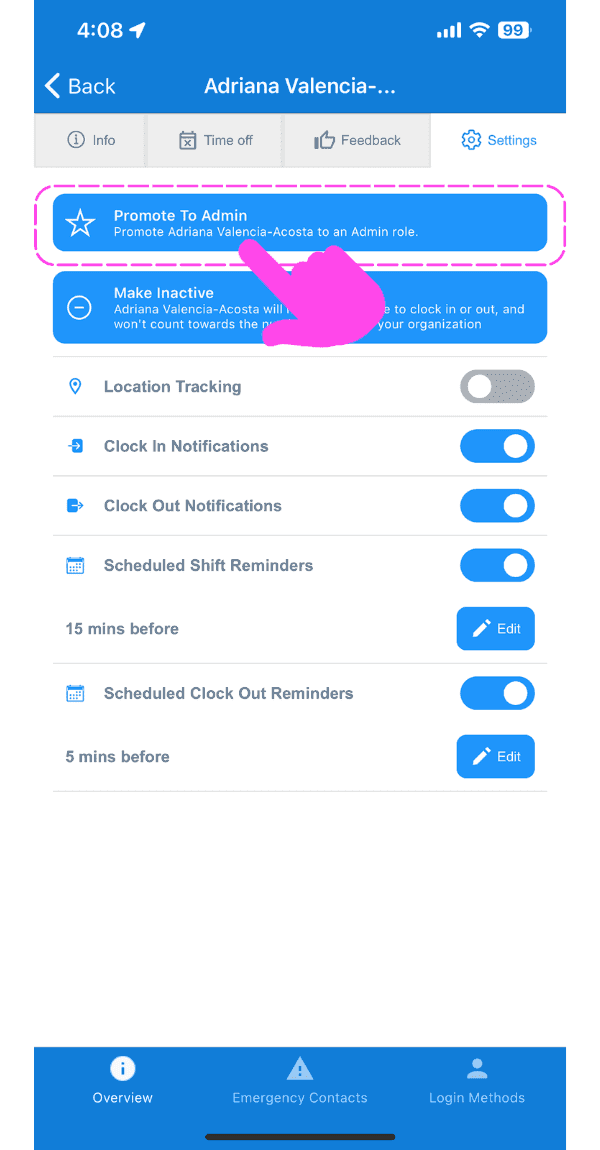
Mobile staff Settings tab with the Promote To Admin button outlined in pink and an arrow pointing to it

Wenn du die Webversion verwendest, sieht sie so aus:
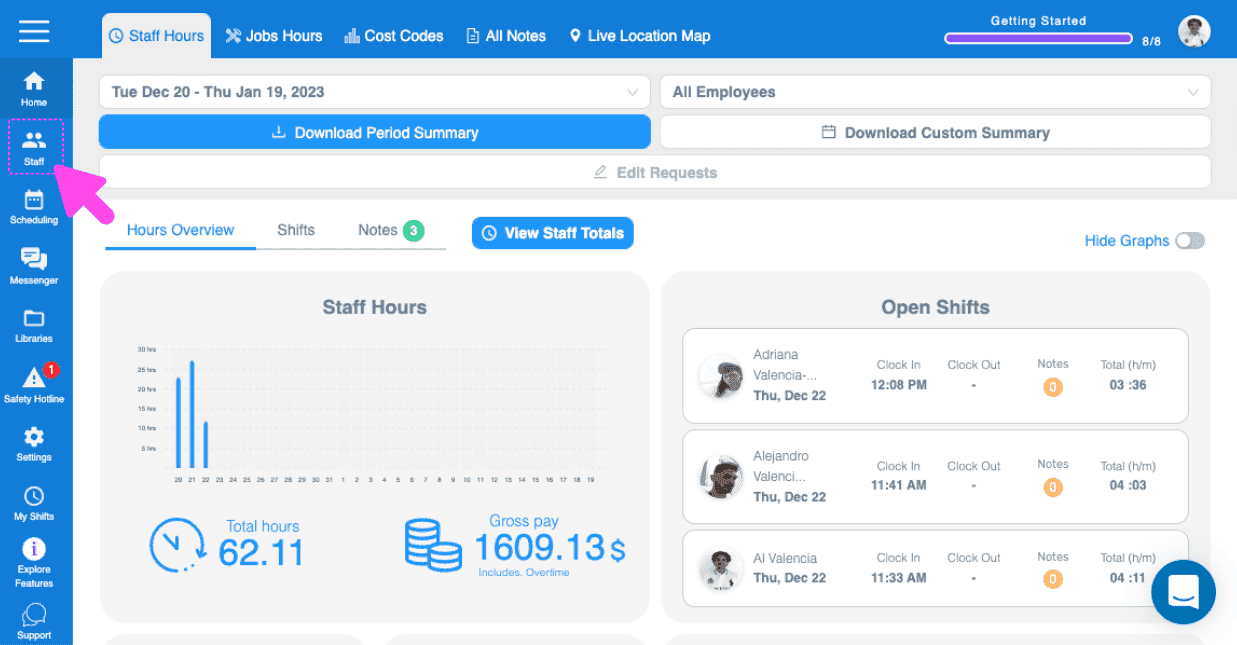
SINC web Staff Hours dashboard with a pink arrow pointing to the Staff icon in the left sidebar
Active Staff list with an employee's row highlighted showing their email and phone number
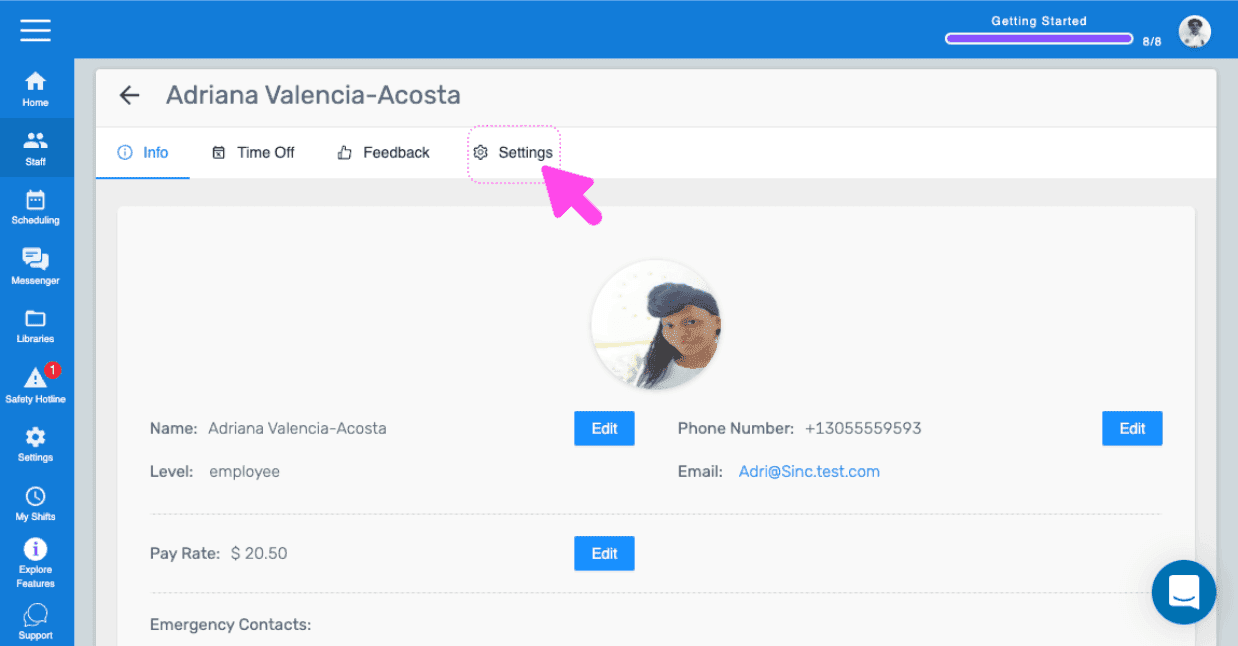
Web staff profile screen with a pink arrow pointing to the Settings tab
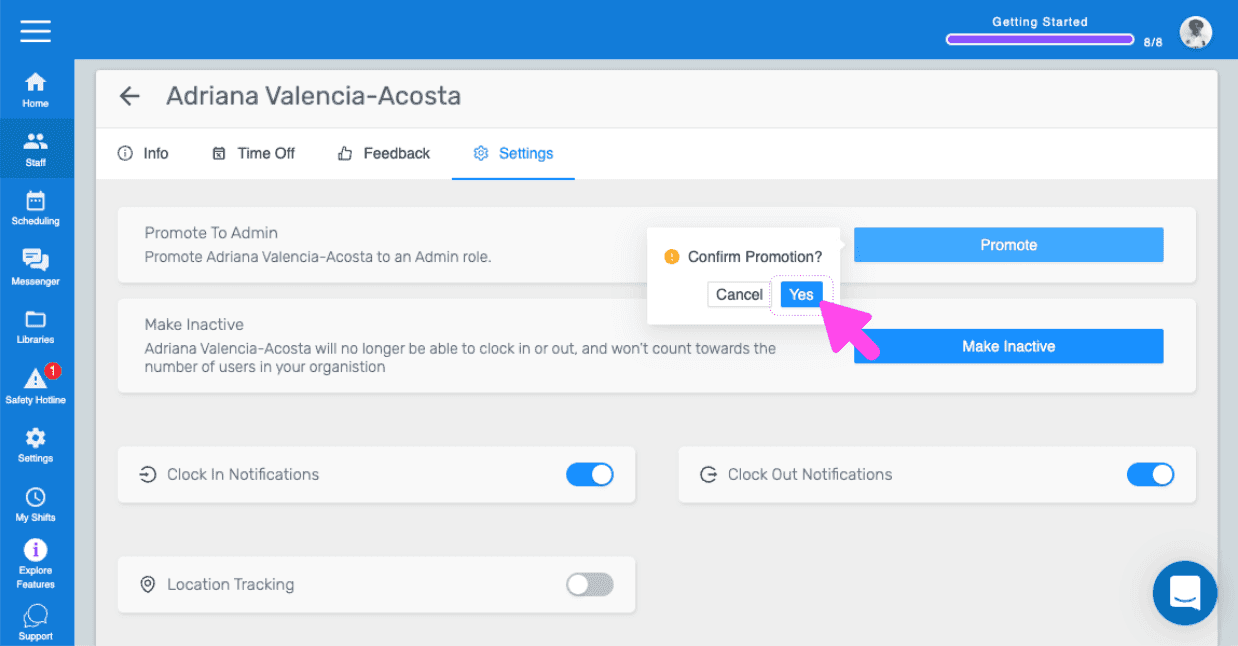
SINC web staff Settings tab with a pink arrow pointing to the Promote button under Promote To Admin
SINC web staff Settings tab showing a Confirm Promotion popup with a pink arrow pointing to the Yes button

Hat das Ihre Frage beantwortet?