So erfassen Sie das Feedback Ihrer Mitarbeitenden

In diesem Leitfaden erfahren Sie, wie Sie in Sinc Feedback zu Ihren Mitarbeitenden hinzufügen. So verfügen Sie über eine dauerhafte Dokumentation für Ihr Team.

Sam Dolbel
Sam Dolbel
Mar 1st, 2023

Tippen Sie auf Menü Personal
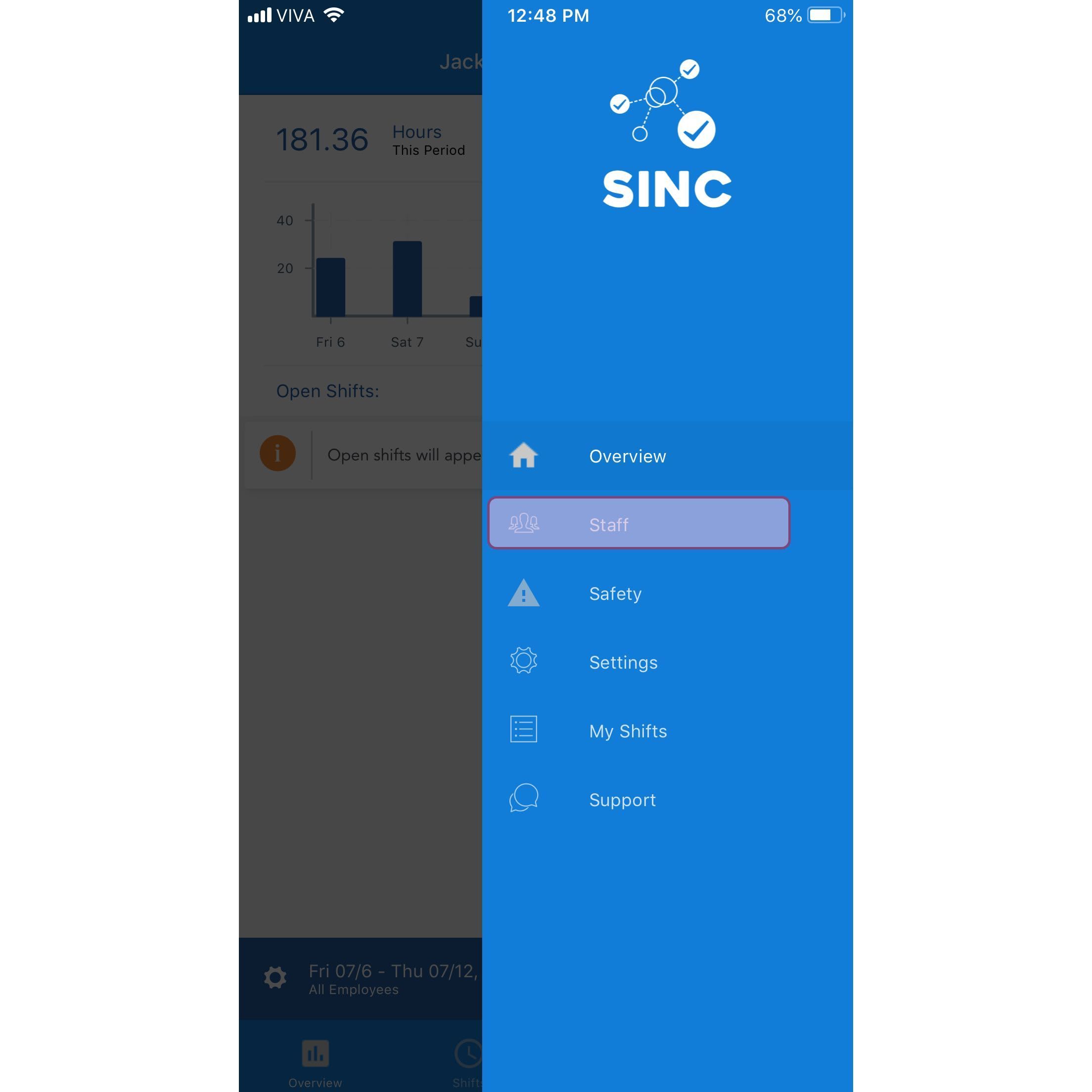
SINC mobile app menu with the Staff option highlighted

Tippen Sie auf den Namen des Mitarbeiters
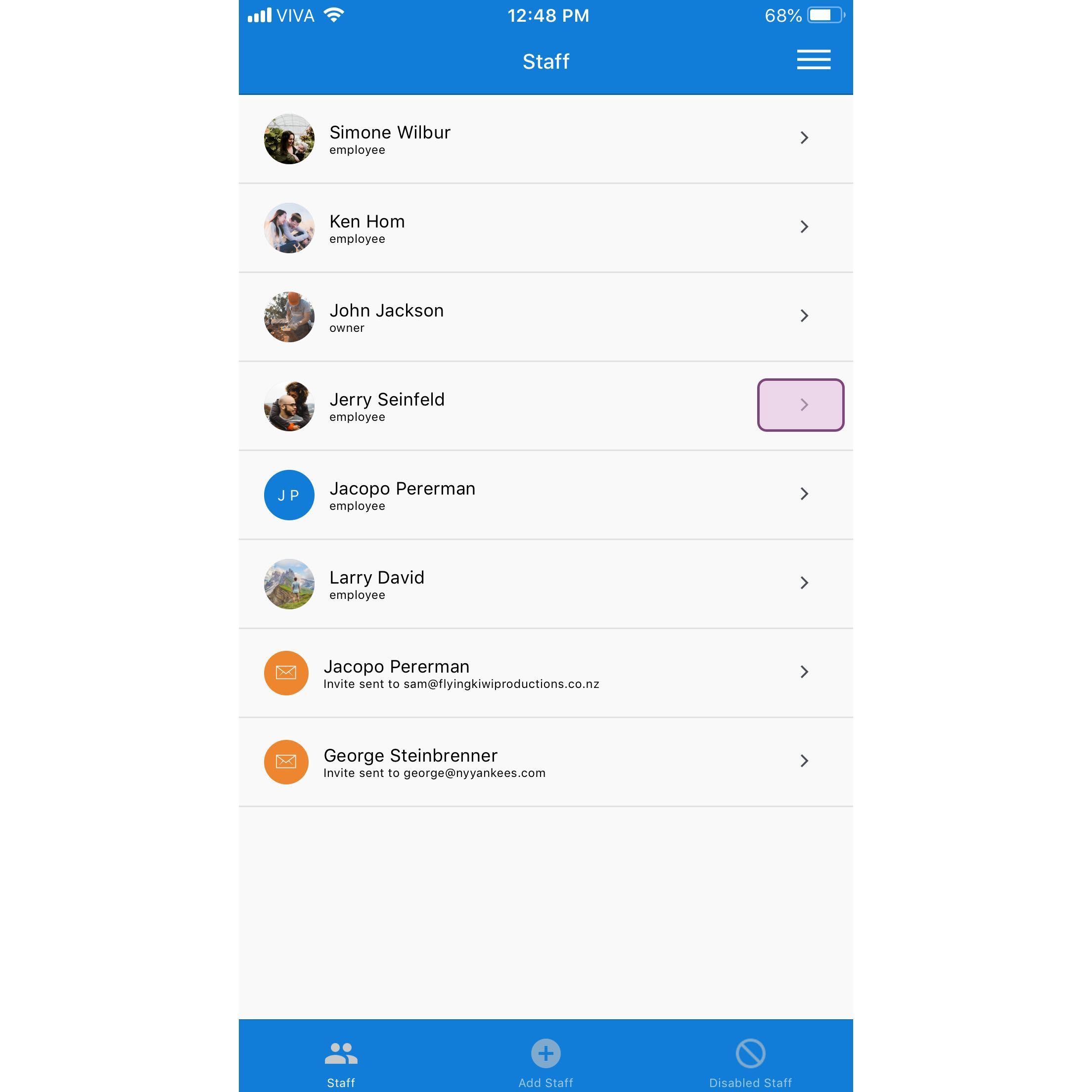
SINC mobile Staff list with the Jerry Seinfeld row highlighted in a pink box

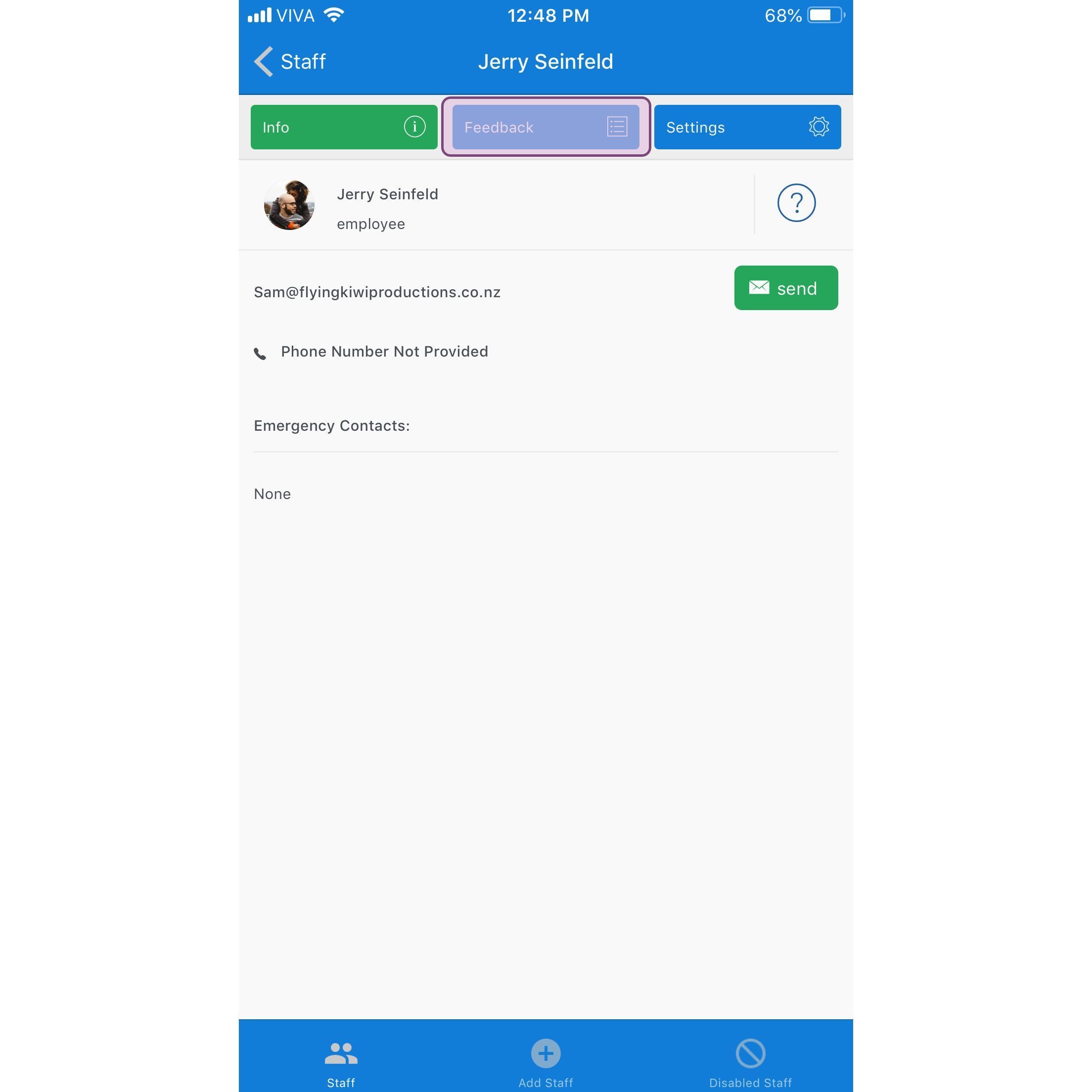
Tippe auf Feedback

SINC mobile staff profile screen with the Feedback tab highlighted in purple

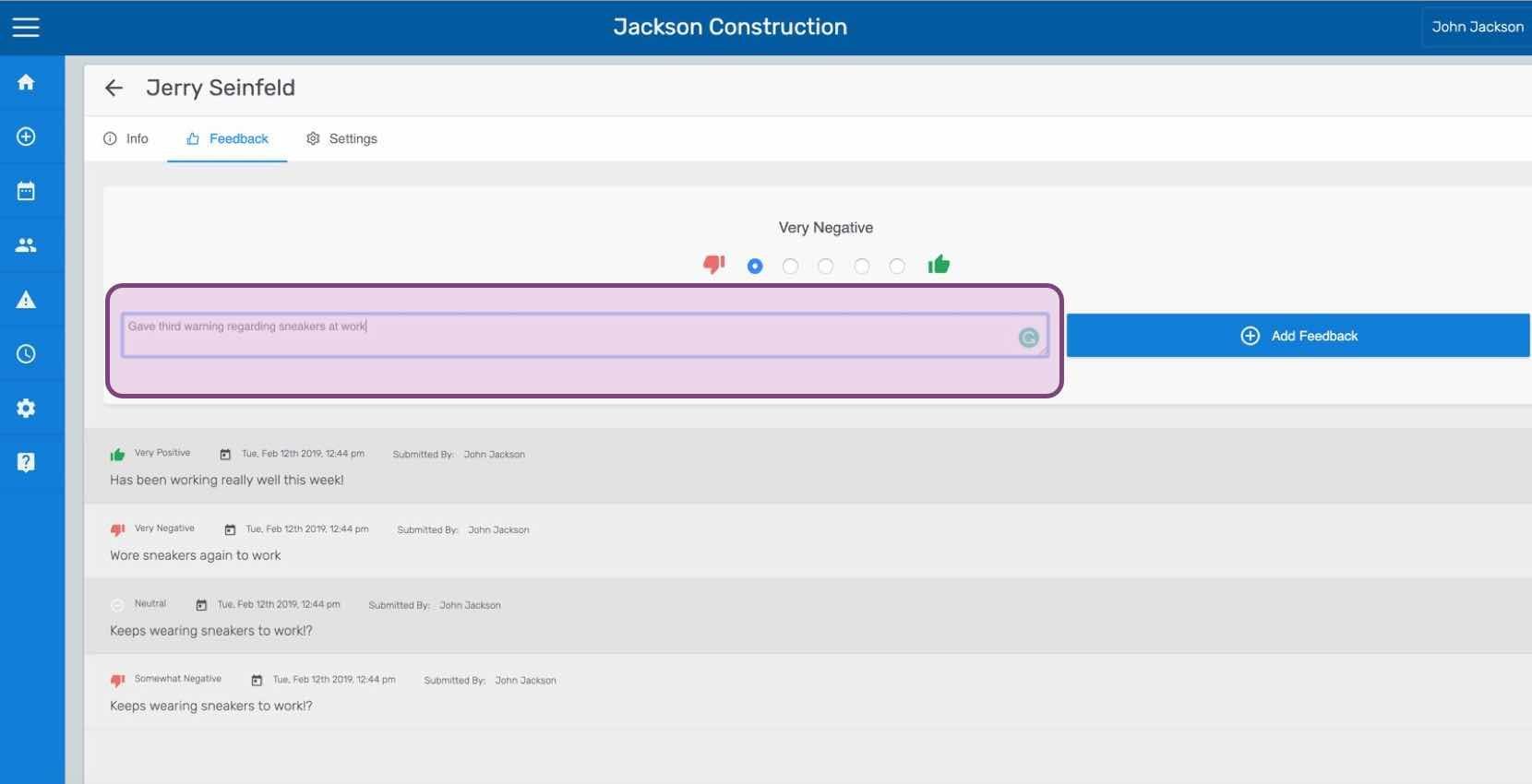
Geben Sie Ihr Feedback ein und tippen Sie auf Feedback absenden (Webversion). Klicken Sie auf Feedback hinzufügen.
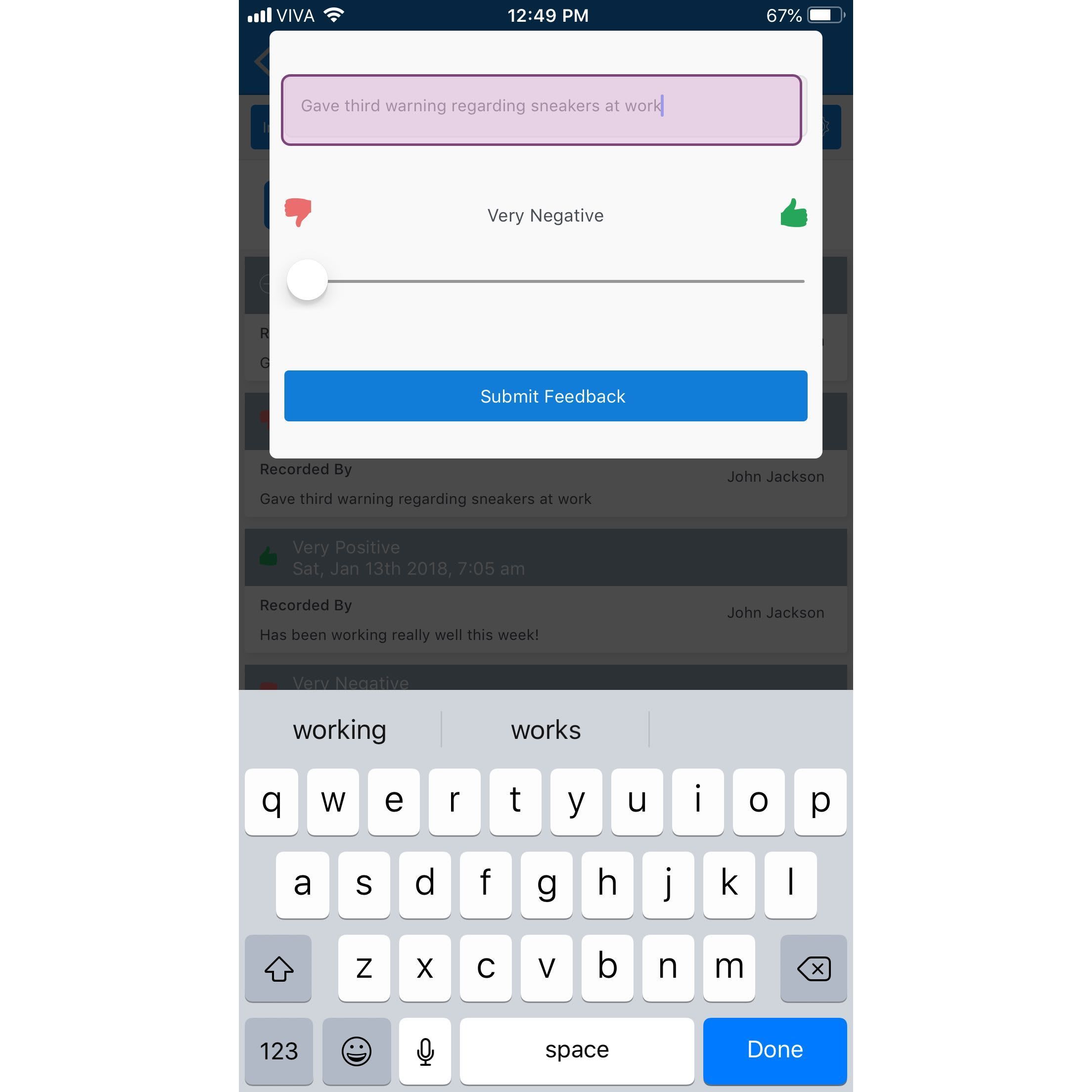
Mobile app feedback entry screen with a typed note, a Very Negative to Very Positive slider, and Submit Feedback button

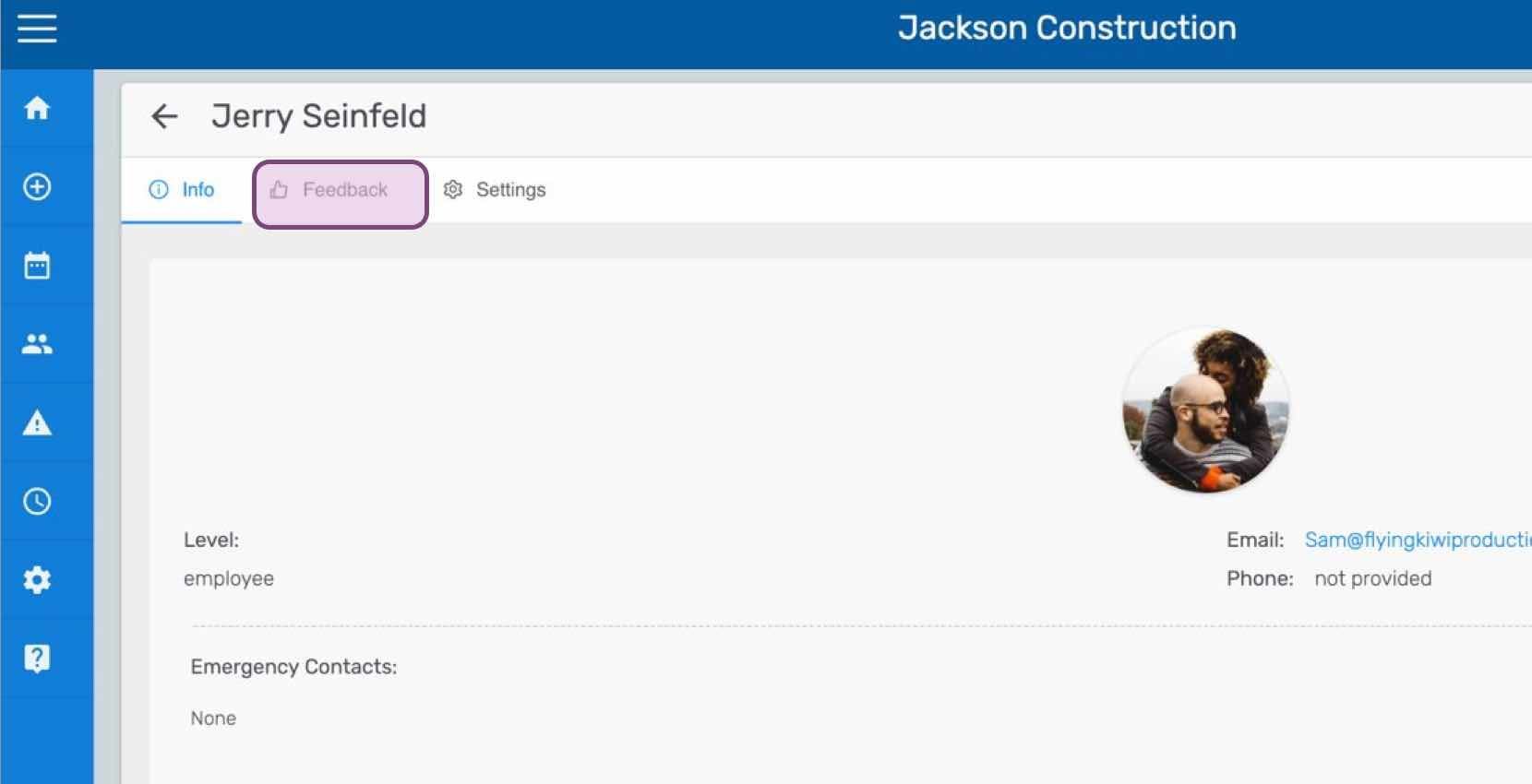
Wenn du die Webversion verwendest, sieht es so aus:
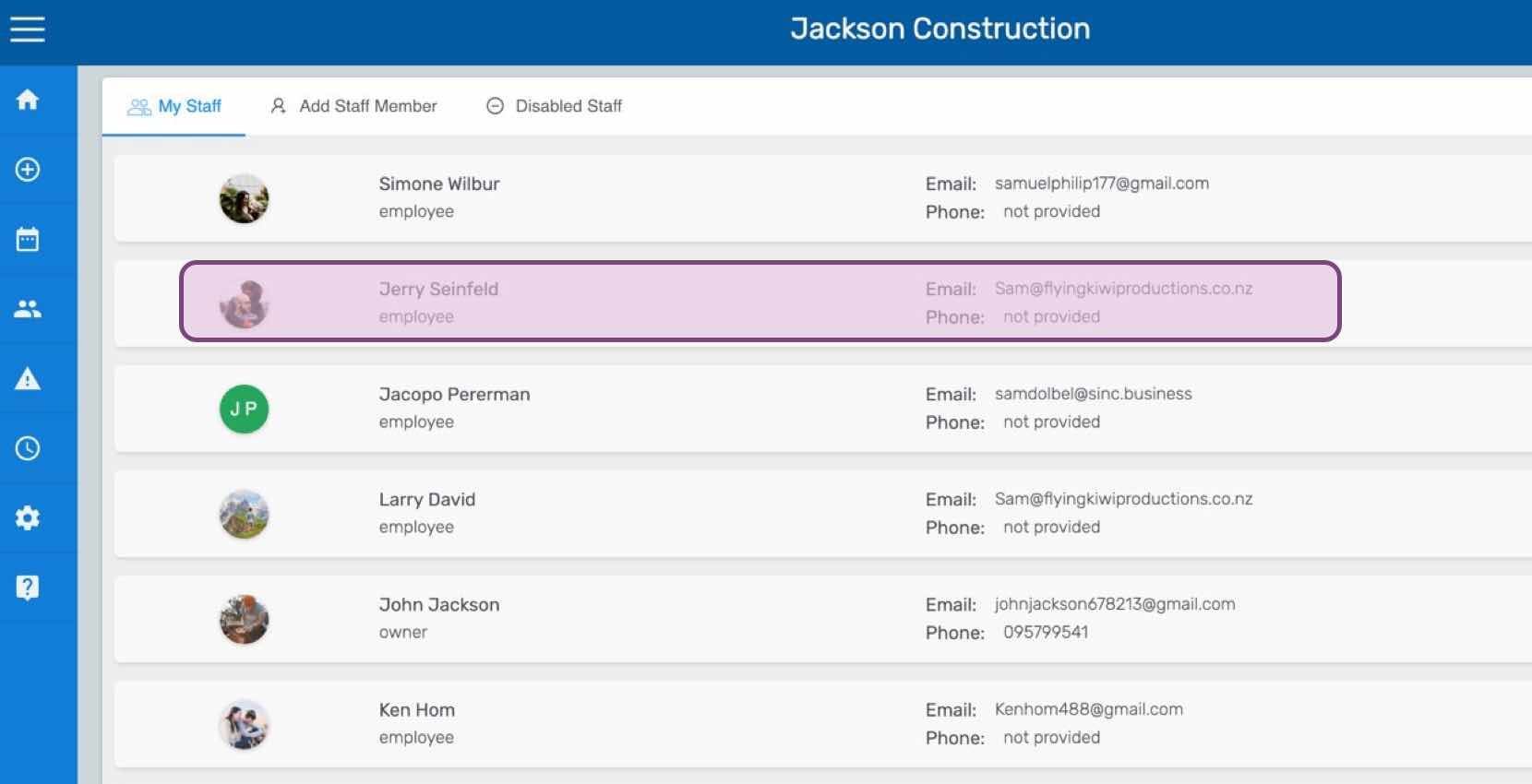
SINC web My Staff list with one employee row highlighted in pink
Staff profile screen for an employee with the Feedback tab circled at the top of the page
SINC web staff Feedback tab showing a rating scale and comment field with the Add Feedback button

Hat das Ihre Frage beantwortet?