So stellen Sie ein Teammitglied wieder her

Ist ein ehemaliger Mitarbeiter wieder zu Ihnen zurückgekehrt? Sie müssen keine neue Einladung senden – folgen Sie einfach diesen Anweisungen.

Sam Dolbel
Sam Dolbel
Feb 28th, 2023

Tippe auf Menü Mitarbeiter
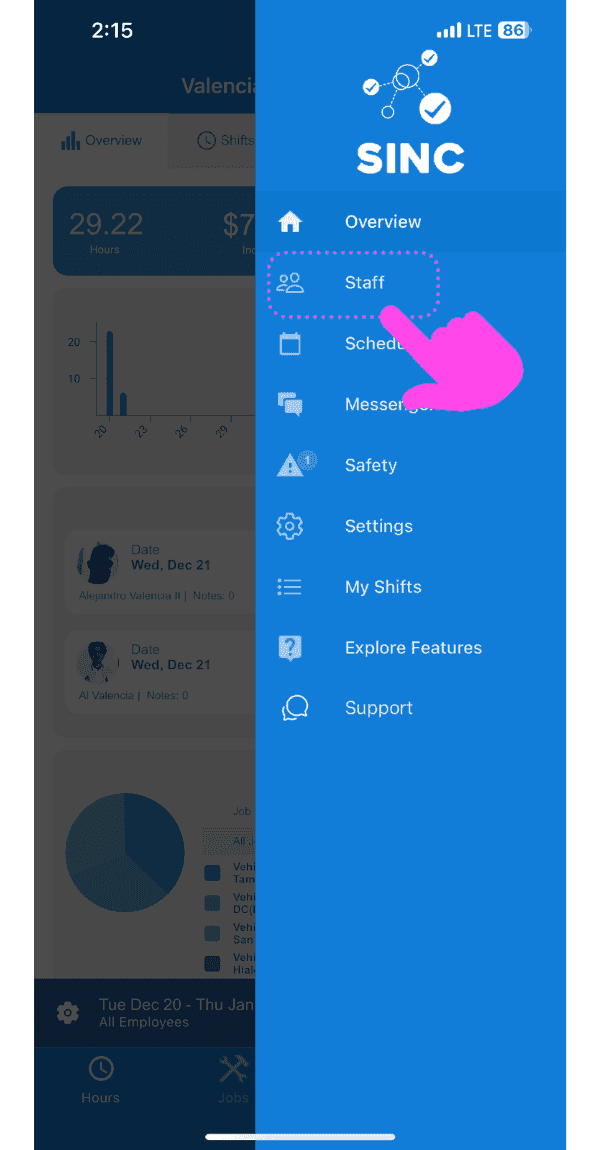
SINC mobile side menu with a pink arrow pointing to the Staff menu item

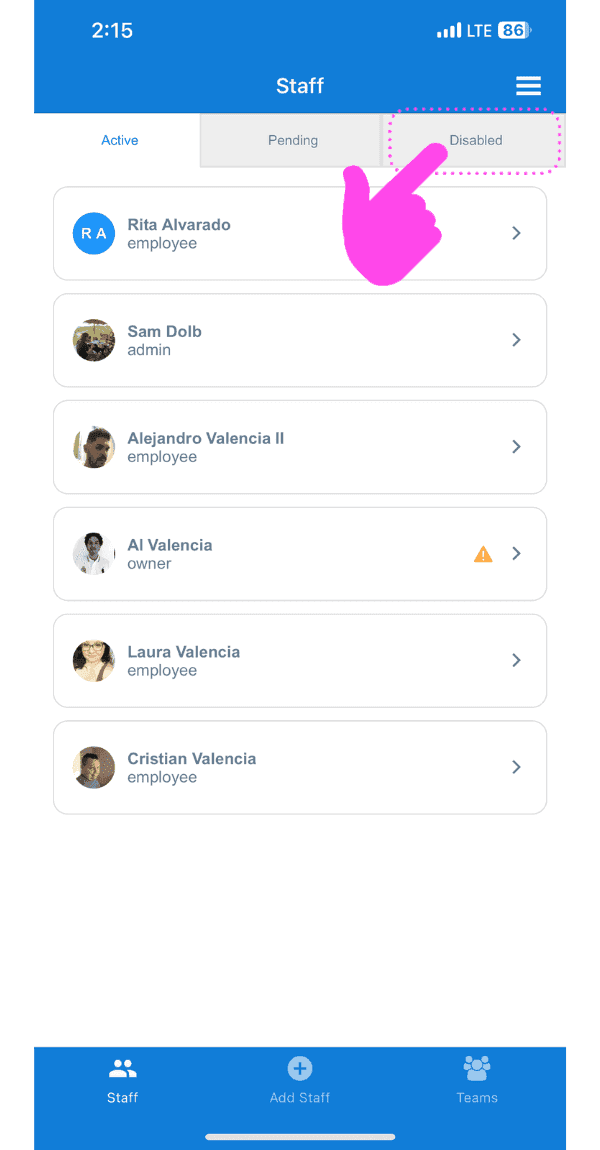
Tippe auf Deaktivierte Mitarbeitende

SINC mobile Staff screen with a pink hand pointing to the Disabled tab

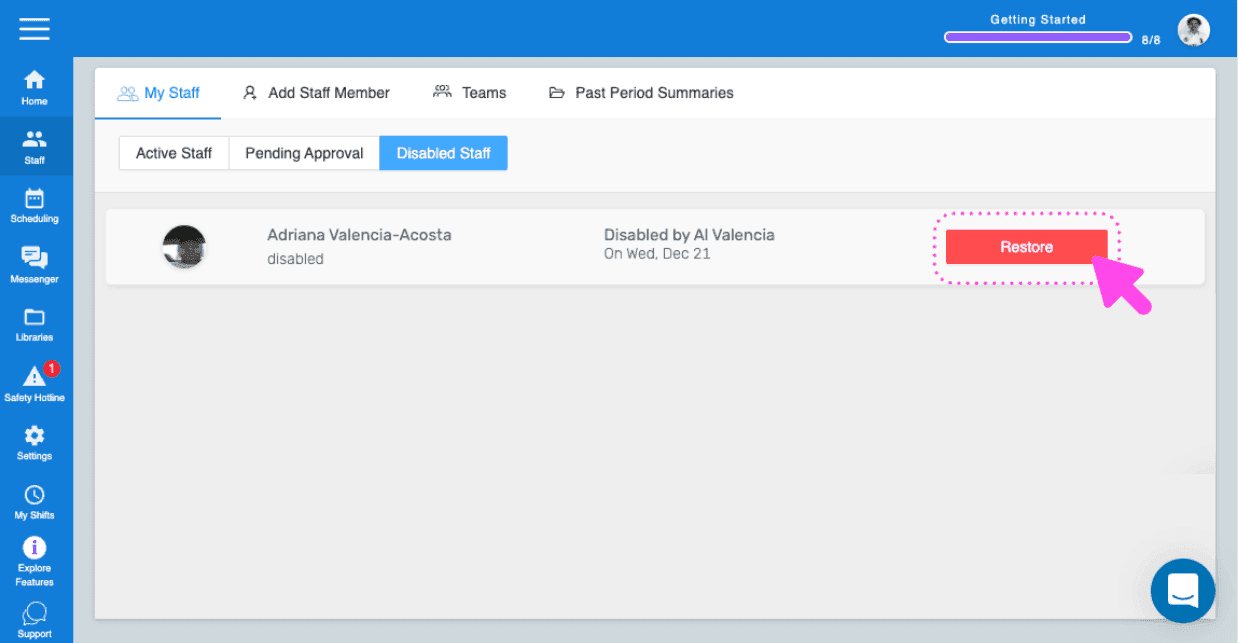
Tippe auf Wiederherstellen (neben dem Teammitglied, das du wiederherstellen möchtest)
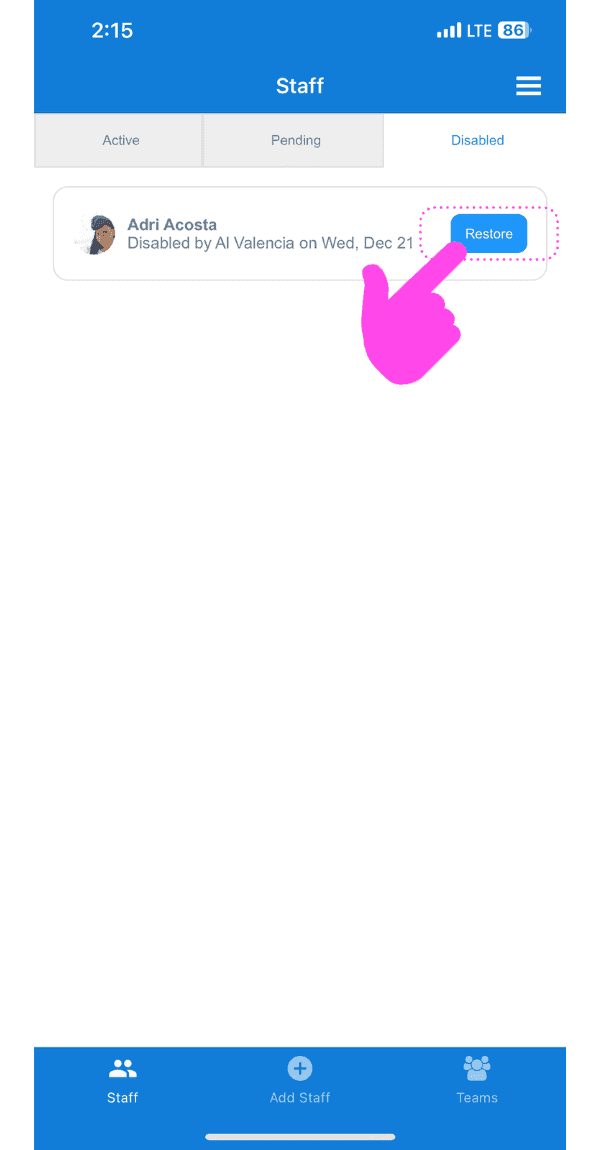
Staff Disabled tab showing a disabled employee with the Restore button highlighted by a pink arrow

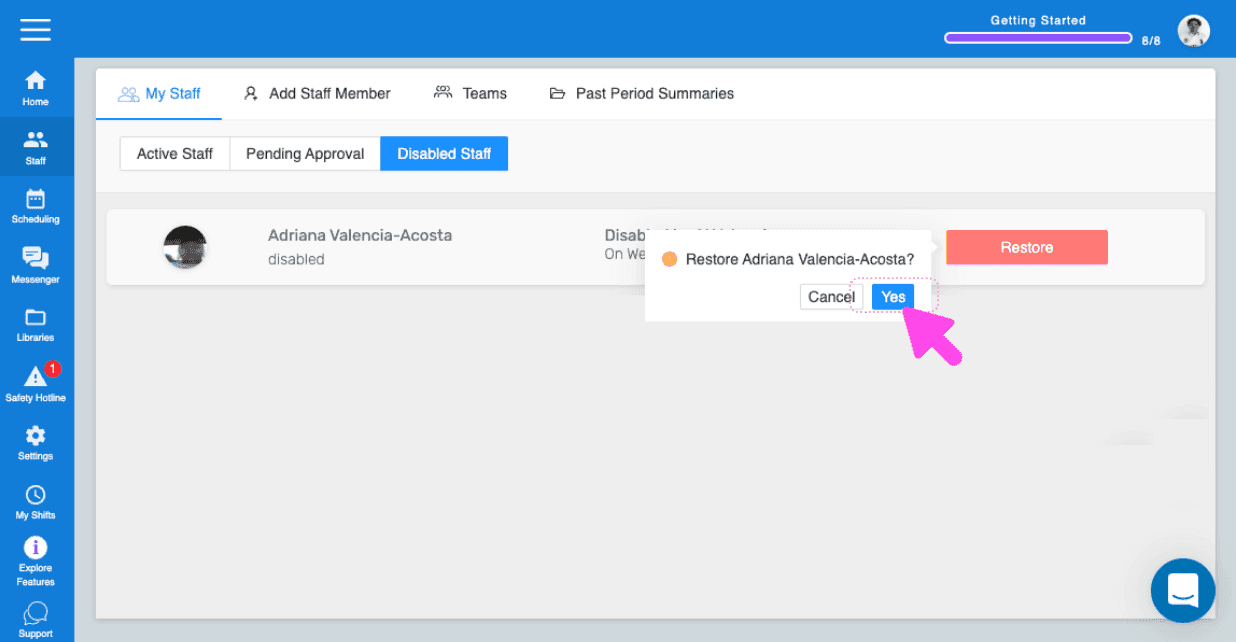
Tippen Sie auf OK (Webversion). Klicken Sie auf Ja.
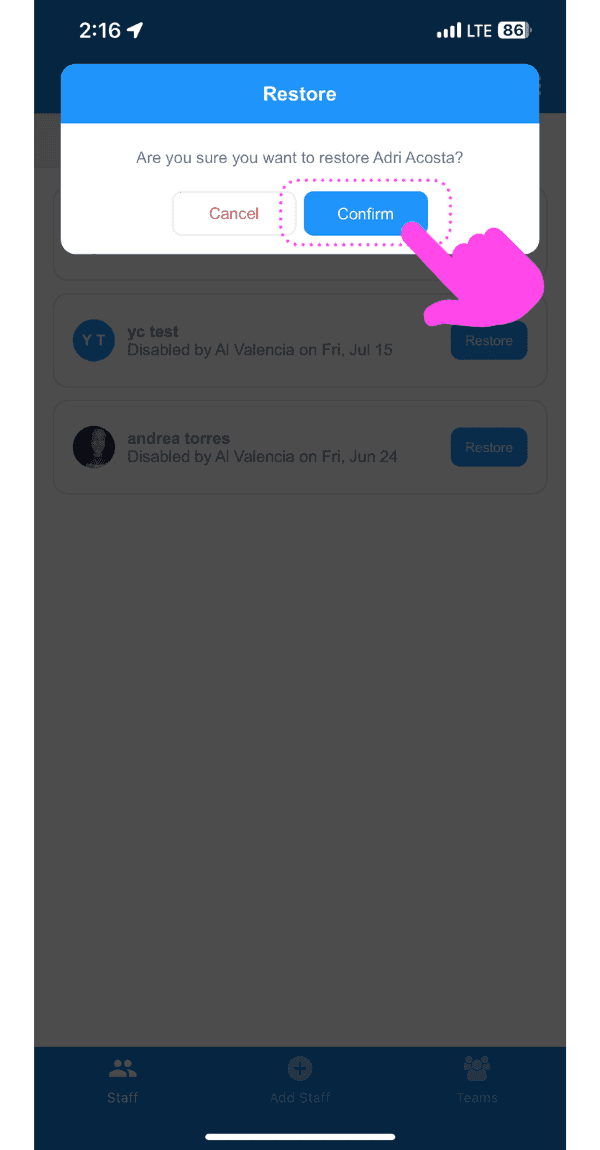
SINC mobile restore confirmation dialog with the Confirm button highlighted in pink

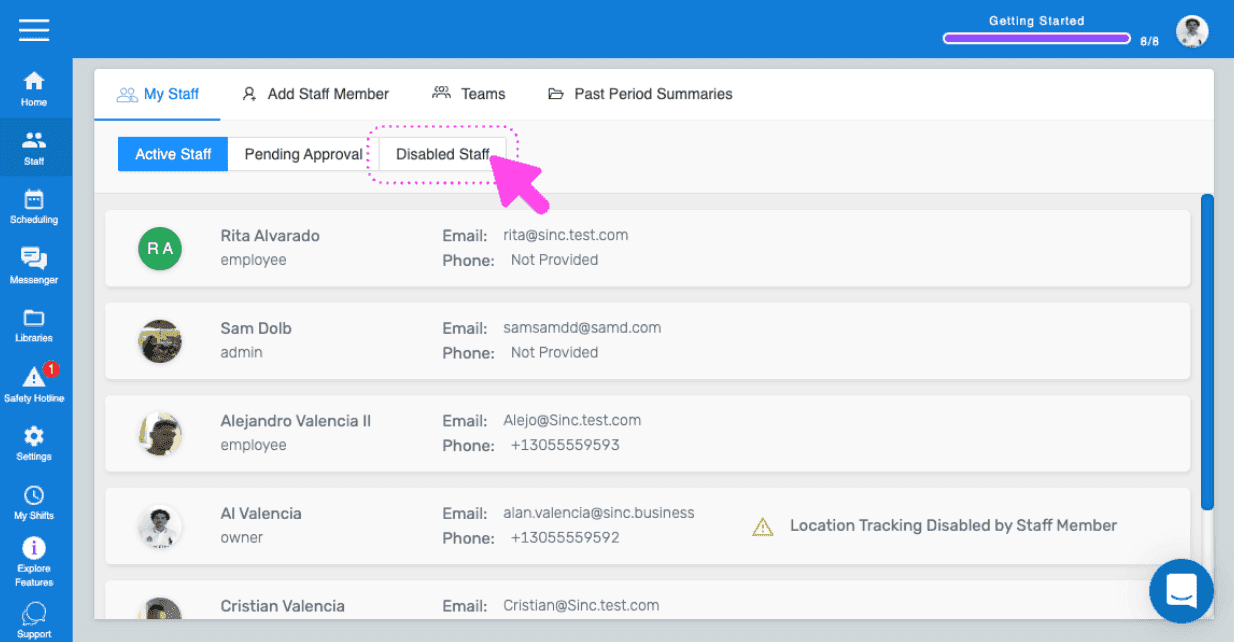
Bitte beachten Sie: Wenn die Änderungen auf der Seite des Mitarbeiters nicht angezeigt werden, soll dieser die SINC-App löschen, das Smartphone neu starten und SINC anschließend neu installieren. Wenn Sie die Webversion verwenden, sieht es folgendermaßen aus:
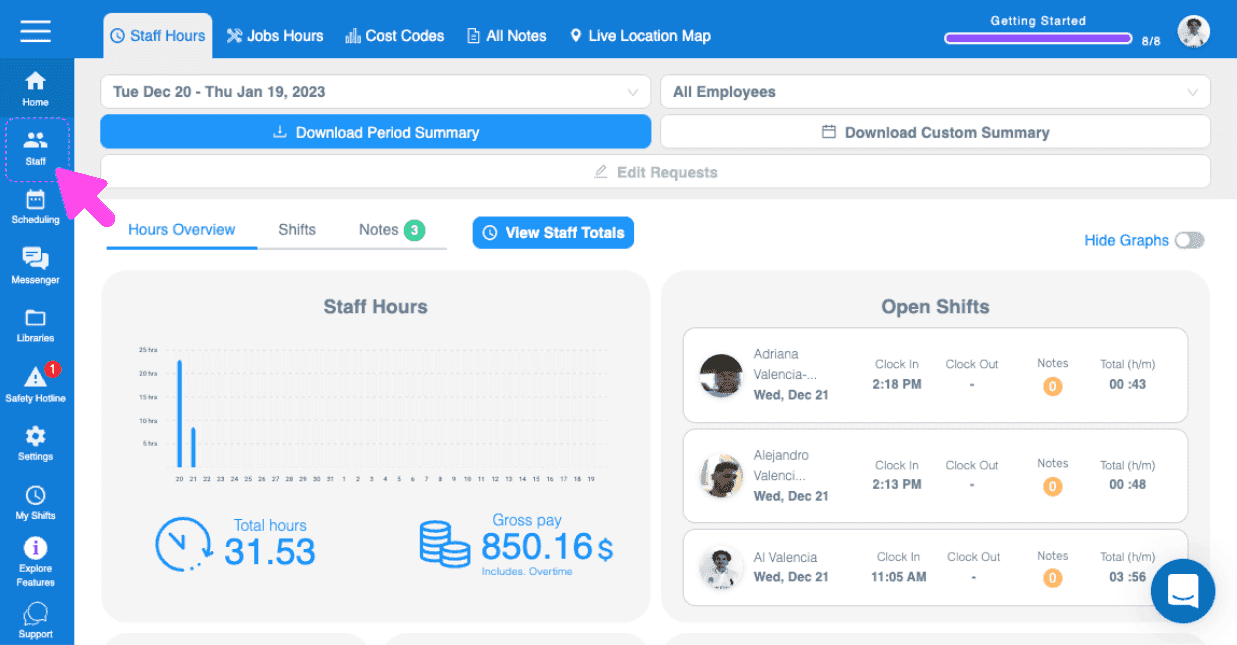
SINC web dashboard Overview page with a pink arrow pointing to the Staff icon in the left sidebar navigation
SINC web My Staff page with a pink arrow pointing to the Disabled Staff tab
Web My Staff Disabled Staff tab with a staff member's red Restore button outlined in pink
SINC web Disabled Staff tab showing a Restore confirmation dialog with a pink arrow pointing to the Yes button

Hat das Ihre Frage beantwortet?