So stufen Sie einen Administrator wieder zum Mitarbeiter zurück

In diesem Leitfaden erfahren Sie, wie Sie die Rolle eines Administrators wieder in die eines Mitarbeiters ändern.

SINC Support Team
SINC Support Team
Mar 27th, 2023

Wenn ein Teammitglied zum Administrator befördert wurde und dies rückgängig gemacht werden soll, befolgen Sie bitte diese Schritte. Tippen Sie auf Mitarbeiter
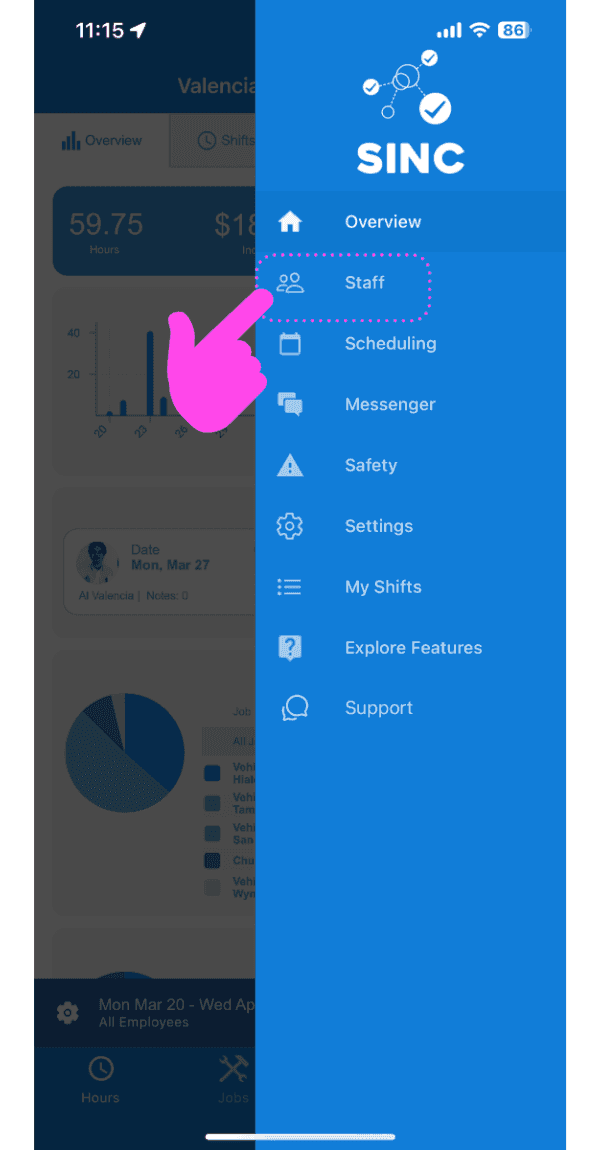
SINC mobile app side menu with a pink arrow pointing to the Staff menu item

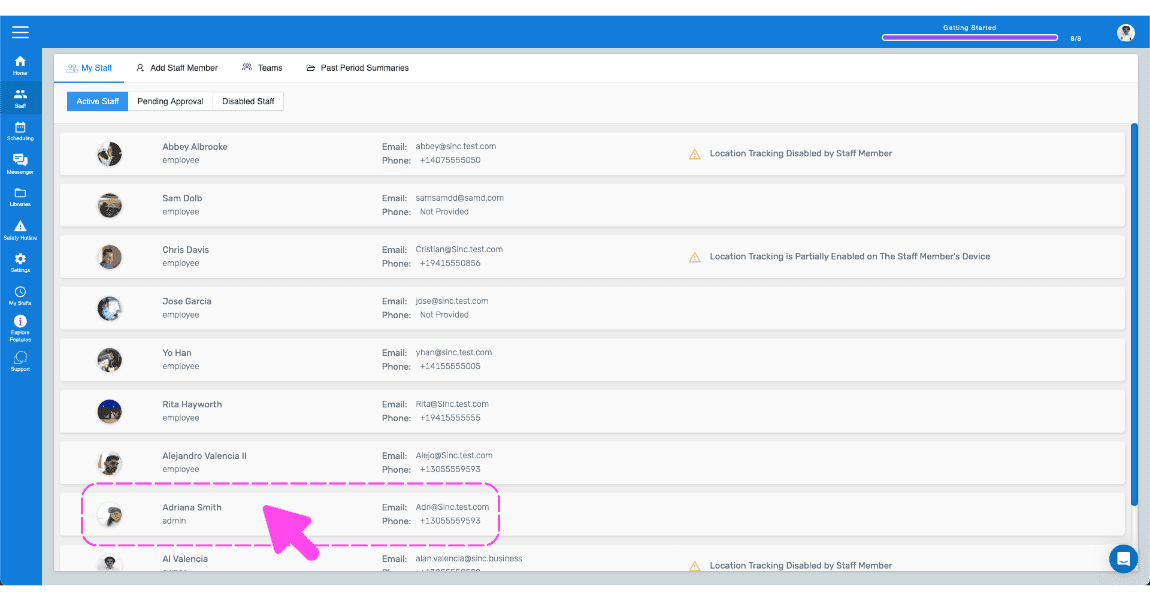
Tippen Sie auf den Namen des Teammitglieds, das Sie wieder zum Mitarbeiter machen möchten
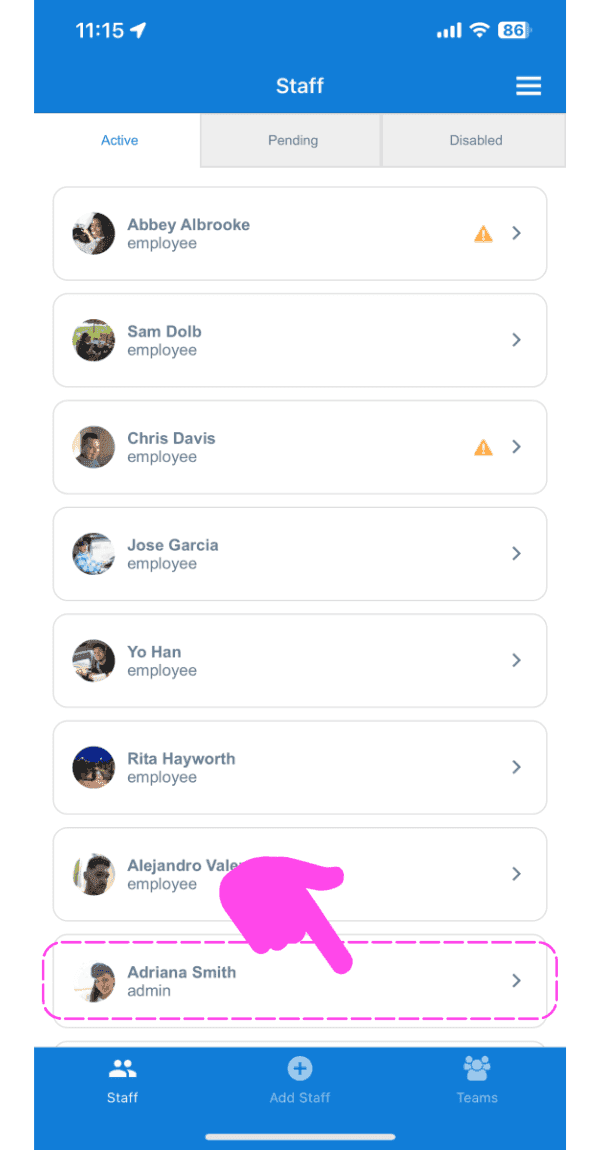
SINC mobile app Staff Active list with a pink arrow and dashed box highlighting an admin staff member's row

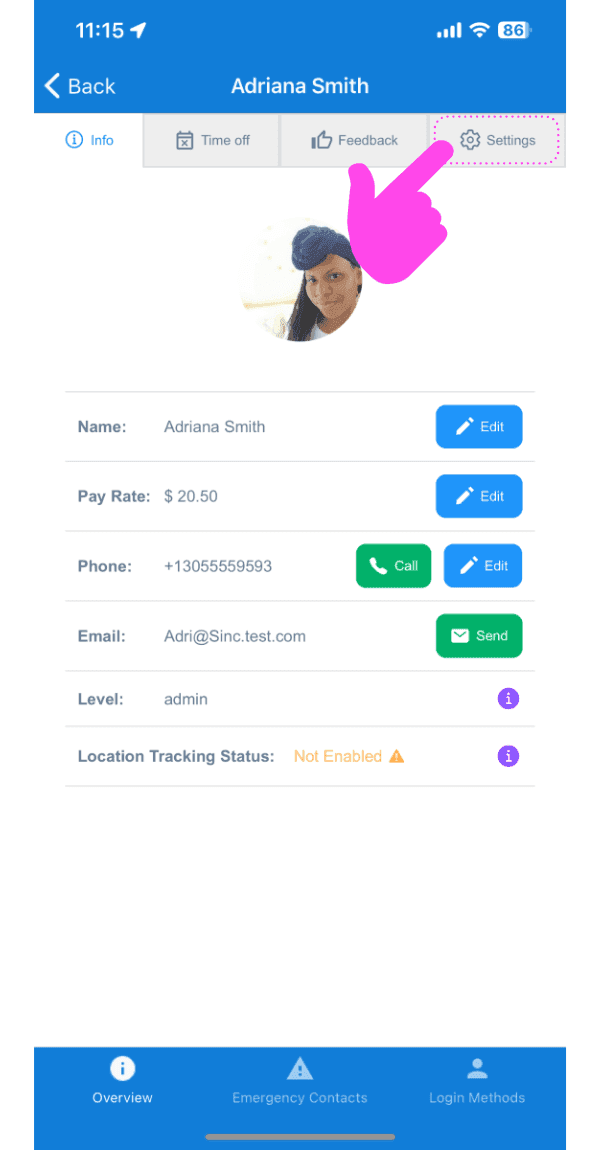
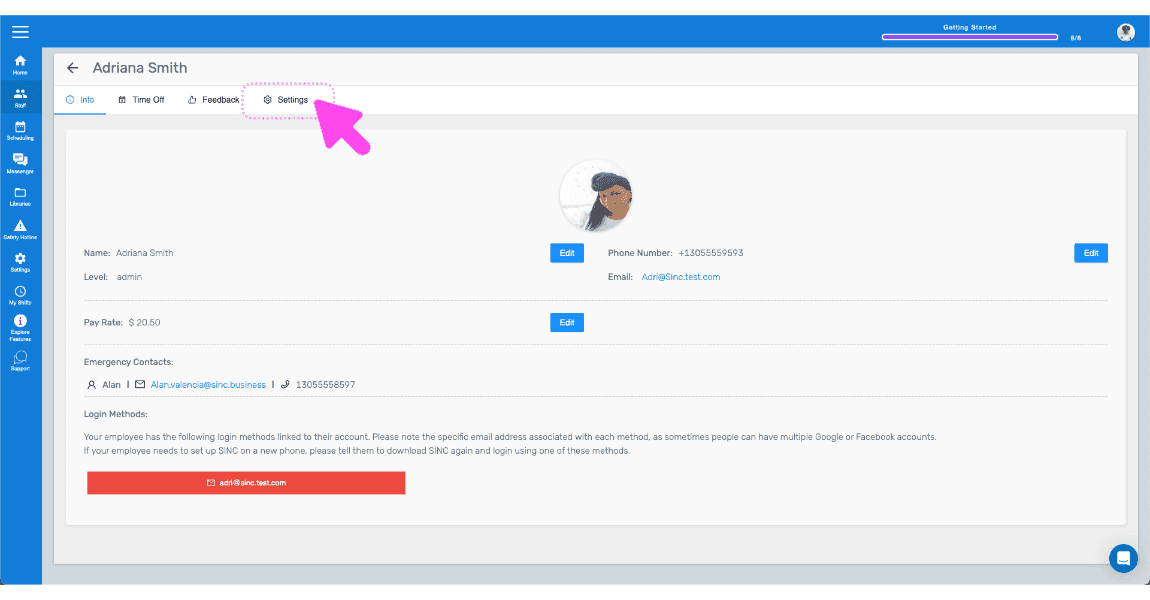
Tippe auf Einstellungen

Staff profile screen with the Settings tab highlighted by a pink arrow

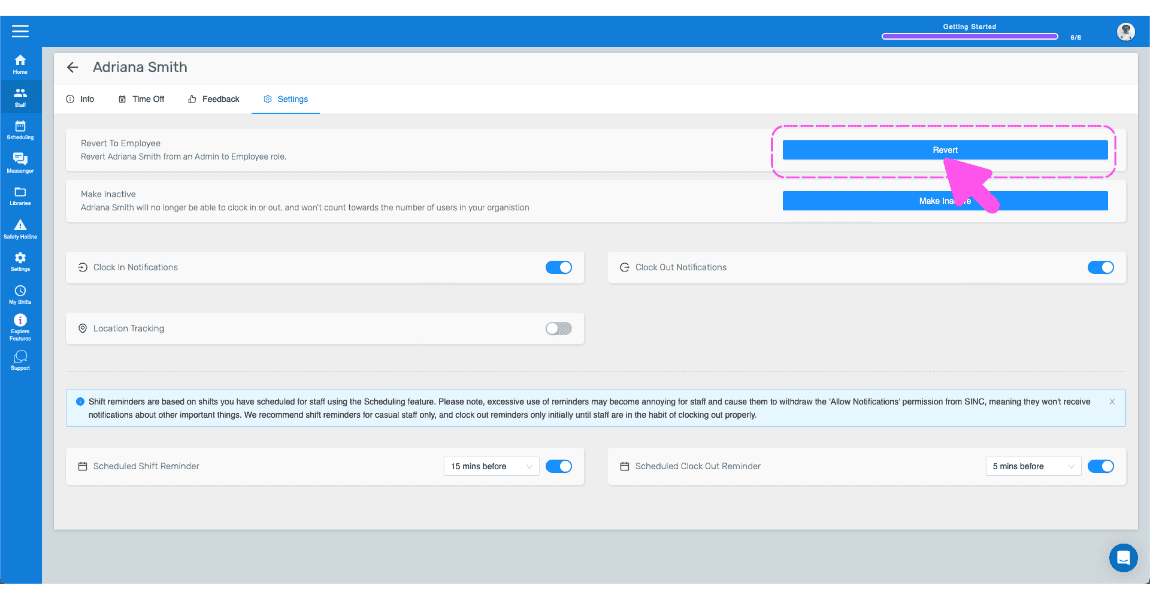
Auf Zurück zum Mitarbeiter (Webversion) klicken Auf Zurücksetzen klicken
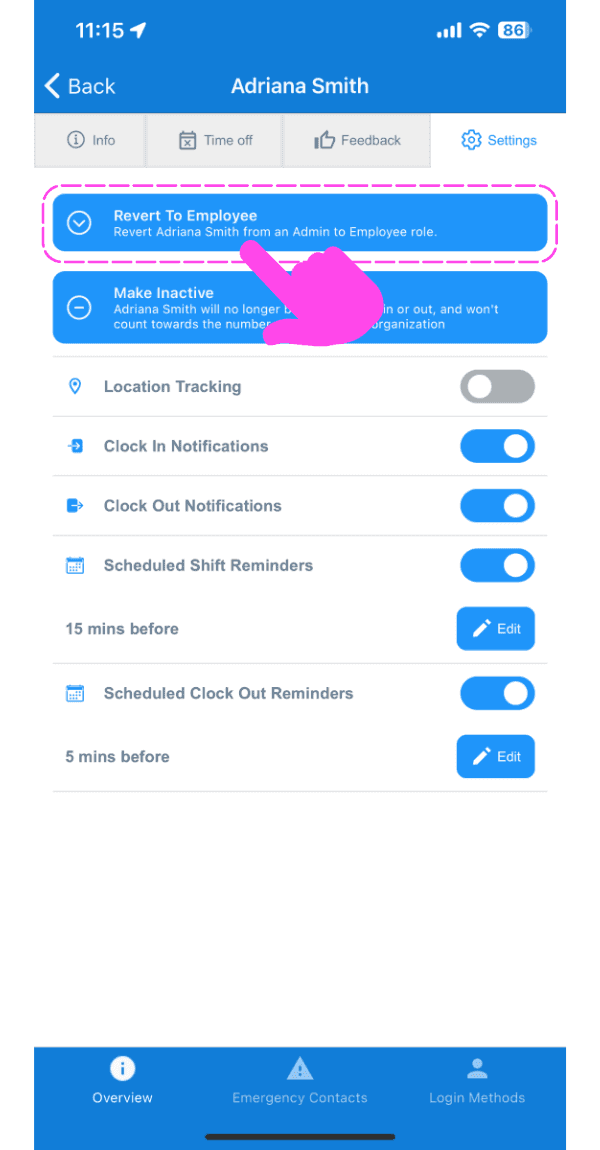
Staff member Settings screen with the Revert To Employee button highlighted by a pink dashed box and arrow

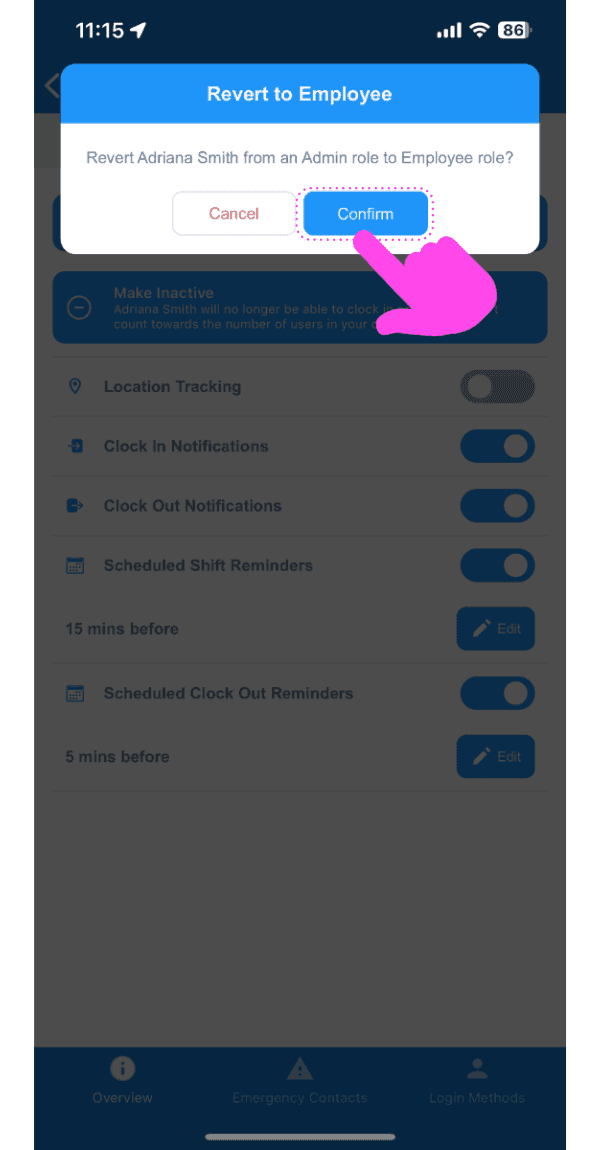
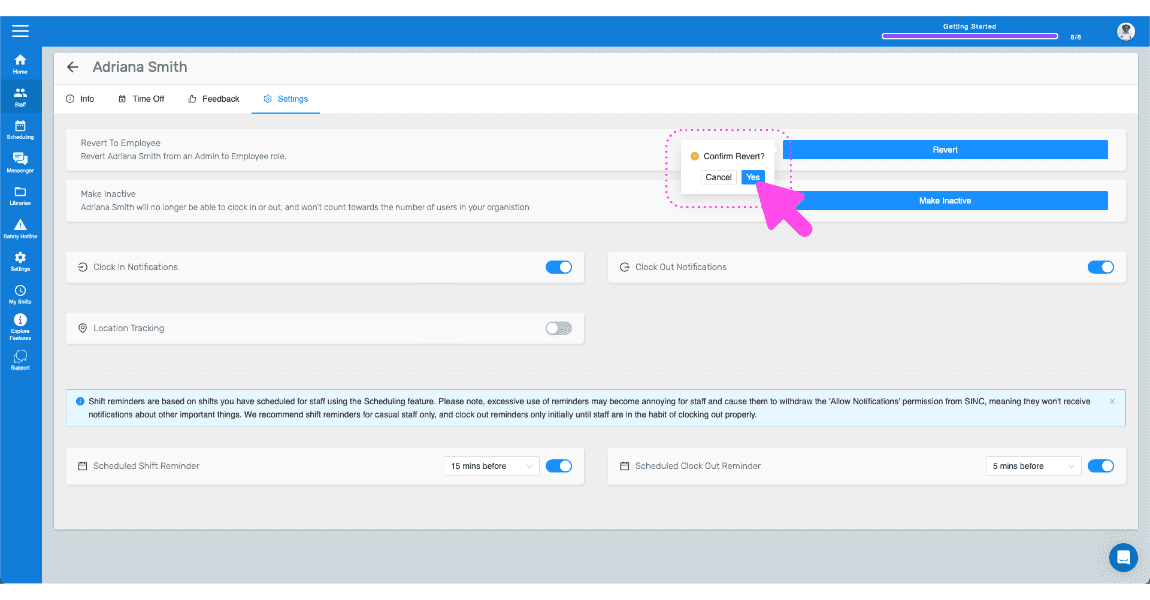
Tippen Sie auf Bestätigen

SINC mobile confirmation popup for reverting an admin to employee role, with the Confirm button highlighted

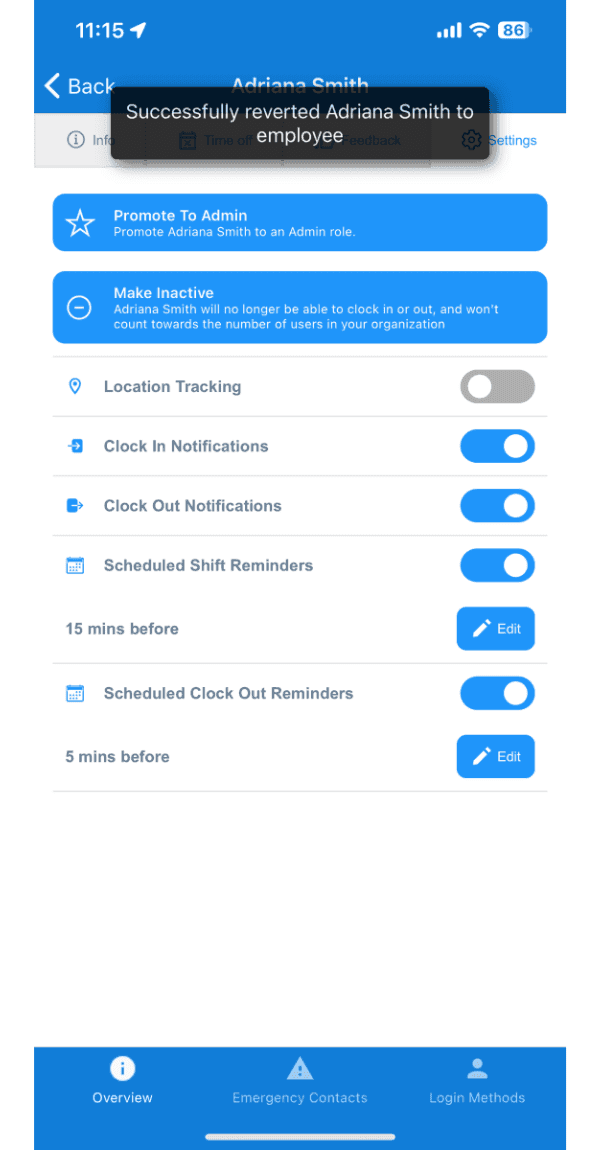
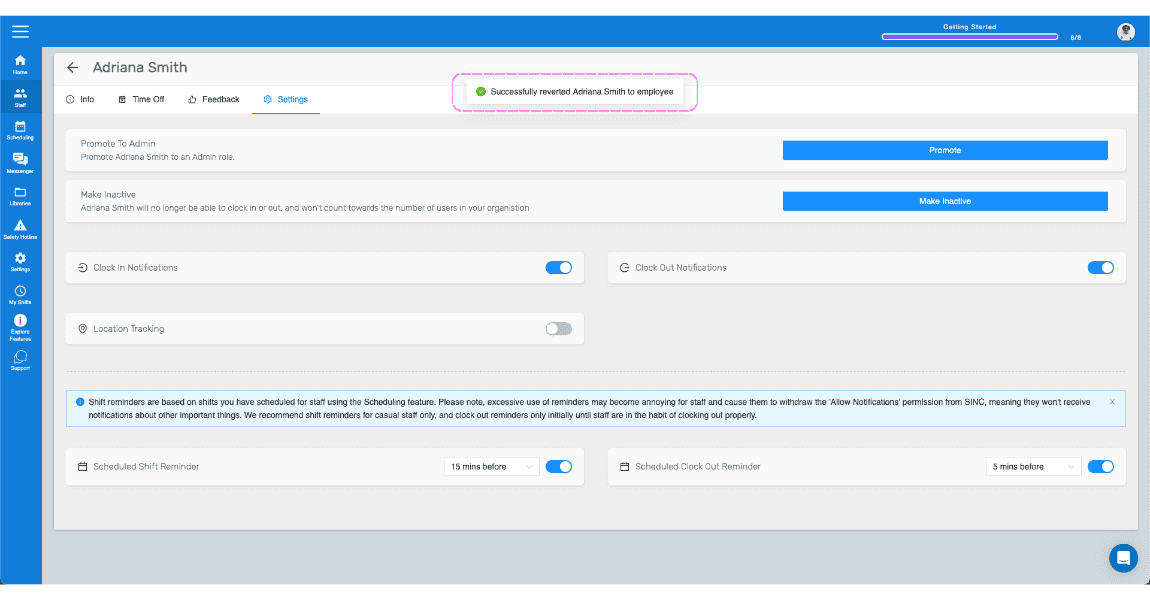
Hier erhalten Sie eine Bestätigung

Staff member Overview screen showing a confirmation toast that the employee was reverted from admin

Wenn Sie die Webversion verwenden, sieht sie so aus:
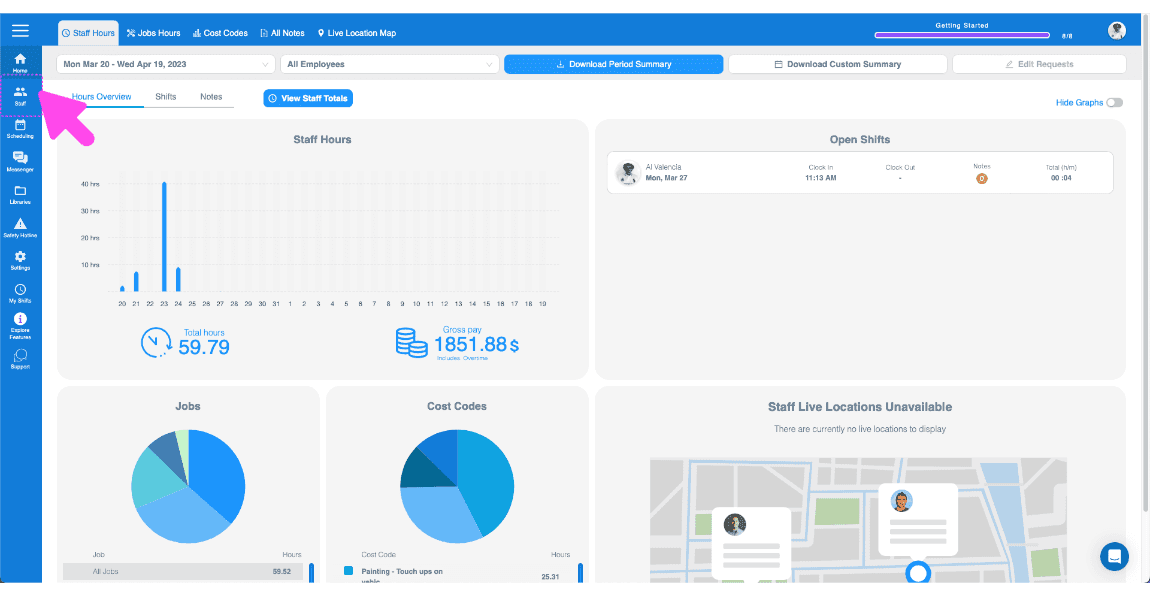
SINC web Staff Hours dashboard overview with a pink arrow pointing to a sidebar navigation icon
SINC web dashboard Staff list with a pink arrow pointing to a highlighted employee row
SINC web staff profile screen with a pink arrow pointing to the Settings tab
Web staff Settings tab with the blue Revert To Employee button outlined in pink and an arrow pointing to it
SINC mobile staff Settings tab showing a Confirm Revert dialog with a pink arrow pointing to the Yes button
Staff settings screen showing a confirmation banner that the staff member was reverted to employee

Hat das Ihre Frage beantwortet?