Mitarbeiter-Stundenzettel löschen

In dieser Anleitung erfahren Sie, wie ein Admin eine Schicht löschen kann.

Sam Dolbel
Sam Dolbel
Mar 3rd, 2023

Auf dem Mobilgerät: Tippen Sie auf Übersicht Schichten
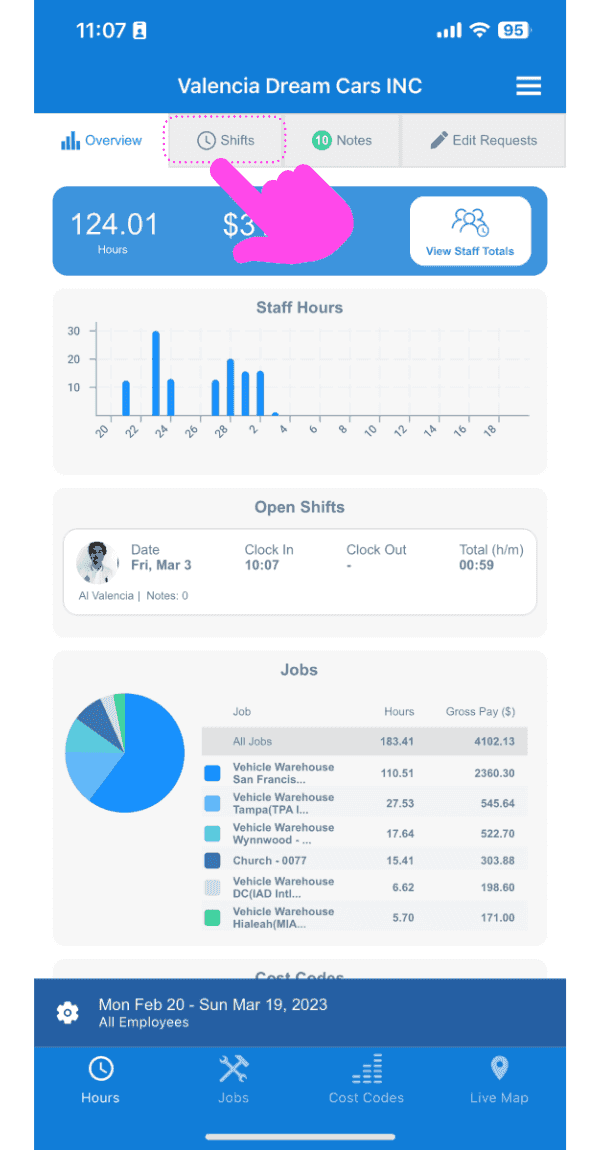
SINC mobile app Overview screen with a pink arrow pointing to the Shifts tab at the top

Tippen Sie auf die Schicht, die Sie löschen möchten
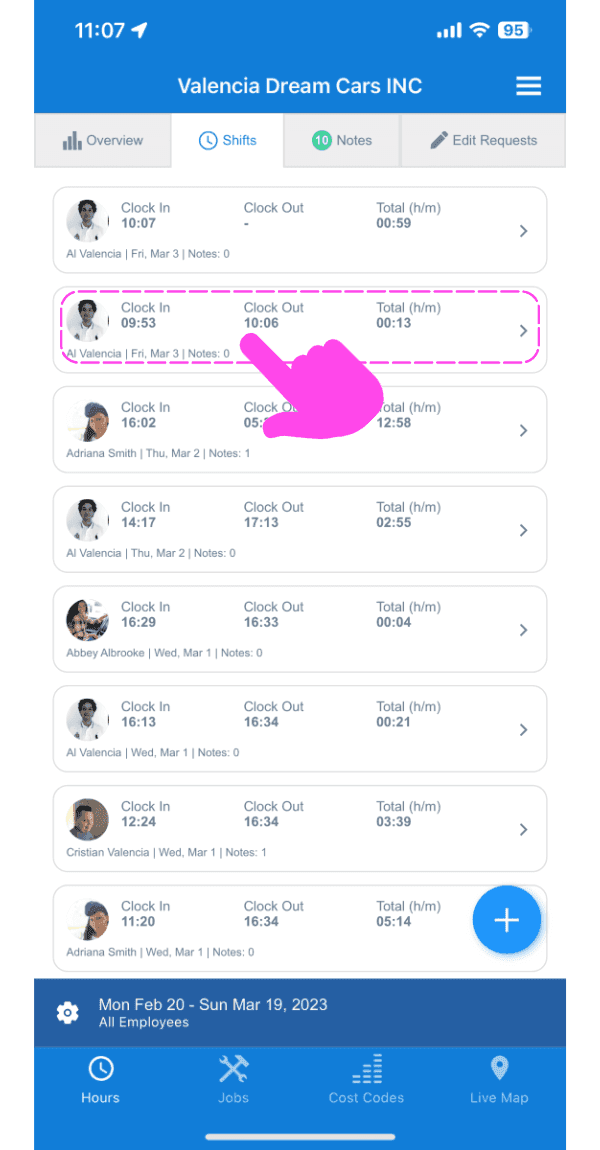
SINC mobile Shifts list with a pink arrow pointing to the shift row to be deleted

Tippe auf den Papierkorb unten links auf dem Bildschirm
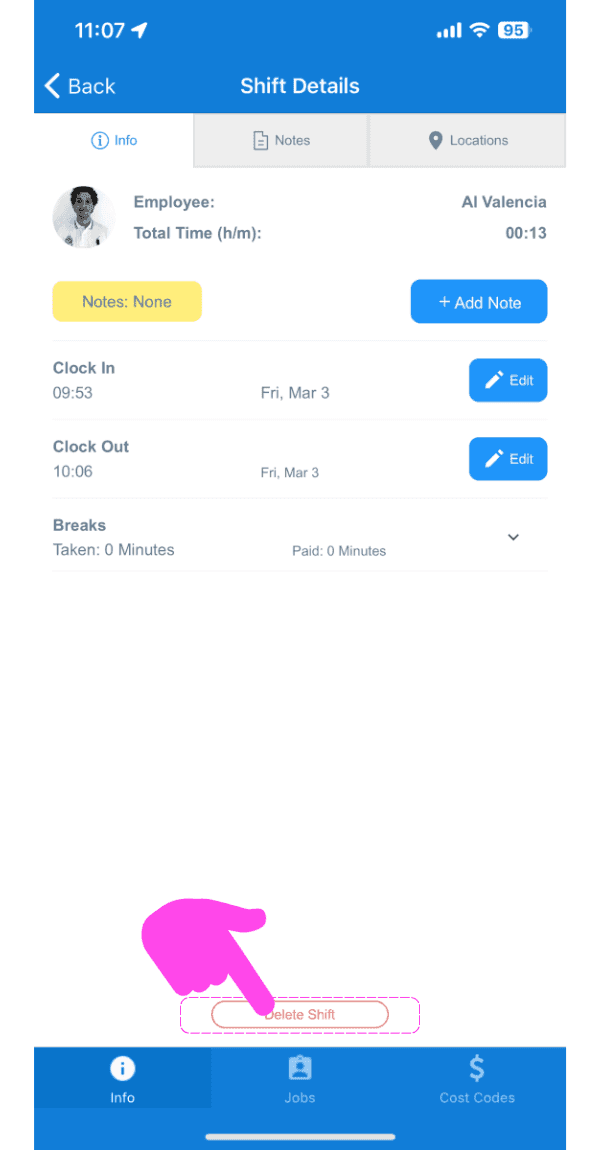
Mobile Shift Details screen with a pink arrow pointing to the trash can icon at the bottom left

Gib einen Grund für das Löschen der Schicht an und bestätige.
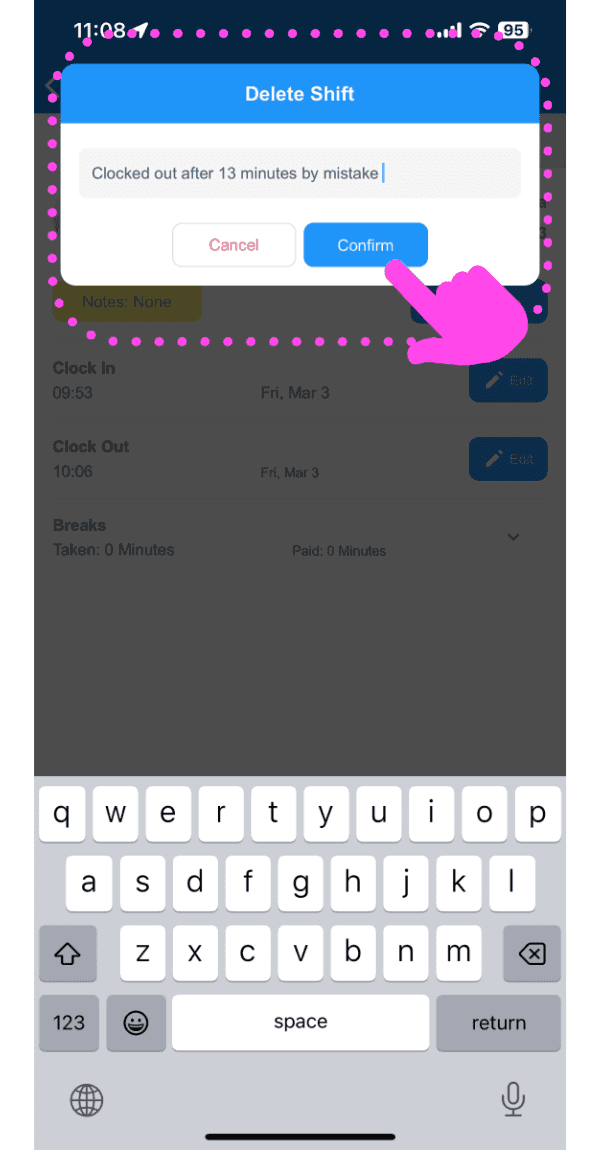
SINC mobile Delete Shift dialog with a typed reason and a pink hand pointing to the Confirm button

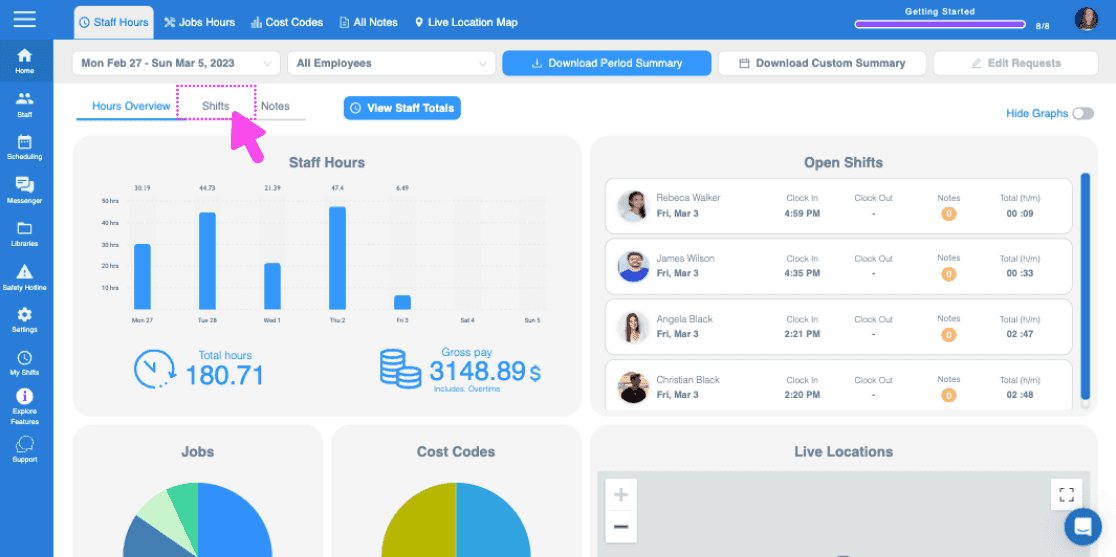
Im Web: Klicken Sie auf Schichten

Staff Hours dashboard with a pink arrow pointing to the Shifts tab above staff hours charts

Klicken Sie auf den Namen des Teammitglieds
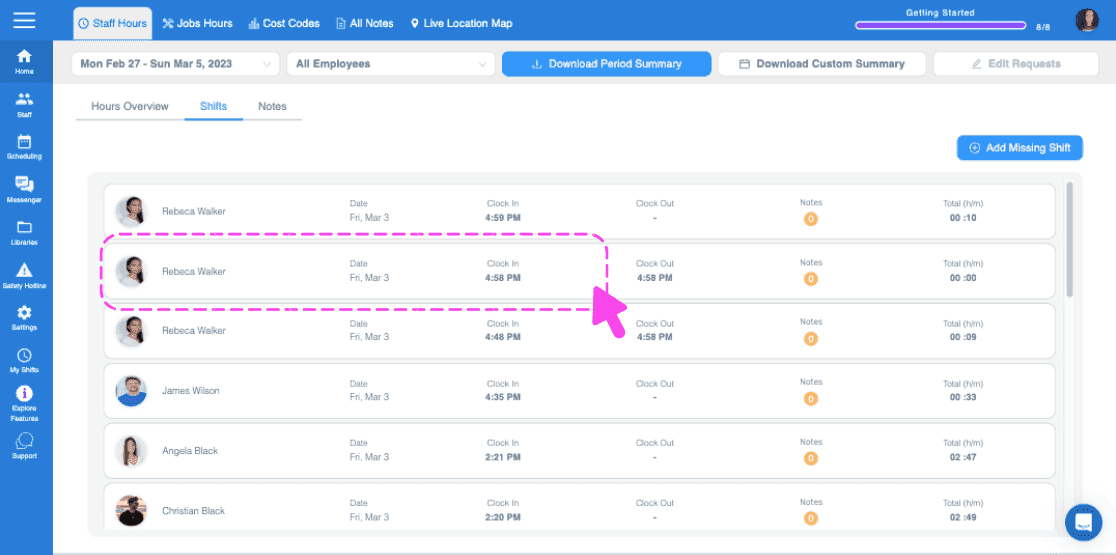
Web Shifts tab with a pink arrow pointing to a staff member's row showing clock in and out times

Klicken Sie im Tab Schicht auf „Schicht löschen“
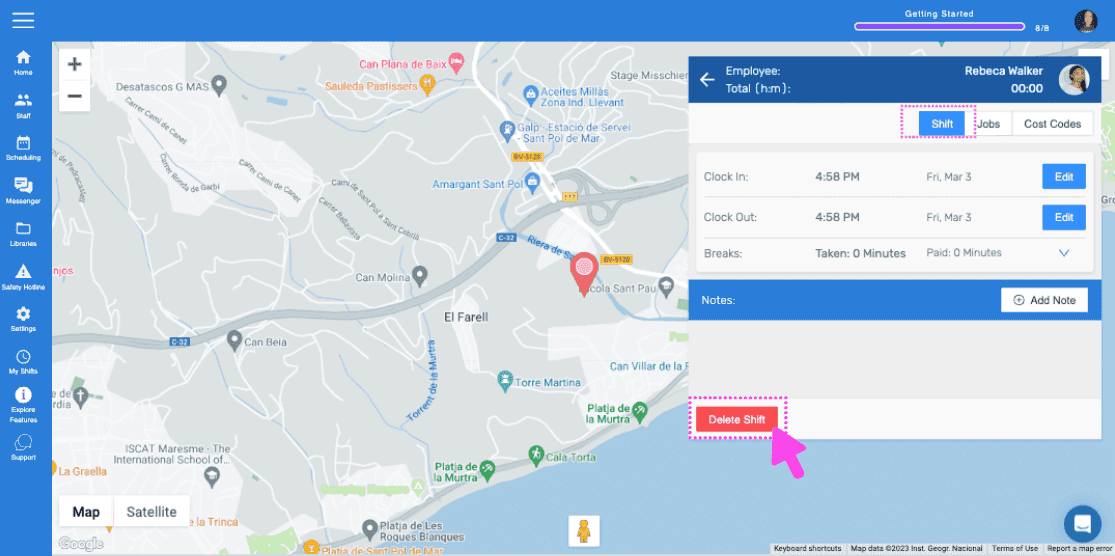
SINC web employee shift detail screen with a pink arrow pointing to the Delete Shift button

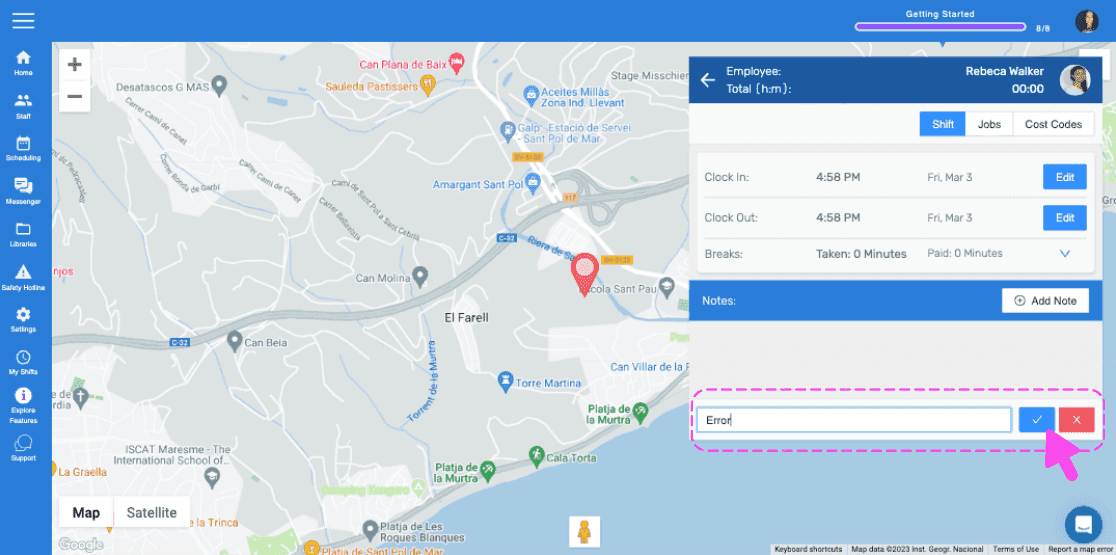
Geben Sie den Grund für die Löschung der Schicht ein (dieser wird dem Mitarbeitenden als Benachrichtigung gesendet).
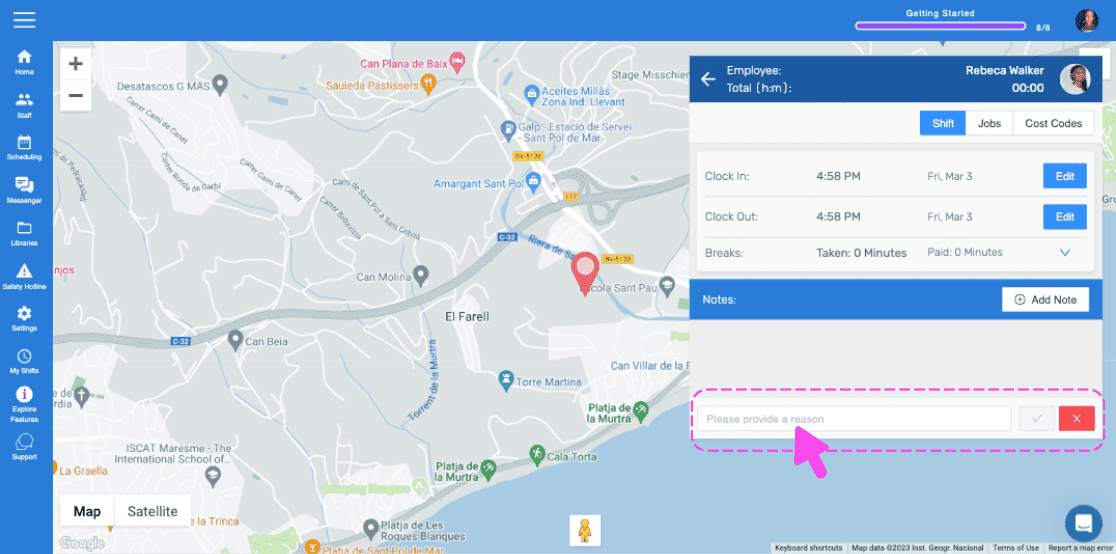
SINC web employee shift detail screen with a map and a pink arrow pointing to the reason text field for deleting a shift

Tippe auf Bestätigen

Live location map with an employee shift details panel and an editable timesheet notes field outlined in pink

Hat das Ihre Frage beantwortet?