Zeiterfassungen in SINC bearbeiten

In diesem Leitfaden erfahren Sie, wie Sie als Admin eine Schicht bearbeiten.

Sam Dolbel
Sam Dolbel
Mar 3rd, 2023

Auf dem Smartphone: Tippe auf Menü Übersicht Schichten
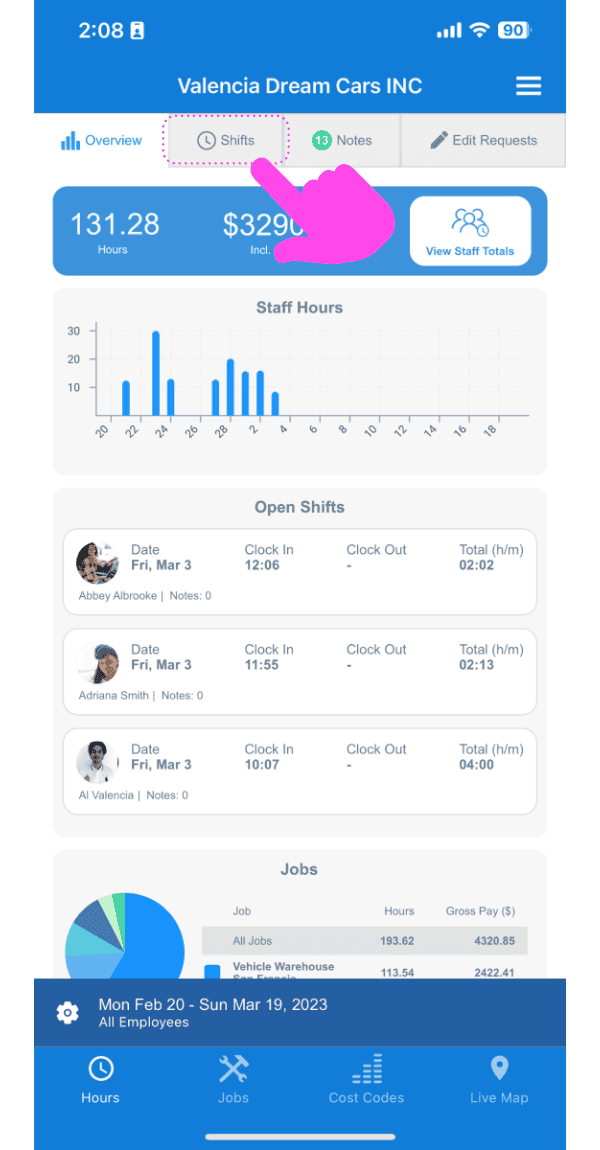
SINC web dashboard with a pink arrow pointing to the Shifts tab above the open shifts list

Tippe auf die Schicht, die du bearbeiten möchtest
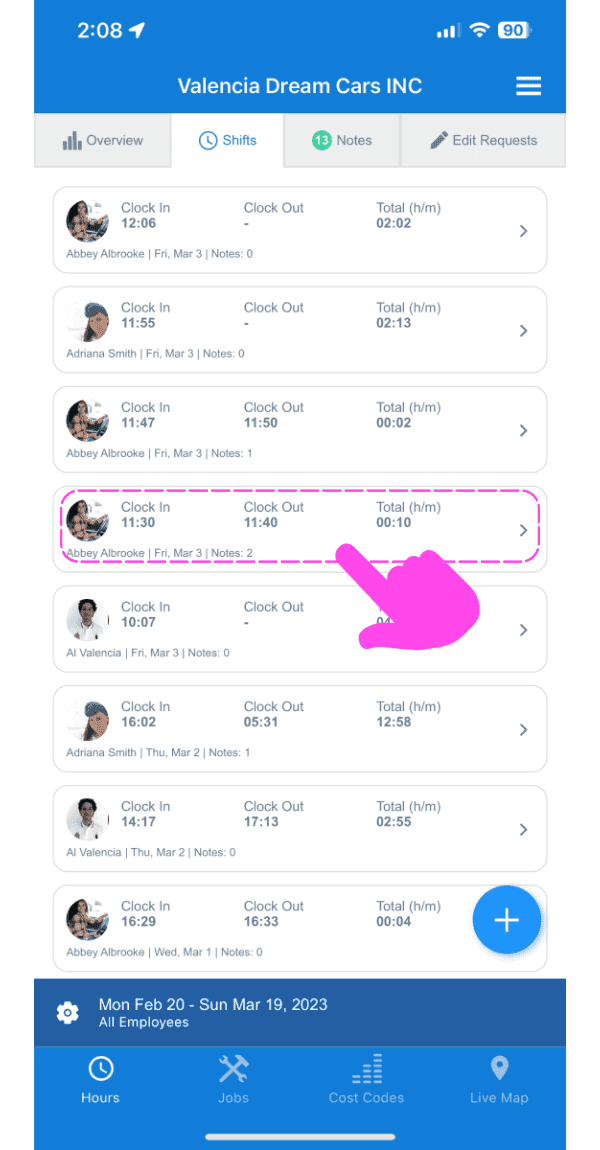
SINC mobile Shifts list with a pink arrow pointing to a specific shift entry outlined in pink

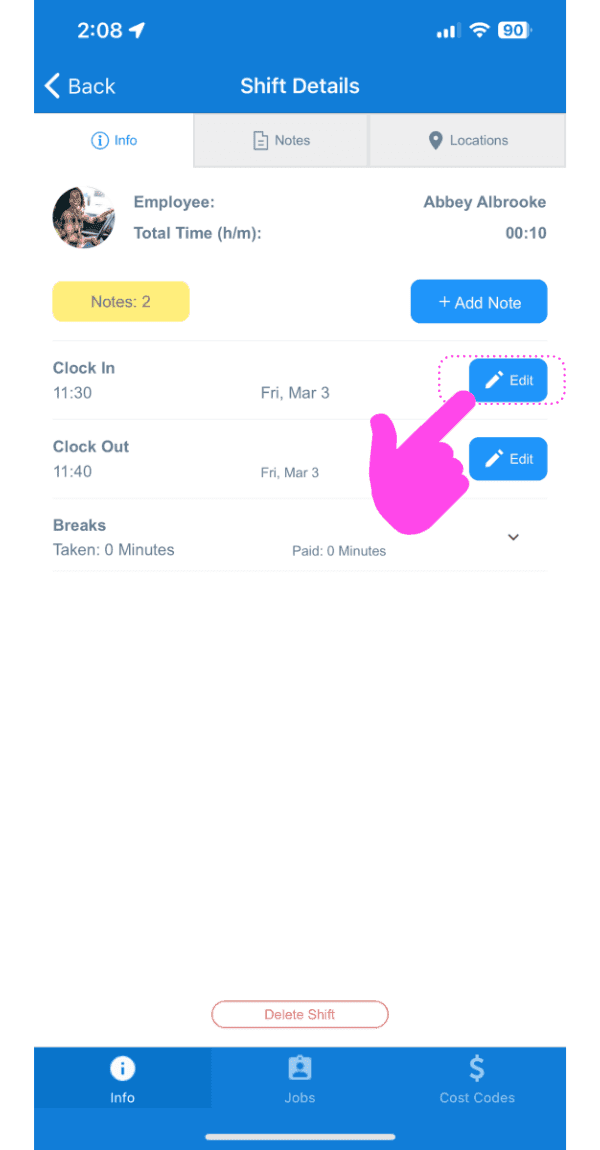
Tippe auf Bearbeiten

Shift Details screen with a pink arrow pointing to the Edit button next to Clock In

Gib einen Grund für die Änderung ein. Diese Information dient der Transparenz und wird dem Mitarbeitenden per Push-Benachrichtigung mitgeteilt.
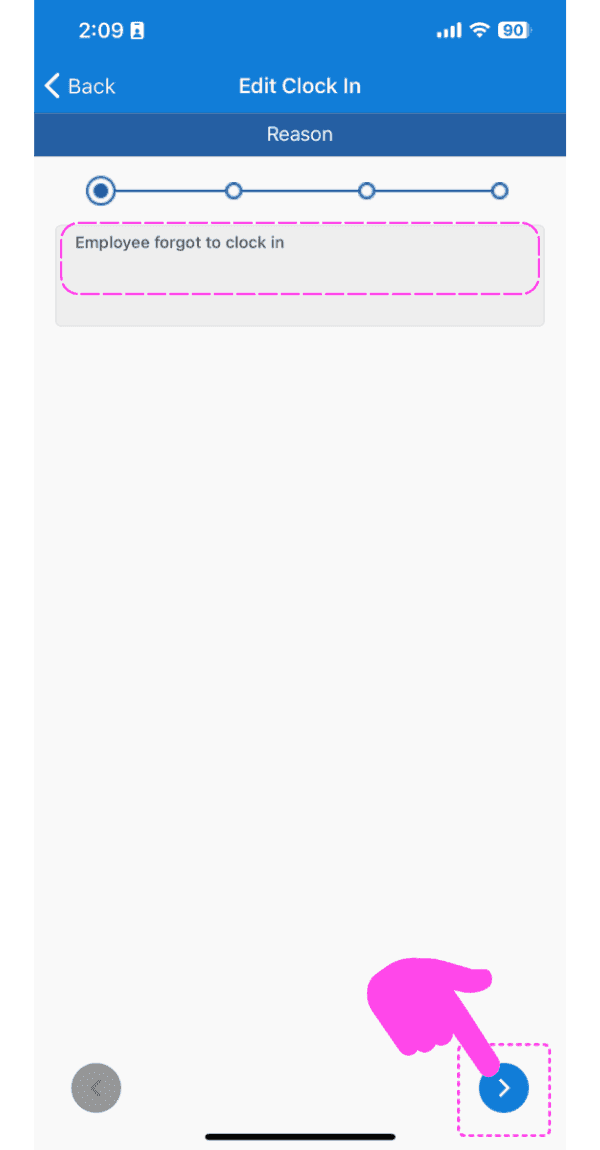
SINC mobile app Edit Clock In screen with the reason text field outlined in pink and an arrow pointing to the next button

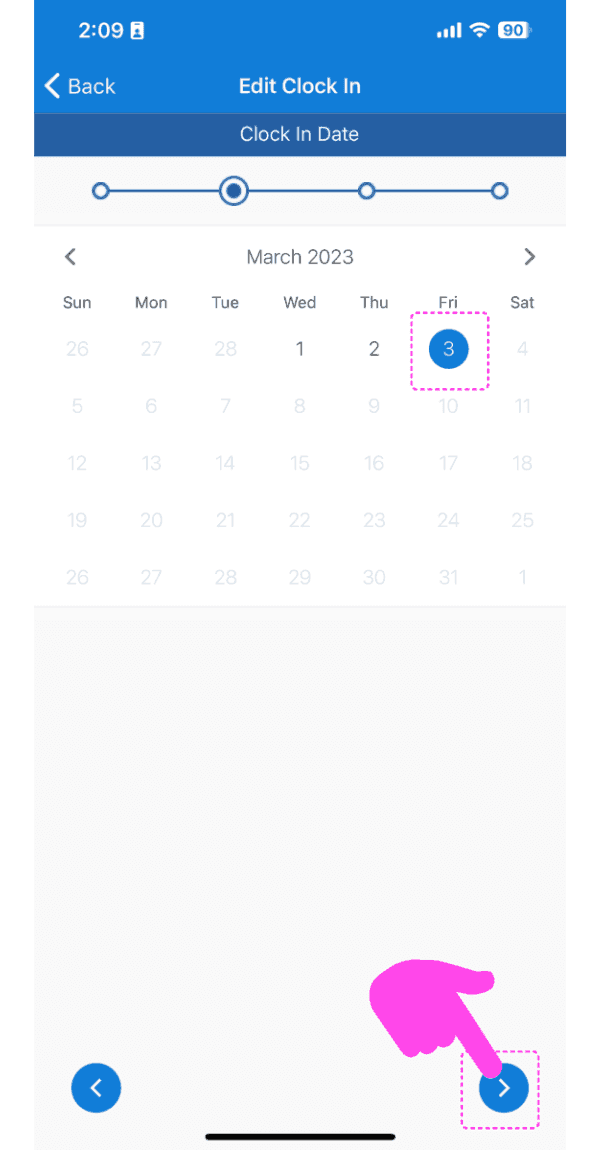
Datum auswählen

Edit Clock In calendar screen with a selected date and the next-arrow button highlighted in pink

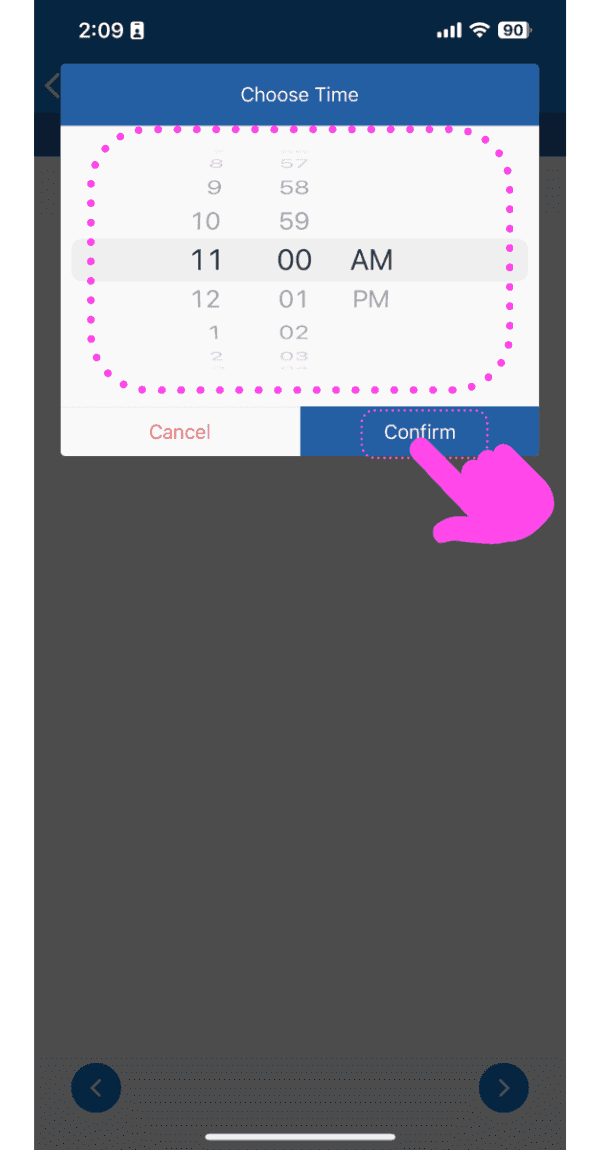
Wählen Sie die neue Uhrzeit aus

Choose Time picker set to 11:00 AM with the Confirm button highlighted by a pink arrow

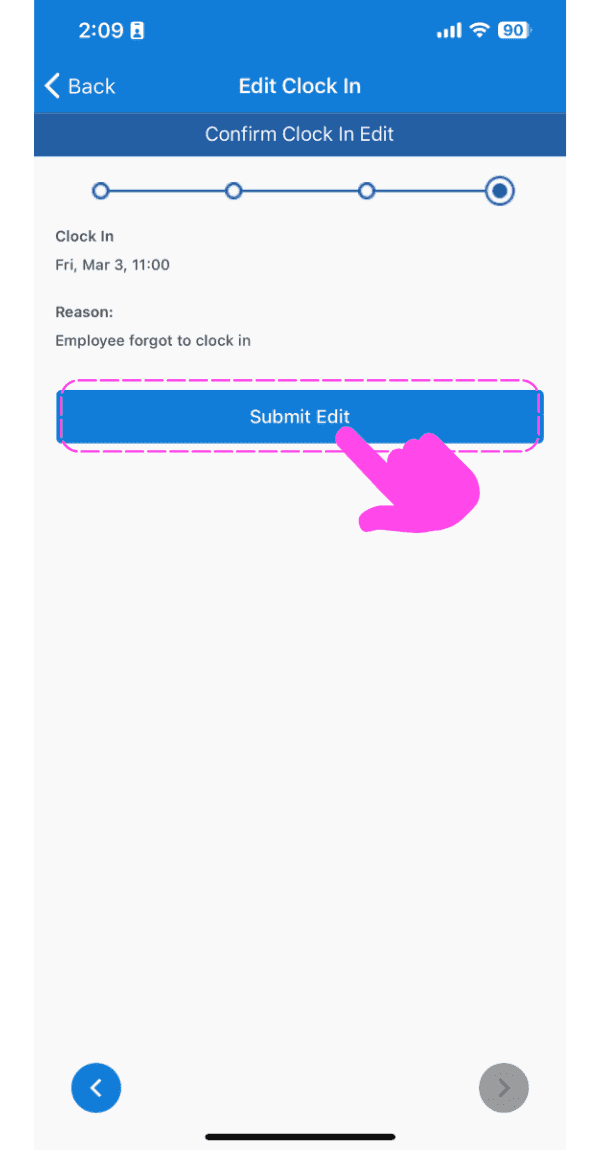
Änderung einreichen

SINC mobile Edit Clock In confirmation screen with the Submit Edit button highlighted in pink

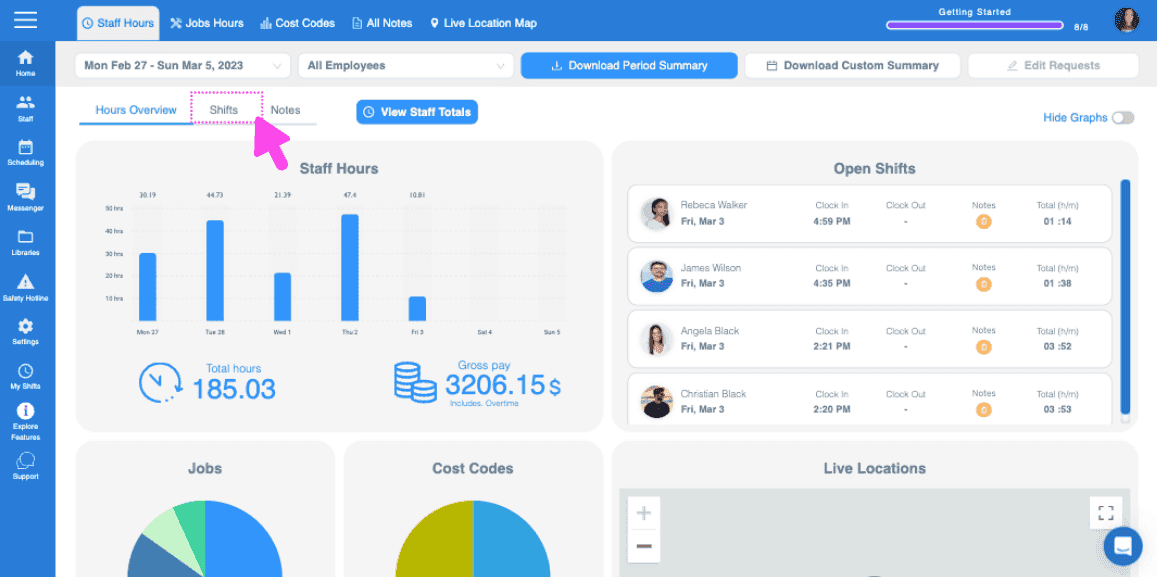
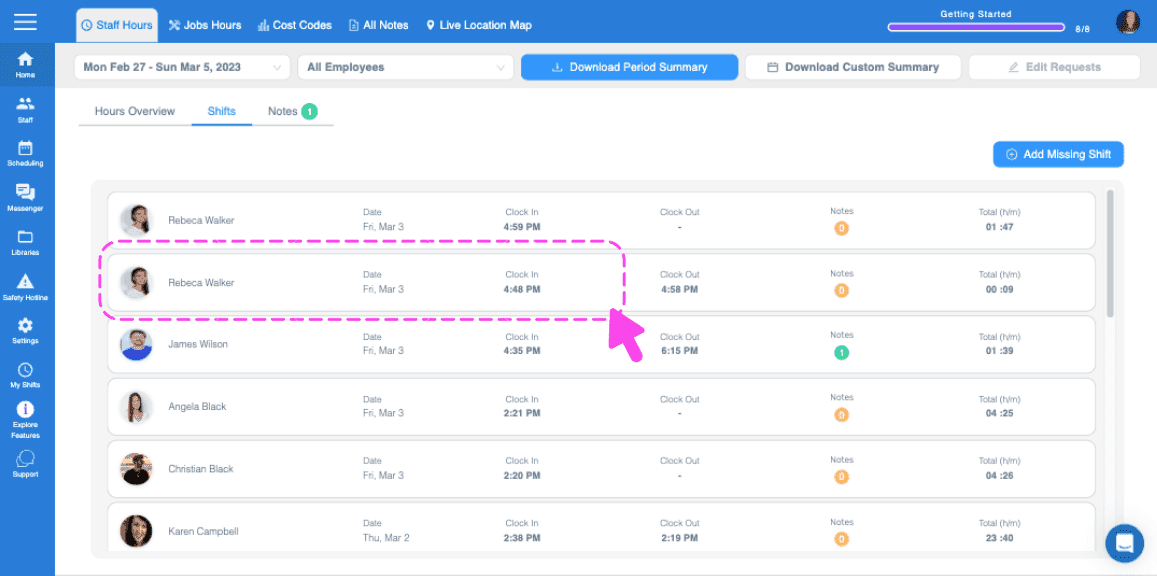
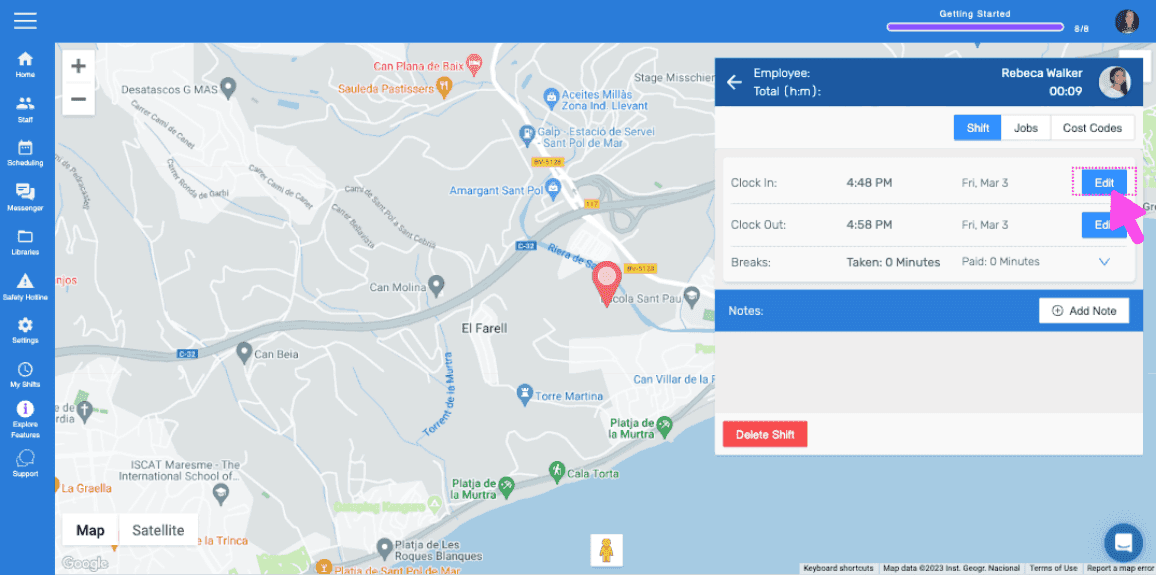
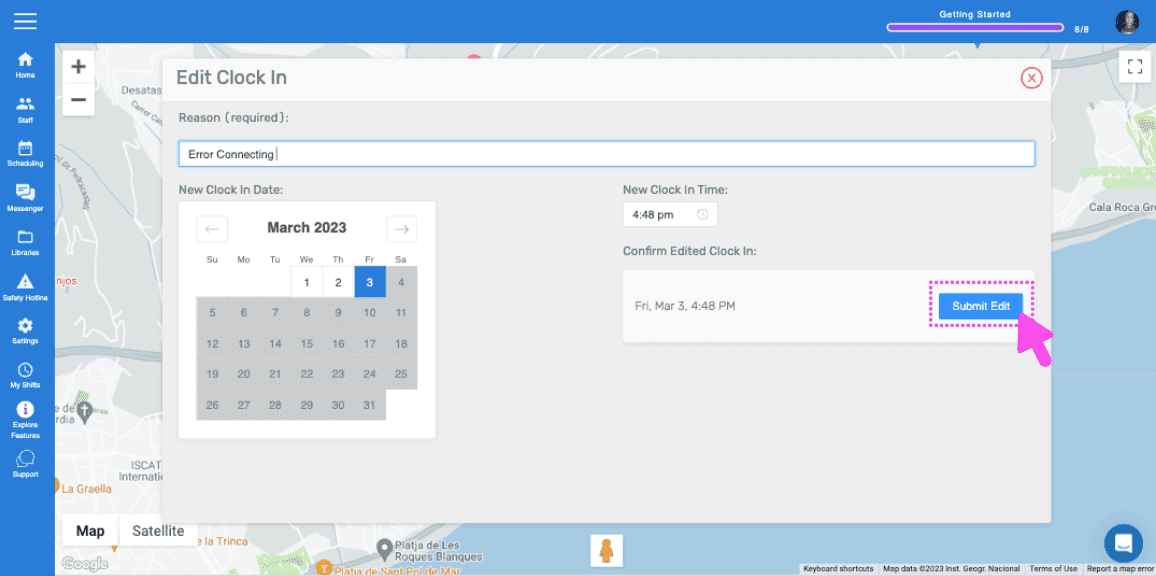
In der Webversion sieht es so aus:
Web dashboard Hours Overview screen with the Shifts tab highlighted by a pink arrow
SINC web Shifts list with two employee shift rows outlined in pink
Web dashboard map view of an employee's shift location with a pink arrow pointing to the Edit button next to Clock In
SINC web Edit Clock In screen with a date picker and the Submit Edit button

Hat das Ihre Frage beantwortet?