
Eine offene Schicht zwangsweise ausstempeln
Verwenden Sie diese Funktion mit Bedacht! Sie ist als letzter Ausweg gedacht, wenn ein Mitarbeiter keine Internetverbindung hat, um seine Schichten zu synchronisieren.

Wenn ein Mitarbeiter nicht rechtzeitig eine Internetverbindung herstellen kann, damit du eine Zusammenfassung erstellen kannst, oder sich noch nicht ausstempeln konnte, kannst du seine Schicht zwangsweise beenden. Diese Option sollte nur als letzte Möglichkeit genutzt werden – am zuverlässigsten und korrektesten ist es, wenn sich der Mitarbeiter selbst ausstempelt.
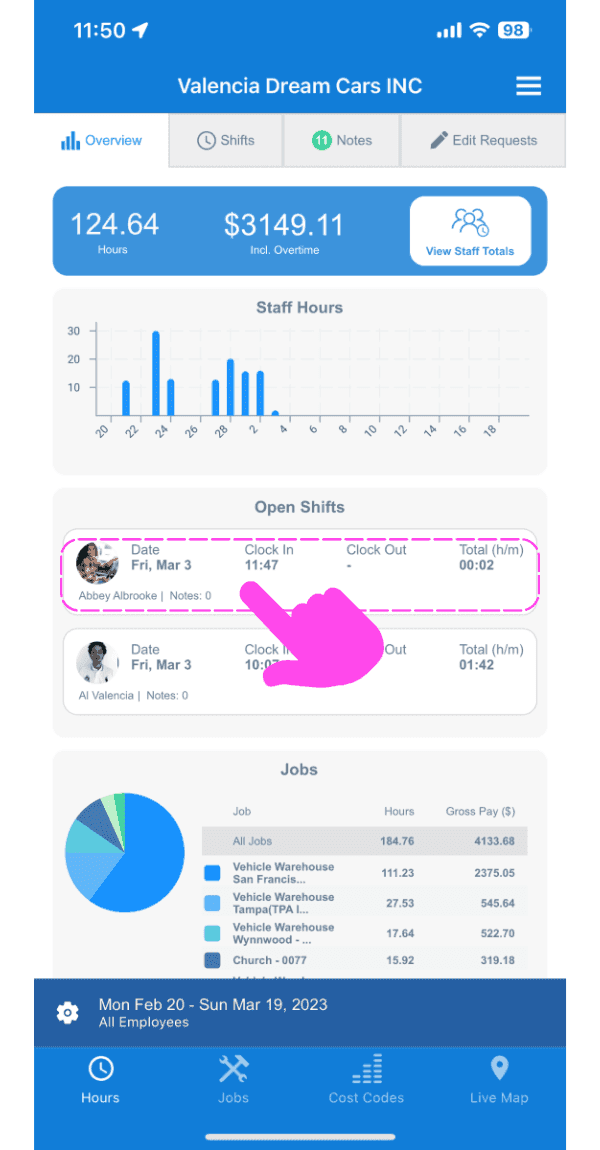
Auf dem Mobilgerät: Tippen Sie auf die betreffende offene Schicht
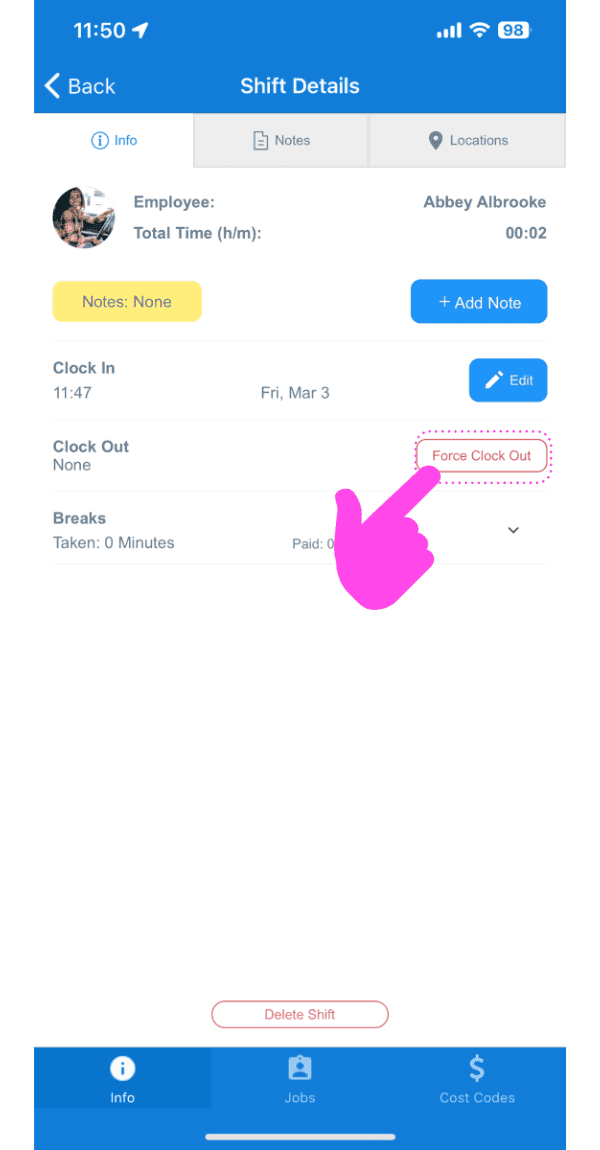
Tippe im Tab Info auf „Ausstempeln erzwingen“
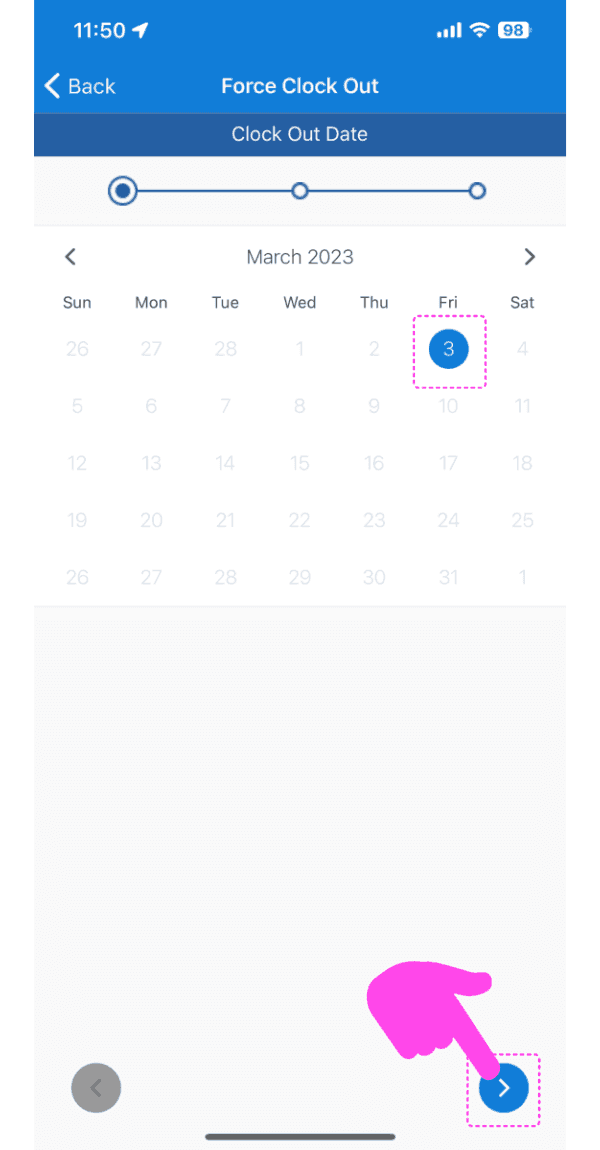
Datum für das neue Ausstempeln auswählen
Wähle die Uhrzeit für das neue Ausstempeln aus
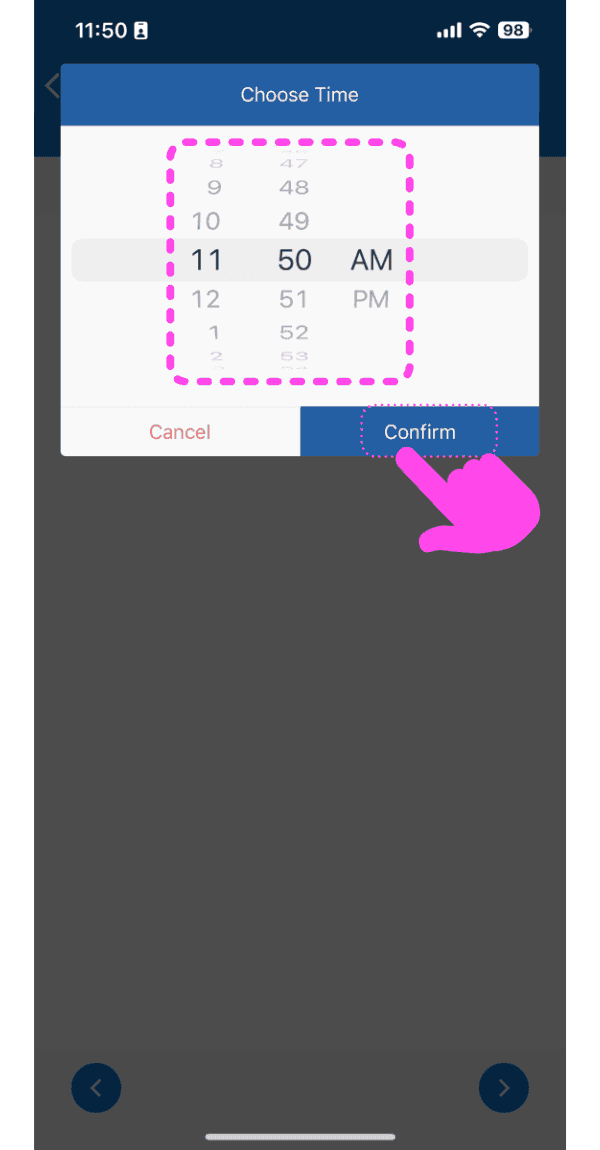
Tippe auf Ausstempeln hinzufügen
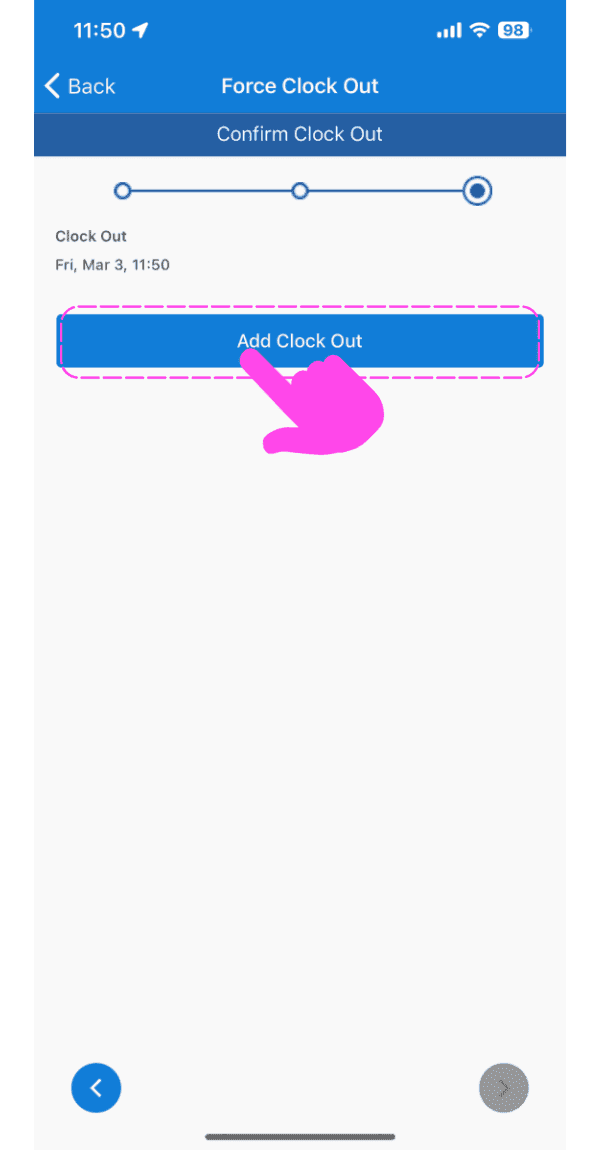
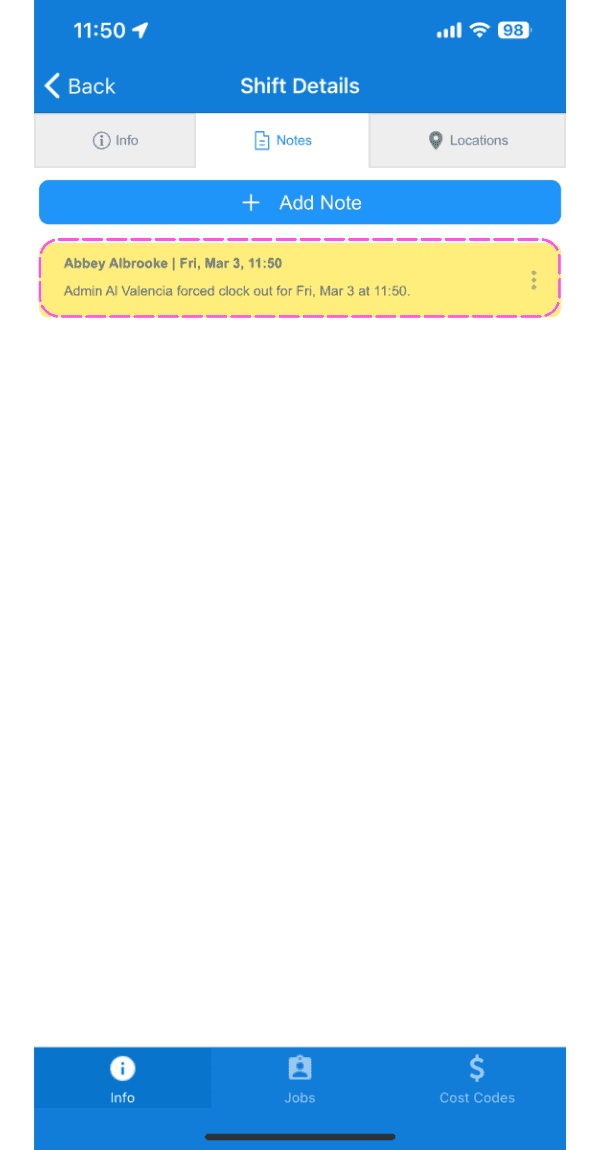
Sie sehen nun einen neuen Hinweis mit den Details zur erzwungenen Abmeldung.
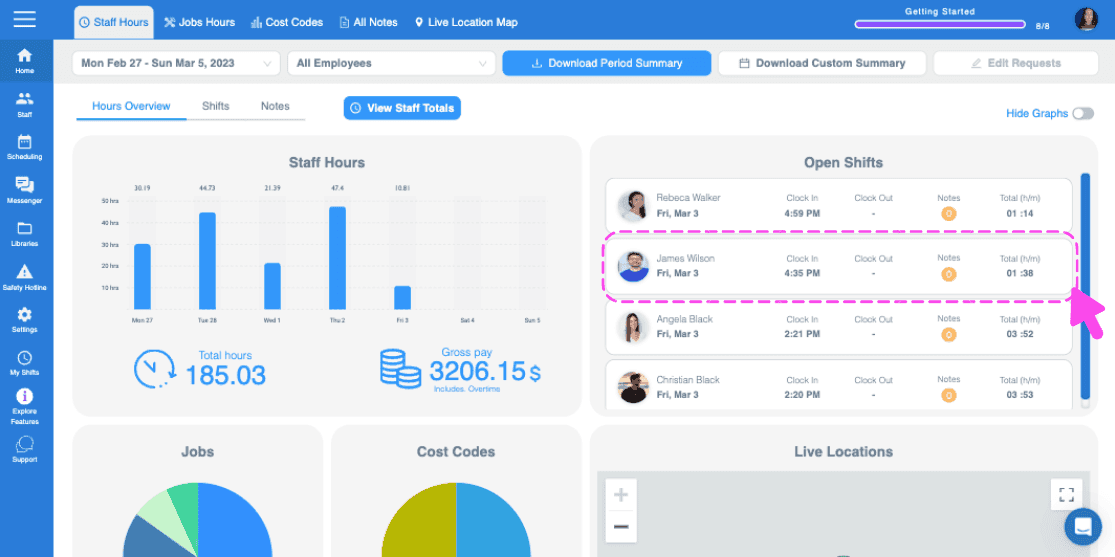
Im Web: Klicke auf die betreffende offene Schicht
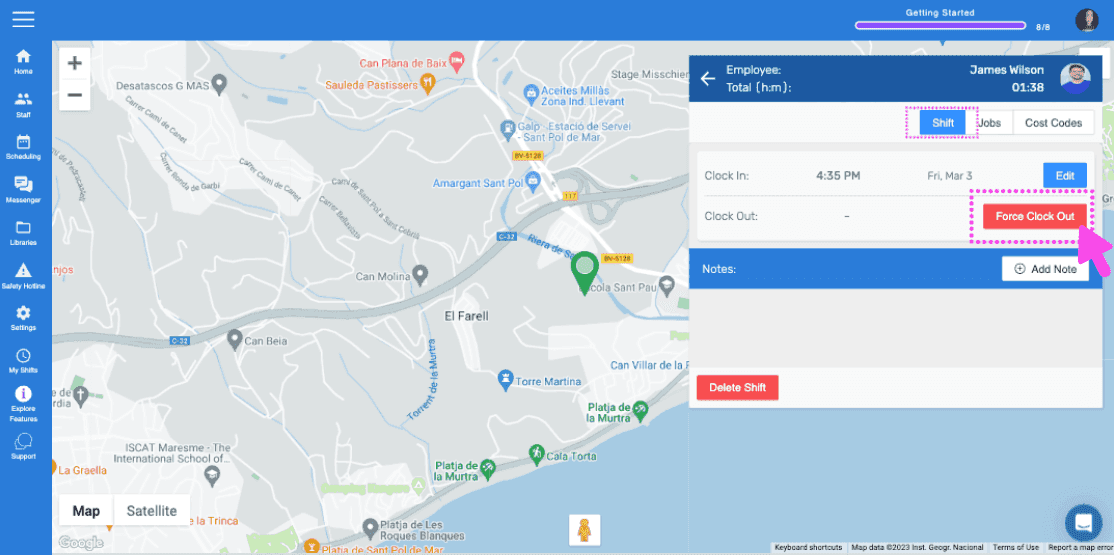
Klicken Sie im Tab Schicht auf „Schichtende erzwingen“
Datum für das neue Ausstempeln auswählen
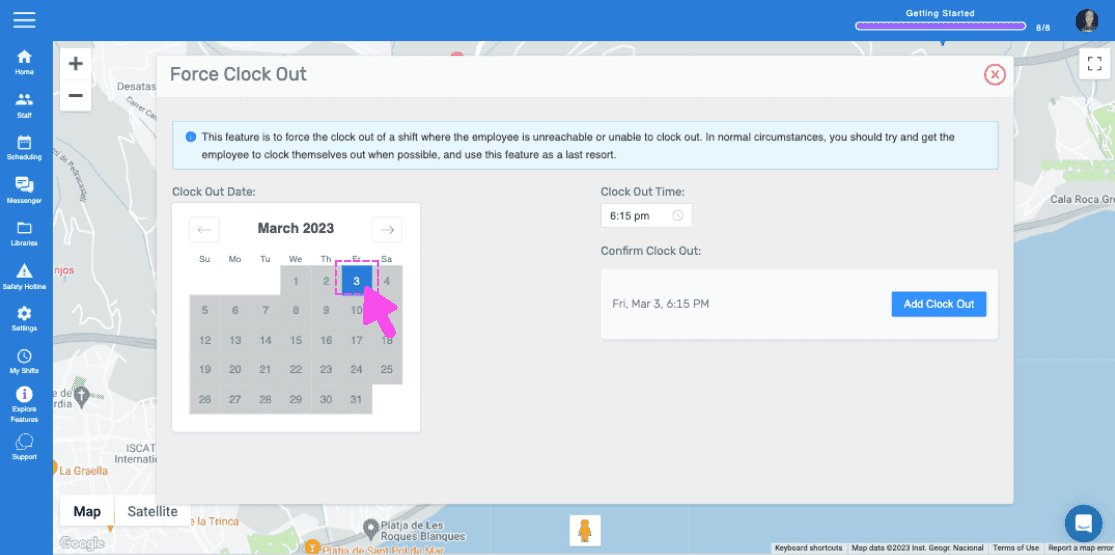
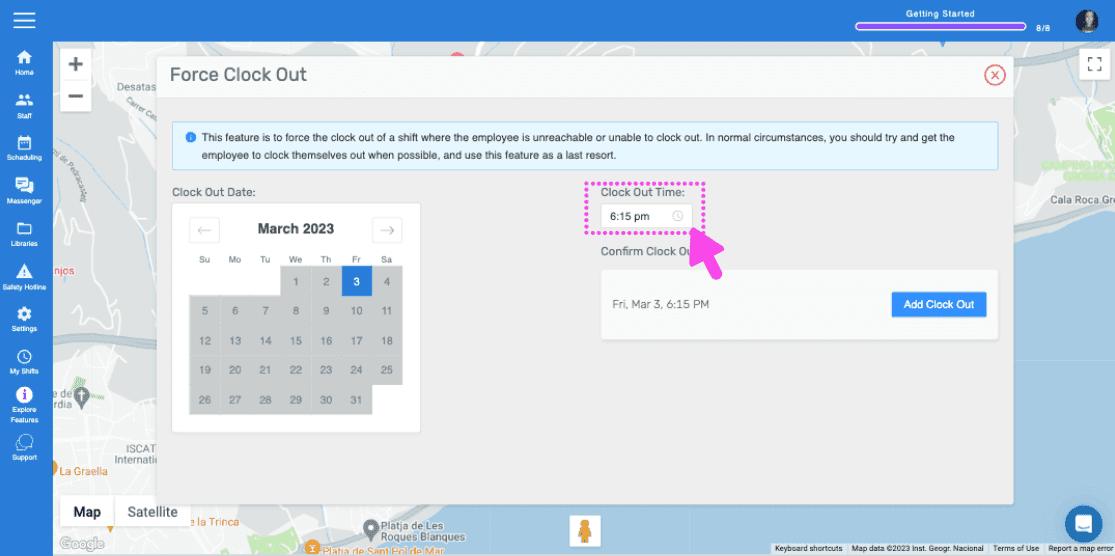
Wählen Sie die Uhrzeit für das neue Ausstempeln aus.
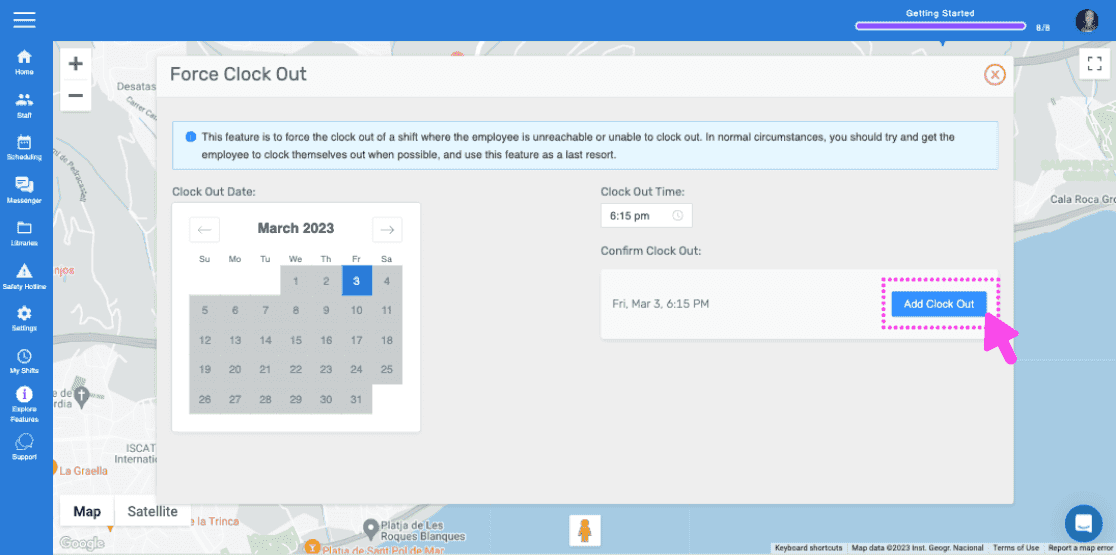
Tippen Sie auf Arbeitsende hinzufügen
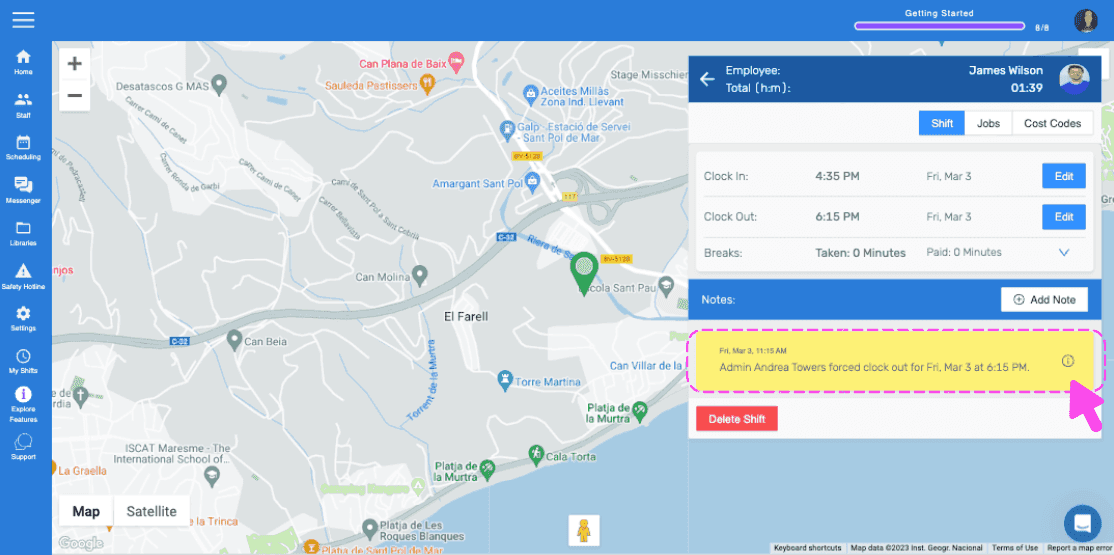
Sie sehen nun einen neuen Hinweis mit den Details zur erzwungenen Abmeldung.
Hat das Ihre Frage beantwortet?