So fügen Sie eine fehlende Schicht hinzu

In diesem Leitfaden erfahren Sie, wie ein Admin in SINC eine Schicht für ein Teammitglied oder sich selbst hinzufügen kann.

Sam Dolbel
Sam Dolbel
Mar 6th, 2023

Manchmal müssen Sie den Arbeitszeitnachweis eines Mitarbeiters manuell hinzufügen. Navigieren Sie zu Menü Übersicht und tippen Sie auf Schichten
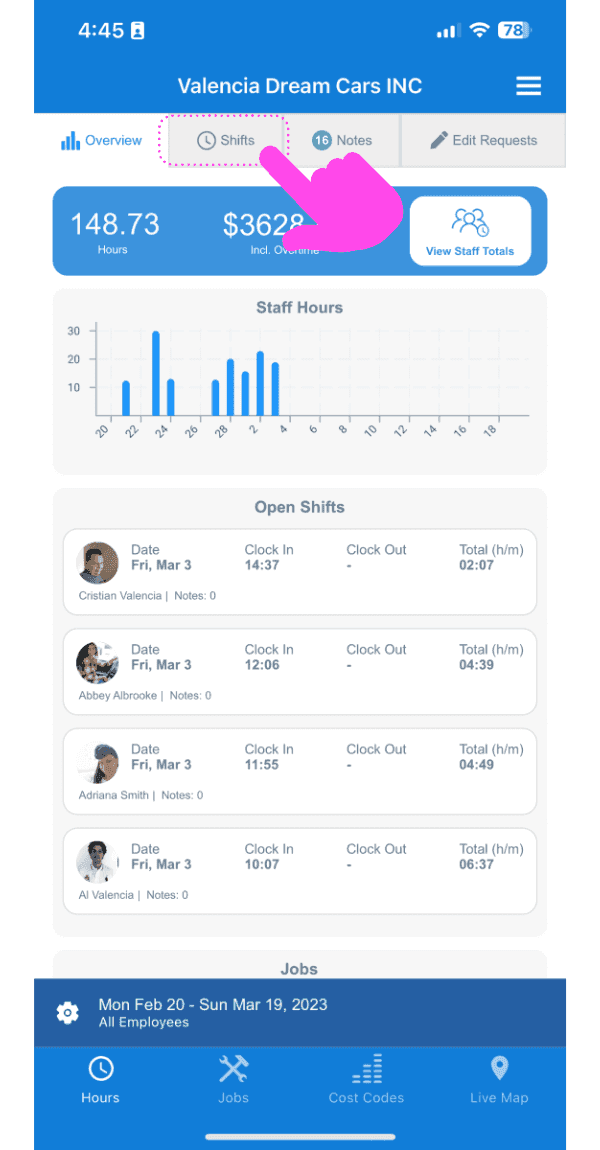
SINC web dashboard with a pink arrow pointing to the Shifts tab showing staff hours and open shifts

Tippe unten rechts auf dem Bildschirm auf die Schaltfläche +.
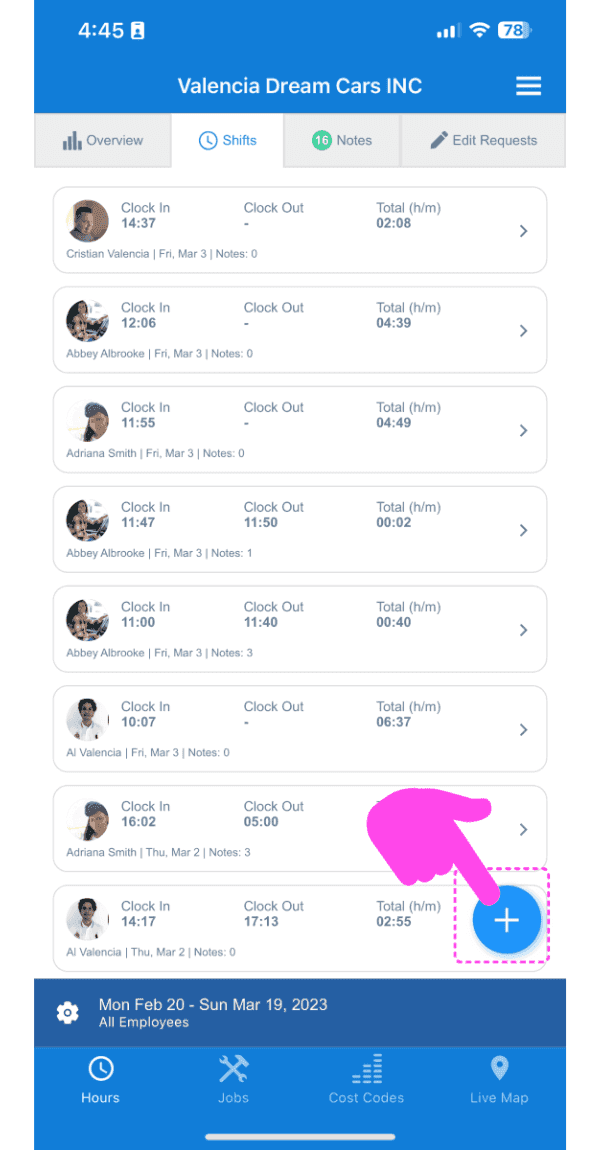
SINC mobile Shifts list with a pink arrow pointing to the plus button in the bottom right corner

Wählen Sie den Mitarbeiter aus, für den Sie einen Stundenzettel hinzufügen möchten, und tippen Sie auf Bestätigen.
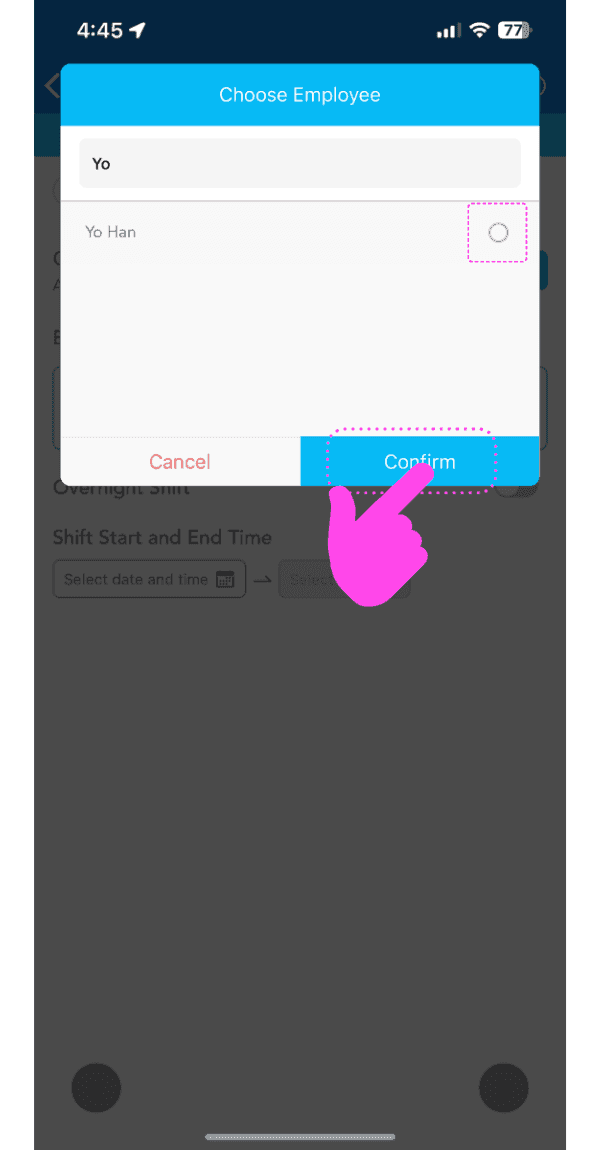
Choose Employee popup with an employee selected and a pink arrow pointing to the Confirm button

Folgen Sie dem Assistenten, um die Daten und Uhrzeiten der fehlenden Schicht hinzuzufügen. Hinweis: Datum und Uhrzeit werden basierend auf der letzten Schicht des Mitarbeiters bereits vorausgewählt.
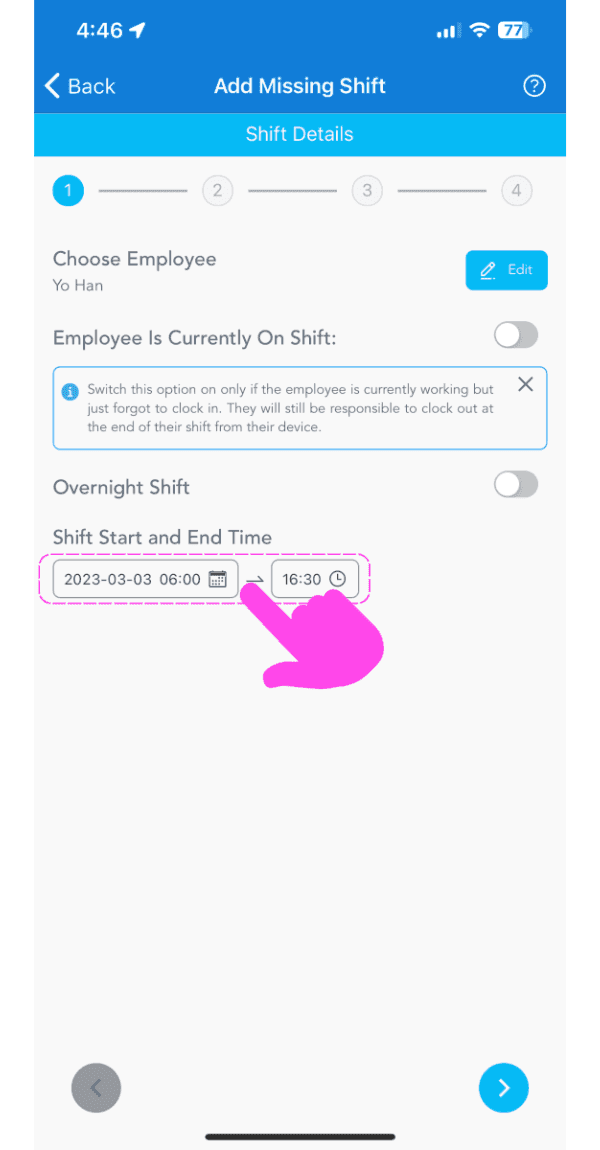
SINC mobile app Add Missing Shift wizard with the shift start and end time fields highlighted in pink

Wenn ein Mitarbeiter bereits im Dienst ist und sich noch nicht ausgestempelt hat, aktivieren Sie die Option Mitarbeiter ist derzeit im Dienst. Wenn diese Option aktiviert ist, müssen Sie nur die Startzeit der Schicht auswählen.
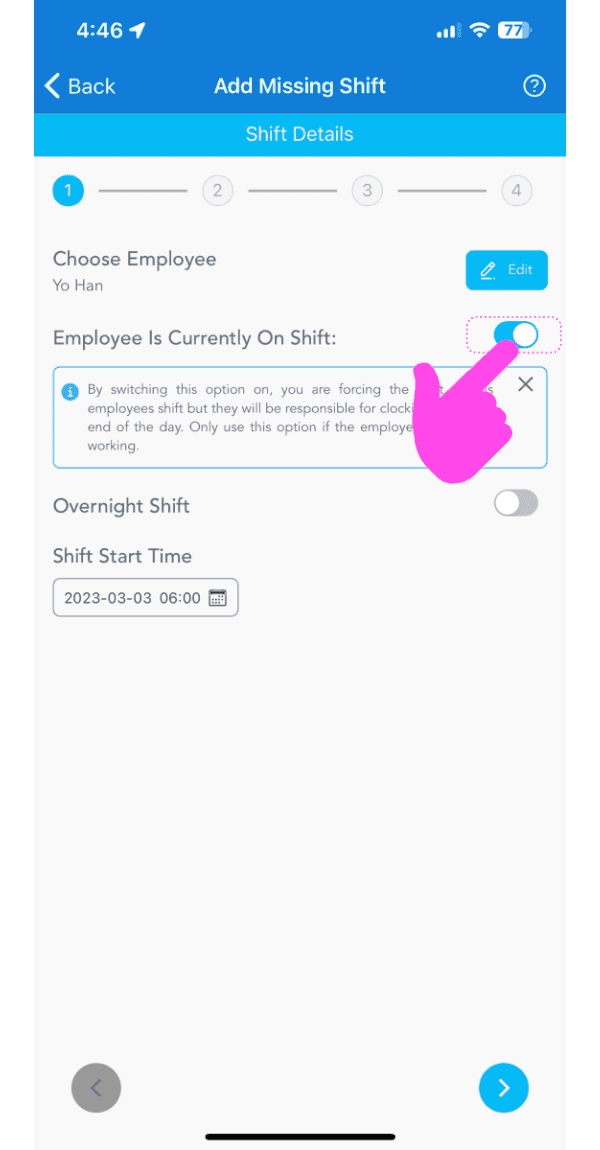
Add Missing Shift screen with the Employee Is Currently On Shift toggle highlighted by a pink arrow

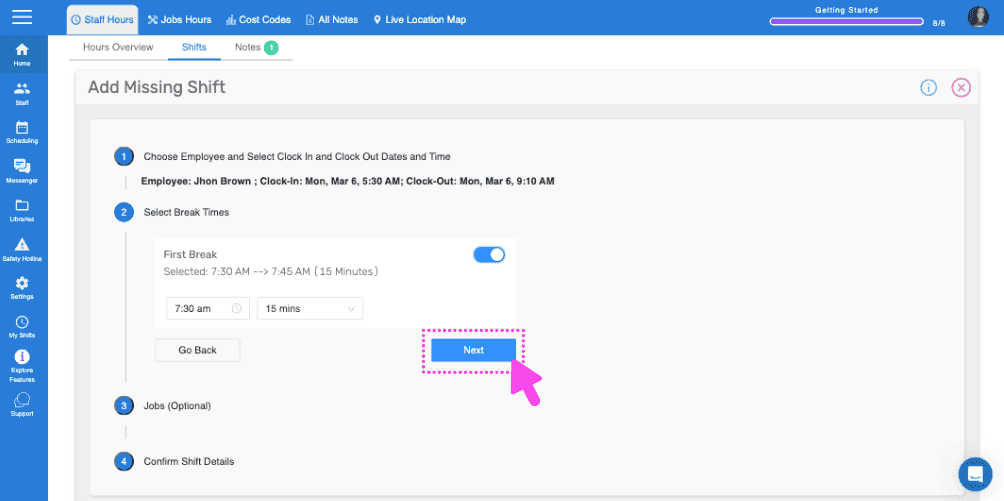
Fügen Sie alle Pausen hinzu, auf die die betreffende Person Anspruch hatte: Anhand der Pauseneinstellungen der Organisation wird standardmäßig eine Uhrzeit vorausgewählt. Wenn die betreffende Person die entsprechende Pause nicht genommen hat, tippen Sie auf Keine Pause. Um die Startzeit der Pause zu ändern, tippen Sie auf die Zeitauswahl. Um die Pausendauer zu ändern, tippen Sie auf die Schaltfläche für die Dauer.
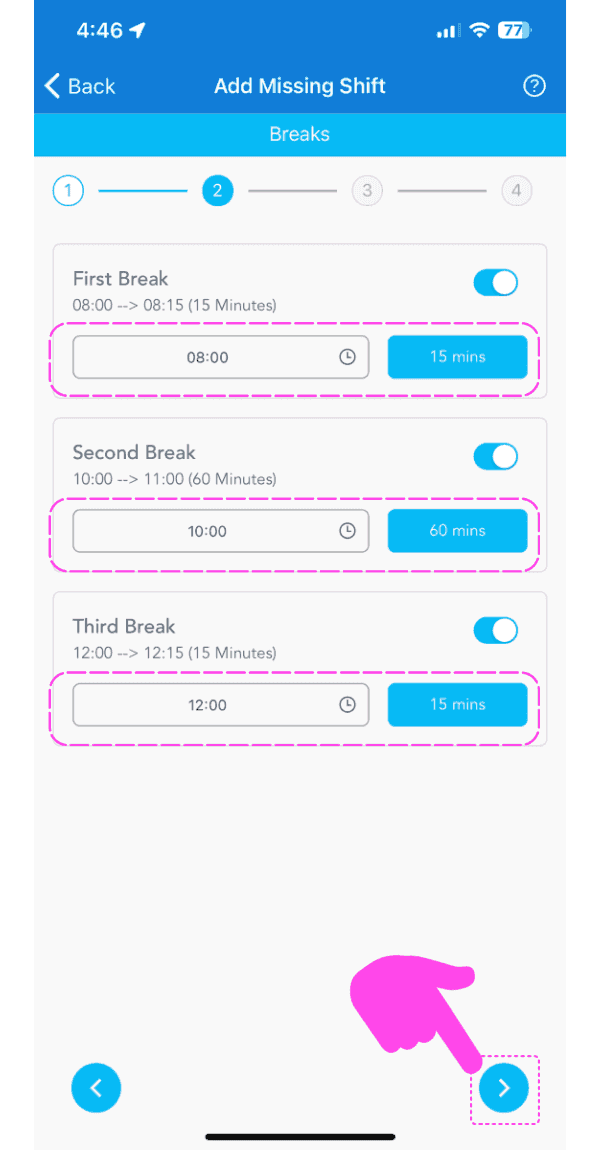
Add Missing Shift Breaks screen showing three break toggles and times highlighted in pink dashed boxes

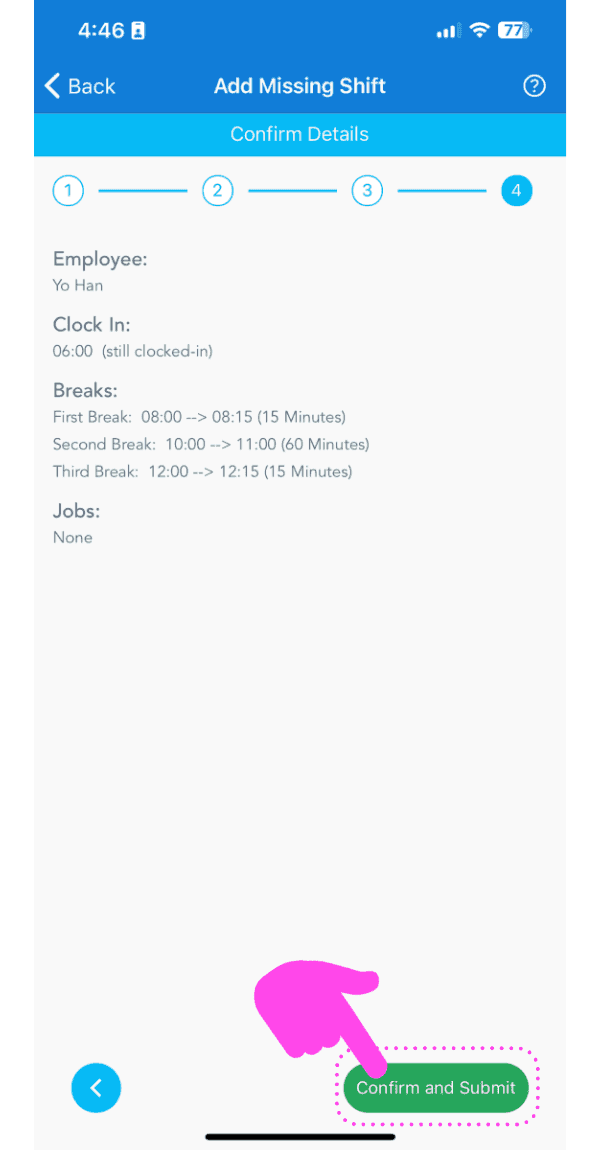
Überprüfe die Details der fehlenden Schicht und tippe auf Bestätigen
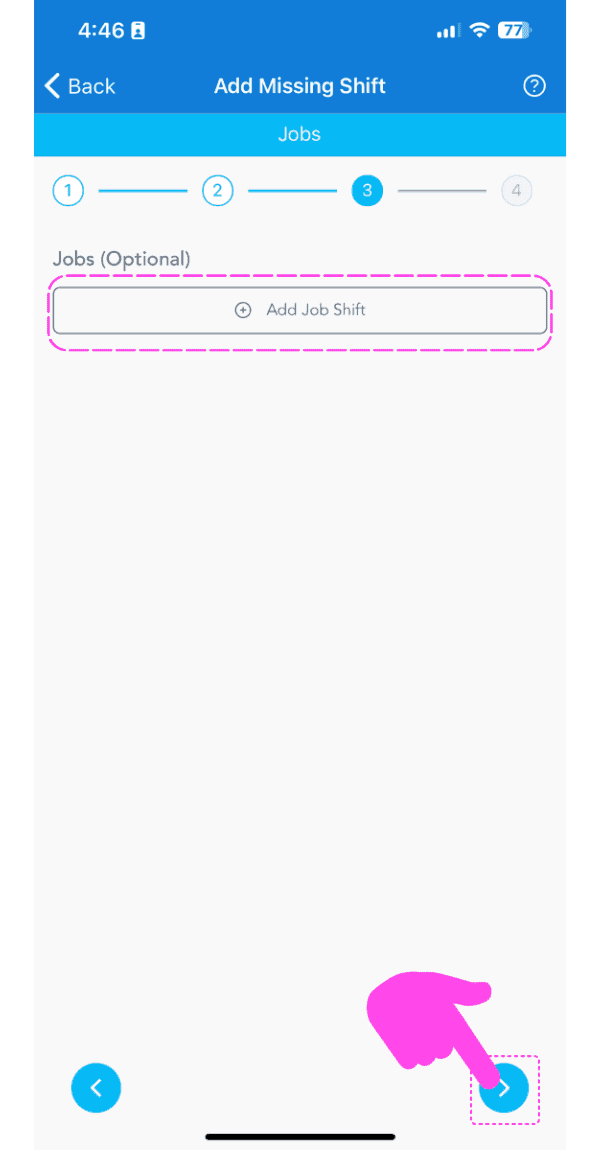
SINC mobile Add Missing Shift wizard on the optional Jobs step, with a pink hand pointing to the next arrow button
Add Missing Shift Confirm Details screen with the Confirm and Submit button highlighted by a pink arrow

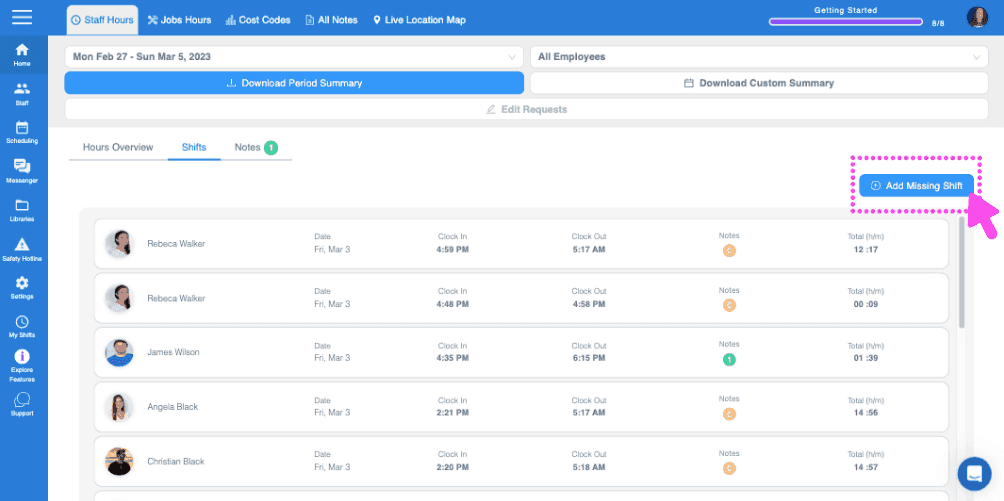
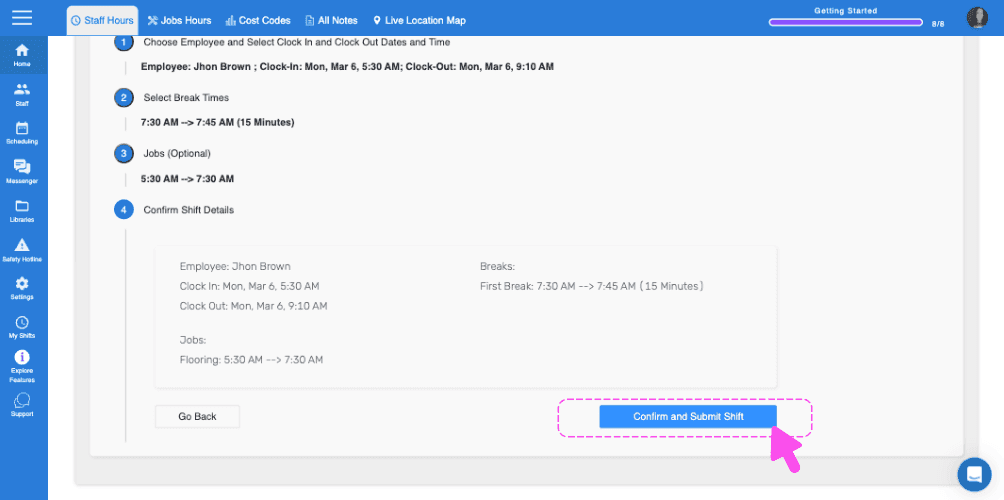
Wenn du die Webversion verwendest, sieht es so aus:
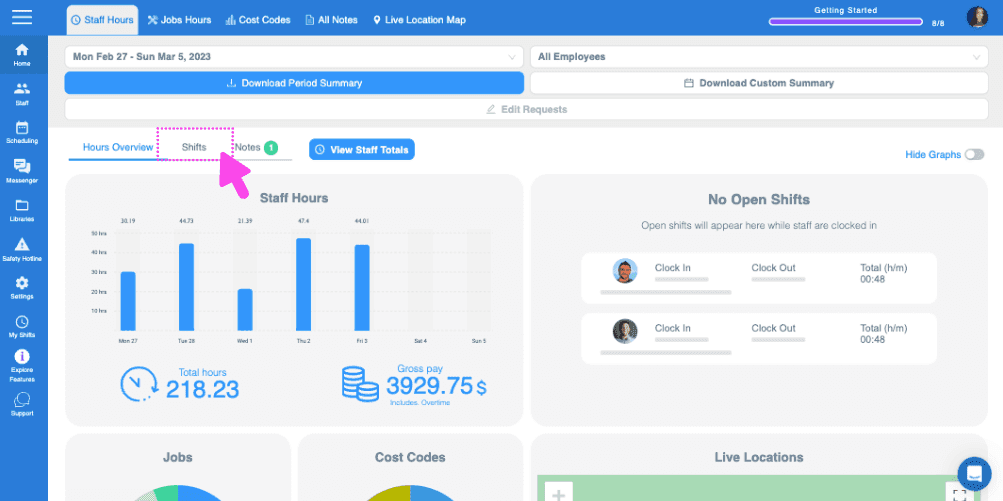
SINC web timekeeping dashboard with the Hours Overview tab highlighted above the staff hours graph
Web dashboard Shifts tab with a pink arrow pointing to the Add Missing Shift button in the top right
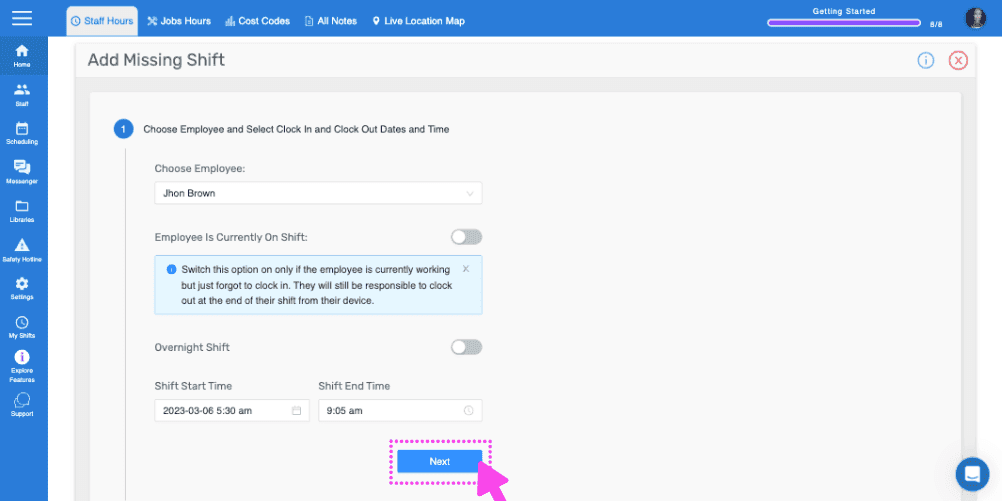
SINC web Add Missing Shift wizard with the Choose Employee field and the Next button highlighted
Web Add Missing Shift wizard showing break time selection with the Next button outlined in pink
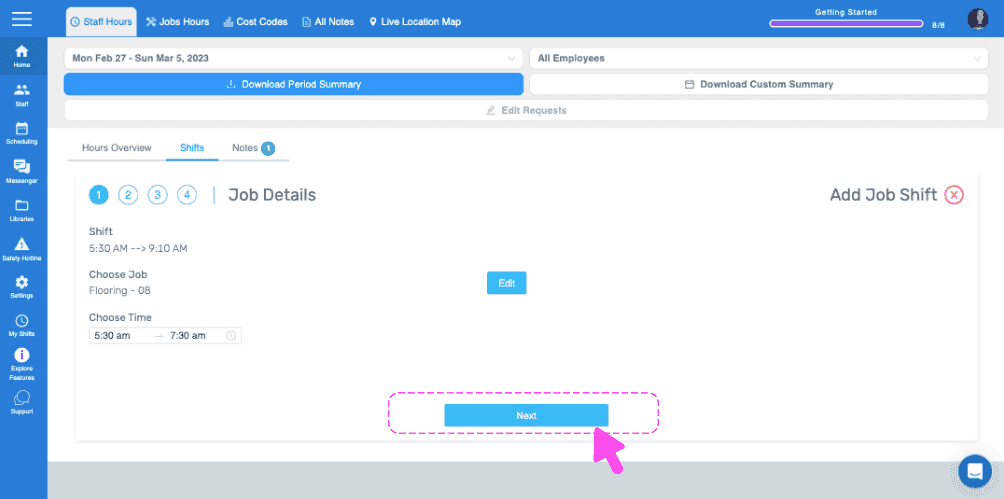
SINC web Job Details wizard showing the chosen job and time with a pink arrow pointing to the Next button
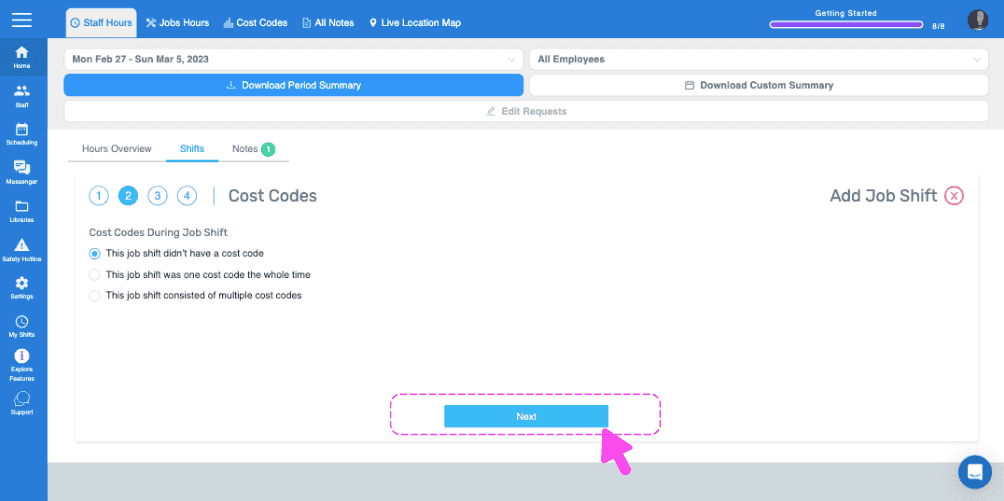
Add Job Shift wizard Cost Codes step with a pink arrow pointing to the Next button
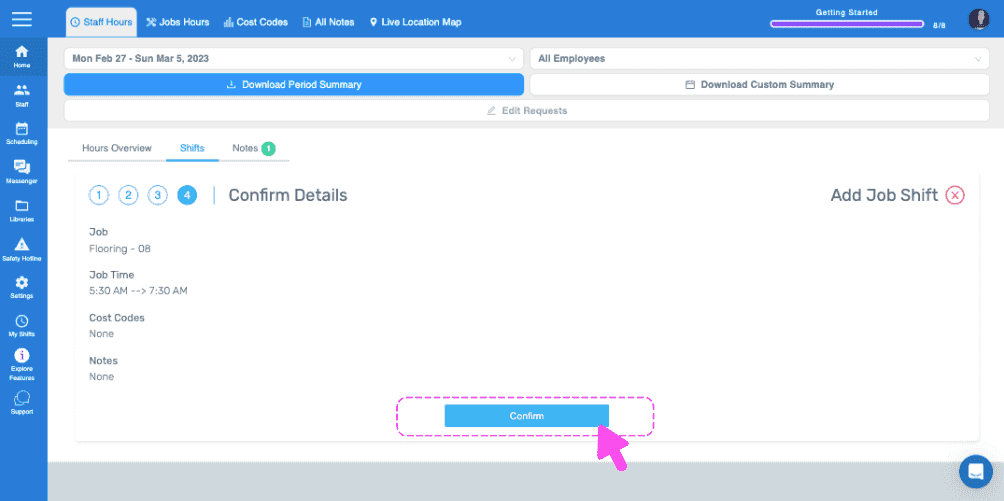
Web Confirm Details step for a job shift with the Confirm button circled in pink
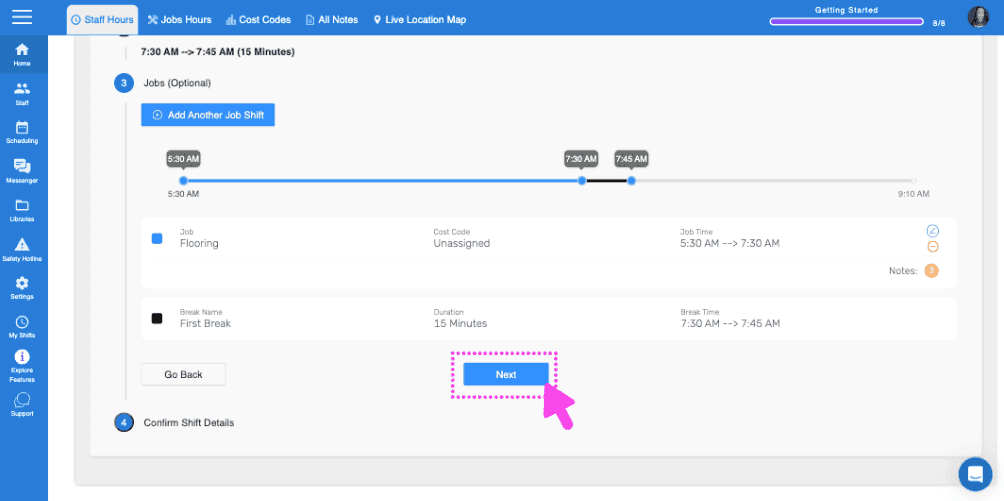
SINC web Add Job Shift wizard with a pink arrow pointing to the Next button on the shift timeline step
SINC web Add Missing Shift wizard Confirm Shift Details step with a pink arrow pointing to the Confirm and Submit Shift button
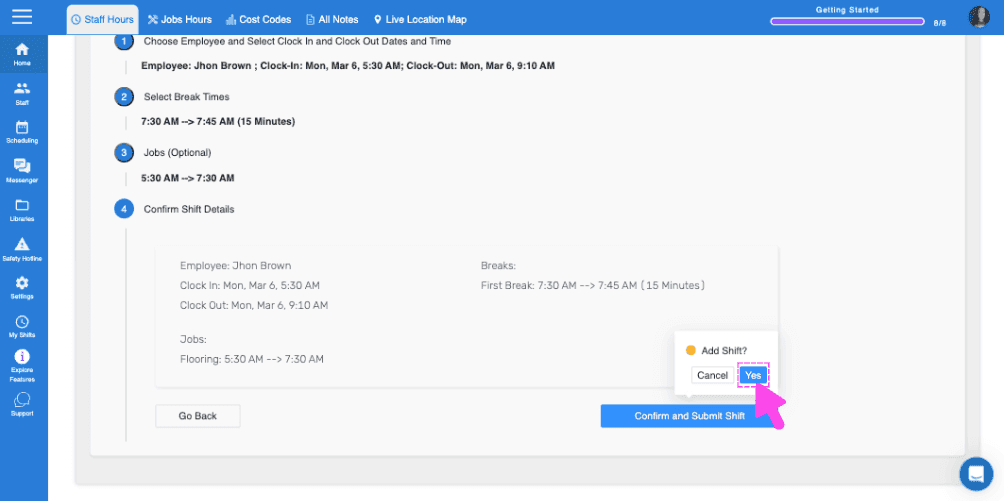
Web add-shift confirmation screen showing shift and break details with a pink arrow pointing to the Yes button

Hat das Ihre Frage beantwortet?