
Envoyer un message texte ou une image dans le chat

Ce guide explique comment envoyer un message texte ou une image.

SINC Support Team
SINC Support Team
Mar 10th, 2023

Commencez par sélectionner une conversation dans la liste. Dans l’application mobile : appuyez sur salon de discussion dans la liste.

SINC mobile Chats list with a pink arrow pointing to the Everyone group chat

Appuyez sur la zone de saisie pour entrer du texte
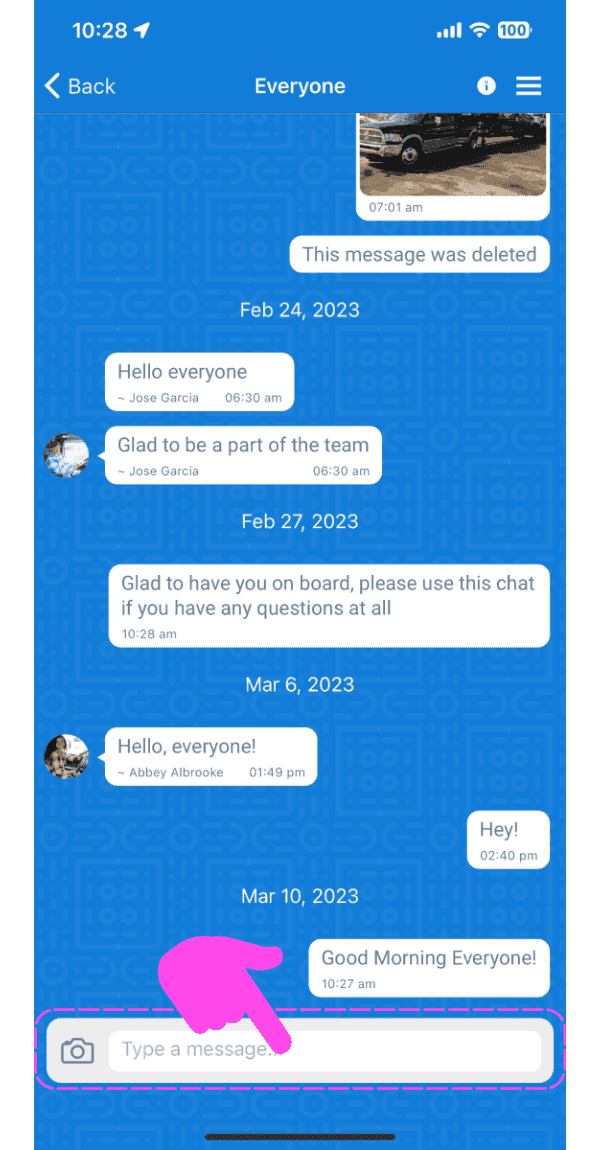
SINC mobile group chat screen with a pink hand pointing to the message input box

Saisissez un message, puis appuyez sur le bouton Envoyer. Le message sera envoyé.
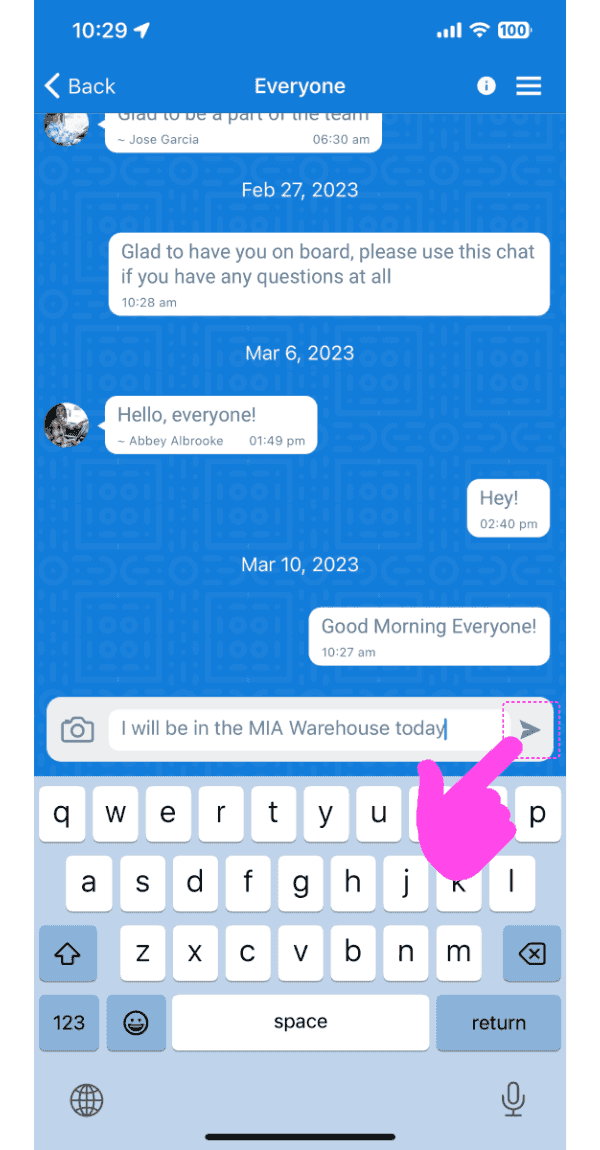
Mobile app chat conversation with a typed message and the Send arrow button highlighted by a pink arrow

Pour envoyer une image dans un message, appuyez sur le bouton « Appareil photo »
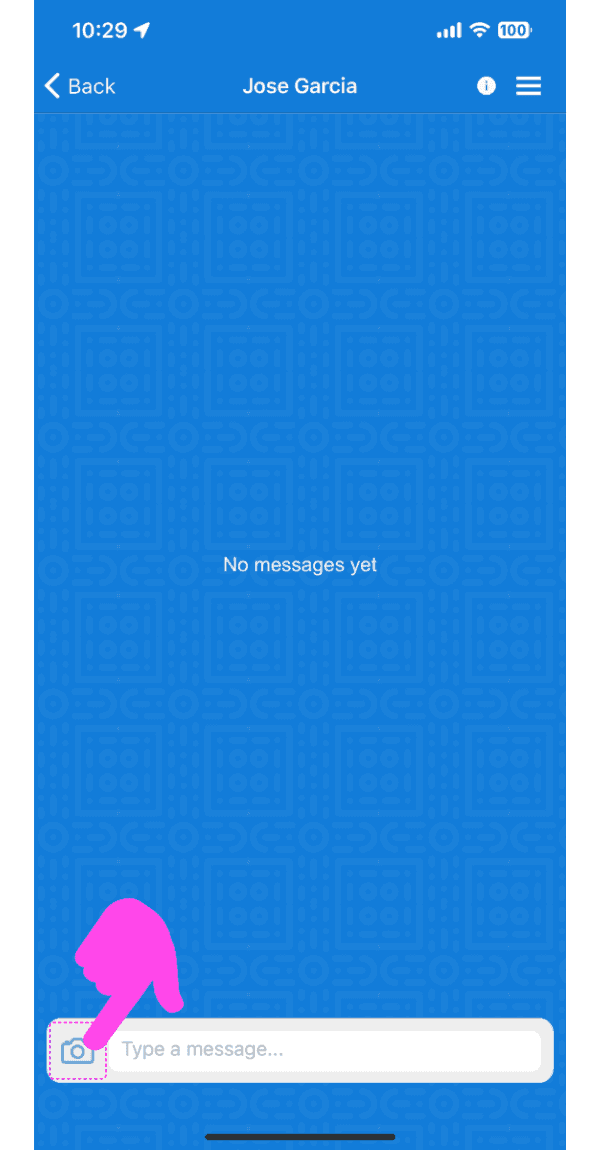
SINC mobile chat conversation screen with a pink arrow pointing to the camera icon by the message field

Sélectionnez une option : prenez une photo ou choisissez-en une dans la galerie.

Send Photo screen with dashed-highlighted Take Photo and Choose From Photos options above the Send Photo button

Appuyez sur le bouton Envoyer une photo
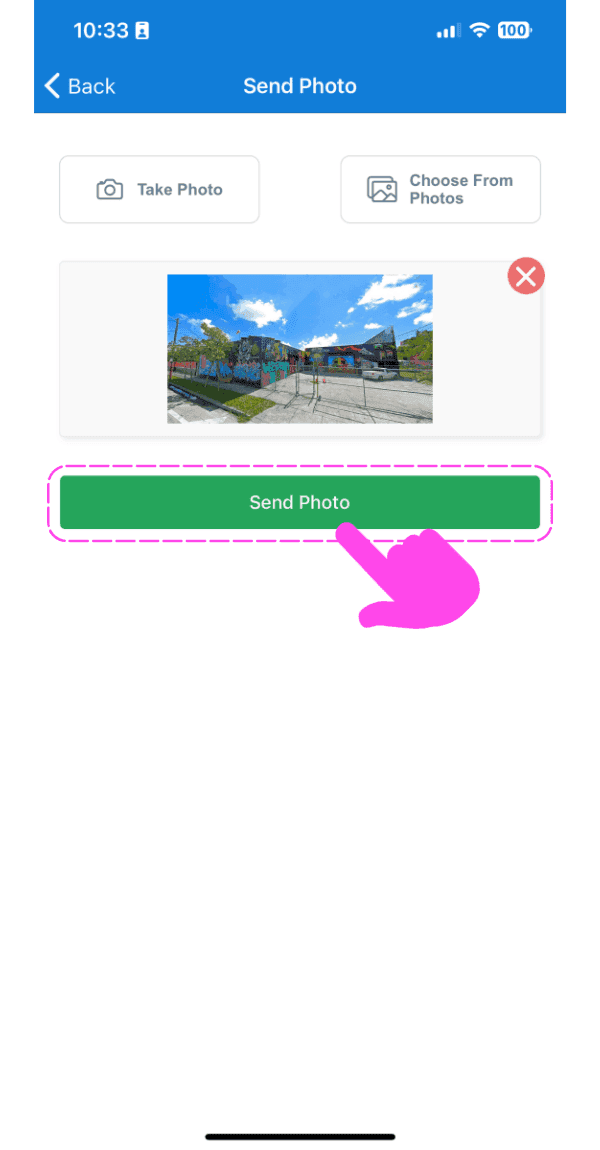
SINC mobile Send Photo screen with an image preview and a pink arrow pointing to the Send Photo button

Le message contenant l’image sera envoyé après l’affichage de la progression du téléchargement.
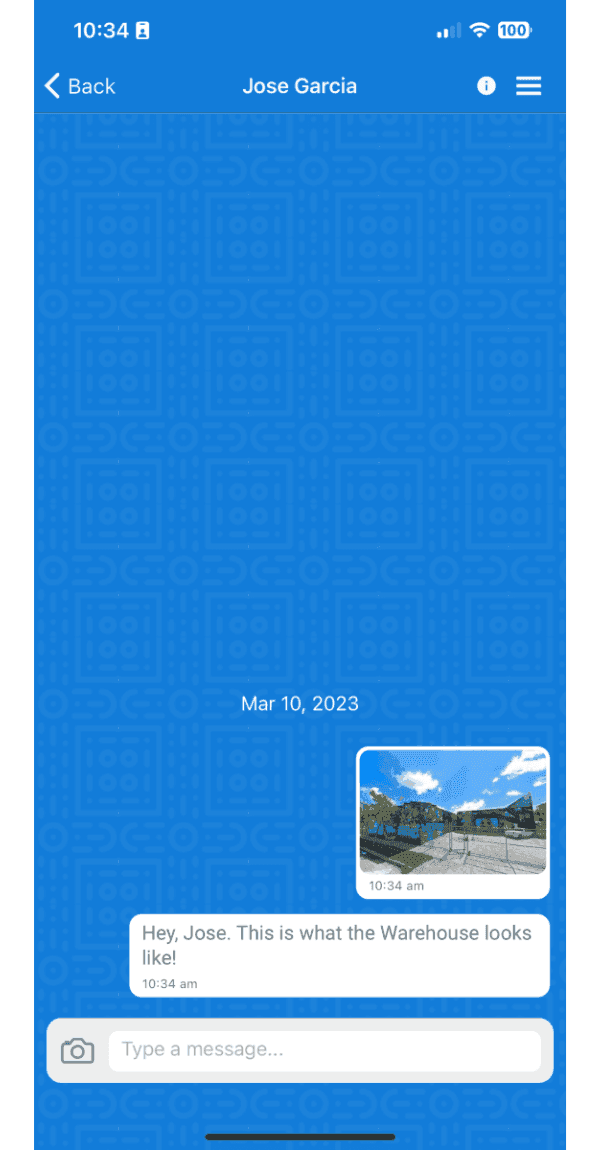
Mobile chat conversation showing a sent photo of a warehouse with an accompanying text message

Sur la version web : cliquez sur une conversation dans la liste
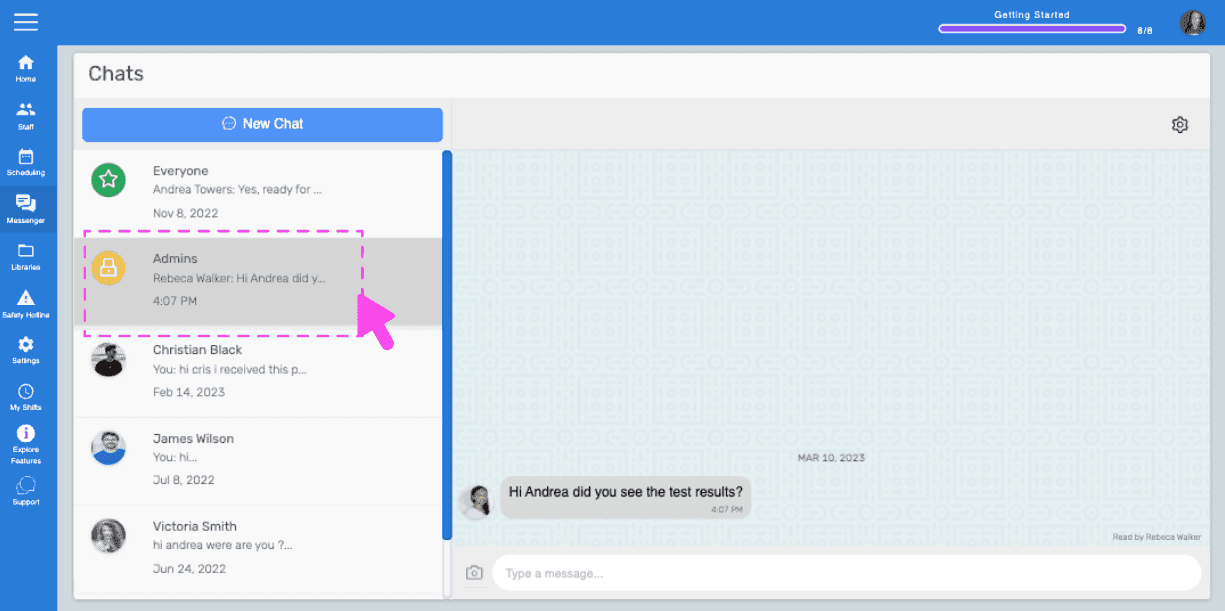
SINC web Chats screen with a pink arrow pointing to a conversation selected from the list on the left

Cliquez sur la zone de saisie et commencez à taper pour envoyer un message texte
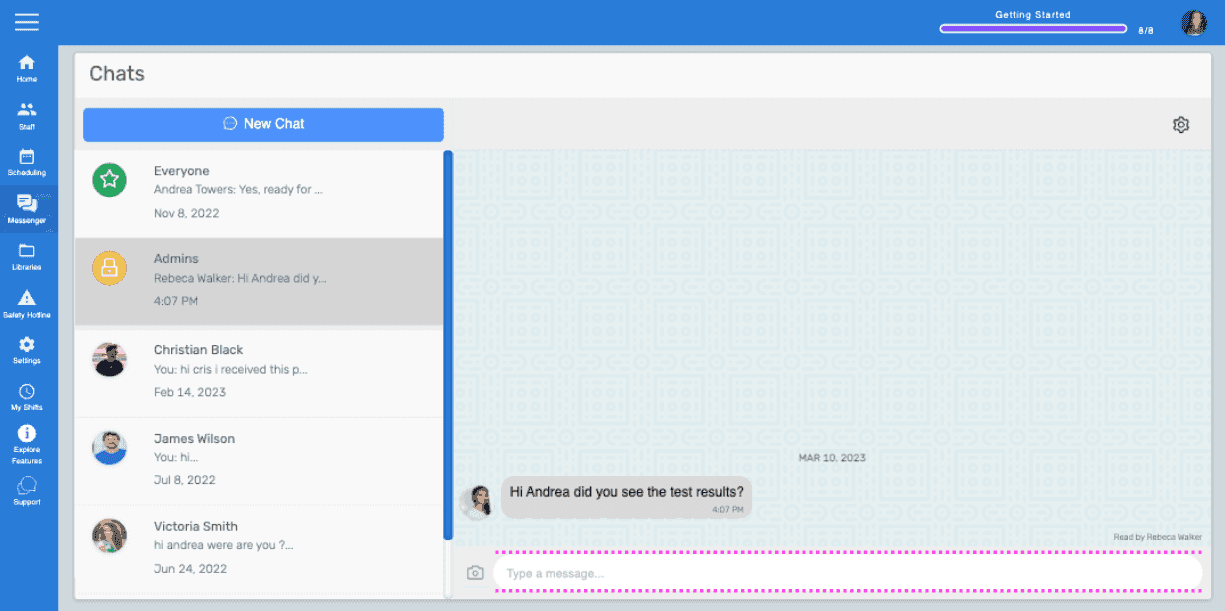
Chats screen with a message thread open and the text input box highlighted at the bottom

Cliquez sur l’icône Envoyer ou appuyez sur la touche Entrée pour envoyer le SMS. Le message sera envoyé.
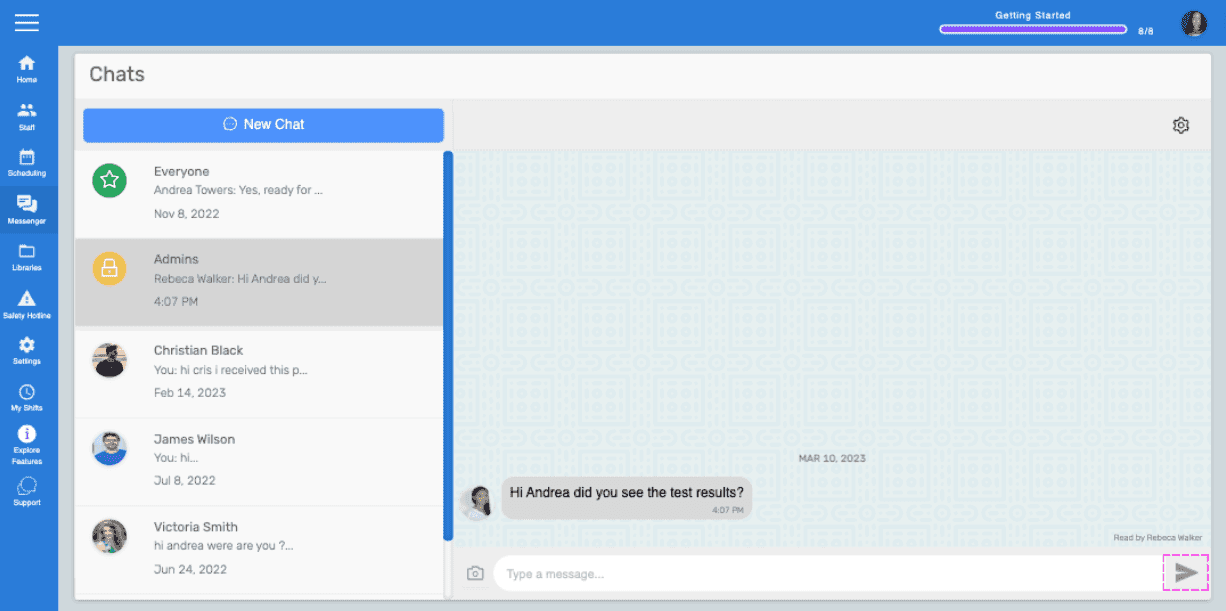
Web Chats screen showing a message thread with a pink arrow pointing to the Send icon

Pour envoyer une image dans un message, cliquez sur l’icône Appareil photo.
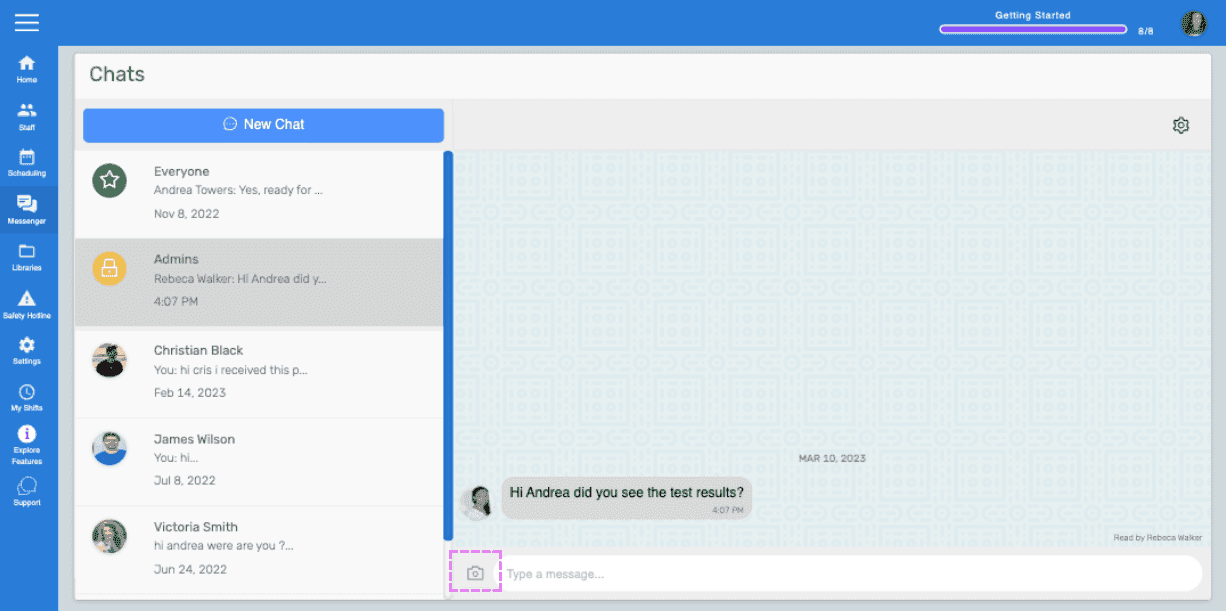
SINC web Chats screen with the camera icon highlighted next to the message input box

Sélectionnez une image dans l’explorateur de fichiers ou le Finder, puis cliquez sur le bouton Envoyer l’image.
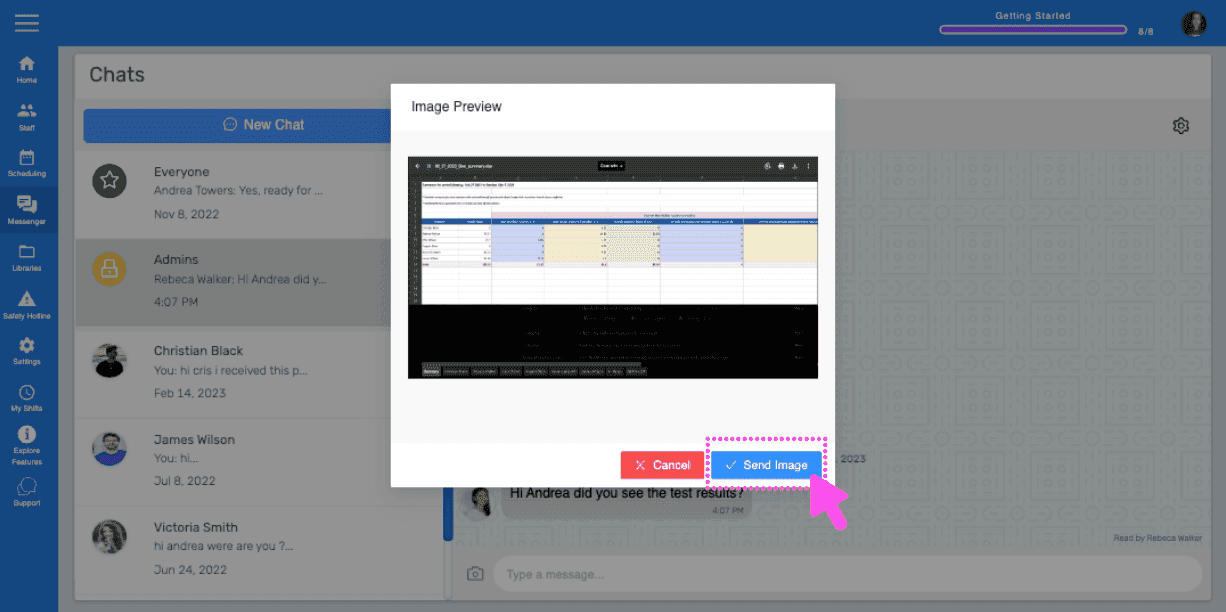
SINC web Chat Image Preview dialog with a pink arrow pointing to the Send Image button

Le message contenant l’image sera envoyé une fois le chargement terminé.
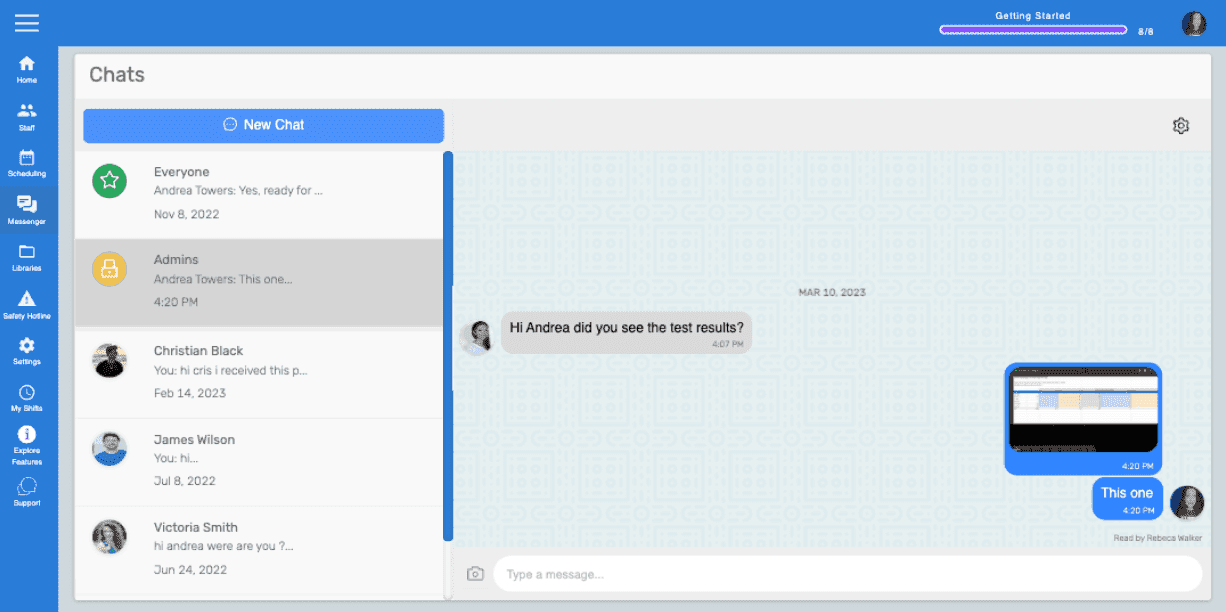
Web chat conversation window showing a text message and an uploaded image thumbnail being sent

Cela a-t-il répondu à votre question ?