Ajoutez des notes à votre service de travail

Dans ce guide, nous verrons comment ajouter des notes à vos créneaux de travail en tant qu’employé dans SINC.

SINC Support Team
SINC Support Team
Mar 10th, 2023

Vous pouvez ajouter une note pendant un shift grâce aux captures d’écran ci-dessous. Sur mobile, pour ajouter une note à un shift ouvert : appuyez sur Ajouter une note
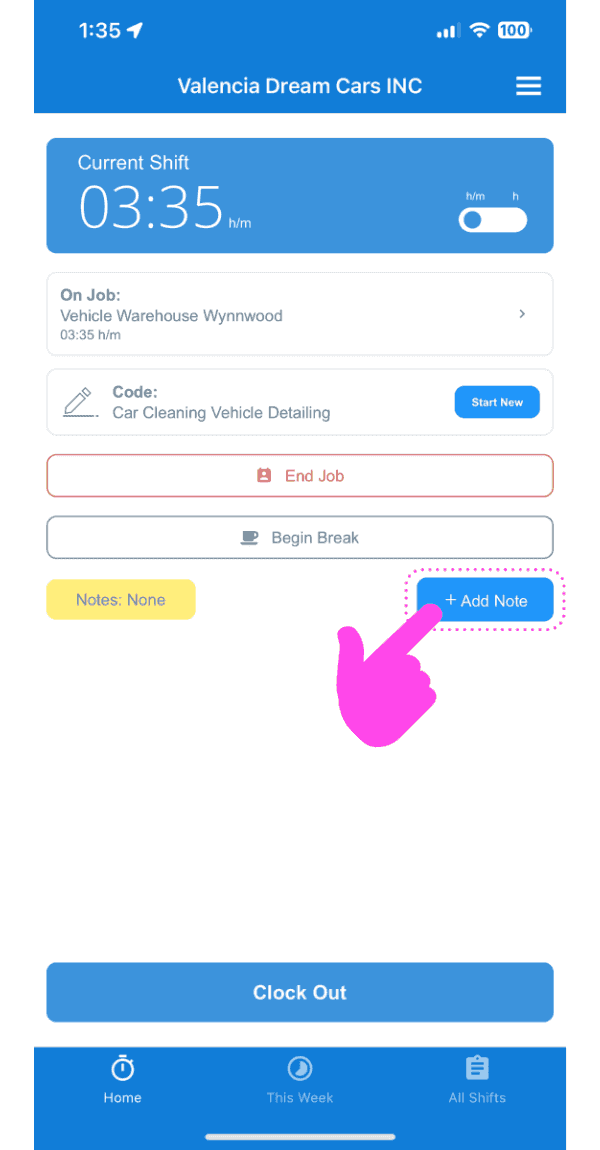
SINC mobile current shift screen with a pink arrow pointing to the Add Note button

Appuyez sur Ajouter une note au service de travail
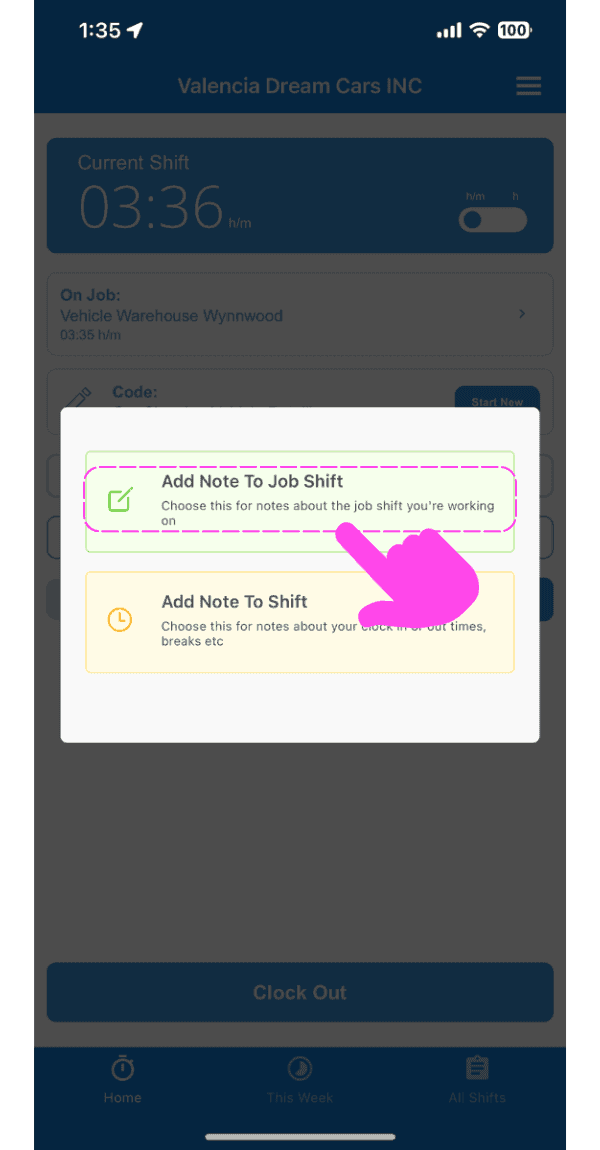
Add Note popup with a pink arrow pointing to the "Add Note To Job Shift" option above "Add Note To Shift"

Saisissez une description de la note.
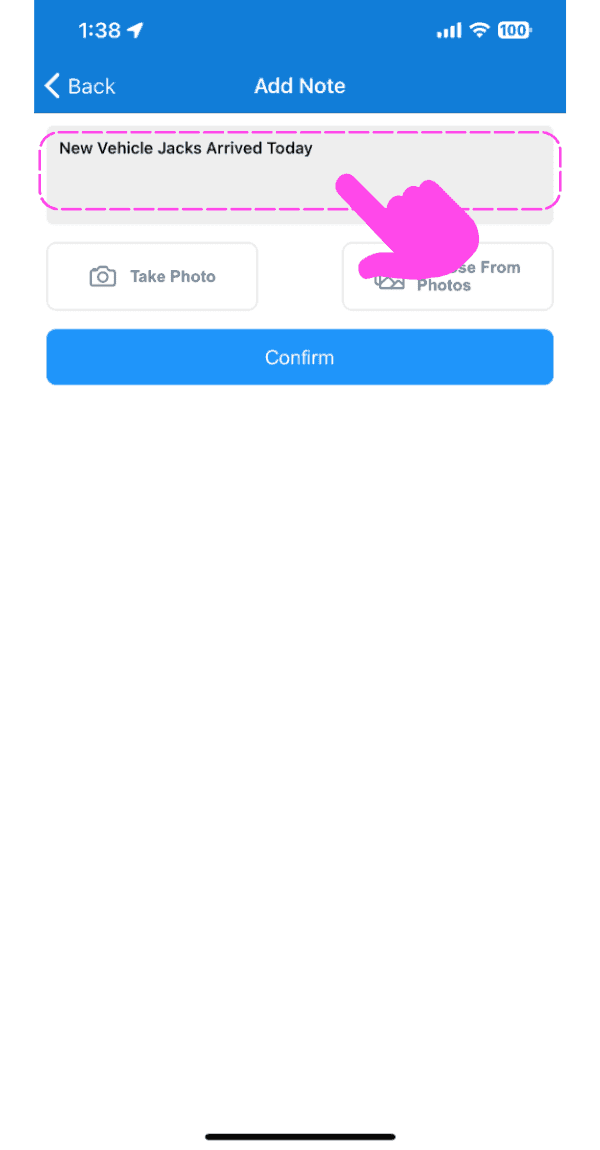
SINC mobile Add Note screen with a pink arrow pointing to the note description text field

Ajoutez une image en lien avec la note, si vous le souhaitez.
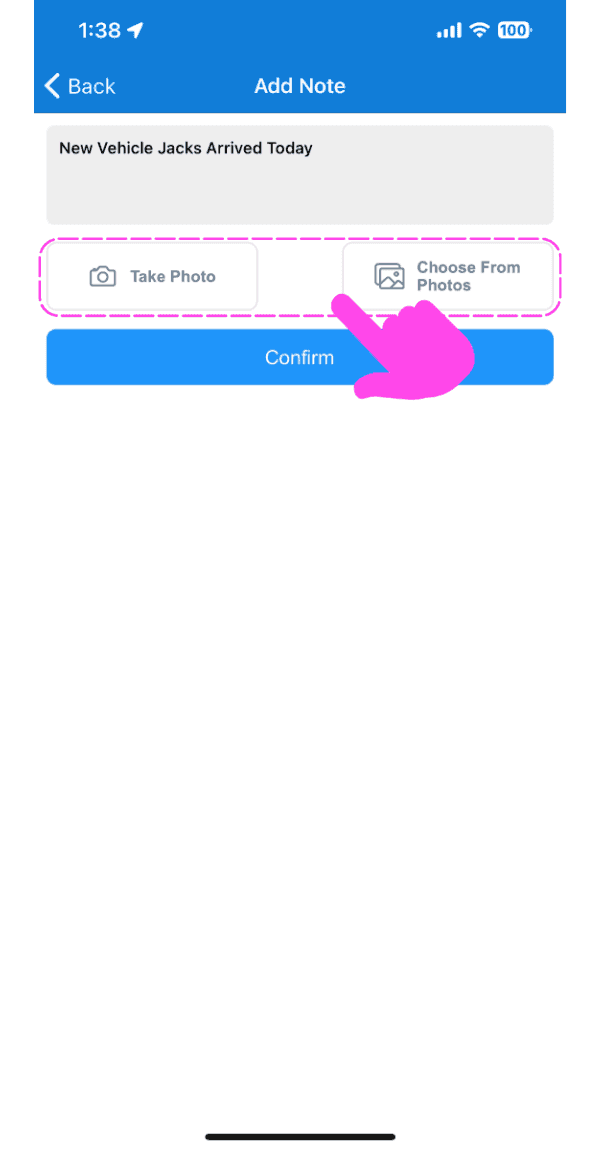
Mobile Add Note screen with Take Photo and Choose From Photos options outlined in pink

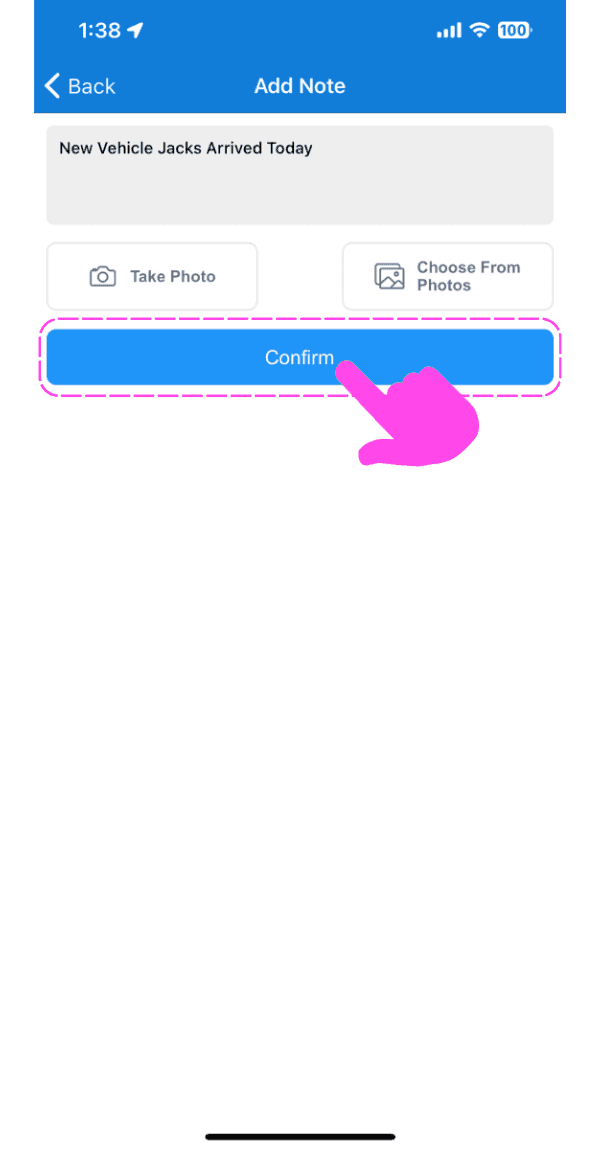
Appuyez sur Confirmer

SINC mobile Add Note screen with typed note text and a pink hand pointing to the Confirm button

Sur le Web, pour ajouter une note à un shift ouvert : cliquez sur Ajouter une note
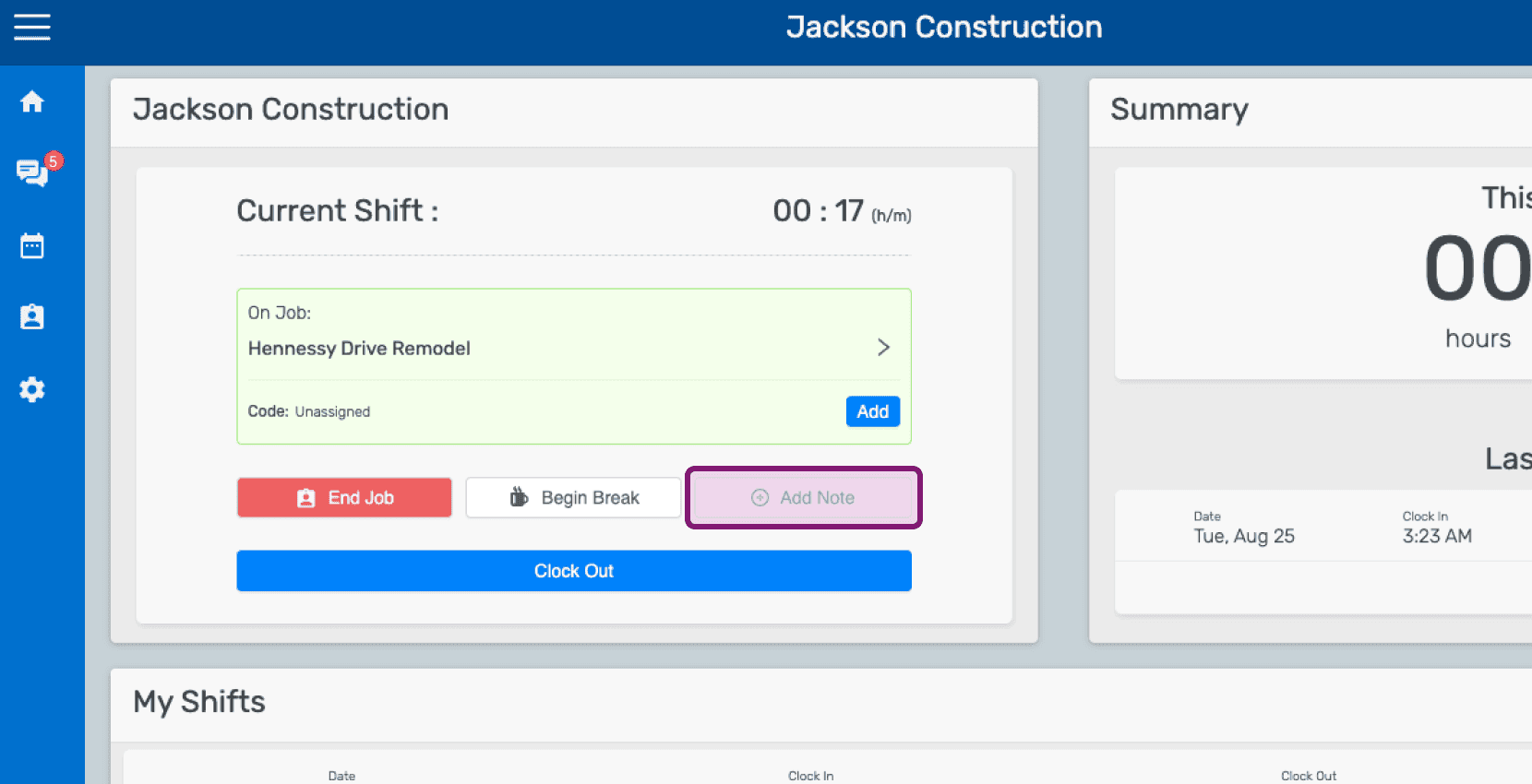
Mobile home dashboard showing an open job shift with the Add Note button highlighted

Cliquez sur Ajouter une note au shift de travail
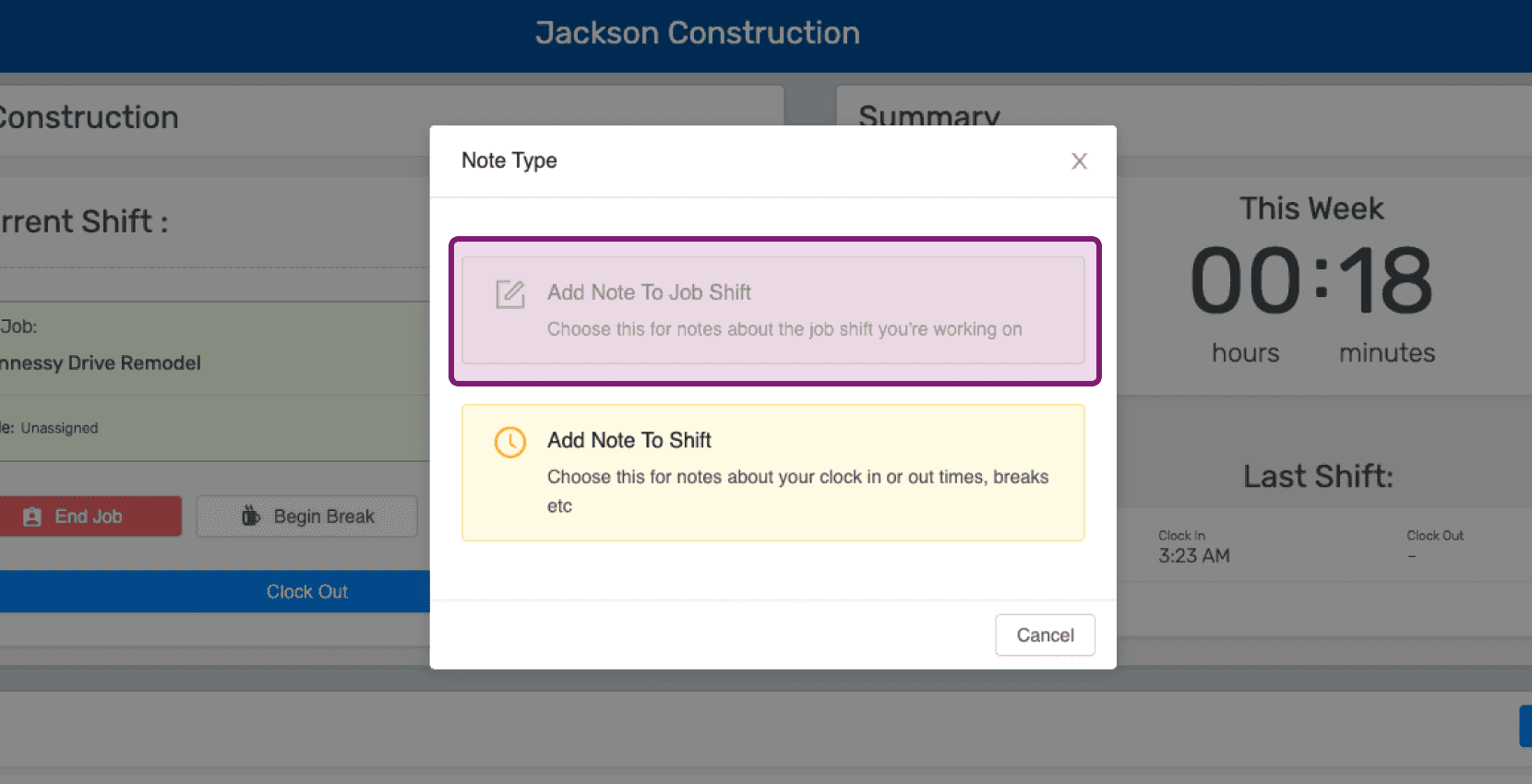
Mobile Note Type popup with the 'Add Note To Job Shift' option outlined in purple

Saisissez une description de la note.
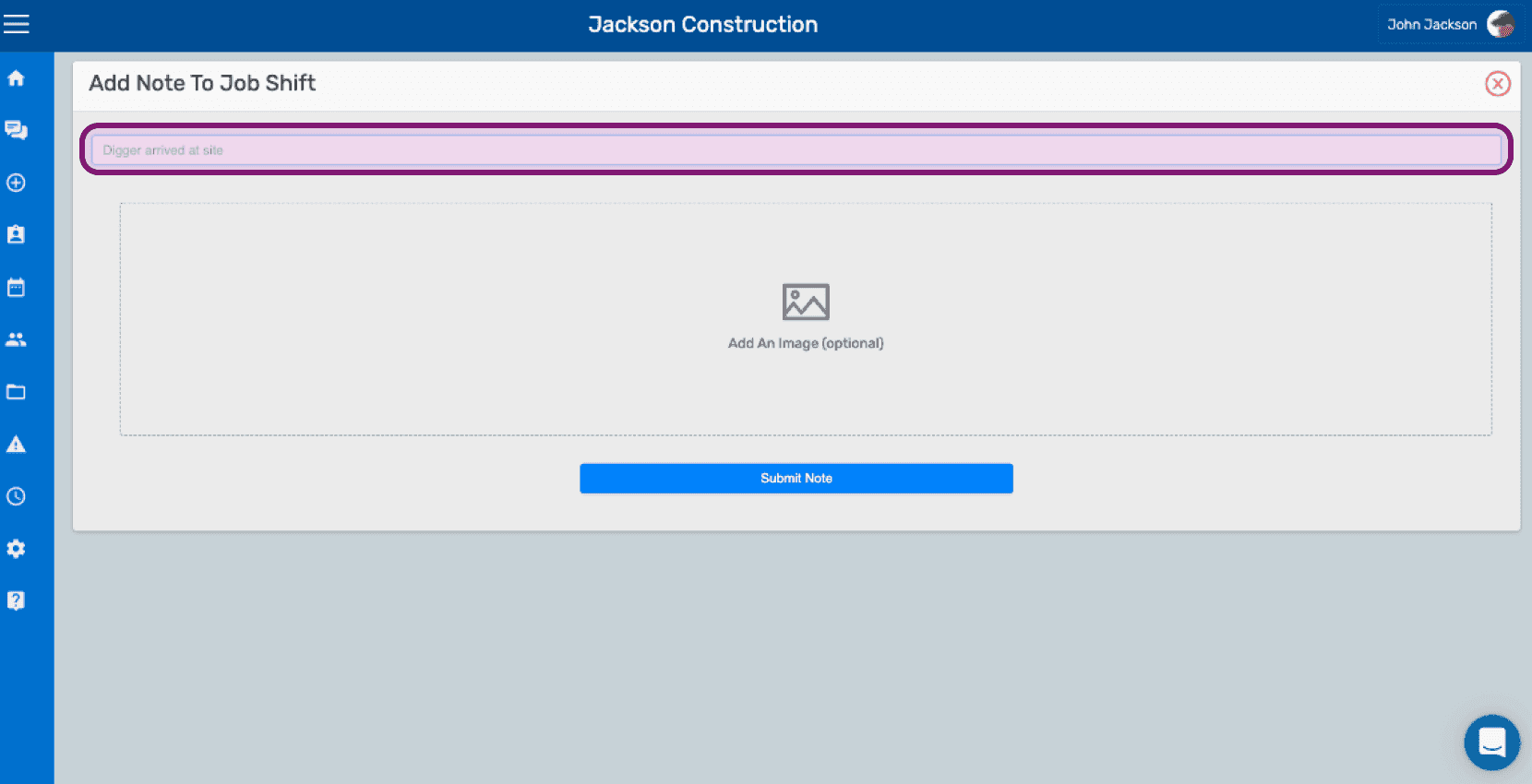
SINC web Add Note To Job Shift screen with the note text field outlined above the image upload area

Téléchargez une image en lien avec la note si vous le souhaitez.
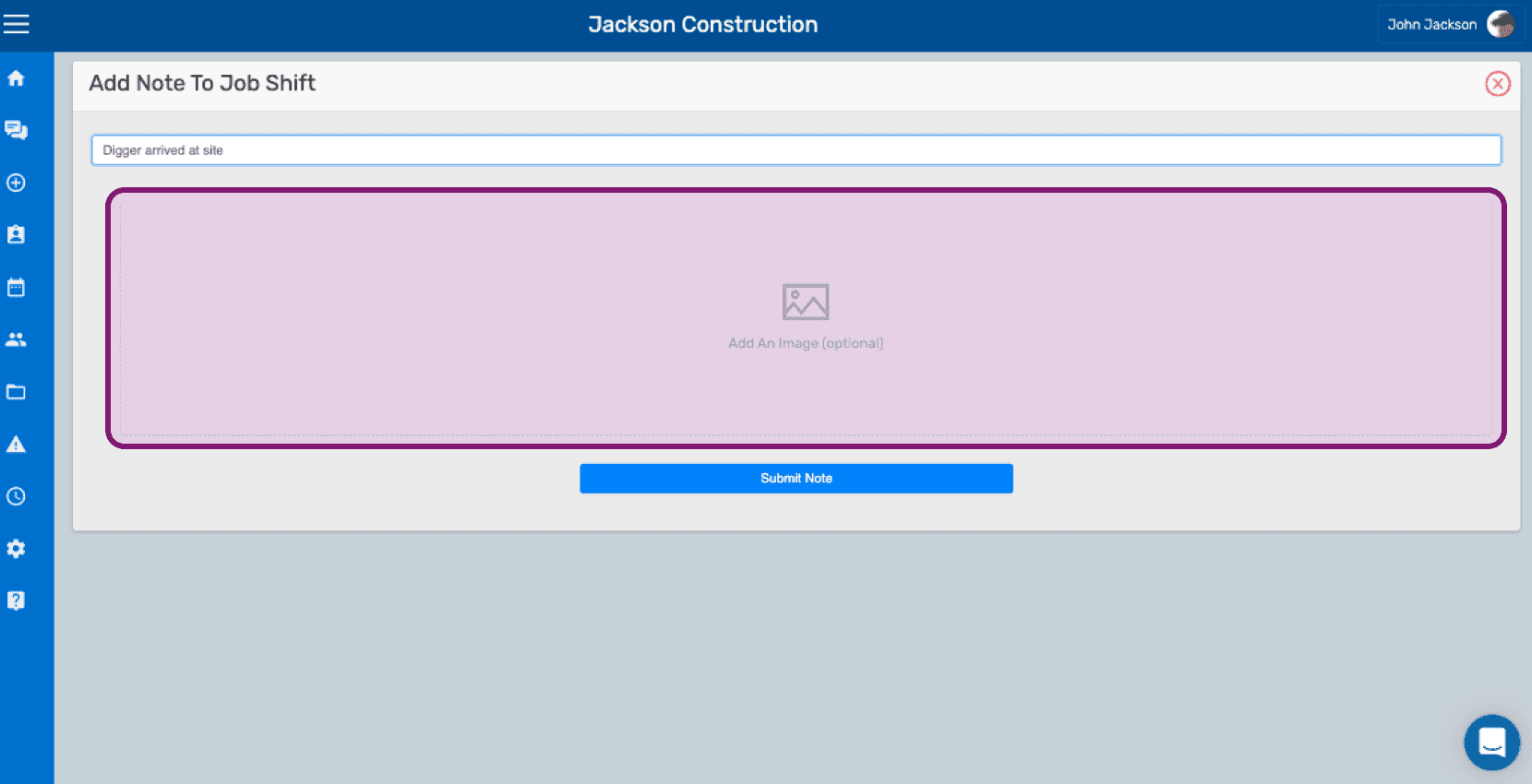
SINC web Add Note To Job Shift screen with the optional image upload area outlined in pink

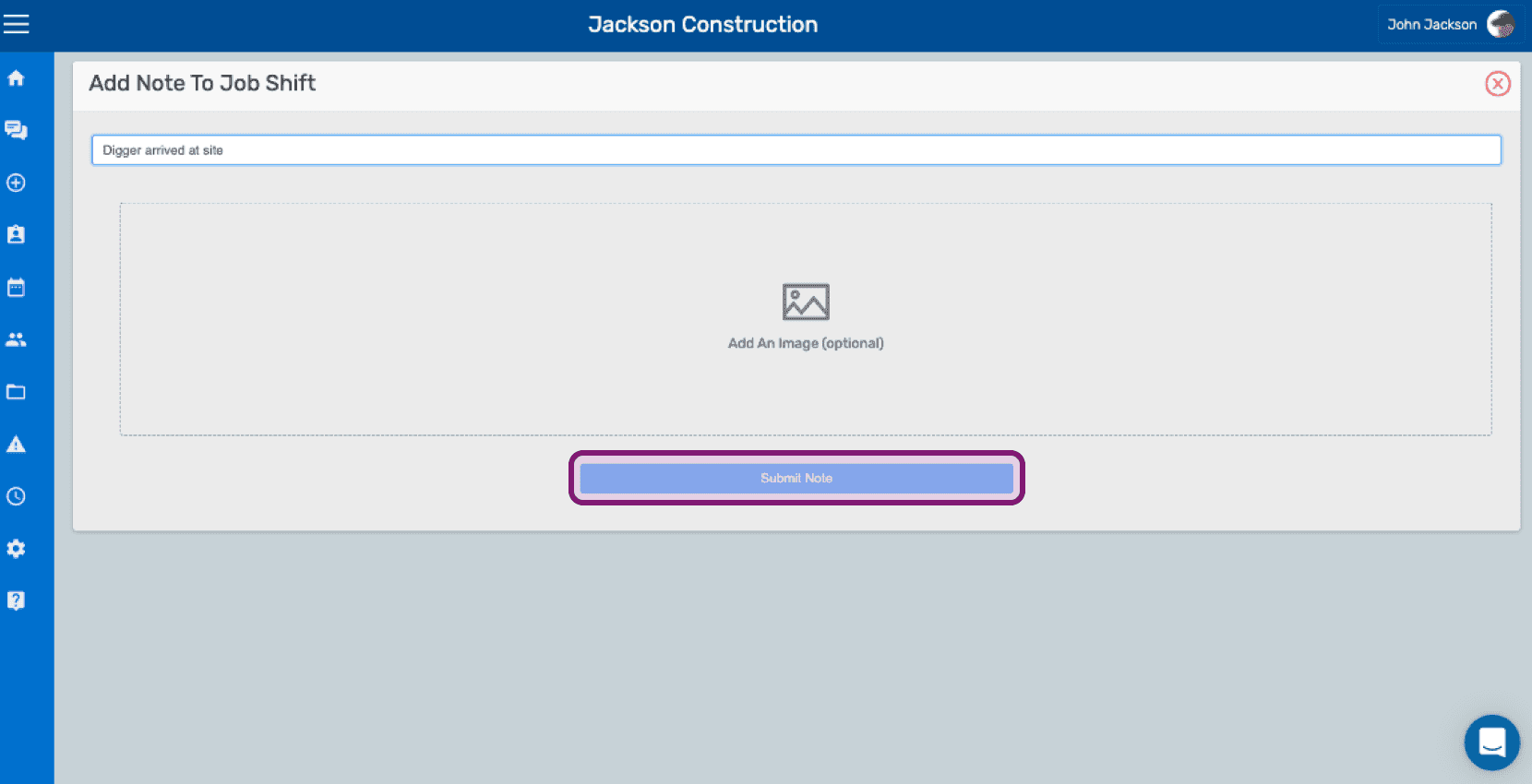
Cliquez sur Envoyer la note

Add Note To Job Shift screen with a text field, optional image upload, and the Submit Note button outlined

Cela a-t-il répondu à votre question ?