Ajoutez des notes à votre feuille de temps

Dans ce guide, nous verrons comment ajouter des notes à vos shifts dans Sinc.

Sam Dolbel
Sam Dolbel
May 26th, 2023

Il existe deux façons d’ajouter des notes à un service : pendant le service ou une fois celui-ci terminé. Sur mobile, pour ajouter une note à un service en cours : appuyez sur Ajouter une note
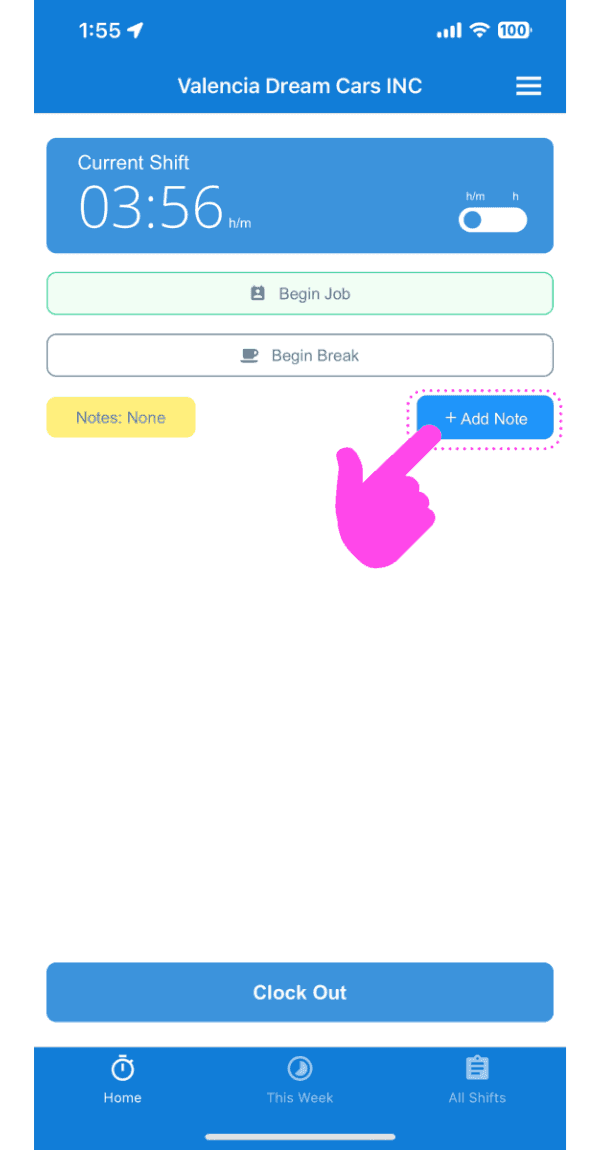
SINC mobile app current shift screen with a pink hand pointing to the Add Note button

Saisissez une description de la note.
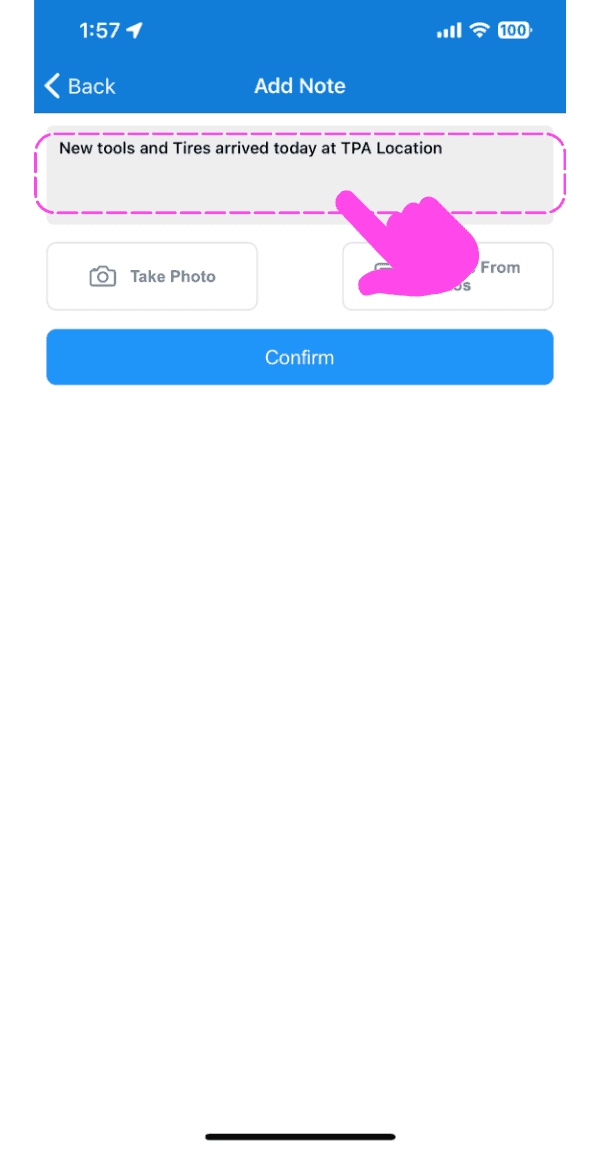
Add Note screen with a text field containing a note, pointed out by a pink arrow

Ajoutez une image en lien avec la note si vous le souhaitez.
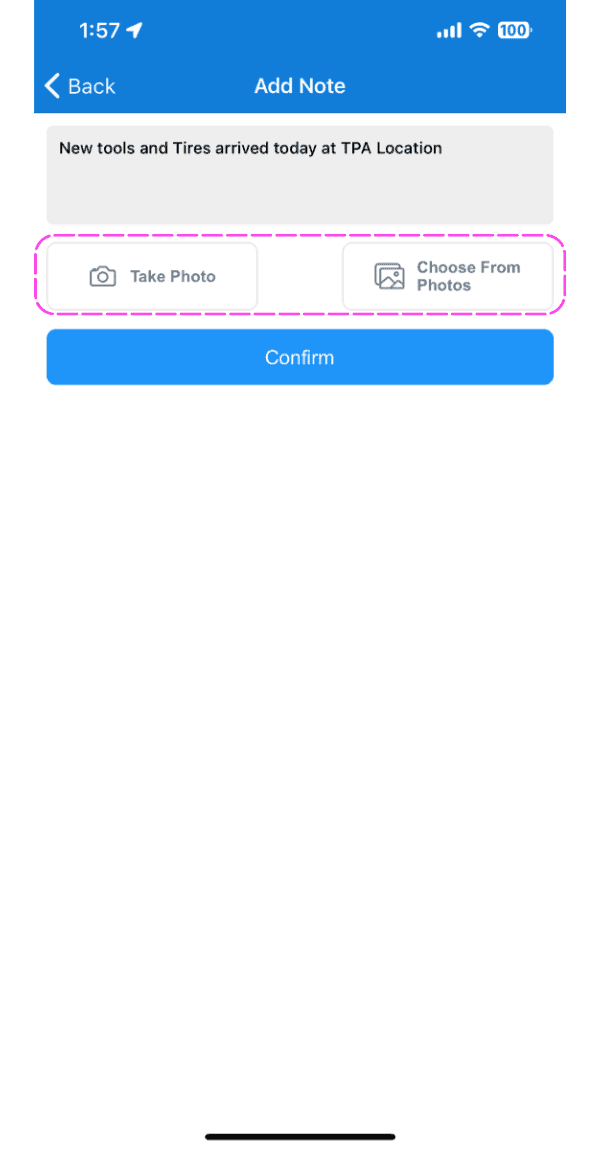
Add Note screen with Take Photo and Choose From Photos buttons highlighted by a pink dashed box

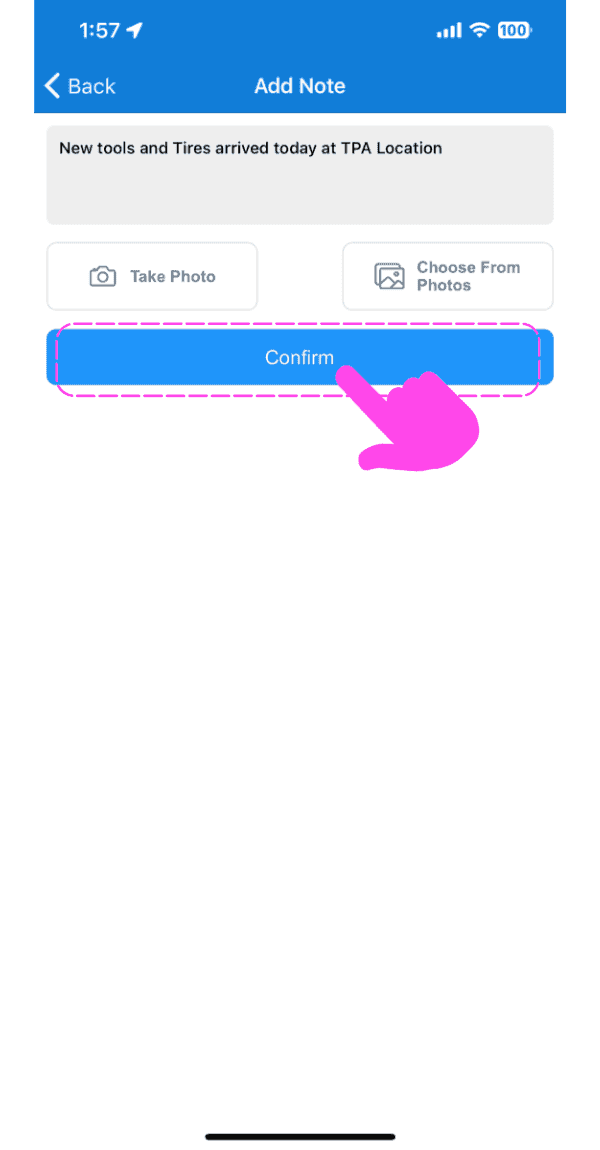
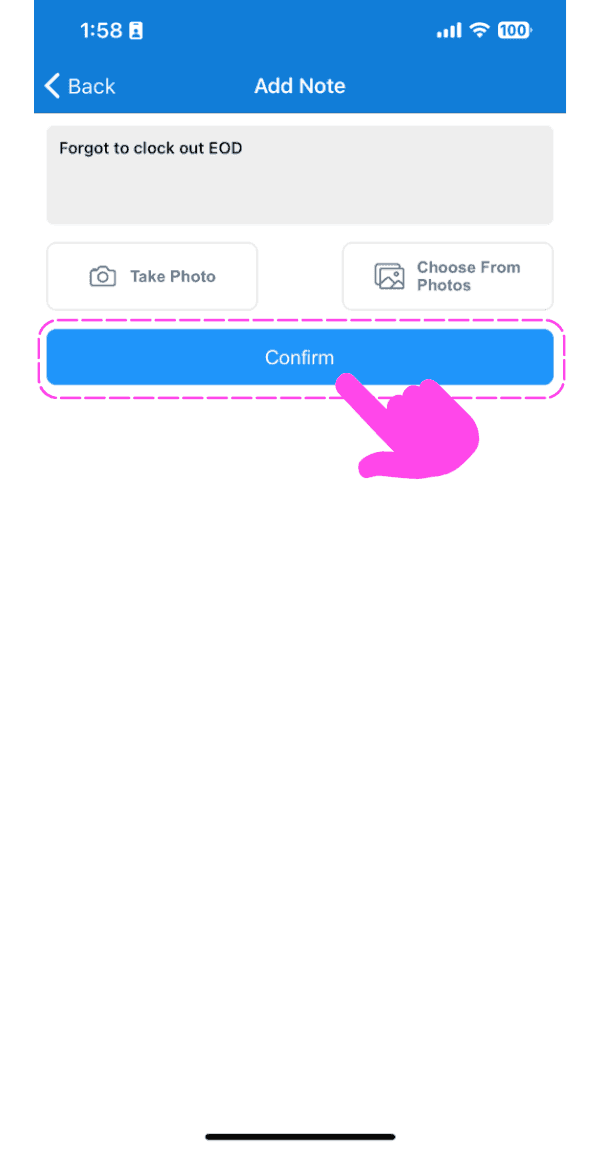
Appuyez sur Confirmer

SINC mobile Add Note screen with a pink hand pointing to the Confirm button

Pour ajouter une note à un ancien service : appuyez sur Menu Mes services
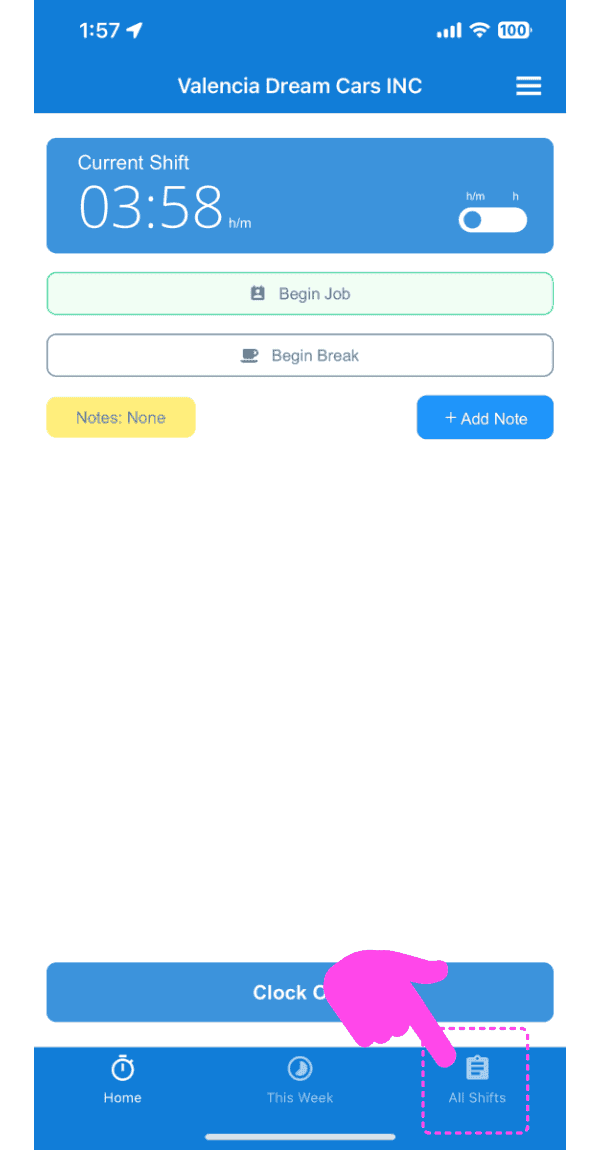
Mobile app Current Shift screen with the All Shifts tab highlighted by a pink arrow

Appuyez sur Le changement en question
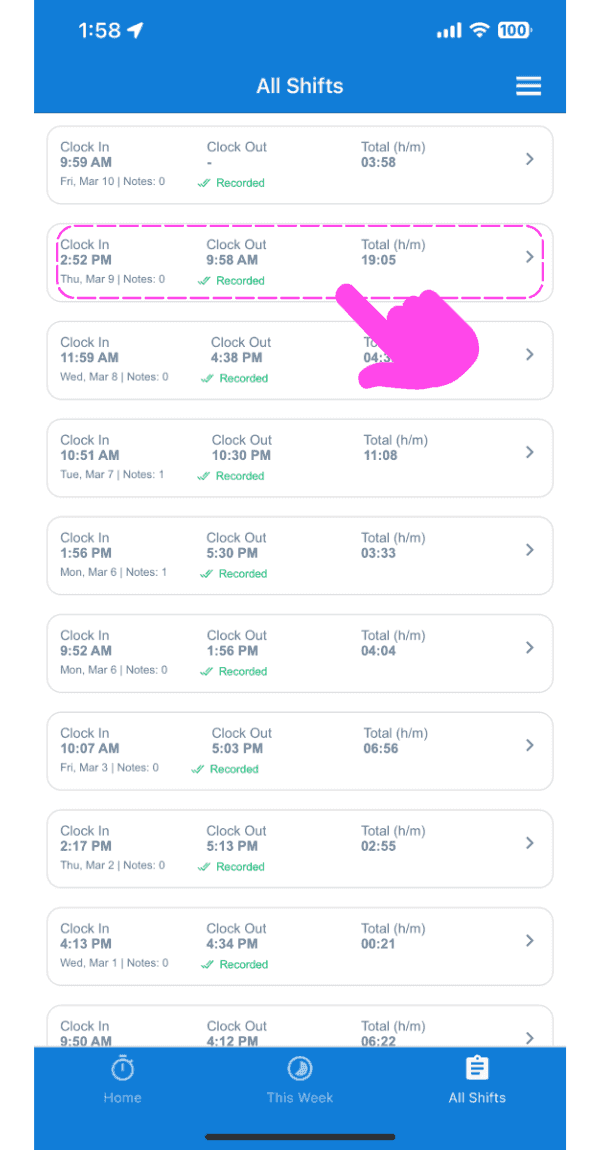
SINC mobile All Shifts list with a pink arrow pointing to a highlighted shift entry

Sous l’onglet Informations, appuyez sur Ajouter une note
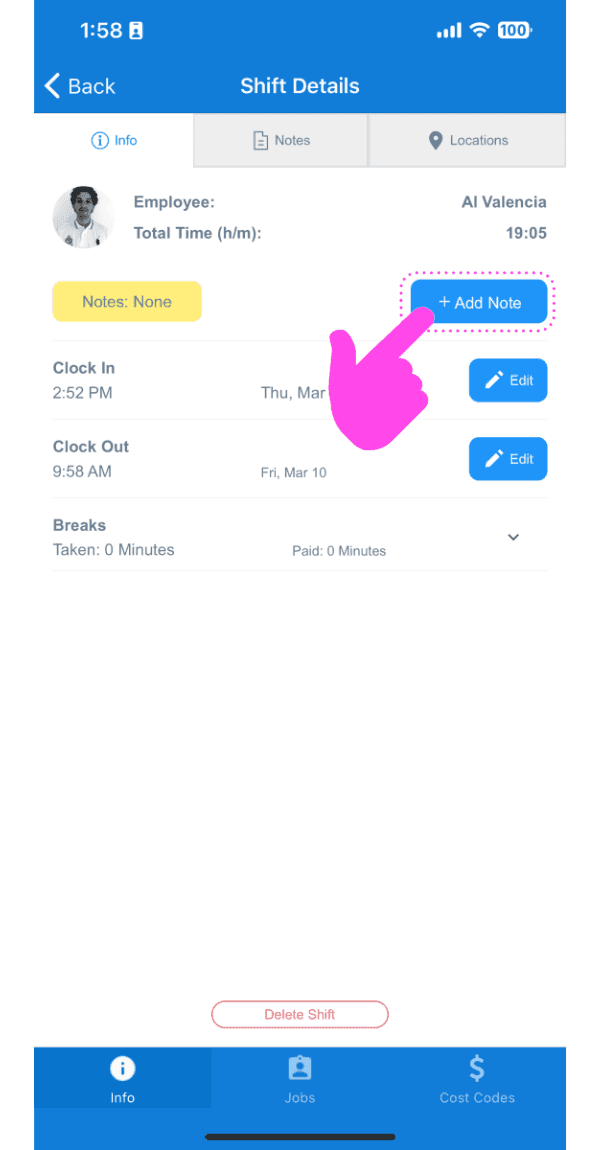
Shift Details Info tab with a pink arrow pointing to the Add Note button

Saisissez une description de la note.
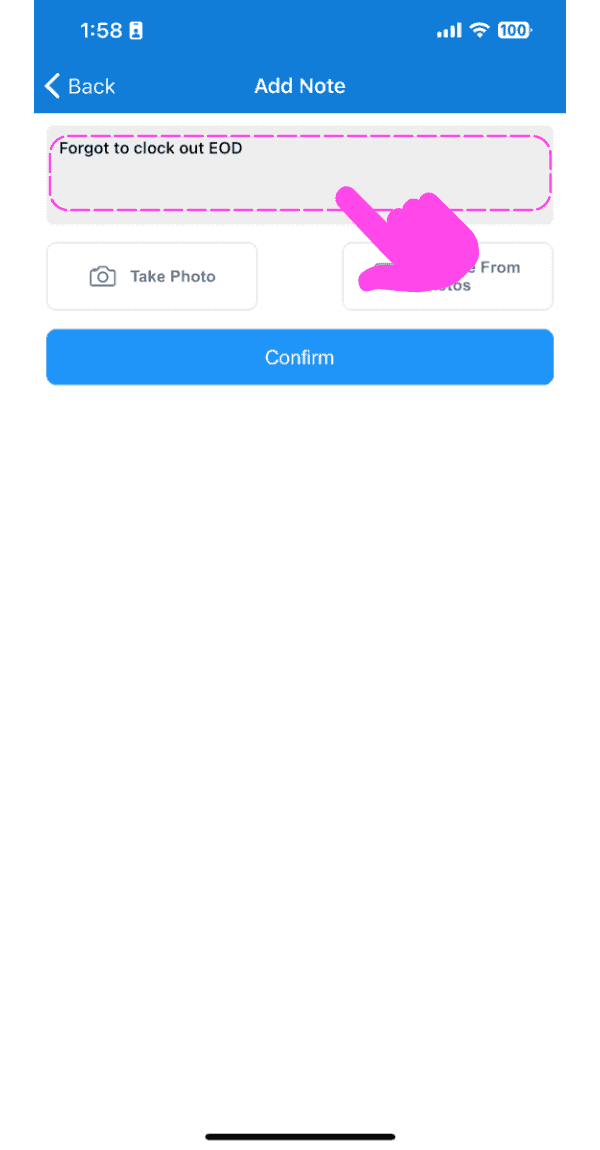
SINC mobile Add Note screen for a time sheet with a description entered and the Confirm button below

Ajoutez une image en lien avec la note si vous le souhaitez.
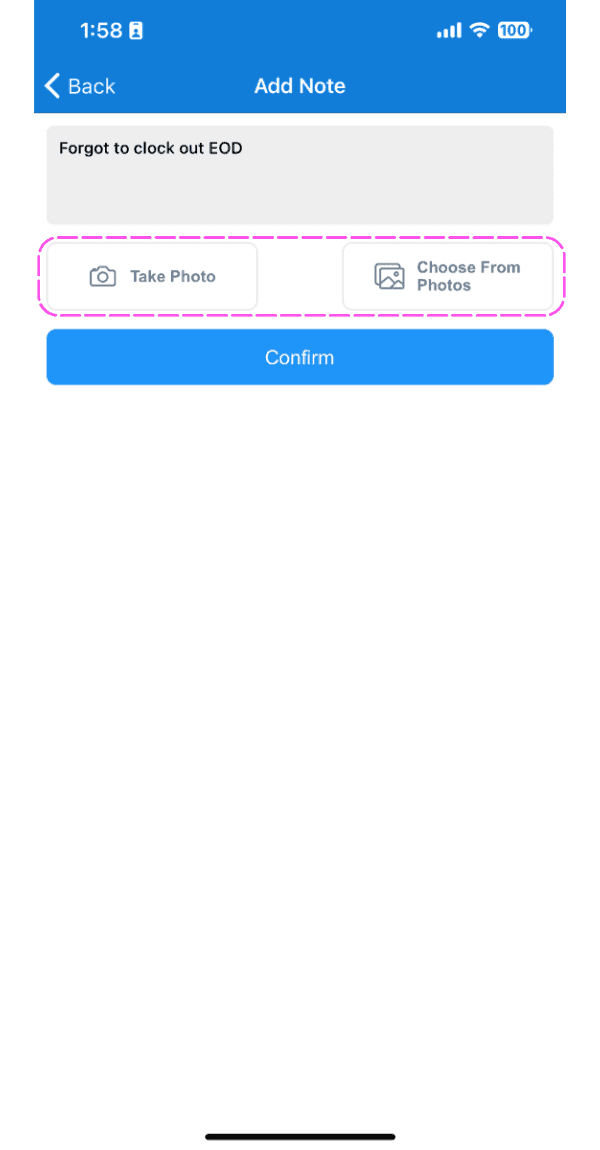
Mobile Add Note screen for a timesheet note with photo upload options outlined in pink

Appuyez sur Confirmer

SINC mobile Add Note screen with typed note text and a pink hand pointing to the Confirm button

Sur le Web, pour ajouter une note à un service ouvert : cliquez sur Ajouter une note
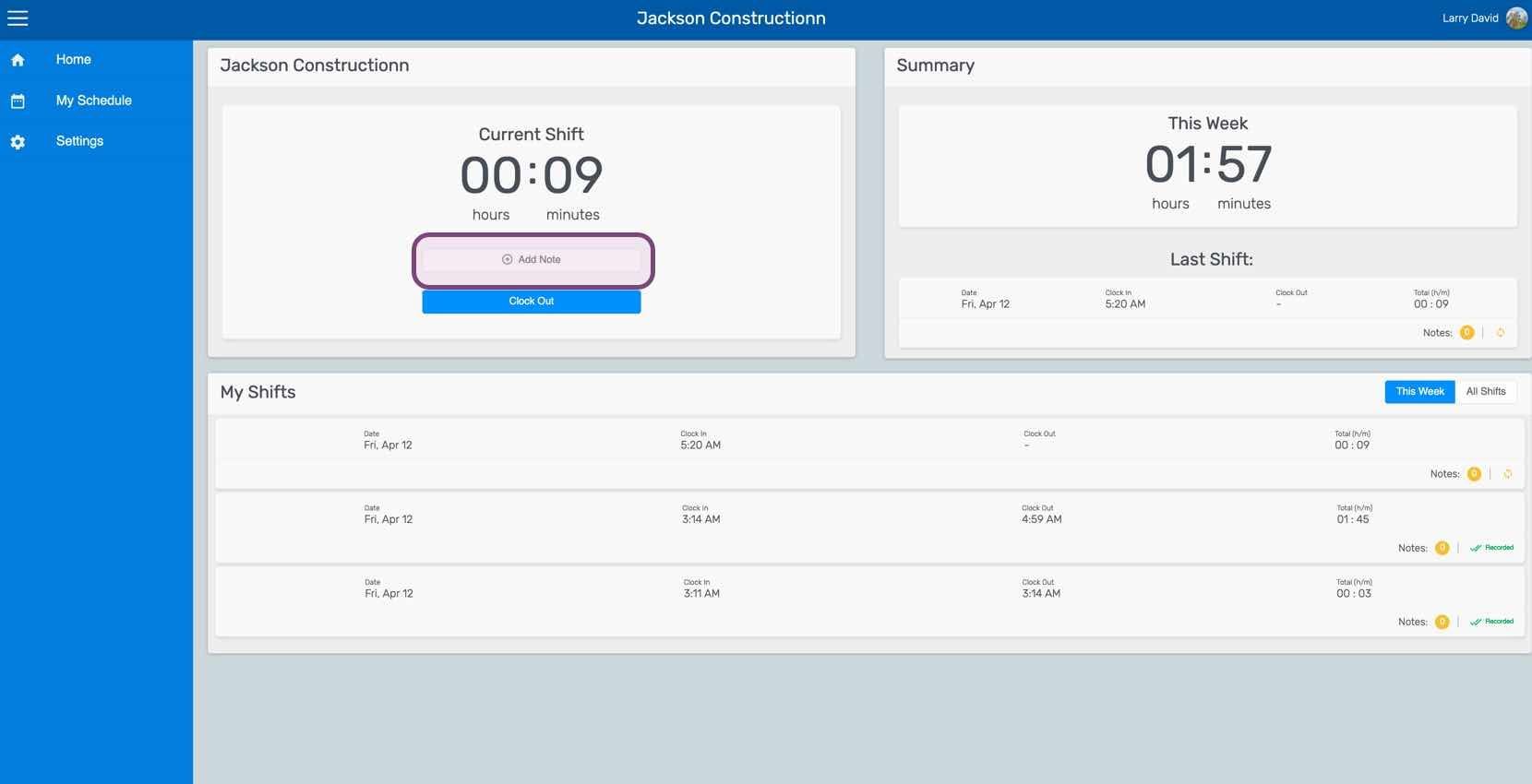
Web dashboard Current Shift panel with the Add Note button highlighted

Saisissez une description de la note.
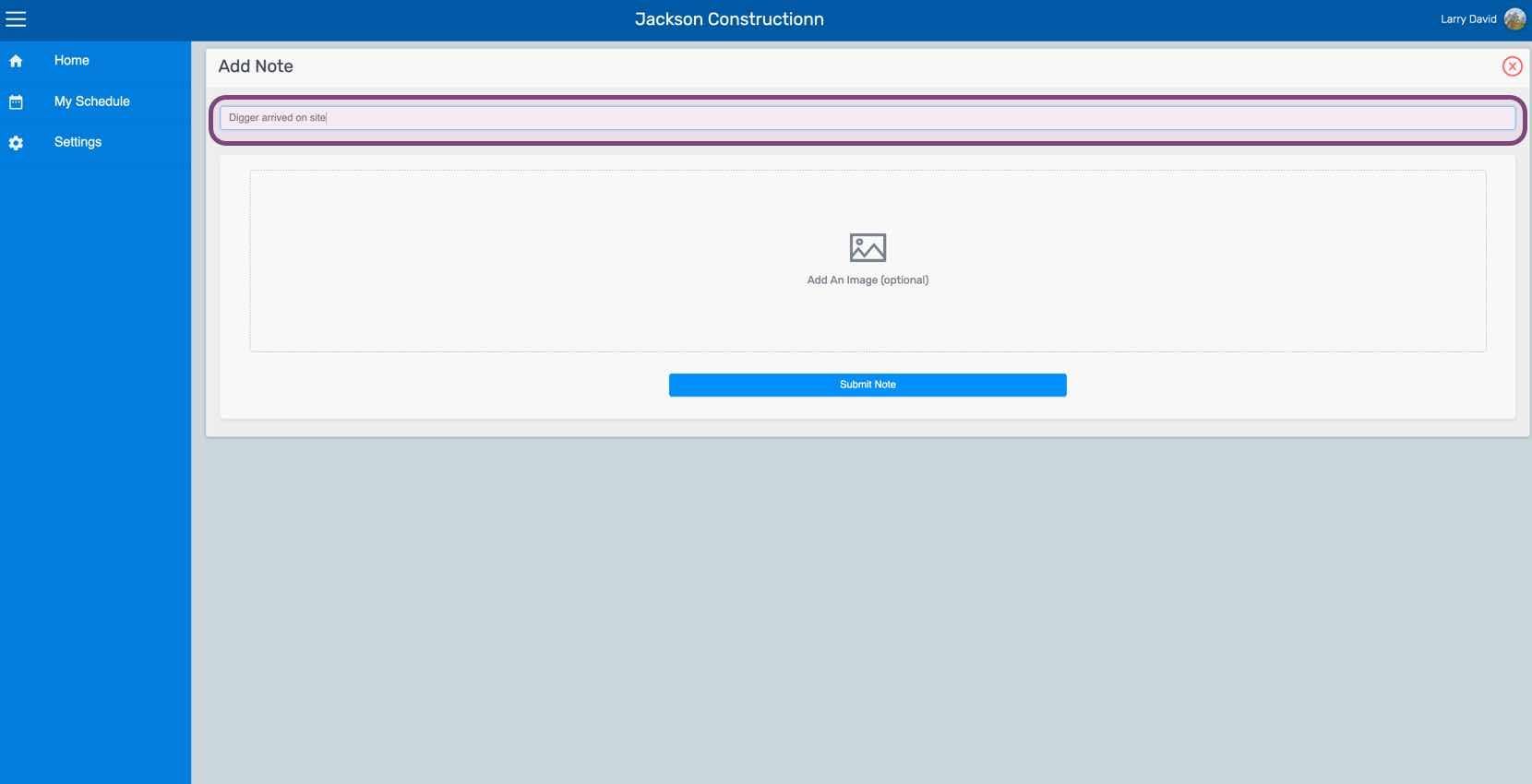
Web Add Note screen with the note text field outlined in purple and an optional image upload area

Importez une image en lien avec la note si vous le souhaitez.
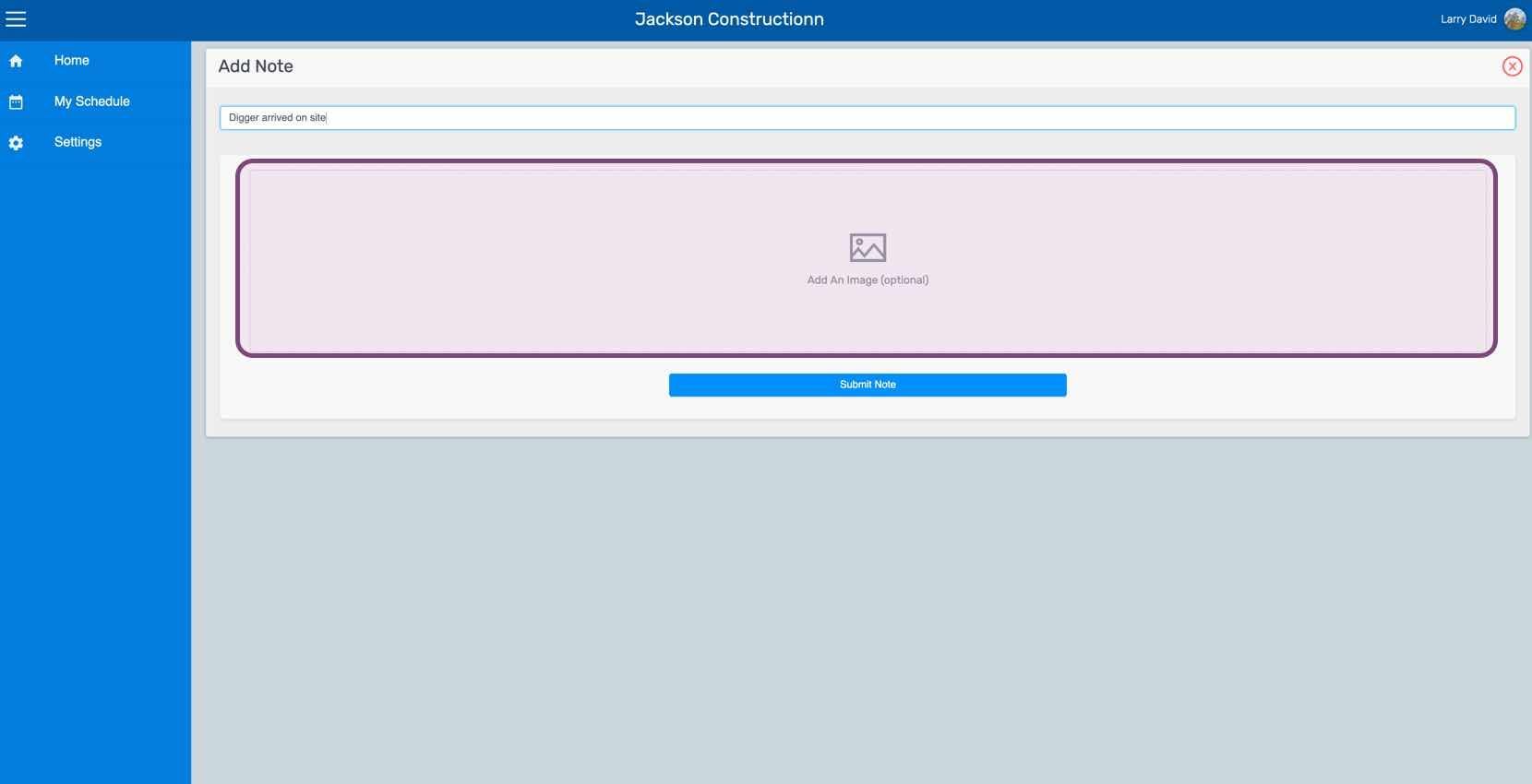
SINC web Add Note screen with the note text field and image upload area outlined

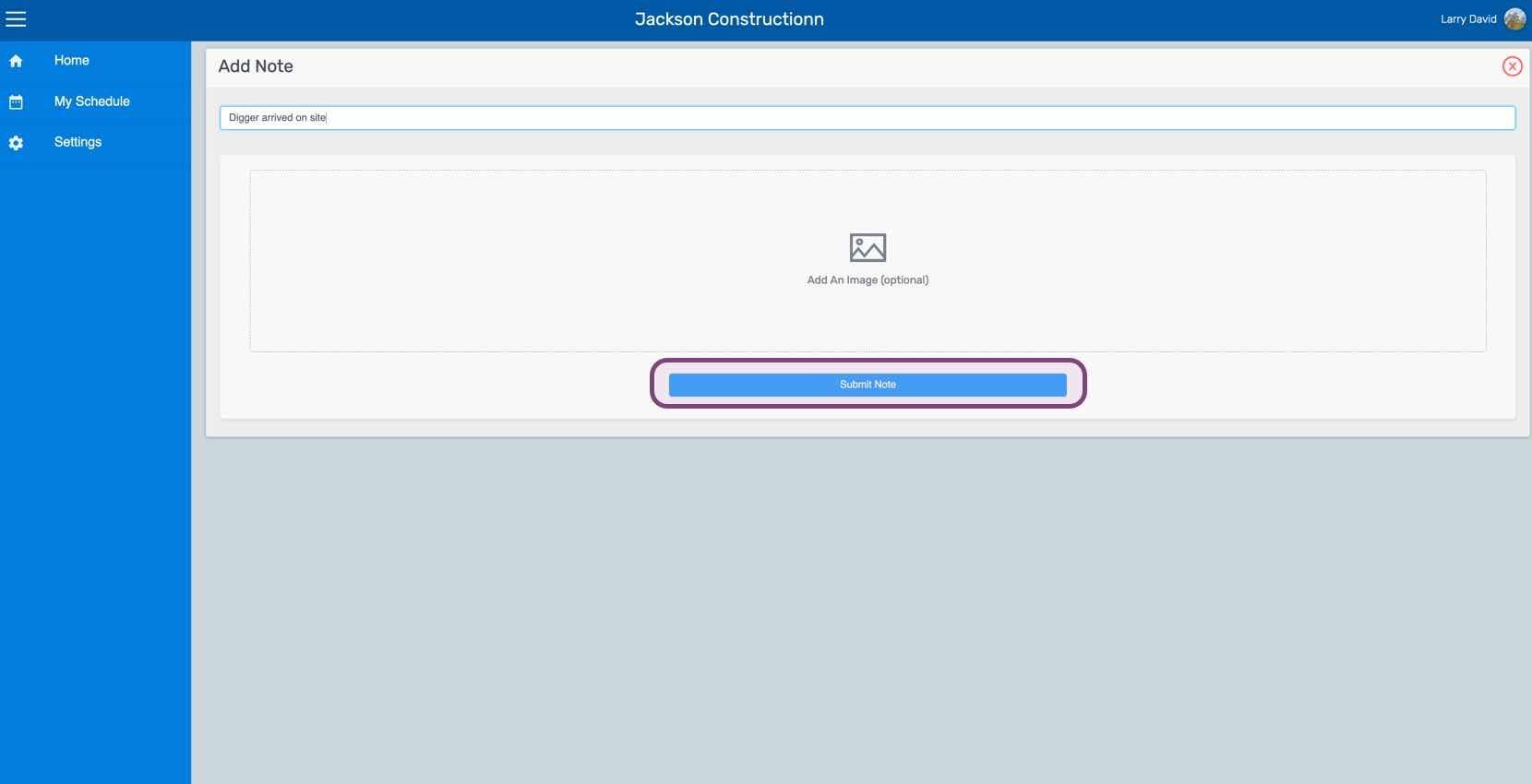
Cliquez sur Envoyer la note

SINC web Add Note screen with the Submit Note button circled in pink

Pour ajouter une note à un ancien shift : cliquez sur Mes shifts
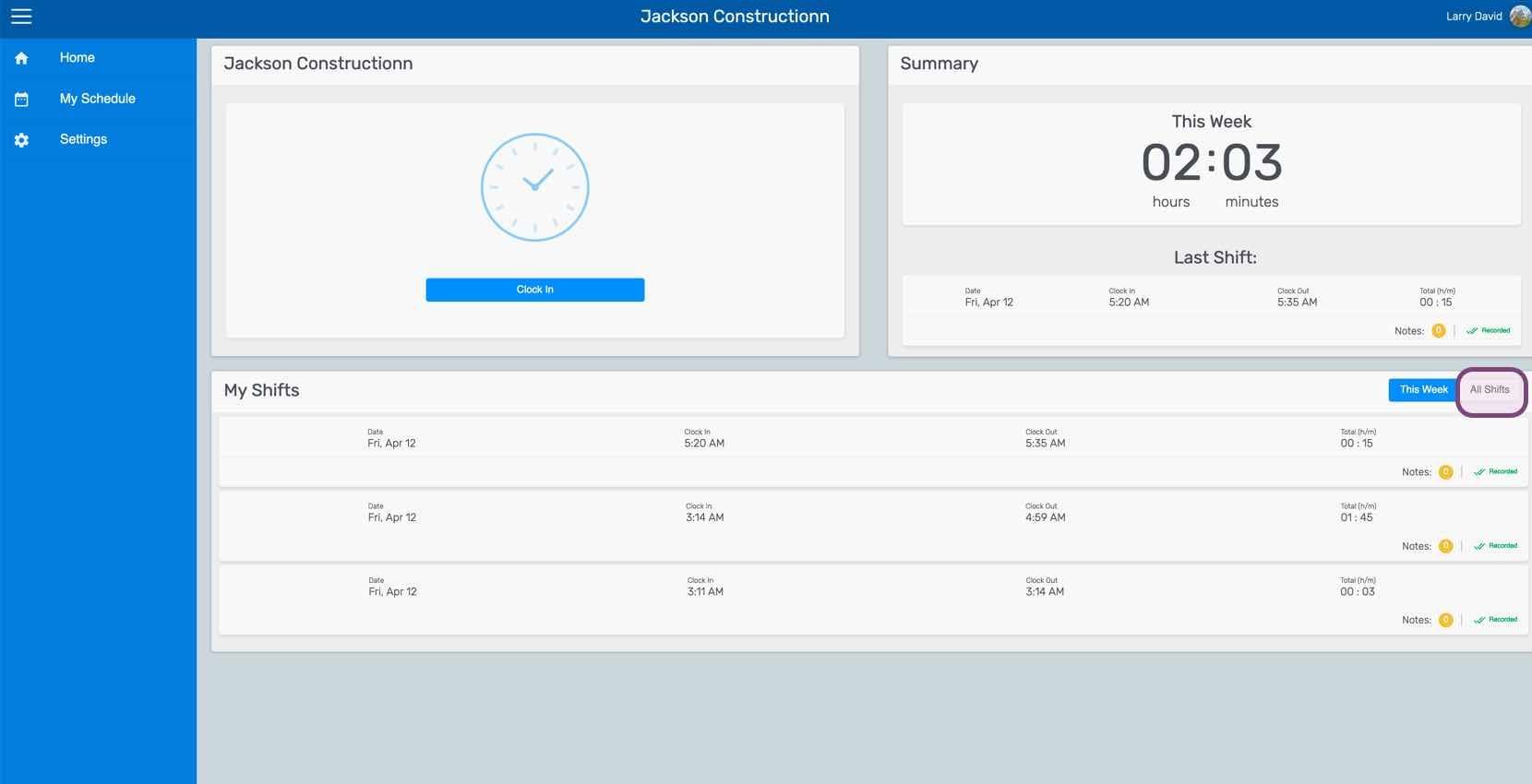
Employee home dashboard showing the Clock In button, weekly summary, and My Shifts list with This Week tab circled

Cliquez sur Le changement en question
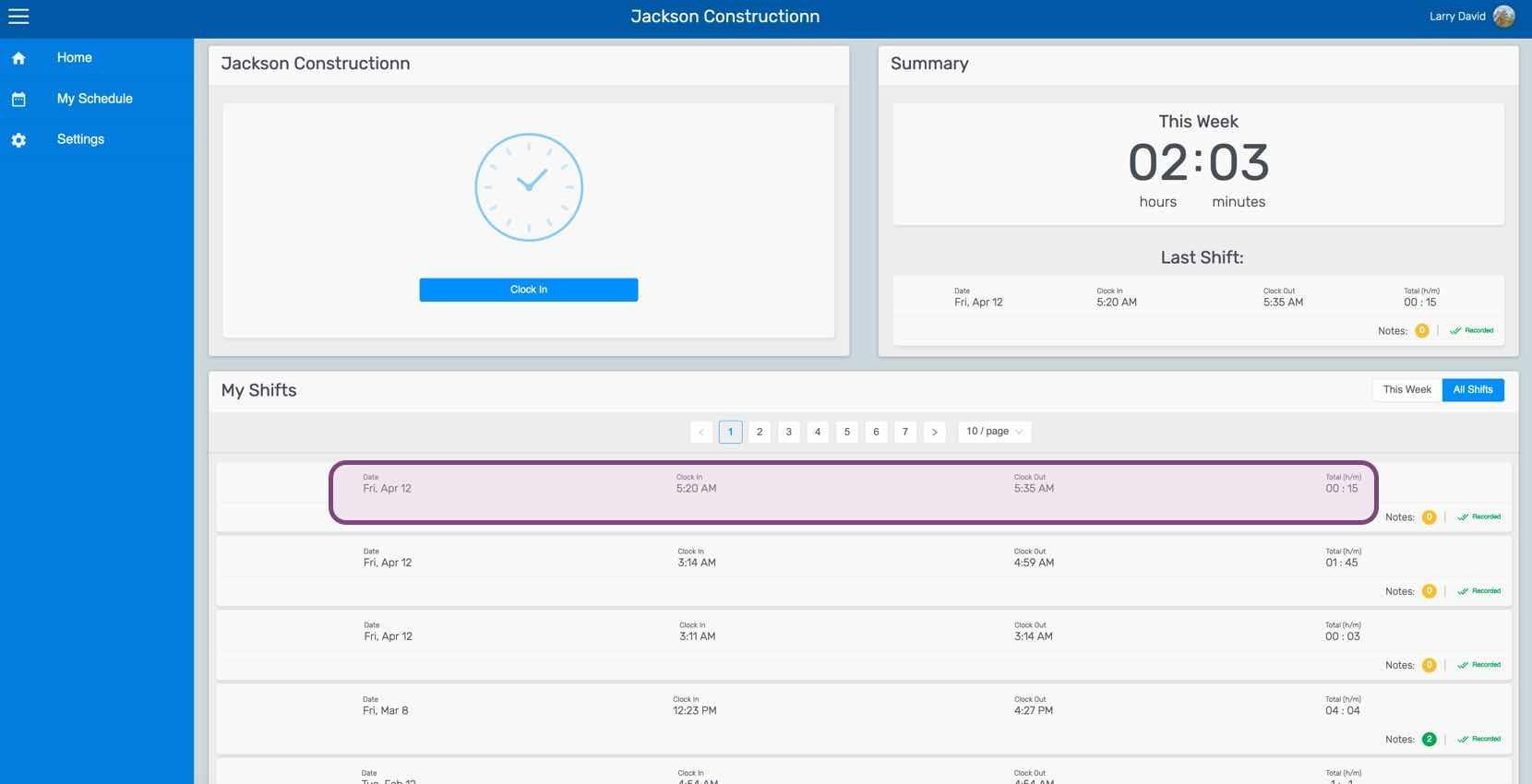
SINC web My Shifts list with a specific shift row circled in pink

Dans l’onglet Shift, cliquez sur Ajouter une note
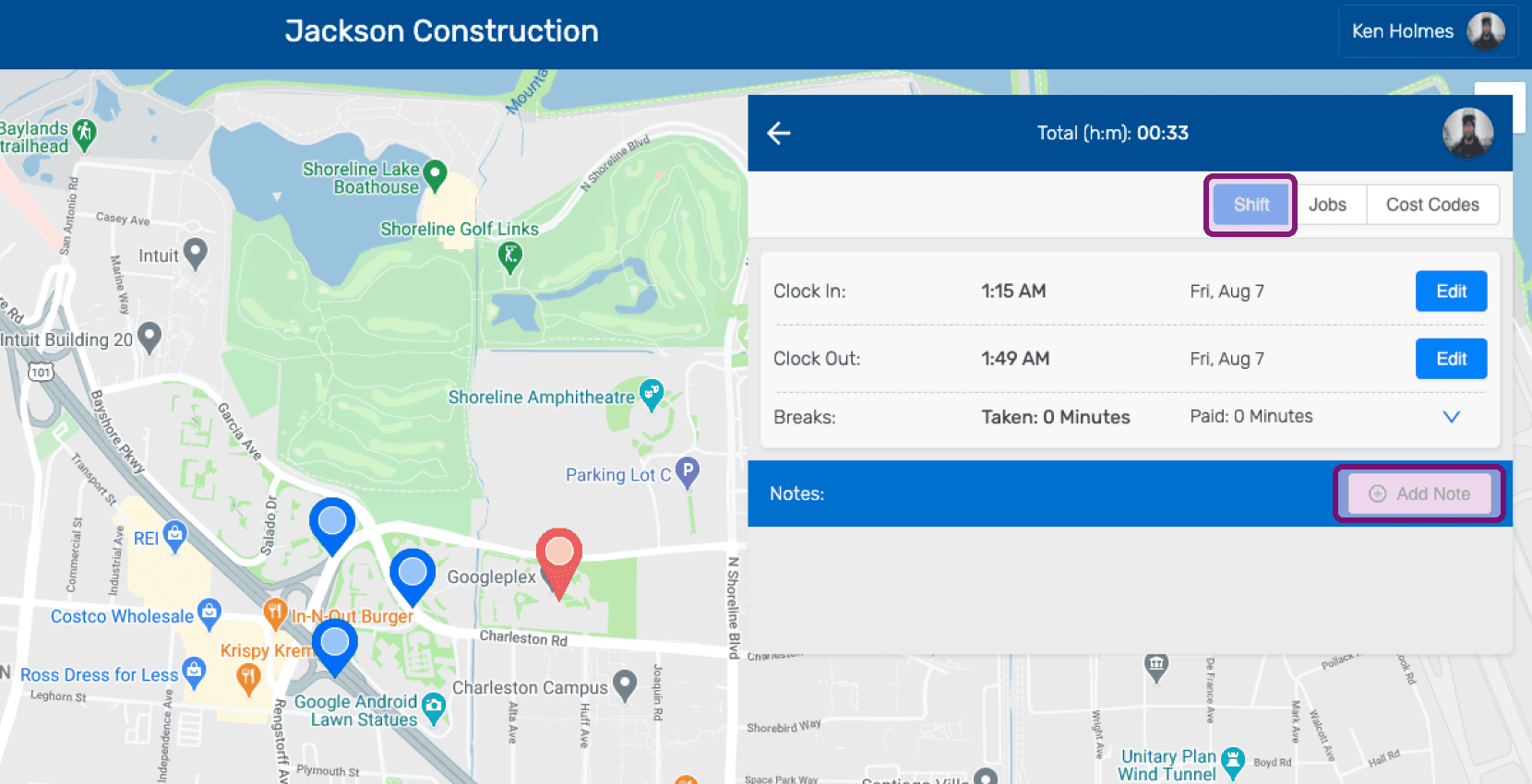
Shift details screen with the Add Note button outlined in pink

Saisissez une description de la note.
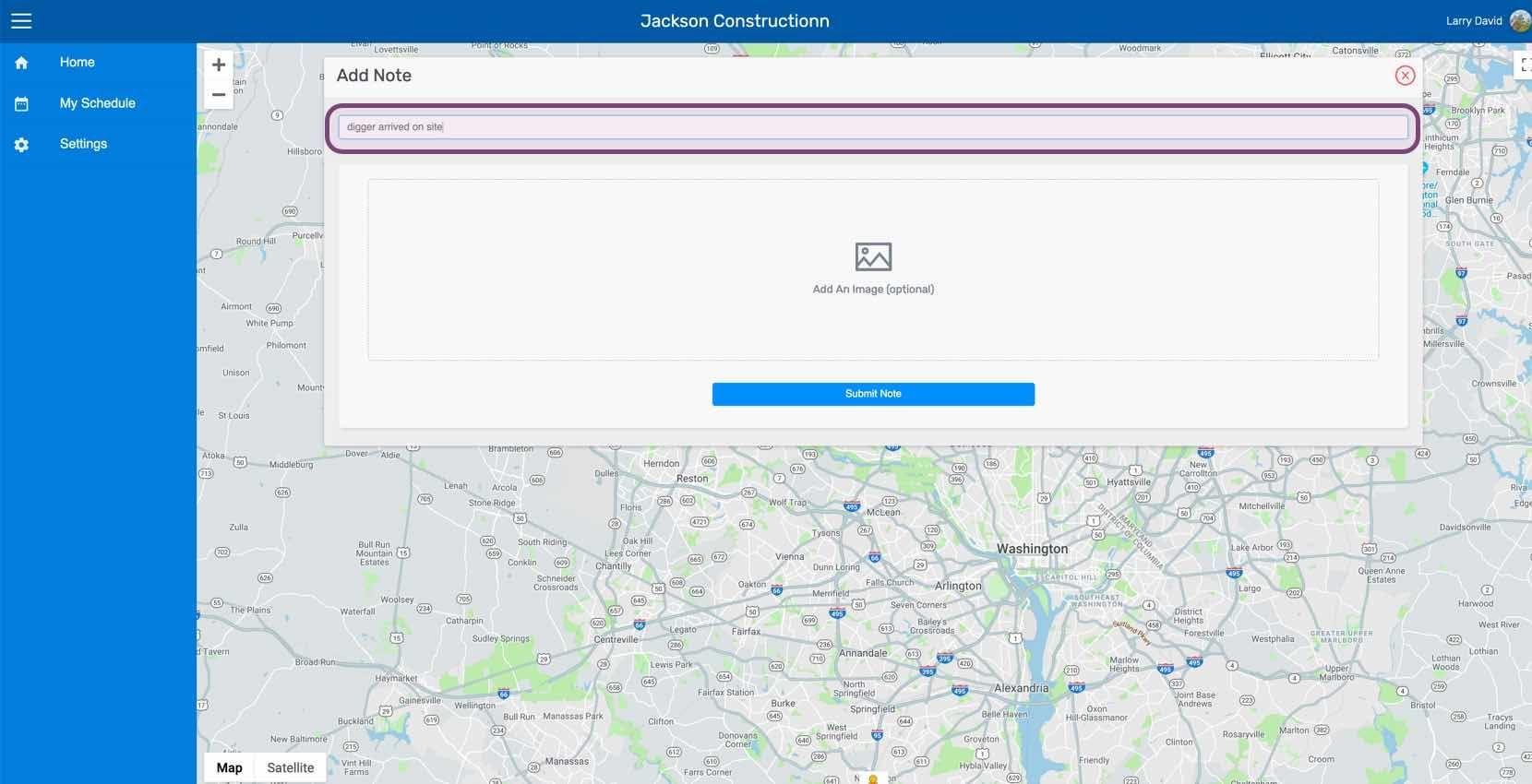
Web Add Note form with the description text field circled and an optional Add An Image area below

Ajoutez une image en lien avec la note, si vous le souhaitez.
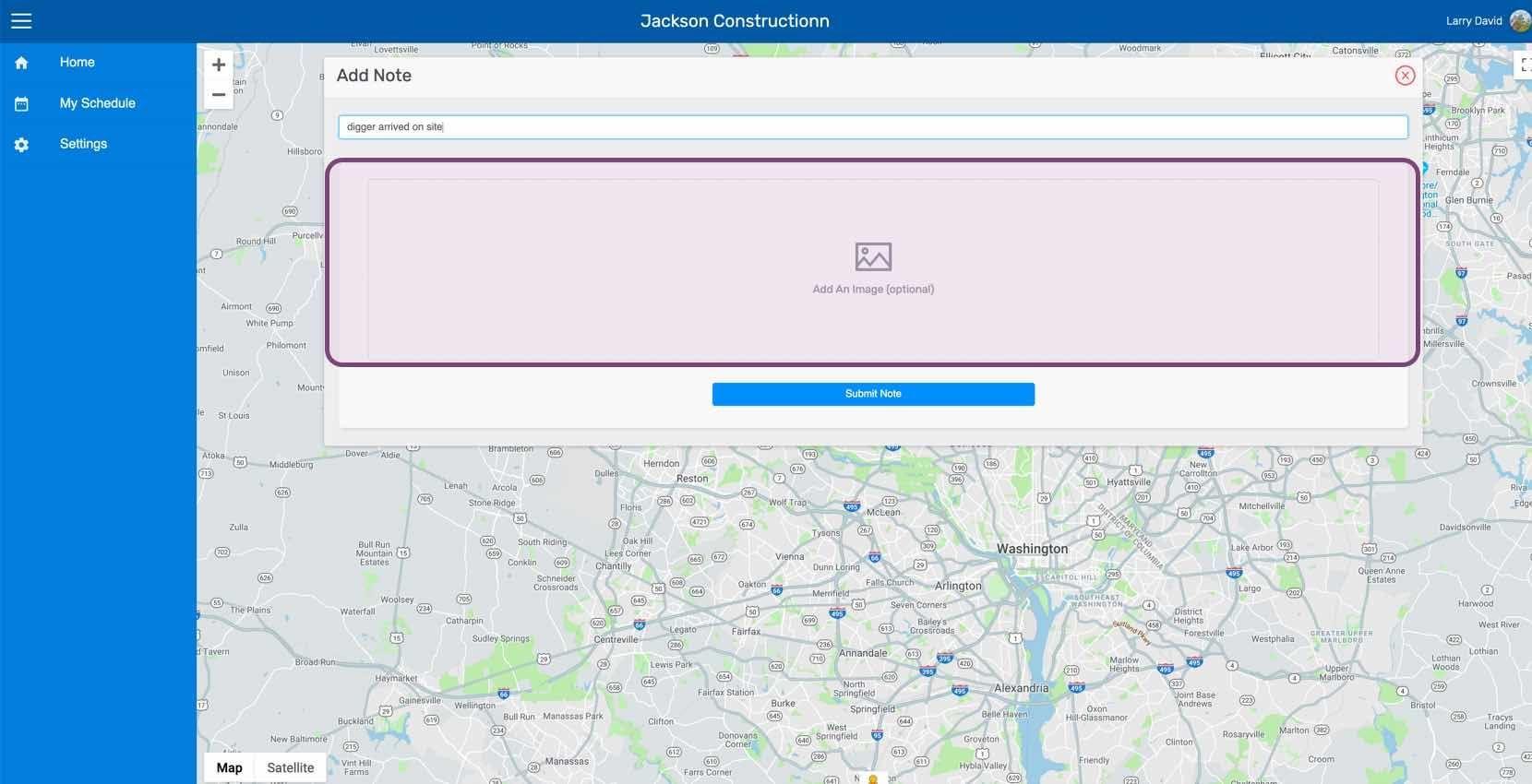
SINC web Add Note screen with the image upload area highlighted above a location map

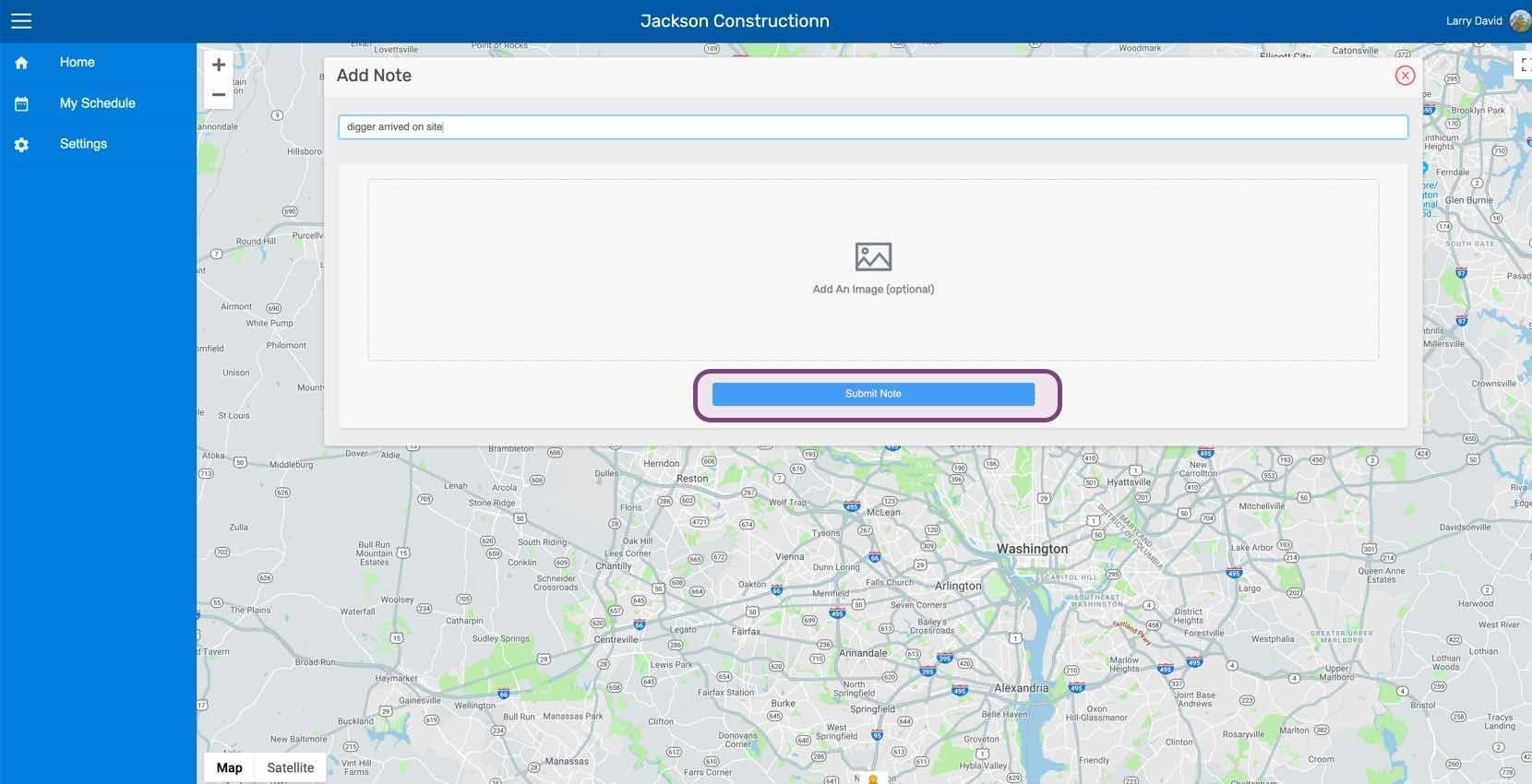
Cliquez sur Soumettre la note

Web Add Note screen with a map background and the Submit Note button outlined in pink

Cela a-t-il répondu à votre question ?