
Pointage des employés
Dans ce guide, nous verrons comment pointer à l’arrivée et au départ de votre service en tant qu’employé.

SINC Support Team
May 26th, 2023
Cette section explique comment pointer son arrivée et son départ d’un poste en tant qu’employé. Toutefois, si un administrateur ajoute une période d’absence pour un employé, celui-ci ne pourra pas pointer pendant cette période.
Appuyez sur Pointer
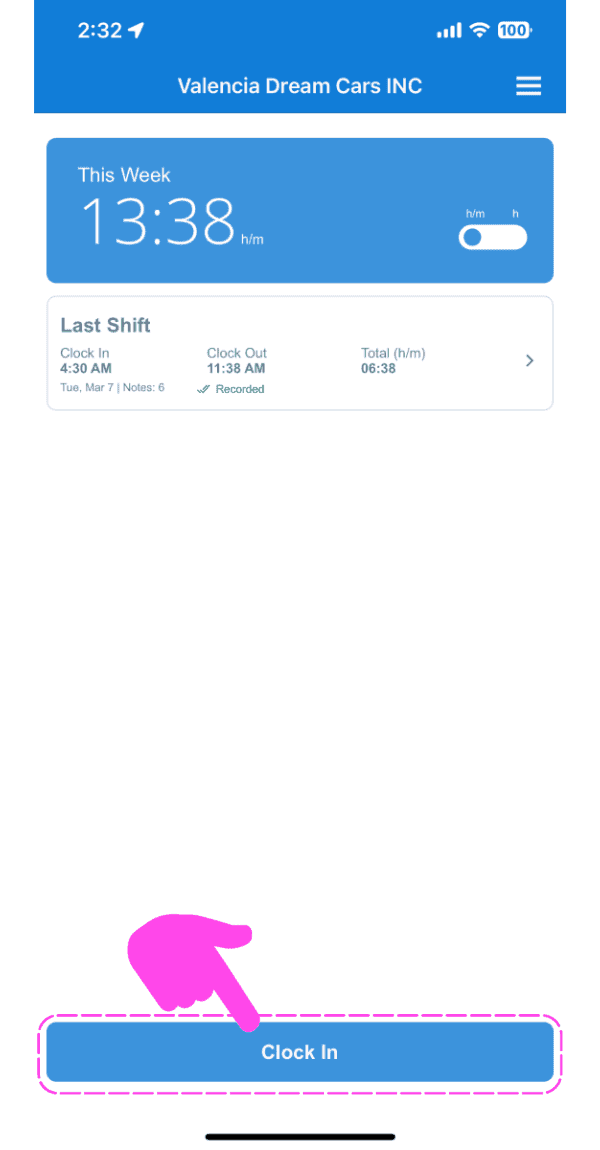
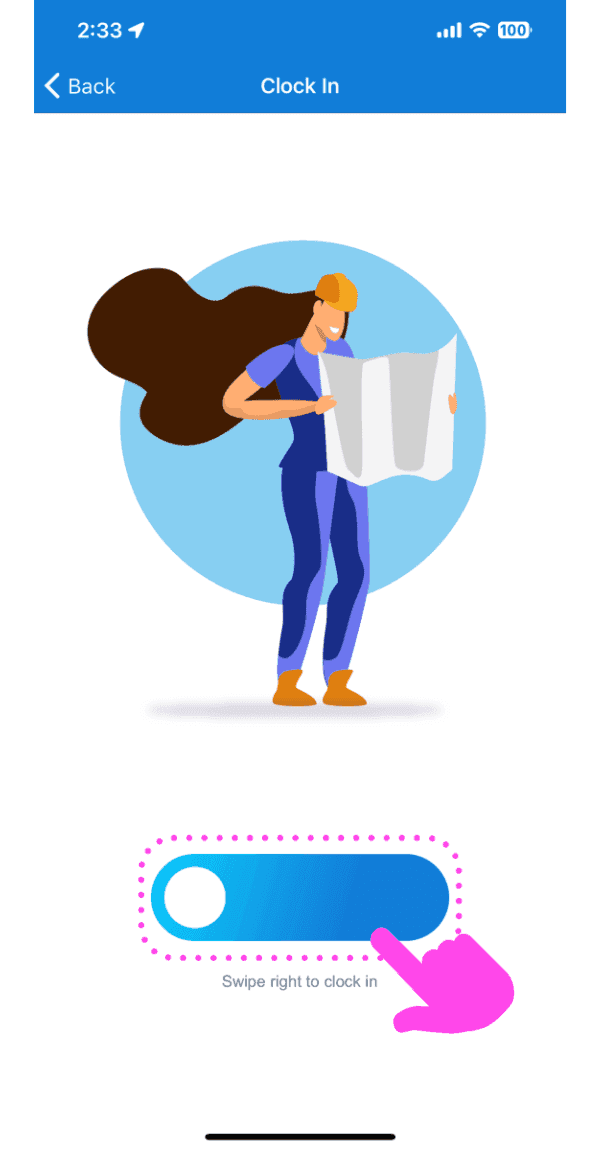
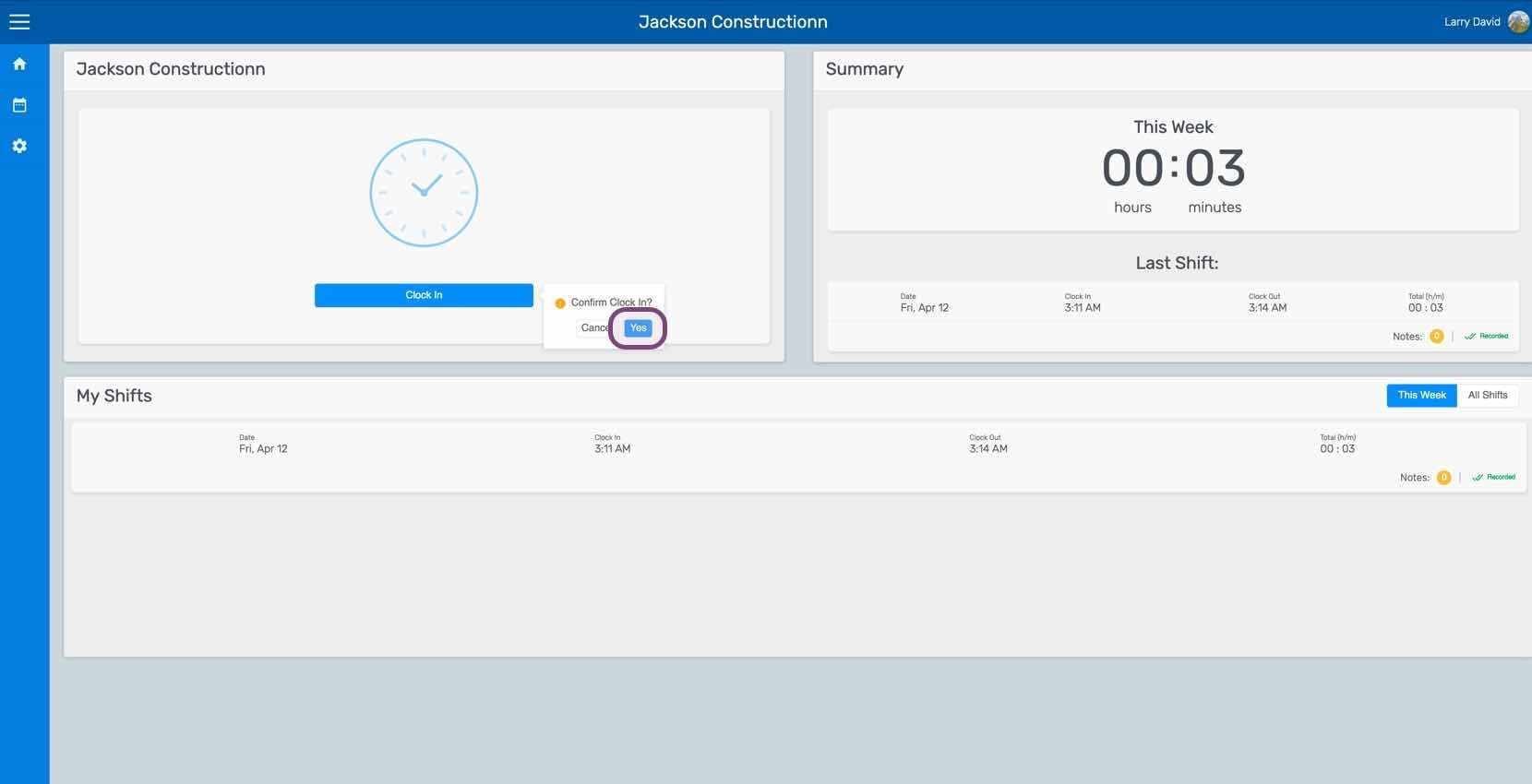
Appuyez sur , puis balayez vers la droite pour pointer (version Web : cliquez sur Oui)
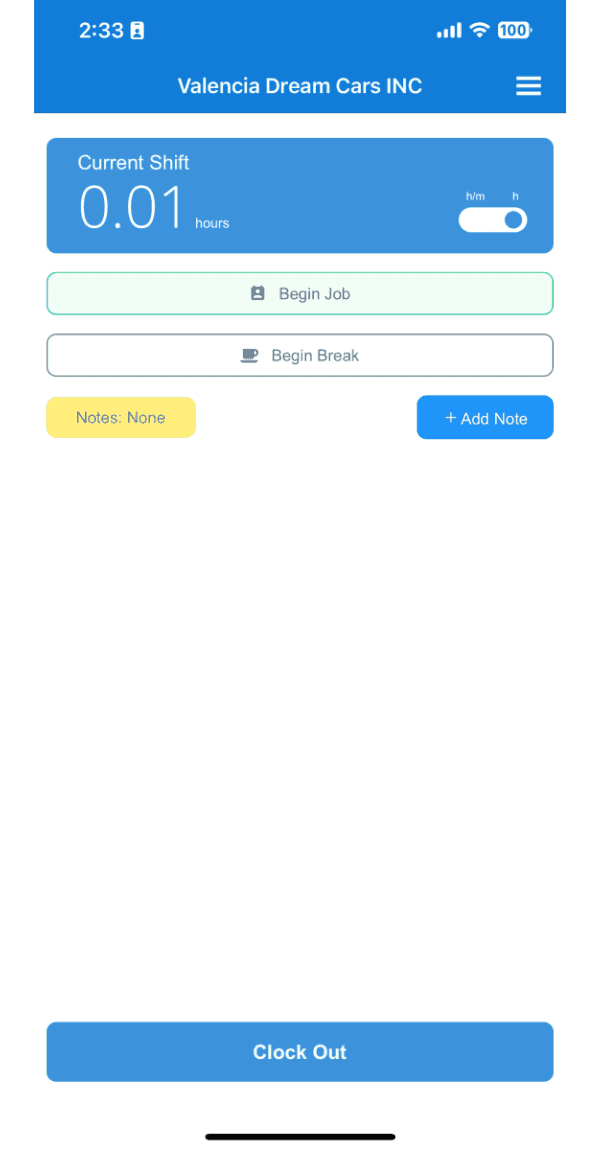
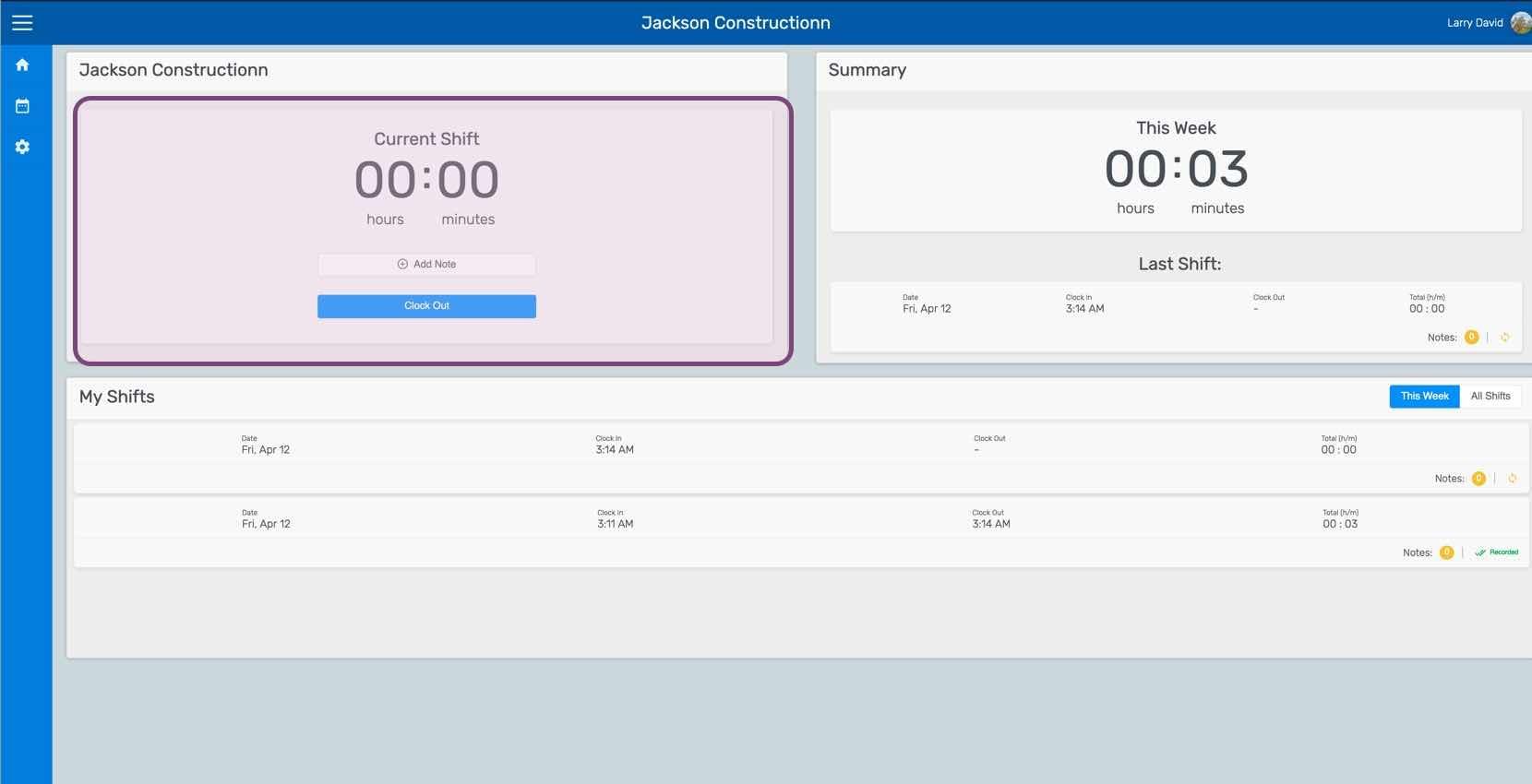
Cet écran indique que vous avez commencé votre service. Vous pouvez ajouter des notes sur votre service ici.
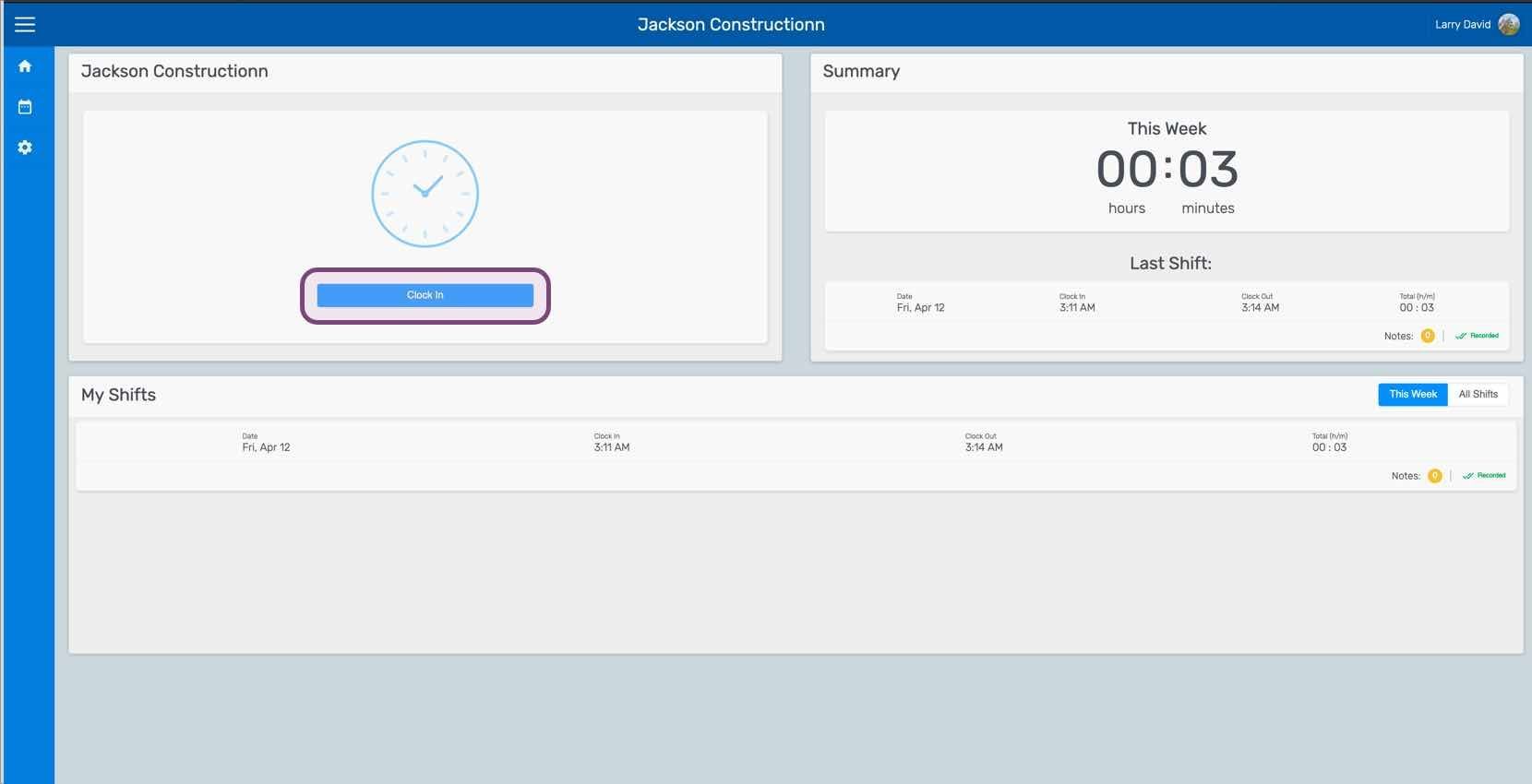
Si vous utilisez la version web, elle se présentera comme ceci :
Cela a-t-il répondu à votre question ?