Comment modifier ma photo de profil

Ce guide explique comment modifier ou importer votre photo de profil en tant qu’employé.

SINC Support Team
SINC Support Team
Mar 14th, 2023

Sur mobile : appuyez sur Menu Paramètres
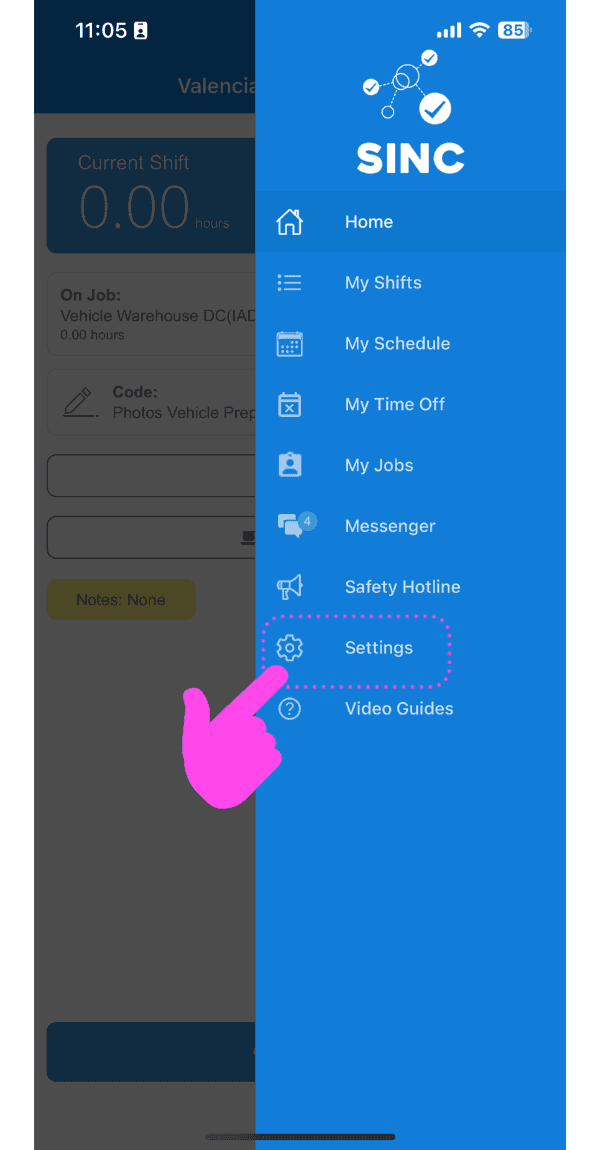
SINC mobile app side menu with a pink hand pointing to the Settings menu item

Dans l’onglet Profil Informations, appuyez sur l’icône de l’appareil photo en haut à droite.
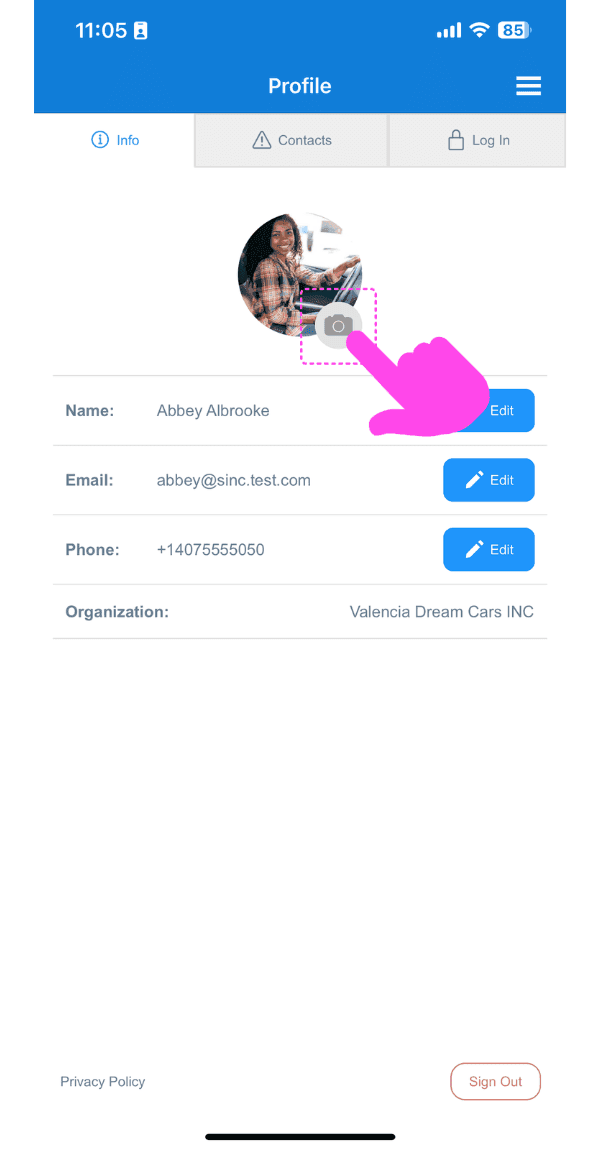
Profile Info screen with the camera icon on the profile photo highlighted by a pink arrow

Appuyez sur Téléverser une photo

Profile Picture screen showing an uploaded photo with edit and delete icons highlighted by a pink arrow

Appuyez sur Autoriser et permettez à SINC d’accéder à vos photos si vous y êtes invité. Sélectionnez ensuite l’image à importer.
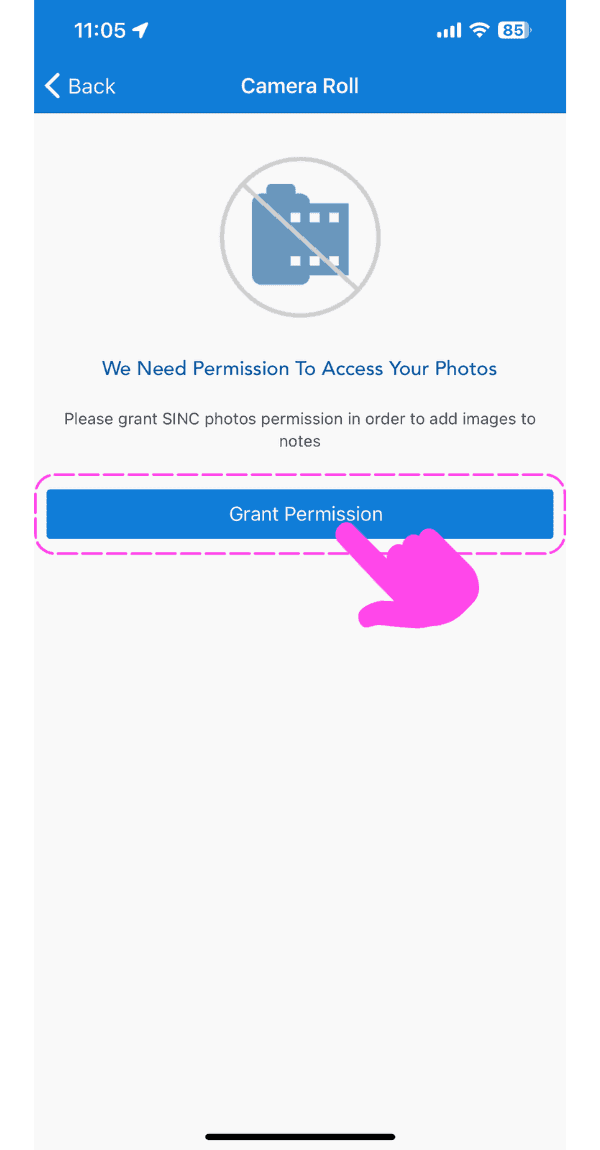
SINC mobile photo access permission screen with a pink hand pointing to the Grant Permission button

Pour revenir à l’onglet de vos profils : appuyez sur la flèche à gauche, en haut à gauche.

Profile Picture screen showing an uploaded photo with the Back button highlighted by a pink arrow

Pour modifier l’image importée : cliquez sur l’icône de l’appareil photo.
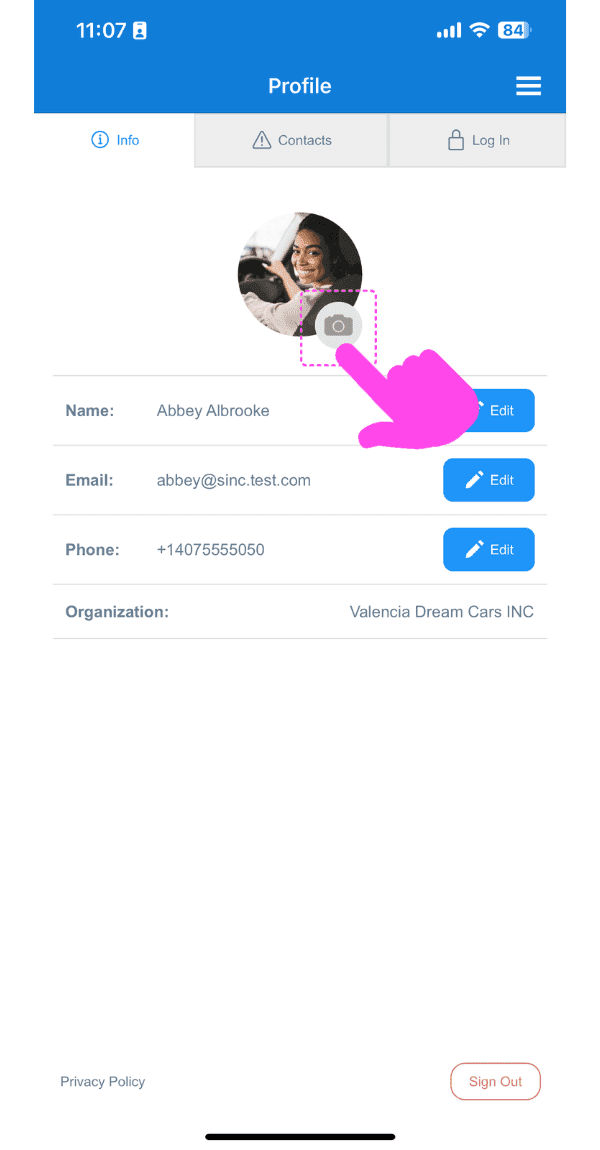
SINC mobile Profile screen with a pink arrow pointing to the camera icon on the profile photo

Pour modifier votre photo importée : appuyez sur Modifier la photo

Profile Picture screen with a pink arrow pointing to the edit icon on the profile photo, next to the delete icon

Pour supprimer votre photo importée : appuyez sur Supprimer la photo

SINC mobile Profile Picture screen with a pink arrow pointing to the delete photo icon on the avatar

Sur le Web : accédez à Menu Paramètres
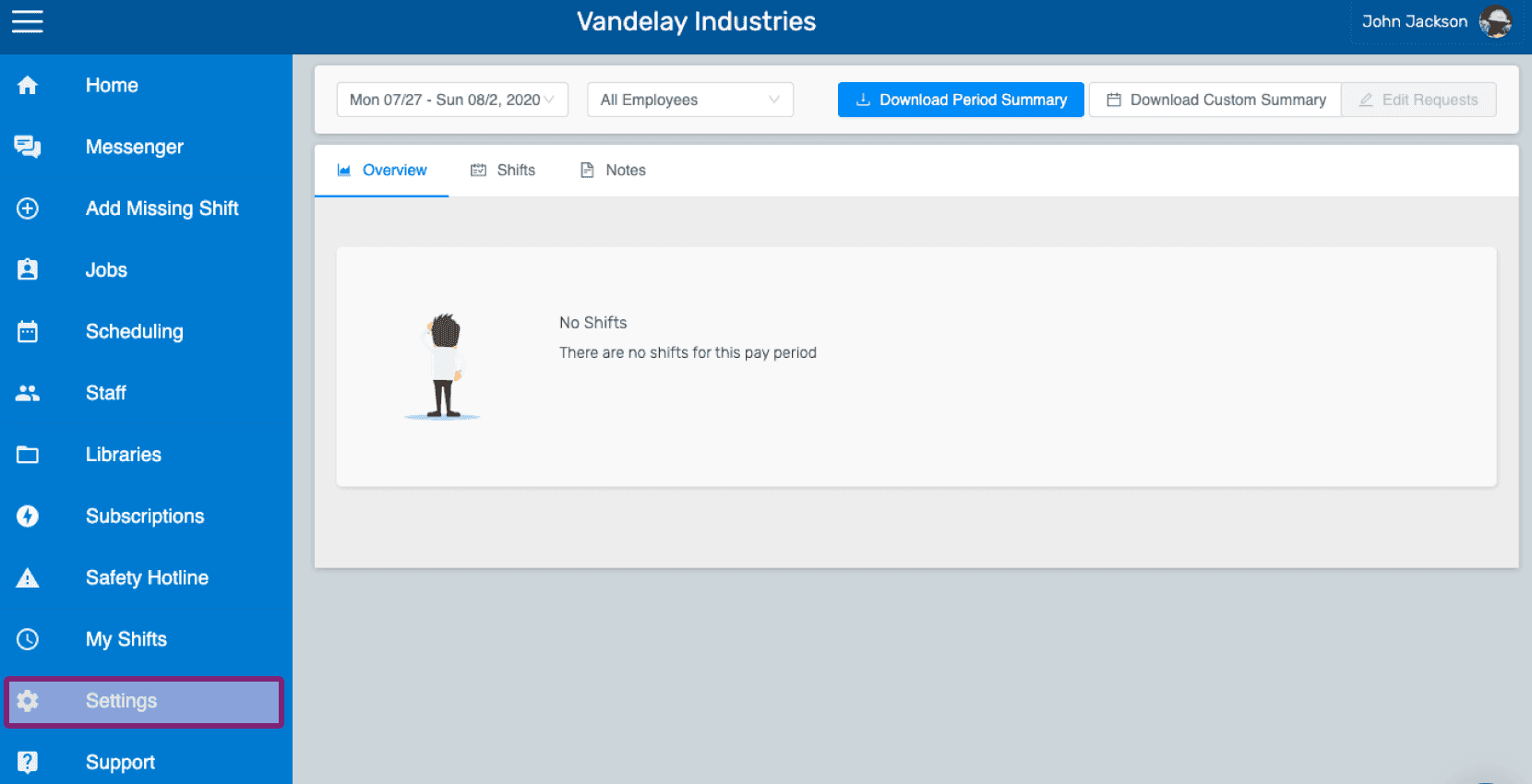
Web employee dashboard with the Settings icon highlighted in the left side menu

Dans l’onglet Profil, cliquez sur l’icône de l’appareil photo.
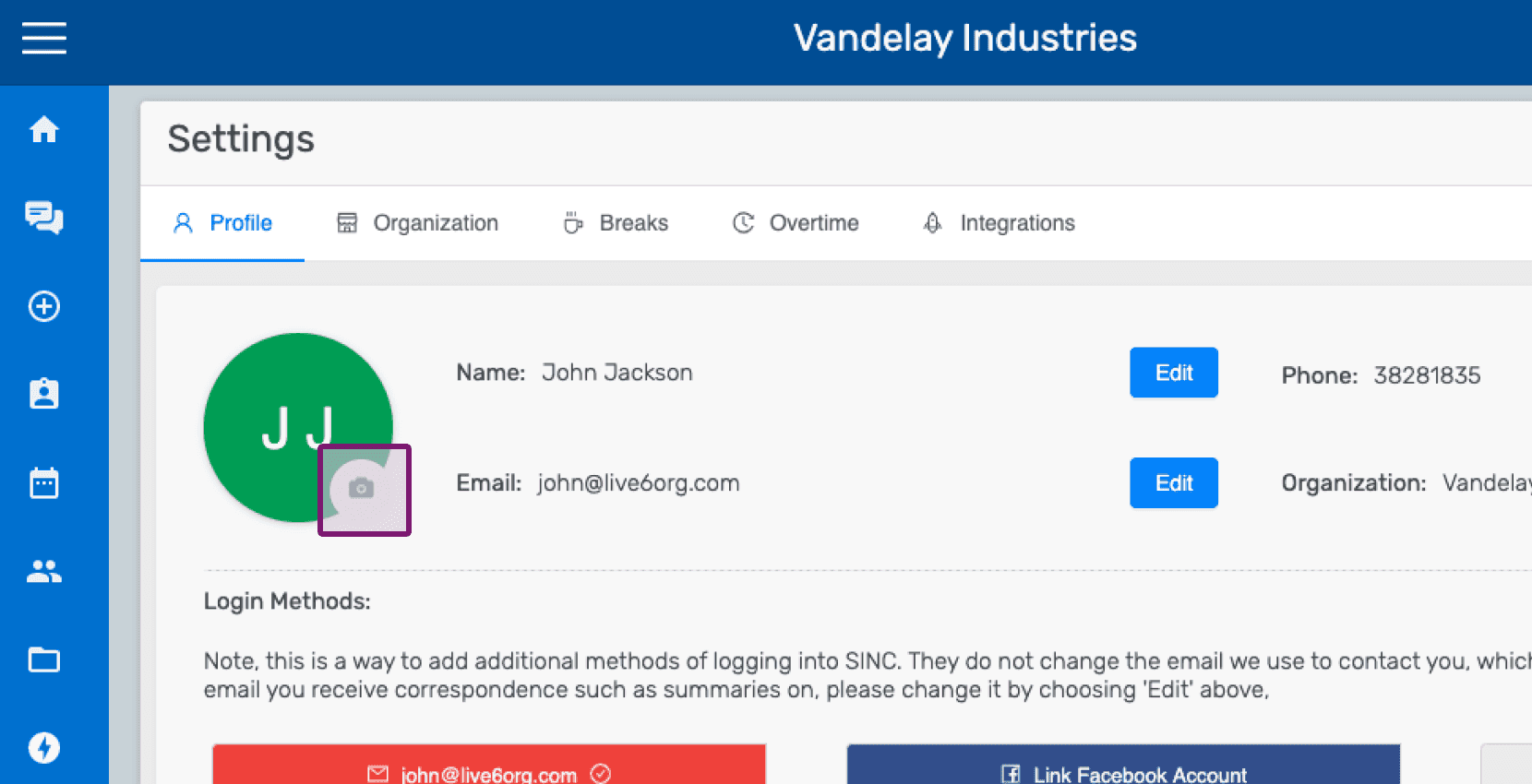
SINC web Settings Profile tab with the camera icon circled on the profile picture

Cliquez sur Choisir une photo, puis sélectionnez la photo à importer.
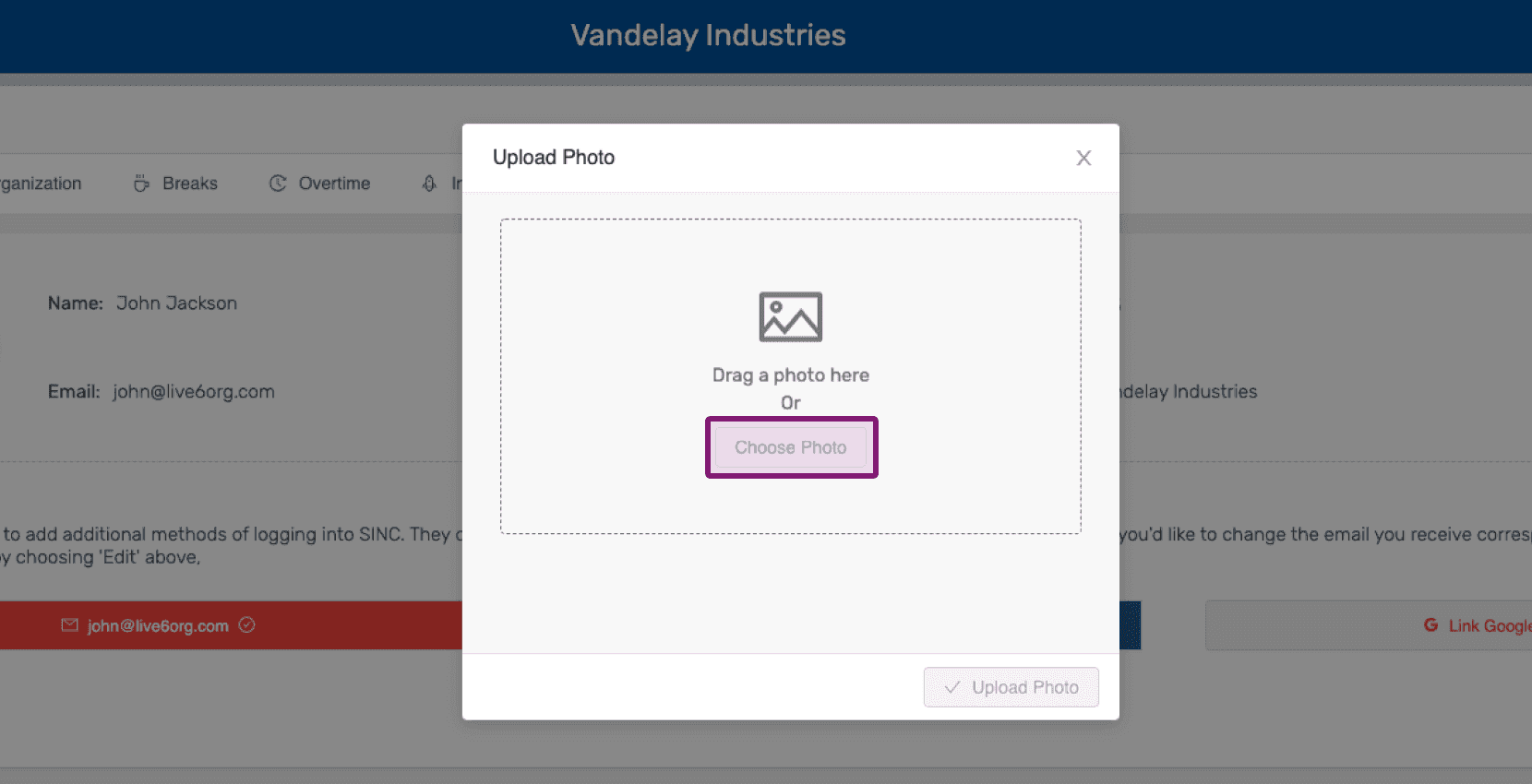
Upload Photo popup with the Choose Photo button highlighted

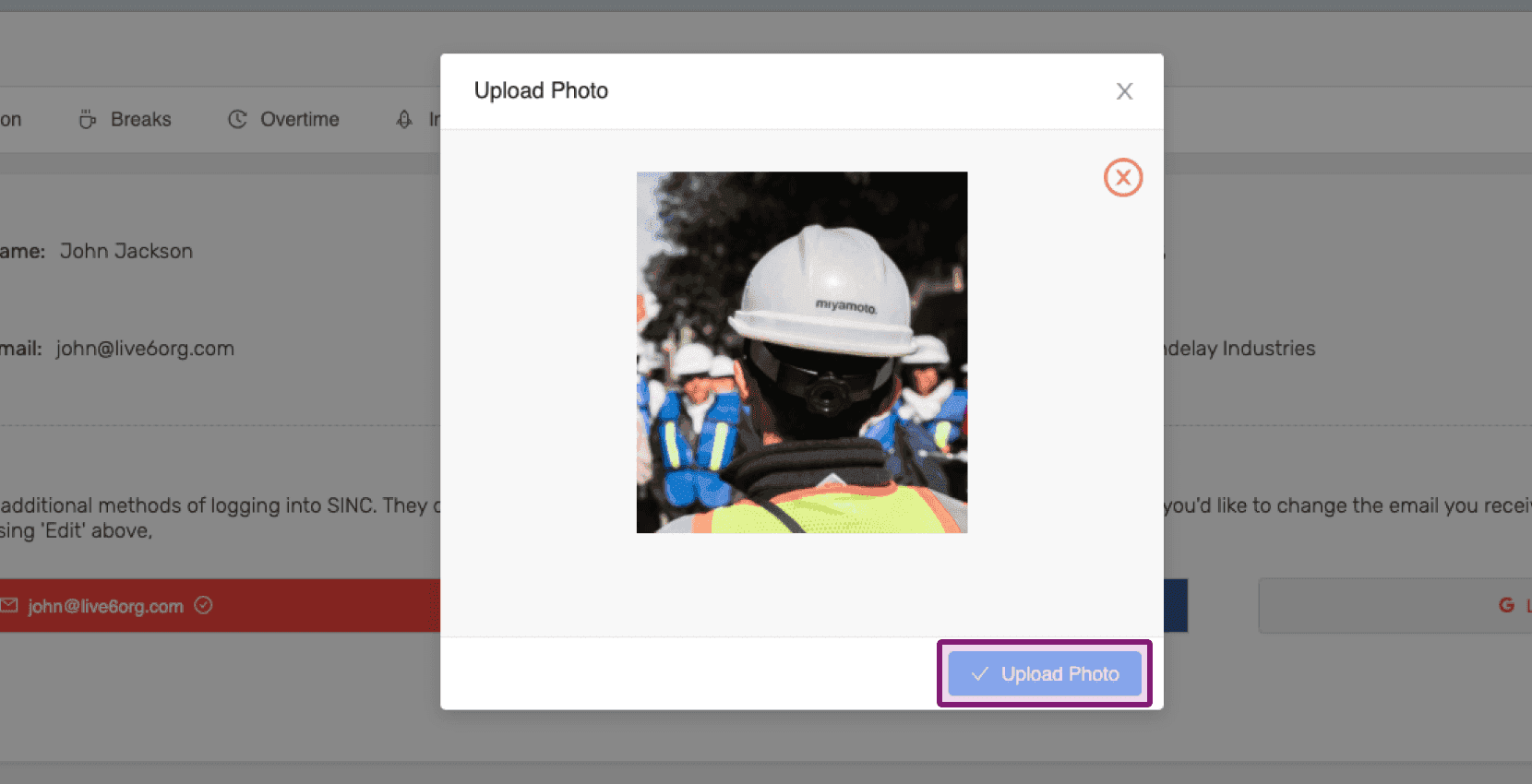
Cliquez sur Importer une photo

Web Upload Photo popup showing a preview image with the Upload Photo button outlined in purple

Pour modifier l’image importée : cliquez sur l’icône de l’appareil photo.
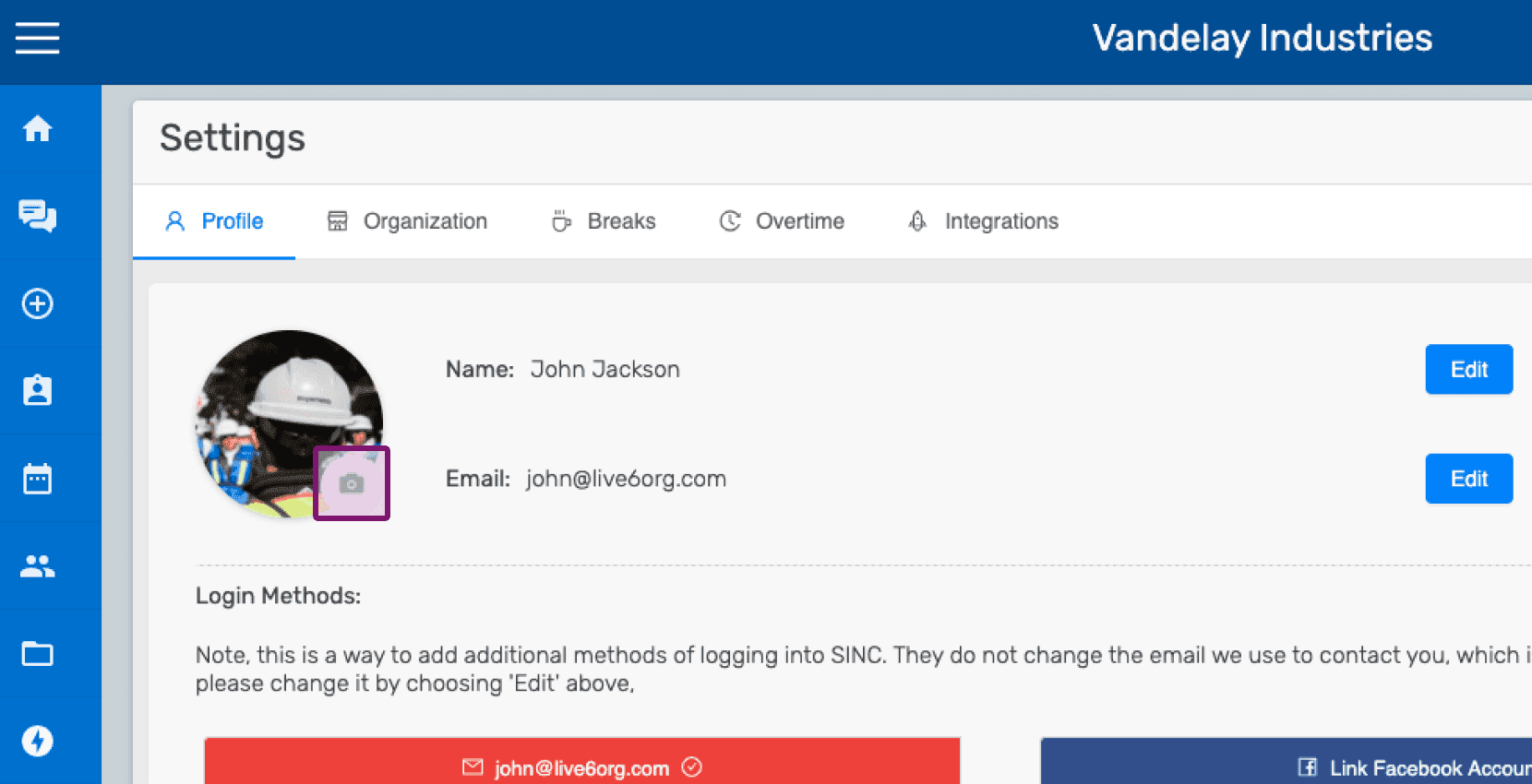
SINC web Settings Profile screen with the camera icon outlined for uploading a profile picture

Pour modifier votre photo importée : cliquez sur l’icône de modification en bas à droite de la photo de profil.
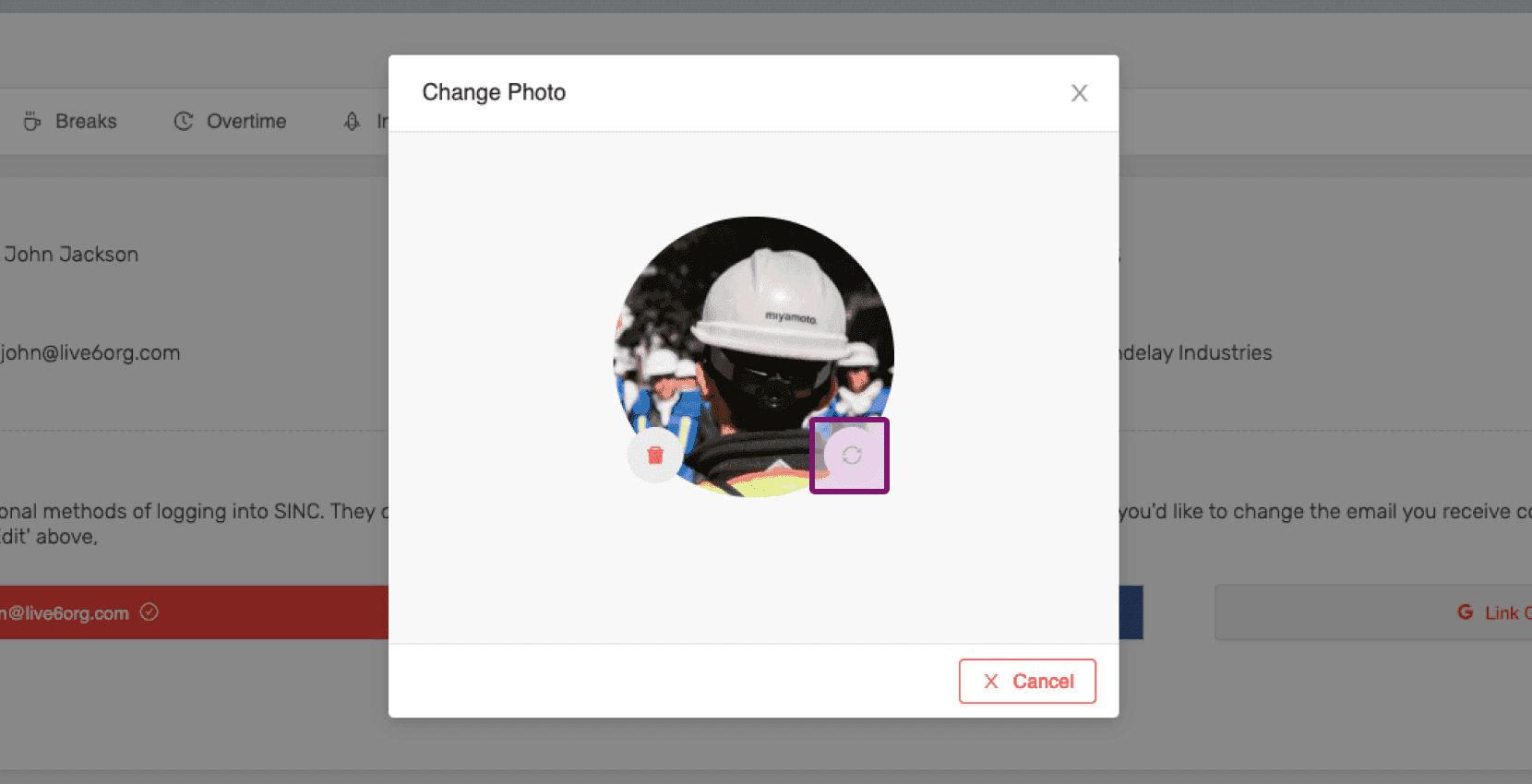
SINC web Change Photo dialog with the picture change icon on the profile photo circled in purple

Pour supprimer votre photo importée : cliquez sur l’icône de suppression en bas à gauche de la photo de profil.
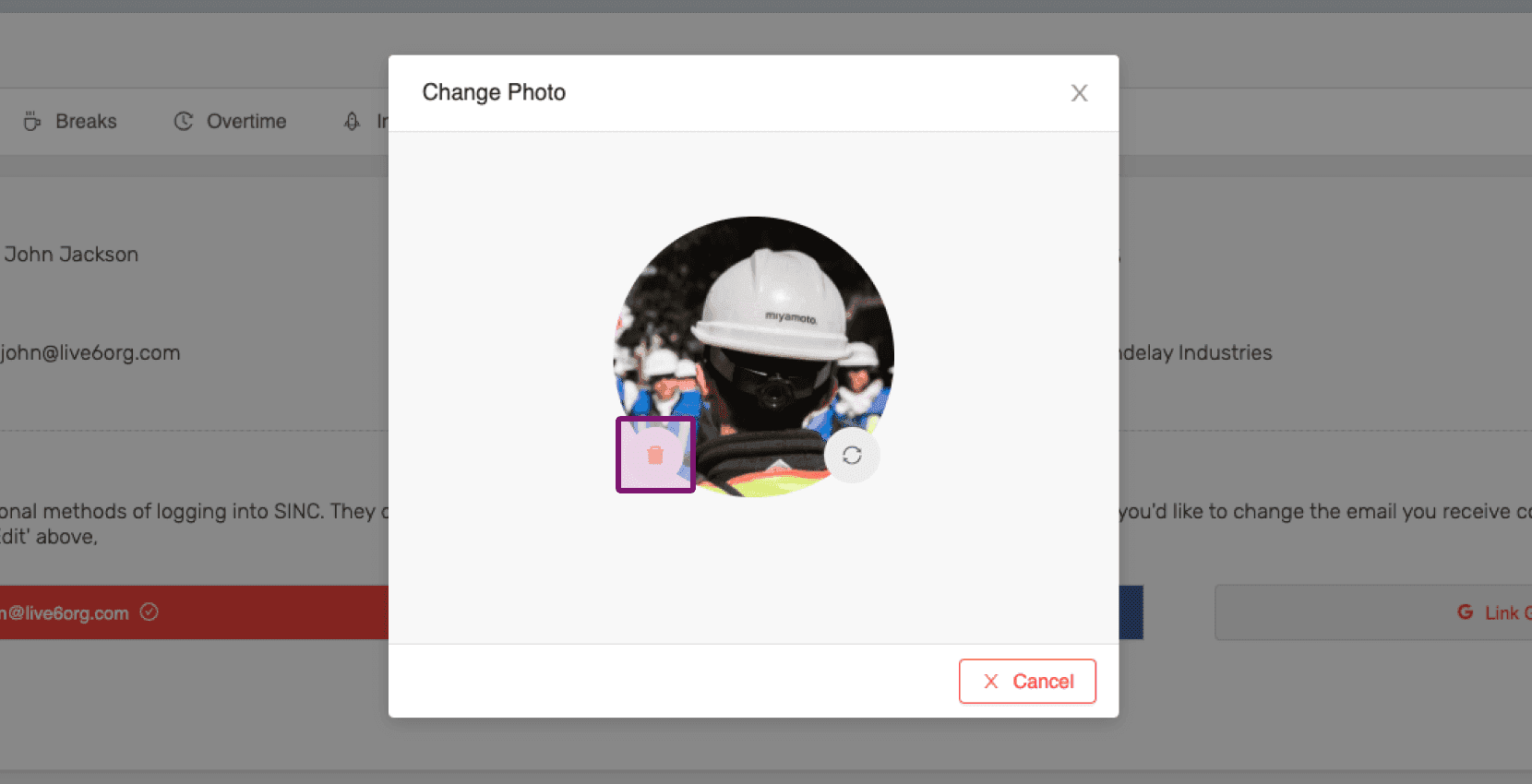
Change Photo dialog with the delete icon on the profile picture outlined in pink

Cela a-t-il répondu à votre question ?