
Affecter des employés à des postes
Voyons comment les administrateurs peuvent affecter des employés à un poste existant ou lors de la création d’un poste.

Cette fonctionnalité nécessite l’activation de l’option d’affectation des employés aux missions. Une fois cette option activée, un employé ne pourra pointer son arrivée et son départ que pour une mission à laquelle il a été affecté. Pour affecter des équipes à une mission, veuillez d’abord créer l’équipe.
Pour affecter un employé ou une équipe à un travail existant. Sur le Web : cliquez sur Accueil Heures de travail Liste des travaux
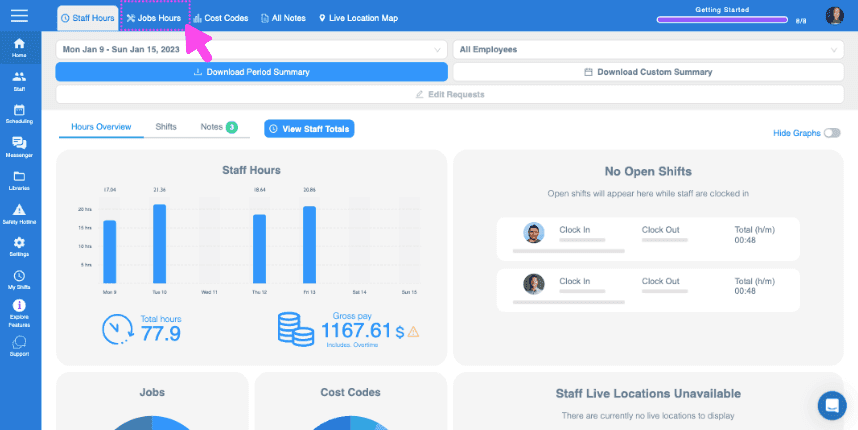
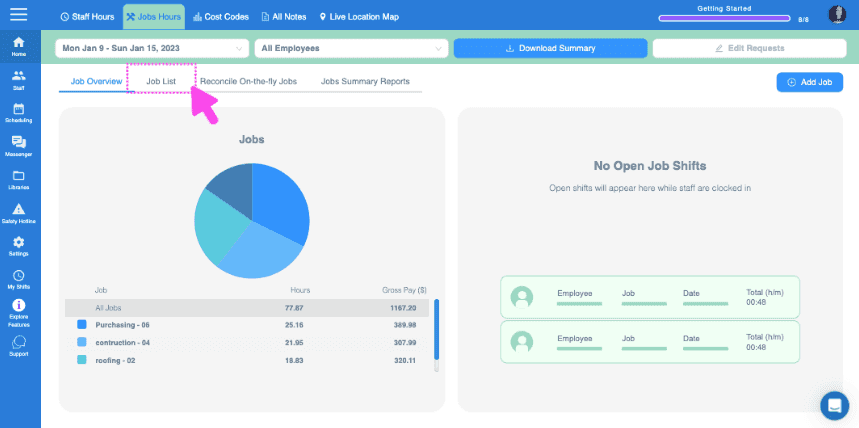
Cliquez sur Le poste à attribuer aux employés
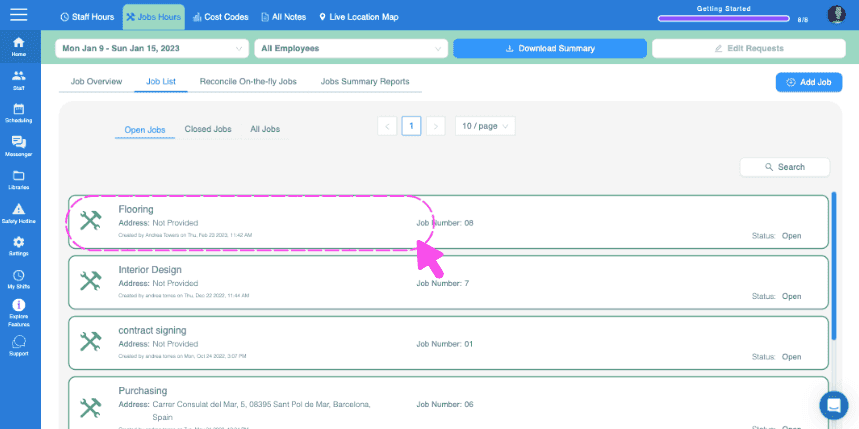
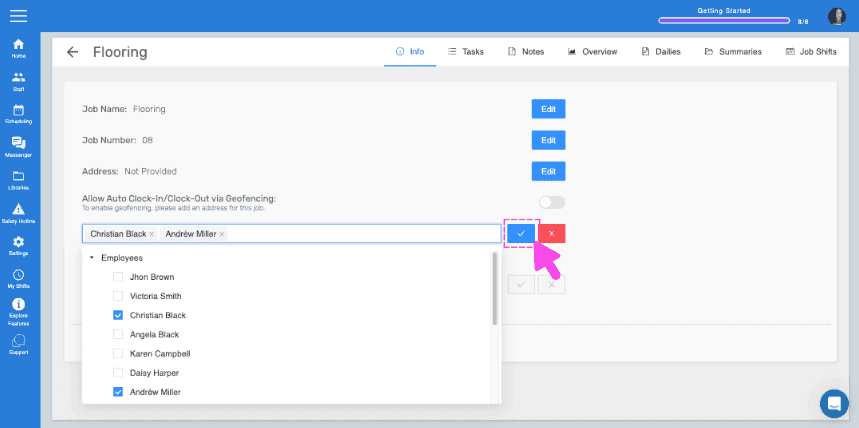
Cliquez sur Informations Modifier à côté de Employés affectés
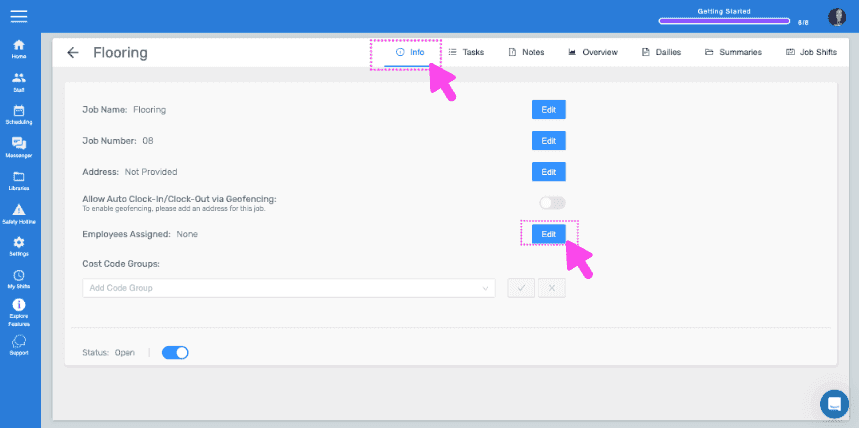
Sélectionnez les employés/équipes à affecter, puis appuyez sur Confirmer
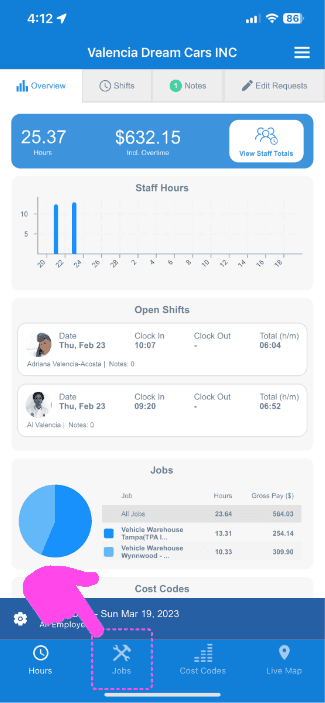
Sur mobile : appuyez sur Menu Vue d’ensemble Offres d’emploi
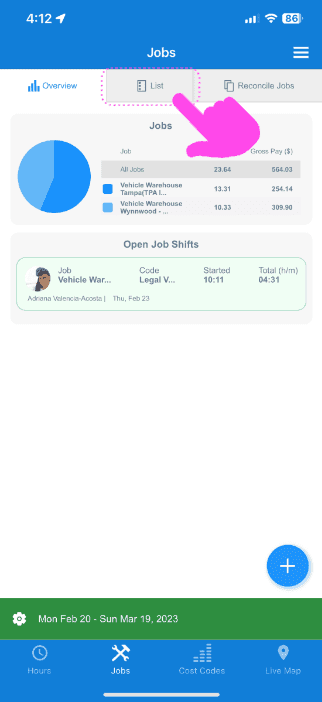
Appuyez sur Liste
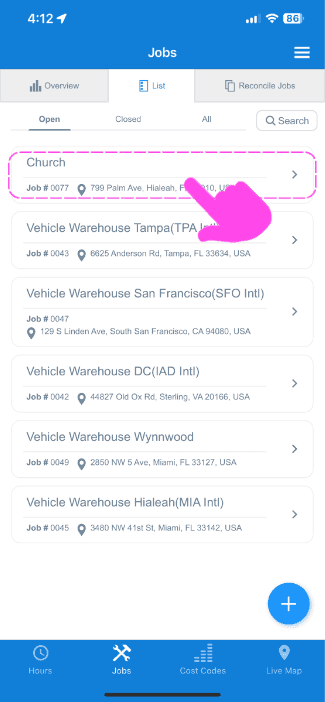
Appuyez sur Le poste à attribuer aux employés
Appuyez sur Infos Infos Employés affectés
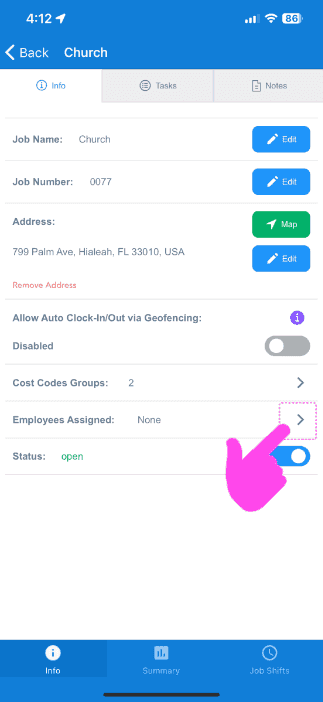
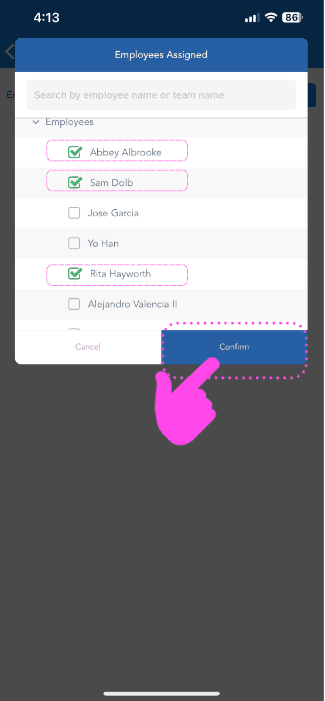
Sélectionnez les employés/équipes à affecter, puis appuyez sur Confirmer
Cela a-t-il répondu à votre question ?