Validation des blessures

Ce guide explique comment le personnel peut valider la fin de son service en renseignant les informations relatives aux blessures.

Sam Dolbel
Sam Dolbel
Feb 27th, 2023

Note : cette fonctionnalité est actuellement réservée aux utilisateurs des forfaits Growth et Enterprise. L’écran de déclaration d’incident s’affiche uniquement lors de la fin du pointage de services comportant des affectations. Pour enregistrer des affectations sur un service, activez Job Tracking. Enregistrez un service avec une affectation, puis faites glisser le bouton vers la droite pour confirmer la fin du pointage.
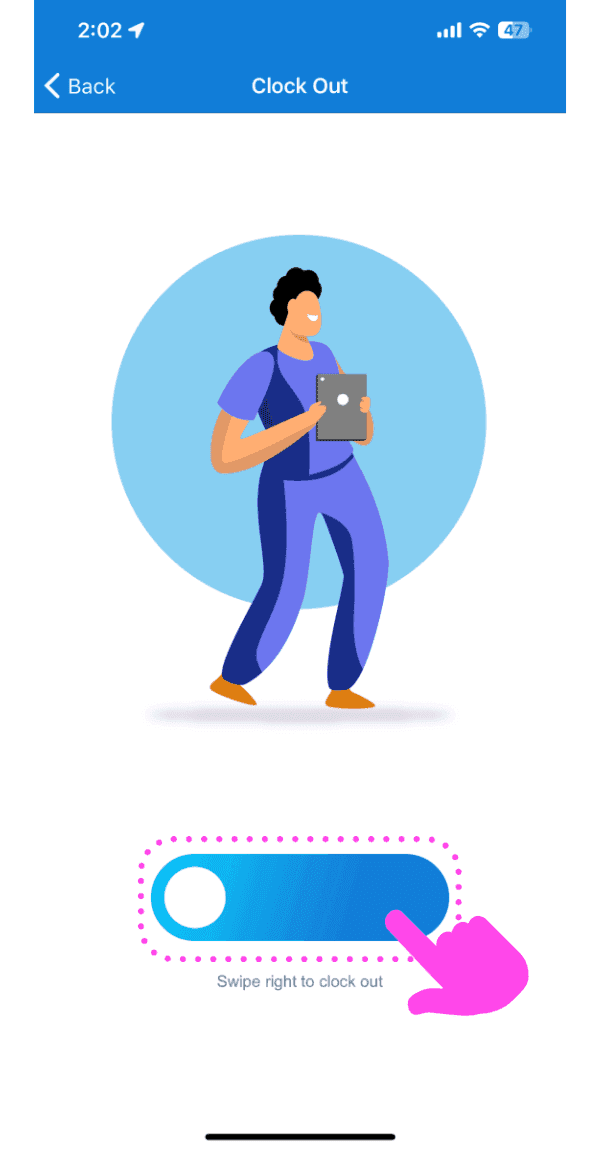
Mobile Clock Out screen with a worker illustration and the slide-to-confirm button outlined in pink

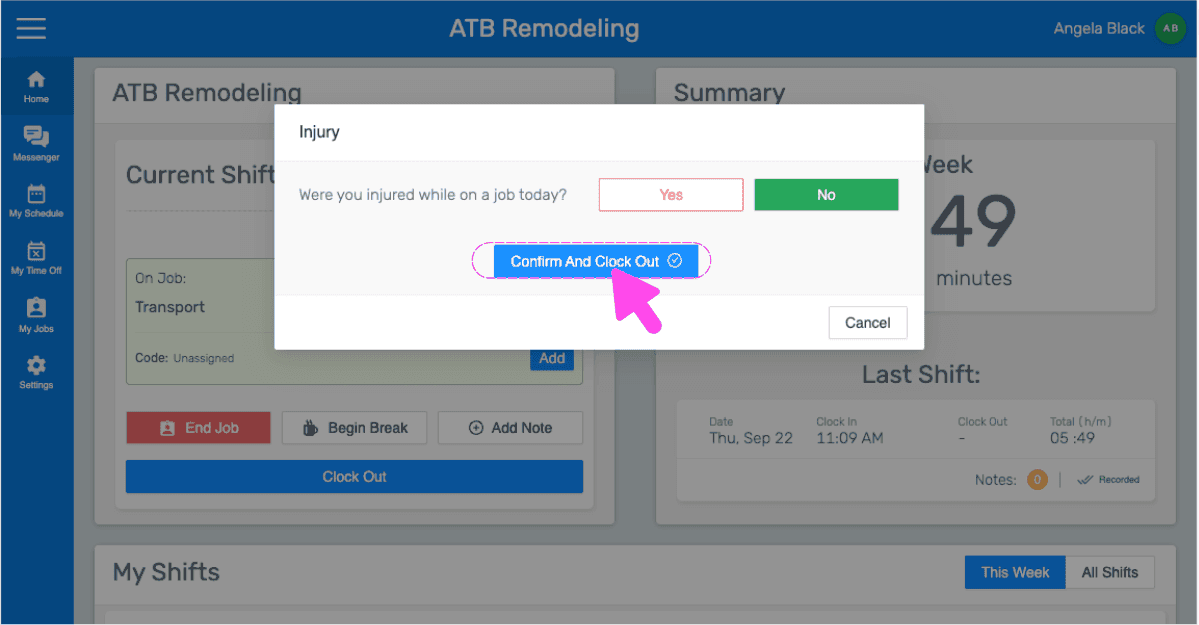
Répondez à la question : « Vous êtes-vous blessé(e) au travail aujourd’hui ? » Si ce n’est pas le cas, appuyez sur Non, puis sur Envoyer le rapport de poste.
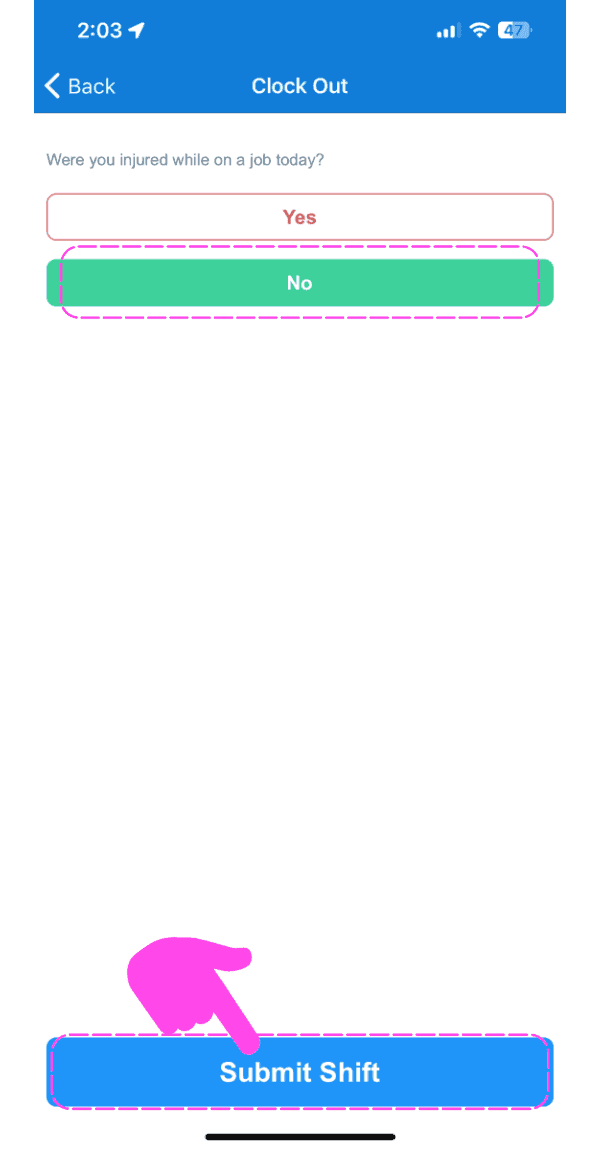
SINC mobile Clock Out screen asking about injury, with a pink hand pointing to the Submit Shift button

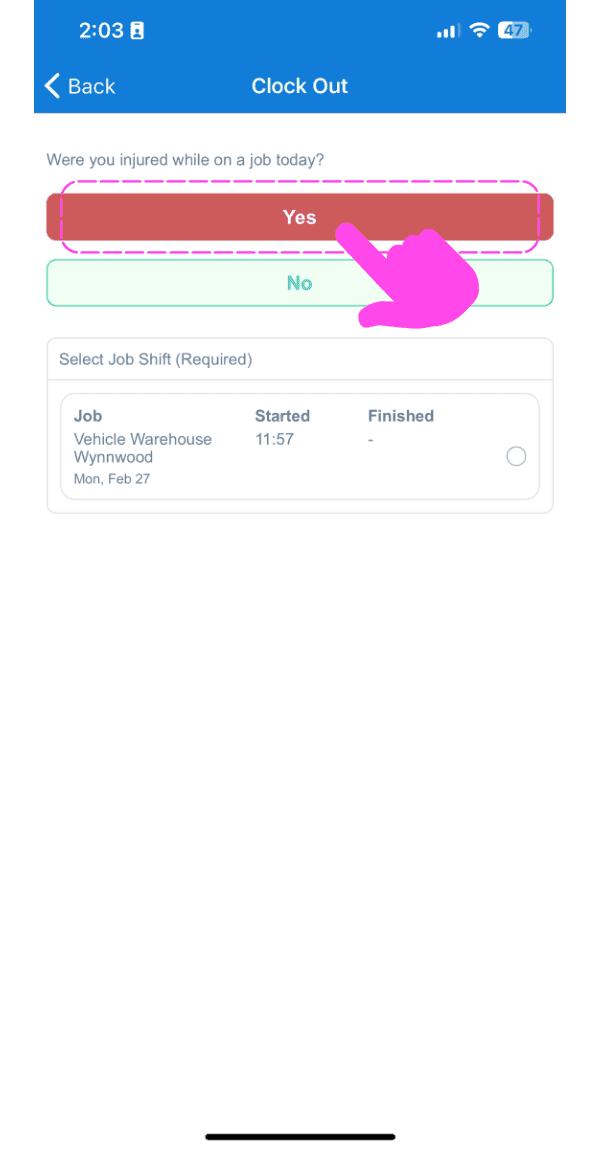
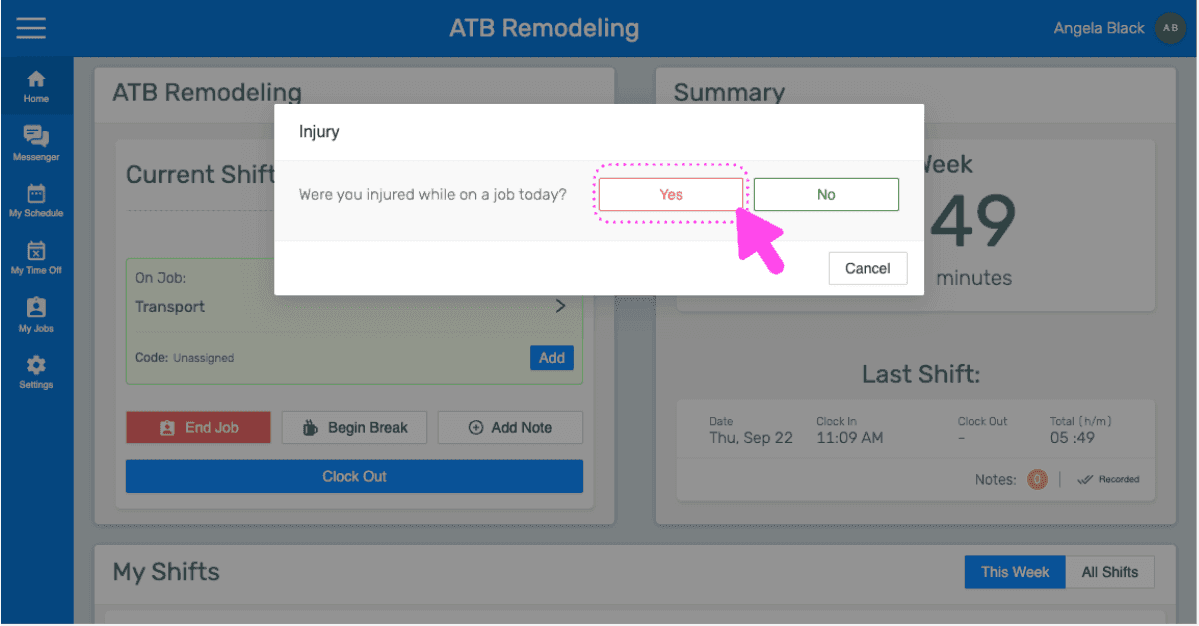
En cas de blessure, appuyez sur Oui

Clock Out screen asking if the employee was injured, with a pink arrow on the Yes button

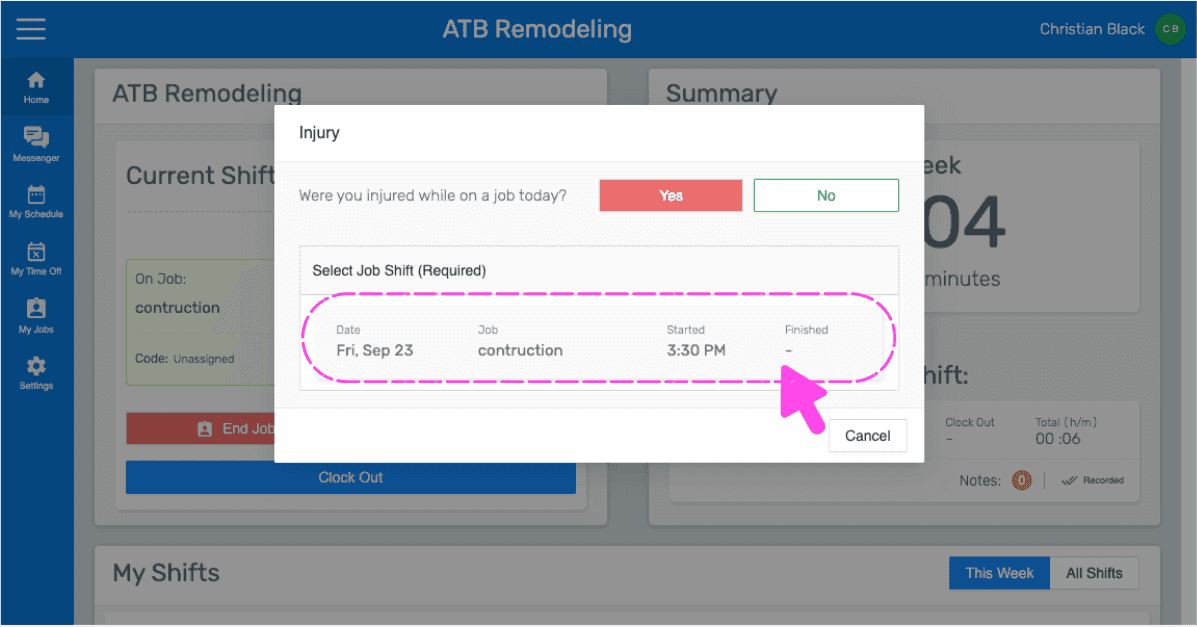
Appuyez sur Quart de travail Blessé(e) le
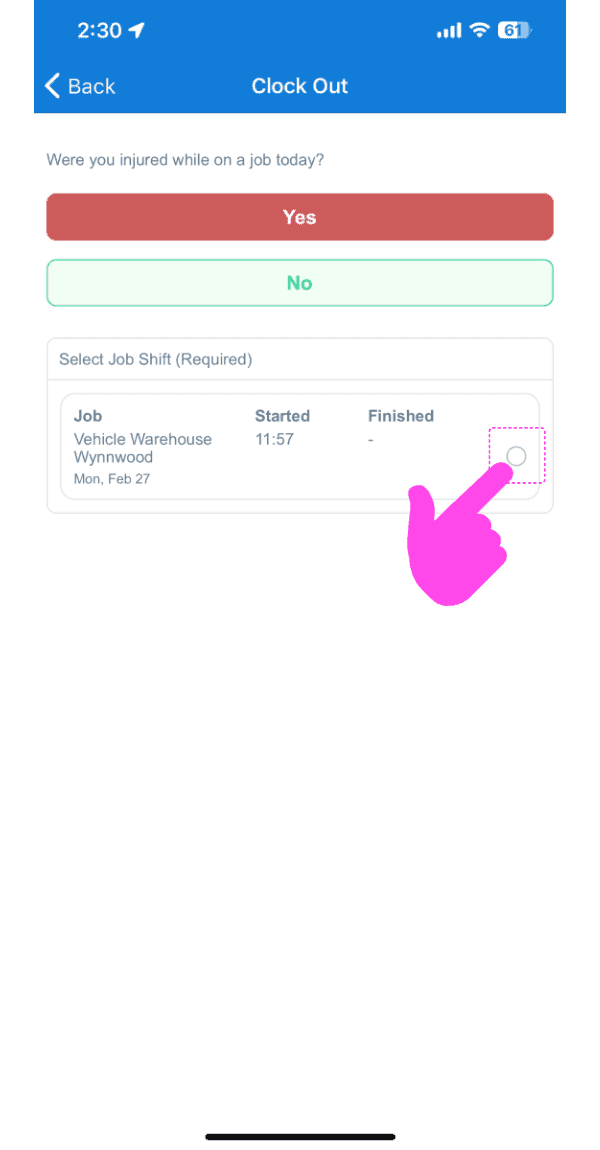
Mobile Clock Out screen asking if injured, with a pink arrow pointing to the job shift selection circle

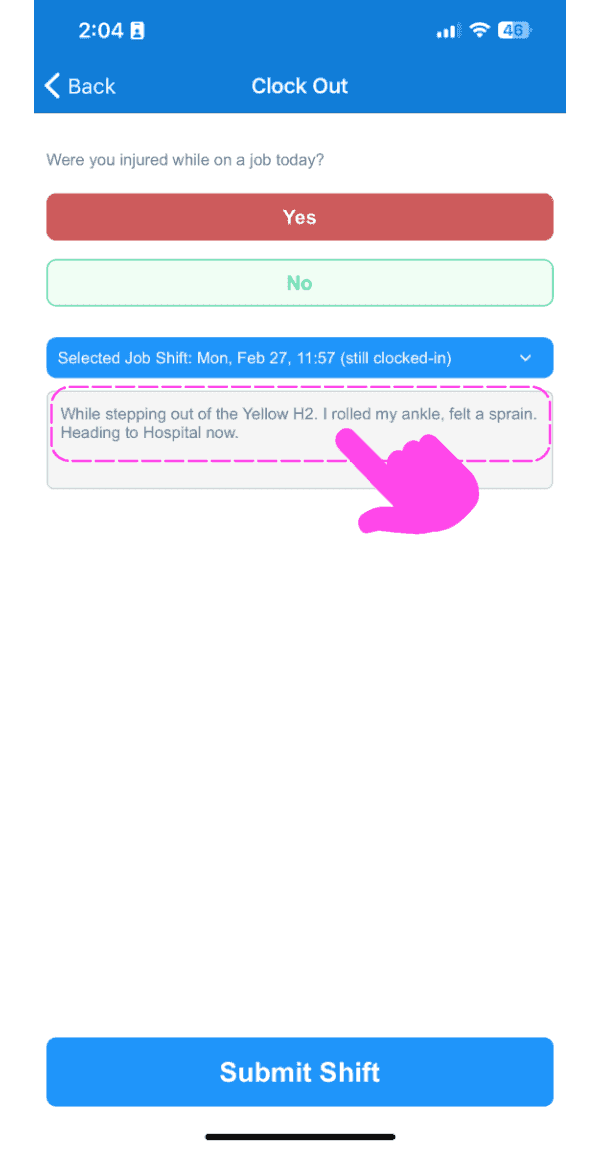
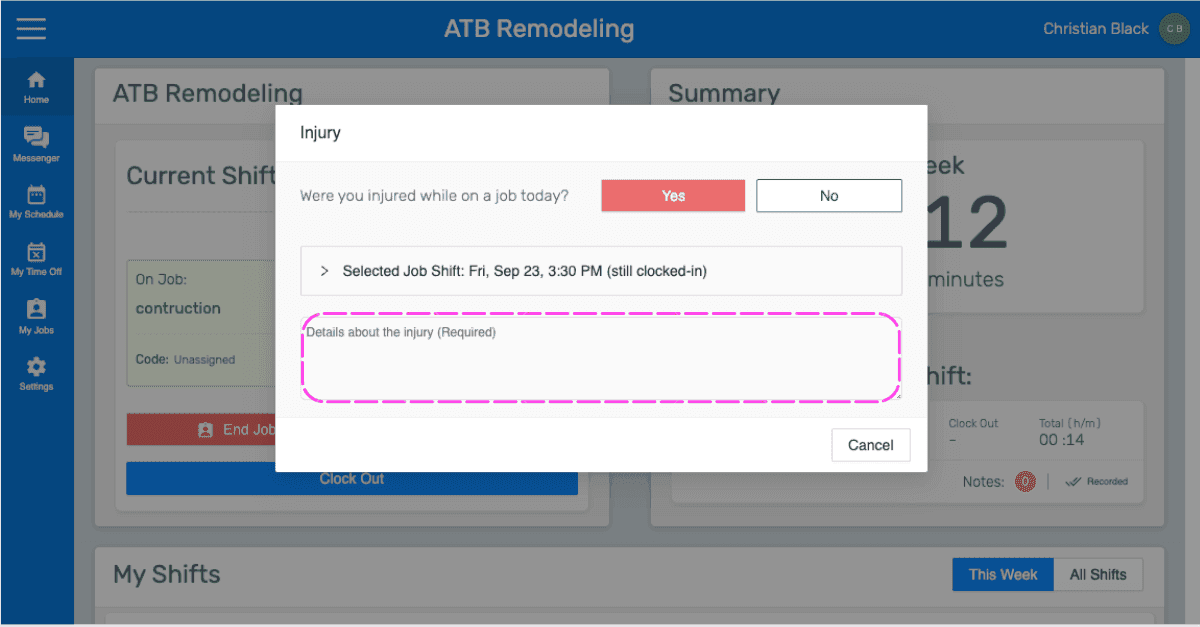
Saisissez Détails sur la blessure

SINC mobile Clock Out screen with a pink arrow pointing to the injury details text box above the Submit Shift button

Appuyez sur Soumettre le poste. Si un poste est validé avec une blessure, les informations la concernant sont ajoutées au rapport journalier du chantier concerné en fin de journée.
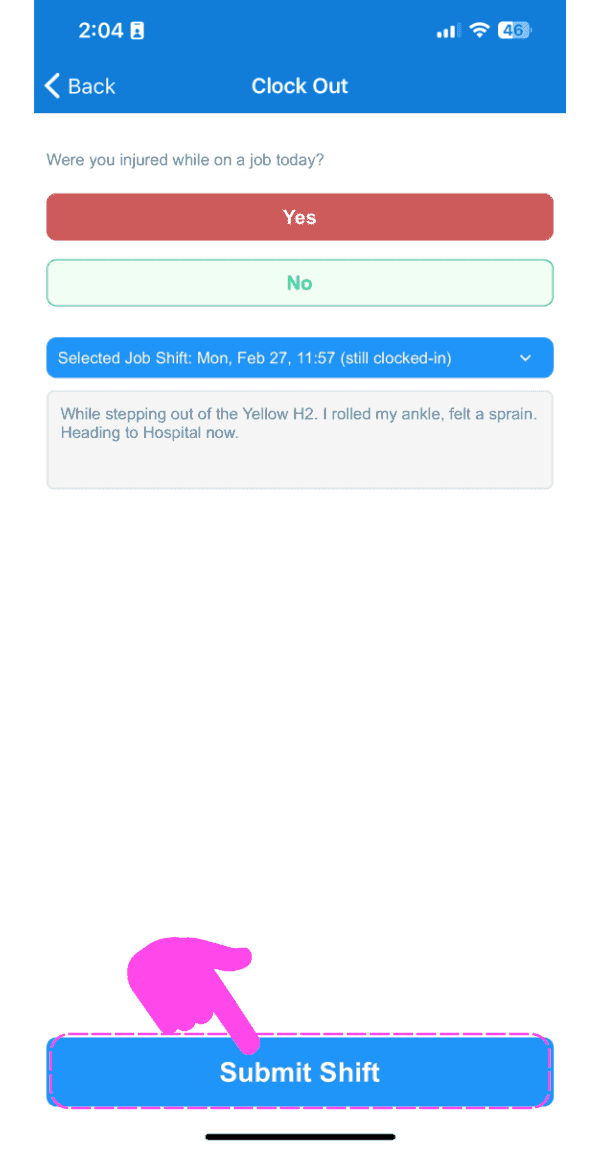
SINC mobile Clock Out screen with 'Yes' selected for the injury question and a pink arrow pointing to the Submit Shift button

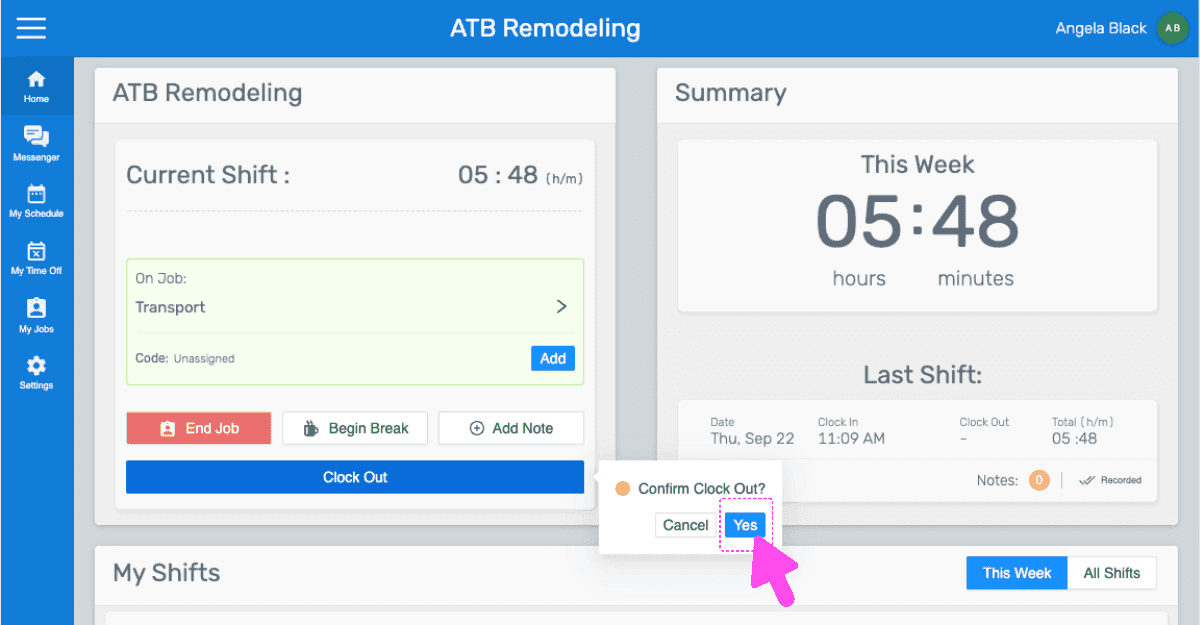
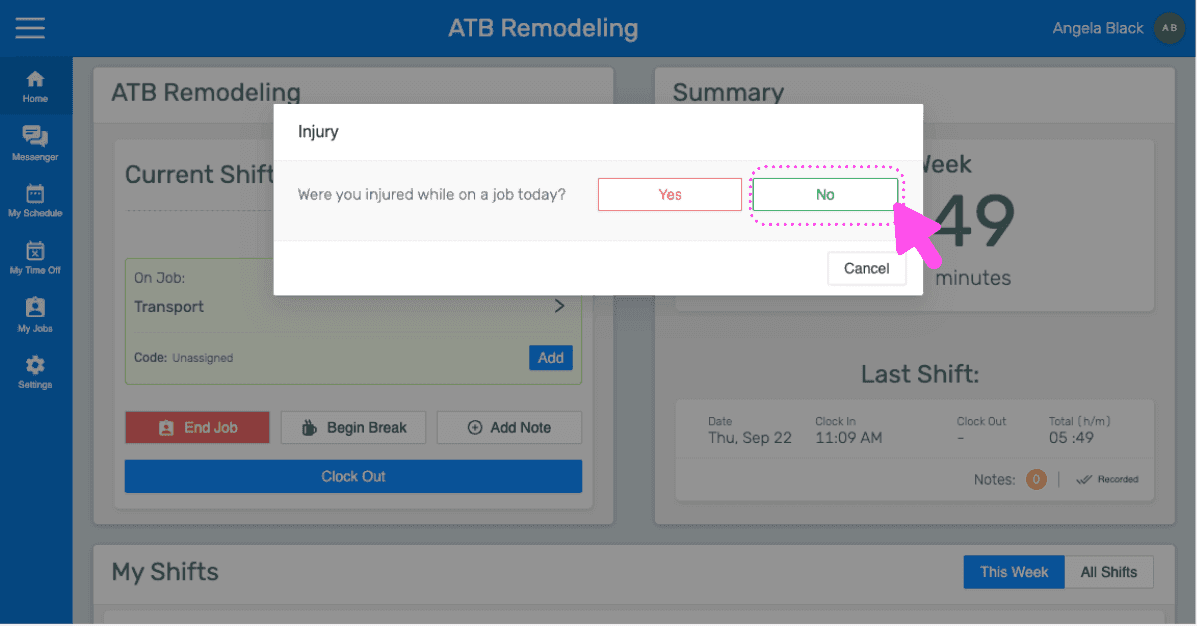
Si vous utilisez la version web, elle se présentera ainsi :
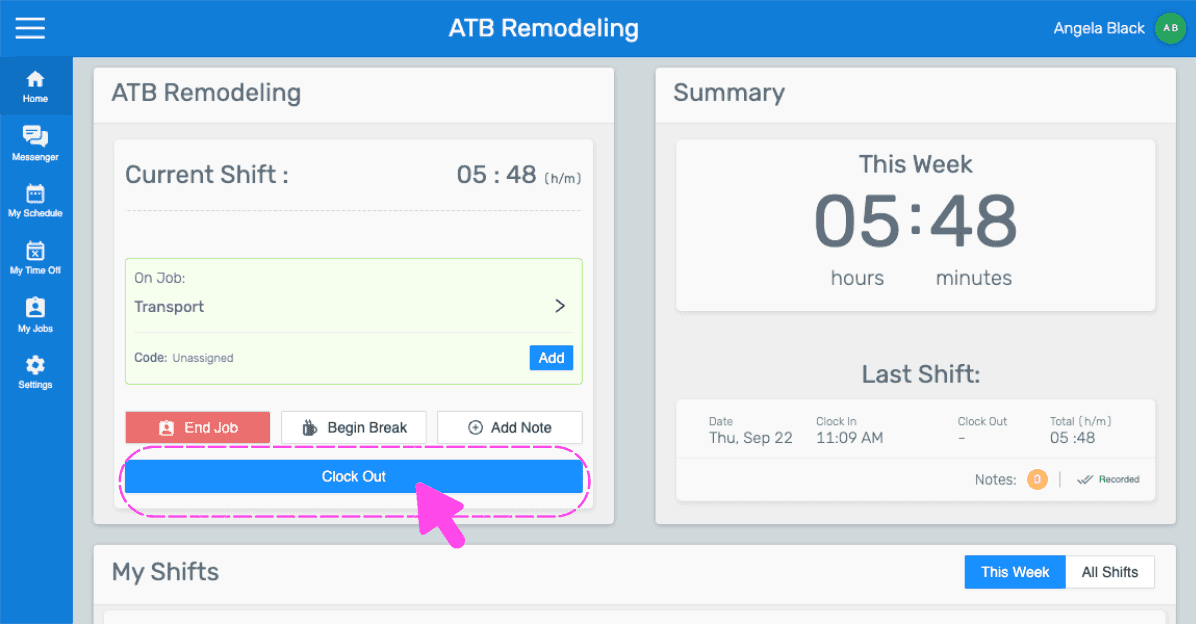
Mobile job shift screen showing hours worked with the Clock Out button outlined in pink
SINC web shift screen showing a Confirm Clock Out popup with the Yes button highlighted by a pink arrow
Mobile app injury sign-off popup asking if you were injured on the job, with the No button highlighted
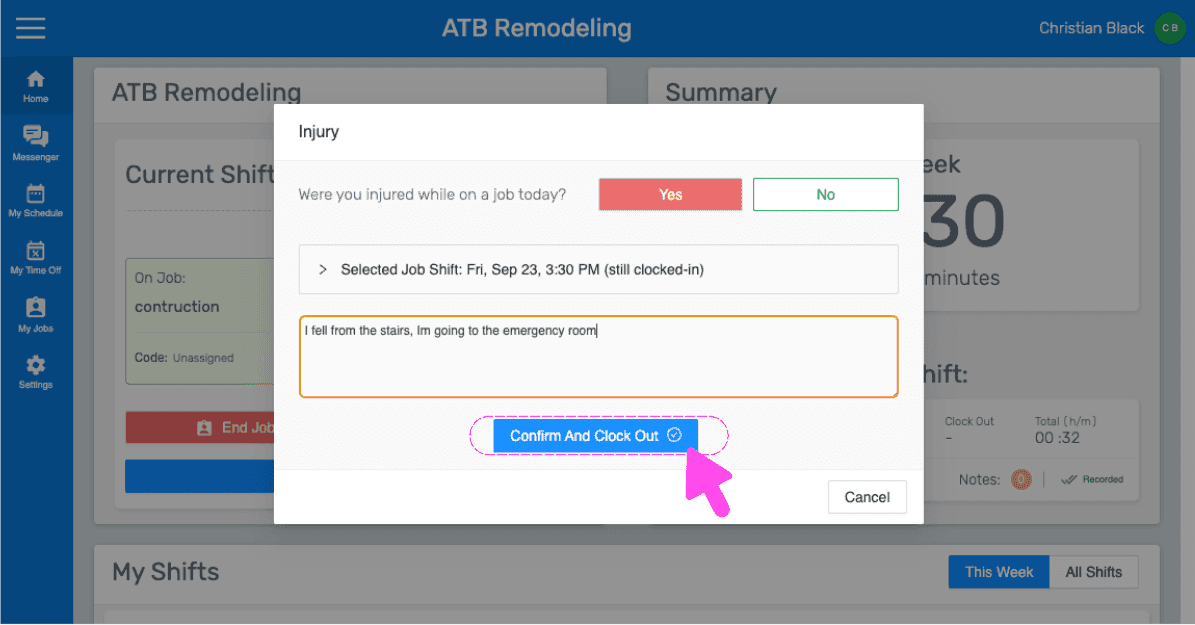
SINC web dashboard injury popup asking if the employee was injured, with Confirm And Clock Out button highlighted
SINC mobile Injury popup asking whether you were injured on a job today, with the Yes button highlighted
Injury sign-off popup asking if injured on a job today, with the job shift selection row circled in pink
SINC web Injury modal asking if the employee was injured, with the details text field highlighted
Injury popup on the web dashboard asking if the employee was injured, with a pink arrow pointing to the Confirm And Clock Out button
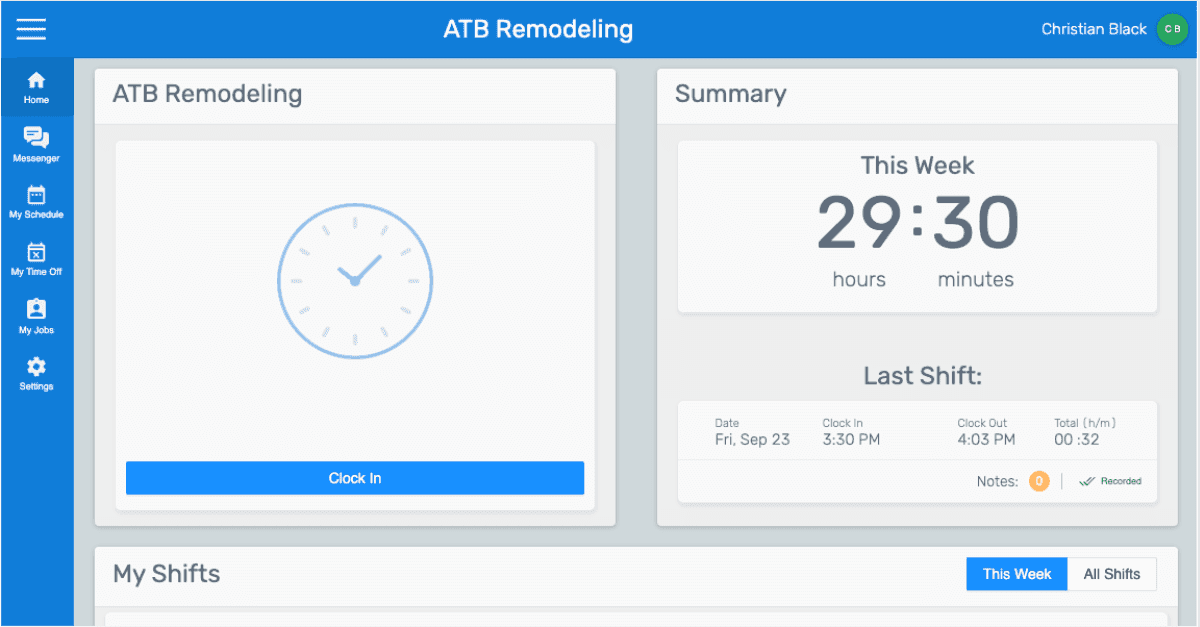
SINC web employee dashboard for ATB Remodeling showing the Clock In button and this week's hours summary

Cela a-t-il répondu à votre question ?