Chantiers : modifier le créneau de travail

Dans ce guide, nous verrons comment modifier un créneau de travail en tant qu’administrateur.

SINC Support Team
SINC Support Team
Feb 27th, 2023

Sur mobile : dans Vue d’ensemble appuyez sur Jobs
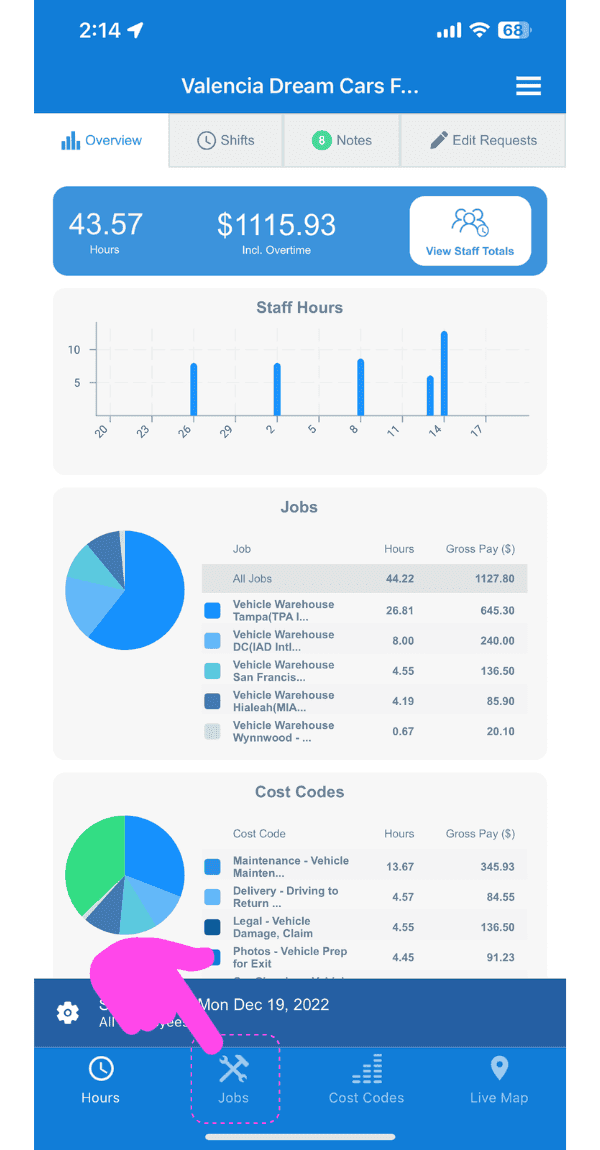
Web dashboard Overview screen with a pink arrow pointing to the Jobs tab in the sidebar

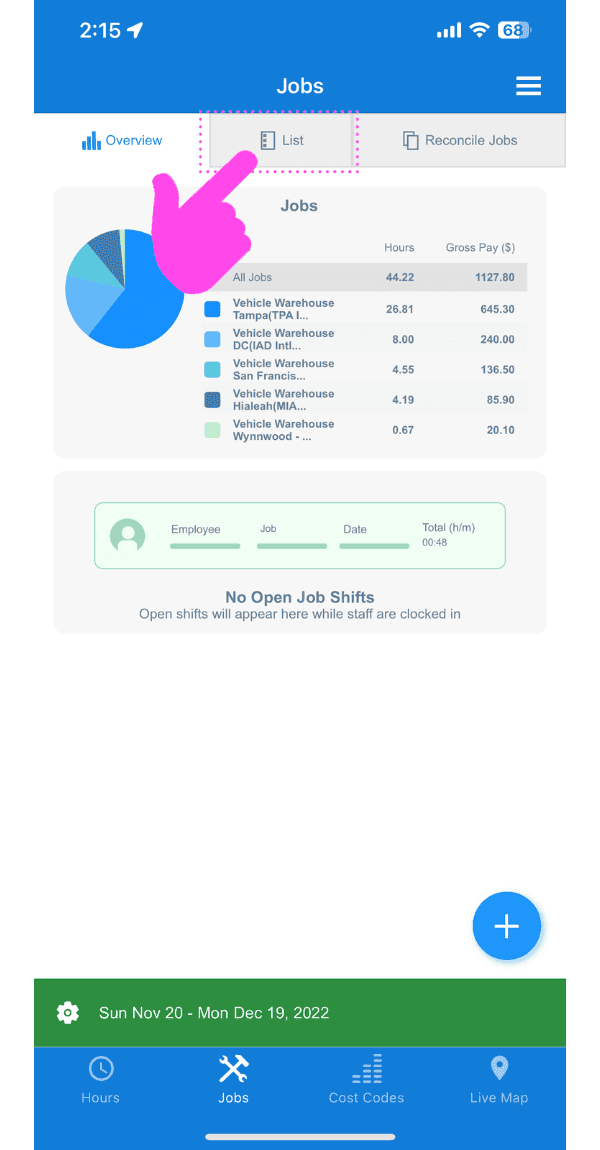
Appuyez sur Liste

SINC web Jobs screen with a pink arrow pointing to the List tab above the jobs pie chart

Appuyez sur le poste contenant le créneau de travail que vous souhaitez modifier
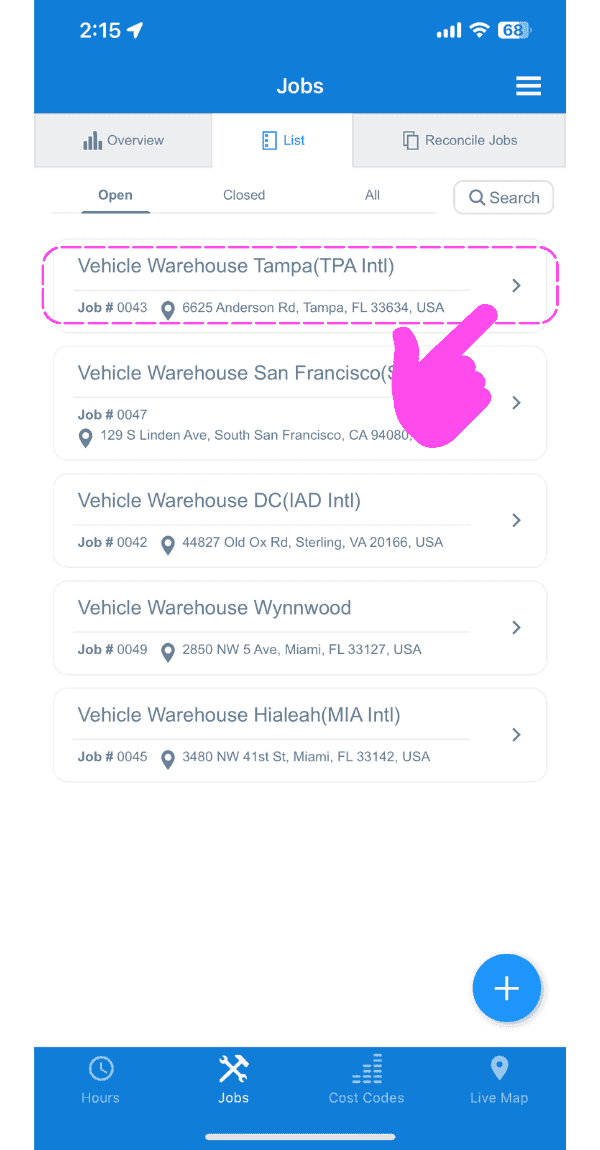
SINC mobile Jobs list with a pink hand pointing to a highlighted job entry to edit its shift

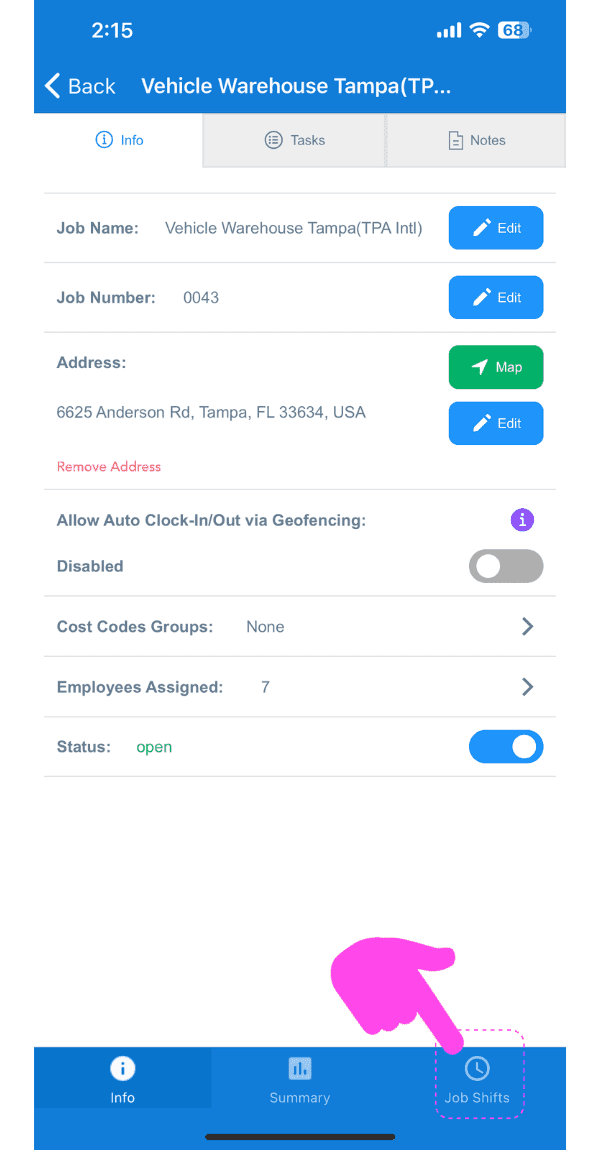
Appuyez sur Horaires de travail

Job Info screen for Vehicle Warehouse Tampa with the Job Shifts tab at the bottom highlighted by a pink arrow

Appuyez sur le créneau que vous souhaitez modifier
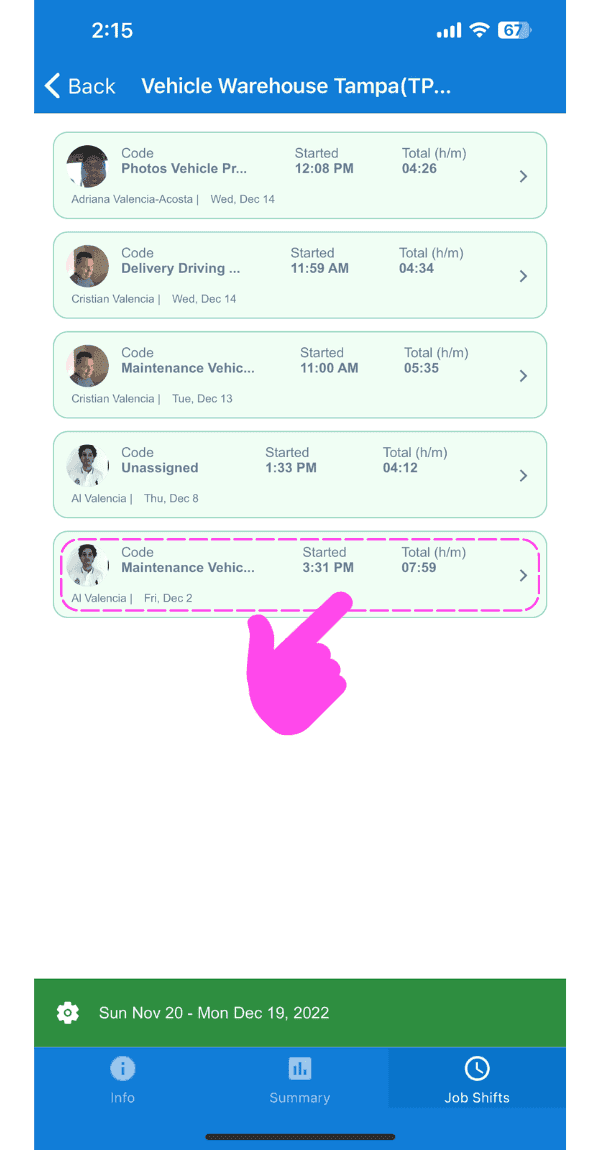
SINC mobile Job Shifts list with a pink arrow pointing to a highlighted shift entry to edit

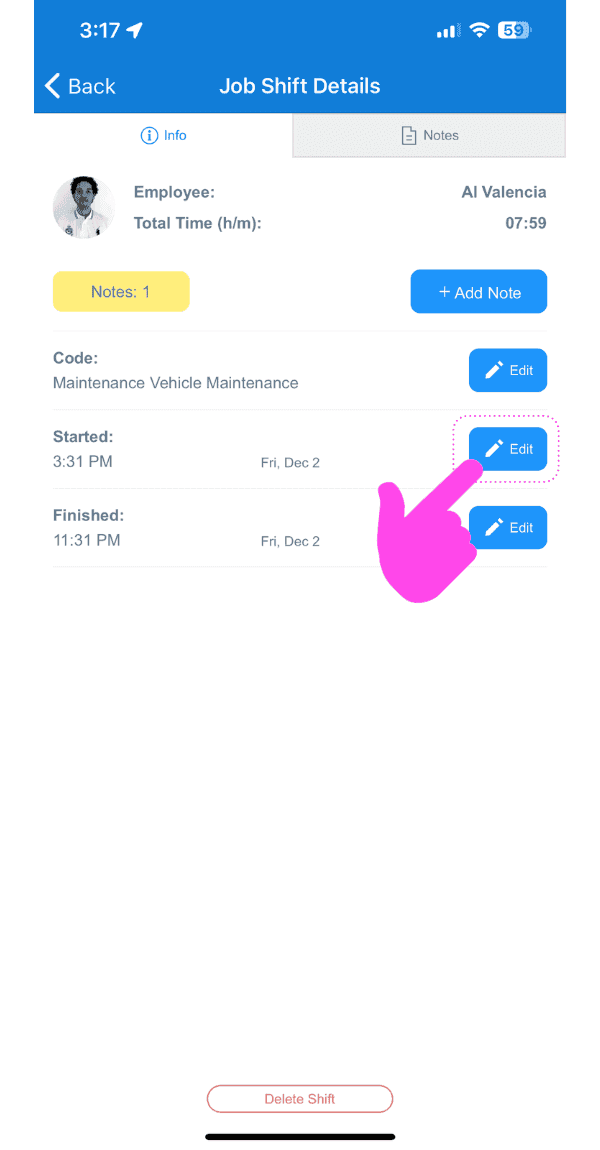
Appuyez sur Modifier

Job Shift Details screen with a pink arrow pointing to the Edit button next to the shift's Started time

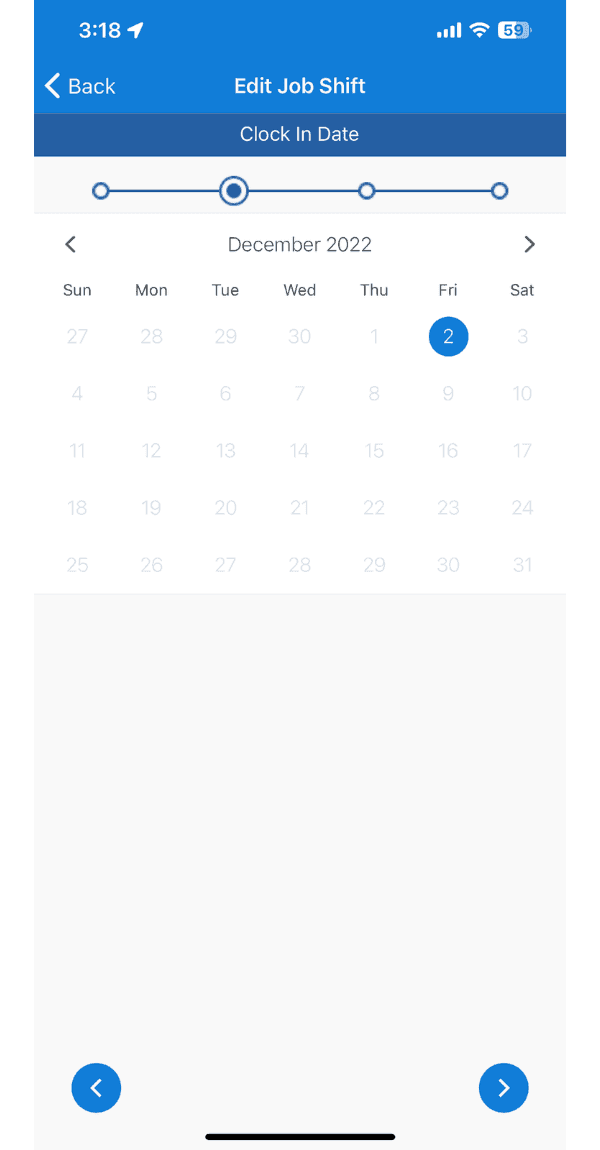
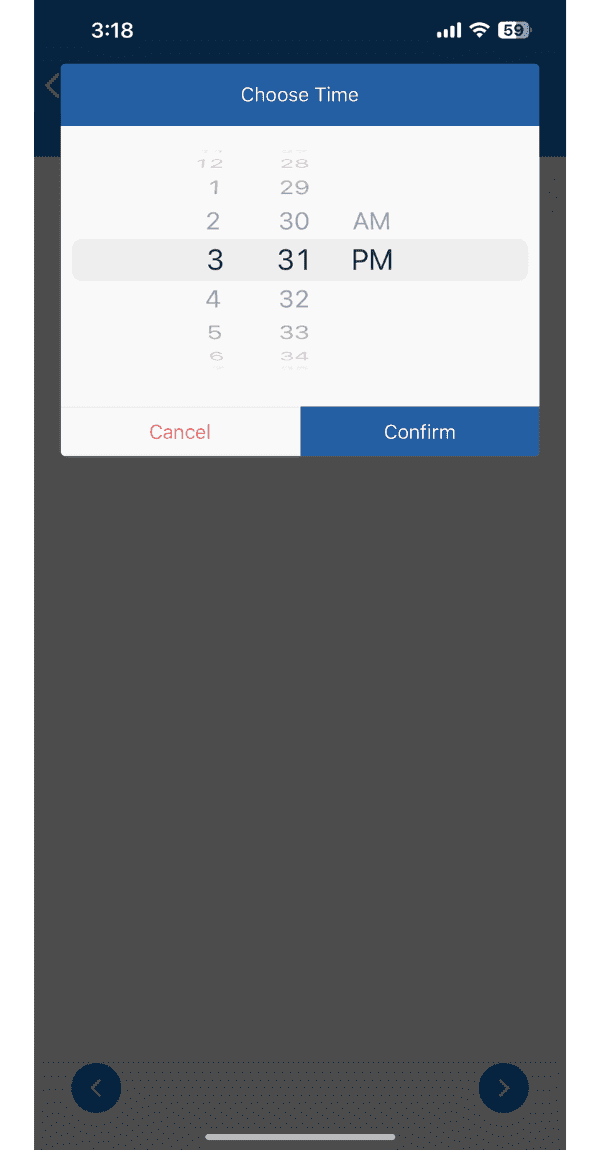
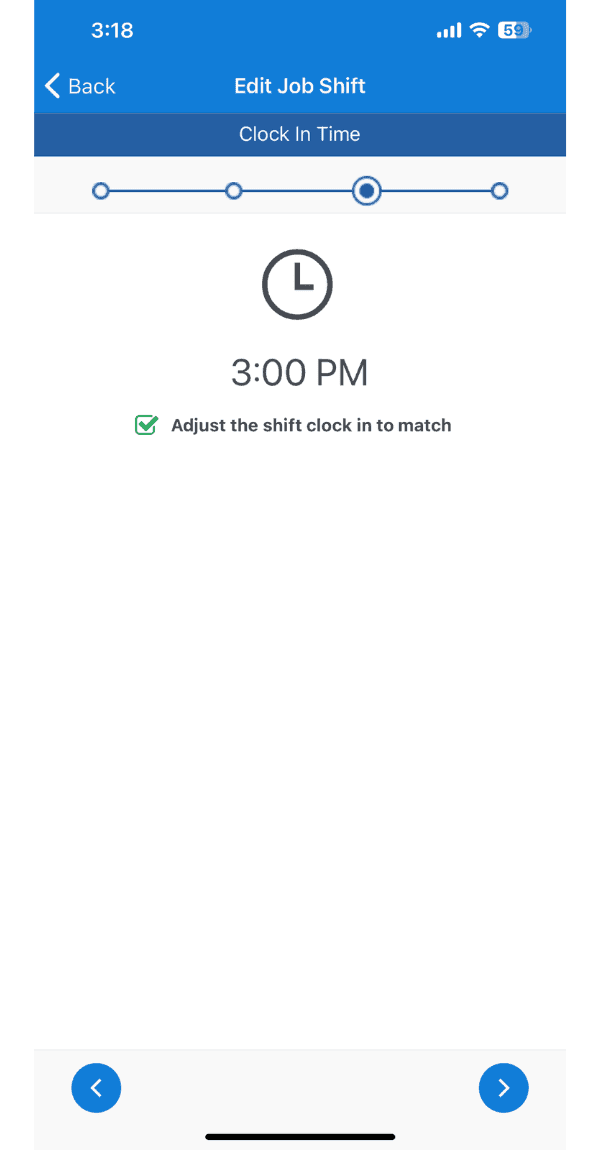
Suivez l’assistant de modification des horaires
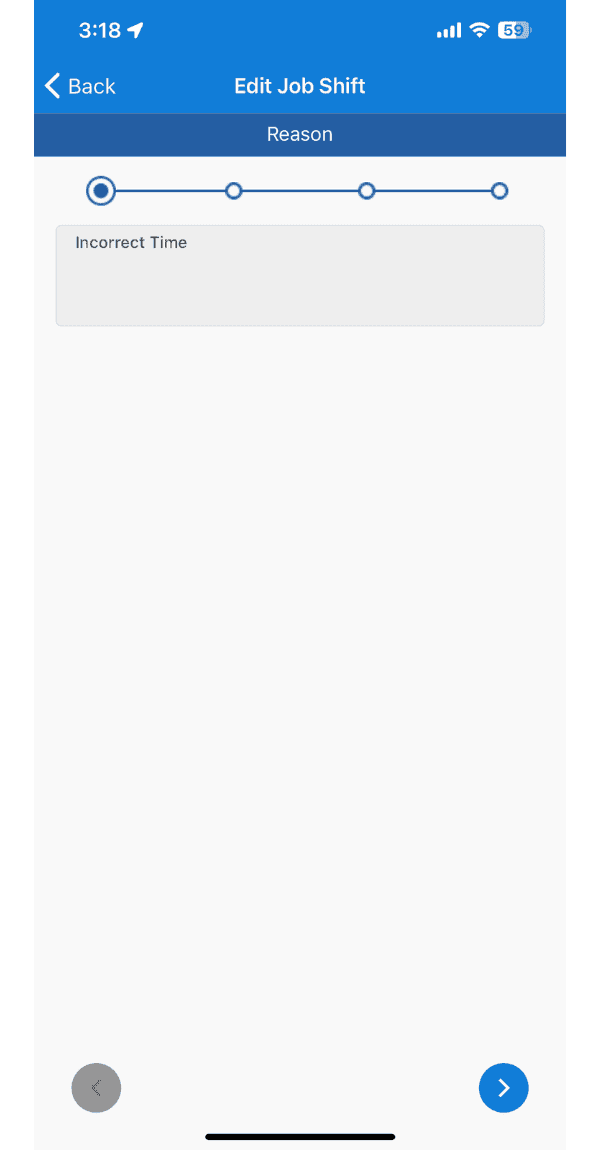
SINC mobile Edit Job Shift wizard showing the Reason step with Incorrect Time selected
Mobile Edit Job Shift screen showing the Clock In Date calendar step with December 2 selected
SINC mobile Choose Time wheel picker for setting a new clock time, with Cancel and Confirm buttons
Edit Job Shift wizard showing the Clock In Time step set to 3:00 PM

Appuyez sur Soumettre la modification
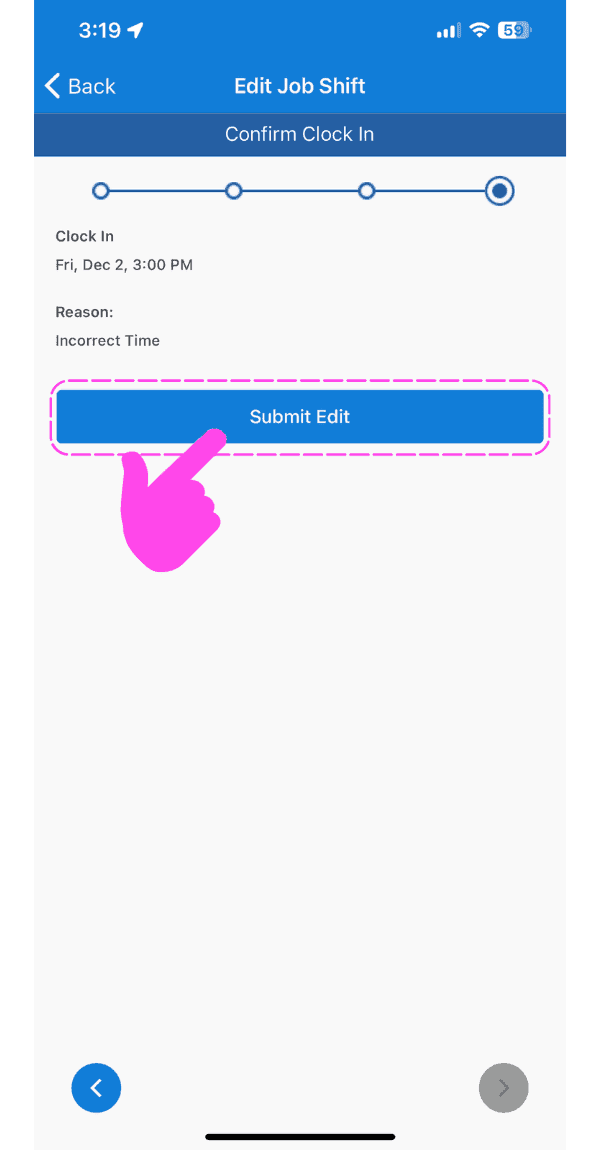
Mobile Edit Job Shift confirmation screen with the Submit Edit button circled in pink

Pour modifier le code de coût d’un quart de travail existant : appuyez sur Modifier à côté du code de coût actuel
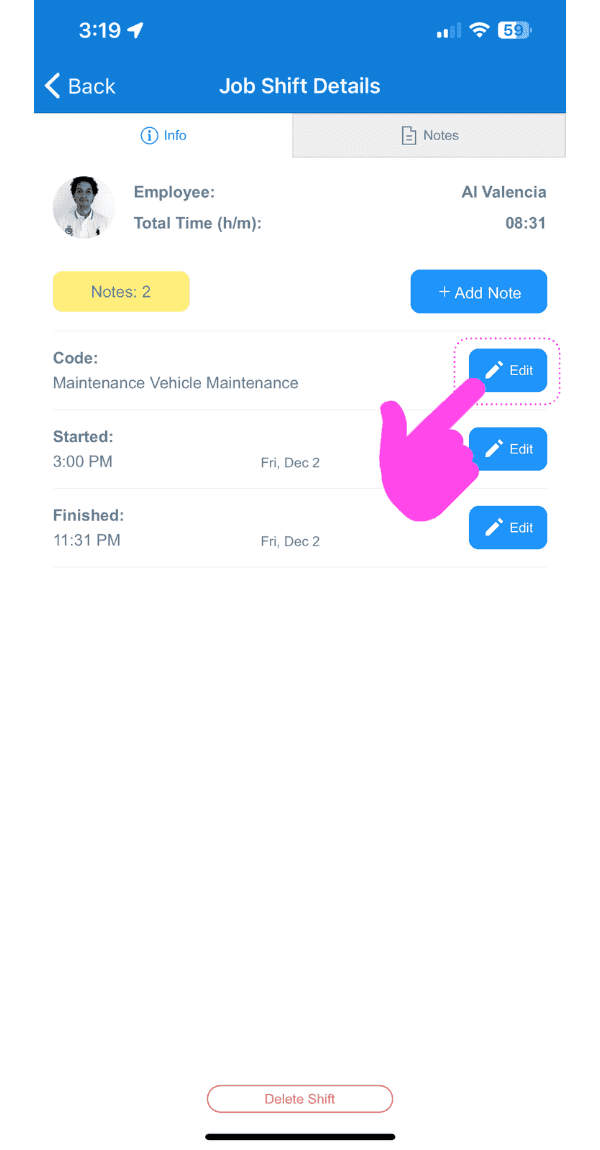
SINC mobile Job Shift Details screen with a pink arrow pointing to the Edit button next to the cost code

Sélectionnez le code de coût souhaité
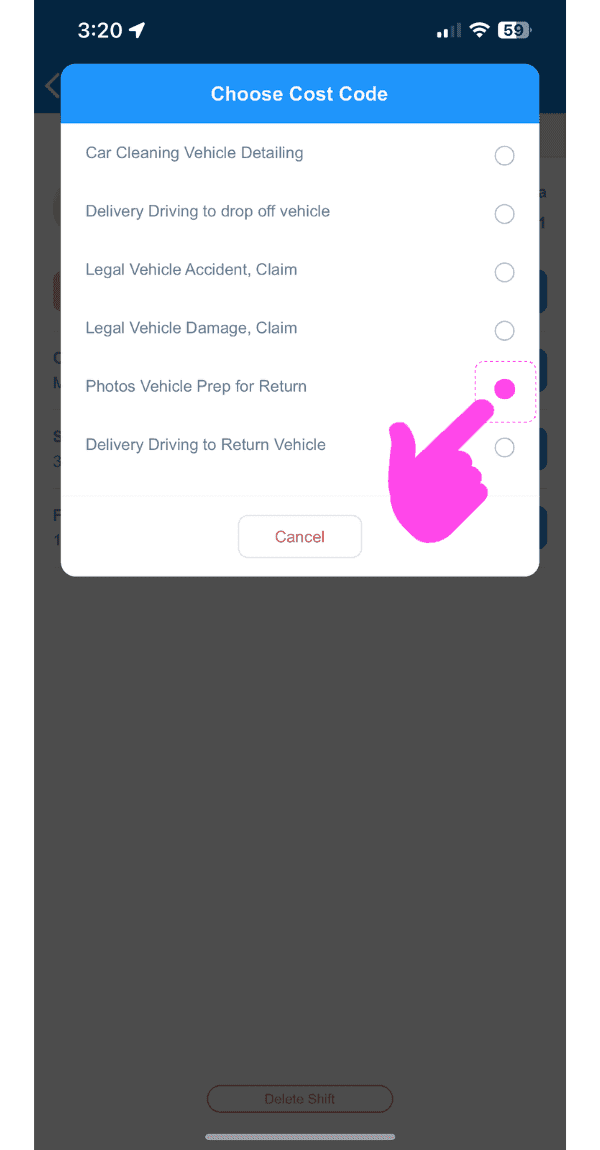
SINC mobile Choose Cost Code list with the 'Photos Vehicle Prep for Return' option circled in pink

Sur le Web : cliquez sur Accueil Heures de travail
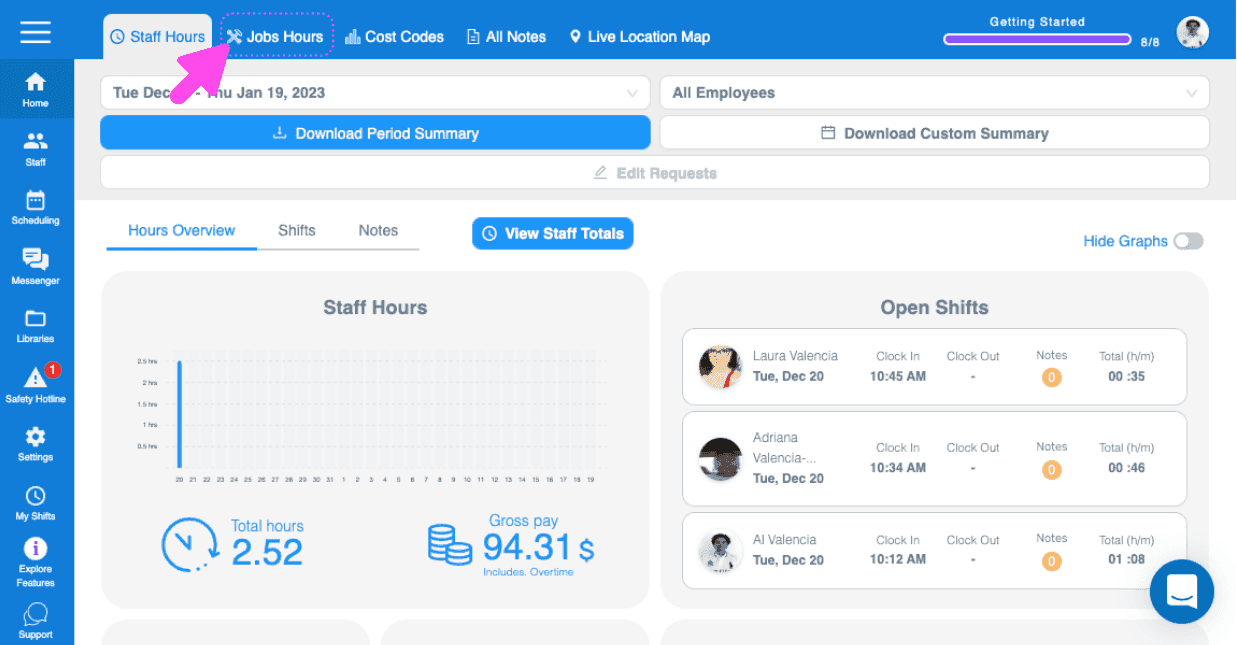
Web Jobs Hours dashboard showing an open shifts list with a pink arrow pointing to the Jobs Hours tab

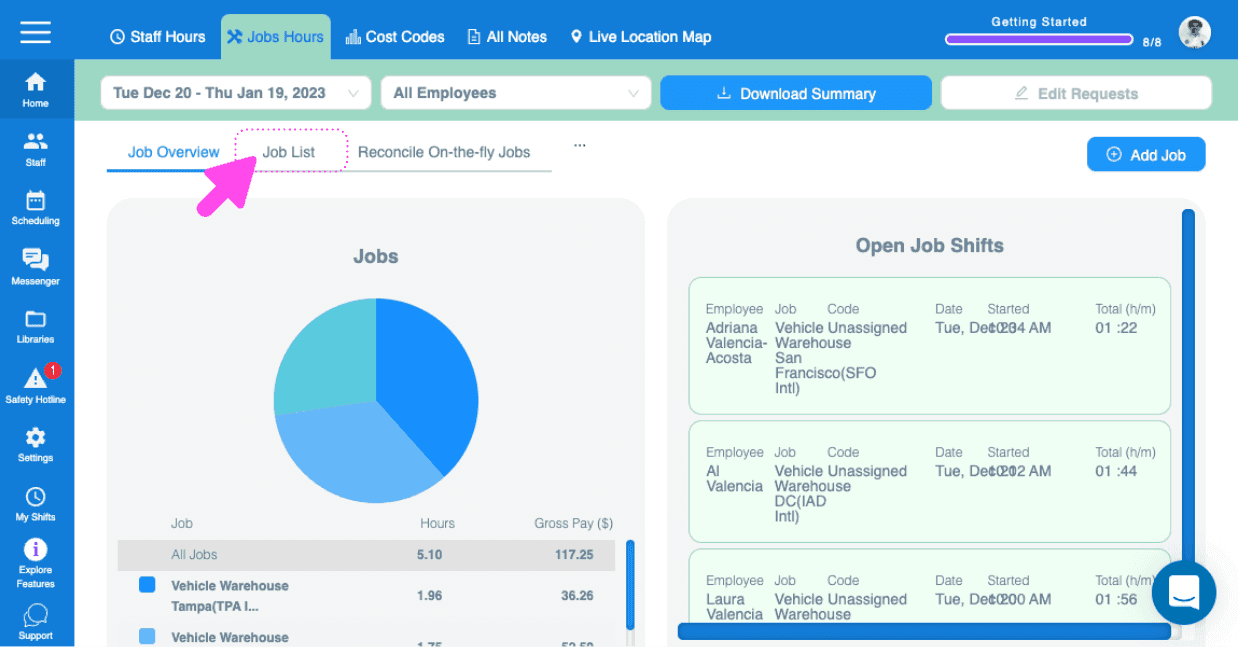
Cliquez sur Liste des emplois

SINC web Jobs Hours page with a pink arrow pointing to the Job List tab above a jobs pie chart

Cliquez sur le poste contenant le créneau de travail que vous souhaitez modifier
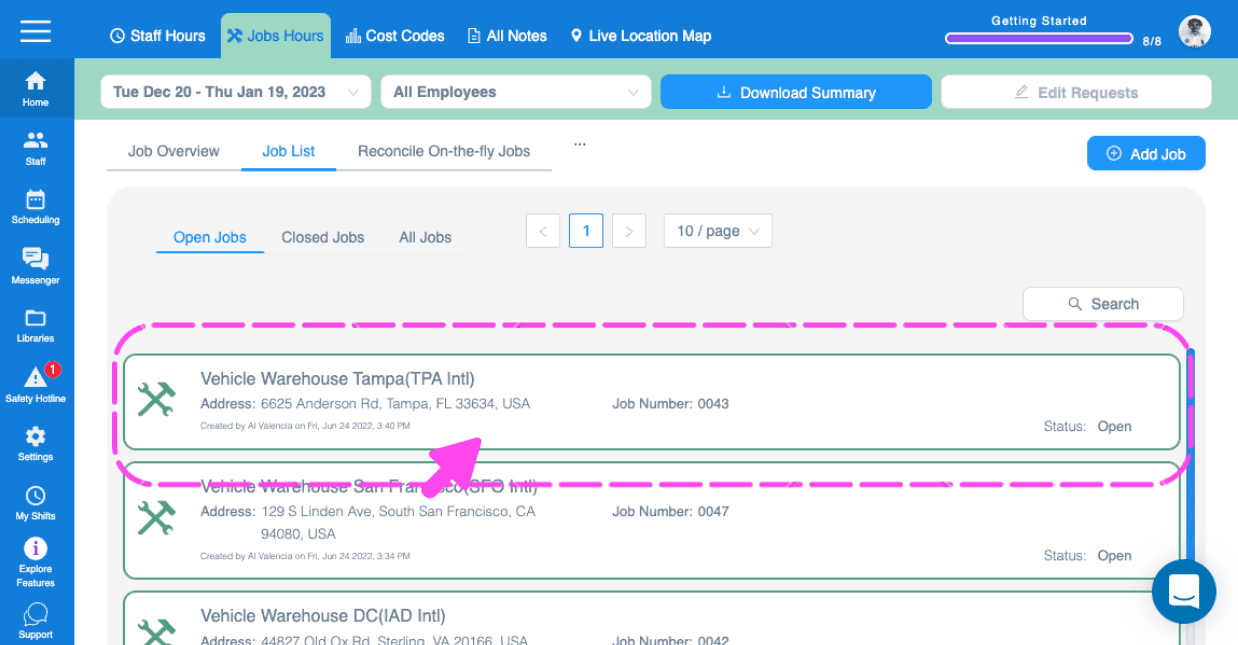
Web dashboard Job List with a pink arrow highlighting a job entry to open

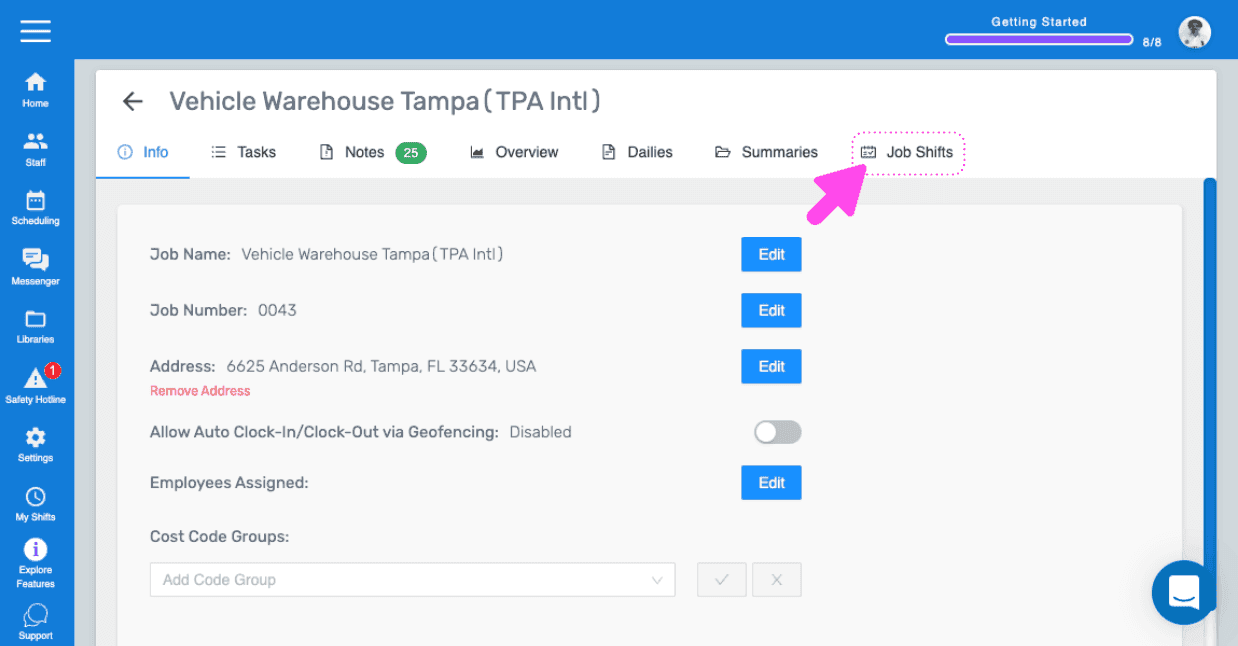
Cliquez sur Horaires de travail

SINC web Job Info screen with a pink arrow pointing to the Job Shifts tab

Cliquez sur le créneau de travail que vous souhaitez modifier
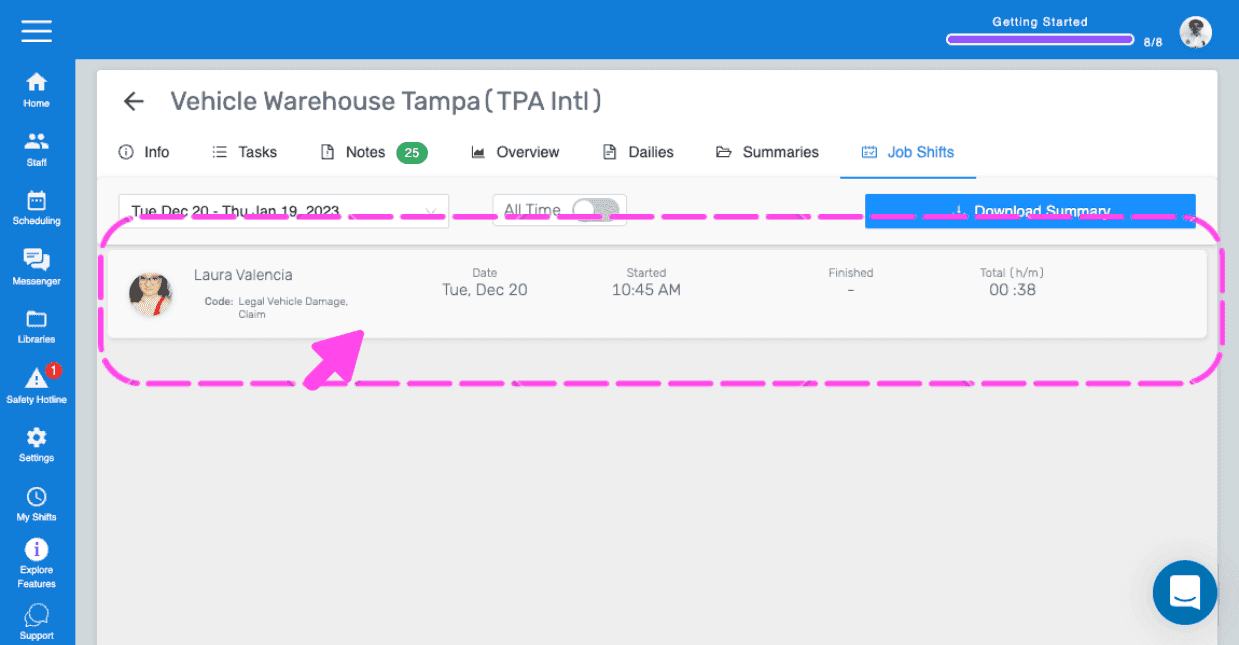
SINC mobile Job Shifts tab with a pink arrow pointing to a highlighted employee shift entry

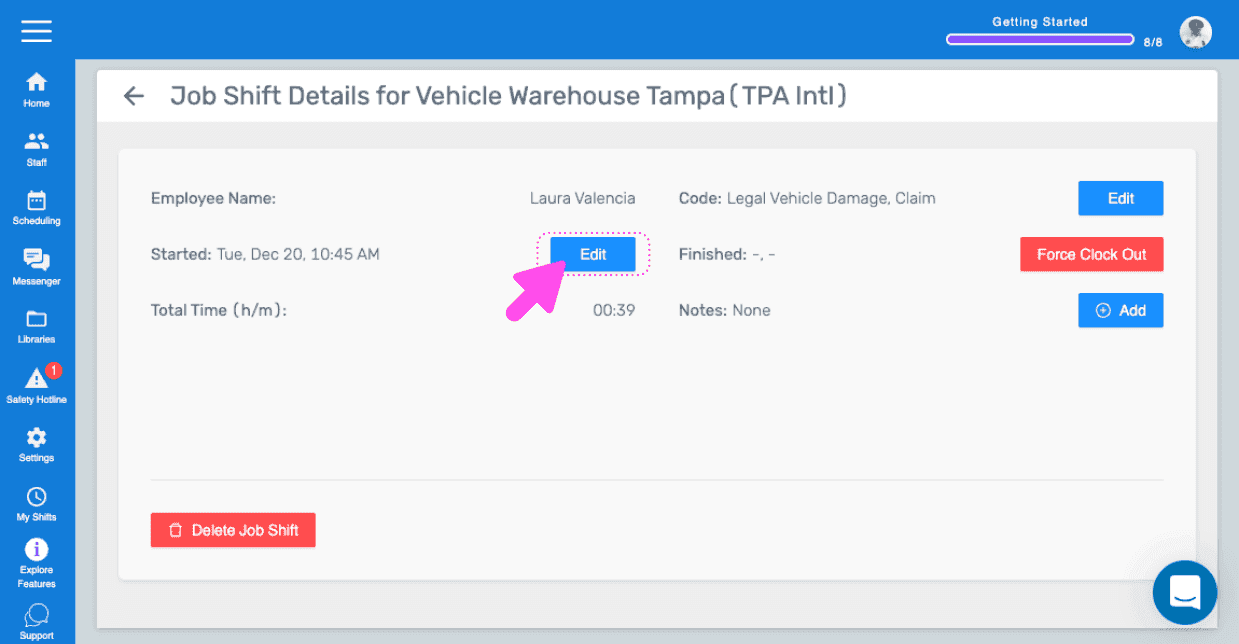
Cliquez sur Modifier

Job Shift Details screen with the Edit button next to the Started time highlighted by a pink arrow

Cliquez sur Soumettre la modification
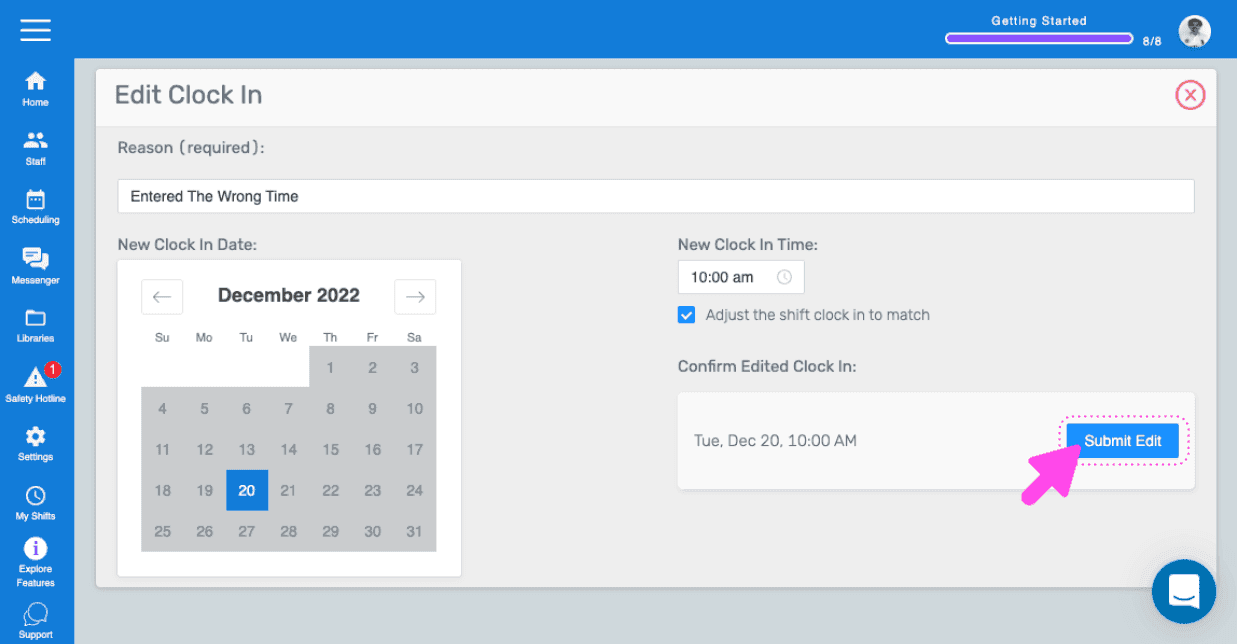
SINC web Edit Clock In form with date and time fields and the Submit Edit button highlighted

Pour modifier le code de coût d’un shift existant : cliquez sur Modifier
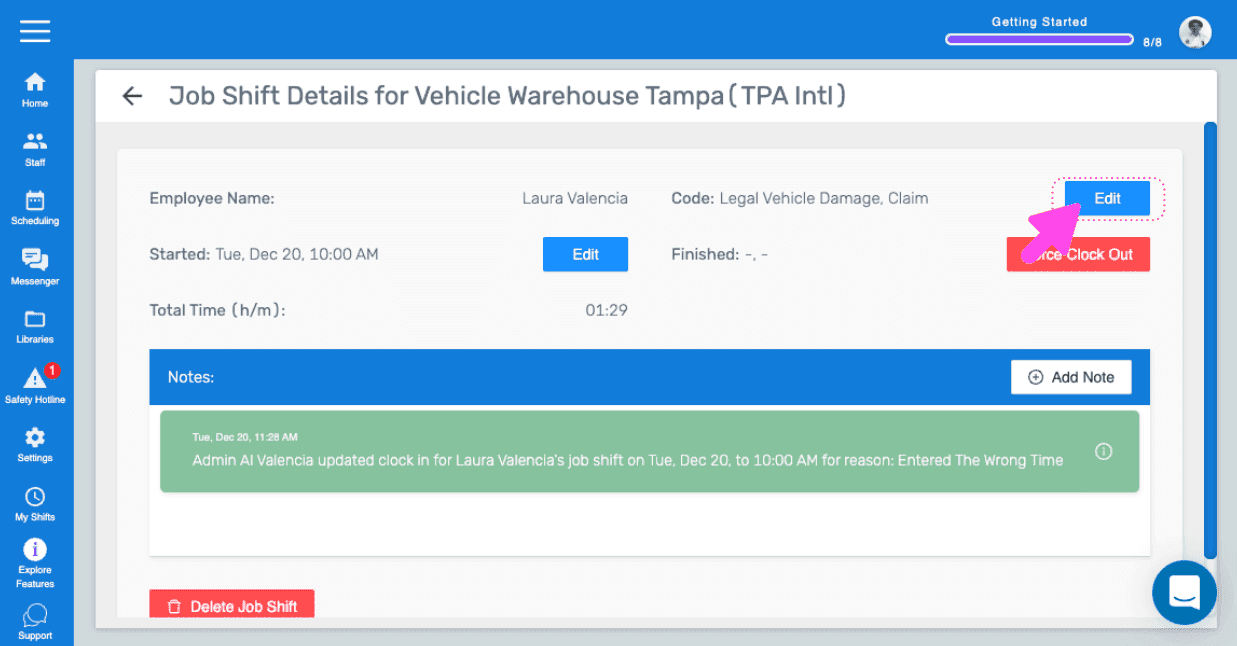
SINC web dashboard Job Shift Details screen with a pink arrow pointing to the Edit button near the Force Clock Out control

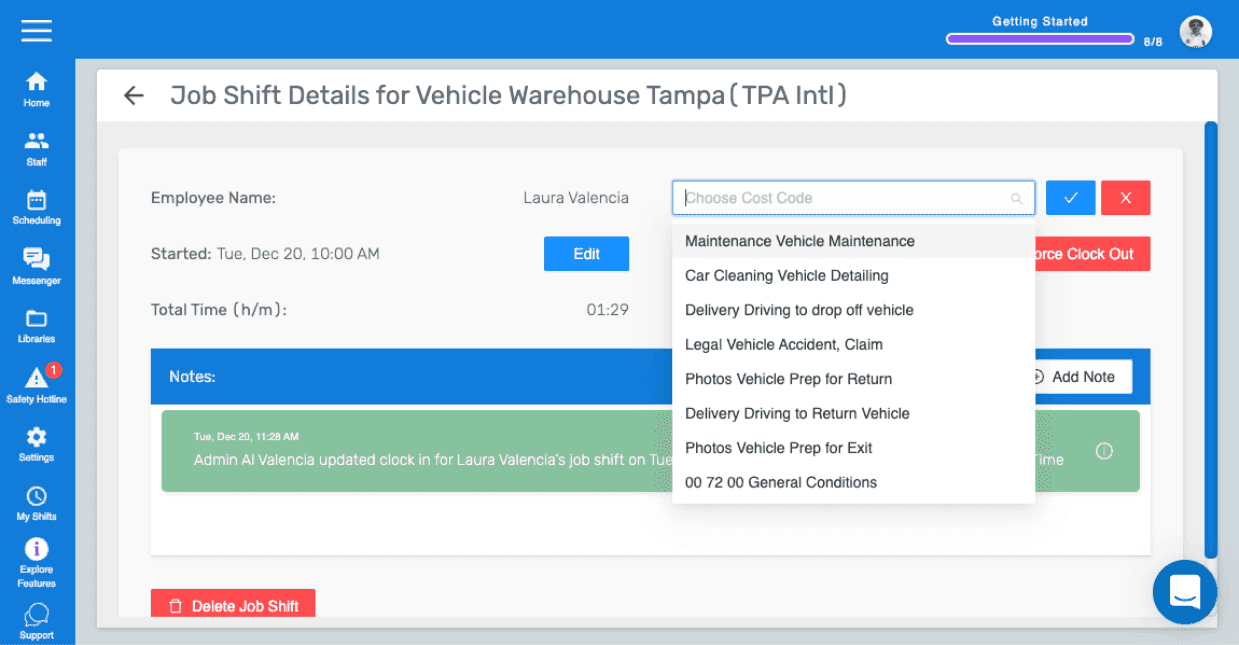
Sélectionnez le nouveau code de coût

SINC web Job Shift Details panel with the Choose Cost Code dropdown open and options listed

Cela a-t-il répondu à votre question ?