Jobs : guide pour les employés

Voici une présentation du flux de travail des tâches d’un employé.

Sam Dolbel
Sam Dolbel
Dec 15th, 2022

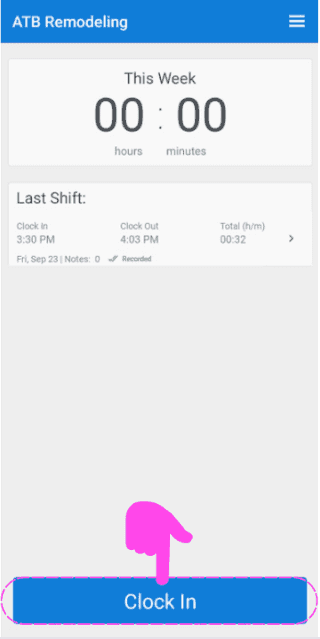
Appuyez sur Pointer l’arrivée

SINC mobile app home screen with a pink hand icon pointing to the Clock In button

Faites glisser le bouton vers la droite pour confirmer votre pointage
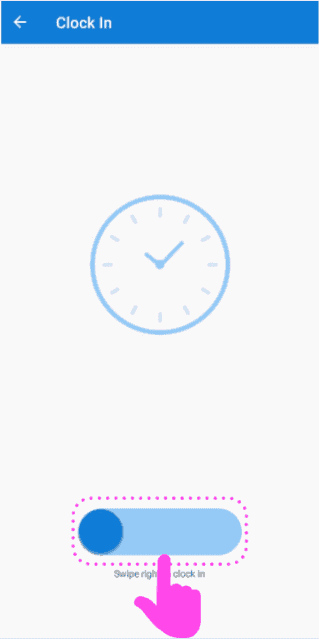
Clock In screen with a pink arrow showing how to swipe the slider right to clock in

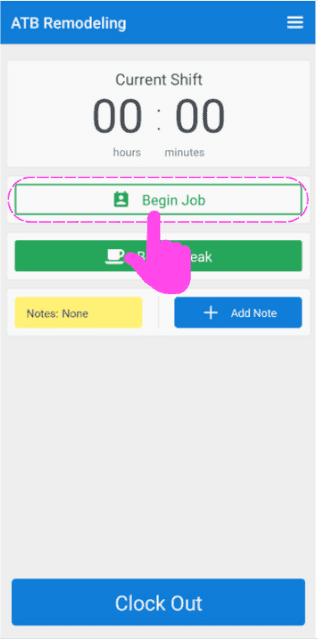
Appuyez sur Démarrer la mission

SINC mobile Current Shift screen with the Begin Job button circled in pink

Vous trouverez ici une liste consultable des postes disponibles. Sélectionnez l’intitulé de poste approprié.
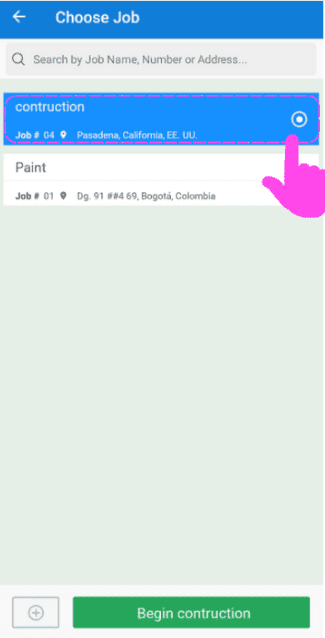
SINC mobile Choose Job screen with a pink hand pointing to a highlighted job in the searchable list

Pour commencer à travailler sur un code de coûts, appuyez sur Ajouter (à côté de Code : non attribué).
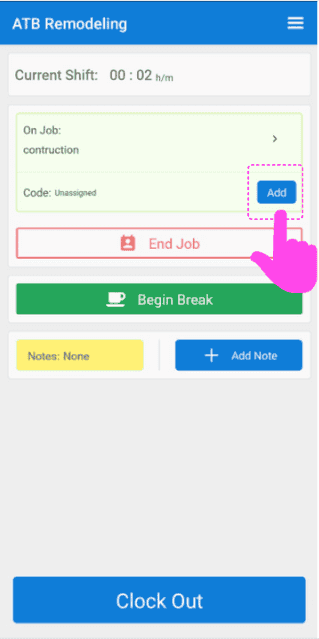
Mobile app Current Shift screen with the Add button next to the unassigned cost code highlighted by a pink arrow

Vous trouverez ici la liste de tous les codes de coûts mis à disposition par l’administrateur pour ce chantier. Sélectionnez celui qui s’applique.
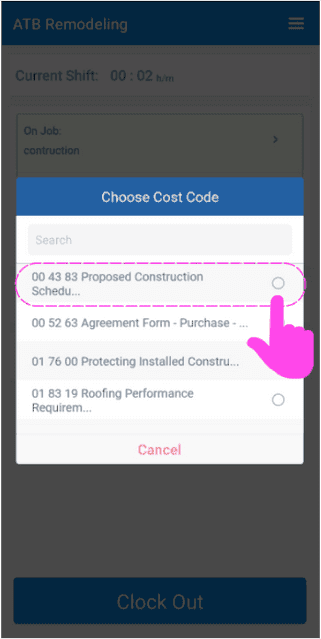
SINC mobile Choose Cost Code screen with the first cost code option highlighted in pink

Ensuite, une fois que vous avez terminé de travailler sur ce code et que vous souhaitez passer à un autre, appuyez simplement sur Modifier (à côté de Code :)
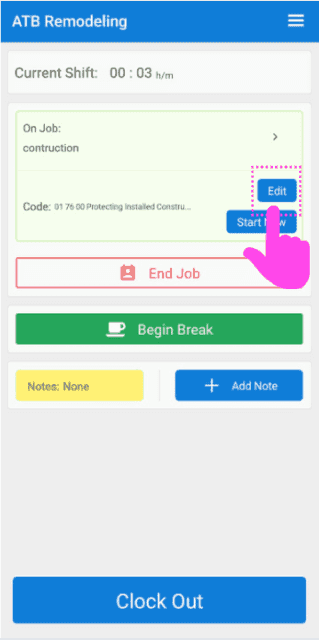
Job shift screen for ATB Remodeling with a pink hand pointing to the Edit button next to the job Code

Et sélectionnez le code approprié dans la liste
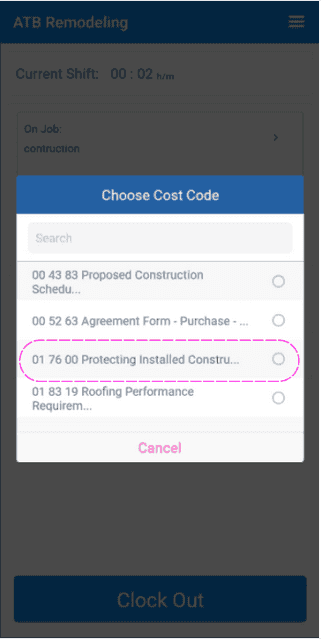
SINC mobile app Choose Cost Code list with one cost code option circled in pink

Pour commencer une pause, appuyez sur Commencer la pause
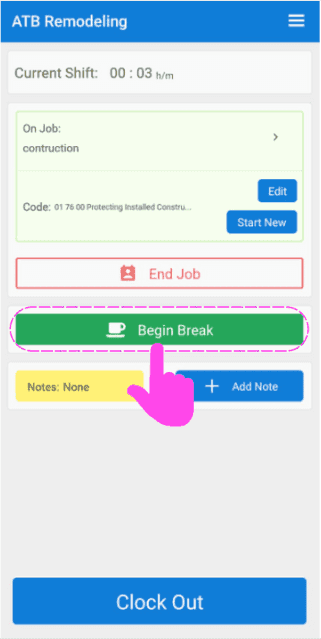
Mobile job clock-in screen with the green Begin Break button circled in pink and an arrow pointing to it

Sélectionnez la pause à laquelle vous avez droit en fonction de la durée travaillée pendant ce poste.
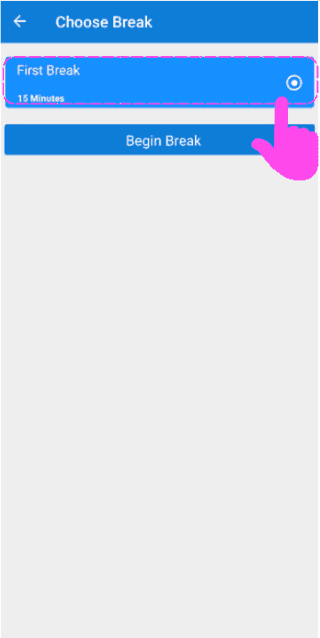
SINC mobile Choose Break screen with a pink hand pointing to the First Break option above the Begin Break button

Pour terminer la pause, appuyez sur Terminer la pause
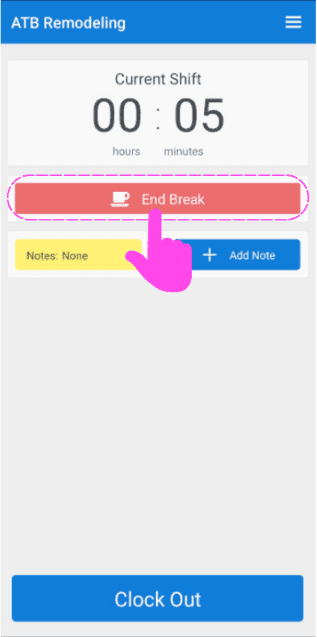
Mobile Current Shift screen during a break with a pink arrow pointing to the End Break button

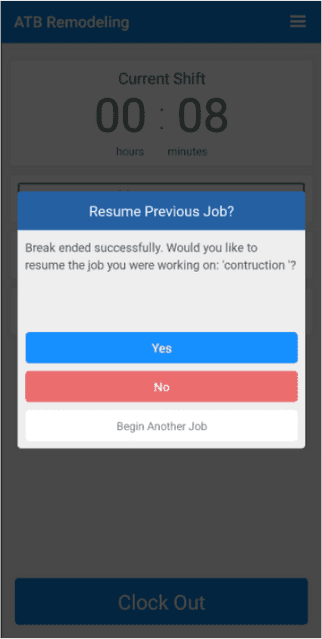
On vous demandera si vous souhaitez reprendre le travail sur la tâche sur laquelle vous travailliez avant la pause ou commencer une autre tâche.
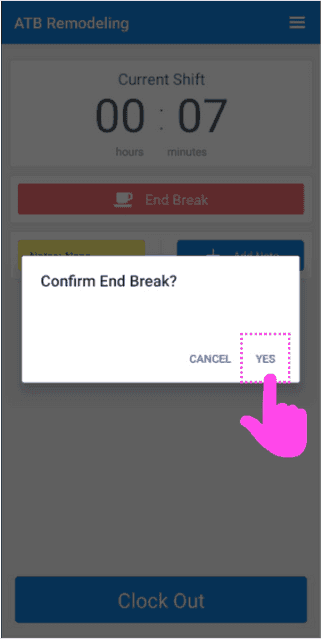
Mobile Confirm End Break popup with the Yes button circled in pink
SINC mobile app Resume Previous Job dialog with Yes, No, and Begin Another Job buttons

Pour voir les détails de l’intervention, appuyez sur la flèche à côté de Intervention en cours.
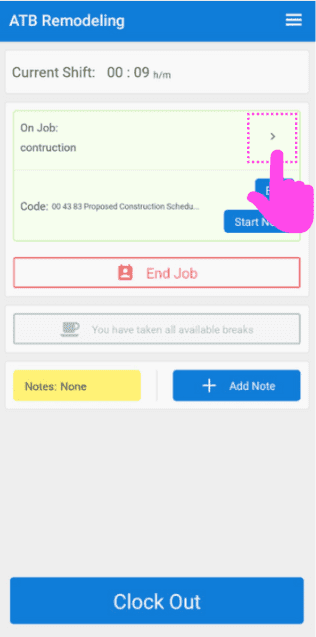
SINC mobile Current Shift screen with a pink arrow highlighting the expand arrow icon next to 'On Job'

Pour obtenir rapidement l’itinéraire vers votre lieu de travail, appuyez sur Carte
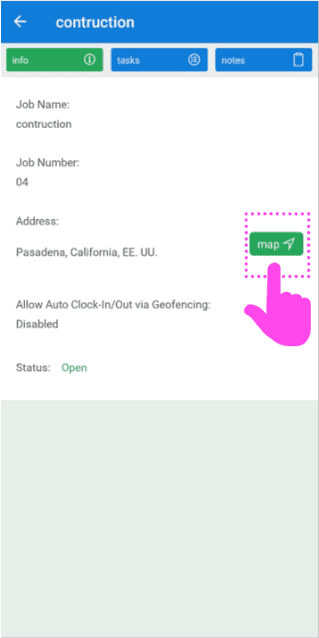
Mobile job info screen for a construction job with a pink arrow pointing to the green Map button

Pour afficher la liste des tâches liées à l’intervention, appuyez sur Tâches
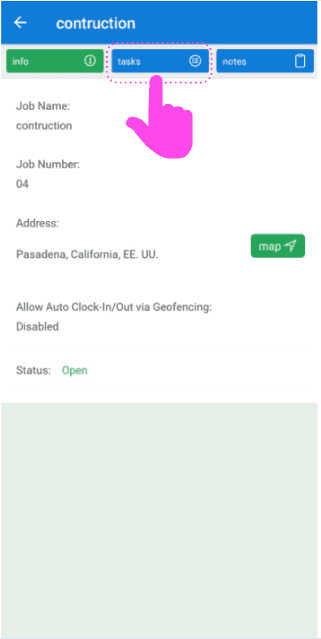
SINC mobile app job detail screen with a pink hand pointing to the Tasks tab

Vous trouverez ici la liste des tâches associées à ce poste. Pour voir la description d’une tâche, appuyez sur Nom de la tâche
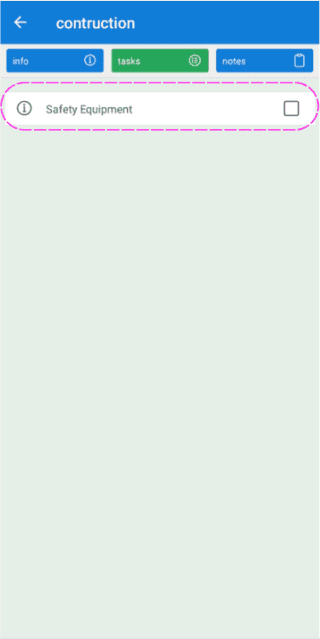
Job task list screen with the Safety Equipment task outlined in pink

Vous pouvez marquer une tâche comme terminée en appuyant sur la case située à côté de celle-ci.
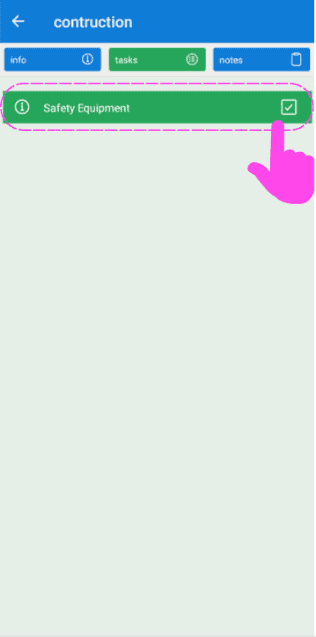
SINC mobile Job Tasks screen with the Safety Equipment task and its completion checkbox circled in pink

Pour ajouter une note à la mission, appuyez sur Notes
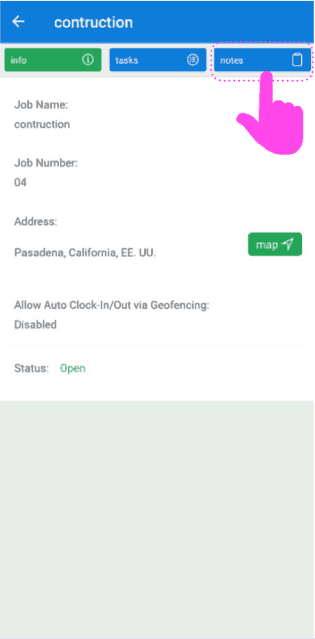
SINC mobile job detail screen with a pink arrow pointing to the Notes tab

Vous trouverez ici la liste de toutes les notes associées à la tâche. Pour en ajouter une, appuyez sur + Ajouter une note
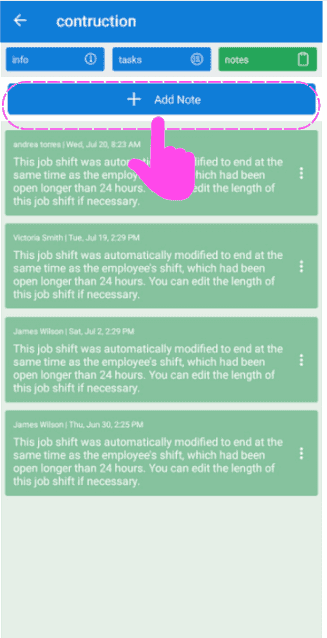
Job notes list screen with the +Add Note button outlined in pink at the top

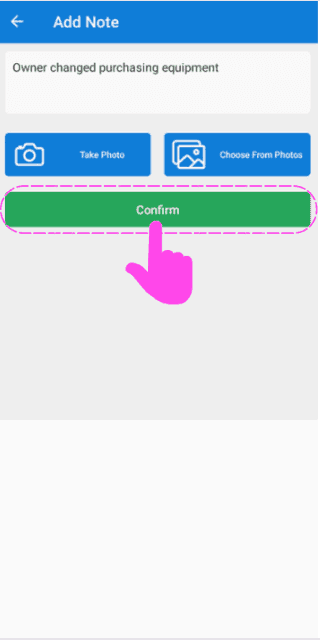
Saisissez ici une description, prenez une photo à joindre à la note ou sélectionnez une image dans la photothèque de votre appareil.
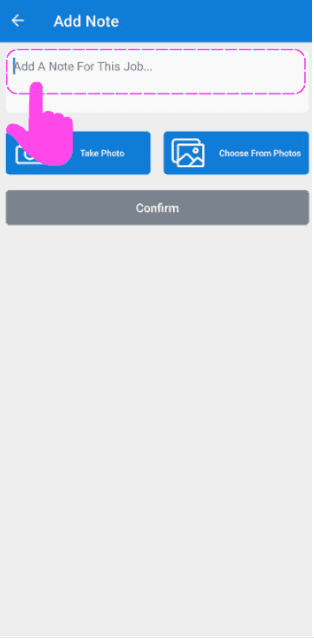
SINC mobile Add Note screen with the note text field highlighted and Take Photo and Choose From Photos buttons
Add Note screen with a typed description and a pink arrow pointing to the green Confirm button below the photo options

À la fin de votre service, appuyez sur Pointer la sortie.
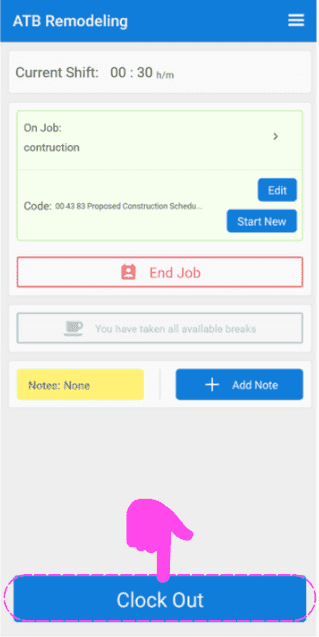
SINC mobile Current Shift screen for a job, with a pink arrow pointing to the Clock Out button

Faites glisser le bouton vers la droite pour confirmer votre sortie du travail
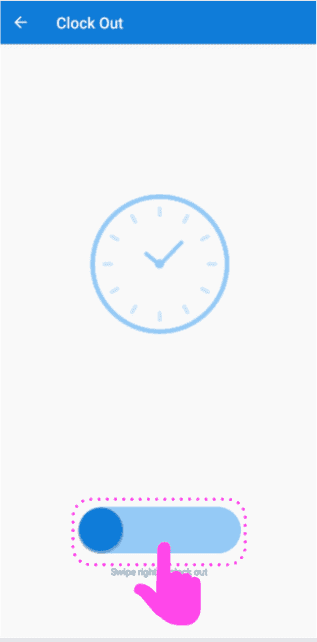
Mobile Clock Out screen with a clock icon and the slide-to-confirm button outlined in pink

Cela a-t-il répondu à votre question ?