Chantiers : forcer la fin d’un créneau de travail ouvert

Utilisez cette fonctionnalité avec prudence ! Elle est conçue comme une solution de dernier recours lorsqu’un employé n’a pas de connexion Internet pour synchroniser ses horaires.

SINC Support Team
SINC Support Team
Feb 27th, 2023

Si un employé ne parvient pas à se connecter à Internet à temps pour vous permettre de générer un récapitulatif, ou s’il n’a pas encore pu pointer sa fin de service pour une autre raison, vous pouvez forcer la fin de son service à l’aide de cette fonctionnalité. Cette fonctionnalité doit être utilisée en dernier recours.

Sur mobile : appuyez sur le créneau de travail ouvert concerné
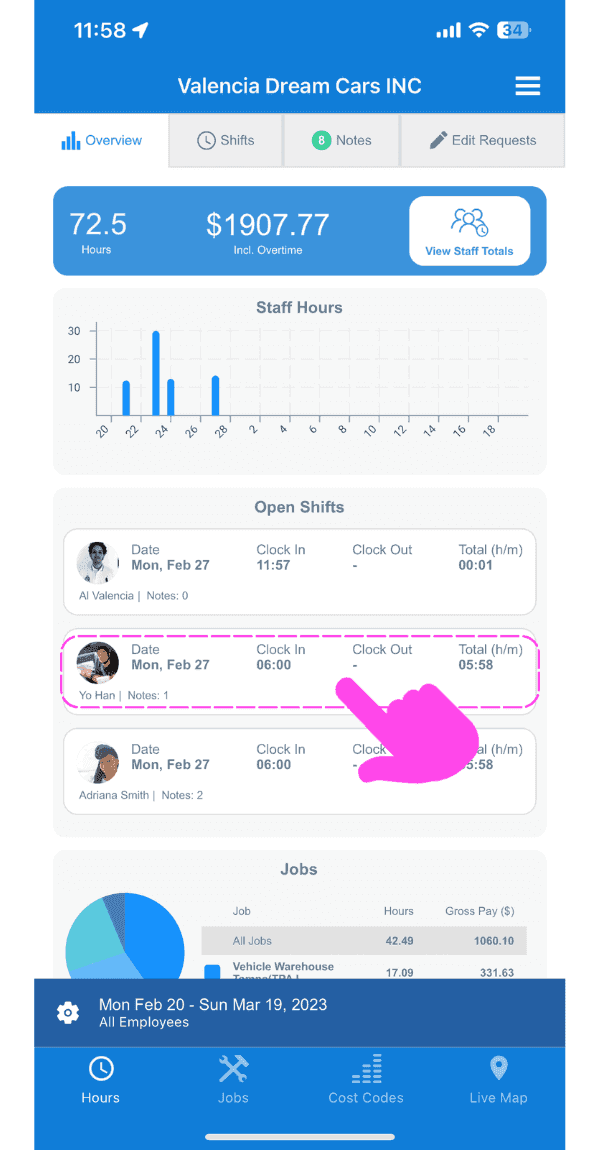
SINC web dashboard Open Shifts list with a pink hand pointing to a specific open shift row

Appuyez sur Forcer le pointage de sortie
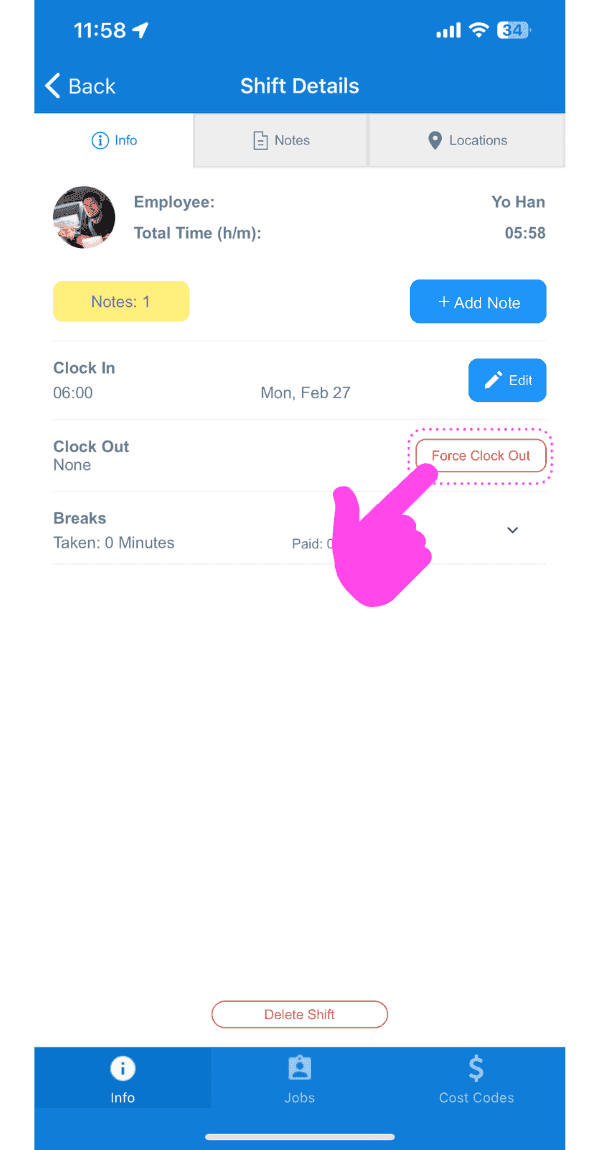
Shift Details screen with the Force Clock Out button outlined in pink

Sélectionnez la date du nouveau pointage de sortie
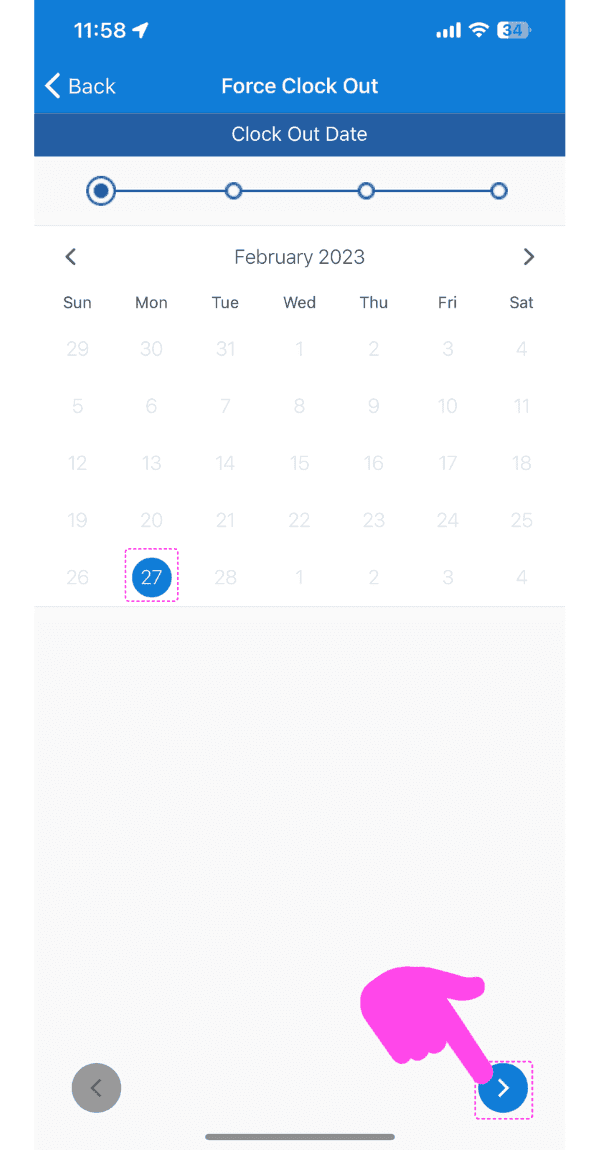
Force Clock Out screen showing a February calendar with the 27th selected and a pink arrow pointing to the next-step button

Sélectionnez l’heure du nouveau pointage de sortie
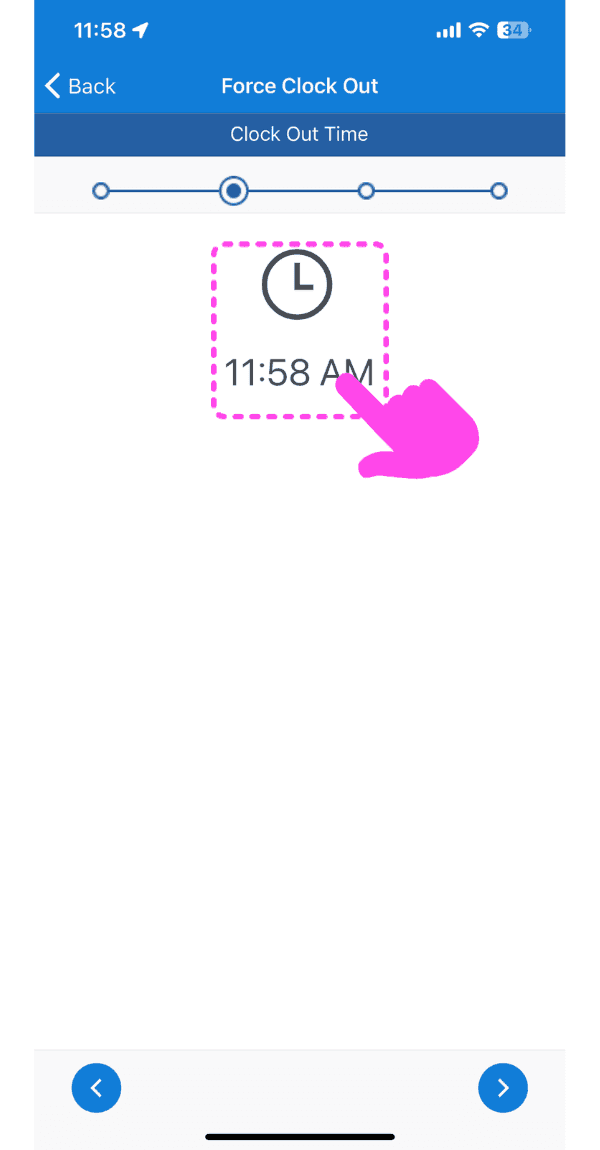
SINC mobile Force Clock Out screen with a pink arrow pointing to the clock-out time selector

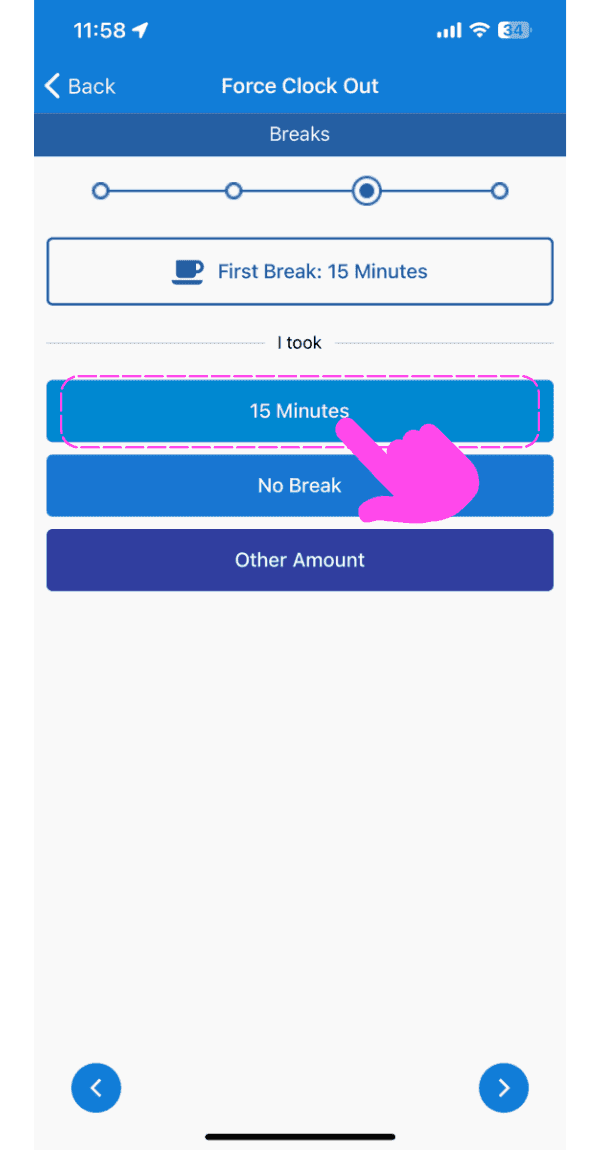
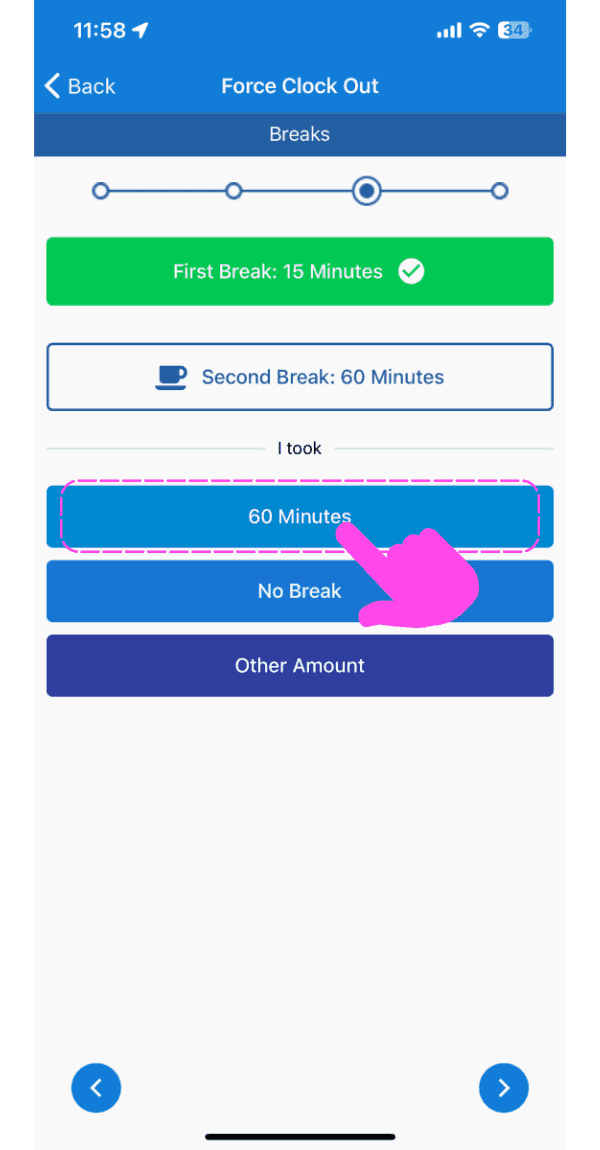
Sélectionnez la durée de la pause

Force Clock Out breaks screen with the 15 Minutes break option highlighted by a pink arrow
SINC mobile Force Clock Out breaks screen with the 60 Minutes option highlighted in pink
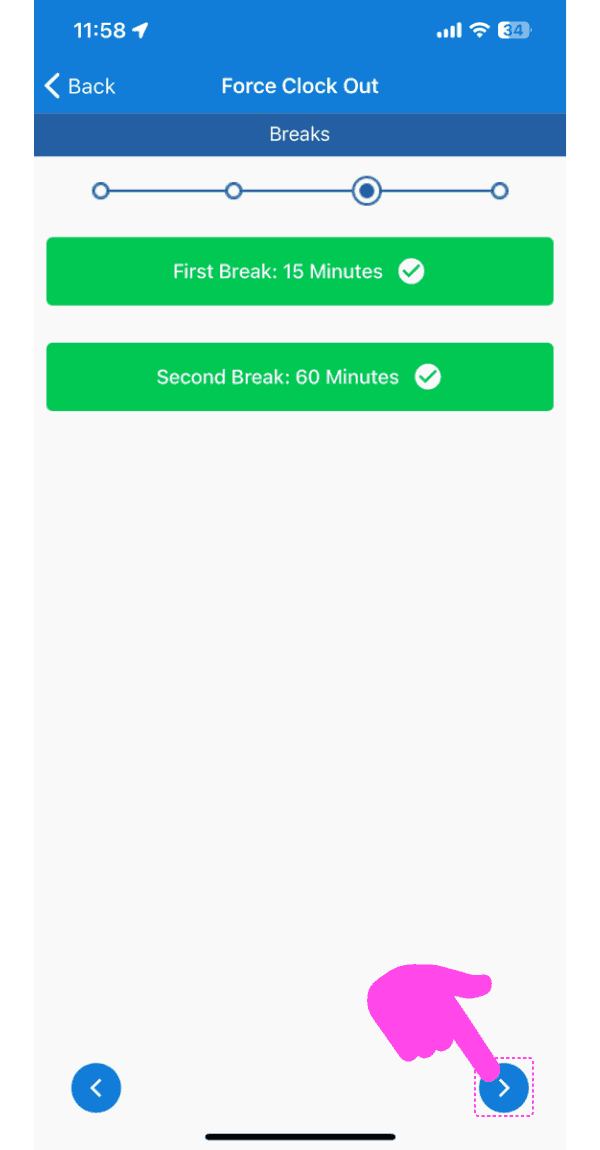
Force Clock Out Breaks screen showing both breaks confirmed, with a pink arrow pointing to the next-step arrow button bottom right

Appuyez sur Ajouter une heure de sortie
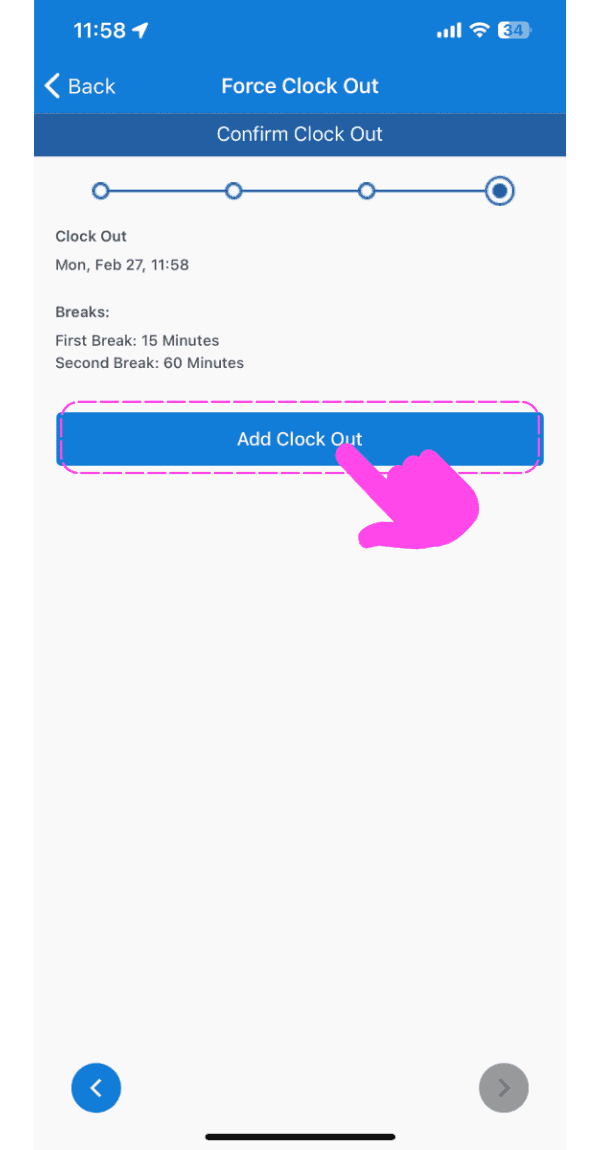
SINC mobile Confirm Clock Out screen with a pink arrow pointing to the Add Clock Out button

Sur le Web : cliquez sur le quart de travail ouvert concerné
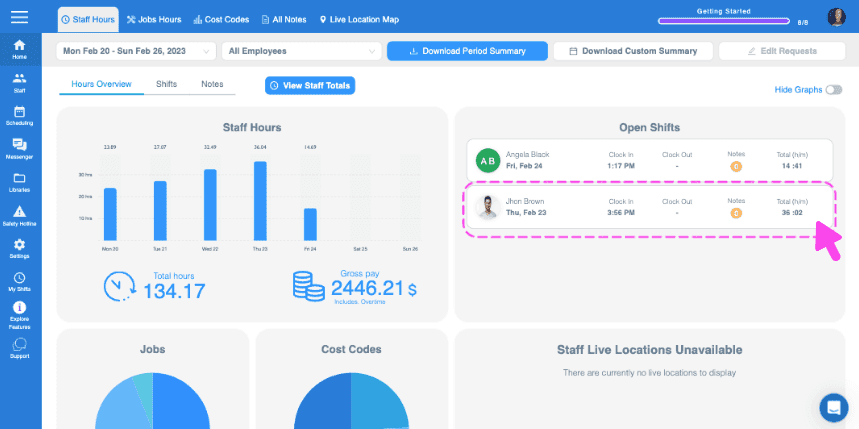
Web Staff Hours Overview with an open shift row outlined in pink and an arrow pointing to it

Cliquez sur Forcer le pointage de sortie
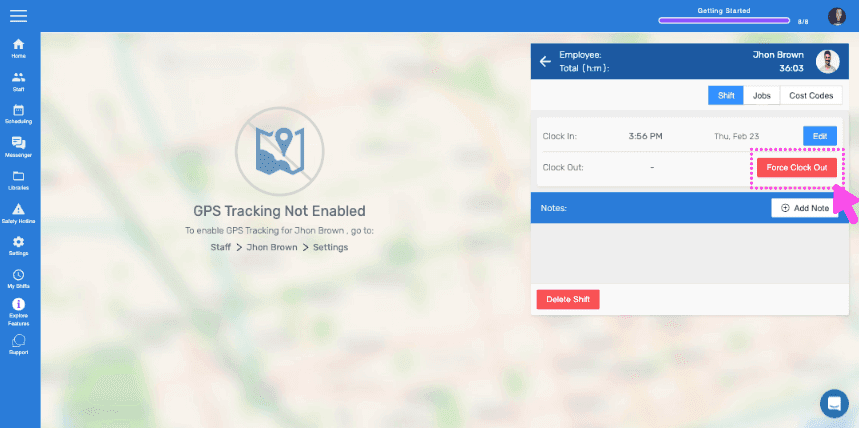
SINC web Force Clock Out panel with a pink arrow pointing to the highlighted Clock Out Time field

Sélectionnez la date du nouveau pointage de sortie
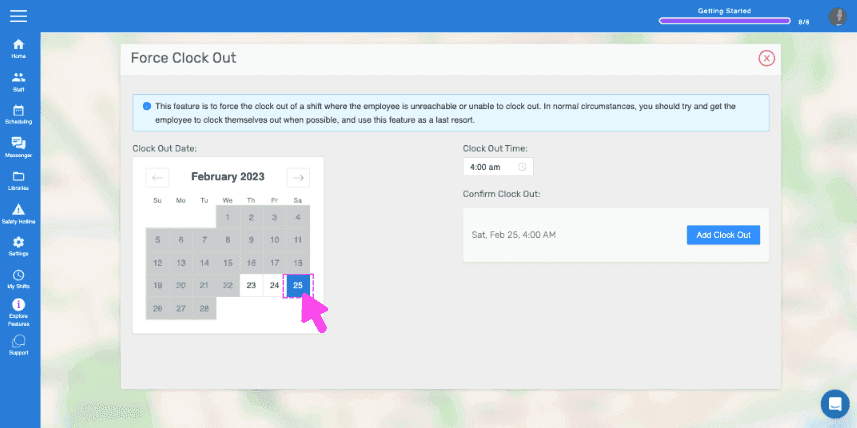
Force Clock Out screen with a calendar and a pink arrow selecting a clock-out date

Sélectionnez l’heure du nouveau pointage de sortie
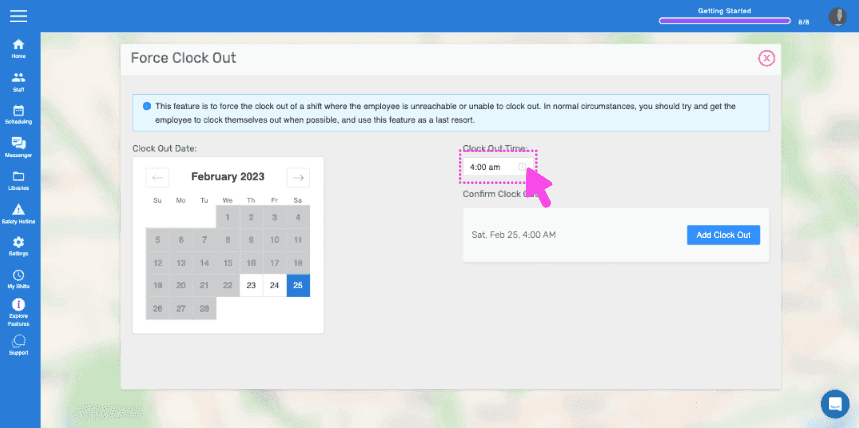
Web Force Clock Out screen with the Clock Out Time field circled in pink

Cliquez sur Ajouter une heure de sortie
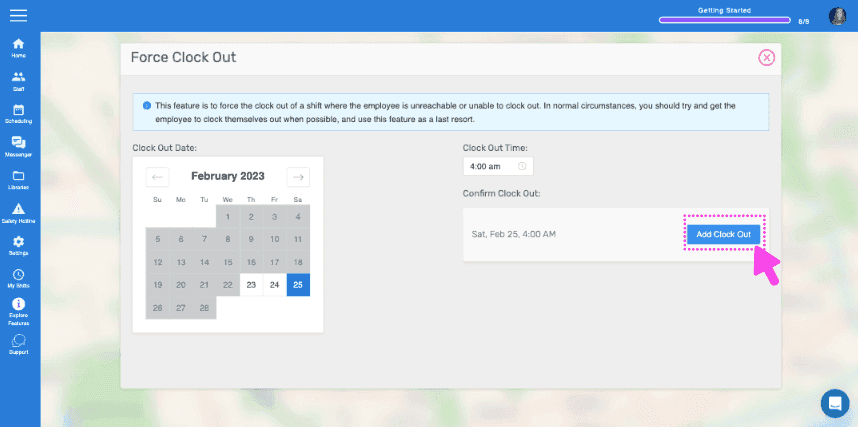
SINC web Force Clock Out screen with a pink arrow pointing to the Add Clock Out button

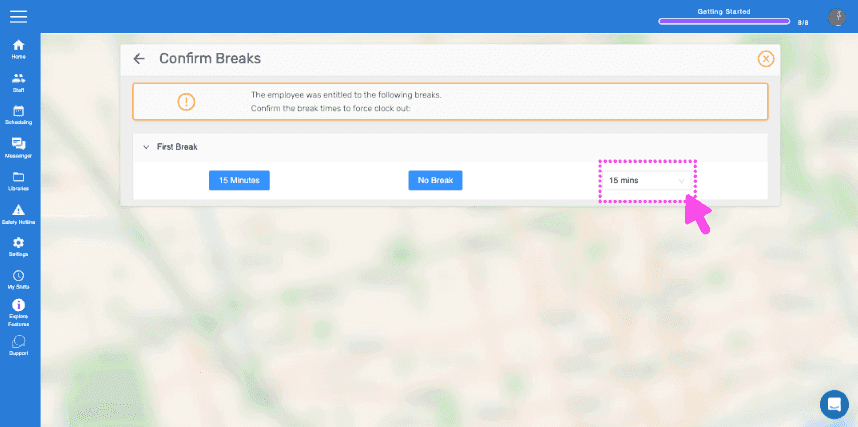
Cliquez sur Confirmer les pauses

SINC web Confirm Breaks dialog with a pink arrow pointing to the break time field

Cliquez sur Ajouter un pointage de sortie forcé
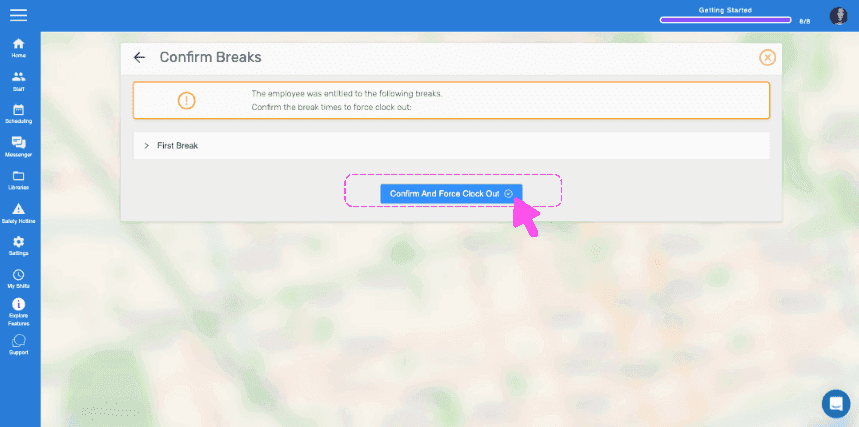
Confirm Breaks dialog with a pink arrow pointing to the Confirm And Force Clock Out button

Cliquez sur Terminé

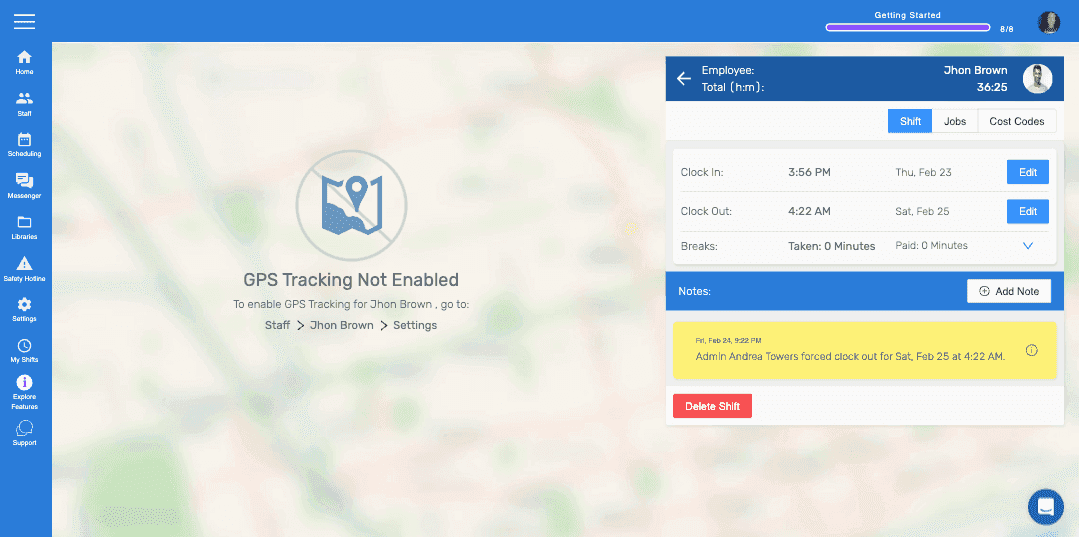
SINC mobile app shift detail screen showing clock in/out times, a forced clock-out note, and the Delete Shift button

Cela a-t-il répondu à votre question ?