
Tâches : synthèses et exportation de rapports

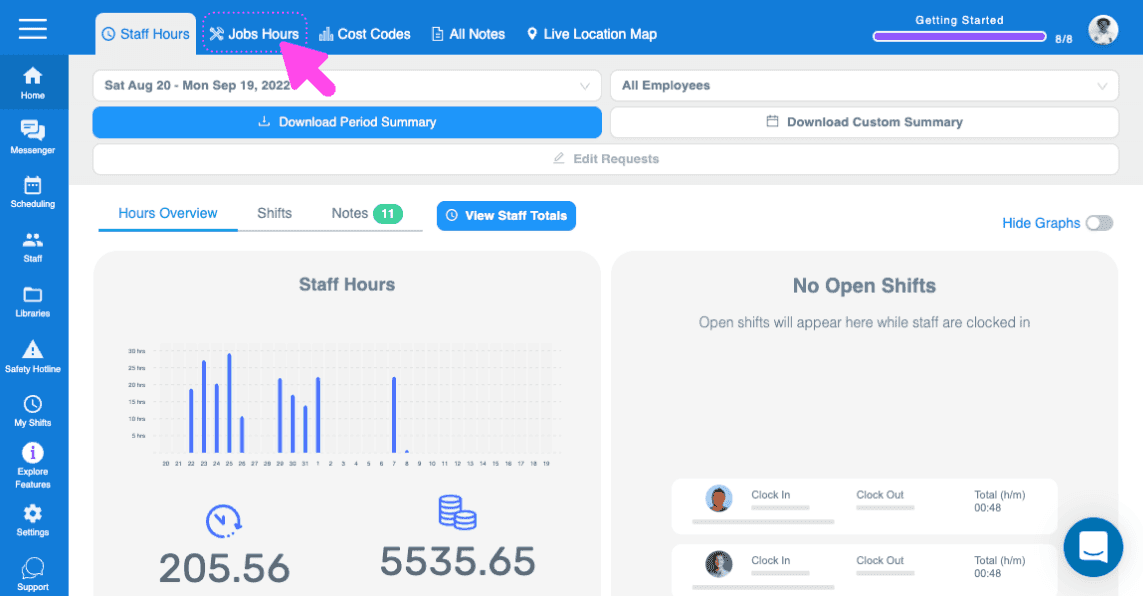
Vous pouvez exporter deux types de récapitulatifs dans la section Jobs. Le premier présente un récapitulatif de tous vos postes ouverts, tandis que le second offre une vue d’ensemble de chaque poste. Commençons par examiner le récapitulatif de tous les postes ouverts. Cliquez sur Accueil Jobs
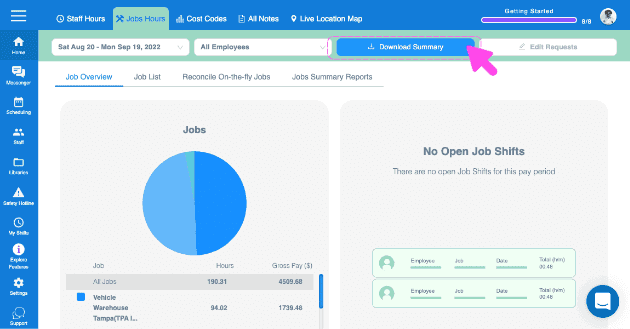
Vous trouverez ici un aperçu rapide de tous les postes ouverts, indiquant le nombre total d’heures travaillées et les coûts salariaux bruts associés à chacun d’eux. Pour recevoir par e-mail un récapitulatif détaillé de toutes les données relatives à chaque poste, cliquez sur Télécharger le récapitulatif.
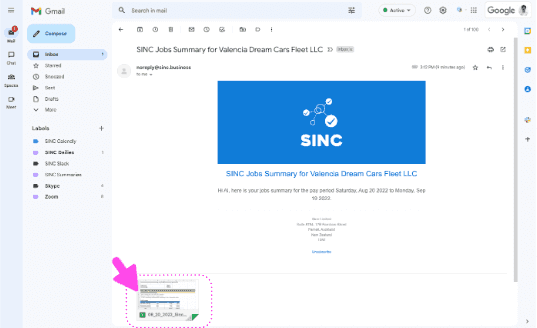
Lorsque vous recevez notre e-mail, ouvrez la pièce jointe.
Le premier onglet est un récapitulatif de tous les postes à pourvoir.
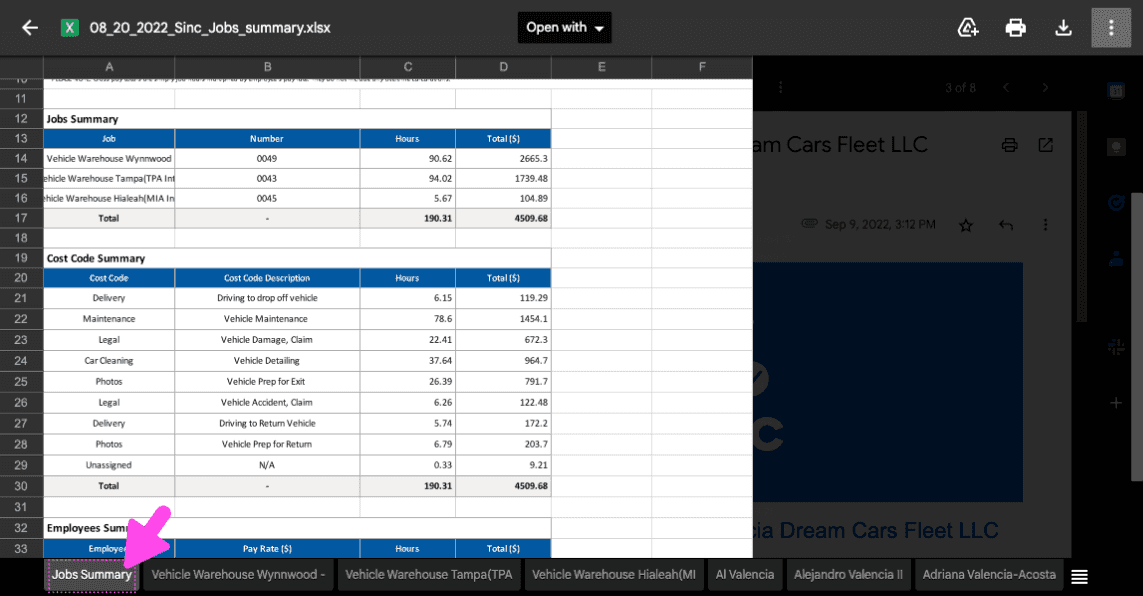
Un onglet distinct est prévu pour chaque emploi.
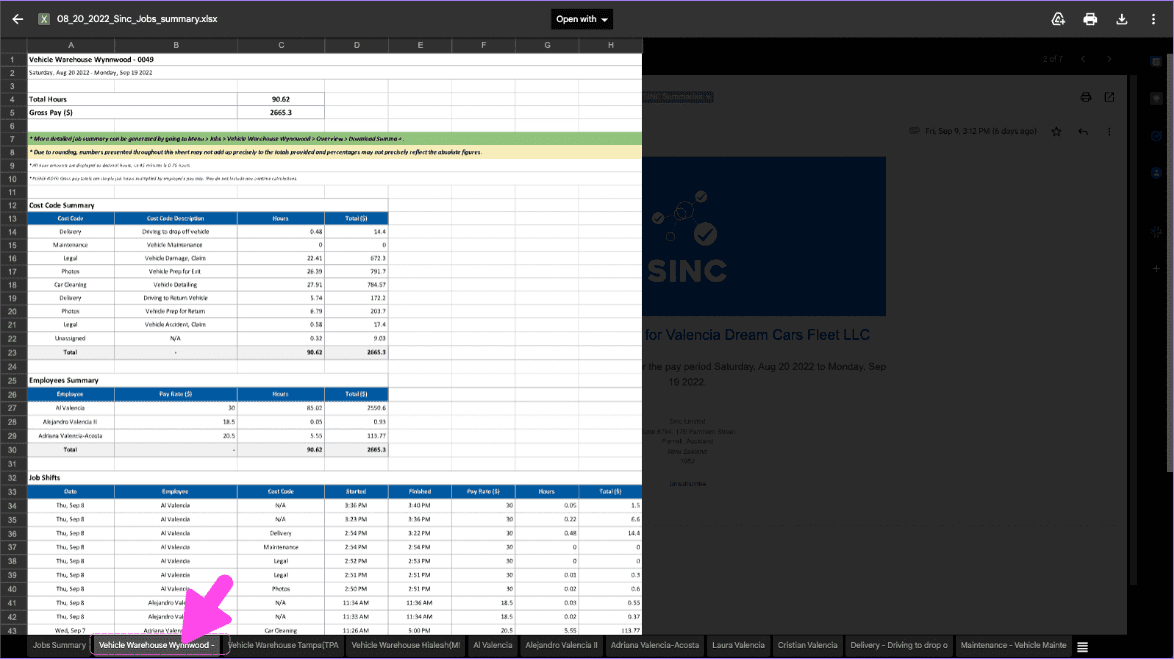
Et une balise individuelle pour chaque code de coût utilisé
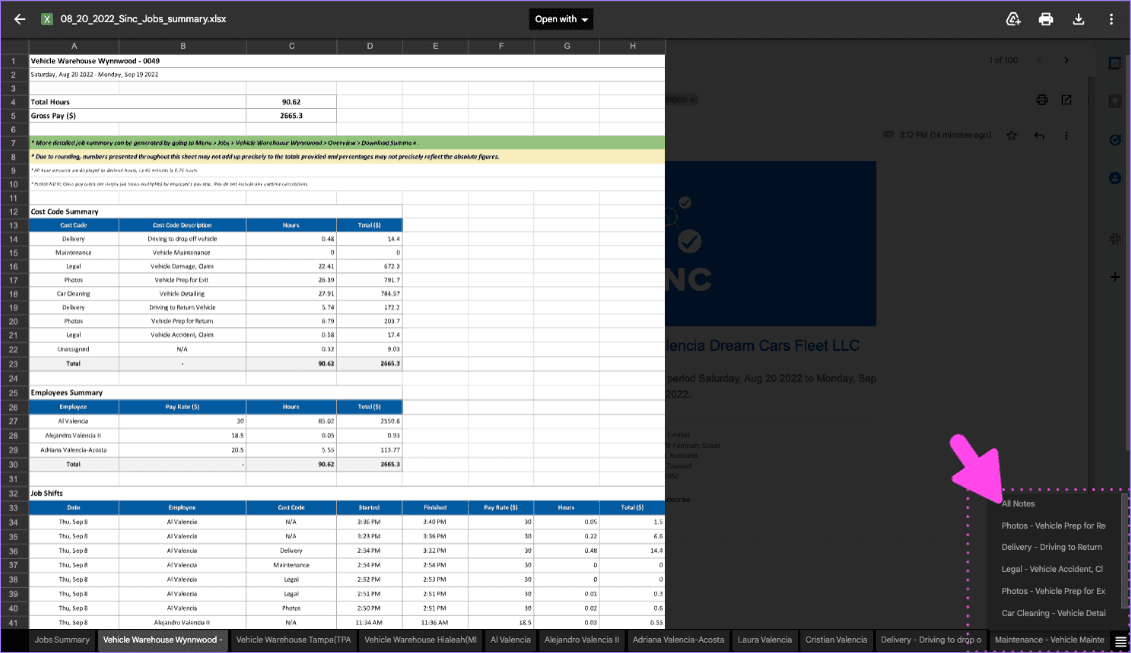
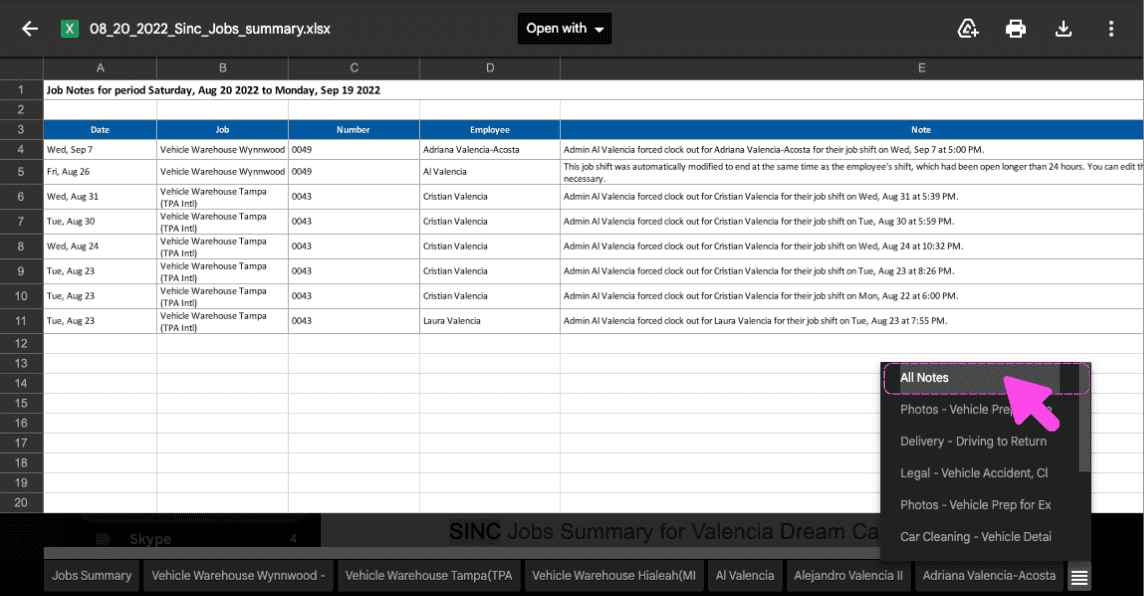
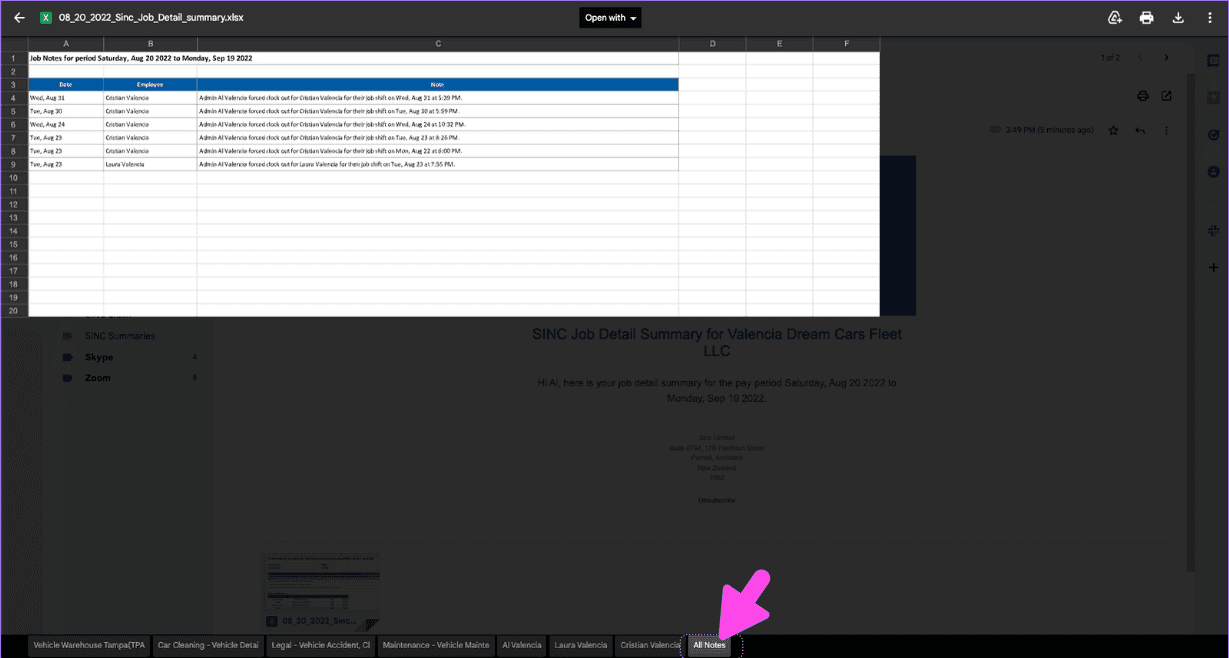
Le dernier onglet contient toutes les notes associées à vos tâches.
Passons maintenant à la présentation de chaque tâche. Cliquez sur Accueil Heures de travail
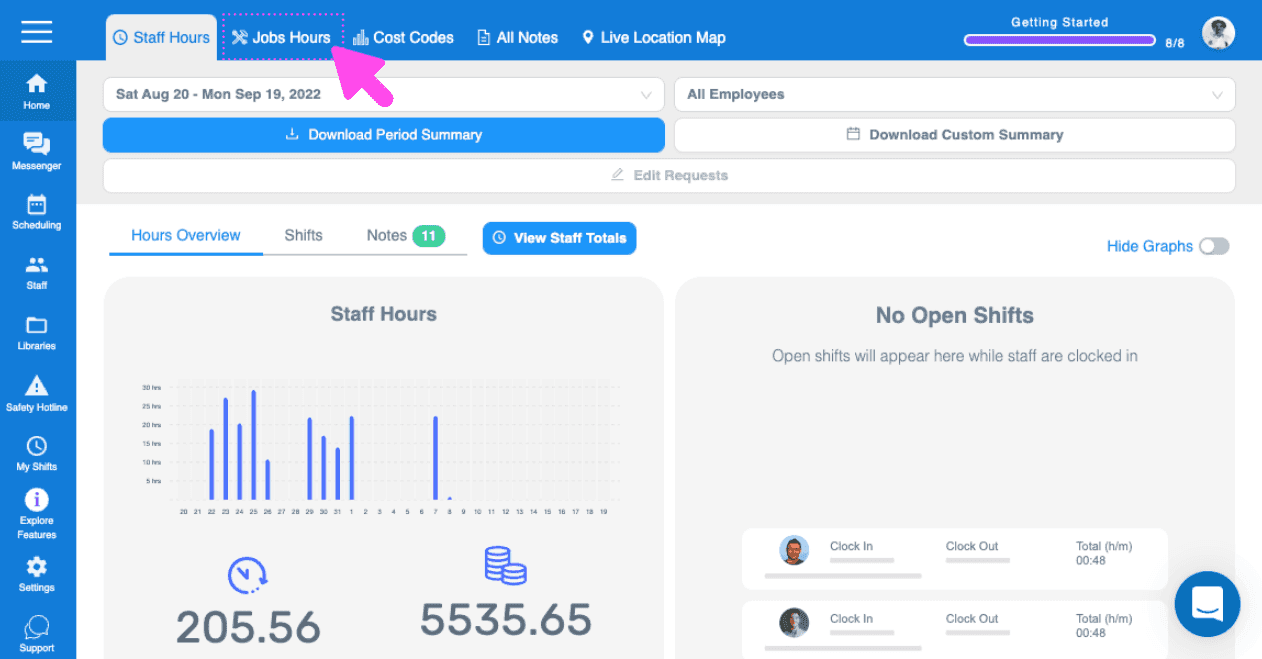
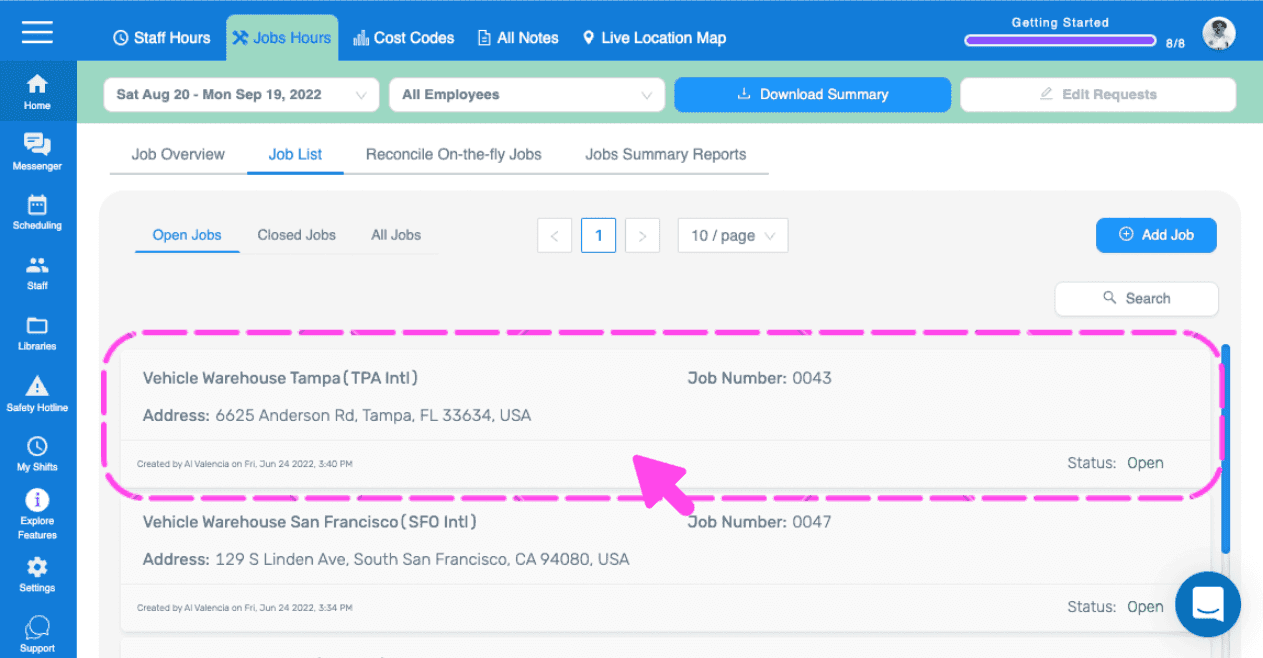
Cliquez sur Liste des offres d’emploi
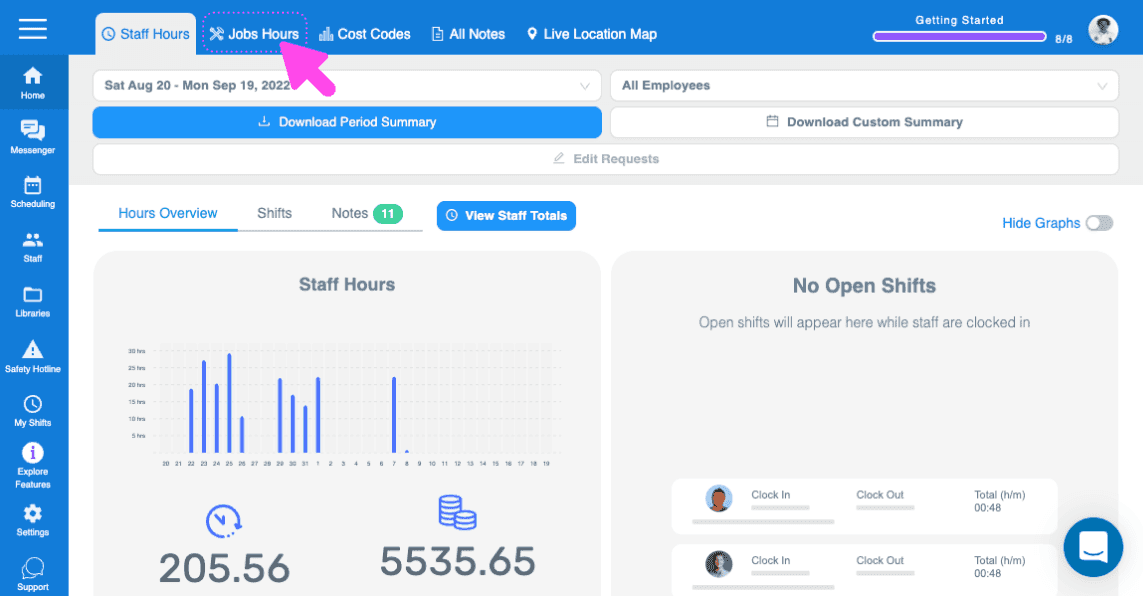
Cliquez sur le poste pour lequel vous souhaitez exporter un récapitulatif
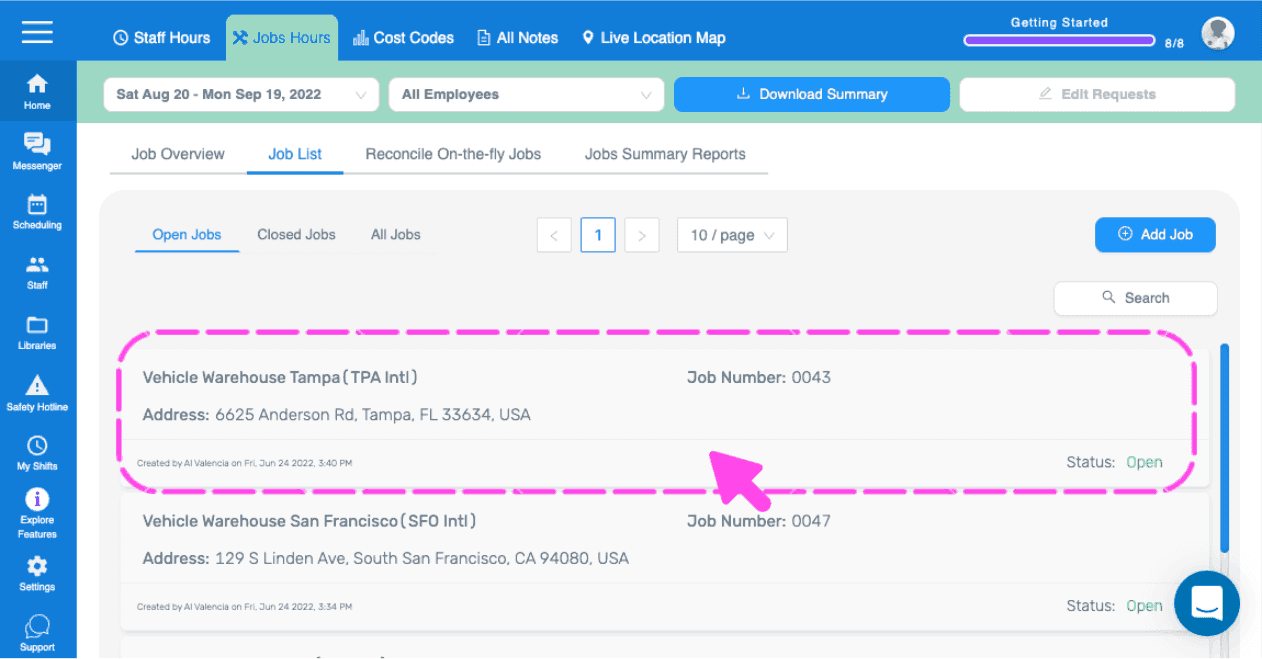
Cliquez sur Vue d’ensemble
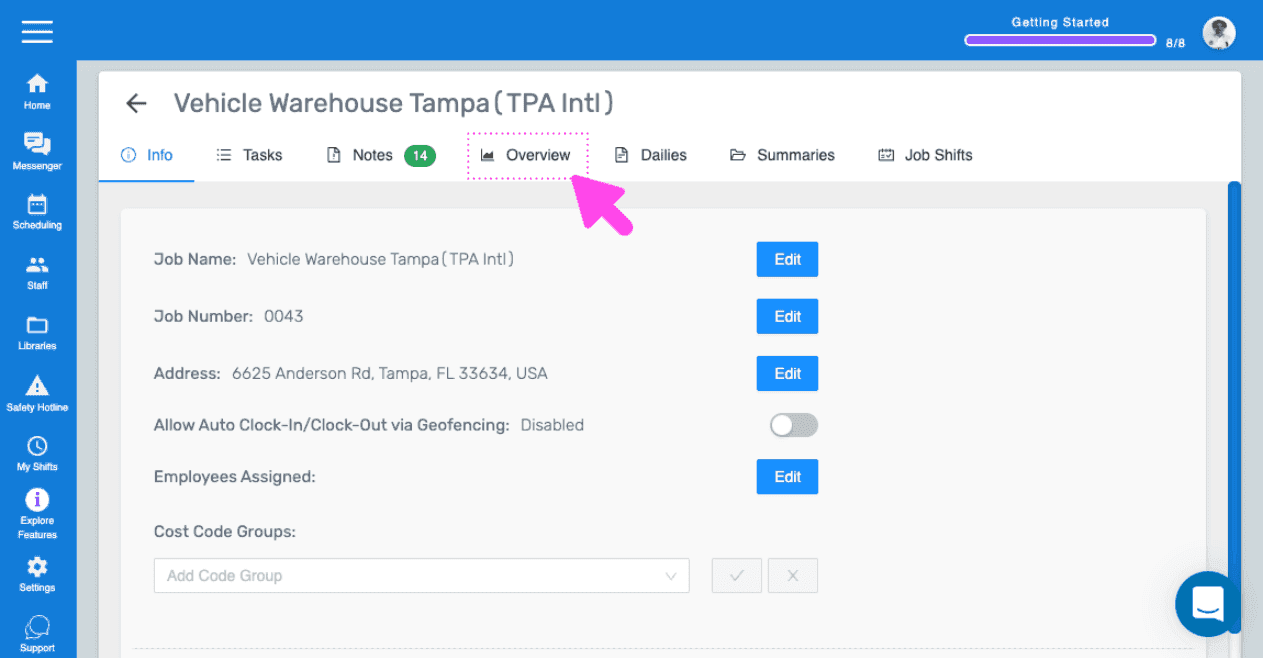
Vous trouverez ici un aperçu de tous les shifts associés à ce poste. Pour exporter un rapport détaillé contenant toutes les données liées à ce poste, cliquez sur Télécharger le récapitulatif.
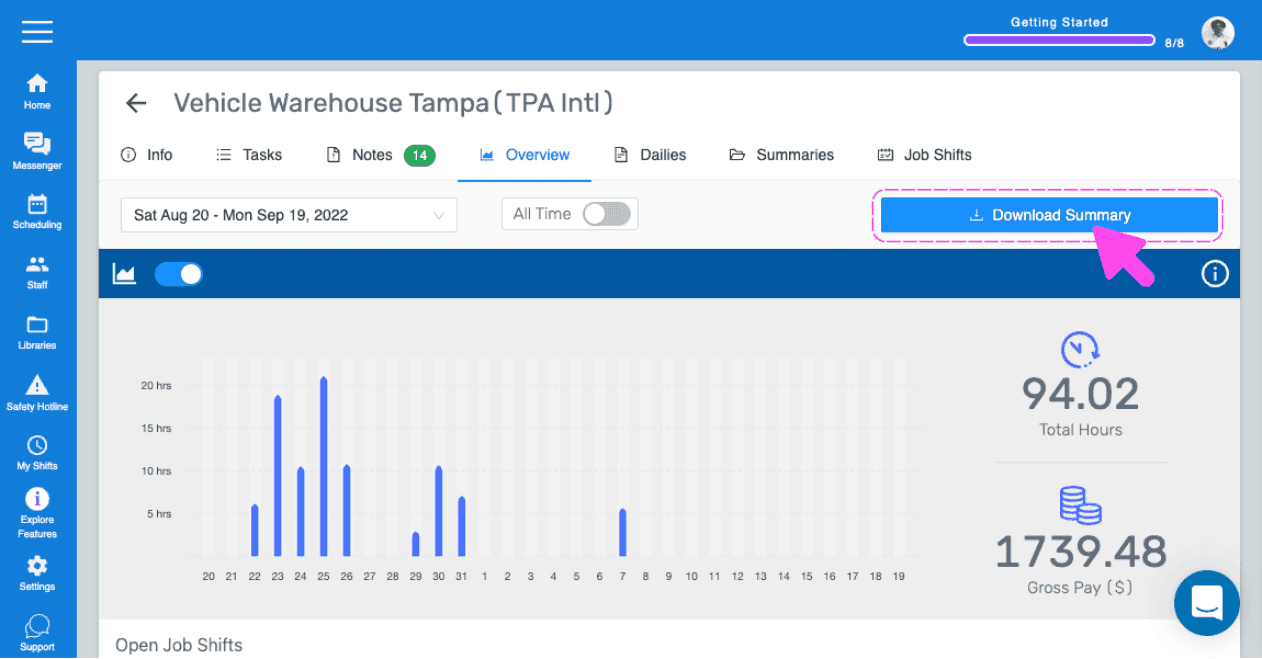
Lorsque vous recevrez notre e-mail, ouvrez la pièce jointe.
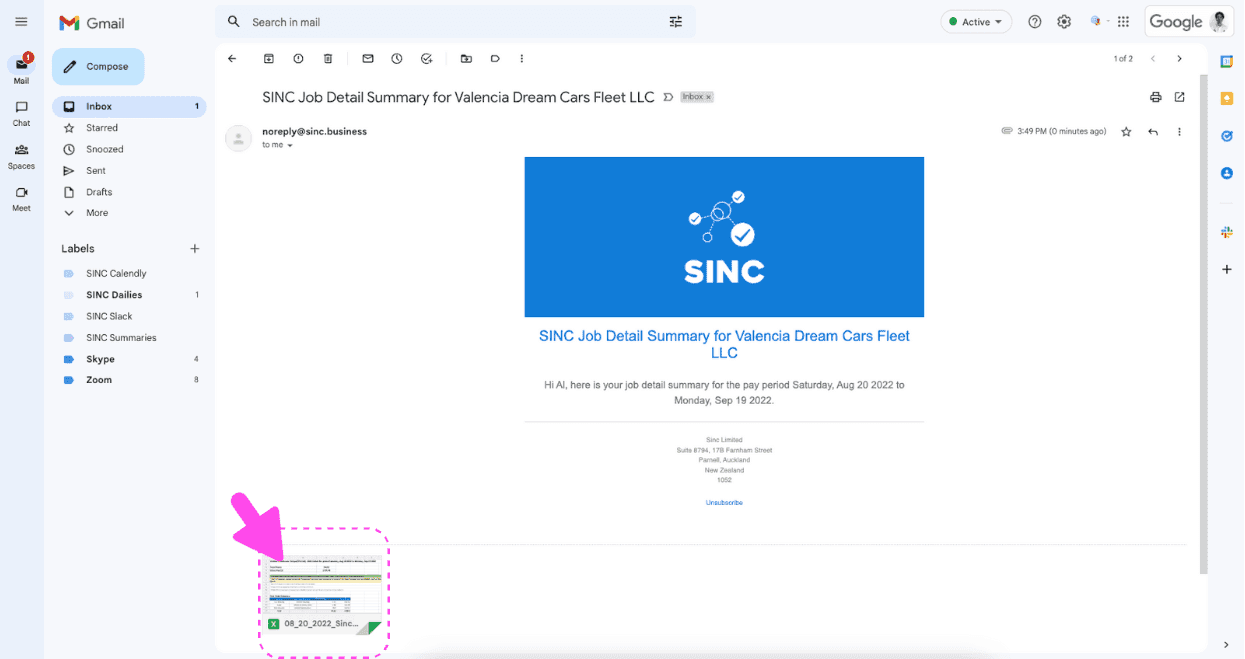
Le premier onglet présente un résumé du poste.
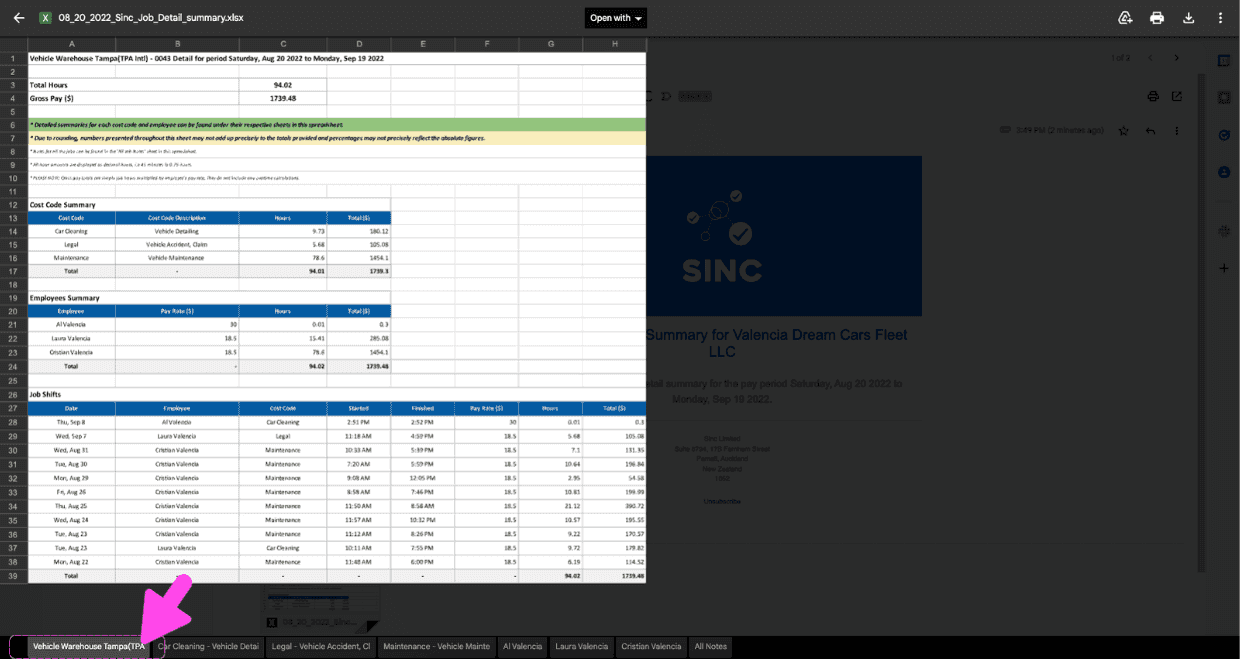
Un onglet individuel est prévu pour chaque code de coût utilisé sur le chantier.
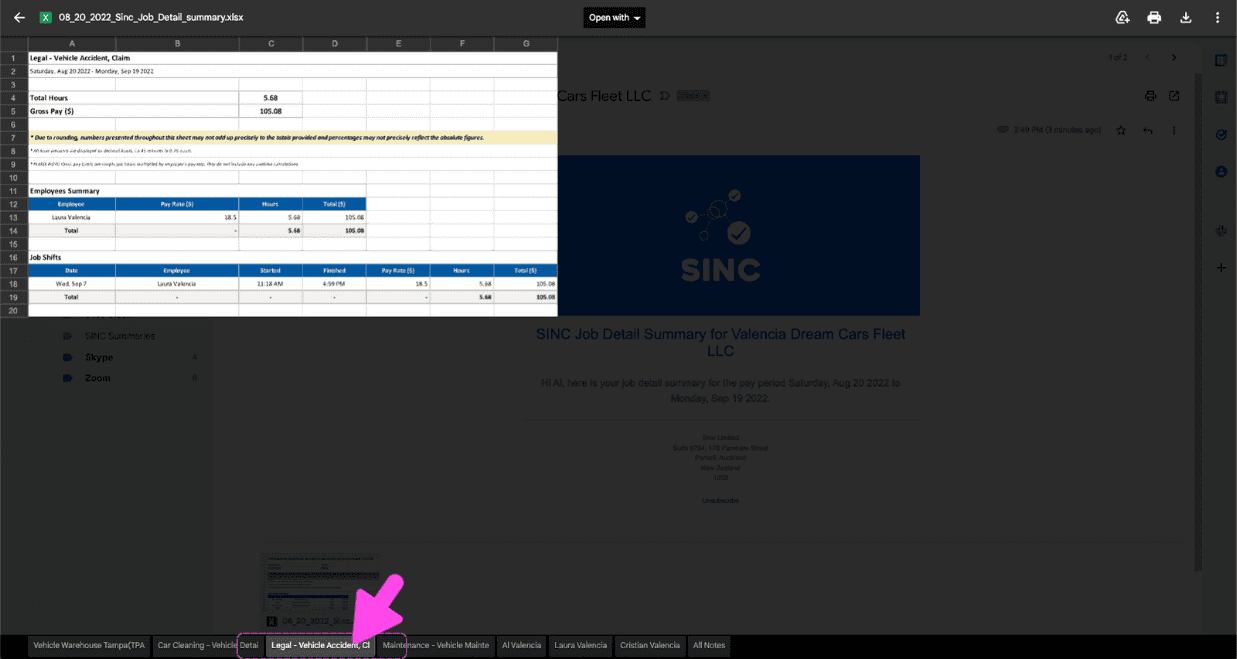
Un onglet individuel est consacré à chaque employé ayant travaillé sur le chantier.
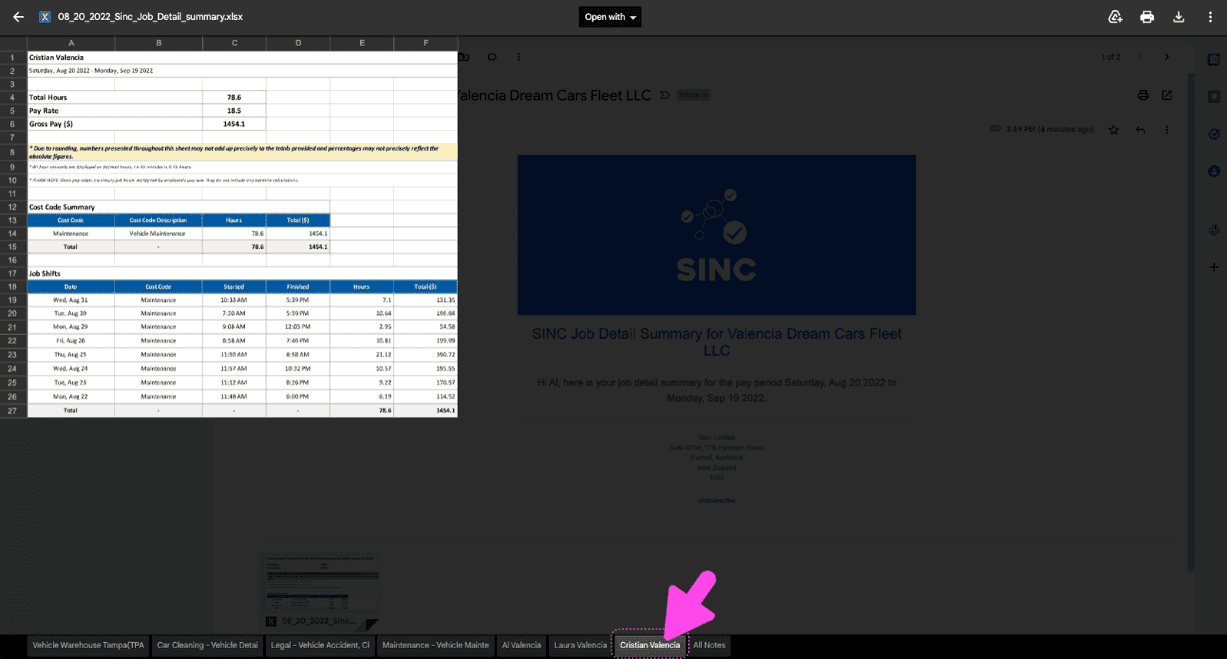
Le dernier onglet contient toutes les notes ajoutées à ce projet.
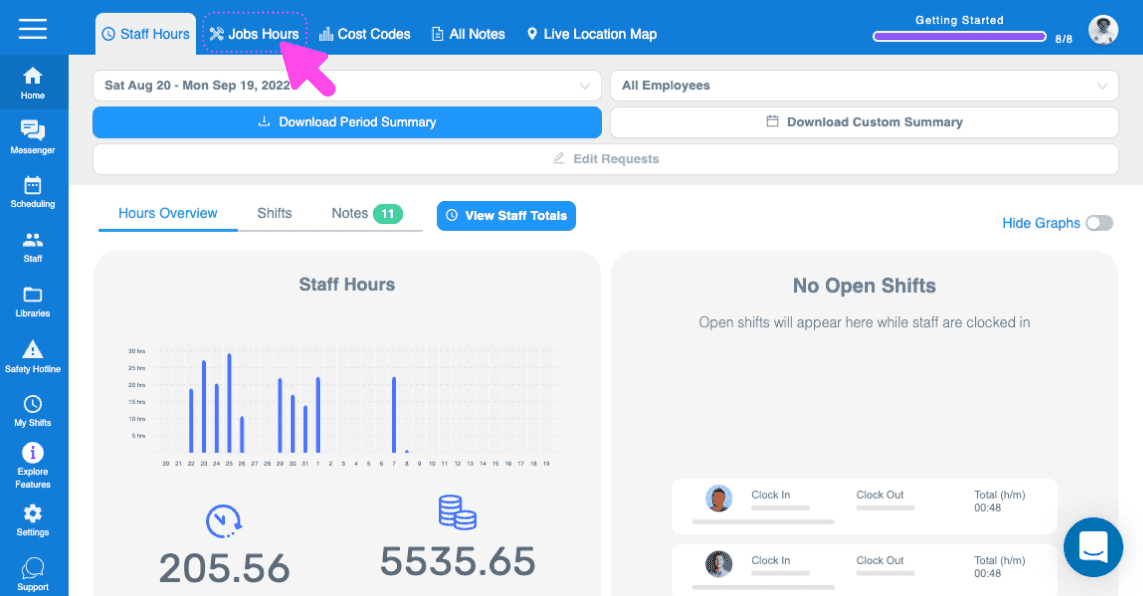
Comment télécharger directement vos récapitulatifs Il peut arriver que vous ne puissiez pas accéder à votre messagerie ou que vous ne retrouviez pas l’e-mail de SINC contenant les rapports récapitulatifs. SINC vous permet désormais de télécharger ces récapitulatifs directement depuis l’application web SINC. Cliquez sur Accueil Heures de travail
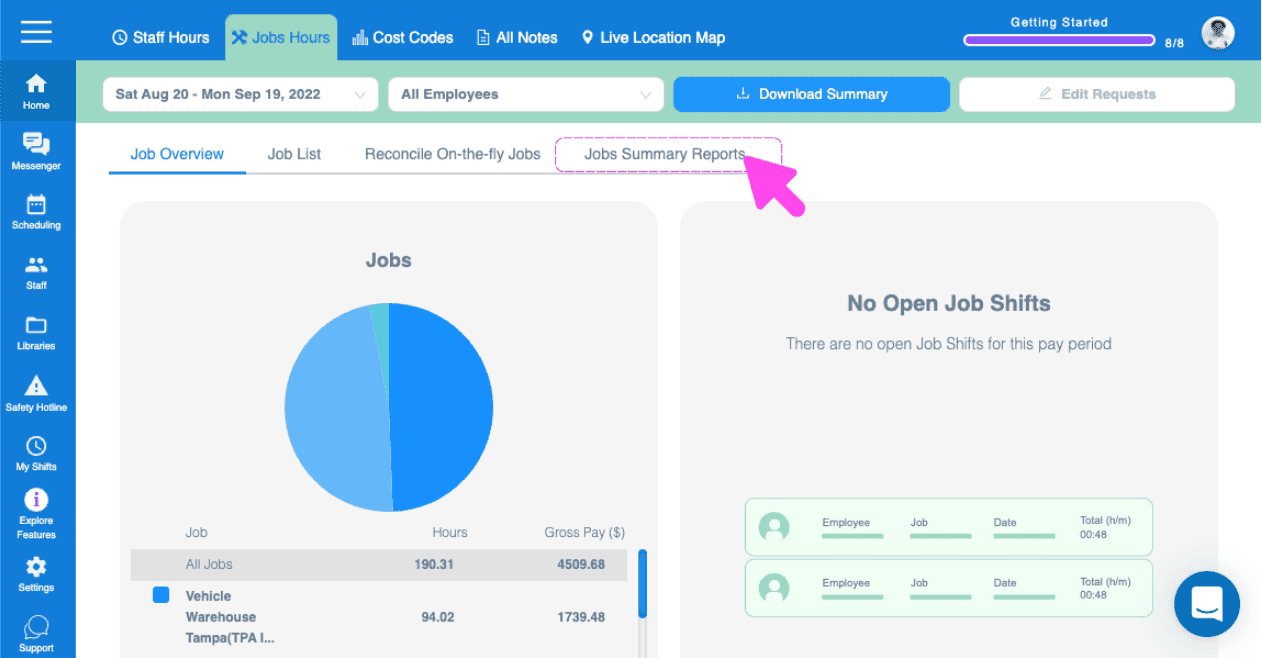
Cliquez sur Rapports récapitulatifs des tâches
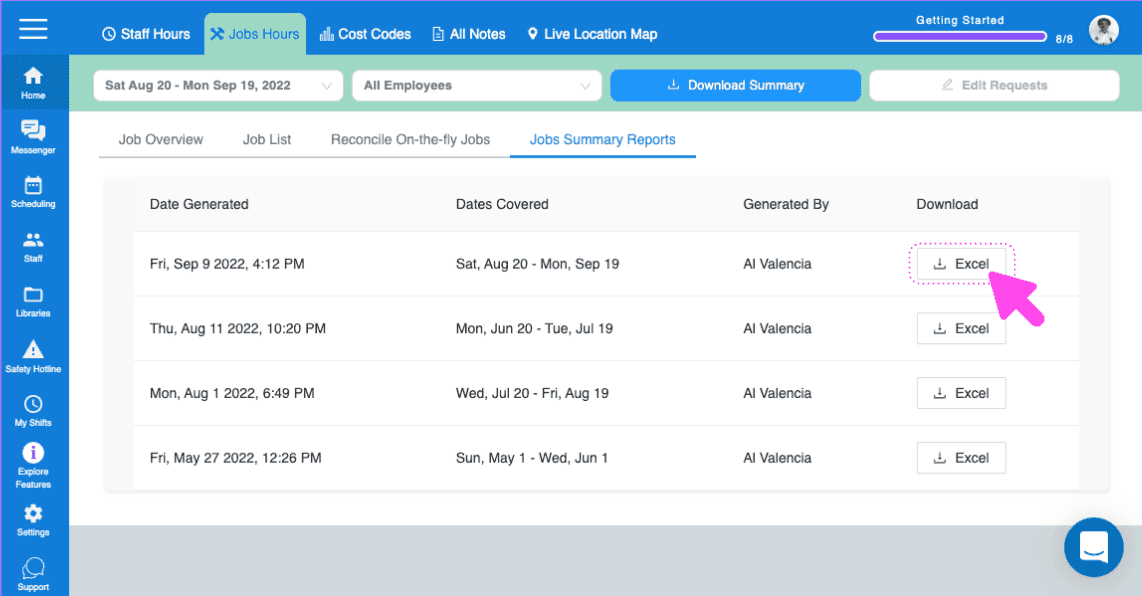
Vous trouverez ici les rapports récapitulatifs des interventions générés. Vous pouvez voir leur date de génération, la période couverte et leur auteur. Cliquez ensuite sur le bouton Excel pour télécharger le récapitulatif de toutes les interventions ouvertes.
Ensuite, pour télécharger les résumés détaillés des missions, accédez à l’écran de détails d’une mission en cliquant sur son nom.
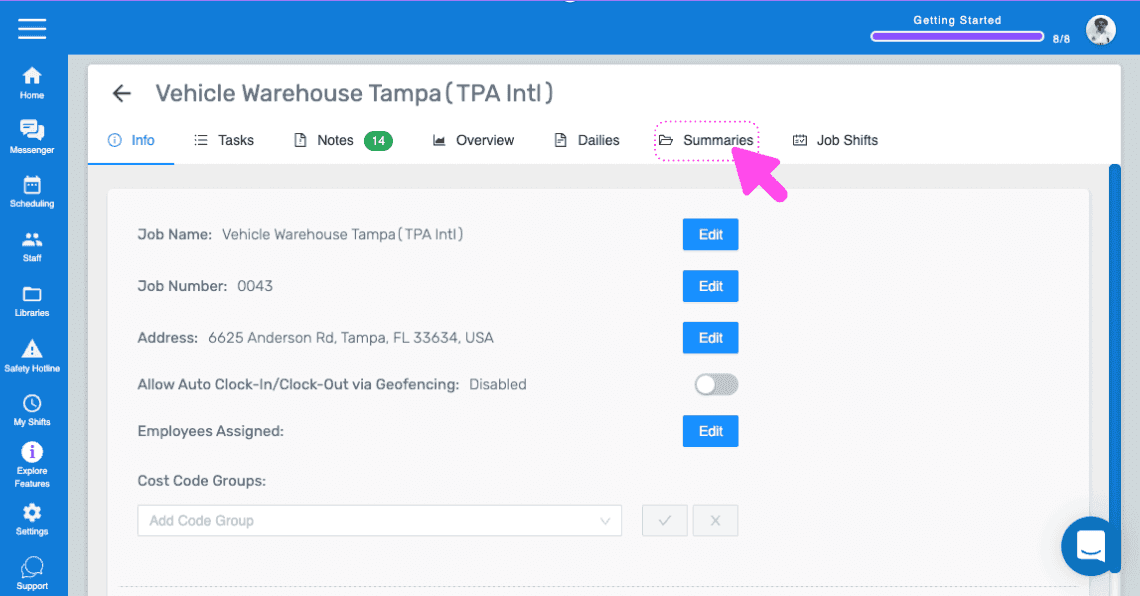
Ensuite, accédez à Summaries
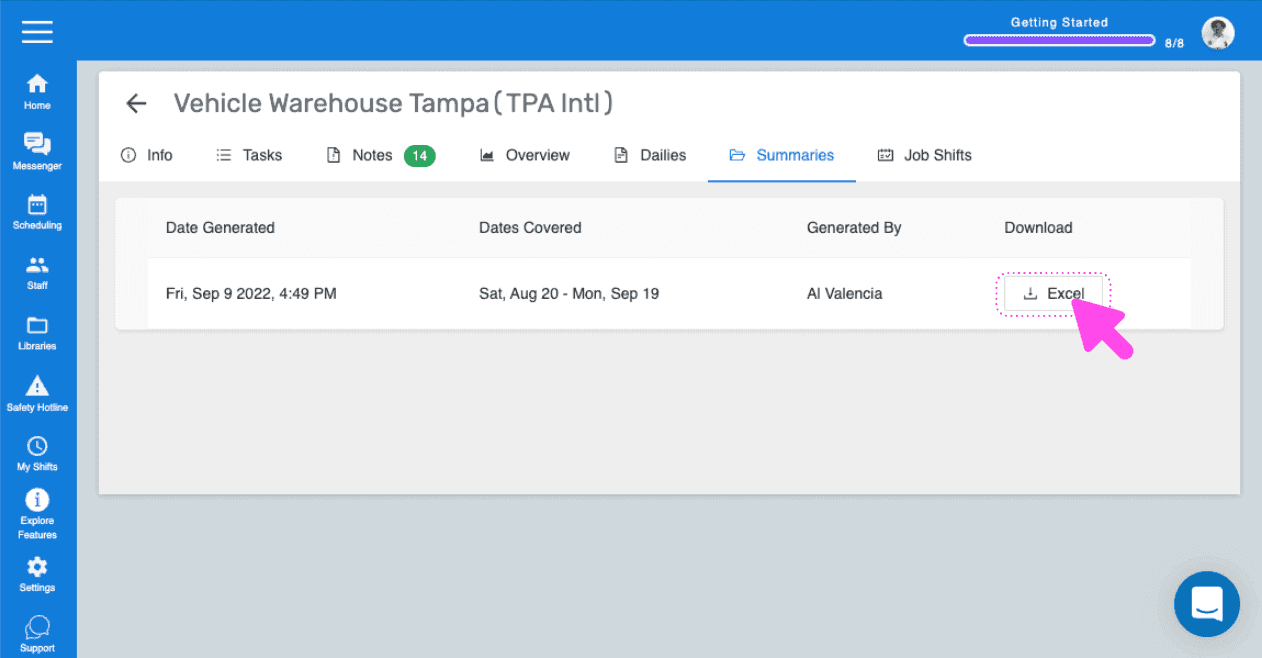
Vous trouverez ici les rapports récapitulatifs détaillés générés pour ce poste. Cliquez ensuite sur le bouton Excel pour télécharger le récapitulatif.
Cela a-t-il répondu à votre question ?